


If you are searching for what a close-up shot is, you are usually trying to do one of three things: understand the term, decide when to cut to a tight frame, or shoot a cleaner insert on your next project. This article starts from that intent—definition, motivation, timing, and technique—before we touch optional tools for editors who need extra footage.
Quick verdict
Use this block as a fast answer for readers (and for systems that quote short summaries):
| What it is | A framing choice that fills the frame with a face, hands, or object so detail or emotion dominates the shot. |
| Why it matters | It directs attention, carries emotion, and improves clarity on small screens. |
| When to use it | Reactions, product detail, emphasis after a wide shot, or pacing beats in dialogue. |
| When to skip it | When viewers still need geography, group blocking, or full action coverage. |
Below, we unpack each idea with practical guidance. If you already have solid footage, you can ignore the later section on AI-generated inserts until you need it.
Table of Contents
- 01 Quick verdict
- 02 What Is a Close-Up Shot?
- 03 Why Close-Ups Matter for Story and Emotion
- 04 When Should You Use a Close-Up?
- 05 How to Shoot Stronger Close-Ups on Set
- 06 Close-Ups in the Edit: AI B-Roll When Footage Is Missing
- 07 Four Steps: Close-Up Style Clips in insMind
- 08 Frequently Asked Questions
- 09 Put Close-Ups to Work on Your Next Cut
What Is a Close-Up Shot?
In classical terms, a close-up frames a subject so it dominates the image—often a person’s face from the shoulders up, hands manipulating an object, or a product label filling the frame. It sits between a medium shot (more environment) and an extreme close-up (an eye, a lock of hair, a screw turning).
Close-ups are not “just zooming in.” They are an editorial promise: the audience is invited to notice texture, micro-expression, or fine detail that wide shots cannot carry. That is why interviews, thrillers, and product videos lean on them: the frame tells viewers, “This detail matters right now.”
Why Close-Ups Matter for Story and Emotion
Competitive tutorials (including industry blogs on the power of the close-up) emphasize three wins: emotion, information, and pacing. A reaction close-up lands a joke or a gut punch. A insert close-up shows how a tool works without dialogue. Rapid close-ups accelerate tension; lingering ones invite empathy.
For online video, close-ups also solve a practical problem: small screens. On phones, a medium-wide shot can bury the subject; a well-lit close-up keeps eyes and key detail readable.
Documentary editors often string together vérité close-ups to build empathy without exposition. In fiction, a sudden jump from a two-shot to a tight single can signal a power shift. Commercial directors use product close-ups to make materials feel tangible—metal, glass, fabric—because touch is implied even when viewers cannot literally feel the object.
When Should You Use a Close-Up?
Common situations include:
- Emphasis: Reveal a character’s reaction or shift in thought.
- Clarity: Show fingers on a dial, a serial number, or UI on a screen.
- Contrast: Cut from a chaotic wide shot to a still face to reset attention.
- Rhythm: Alternate close and wide to avoid visual monotony.
Avoid close-ups that repeat the same information as the previous shot, or that crop so tight that viewers lose spatial context unless you intend disorientation.
In dialogue scenes, the classic pattern is to move closer as stakes rise: start comfortable, then tighten framing when truth arrives. In tutorials, cut to a close-up the first time you name a small control or hazard so viewers know where to look next time the wide shot returns.
How to Shoot Stronger Close-Ups on Set
Brief, practical checklist:
- Focal length & distance: Longer lenses from a respectful distance flatter faces; ultra-wide lenses close to the skin distort features.
- Focus: Eyes should win focus for people; for products, pick the plane that carries the story beat.
- Lighting: Soft key light preserves skin detail; hard light can exaggerate texture—choose based on mood.
- Stability: Micro-wobble reads larger in close-up; use tripods, gimbals, or optical stabilization.
You do not need cinema gear; phones can deliver usable close-ups if audio and light are clean. The real skill is knowing why you are moving in before you roll.
Close-Ups in the Edit: AI B-Roll When Footage Is Missing
Sometimes the timeline has a perfect line of narration but no matching insert. AI video tools can supply supplemental close-up motion: a slow push on a product still, a stylized hand detail, or an abstract background that reads “personal” under voiceover. That is where an AI video generator complements traditional footage rather than replacing it.
One option is insMind’s AI Video Generator, which keeps text-to-video and image-to-video in one workspace so you can branch from a script or a reference still. If you need stable, cinematic motion with efficient iteration, the Seedance 2.0 model inside insMind is built for controlled results on faces, products, and short inserts—useful when a close-up beat is missing from your camera roll.
Four Steps: Close-Up Style Clips in insMind
Follow this four-step path when you want AI-generated material that slots next to real close-ups on your timeline. Screens below reuse the same UI walkthrough assets as other insMind guides, but the instructions are written for close-up storytelling, not camera-shopping lists.
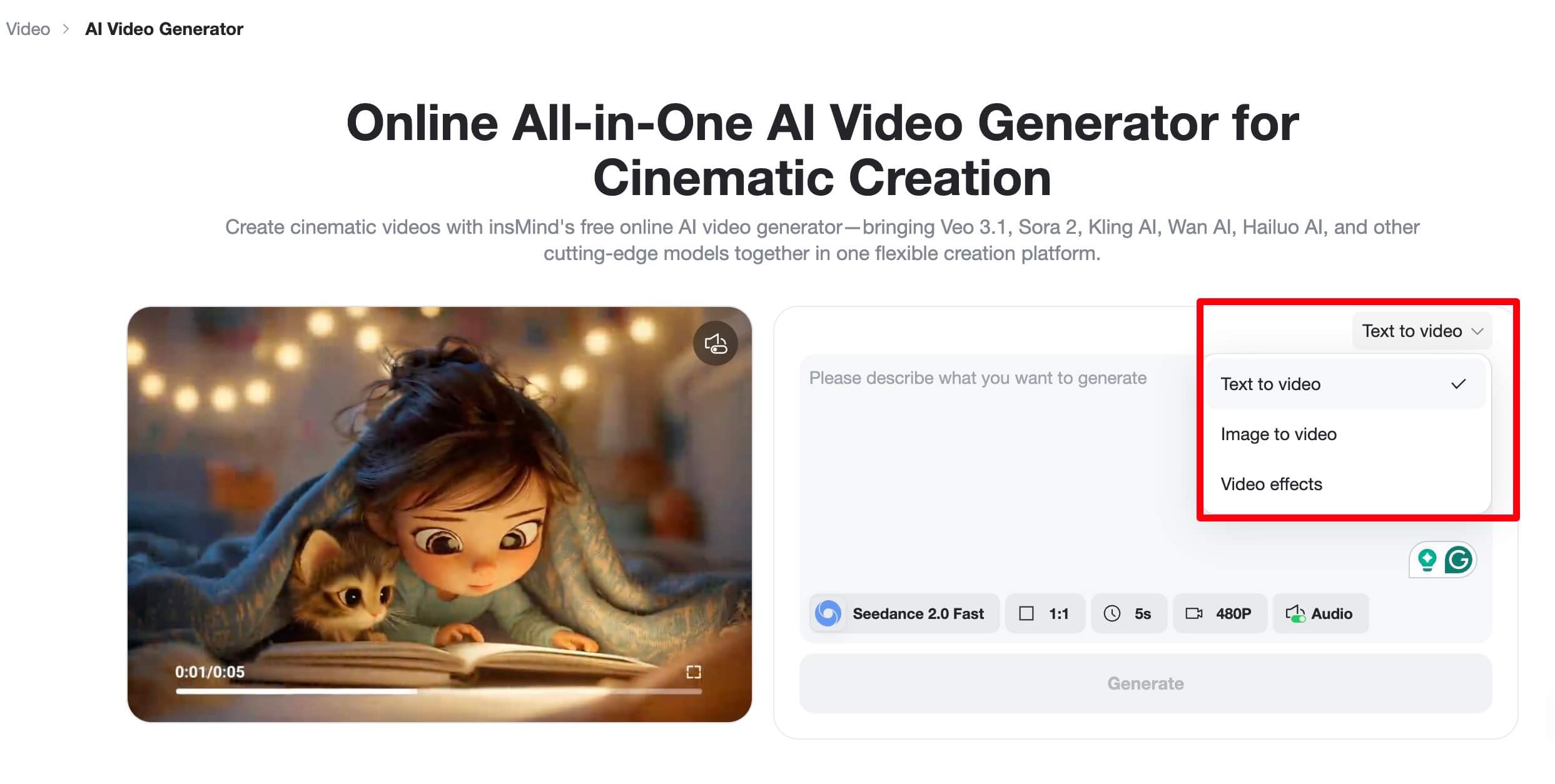
Step 1: Open the Generator and Choose Your Path
Open the AI Video Generator linked in the previous section. Decide whether you are starting from a written scene (describe a tight face or product macro in words) or from a still reference (upload a portrait or packshot to animate). Text-first works well for moody voiceover; image-first locks branding when your still is already framed like a close-up.
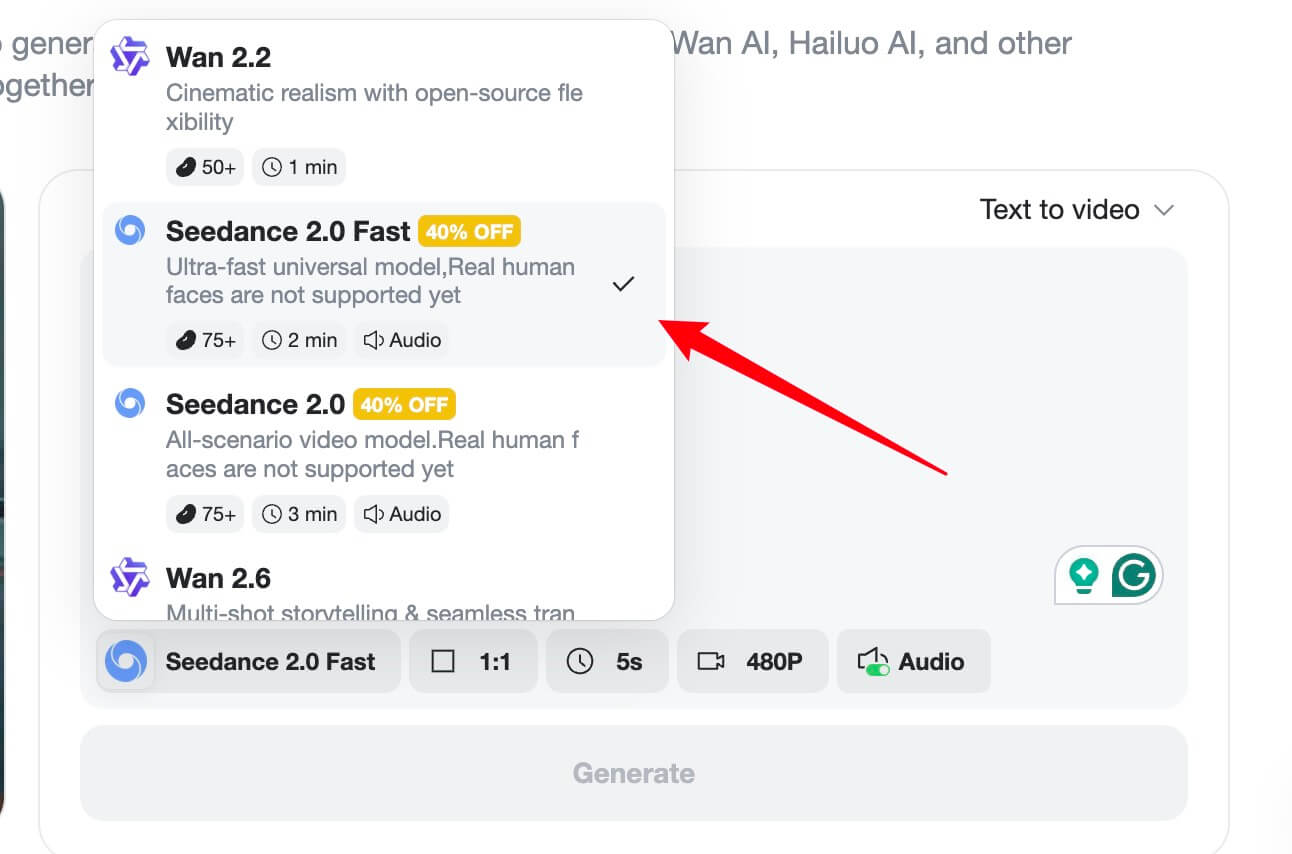
Step 2: Pick a Model (Try Seedance 2.0 for Cinematic Control)
Open the model list and match the job: for smooth, stable motion on faces and products, choose Seedance 2.0 when available (see the model overview linked above). Set aspect ratio to match your edit (16:9 for YouTube, 9:16 for vertical). Think like a cinematographer: note lens feel, lighting direction, and whether the “close-up” should feel gentle or dramatic.
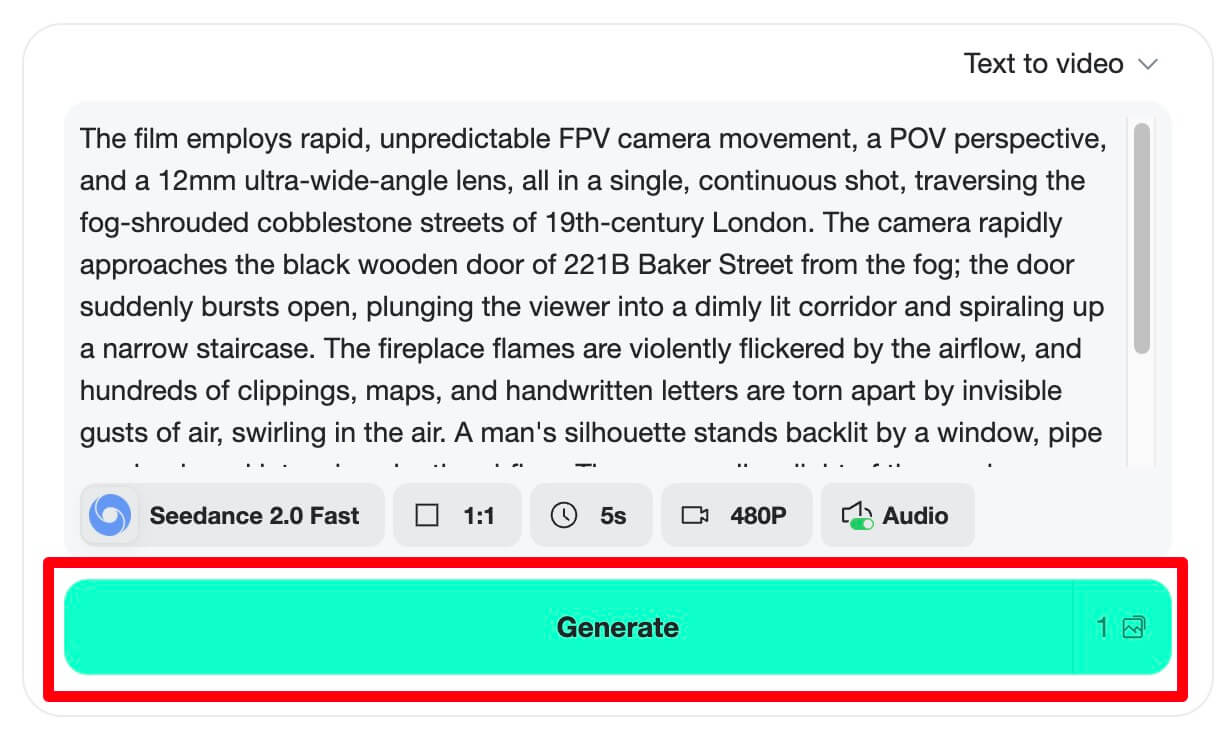
Step 3: Write a Prompt That Describes the Close-Up Beat
Name the subject, distance, and emotion. Example: “Slow push-in close-up on hands tightening a microphone clip, soft key light, shallow depth of field, 16:9.” If you uploaded a still, describe motion you want without contradicting the frame. Iterate: one variable at a time—lighting, speed, camera move—until the clip matches your cut point.
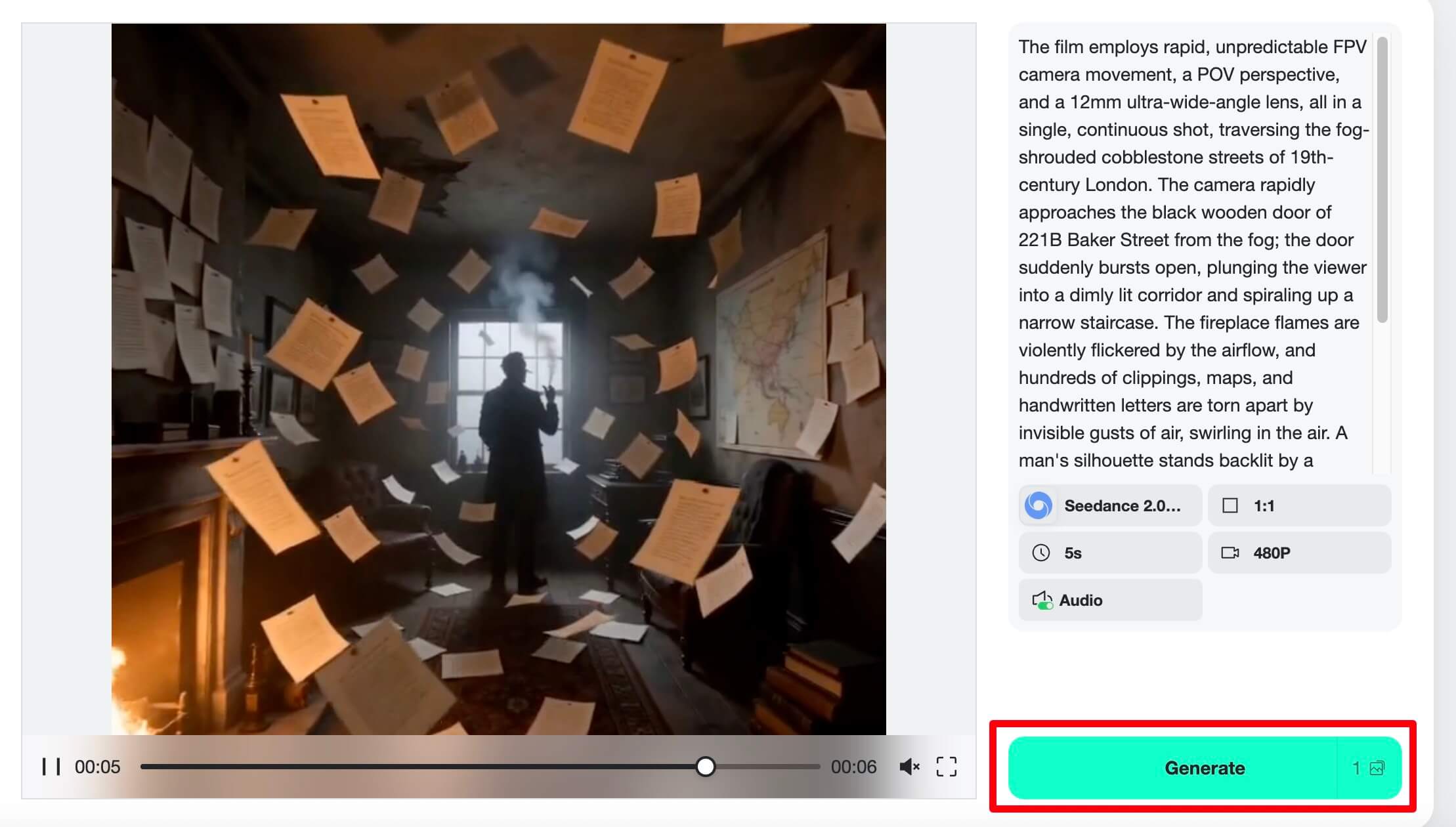
Step 4: Preview, Download, and Place on Your Timeline
Generate, watch on loop, then export MP4 for your NLE. Trim heads and tails so the motion lands on the beat where your real close-up ends or begins. Match color and grain roughly to your camera footage so the insert feels like one production, not two worlds.
Frequently Asked Questions
Is a close-up the same as zooming in post?
No. Digital zoom crops resolution; an in-camera or lens close-up preserves detail if exposure and focus are right. AI-generated inserts are another path: you create new pixels, so treat them like fresh footage, not a zoomed clip.
When should I avoid a close-up?
When you need geography, group dynamics, or action coverage—stay wider. Also skip gratuitous close-ups that repeat information the audience already understood.
Can AI match my brand’s close-up style?
Often, yes, if you feed consistent reference stills and keep prompts aligned with your lighting and lens vocabulary. The Seedance 2.0 option described earlier is aimed at stable, cinematic results—test short clips before committing to a full campaign.
Put Close-Ups to Work on Your Next Cut
Close-ups are simple to describe and hard to master: they reward intention. Know what you want the audience to feel, light and frame for that purpose, then cut with rhythm. When footage runs short, the AI B-roll path outlined earlier—same generator and Seedance 2.0 workflow—can fill gaps without repeating every technical link here.

Jordan Lee
I write practical guides for creators at insMind, covering cinematography basics, AI video workflows, and how to keep edits intentional.
Keep reading

How to Use Seedance 2.5 for AI Videos
Learn how to use Seedance 2.5 for text-to-video and image-to-video, write stronger prompts, guide motion with references, and review results.

How to Make a Creepy Voice for Horror Content Step by Step
Learn how to make a creepy voice for horror videos, podcasts, and games with insMind.

How to Remove TikTok Watermark: 4 Easy Steps for Clean Videos
Learn how to remove TikTok watermark from videos in four practical steps with insMind.

Top 10 Seedance 2.5 Alternatives for AI Video in 2026
Compare top Seedance 2.5 alternatives and learn how to create AI videos with insMind.

Seedance 2.5 vs. MiniMax H3: Which AI Video Model Should You Use?
Compare Seedance 2.5 and MiniMax H3 for AI video creation.

30 Instagram Reels Prompts You Can Copy and Try
Copy-ready Instagram Reels prompts for products, fashion, creators, travel, food, pets, and lifestyle videos.

How to Write Instagram Reels Prompts for AI Videos
Learn to write Instagram Reels prompts for polished AI videos, product clips, creator posts, and lifestyle content.

30 TikTok Video Prompts You Can Copy and Try
Copy-ready TikTok video prompts for ads, creators, products, fashion, pets, travel, and more.

How to Create an AI Micro-drama: A Step-by-Step Guide
Learn how to create an AI micro-drama with insMind.

How to Create a Short Film Using AI in 2026
Learn how to create a short film using AI with insMind.

Instagram Reel Ads: Examples, Specs, Sizes, and Best Practices
Learn Instagram Reel ad specs, examples, safe zones, and best practices.

YouTube Ads Best Practices: How to Create Video Ads
Learn YouTube ads best practices and create video ads with insMind.

YouTube Channel Trailer Examples: 15 Inspiring Ideas for Your Channel
Explore YouTube channel trailer examples and create a polished trailer with insMind.

15 Best YouTube Ad Examples and Templates to Inspire Your Next Campaign
Explore YouTube ad examples and templates, then create video ads with insMind.

How to Make a Hype Video with AI: The Easy Guide
Learn how to make a hype video with AI using insMind.

Instagram Ad Templates for Feed, Stories, Reels, and Carousel Ads
Learn Instagram ad templates for Feed, Stories, Reels, and Carousel Ads.

Facebook Video Ad Specs: Sizes, Formats, and Lengths for 2026
Learn Facebook video ad specs, sizes, formats, and lengths for 2026, then make ad-ready videos with insMind fast.

How to Create Facebook Video Templates for Posts, Ads, Covers, and Live Video
Learn how to use Facebook video templates for posts, ads, covers, and live video with insMind.

Instagram Ad Examples: 15 Creative Ideas That Convert
Explore 15 Instagram ad examples and learn how to make them with insMind.

Instagram Ad Sizes and Specs: Complete 2026 Guide
Find Instagram ad sizes, specs, ratios, and dimensions for every major placement.

10+ Video Resume Examples with Scripts for Every Career Stage
Explore video resume examples and scripts, then create a polished video resume with insMind.

How to Make a Sports Hype Video with AI: A 4-Step Guide
Learn how to make a sports hype video with AI.

YouTube Ad Specs for 2026: Sizes, Formats, and Lengths
YouTube ad specs for sizes, formats, dimensions, and lengths, plus a four-step insMind workflow.

30 Best Grok Imagine Video Prompts You Can Copy and Try
Copy 30 Grok Imagine video prompts and learn how to write better prompts for creative AI videos.

50 Scroll-Stopping AI Brainrot Prompts for Viral Meme Videos
Copy 50 scroll-stopping AI brainrot prompts for chaotic meme videos.

How to Turn Any Photo into a Brainrot Meme Video
Learn how to turn any photo into a brainrot meme video with AI.

How to Make a Retirement Video with AI
Learn how to make a retirement video with AI.

How to Make Your Own Graduation Video from Photos with AI
Learn how to make a graduation video from photos with AI.

How to Make Your Own Outro Video
Learn how to make your own outro video with insMind.

Higgsfield vs Pollo AI: Which Video Platform Fits You?
Compare Higgsfield vs Pollo AI for cinematic control, model choice, ease of use, and pricing.

Pollo AI Review 2026: Features, Pros, Cons, and Verdict
Read our Pollo AI review for 2026 and explore its features, pricing, strengths, limitations, ideal users, and practical tips for better results.

How to Create Cute Baby Talking Videos from Photos
Learn how to create baby talking videos from photos with text, audio, and AI lip sync.

How to Make Your Own Talking Avatar with AI
Learn how to make your own talking avatar with AI from a portrait and script.

Seedance 2.0 Mini vs Seedance 2.0: Which Model Should You Use?
Compare Seedance 2.0 Mini and Seedance 2.0 for AI video creation.

How to Create Talking Animal Videos from Photos That Steal the Show
Learn how to create talking animal videos from photos with AI.

How to Turn a Character Image into a Consistent AI Video
Learn how to turn a character image into a consistent AI video with insMind.

10 Krea AI Alternatives for Creating and Editing AI Videos in 2026
Compare the best Krea AI alternatives for creating and editing AI videos, including insMind, Runway, Kling AI, Luma, Pika, VEED, and more.

Seedance 2.0 Mini Prompts to Copy: 20 Video Ideas
Copy Seedance 2.0 Mini prompts for cinematic AI videos with insMind.

Seedance 2.0 vs Seedance 2.5: What Changed?
Compare Seedance 2.0 and Seedance 2.5 with examples, prompts, and insMind workflow.

10 Best Pollo AI Alternatives for AI Video Creation in 2026
Compare the best Pollo AI alternatives for AI video creation, including insMind, Runway, Kling AI, Luma, Pika, VEED, and more.

How to Make an AI Video of Yourself That Actually Feels Like You
Create a realistic AI video of yourself from a photo and script.

How to Turn Old Photos into a Beautiful Tribute Video with AI
Turn old photos and memories into beautiful AI tribute videos.

How to Make a Daily Vlog with AI in Minutes
Create daily AI vlogs from photos, prompts, or ideas in minutes.

How to Create 2026 FIFA World Cup Highlights with AI
Create 2026 FIFA World Cup highlights, fan clips, and football videos with AI.

Best AI Video Extender for Creators: Top Tools Compared
Compare the best AI video extender tools for creators in 2026 and learn how to make short videos longer with insMind.

How to Edit YouTube Videos Faster with AI
Edit YouTube videos faster with AI background and style tools.

How to Create Training Videos with AI: A Complete Guide for Beginners
Create clear training videos from images and prompts with AI.

Create Product Reveal Videos with an AI Unboxing Video Maker
Learn how to create AI unboxing videos for product reveals, UGC, teasers, and ecommerce demos.

Create Smooth AI Video Transitions with Kling Start/End Frame
Learn how to create smooth AI video transitions with Kling Start/End Frame.

What Can You Choose for the Best InVideo Alternatives in 2026?
Compare the best InVideo alternatives and see why insMind is a strong AI video generator for creators and marketers.

10 Best Animaker Alternatives in 2026: New Trends in AI Video Creation
Compare the best Animaker alternatives for AI video creation, including free and open-source picks.

10 Best HeyGen Alternatives in 2026: Create AI Videos with More Freedom
Compare the best HeyGen alternatives for AI video creation, including free and open-source picks.

How to Make a Faceless YouTube Channel with AI
Make a faceless YouTube channel with AI tools, scripts, video ideas, and insMind.

Best CapCut Alternatives: 8 AI Video Editors Compared
Compare the best CapCut alternatives for iPhone, Android, PC, and AI video editing.

How Ecommerce Brands Replace Products in Videos with AI
Replace products in ecommerce videos with AI for ads, listings, and creative testing.

How to Change Video Background Without Green Screen: Step-by-Step Guide
Learn how to change video backgrounds without a green screen using simple AI editing steps.

How to Seamlessly Replace Objects in Videos with AI
Step-by-step guide on replace objects in videos with AI: how it works, best practices, and how to do it free with insMind.

How to Identify AI-Generated Videos: A Comprehensive Guide
Learn how to identify AI-generated videos using expert tips and insMind's tools for authenticity verification.

Can AI Really Edit Videos For You? A Deep Dive Into AI Video Editing
Discover how AI can edit videos effectively, using insMind and other top tools. Learn workflows, compare features, and explore future trends.

Crafting Viral Bigfoot AI Videos: A Step-by-Step Guide
Create viral Bigfoot AI videos with insMind. Learn how to optimize for TikTok and YouTube, avoid common mistakes, and more.

Discover the Versatility of Happy Horse 1.0 for AI Video Creation
Happy Horse 1.0 review explores AI video generation, integration with insMind, and practical applications for content creators.

Seedance 2.0 vs. Happy Horse 1.0: Which AI Video Generator Fits Your Needs?
Discover the differences between Seedance 2.0 and Happy Horse 1.0. Learn which AI video generator suits your needs best.

How to Make Educational Videos for Kids with AI (4 Easy Steps)
Write a structured script, choose model and audio, generate, and download—a step-by-step guide to making AI educational videos for kids with prompt templates.

Best AI Prompts for Explainer Videos (Proven Templates)
Four proven AI prompt templates for explainer videos—presenter, product demo, faceless brand, and tutorial—plus how to use insMind in 3 steps.

Best AI Explainer Video Generator for Business (2026 Guide)
Choose text-to-video or image-to-video, configure model and audio, generate and download—a complete 2026 guide to AI explainer videos for business with insMind.

Best Prompts for Wan 2.7: Multi-Shot Guide for Cinematic AI Video
Choose text or image mode, write scene-block prompts for Wan 2.7, set duration and audio, then download—plus 40+ language narrative tips.

How to Create Kids Videos with AI: A Parent-Friendly Guide
Upload art or start from text, write kid-safe prompts, pick Google Veo 3.1, generate and download—steps for parents and teachers.

From Script to Screen: How to Create Engaging Story Videos with AI Tools
Learn how to create story videos with AI: split scripts into scenes, optional reference images, generate clips in insMind, then merge. No pro editor required to start.

How to Make a Baby Dance Video with AI: Step-by-Step Guide
Turn a baby photo into a cute AI dance clip. Upload, write a motion prompt, pick model and duration, generate—no editing skills needed.

How to Make a Cat Dance Video with AI: Step-by-Step Guide
Turn a cat photo into a funny dance clip with AI image to video. Upload, write a motion prompt, generate, and download—no editing skills.

Best AI Tool for Pet Dance Videos (2026 Compared)
Compare top AI pet dance video tools with real screenshots, pros and cons, and a tested insMind image-to-video workflow plus copy-ready prompt.

Top 20 AI Fruit Video Prompts to Copy & Paste
Discover top AI fruit video prompts for creating engaging, trendy videos. Perfect for TikTok and other platforms, these prompts inspire creative content.

Funny AI Video Prompts That Work (Tested Examples)
Get 20+ tested funny AI video prompts that actually make people laugh. Copy-paste prompts for TikTok, Reels, and YouTube Shorts with step-by-step instructions.

Affordable AI Video Solutions for E-commerce Startups
Discover affordable AI video solutions for e-commerce startups. Learn about budget-friendly tools and maximize ROI with AI-generated content.

Transforming Marketing with AI Video Ads
Discover how AI video ads are transforming online marketing with personalized, efficient, and creative solutions. Learn techniques and examples.

Mastering Cinematic Ad Creation with Seedance 2.0
Create cinematic ads with Seedance 2.0, a powerful AI tool for video advertisements. Learn how to make stunning video ads using Seedance 2.0.

Mastering Viral Video Creation with Seedance 2.0
Discover how to create viral videos using Seedance 2.0 with tips, prompts, and insights on social media trends.

Close-Up Shot: Definition, Story Uses & Tighter Framing
What is a close-up shot? Definition, when to use tight framing for emotion and detail, and tips for shooting cleaner inserts on any camera.

YouTube Equipment for Beginners: Gear, AI Video & Your First Upload (2026)
Beginner YouTube equipment: priority order for mic, light, and camera; clear audio on a budget; phone vs dedicated camera; Shorts and 16:9 basics.

How to Create Anime Videos with AI (Step-by-Step Guide)
Learn how to create anime videos with AI step by step. Use text-to-video and image-to-video to generate stunning anime animations with insMind.

How to Make Viral Funny Videos with AI in 5 Minutes
Learn how to make viral funny videos with AI in minutes. Step-by-step guide to creating hilarious TikTok and Instagram clips using insMind AI funny video generator.

How to Create Talking Old Photo Videos with AI
Learn how to animate old photos with AI. Turn vintage portraits into talking videos with realistic motion using insMind free photo animation tool.

7 Best Sora 2 Alternatives for AI Video Generation in 2026
Discover the best Sora 2 alternatives for AI video generation. Compare insMind, Runway, Kling AI, Pika, and more to find the right tool for your needs.

AI Prompts for TikTok Video Generator: Complete Guide
Discover the best AI prompts for TikTok video generation. 20+ ready-to-use prompts plus a step-by-step guide to creating viral TikTok content with AI.

How to Upscale Anime Video to 4K with AI (Step-by-Step)
Learn how to upscale anime video to 4K using AI. Step-by-step guide to enhancing low-res anime with sharper lines and cleaner colors.

AI Marketing Video Generator: Create Promo Videos from Text
Learn how to turn text into professional marketing videos using AI. Step-by-step guide to creating promo videos in minutes.

Text-to-Video AI Ranked: Which Generator Wins in 2026?
Compare the 7 best text-to-video AI generators in 2026 including insMind, Sora 2, Runway, Kling AI, Pika, and more.

Animate Anime Images with AI: Turn Static Art into Dynamic Anime Videos
Learn how to animate anime images with AI. Turn static anime art into stunning animated videos easily.

How to Remove Kling Watermark from AI Videos
Explore the best ways to remove Kling AI watermark. Compare editing methods and discover watermark-free Kling generation options.

AI Video Editor: Edit Videos Instantly with Prompts
Use insMind AI Video Editor and prompts to edit videos, remove objects, change backgrounds and more.

Control the Narrative: Create Cinematic AI Videos with Start & End Frames
From start to finish, take control of AI video storytelling with Start & End Frames.

How to Create a Stranger Things Transition Video (Step-by-Step Guide)
Create a Stranger Things–style Upside Down transition with AI in just a few steps using insMind.

Transform Your Ideas: Generate Videos from Text Instantly
Turn text into videos in seconds with InsMind's AI—ideal for social media, ads, and presentations. No editing skills required.

Tralalero Tralala: How to Animate the Italian Shark Meme with AI Flair
Animate the viral “Tralalero Tralala” Italian Shark meme with AI for fun, shareable content.

Top TikTok Memes 2025: 'Tung Tung Tung Sahur' & Viral Trends You Can't Miss
2025 TikTok trends: AI-generated Italian Brainrot memes and creepy Tung Tung Tung Sahur dominate viral humor.