
Batch Photo Editor Online for Bulk Image Edits
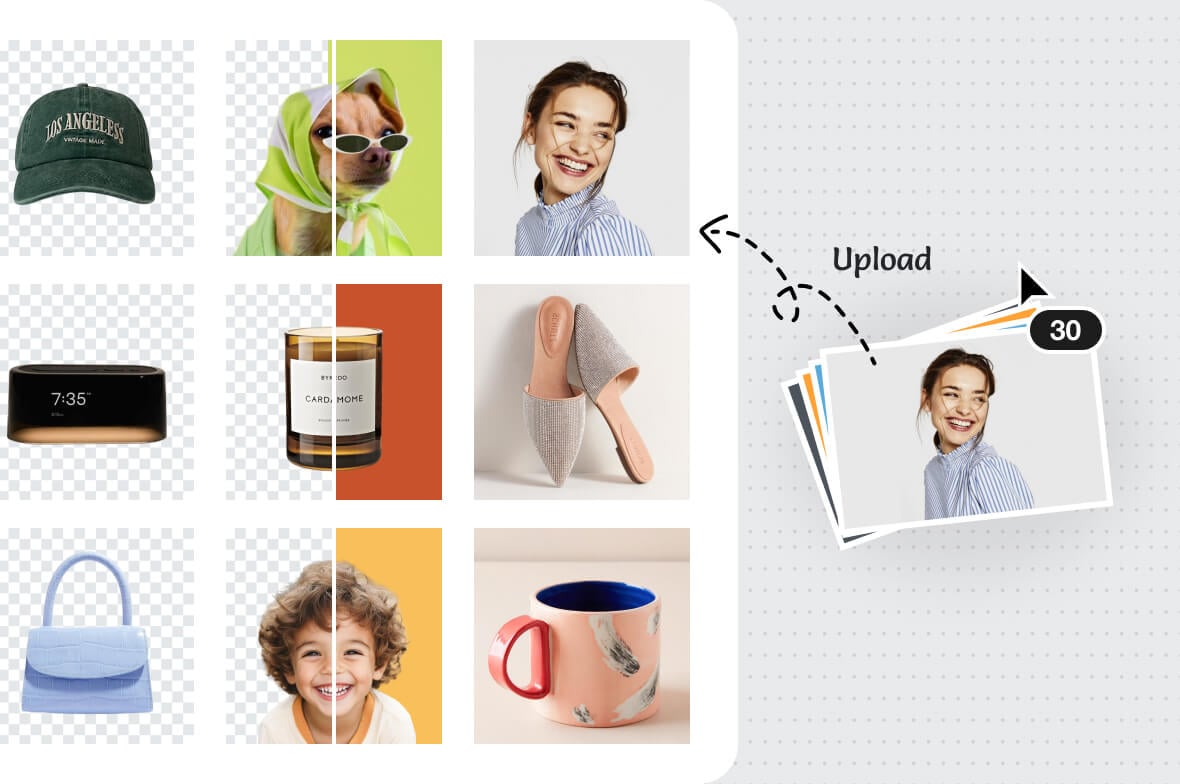

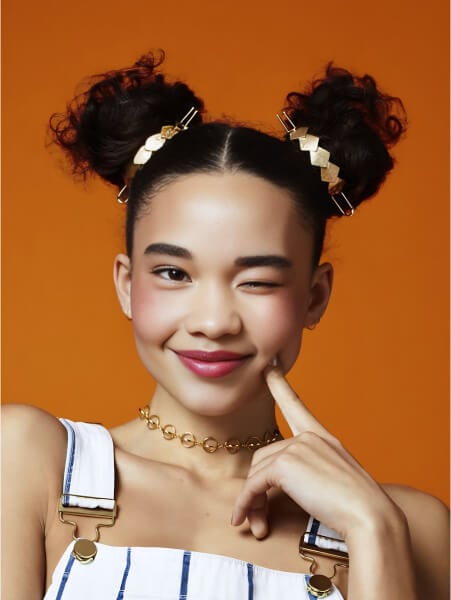
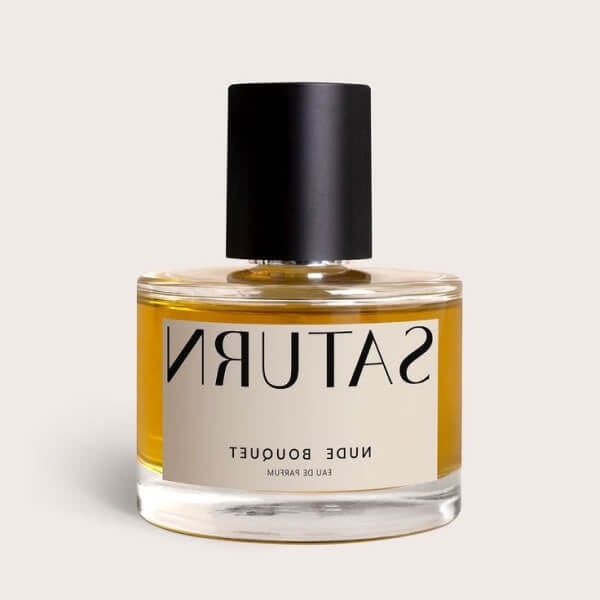
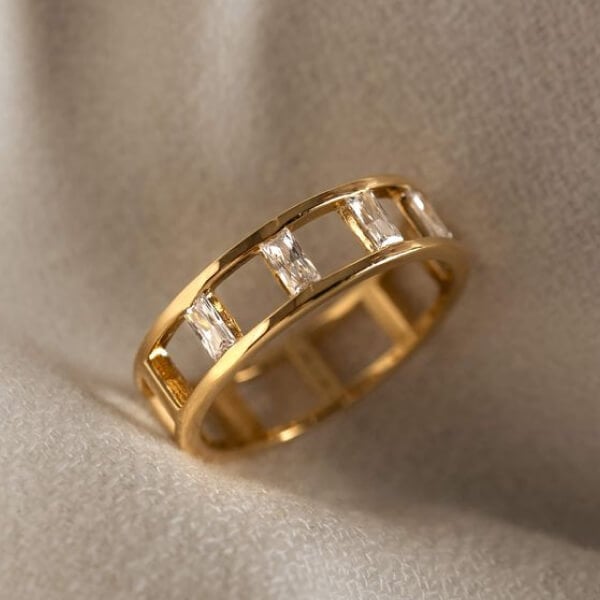
Edit Multiple Photos with One Workflow
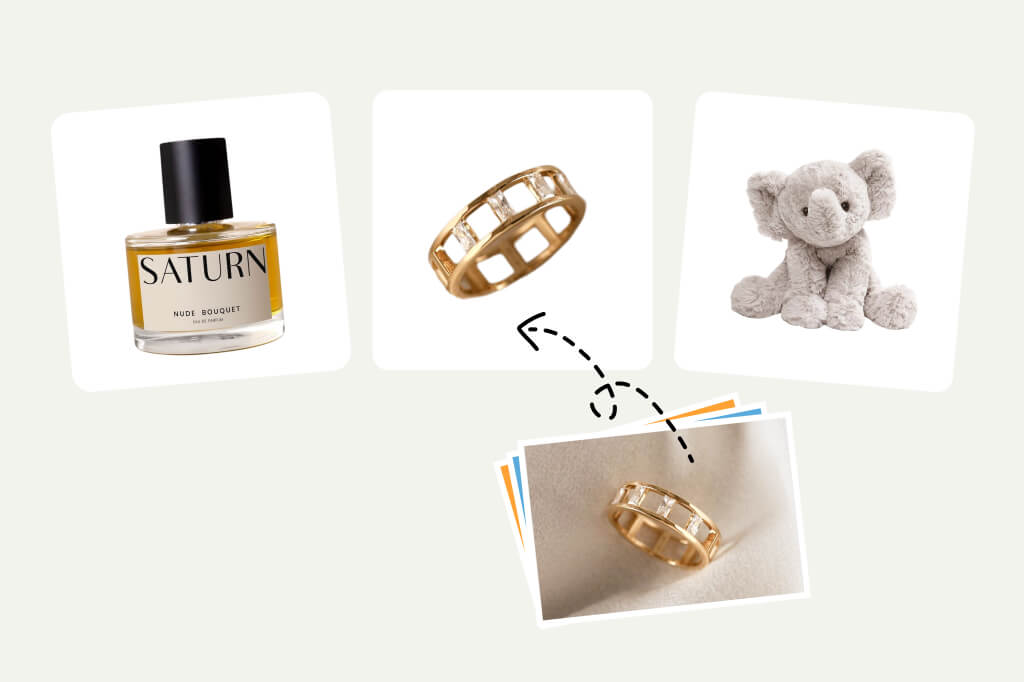
A batch photo editor is useful when a folder of images needs the same treatment. Upload the set, choose the batch action, then review a few results before exporting everything.
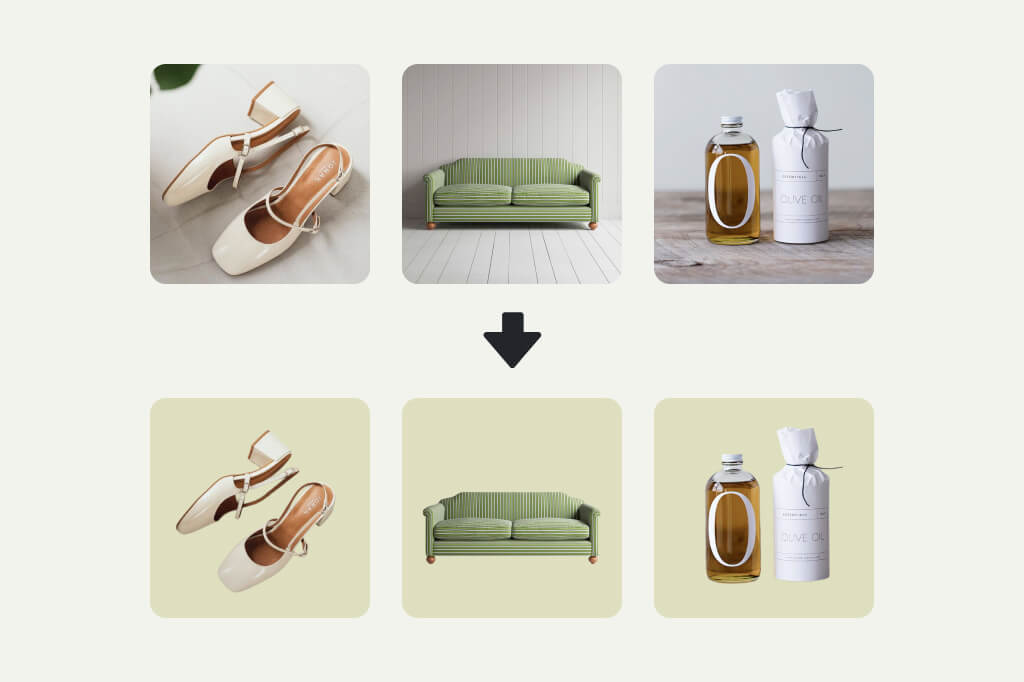
Remove Backgrounds from Product Photos in Bulk
For ecommerce photos, start with consistent lighting and similar angles. Batch background removal works best when the subject is clear and not blended into the background.
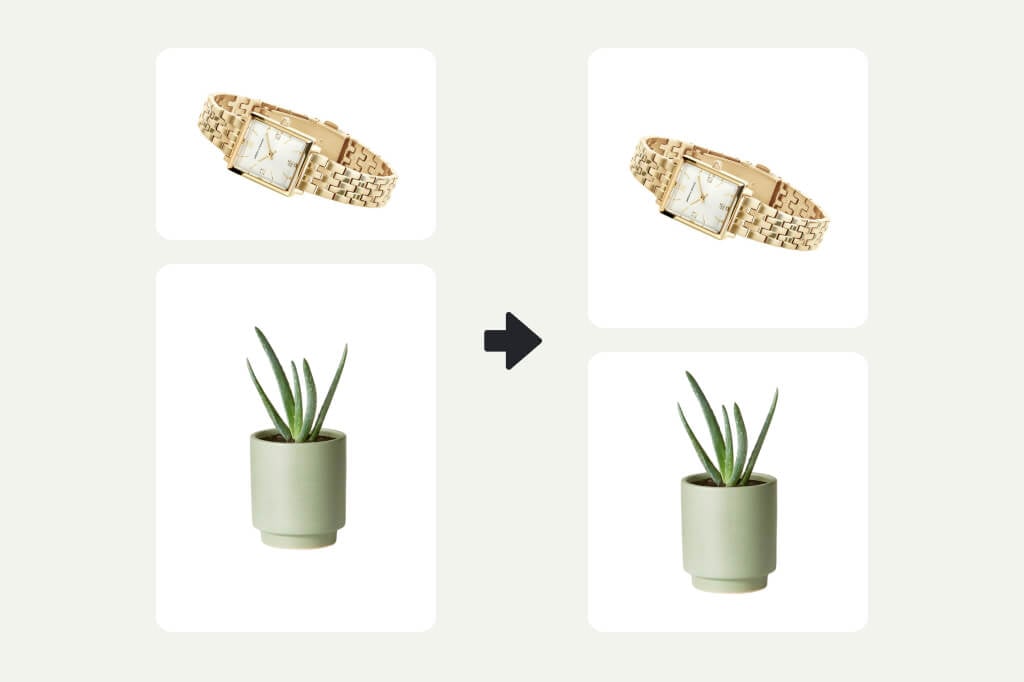
Resize Images for Listings, Ads, or Social Posts
Batch resizing keeps a group of images aligned for marketplaces, campaigns, and content calendars. Check crop and subject placement before downloading the final set.

Improve Clarity Across a Whole Set
Use batch enhancement when several photos are slightly dull, soft, or uneven. Spot-check faces, product edges, and small text after processing.
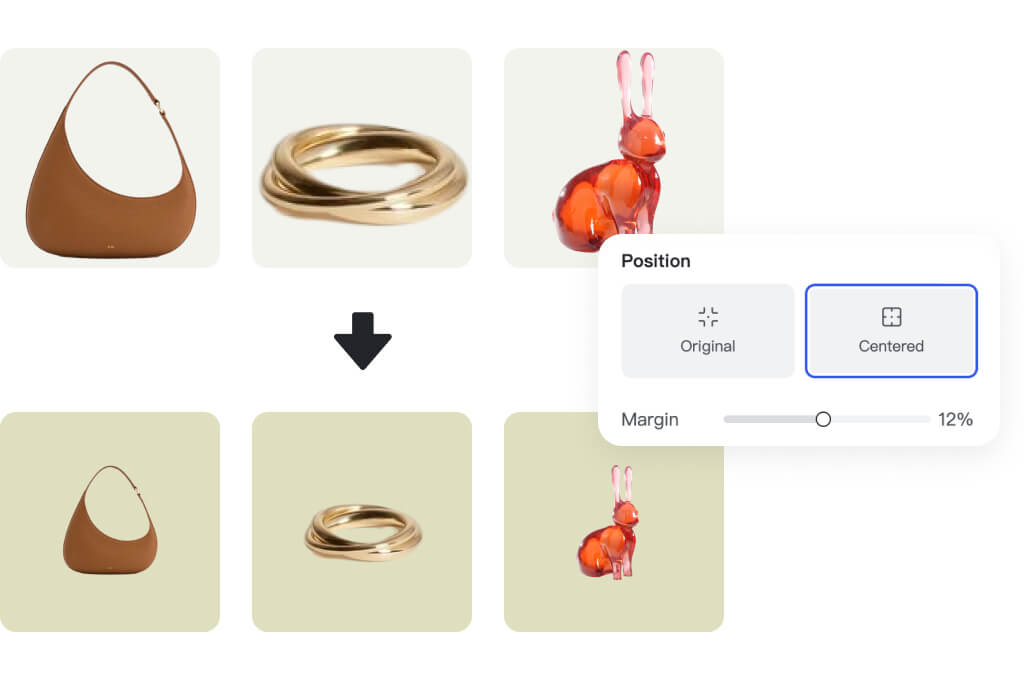
Export a Cleaner Set Faster
Batch editing saves time, but it should still include a review pass. Open a few representative outputs before you publish or upload them to a store.
Bulk Editing Tools for Product and Campaign Photos
How to Edit Multiple Photos at Once
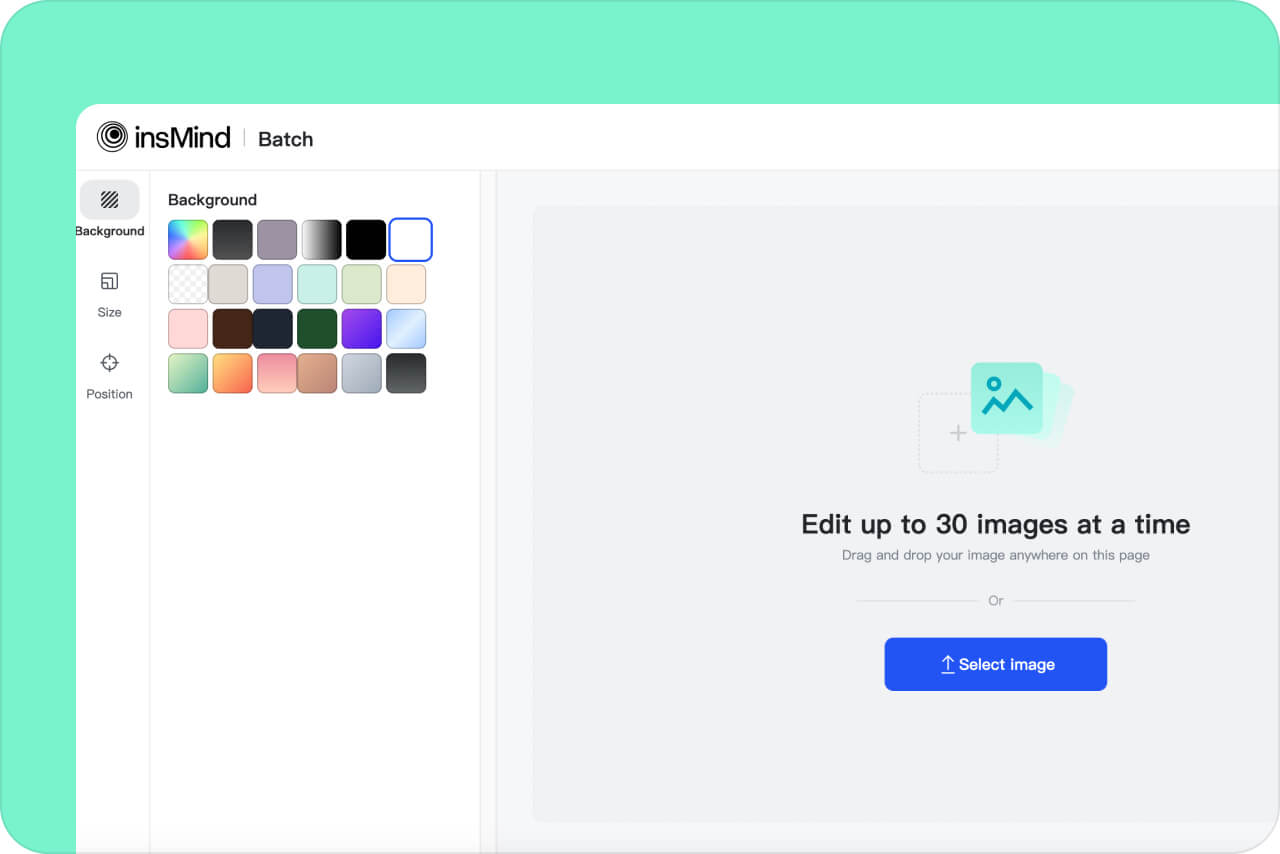
1 Upload your photo batch
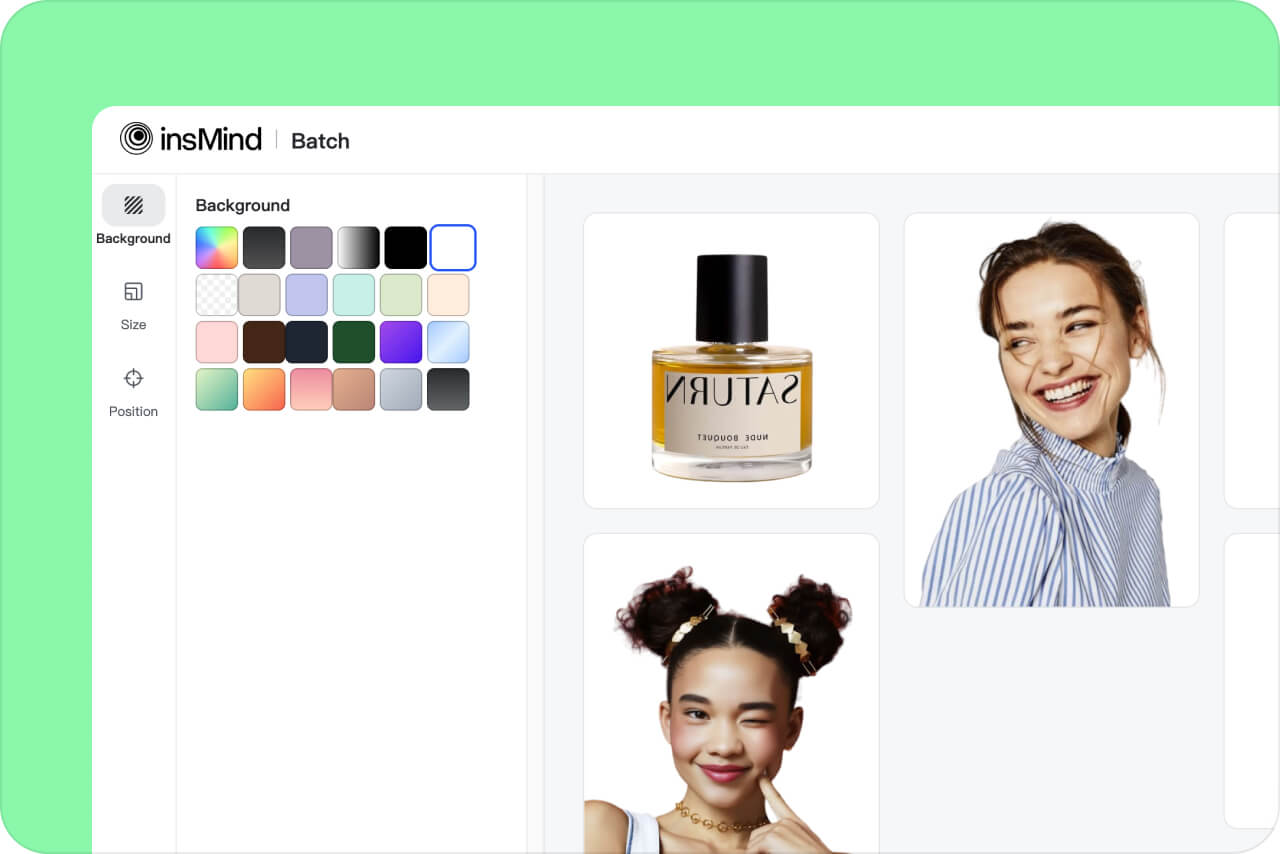
2 Choose a batch editing action
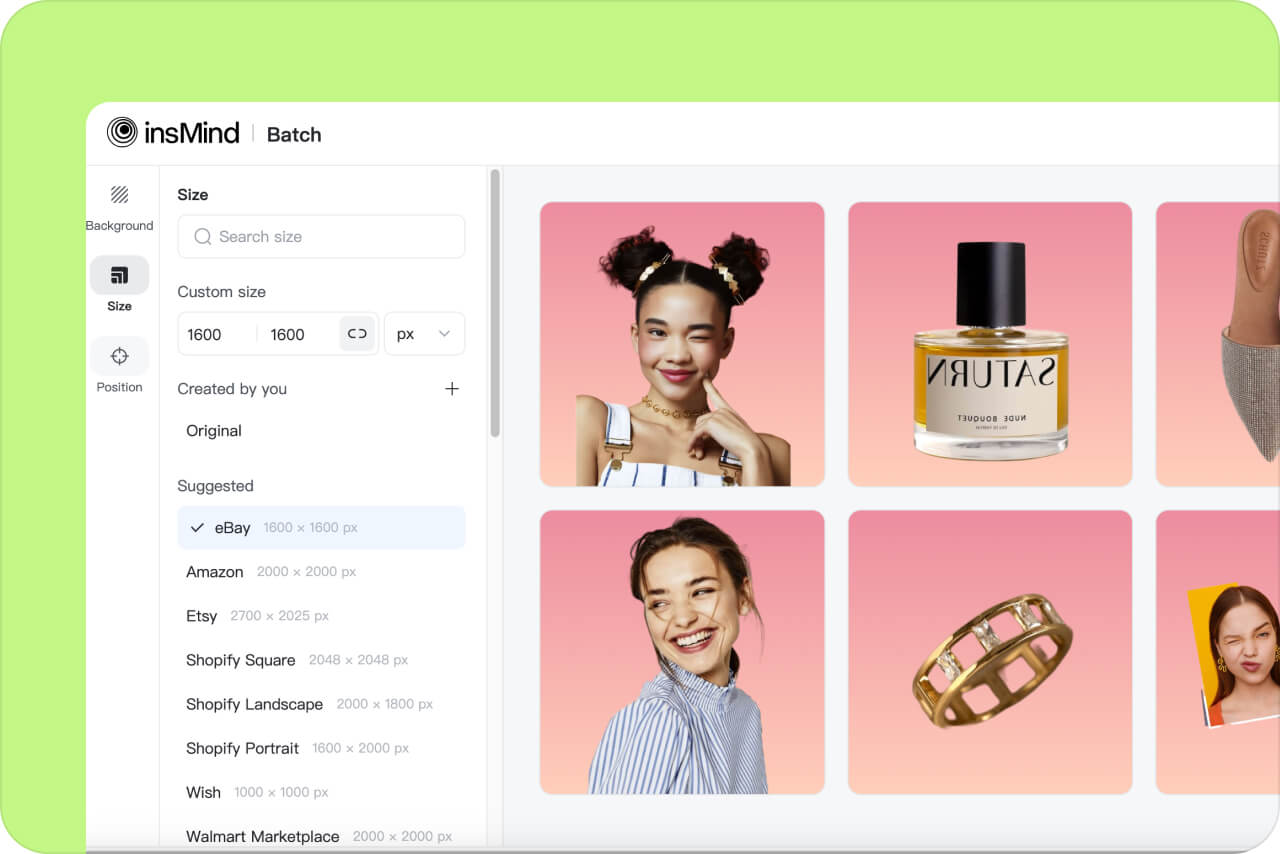
3 Preview several results
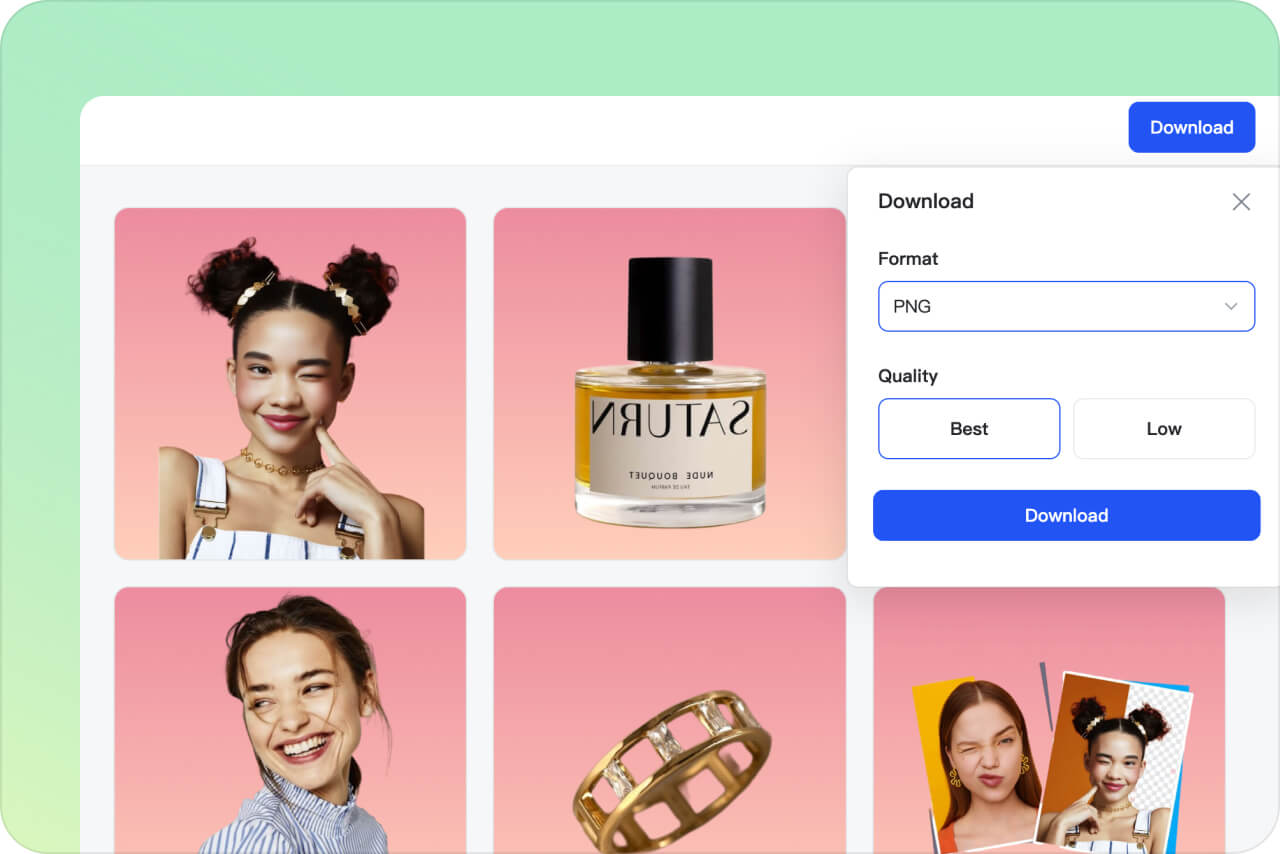
4 Download the edited set
Where Batch Photo Editing Saves the Most Time
The page should target users who already have many images. The strongest use cases are product catalogs, social campaigns, marketplace photos, and repetitive cleanup tasks.
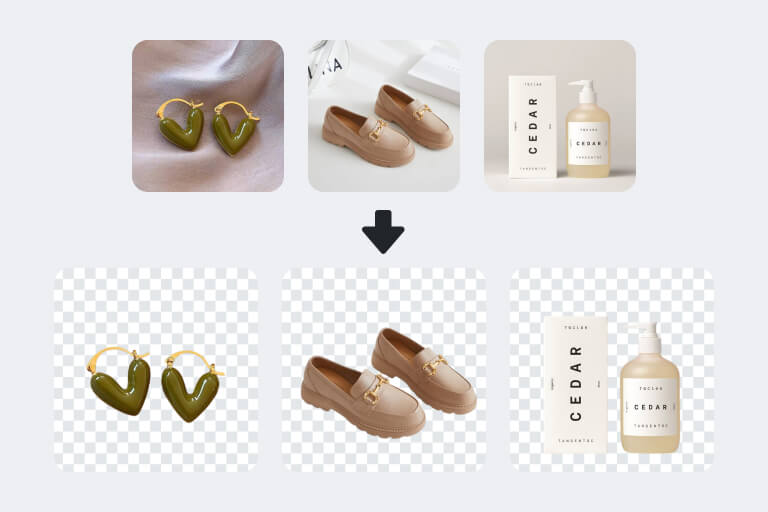
Ecommerce Product Photos
Apply background removal, resizing, or enhancement across product shots before uploading them to a store. Keep items with similar angles in the same batch for cleaner results.
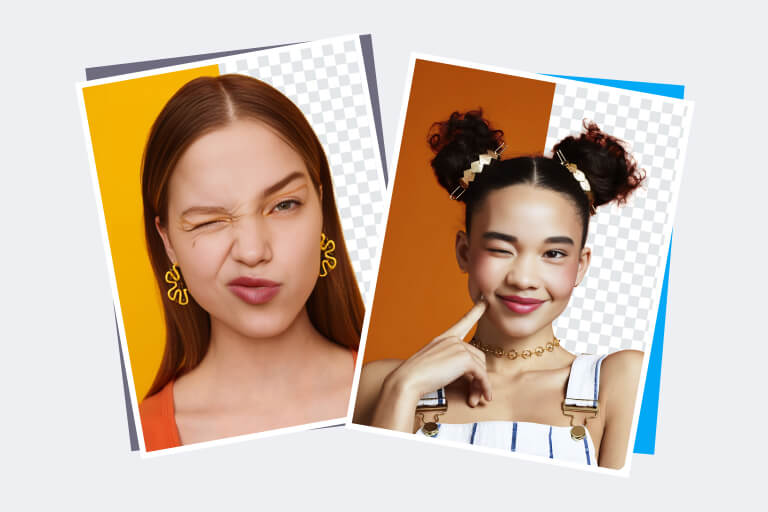
Marketing and Social Campaigns
Prepare a group of images for the same campaign size or visual style. Batch edits help keep the set consistent without rebuilding each image manually.
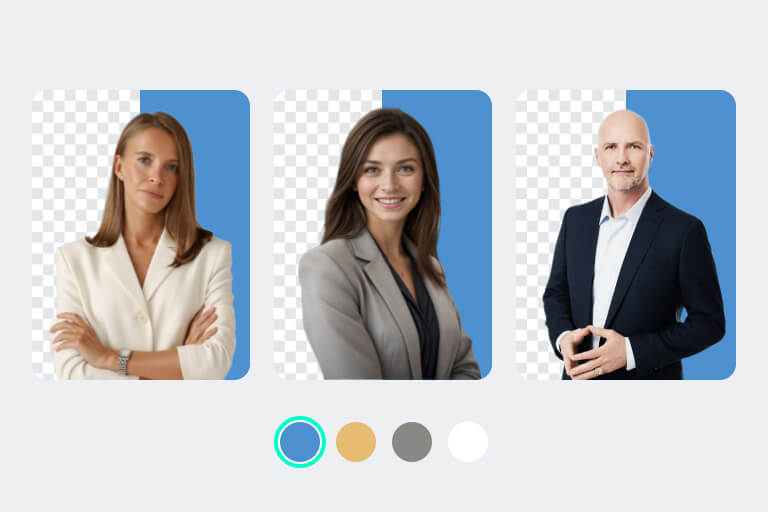
Creator and Team Workflows
Clean a folder of portraits, thumbnails, or content assets before sending them to a designer, client, or publishing queue.
Why Use insMind as a Batch Photo Editor?

Built for Repeated Edits
Use one workflow for a group of images instead of opening each file separately. This is most useful for simple, repeatable edits.

Useful for Product Sets
When product photos need the same background, size, or clarity standard, batch editing helps keep the catalog more consistent.

Review Before Export
Batch processing is fastest when you still inspect representative results. A quick review catches edge, crop, or subject issues before the full set is used.
FAQs About Batch Photo Editing
What is a batch photo editor?


Can I batch edit photos online for free?
What photos should I put in one batch?
Can AI edit multiple photos at once?
Is batch editing good for ecommerce?
Related Tools for Bulk Photo Workflows
Use these when one batch task needs a more focused tool, such as background removal, resizing, or image enhancement.

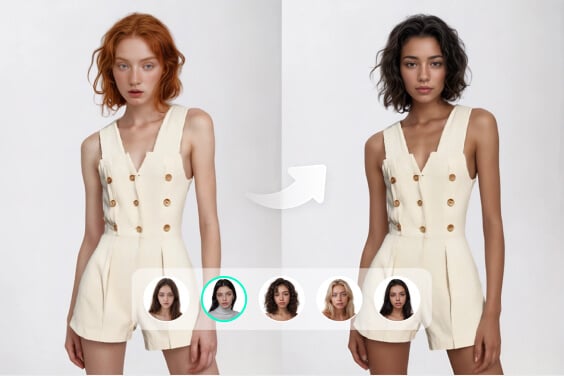
Bulk Background Remover
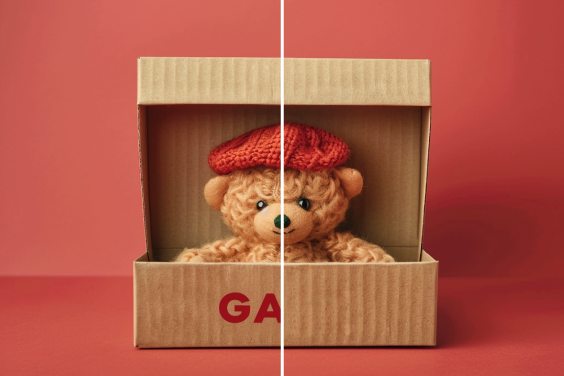
Bulk Image Resizer
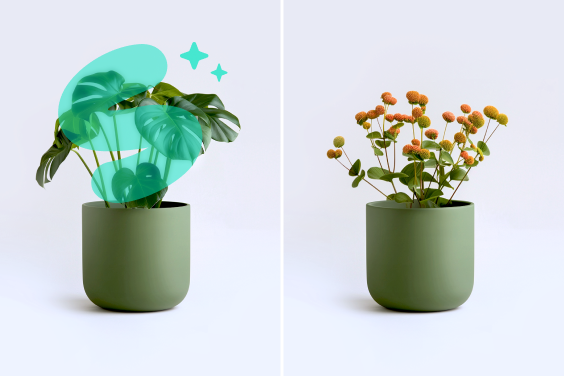
AI Image Enhancer
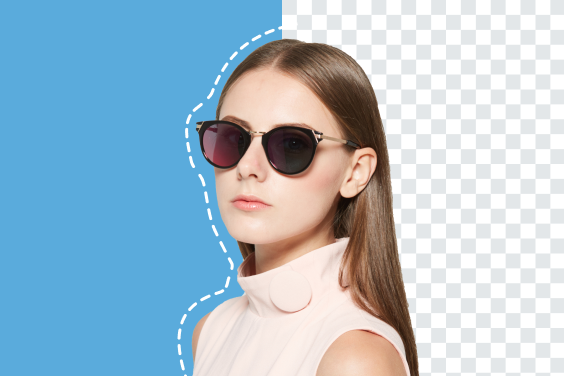
Background Changer
"As a freelance designer, insMind's batch photo editor has dramatically simplified my work. Adjusting photo sets for clients now takes minutes instead of hours. The results are great, making this tool a staple in my toolkit."
@Hasnain Patterson