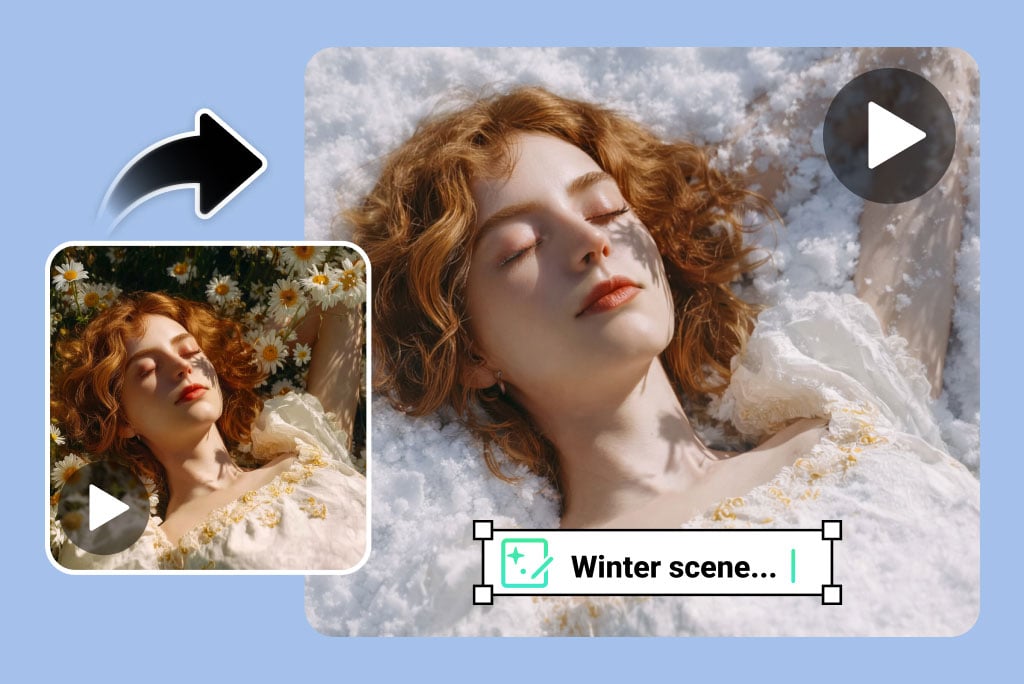
Edit Videos with Simple Text Prompts
Skip complex timelines and manual tools. With insMind's AI video editor, you edit videos by typing what you want to change. Describe edits in plain language—objects, characters, backgrounds, lighting—and the AI handles the rest automatically.
This prompt-based AI video editing workflow removes the learning curve of traditional editors and speeds up content creation dramatically.
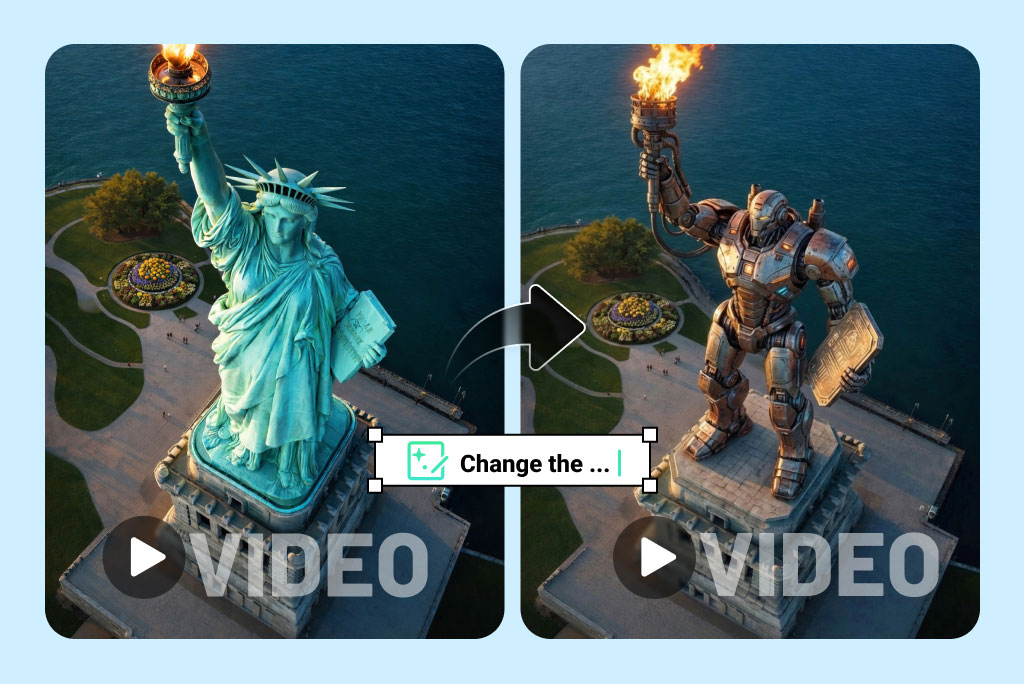
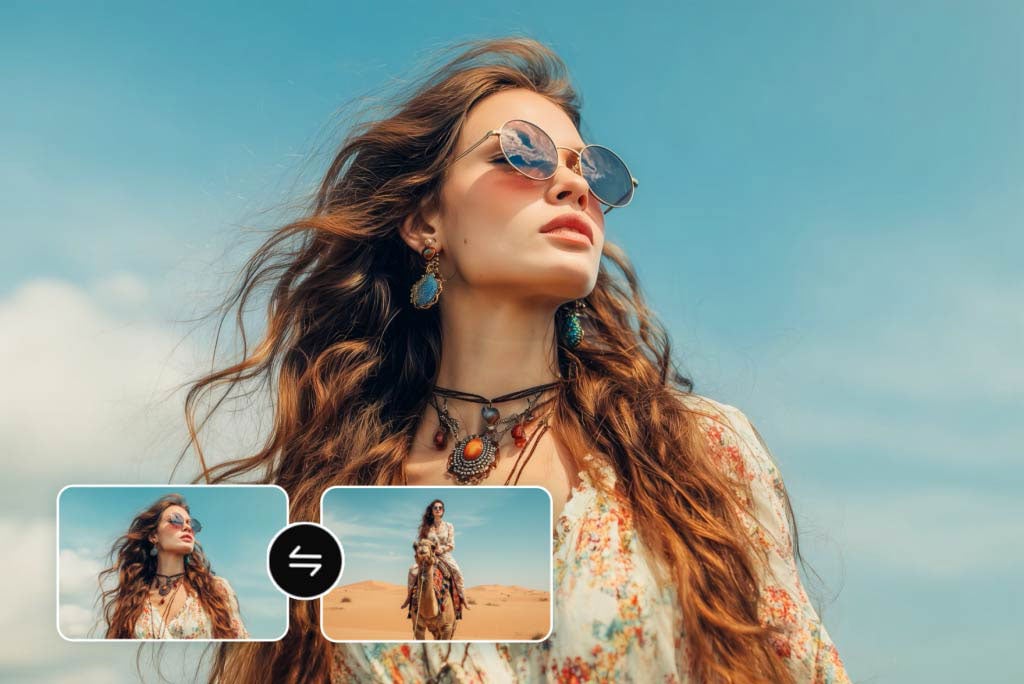
Replace Characters or Main Subjects Without Re-Shooting
Swap people or characters in your video while preserving pose, motion, and camera perspective. The AI understands subject placement and replaces characters consistently across every frame.
Perfect for creators, marketers, and storytellers who want alternate versions without re-filming or complex rotoscoping.
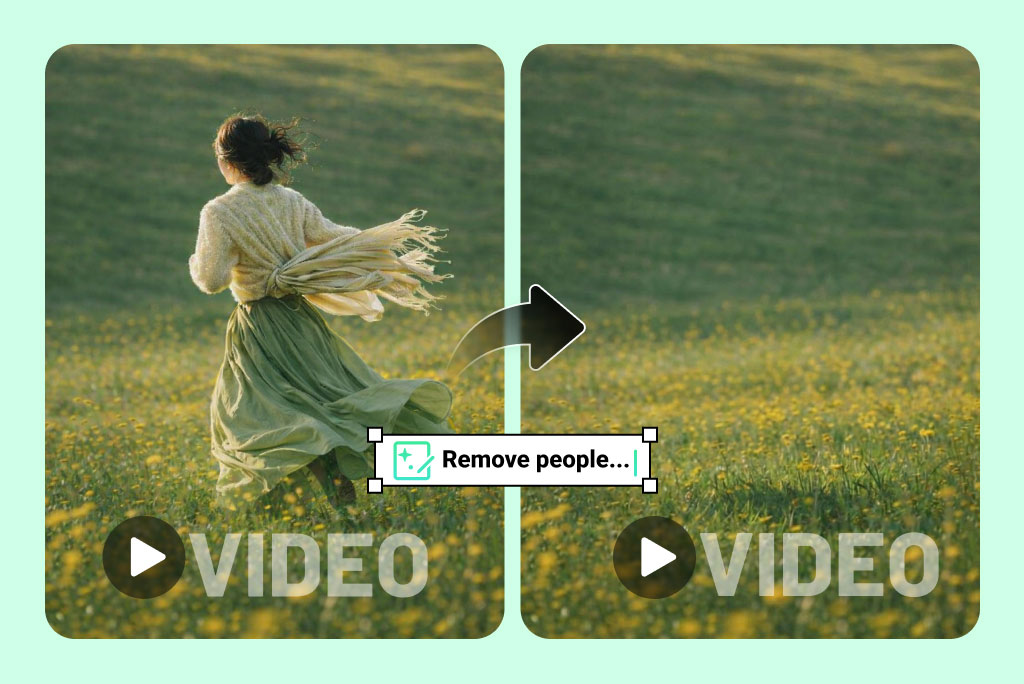
Remove Unwanted People or Objects from Videos Automatically
Clean up scenes by removing distracting people, objects, or background elements from your video. The AI automatically fills removed areas with natural textures, preserving visual continuity and realistic motion.
No frame-by-frame cleanup. No masking. Just describe what you want removed and preview a clean, professional result instantly.
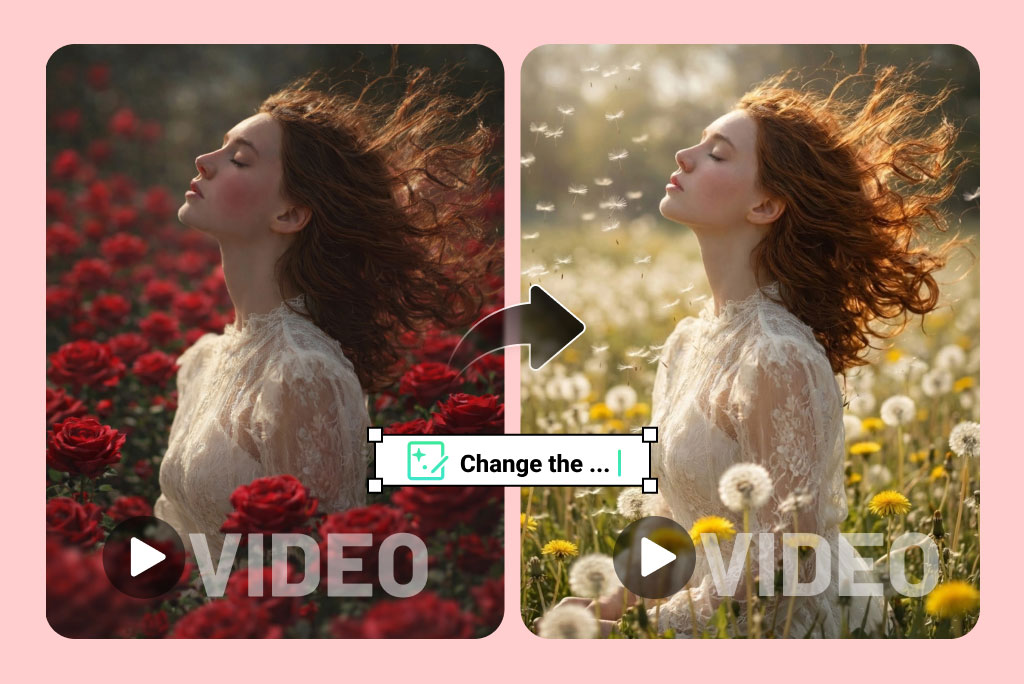
Change Backgrounds in Existing Videos
Transform locations without reshooting. Replace streets with beaches, studios with outdoor scenes, or dull environments with cinematic backdrops.
The AI video editor maintains subject lighting, depth, and perspective for a realistic result across the entire clip.

Apply Style Transfer to Entire Videos
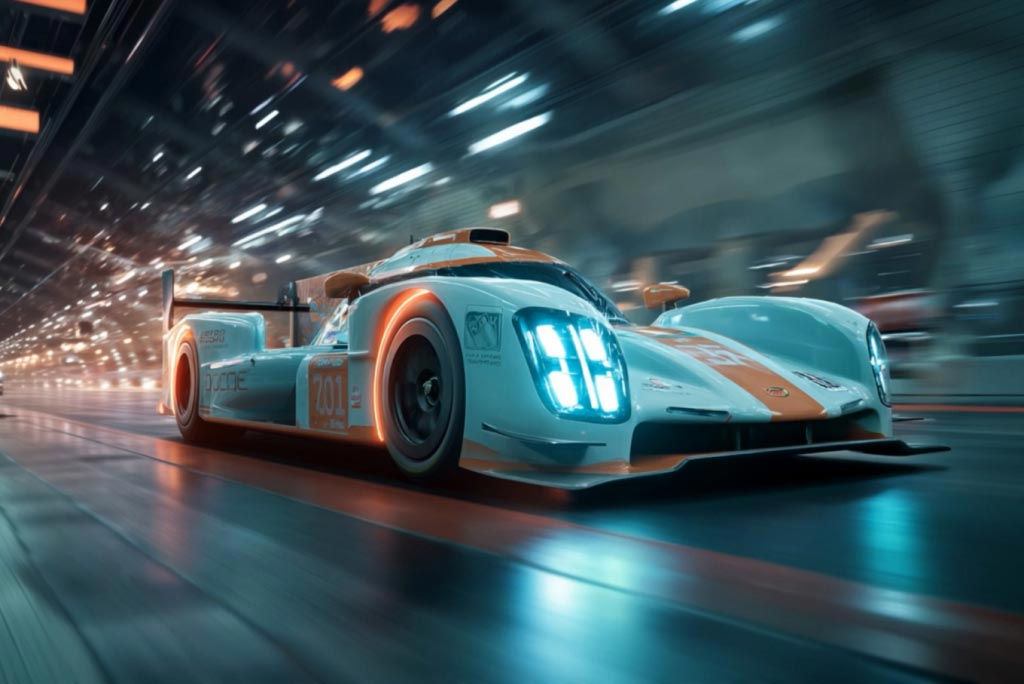
Convert videos into cartoon, anime, cinematic, illustration, or artistic styles with one command. The AI applies consistent aesthetics frame by frame, keeping motion smooth and expressions intact.
Ideal for social content, creative storytelling, and stylized marketing videos.
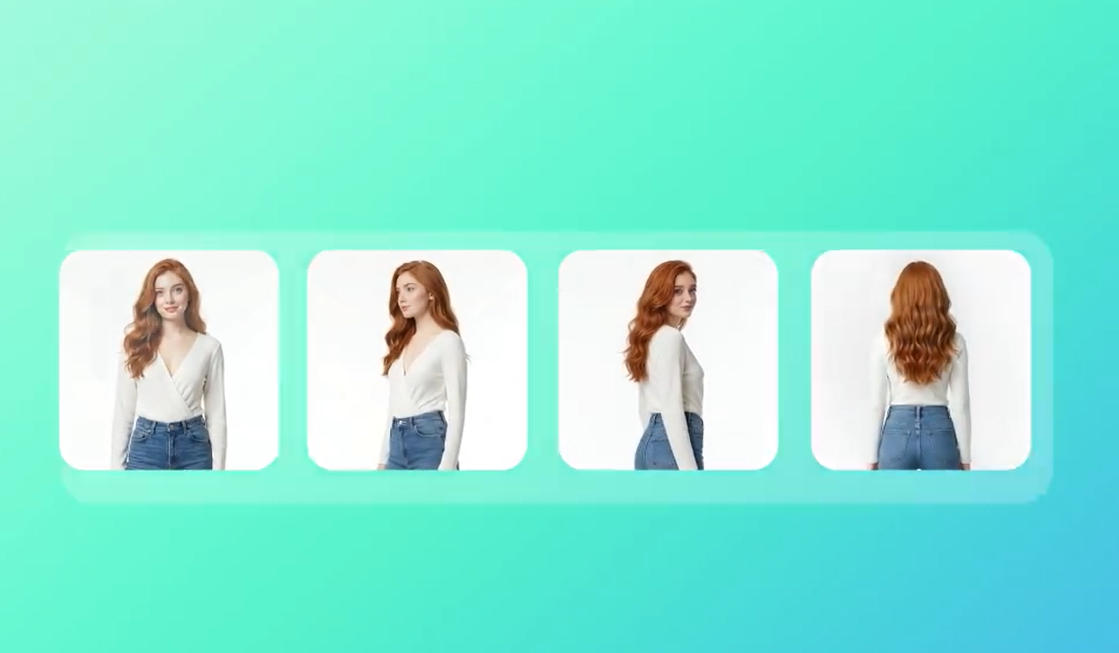
Generate Videos from Reference Images
Upload 1–4 reference images and let our AI video editor bring your characters to life. The AI ensures consistent facial features, natural expressions, and smooth movements across every scene. Create multi-shot, coherent videos where characters speak and act seamlessly—no reshoots or complicated editing needed. Ideal for storytelling, social media, or marketing content.
Prompt Guide: How to Edit Videos with Text Prompts
Use simple, natural language to tell the AI exactly how you want to edit your video. No timelines, no masking, no technical commands—just describe the result you want, and insMind handles the rest.
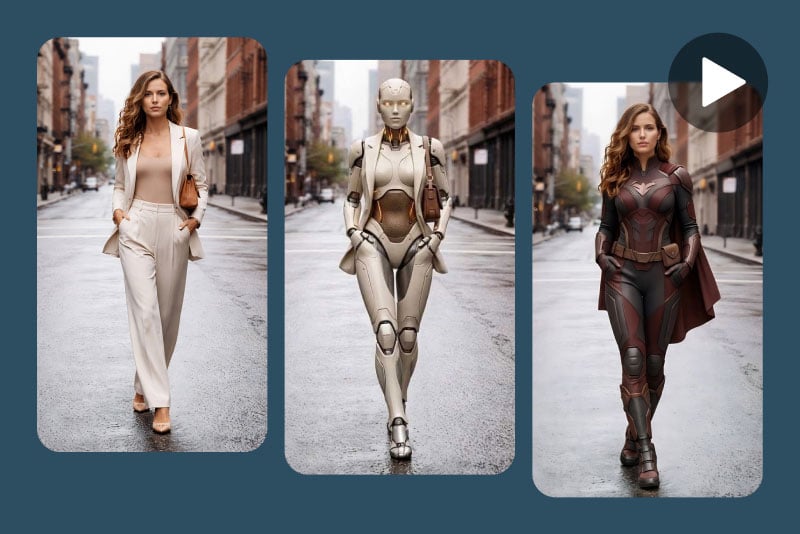
Replace a Person or Main Subject
Change the main character in your video while keeping movement, framing, and camera perspective consistent.
Describe who or what you want to replace the subject with, and specify what should remain unchanged.
Prompt tip:
Mention pose, position, or background if they matter to the scene.
Example:
Replace the main person with a cheerful anime-style girl in a red dress. Keep her centered and preserve the beach setting.
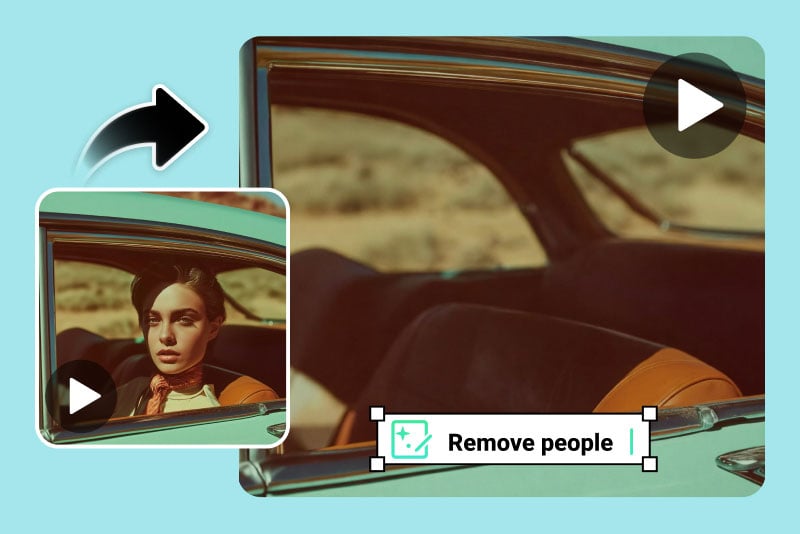
Remove Unwanted People or Objects
Clean up your video by removing distracting elements such as crowds, props, or background clutter.
Clearly state what should be removed and ask the AI to keep the rest of the scene natural.
Prompt tip:
Avoid listing too many items at once for best visual continuity.
Example:
Remove all pedestrians from the street and keep the buildings and road looking natural.
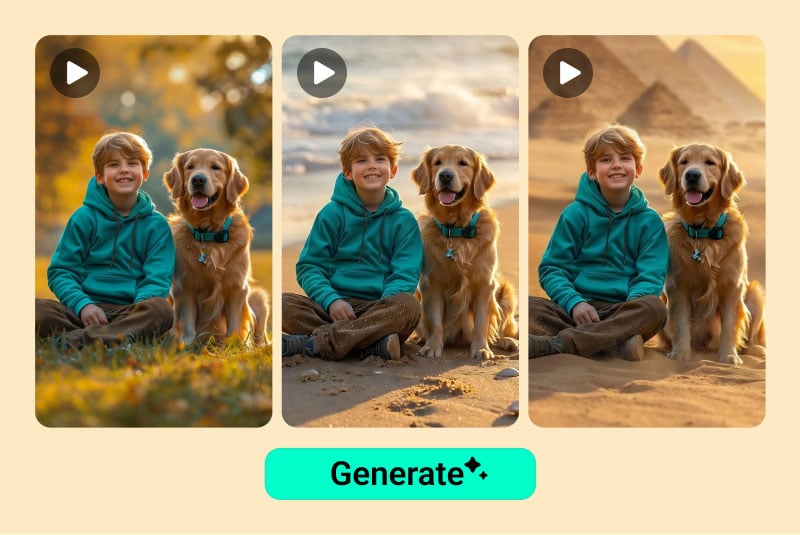
Change the Background or Location
Switch environments without reshooting—turn indoor scenes into outdoor settings or move subjects to a completely new place.
Describe the new background and request consistency in lighting and subject placement.
Prompt tip:
If realism matters, mention lighting or time of day.
Example:
Change the background to a sunny beach with a clear blue sky. Keep the person in the same position.

Adjust Lighting and Mood
Instantly shift the atmosphere of your video, from daytime to sunset or from neutral to cinematic.
Specify the lighting style, mood, or time of day you want.
Prompt tip:
Mention shadows or reflections if you want them preserved.
Example:
Change the lighting to a warm sunset with soft orange tones. Keep the original shadows and reflections.
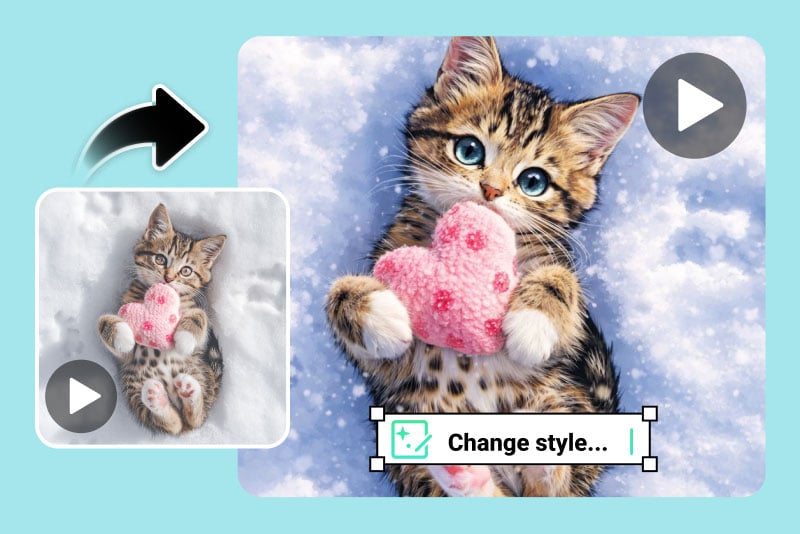
Apply a Visual Style or Aesthetic
Transform the overall look of your video with a consistent artistic or cinematic style.
Name the style clearly and ask the AI to maintain smooth motion.
Prompt tip:
This works best when applied to the entire video, not isolated frames.
Example:
Apply an anime-style look to the whole video, keeping facial expressions natural and colors smooth.
FAQs About insMind AI Video Editor
What is an AI video editor?


Is insMind a free AI video editor?
Can I edit videos online without installing anything?
What types of edits can I make with AI?
Does AI video editing affect video quality?
Can I replace people in videos?
Can I remove objects from videos?
Can I change video backgrounds?
Can I use natural language to edit videos?
Is AI video editing beginner-friendly?