
Turn a Photo into a Sketch with AI
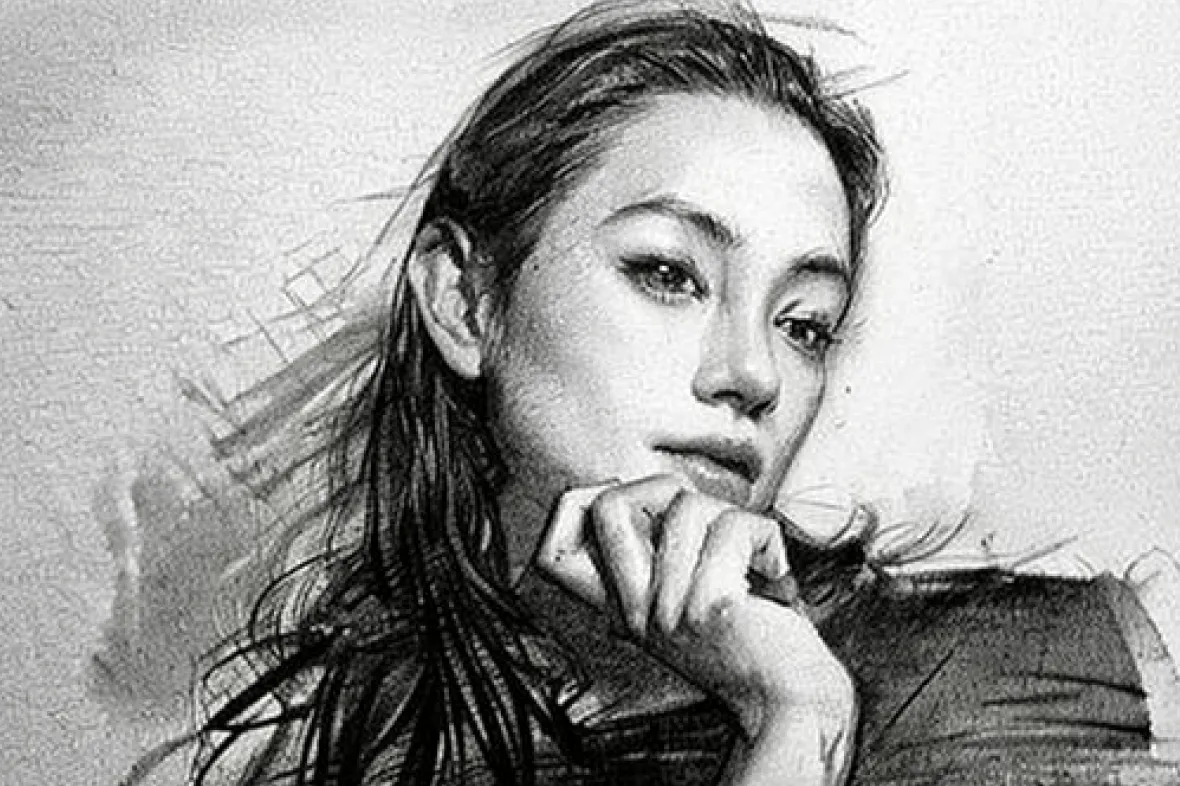


Choose from 7 Photo-to-Sketch Styles
Use Pencil for soft shading, Sketch for visible hand-drawn texture, or Needle Pen and Woodcut for stronger marks. Outline and LineArt keep the result cleaner when you want fewer gray tones.
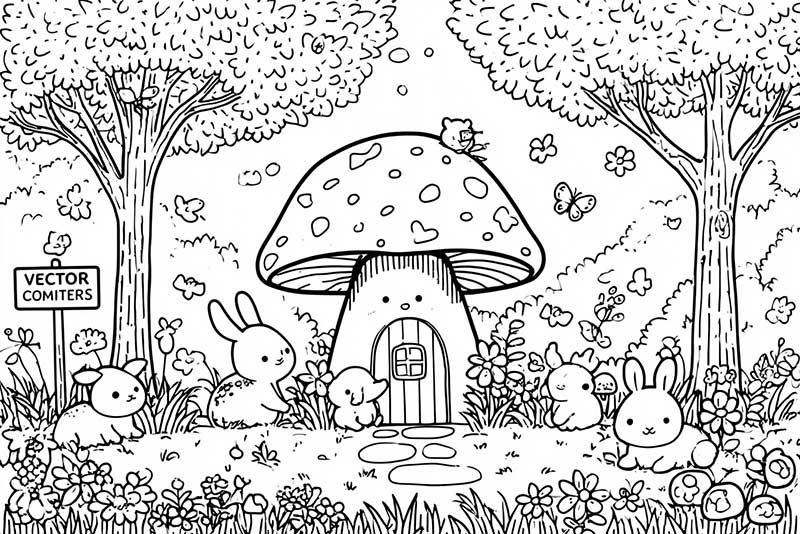
Outline
Creates clean edge lines from the main shapes in your image. Choose Outline for coloring pages, simple diagrams, icons, and a clean image-to-sketch result with less shading.
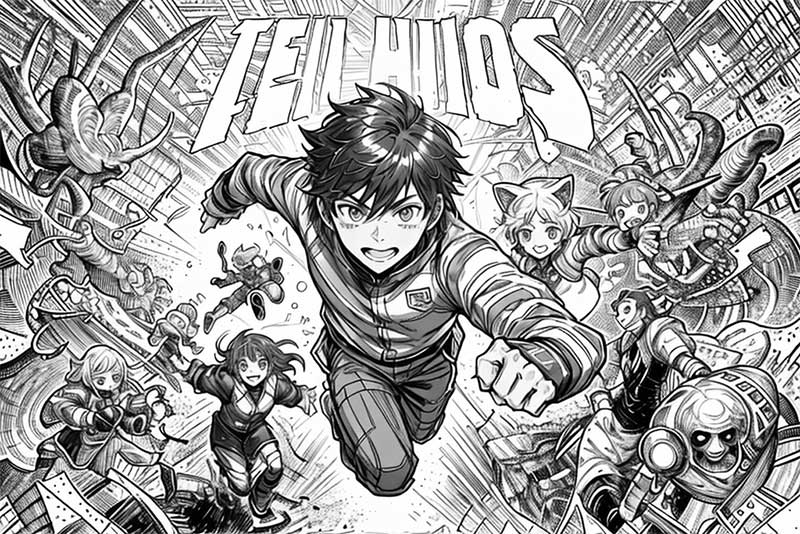
US Comics
Pushes outlines and contrast for a bolder comic-inspired finish. It suits avatars, fan art, posters, and photos that need to read clearly at a glance.
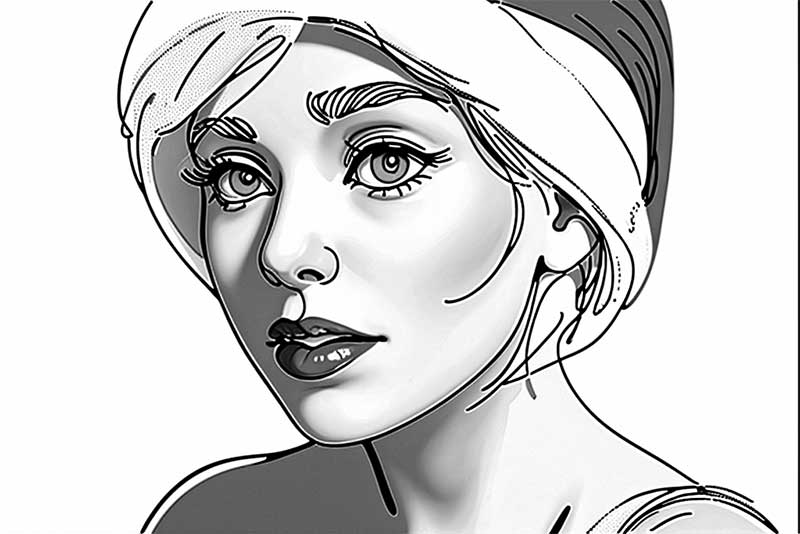
LineArt
Keeps the drawing light and contour-led, with less gray fill than a traditional pencil effect. Use it for fashion references, architecture, character studies, or a crisp line drawing.
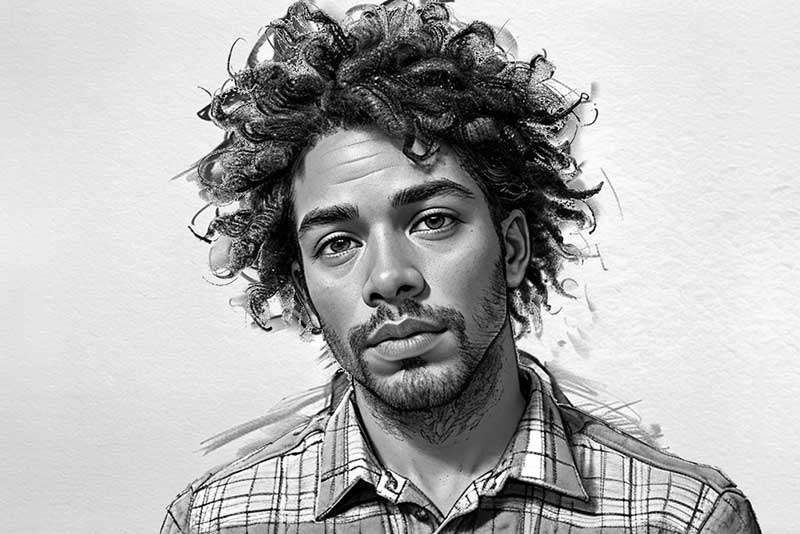
Pencil
Adds soft shading and hand-drawn texture for a classic photo to pencil sketch. Clear portraits, pets, and keepsake photos are a strong starting point.
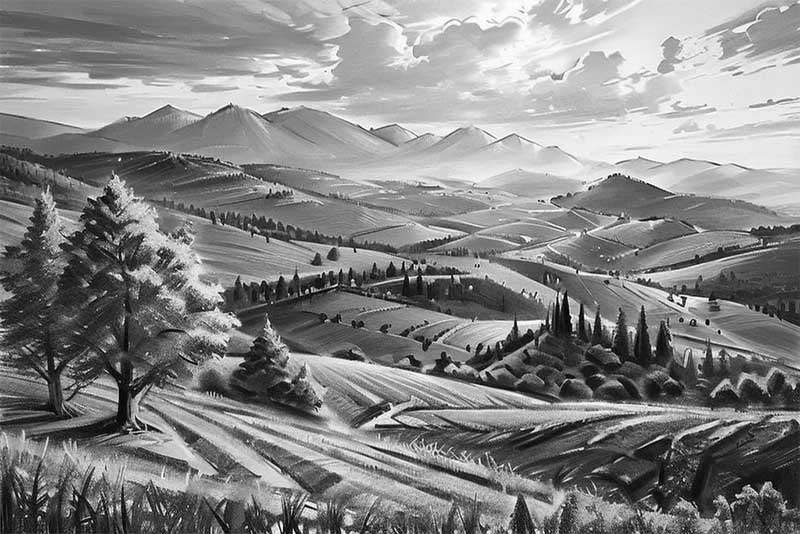
Sketch
Creates a looser sketchbook feel with visible strokes and stronger contrast. Pick it when you want a picture to look like a quick art study rather than a polished photo.
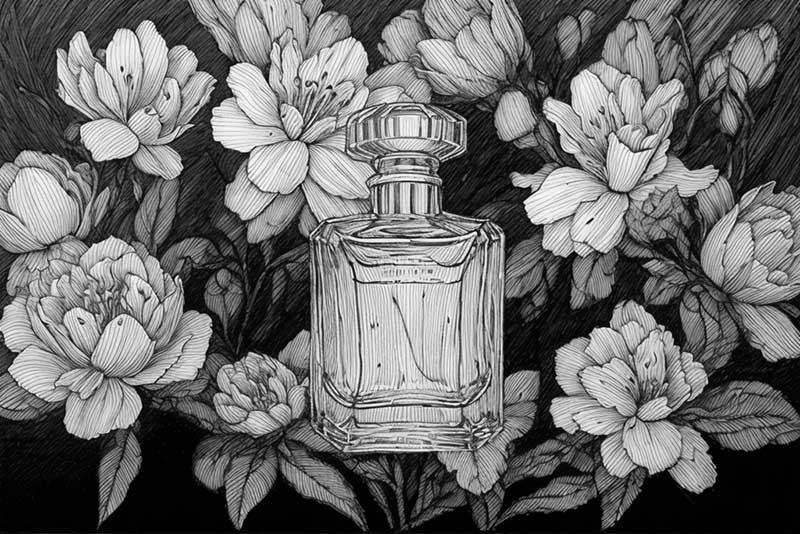
Needle Pen
Uses fine ink-like strokes for detailed line work. It works well for botanical subjects, technical references, and old-school comic details.
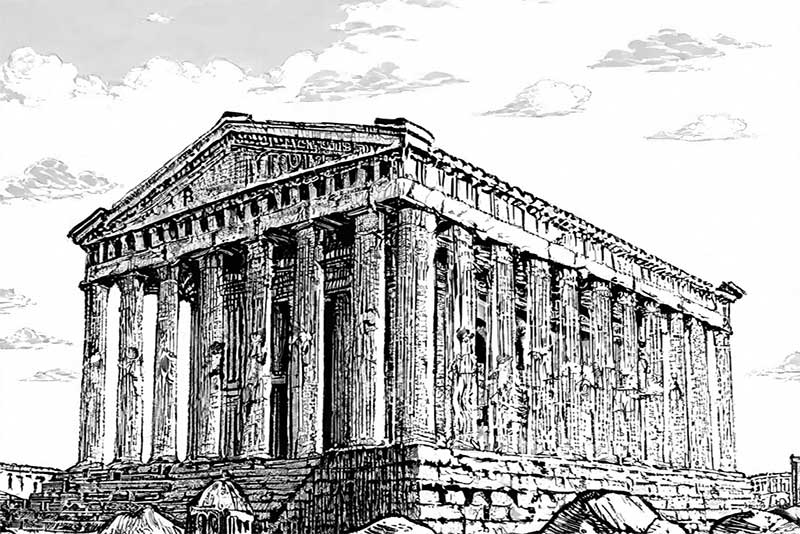
Woodcut
Builds a carved black-and-white texture with dramatic contrast. Try it for tattoo references, posters, and high-impact art drafts where the main shapes should stand out.
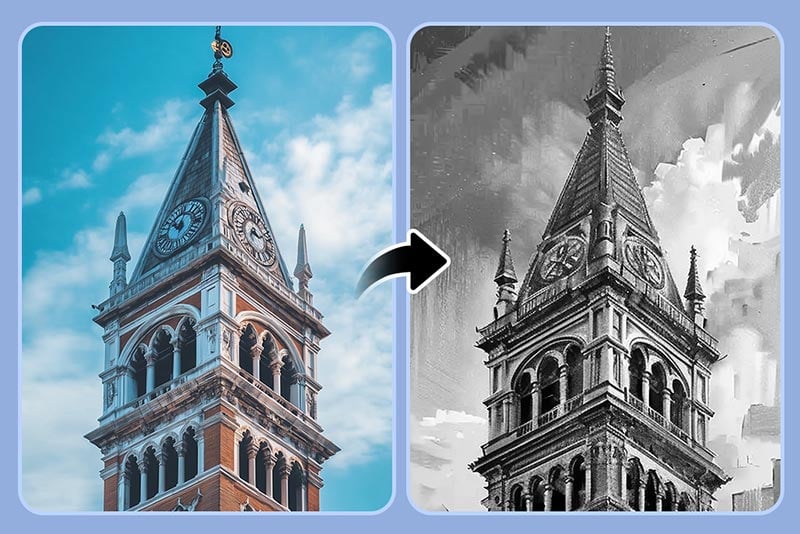
Turn Photos into Pencil Sketches and Hand-Drawn Art
Use the photo sketch converter to move beyond a single gray filter. One source photo can become a softly shaded pencil sketch, a loose sketchbook study, a fine-pen drawing, or a high-contrast woodcut-style image.
If your goal is contour-only artwork with minimal shading, continue to the dedicated photo to line drawing tool. This page stays focused on the broader photo-to-sketch workflow and its seven available styles.

Create a Pencil Sketch from a Portrait Photo
Start with a portrait where the face, eyes, hairline, and expression are easy to see. The Pencil style is the most direct choice when you want to turn a photo into a pencil sketch with visible shading instead of bold comic edges.
Side angles, deep shadows, and busy backgrounds can make facial lines harder to read. Crop closer to the subject or compare a lighter style. For a more dedicated graphite look, try the photo to pencil drawing effect.
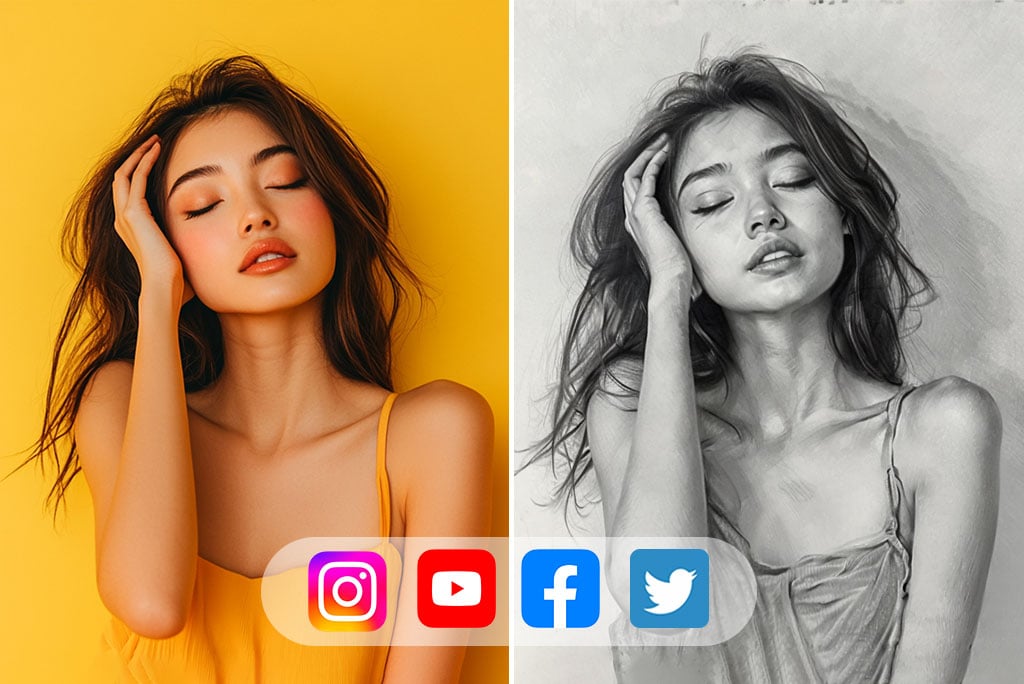
Turn Photos into Drawing-Style Social Posts
A sketch version gives a profile photo, creator post, thumbnail, or before-and-after edit a more illustrated feel without rebuilding the image from scratch.
Check the result at the size where it will appear. Fine pencil lines can look detailed in a large preview but disappear in a small avatar, so Outline or US Comics may work better for tiny formats.

Change Landscapes into Sketch or Line-Art Scenes
Buildings, roads, mountain ridges, trees, and clear horizons give a photo-to-sketch filter useful shapes to follow. Compare Pencil, Sketch, LineArt, and Woodcut to control how much texture stays visible.
When a scene contains many tiny leaves, waves, or lights, a stronger style usually reads more clearly than delicate pencil shading.

Convert Product Photos into Drawing References
Use the image-to-sketch converter for product, flower, food, decor, or small-object photos that you want to explore as illustrations. Clean backgrounds and defined edges make the first result easier to judge.
The sketch can support a mood board, packaging concept, social visual, or early design reference. Keep the original product photo for listings; a sketch is a creative variation, not a replacement for the source image.
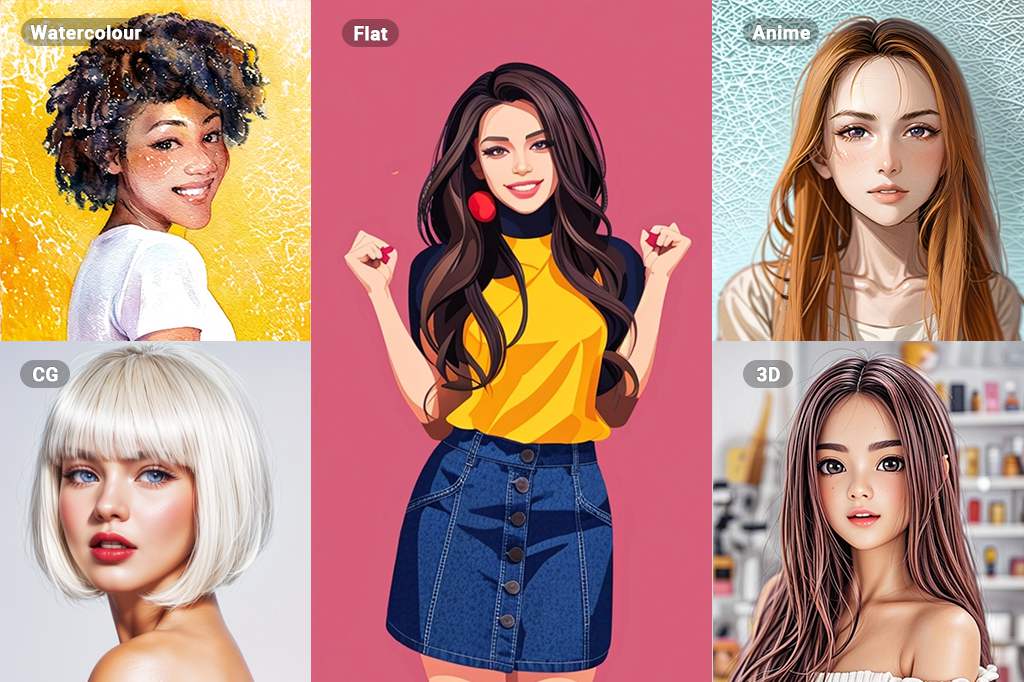
Choose Sketch, Pencil, or Line Art for the Right Finish
Choose Pencil when shading matters, Sketch for rougher hand-drawn strokes, Needle Pen for fine ink texture, and Woodcut for a bold black-and-white result. Outline and LineArt reduce the shading so the main contours read more clearly.
Use this converter for a broad image-to-sketch result. For a contour-led line drawing, realistic pencil drawing, cartoon, watercolor, or anime treatment, follow the matching tool instead of forcing a different art direction into the same effect.
How to Turn a Photo into a Sketch
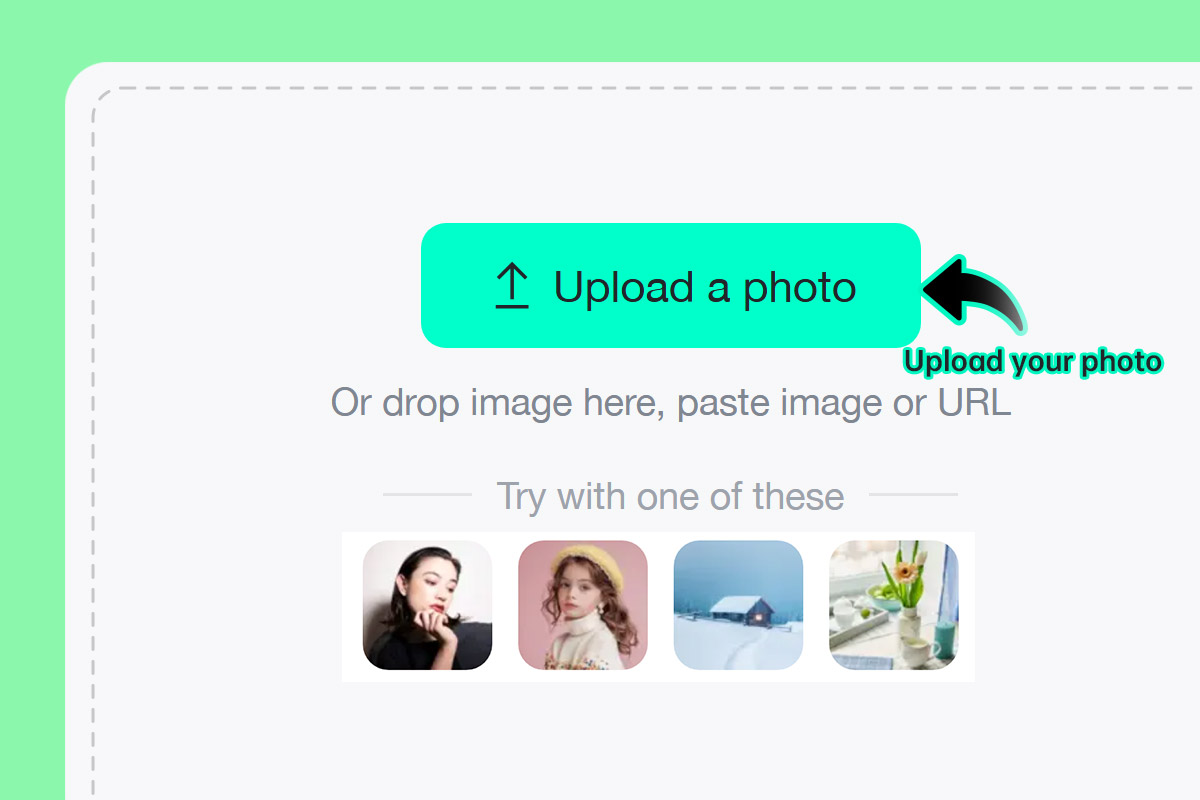
1 Upload your image
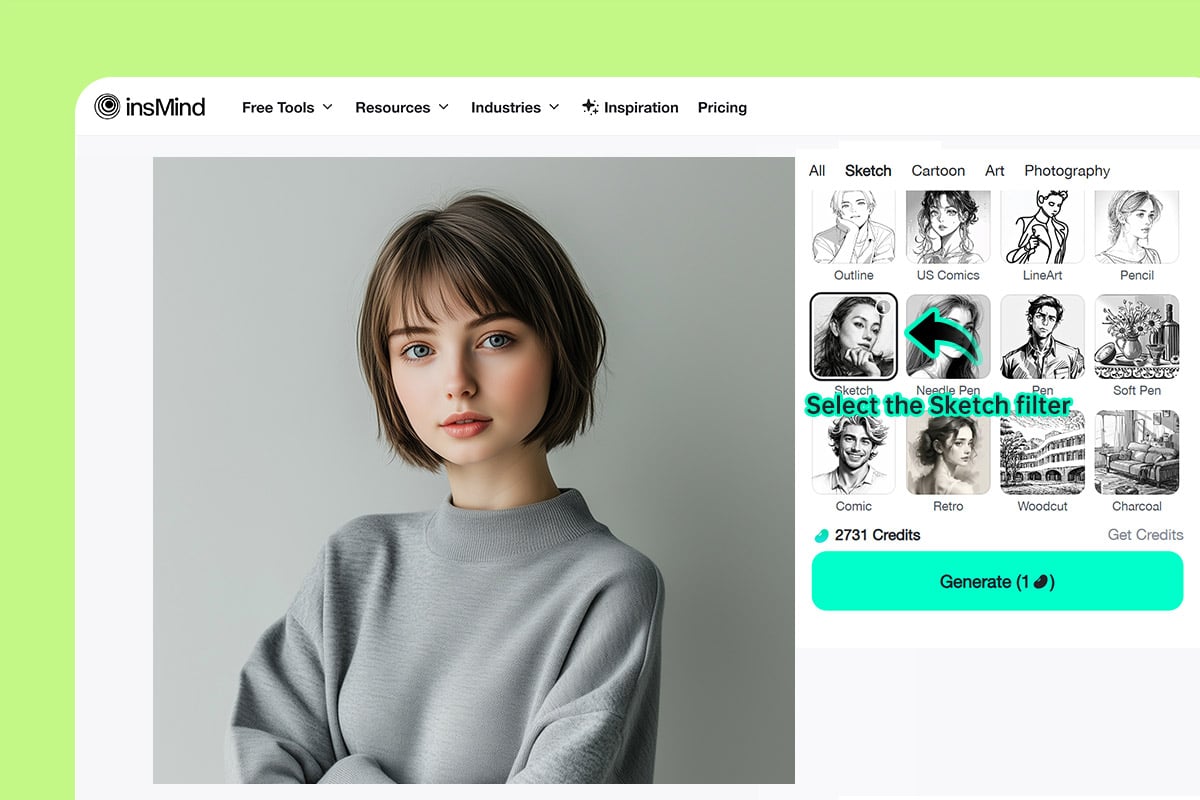
2 Choose a sketch style
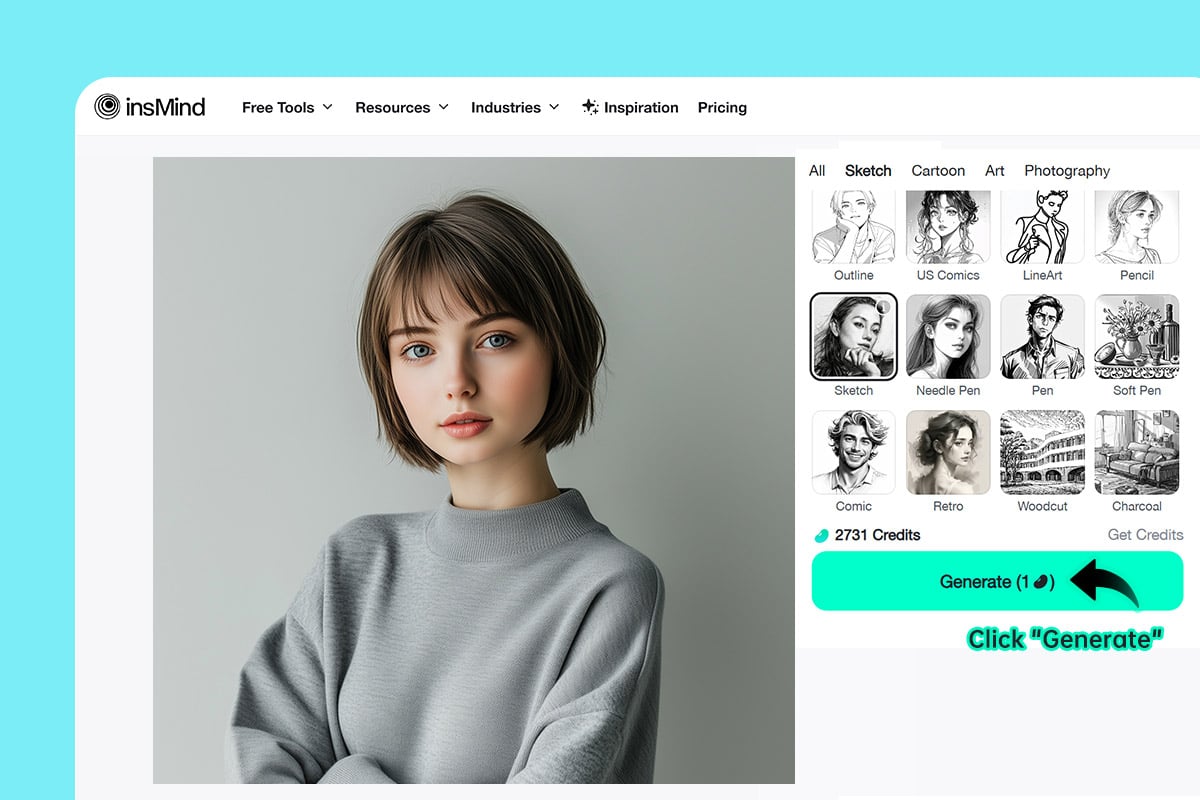
3 Generate and review the sketch
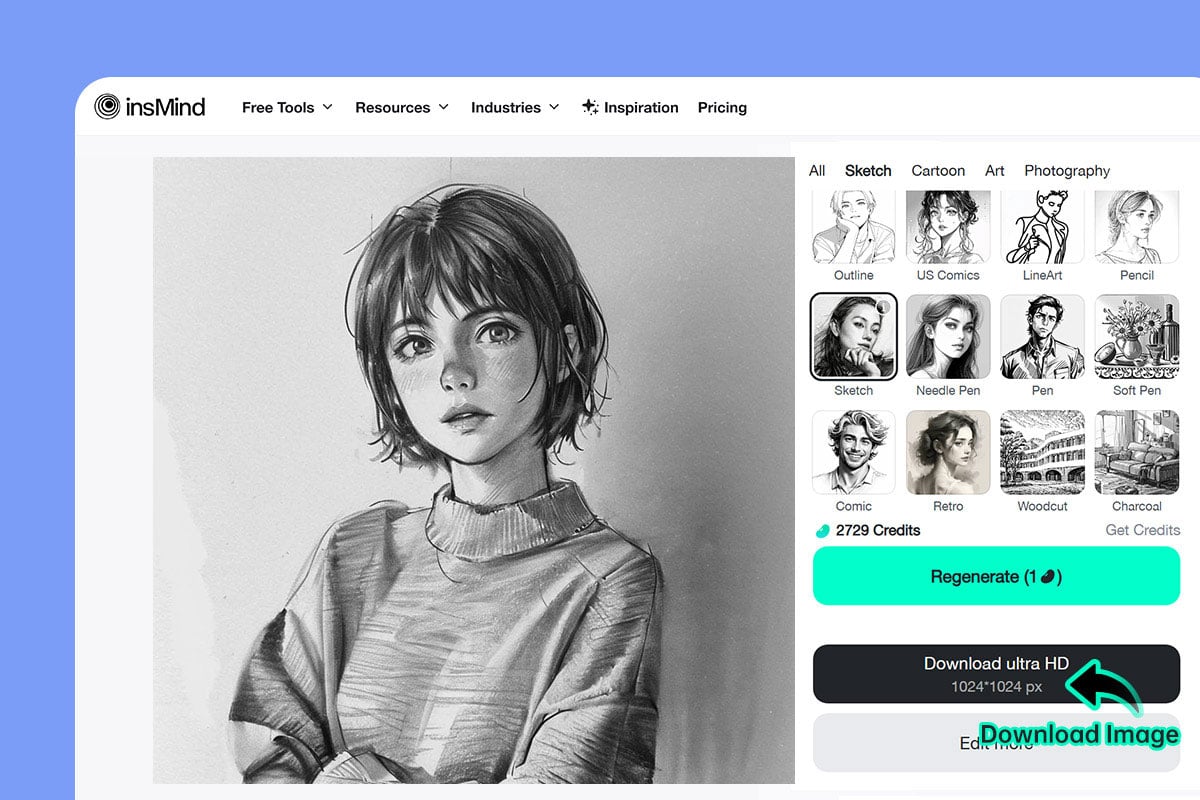
4 Download your drawing
What Can You Make with a Photo Sketch Converter?
Create pencil portraits, landscape studies, coloring-page drafts, tattoo references, still-life drawings, and sketch avatars from an existing photo.
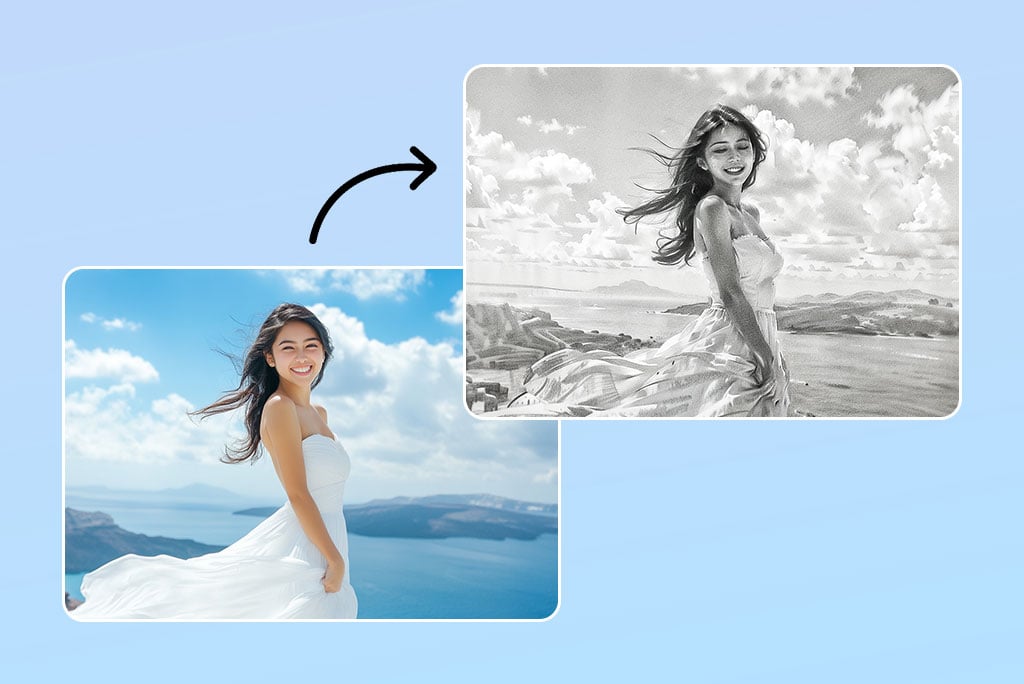
Portrait Sketch
Turn a clear face photo into a pencil-style portrait while keeping the expression easy to recognize. Front-facing images with visible light and shadow usually give the most balanced result.
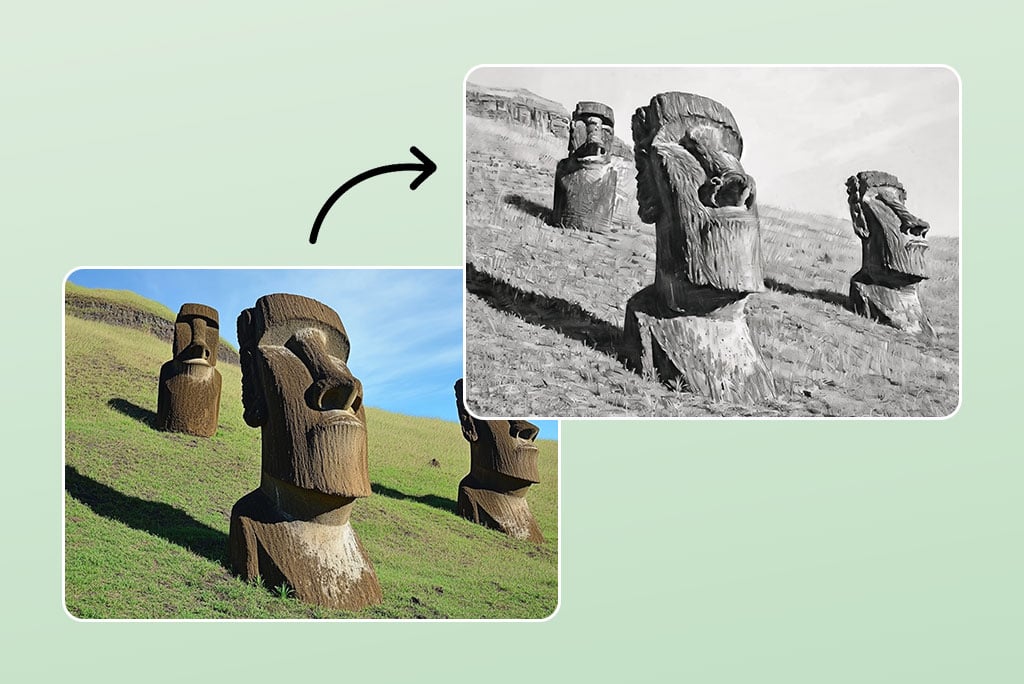
Landscape Sketch
Convert travel, city, or nature photos into sketch art with stronger lines around buildings, roads, trees, and horizons. Try LineArt when you want less shading.
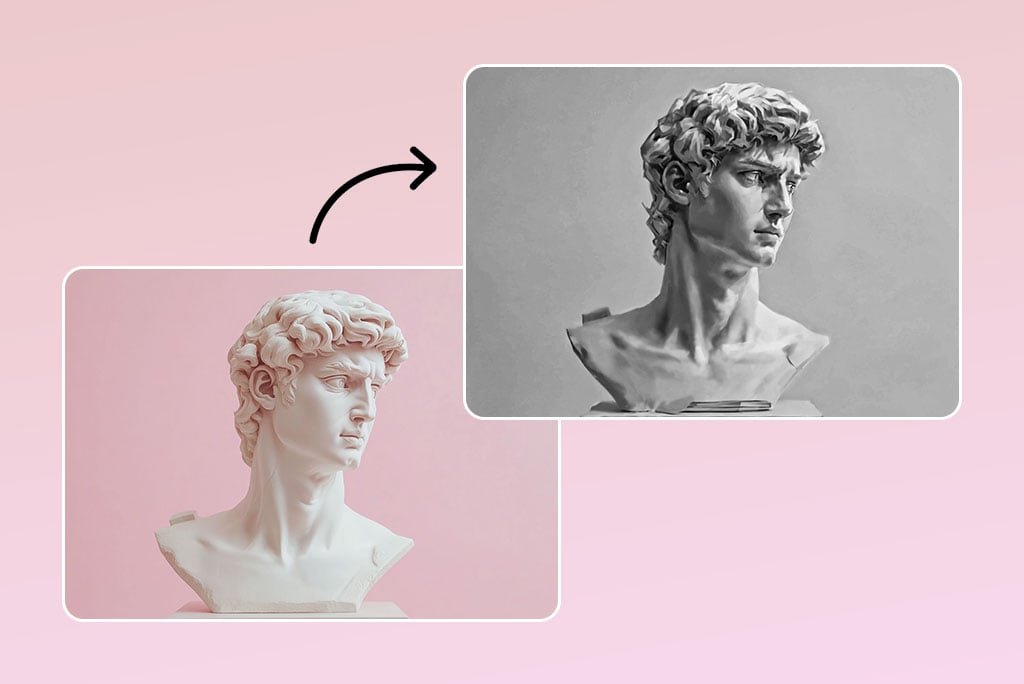
Still Life Drawing
Change flowers, food, decor, or product photos into drawing references for mood boards, packaging ideas, and creative posts. Simple backgrounds help the object stay readable.
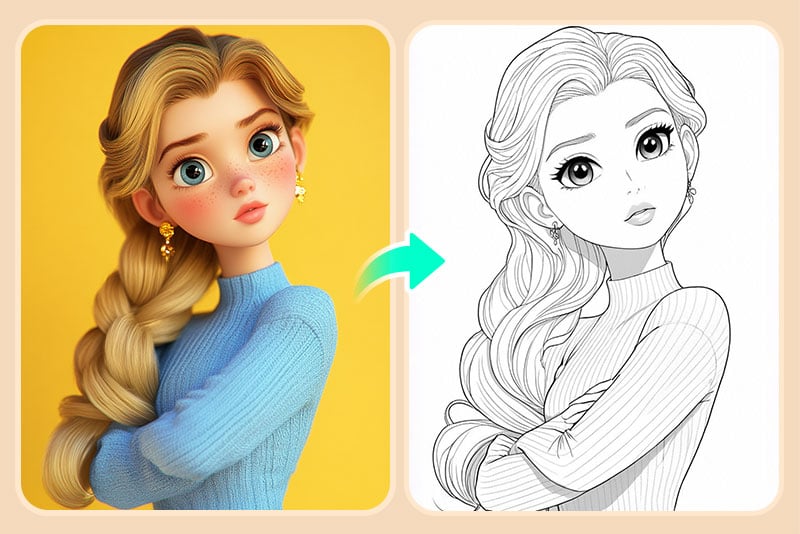
Coloring Pages
Use Outline or LineArt to turn a picture into a cleaner black-and-white drawing that can serve as a printable coloring-page draft.
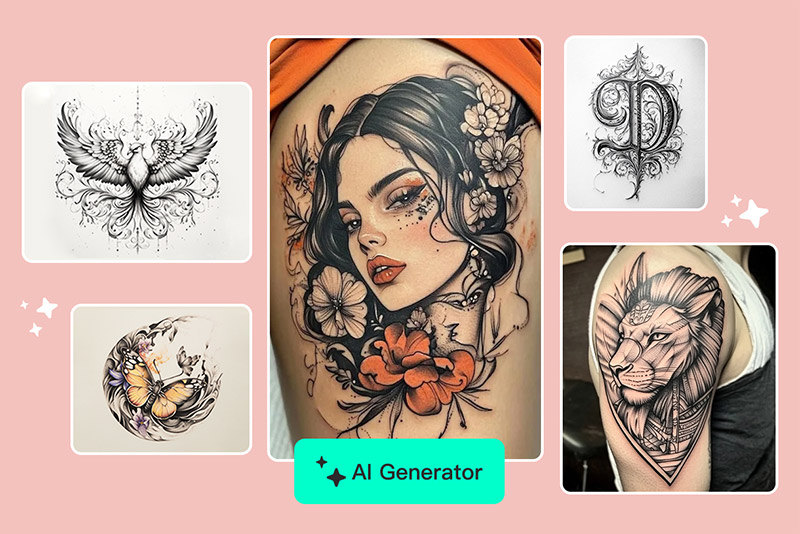
Tattoo References
Try Woodcut, Needle Pen, or Pencil to explore tattoo-style line work before sharing a reference with an artist. Review the lines carefully before using it for a final design.
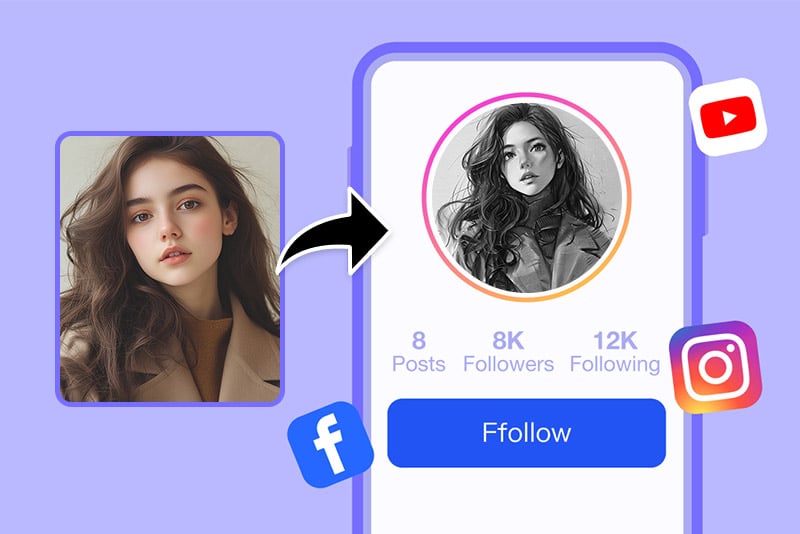
Sketch Avatars
Turn a selfie or profile photo into a quieter hand-drawn avatar when you want something more distinctive than another standard photo.
Why Use insMind as Your Photo to Sketch Converter

Sketch Styles for Different Results
Choose Pencil, Outline, LineArt, Sketch, Needle Pen, or Woodcut instead of applying one effect to every photo. The style choice changes the balance between shading, texture, and edge definition.

Simple Browser Workflow
Upload a photo, choose a style, generate a preview, and download the drawing in a few steps. You do not need drawing software or manual tracing to test an idea.

Easy to Keep Exploring
Once you have a sketch, you can move to related effects such as photo to cartoon or photo to watercolor when the project calls for color or a different art direction.
Photo to Sketch Converter FAQs
How do I turn a photo into a sketch online?


What kind of photo works best for a pencil sketch?
Can I turn a picture into a drawing or line art?
Is this photo to sketch converter free to try?
Can I convert a photo to a pencil sketch online on my phone?
Can I use a sketch result for a coloring page or tattoo idea?
What is the difference between a sketch, pencil drawing, and line drawing?
Why does my sketch look too dark or busy?
Explore More Photo Drawing and Art Tools
Try a cleaner outline, realistic pencil drawing, cartoon, watercolor, or anime effect when your project needs a different finish.
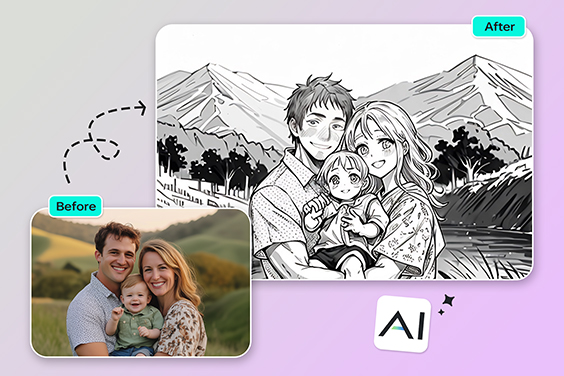
Photo to Outline
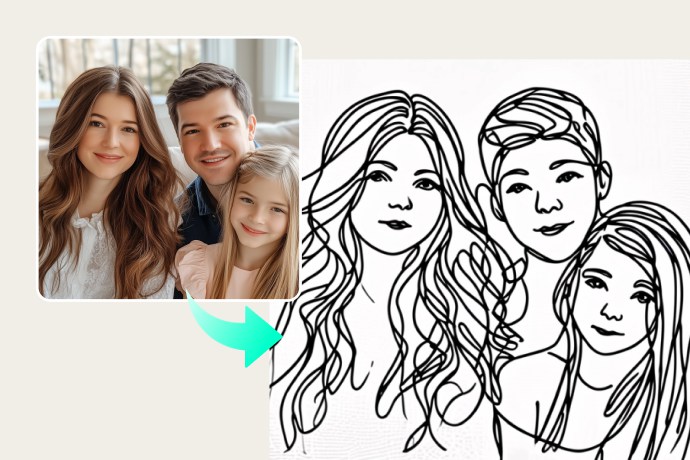
Photo to Line Drawing
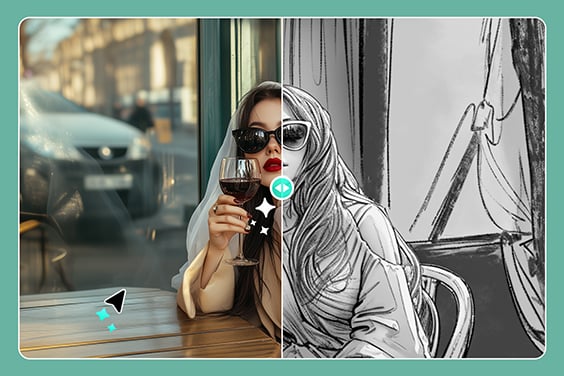
Photo to Pencil Drawing

AI Image Enhancer

AI Filter
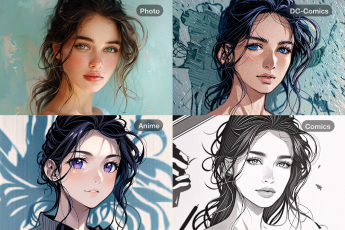
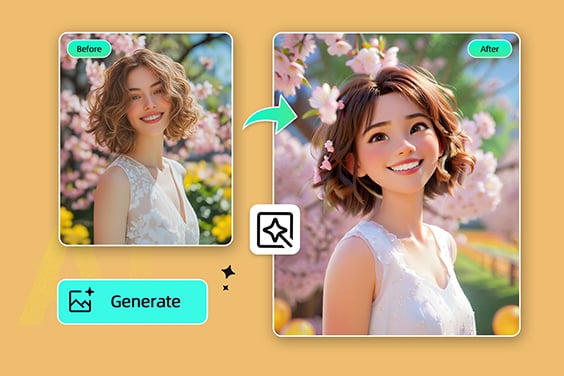
Photo to Cartoon
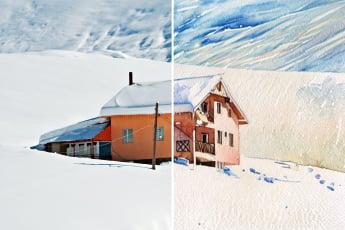
Photo to Watercolor
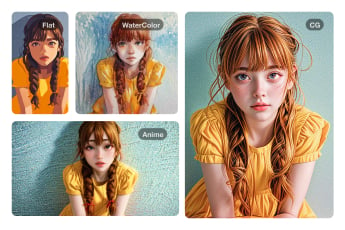
Photo to Oil Painting
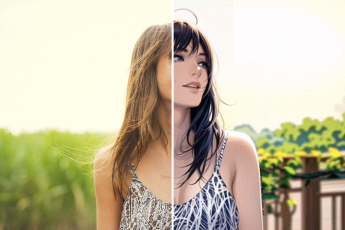
Photo to Anime
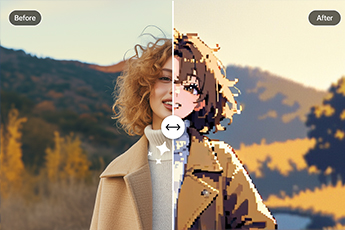
Photo to Pixel Art
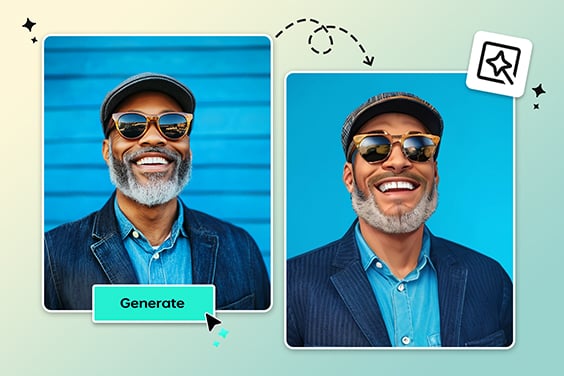
AI PS2 Filter
This is a great tool, I turned my still-life pictures into incredible-looking sketches with minimal effort and I recommend it to the artists out there looking for insMind.
@Reily