
Picture Outline Maker – Easily Outline an Image Online
Upload a photo and add a clean white or colored outline around the main subject. Create product cutouts, profile pictures, stickers, and social graphics online.
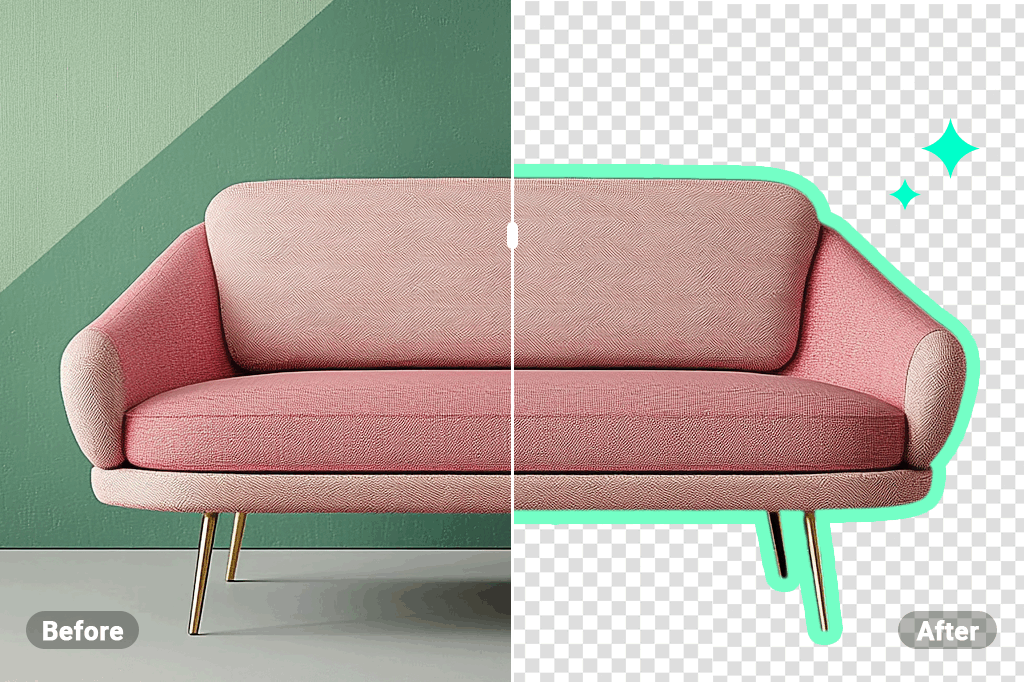
Make Product Photos Stand Out with a Clean Outline
Add a crisp outline around furniture, clothing, accessories, food, or any other product subject. The visible edge helps separate the item from a similar-colored or busy background without changing the product itself.
A white outline works well for marketplace graphics and clean layouts, while a brighter color can support sale posts, thumbnails, or campaign creatives. If you need a rectangular frame around the entire canvas instead, use the add border to photo tool.
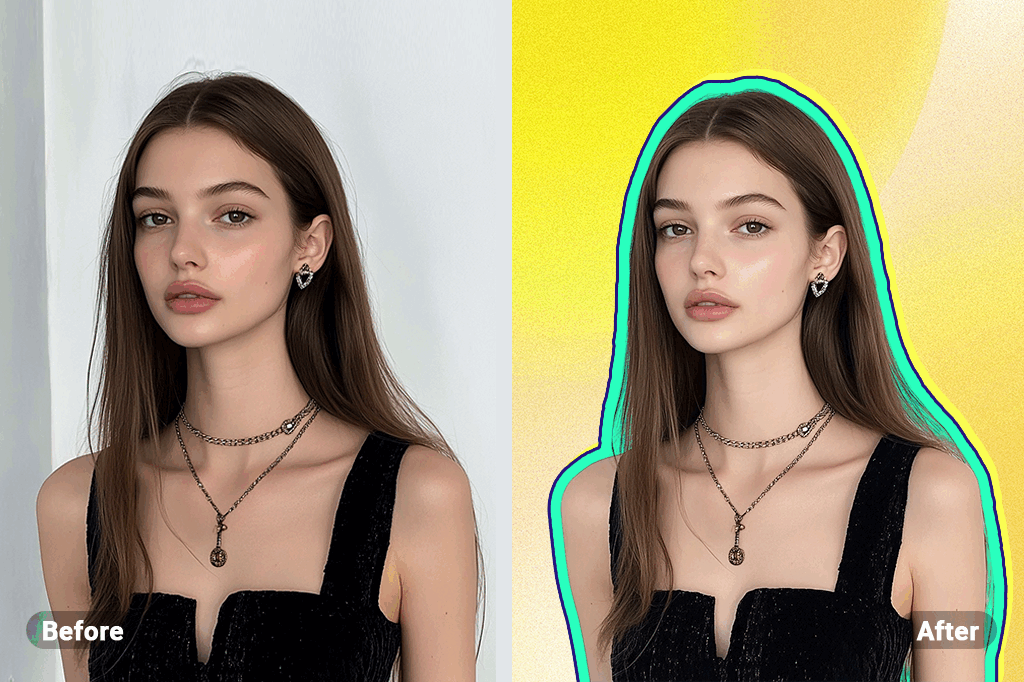
Add a Photo Outline to Portraits and Profile Pictures
Outline a person, pet, or group so the subject remains easy to recognize in a profile picture, thumbnail, presentation, or social post. The effect follows the visible subject rather than placing a border around the whole image.
Choose a color that contrasts with both the subject and the intended background. For a cleaner cutout before further design work, continue with the background remover.
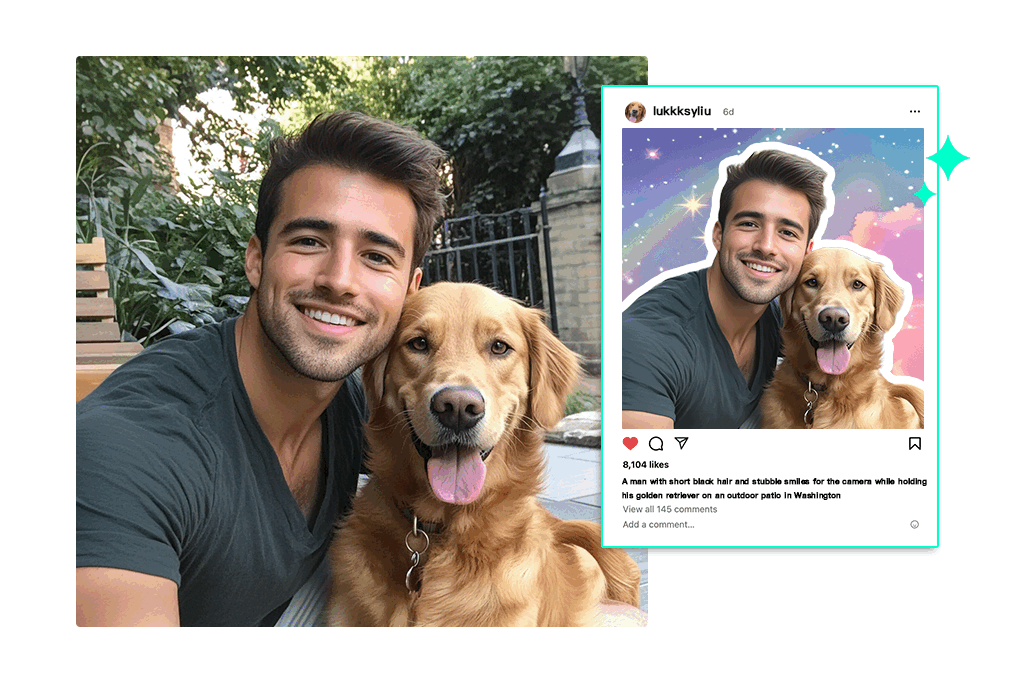
Create Scroll-Stopping Social Posts and Thumbnails
Use an image outline to keep the main person or object visible beside headlines, price labels, badges, or other design elements. This is useful for Instagram posts, YouTube thumbnails, Pinterest graphics, ads, and promotional banners.
Keep the outline consistent across a content series so repeated posts feel related. After outlining the subject, use the add text to photo tool to finish the message without crowding the focal point.
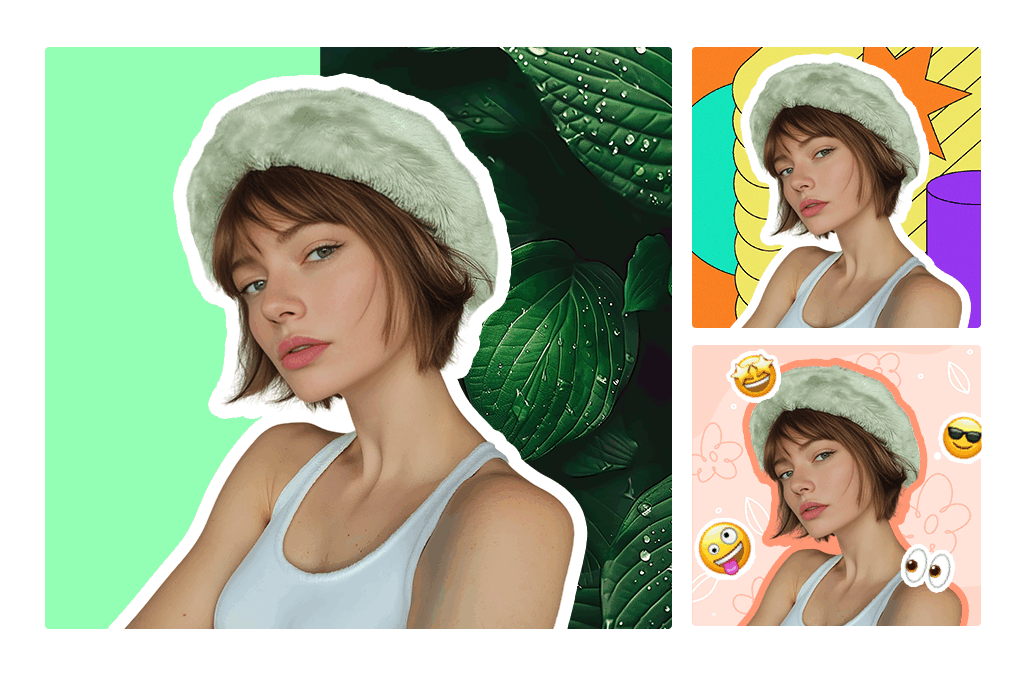
Turn Outlined Photos into Stickers, Memes, and Designs
A thick rounded outline gives a cutout the visual language of a sticker. Use it for reaction images, creator assets, event graphics, digital scrapbooks, or branded design elements while keeping the original subject recognizable.
This tool adds a colored edge around the subject; it does not convert every detail into line art. To turn a full photo into a drawing made from lines, use the photo to line drawing converter instead.
Continue Editing Your Outlined Image
How to Outline an Image Online

1 Upload a Clear Photo

2 Choose an Outline Preset

3 Generate and Review the Edges

4 Download or Continue Editing


Where an Image Outline Works Best
Use a subject-following outline to improve separation, hierarchy, and consistency across product, portrait, and brand designs.
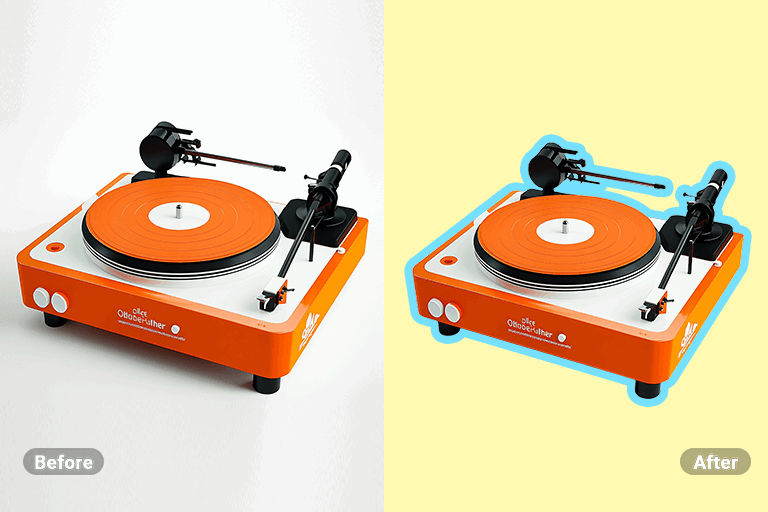
Product Listings and Promotional Graphics
Separate a product from a busy or similar-colored background, then place it beside a price, offer, or callout. Keep the original product color and details visible so the outline supports the listing rather than replacing accurate product information.
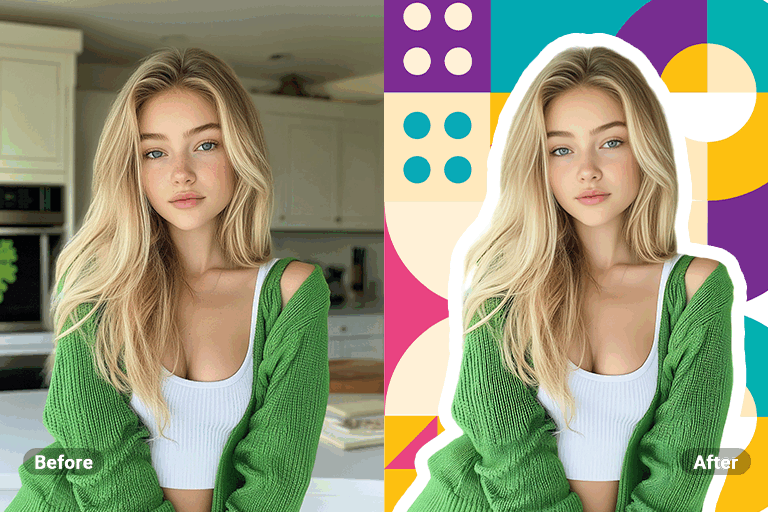
Portraits, Avatars, and Creator Content
Give a person or pet a defined edge for profile pictures, podcast covers, livestream thumbnails, and social posts. A consistent outline color can also help a creator's visuals feel recognizable across channels.
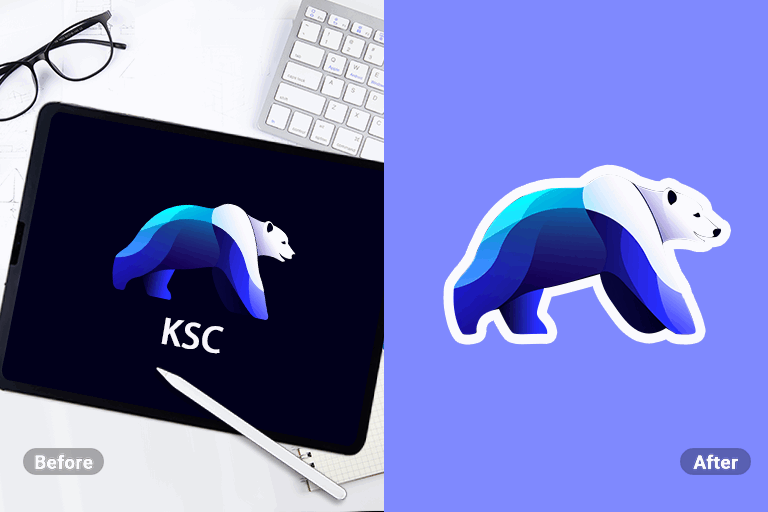
Logos, Icons, and Sticker-Style Assets
Add separation around a logo, mascot, or icon before placing it on a contrasting background. For a sticker-style result, use a thicker light outline and leave enough clear space around the subject when arranging the final design.
Why Use insMind to Outline Pictures?

Upload-and-Generate Workflow

White and Colored Outline Presets

Built for Practical Design Tasks
Frequently Asked Questions
How do I outline an image online?


What is the difference between outlining an image and adding a border?
Can I change the color of the picture outline?
Does the picture outline maker turn a photo into line art?
Keep Editing with Related Photo Tools
Change the background, prepare a platform crop, add depth, or refine the finished outlined image.

AI Background

AI Filter

Smart Resize

AI Shadows

AI Expand

AI Image Enhancer

“Logos are another area where the insMind outline maker comes in very handy! It just made my branding work easier.”
@Sasha