
Improve Image Quality with an AI Photo Enhancer
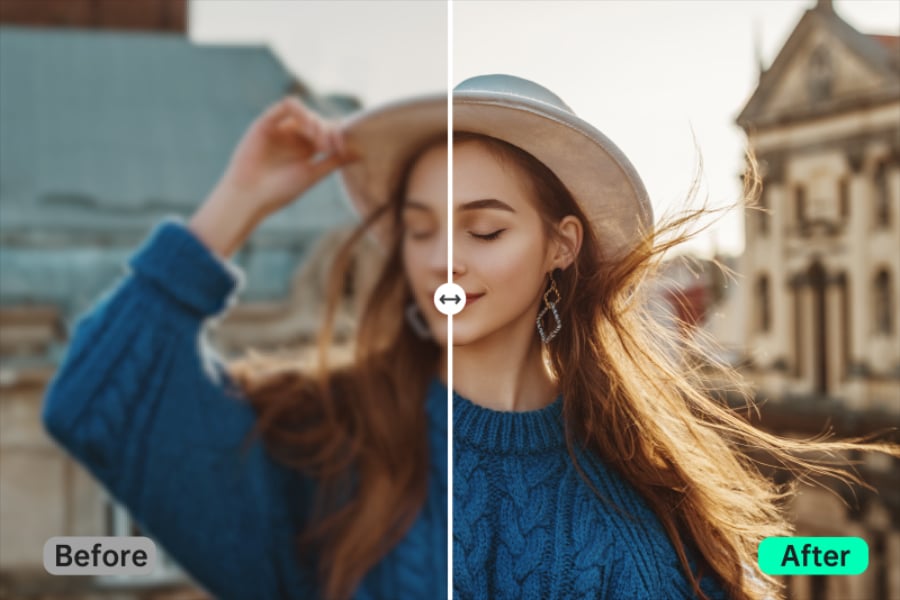
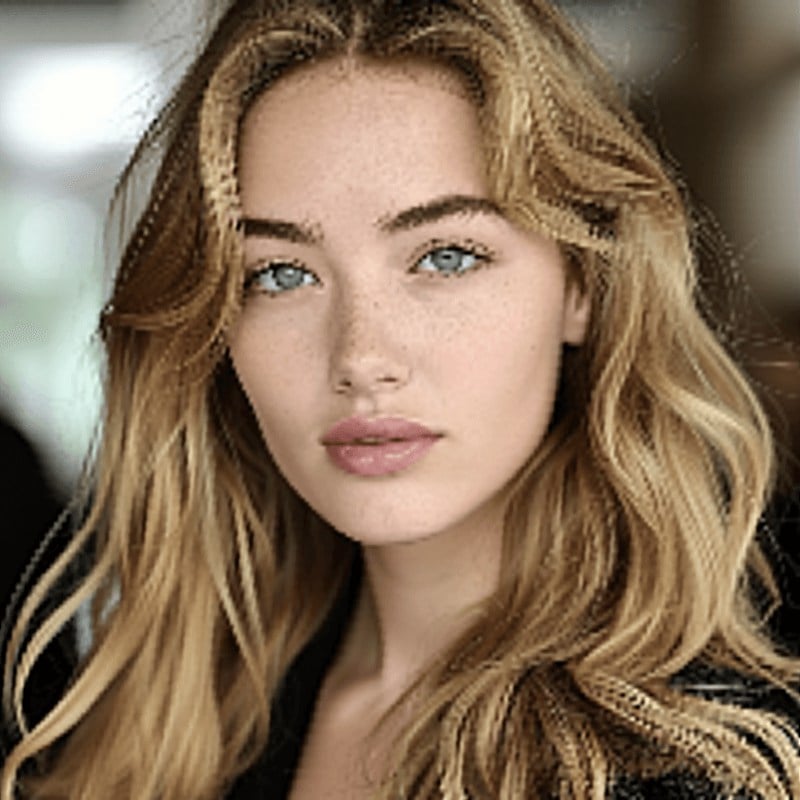
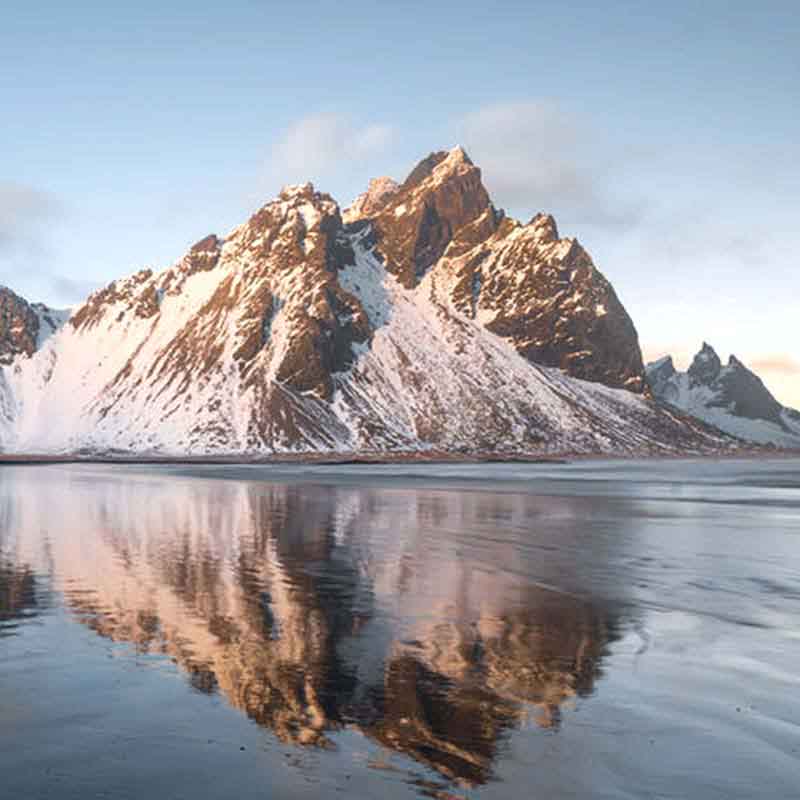
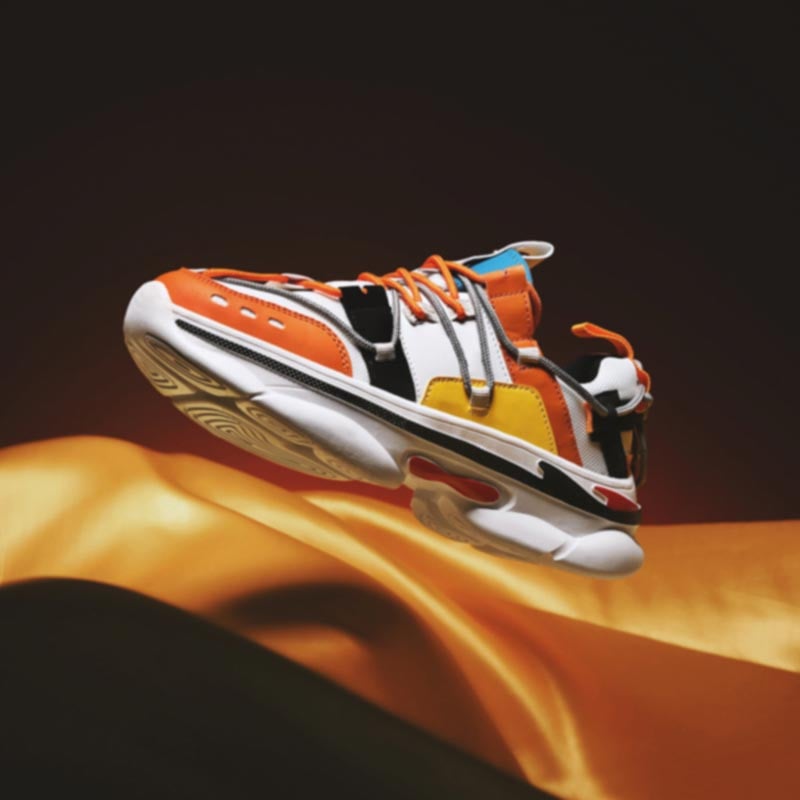
Fix Blur, Noise, Low Resolution, and Faded Color
Not every weak photo needs the same fix. Use insMind for a quick overall enhancement, or move to a focused tool when the image needs restoration, denoising, unblur, or upscaling.
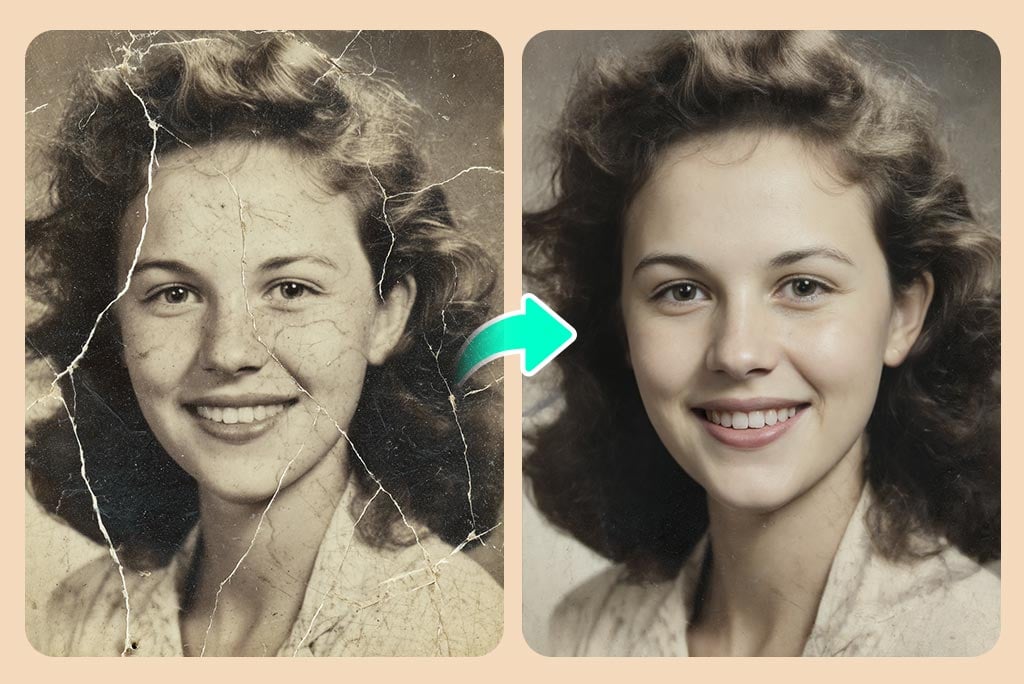
Old scans often need more than sharpness. If a family photo has faded color, scratches, or missing detail, use photo restoration first, then enhance the final image for sharing or print.
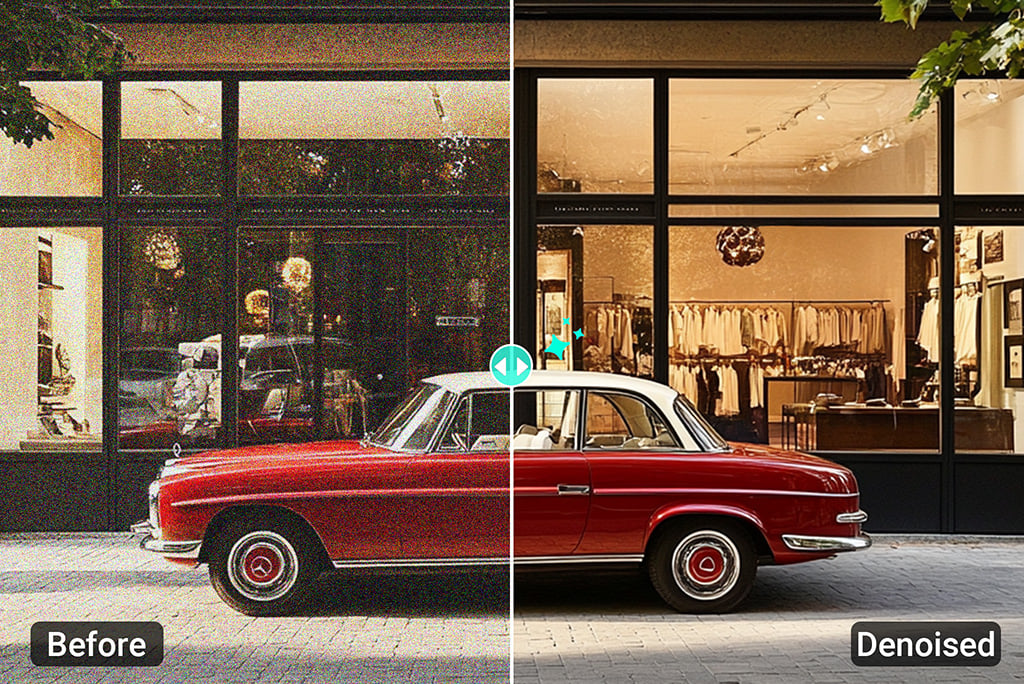
Reduce Image Noise
Low-light photos can pick up grain that makes skin, products, and backgrounds look rough. Use denoise image when noise is the main issue; use this enhancer when you also want clearer detail and better color.
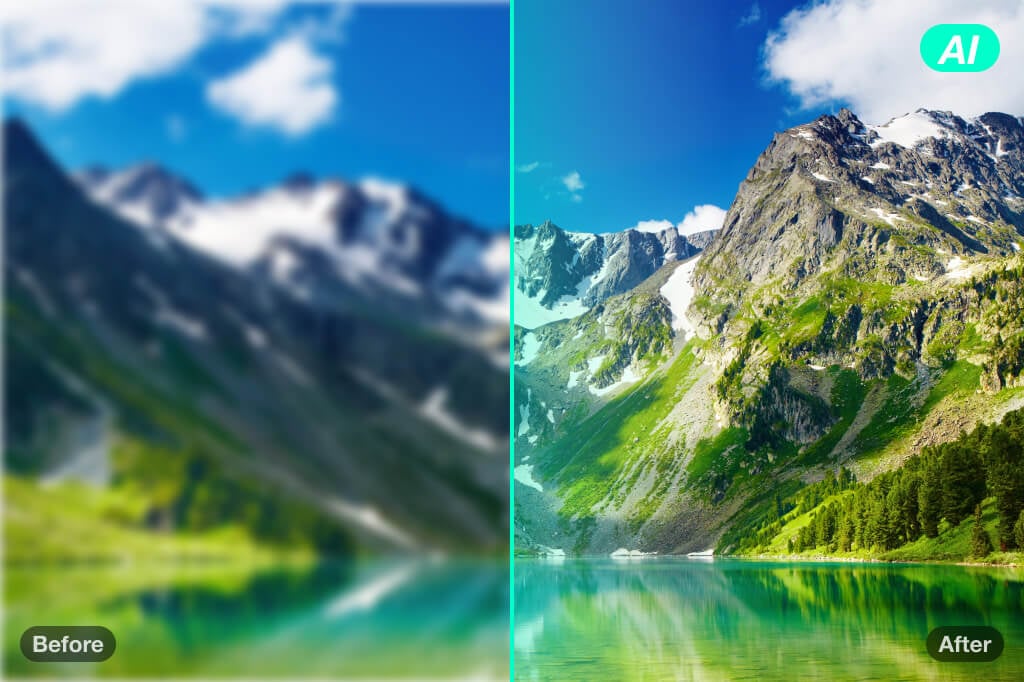
Fix Blurry Images
If the subject is soft but still recognizable, start with Unblur images. It can sharpen edges and recover detail; very heavy motion blur may still need a better source photo.
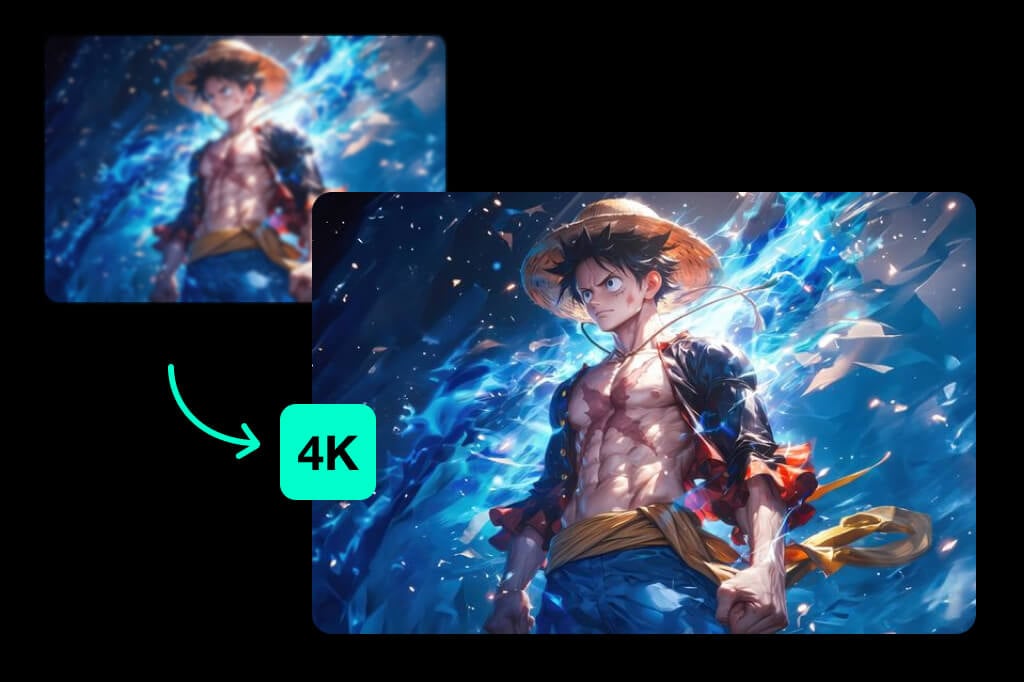
Enlarge Images to 2K/4K/8K
Need a larger file for a listing, banner, or print? Use AI Image Upscaler for 2x, 4x, or 8x output, then check small text and edges before publishing.
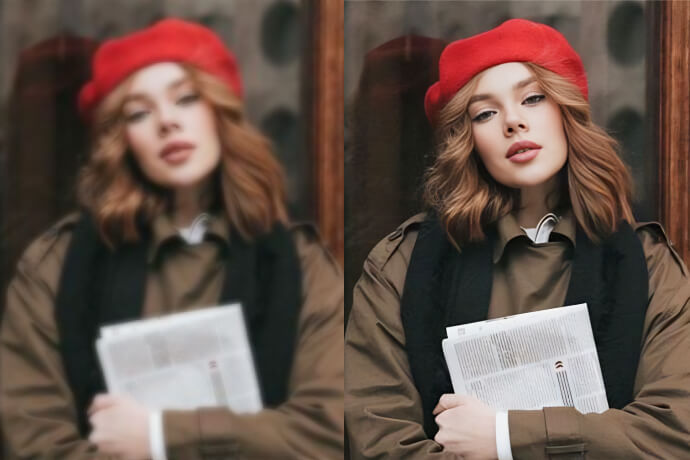
Unpixelate Images
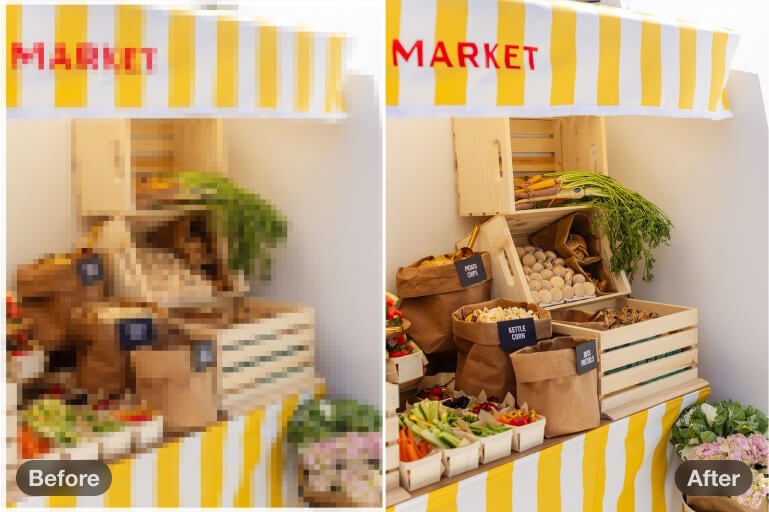
Compression blocks and jagged edges often show up in screenshots, cropped images, and old downloads. The enhancer can smooth rough pixels and create a cleaner-looking image, especially when the original is not too small.
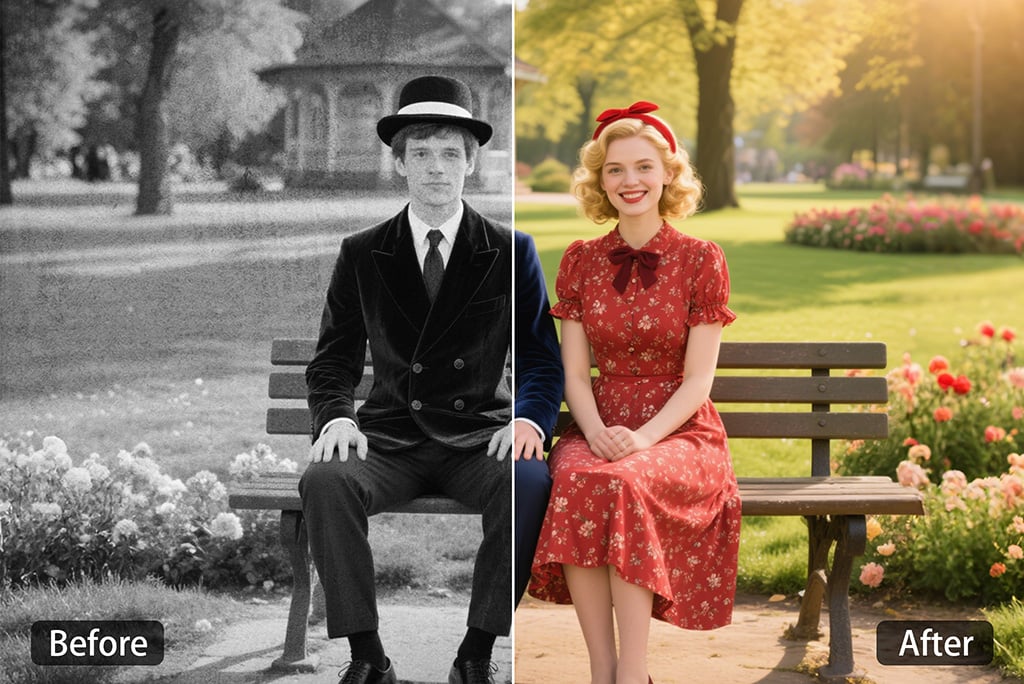
Enhance Color Vibrancy
For photos that look gray, yellow, or flat, use AI color correction to adjust tone, brightness, and contrast without changing the subject.
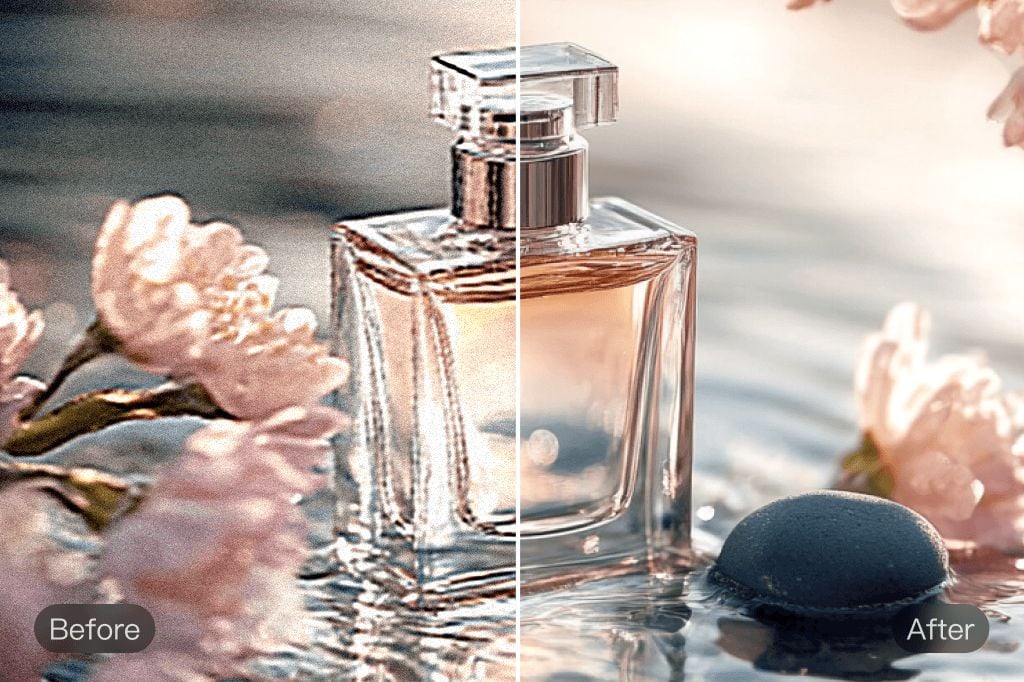
Enhance Image Quality Automatically with AI
Start with a photo that looks usable but not quite ready: a soft portrait, a dim product shot, a compressed social image, or an old scan. insMind checks the image and improves sharpness, color, and visible detail in one pass.
For the best result, choose a clear source image when you can. If the original is extremely small or heavily blurred, preview the output closely and run a more focused tool, such as unblur or upscaling, before using it in a final design.
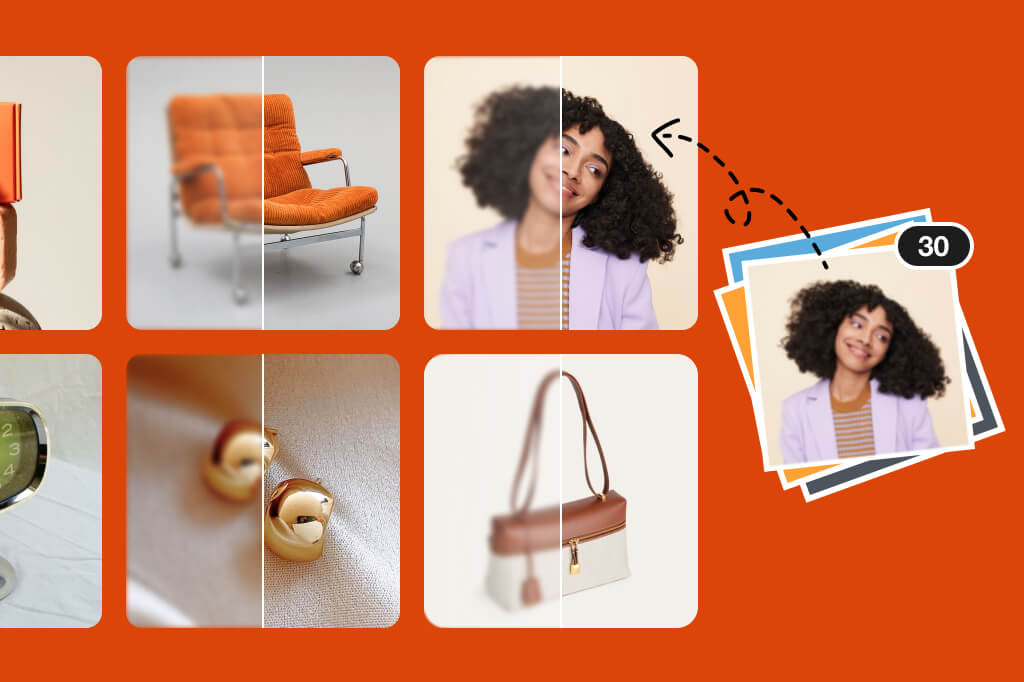
Enhance Multiple Photos at Once
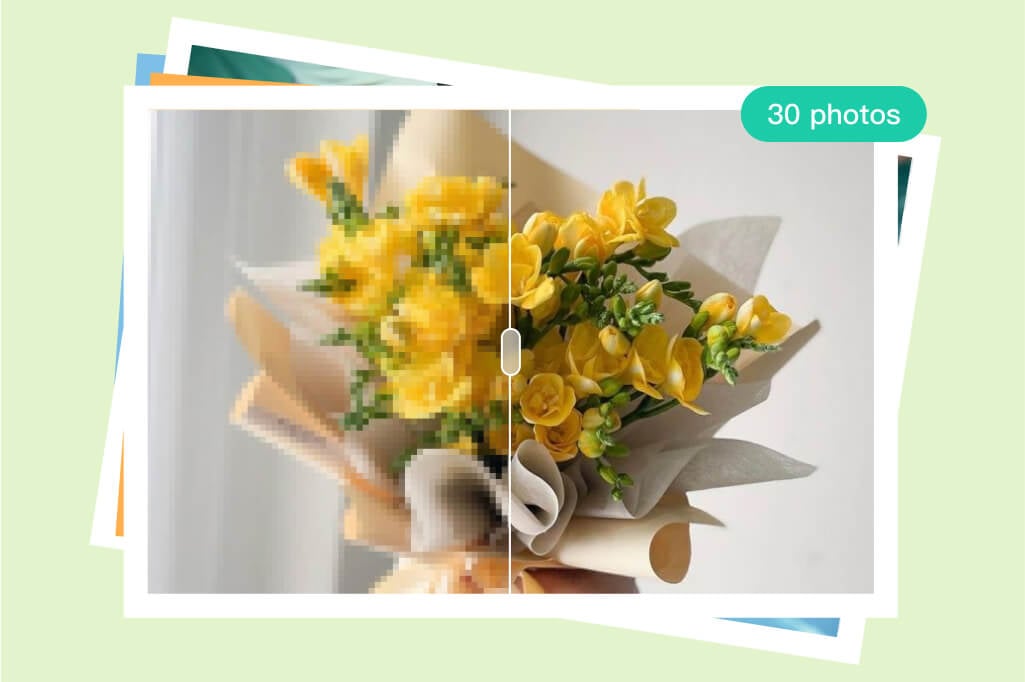
Have a folder of similar photos from the same shoot or product line? Use Bulk upload to enhance up to 30 images instead of repeating the same action one by one.
Batch mode is useful for marketplace listings, social posts, old photo archives, and internal design assets. Keep the file types simple: JPG, JPEG, PNG, or WebP.
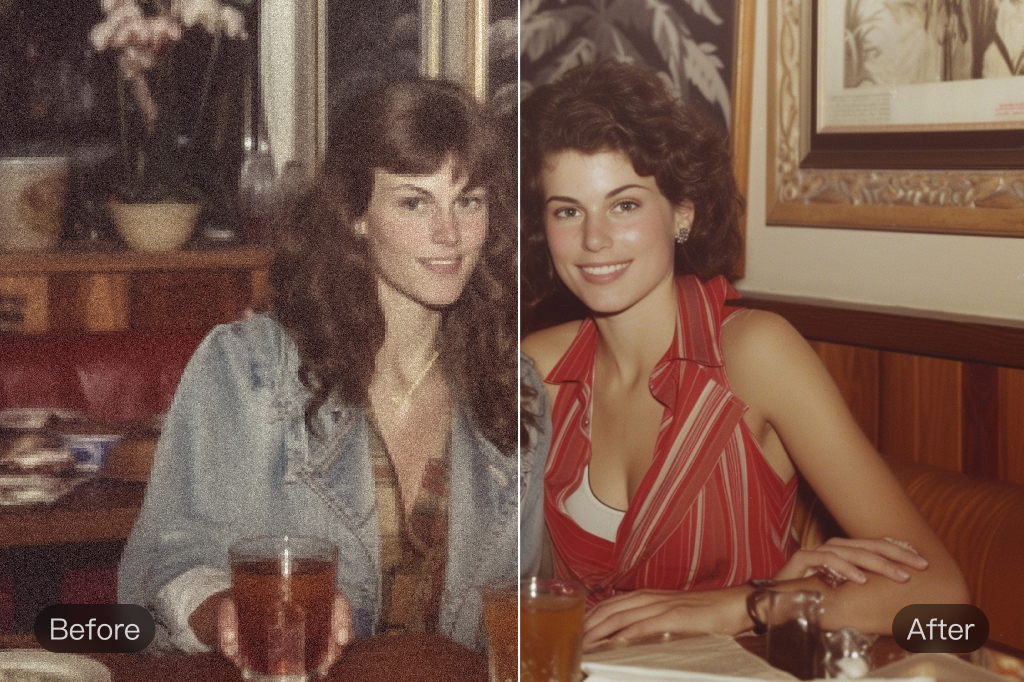
Keep Details Clear, Not Over-Sharpened
Sharper does not always mean better. A good photo enhancer should clean up edges while keeping skin, hair, fabric, product texture, and background detail believable.
Use this feature when the photo needs a cleaner finish rather than a full remake. If the result starts to look too sharp, compare it with the original and choose the version that still feels natural.
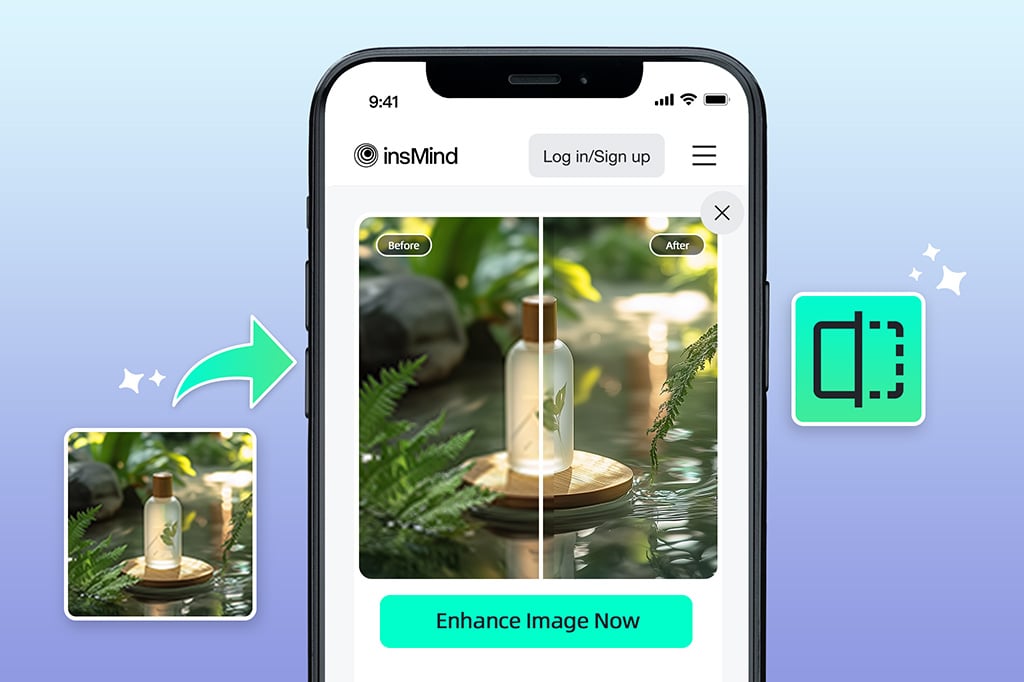
Improve Picture Quality on Desktop or Mobile
Use the enhancer from a browser when you need a quick fix on desktop or mobile. Upload the photo, choose the enhancement path, preview the result, and download when it looks ready.
This works well for phone photos, screenshots, product images, and older files that need a cleaner version before publishing, printing, or sending to a client.
Explore More Image Enhancement Tools
How to Enhance Image Quality Online with AI

1 Step 1. Upload your photo
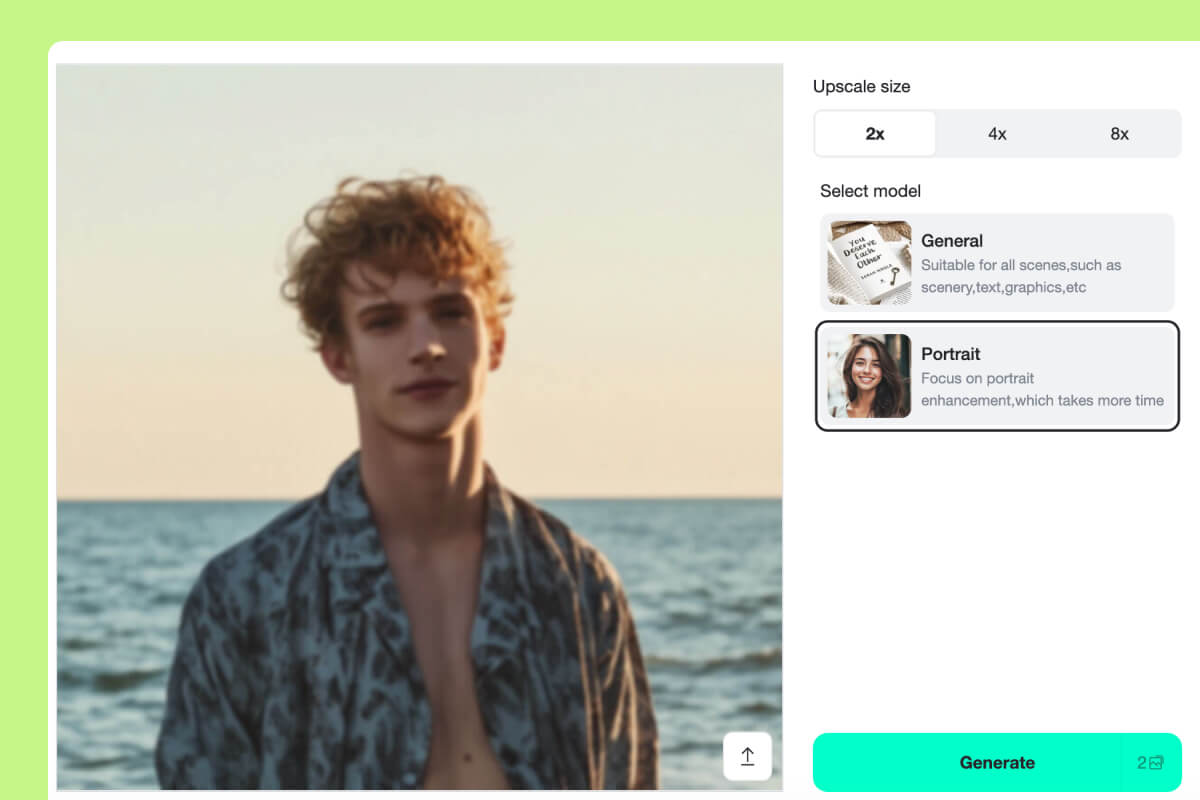
2 Step 2. Choose the enhancement setting
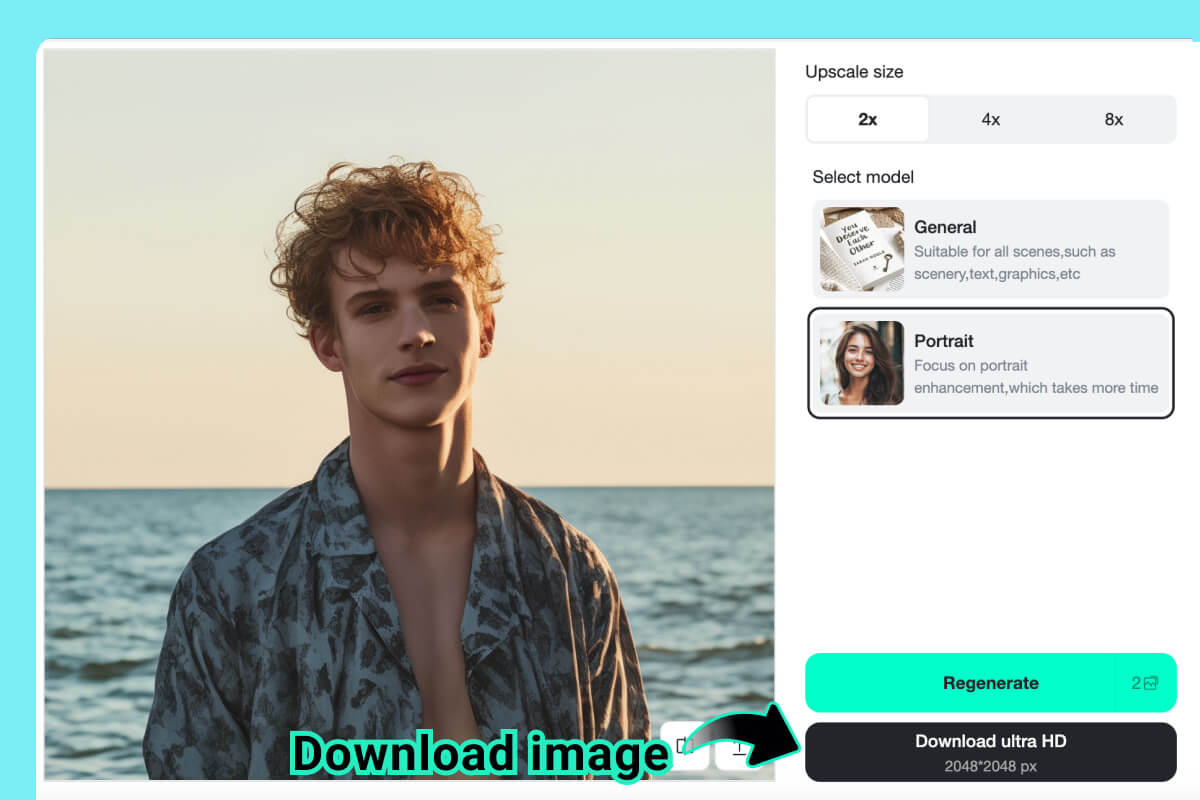
3 Step 3. Preview and download
Who Gets the Most Value from a Photo Enhancer?
The strongest use cases are photos that already contain useful information but need cleaner detail, better color, or higher resolution before they are published.
For Photographers
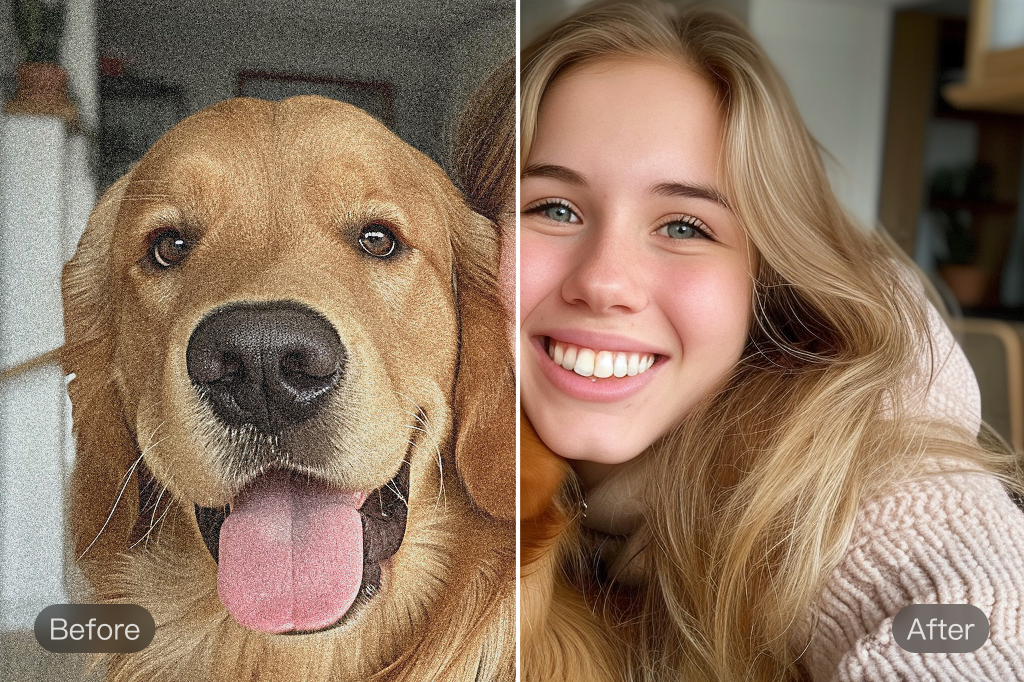
Use AI enhancement as a first cleanup pass for proofs, client previews, or older files. It can save time on simple clarity fixes while still leaving room for manual retouching on important work.
For E-commerce & Retailers
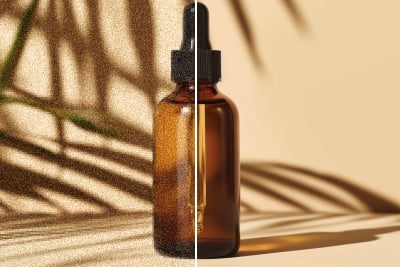
Clean product shots help buyers inspect texture, color, and small details. Enhance catalog images before uploading them to a store, especially when photos came from different cameras or lighting setups.
For Real Estate
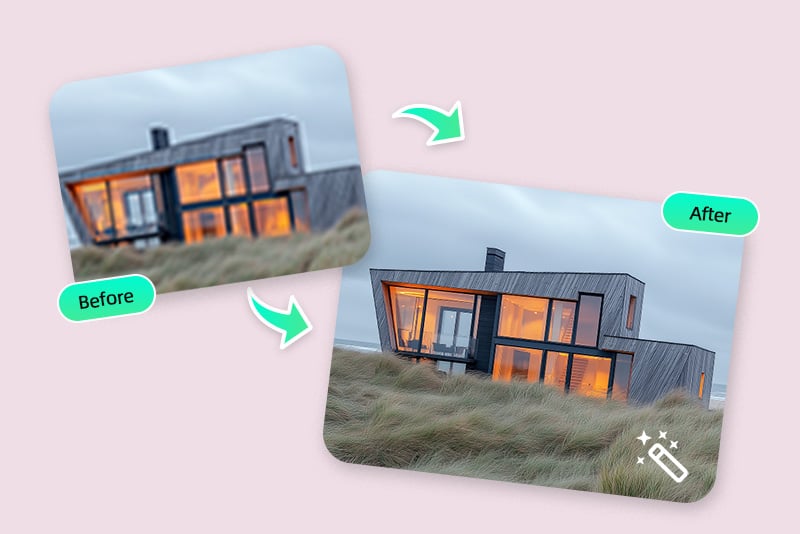
Bright, clear listing photos make rooms easier to scan. Use enhancement to correct soft images and improve contrast, then review windows, walls, and fine edges so the space still looks realistic.
For Social Sharing
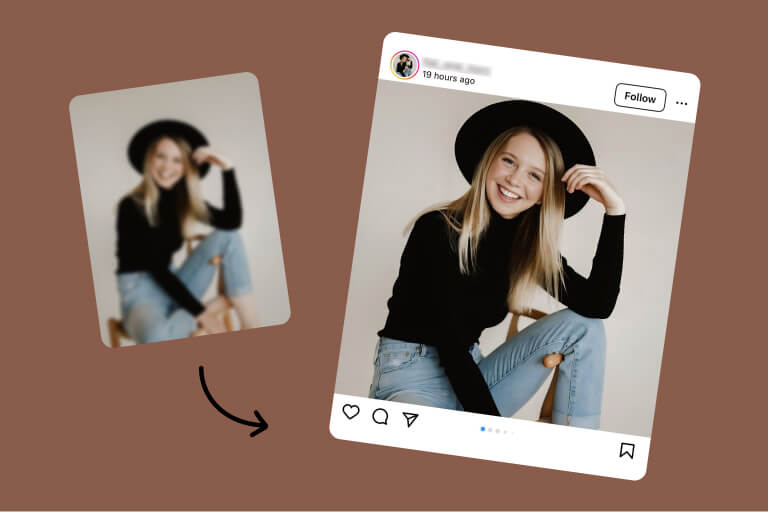
Phone photos often need a small lift before they go live. Enhance a selfie, travel shot, or event photo when the scene is good but the file looks dull, noisy, or compressed.
For Designers & Developers
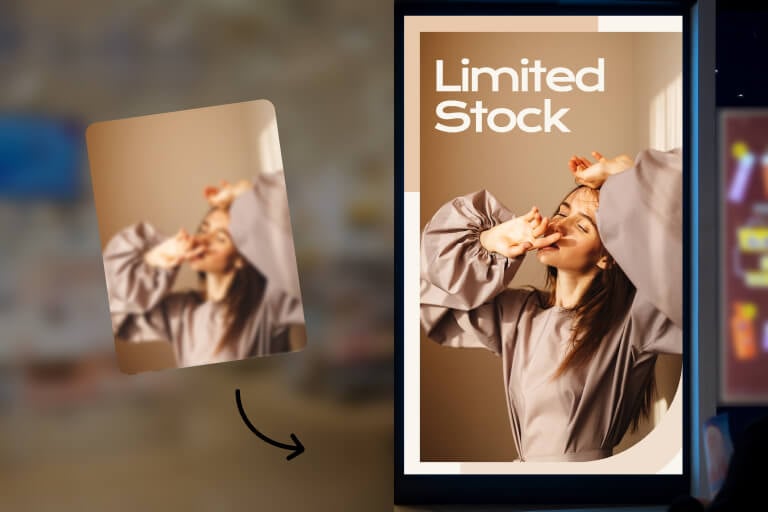
Use enhanced images as cleaner placeholders, website visuals, app screenshots, or marketing assets. It is a quick fix when a source image is almost usable but not polished enough.
For Professional Photo Prints
Before printing, check whether the photo has enough resolution and detail. Enhancement can help older or low-resolution files, but very small images still need a careful preview.
Enhance Different Image Types Without Losing the Original Feel
A portrait, product image, pet photo, anime image, and logo do not need the same treatment. Use the image type to decide whether you need general enhancement or a more focused insMind tool.
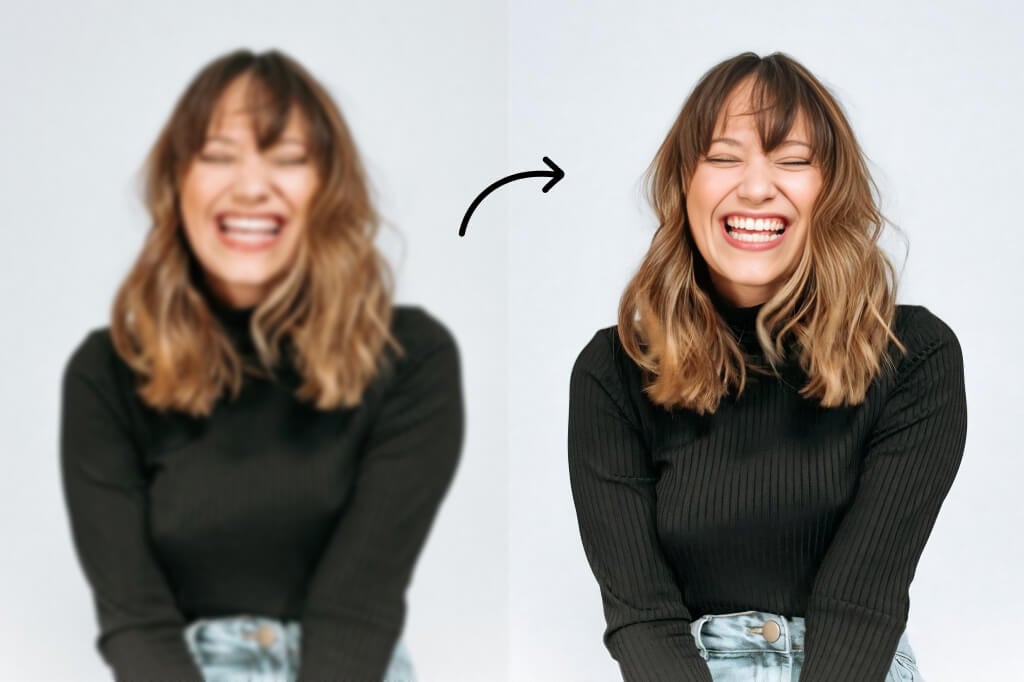
Enhance Portraits
Portraits need careful enhancement around eyes, skin, hair, and shadows. Use Portrait mode when available, then check that skin texture still looks natural instead of overly smoothed.
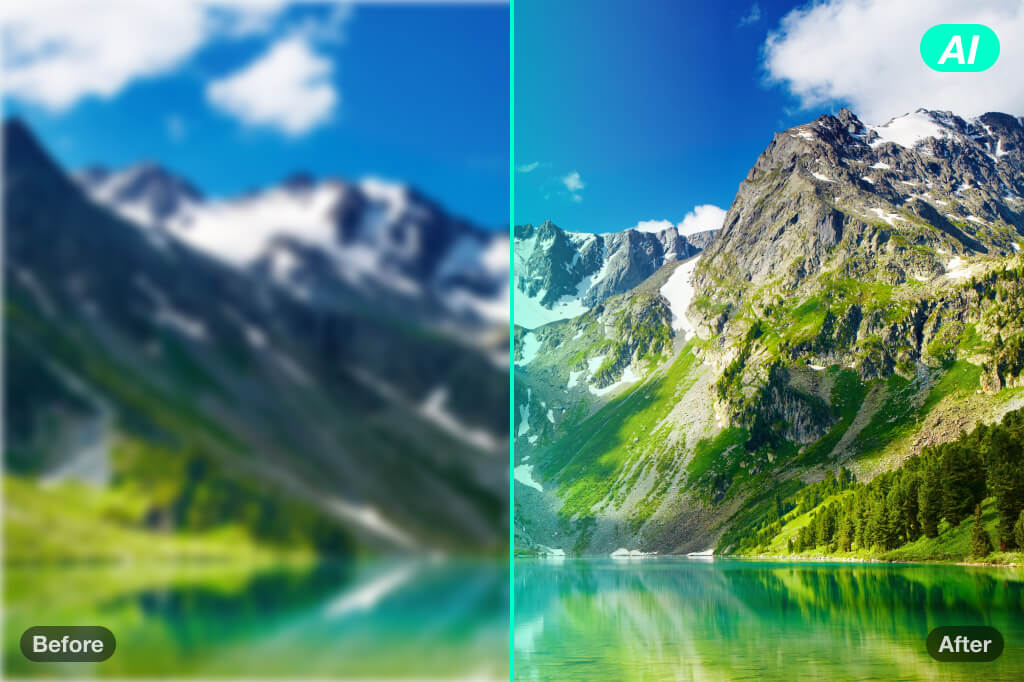
Enhance Landscape Images
For landscapes, look at sky gradients, tree edges, water, and distant buildings. The goal is a clearer scene with better contrast, not an artificial HDR look.
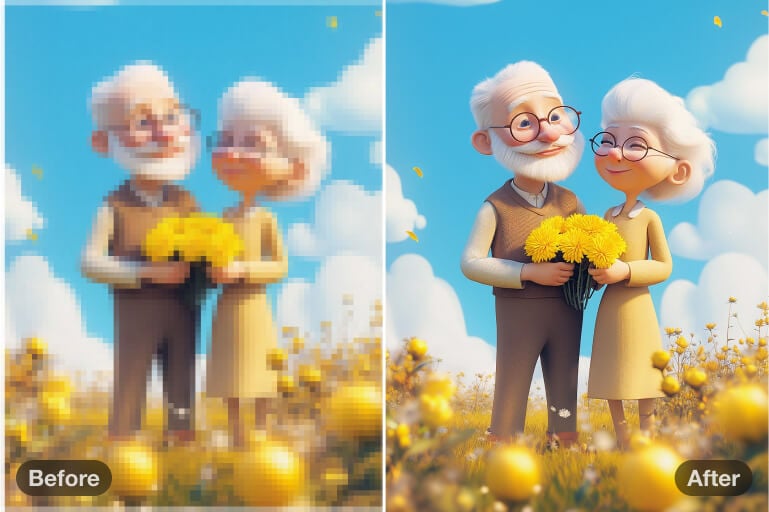
Enhance Cartoon and Anime Photos
Anime and illustrated images often need clean lines more than photo-like texture. For very small art, the Anime Upscaler is usually the better next step.
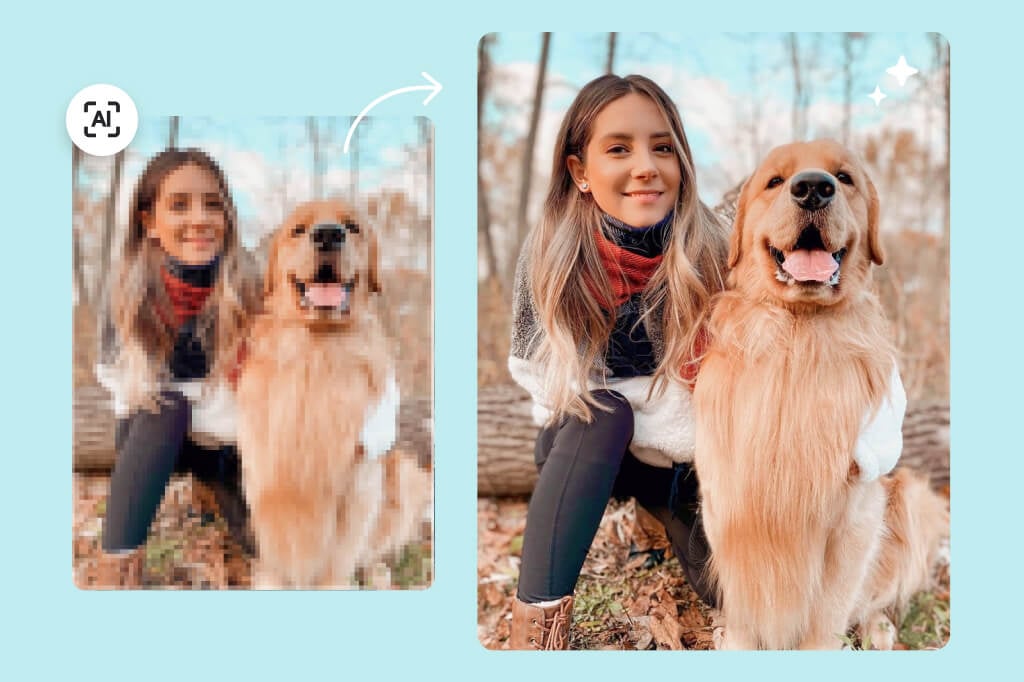
Enhance Animal Pictures
Pet photos often lose detail around fur, eyes, and motion. Enhancement can make the subject clearer, but check whiskers and fur edges before posting or printing.
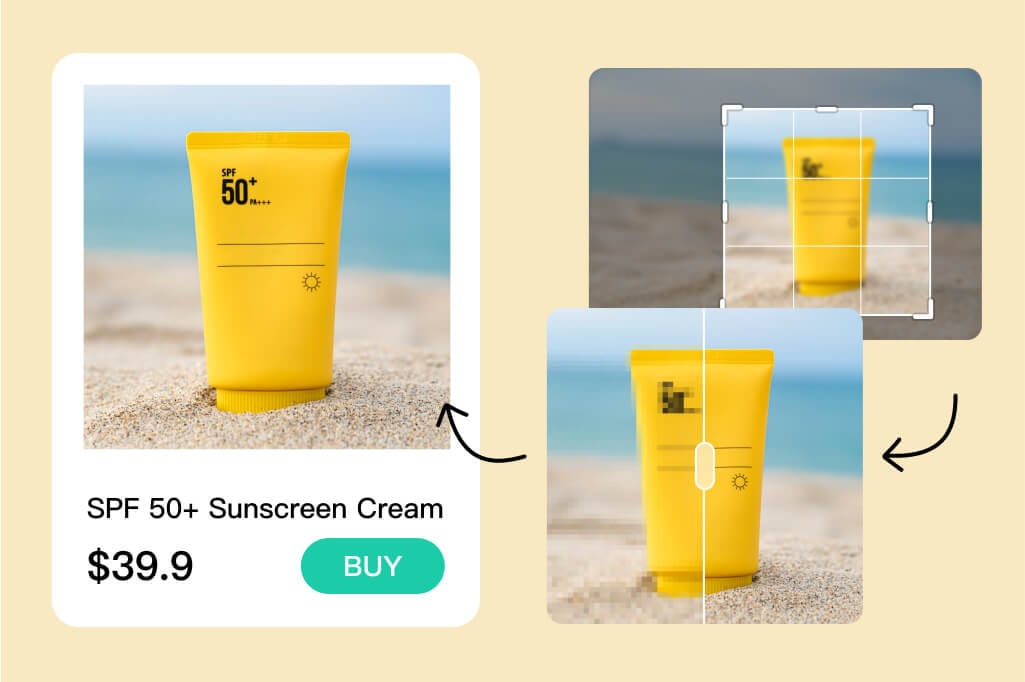
Enhance Product Photos
Enhance product photos when the item is slightly dull, soft, or compressed. Keep the original color in mind, especially for fashion, cosmetics, food, and tech products.
Enhance Logos and Graphics
Logos, icons, and simple graphics need crisp edges. Use enhancement for mild cleanup; for logo-specific files, the AI Logo Enhancer is a more focused option.
Why Use insMind as Your AI Image Enhancer?

Batch Enhancement
Enhance up to 30 images in one batch when you need a consistent cleanup pass for a folder of photos. It is useful for product sets, social images, and old archives.

General and Portrait Modes
Choose the enhancement path that fits the image. Portraits need careful handling around faces and skin; general images can focus more on edges, color, and overall clarity.

Preview Before Download
Do not publish the first result blindly. Compare the enhanced version with the original, check important details, and download the version that still looks natural.

Multi-Format Supported
Upload common image formats such as JPG, JPEG, PNG, and WebP, then enhance the image online without installing desktop software.
Endorsed by Leading Tech Publications
FAQs About AI Image Enhancement
What is an AI image enhancer?


How do I improve image quality online?
Is an image enhancer the same as an image upscaler?
Can I enhance blurry photos?
Can I use it for portraits?
Can I enhance multiple photos at once?
What image formats are supported?
Can I increase photo resolution to 4K or 8K?
More Tools to Improve Image Quality
Sharpen, upscale, retouch, or restore photos when one enhancement pass is not enough.
AI Image Upscaler
Unblur Image
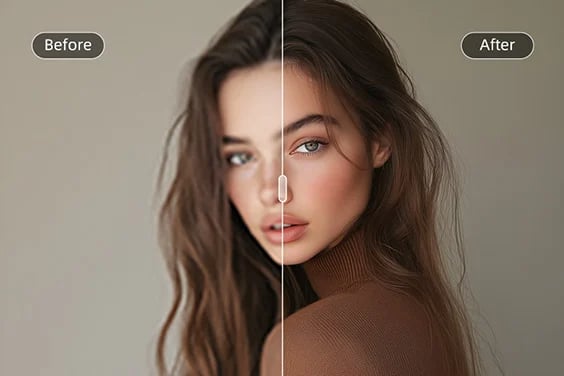
HD Photo Converter
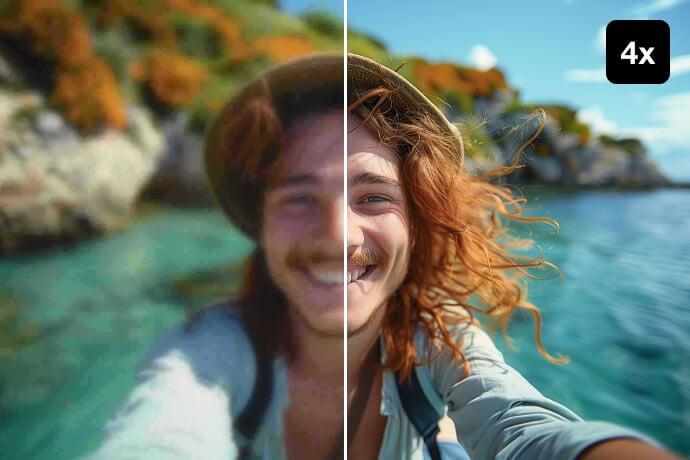
AI Image Enlarger
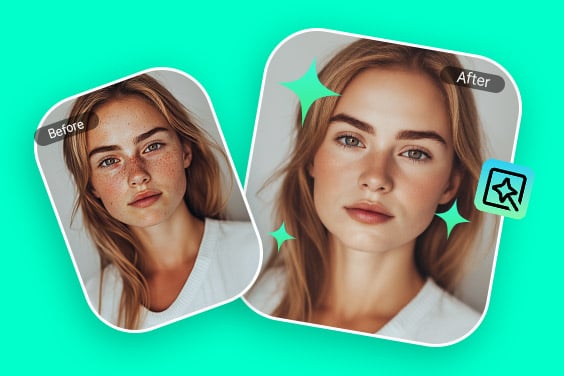
Portrait Retoucher
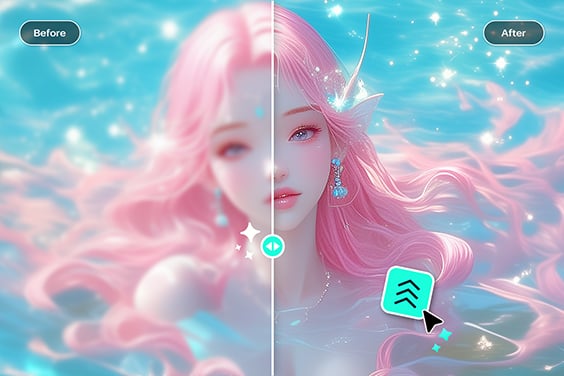
Anime Upscaler
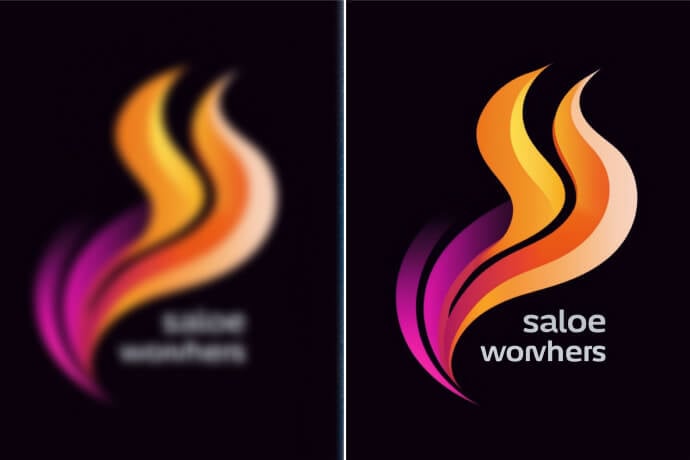
AI Logo Enhancer
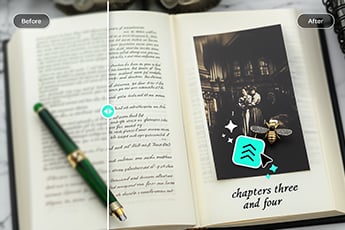
Text Unblur
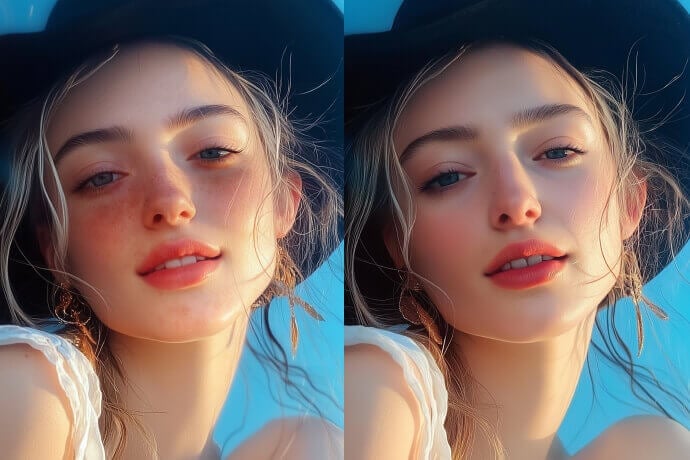
"I've tried other image enhancers before, but none compare to insMind. The AI does an incredible job at enhancing images without making them look over-edited. I highly recommend it to anyone looking to improve their photos!"
@Ethan S