
AI Blemish Remover: Remove Pimples from Photos Online


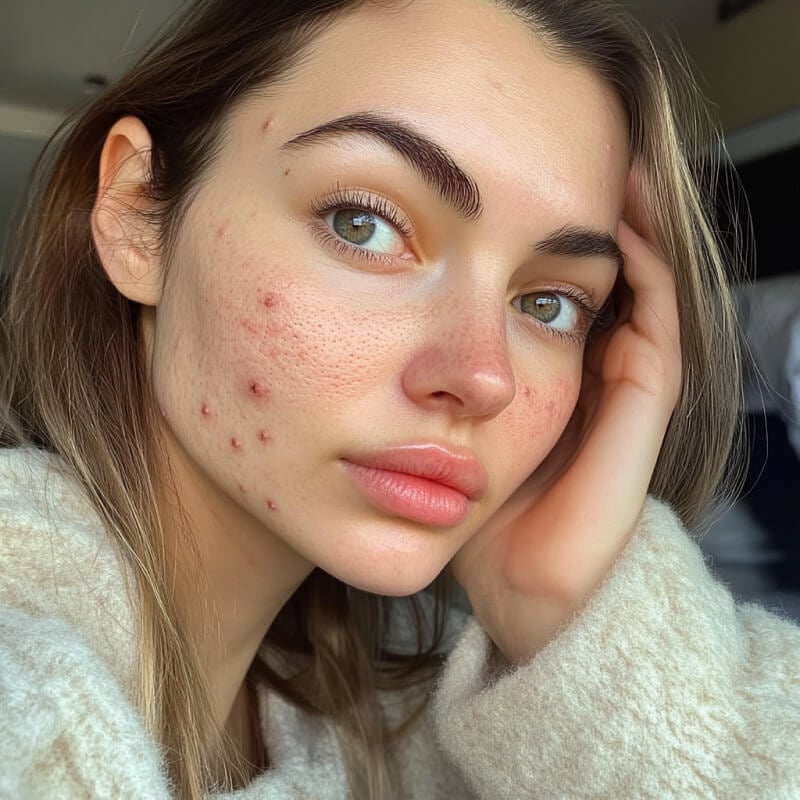
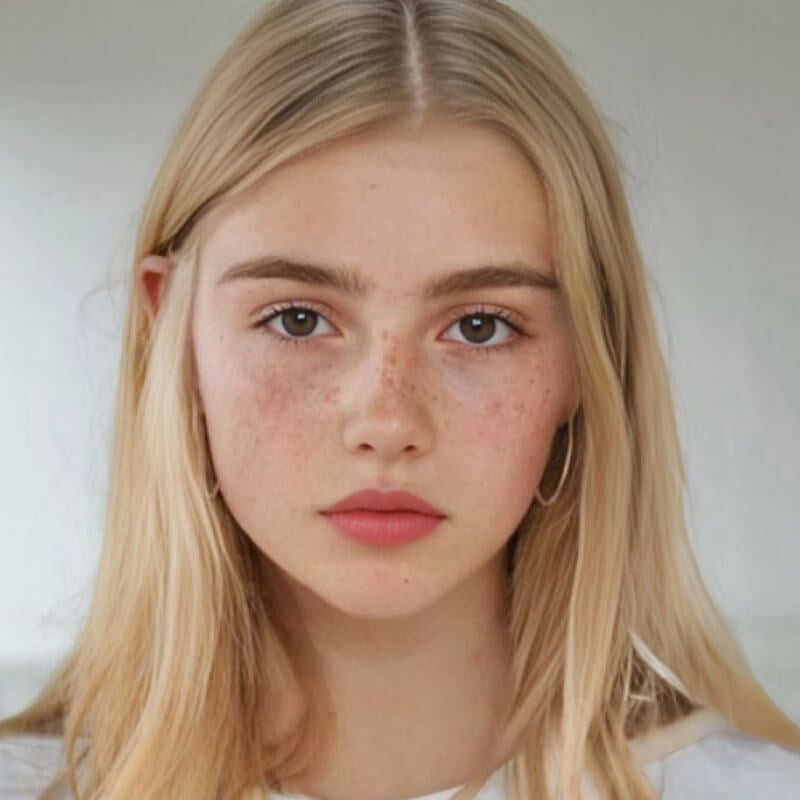
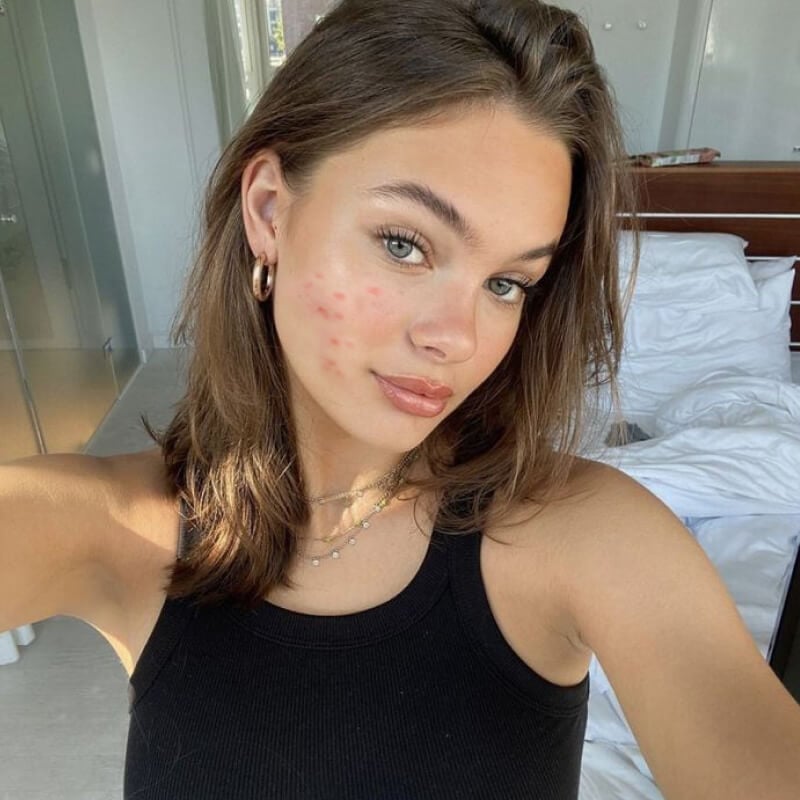
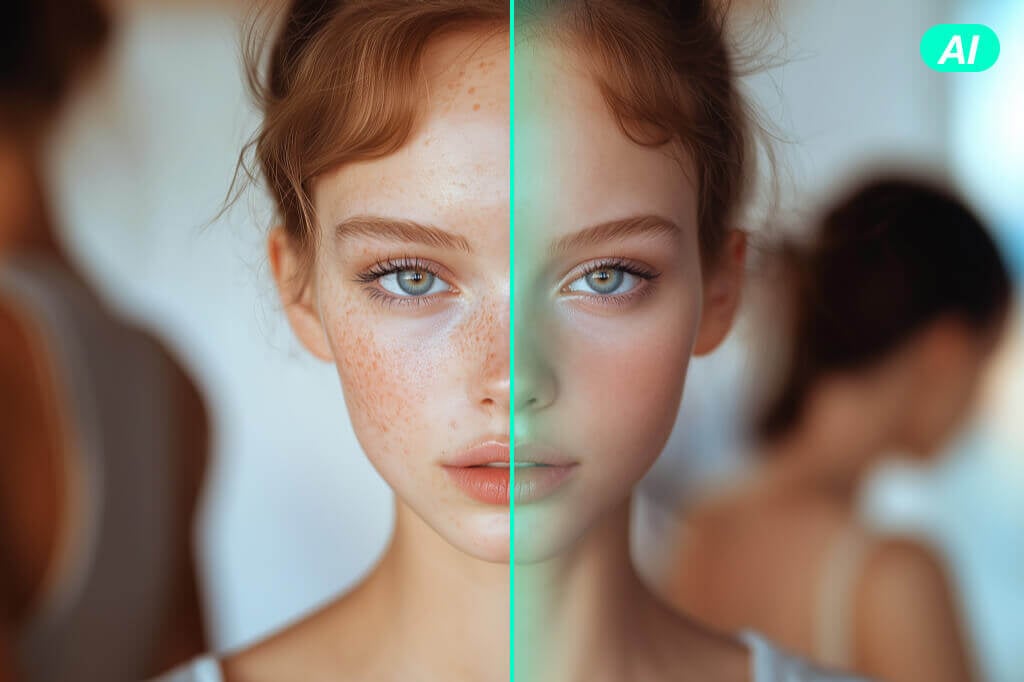
Remove Visible Blemishes from a Photo
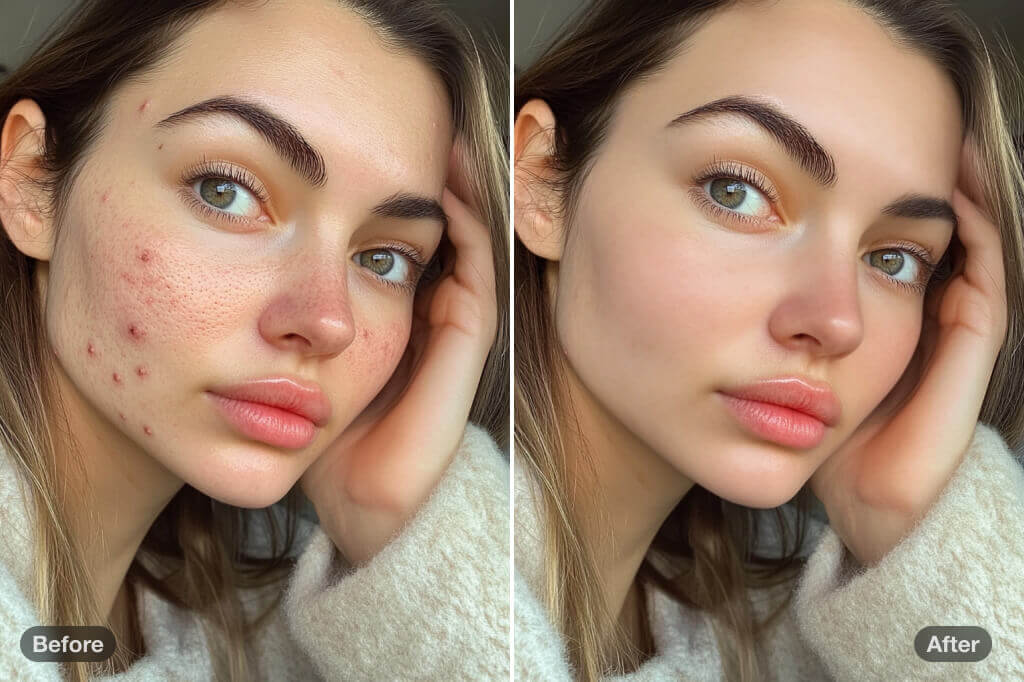
Use the photo blemish remover to reduce visible spots and temporary skin marks in portraits. It can scan the face for common blemishes, while the dedicated Remove Blemish option keeps the task separate from a full face redesign.
A clear, well-lit portrait gives the editor more facial detail to work with. Review the cheeks, forehead, chin, and areas around the eyes, nose, and lips rather than judging the result only at thumbnail size.
Use a Pimple Remover for Selfies and Portraits
Use the pimple remover to reduce a visible breakout in a selfie, profile picture, or headshot without retouching the whole face. Let AI find visible pimples first, then use the local adjustment control when you want to add or exclude a specific area.
After processing, compare the face shape, eyebrows, eyes, lips, hairline, and skin texture with the source. Undo the local edit or try again if an important feature changes more than you want.
Remove Spots While Keeping the Details You Want
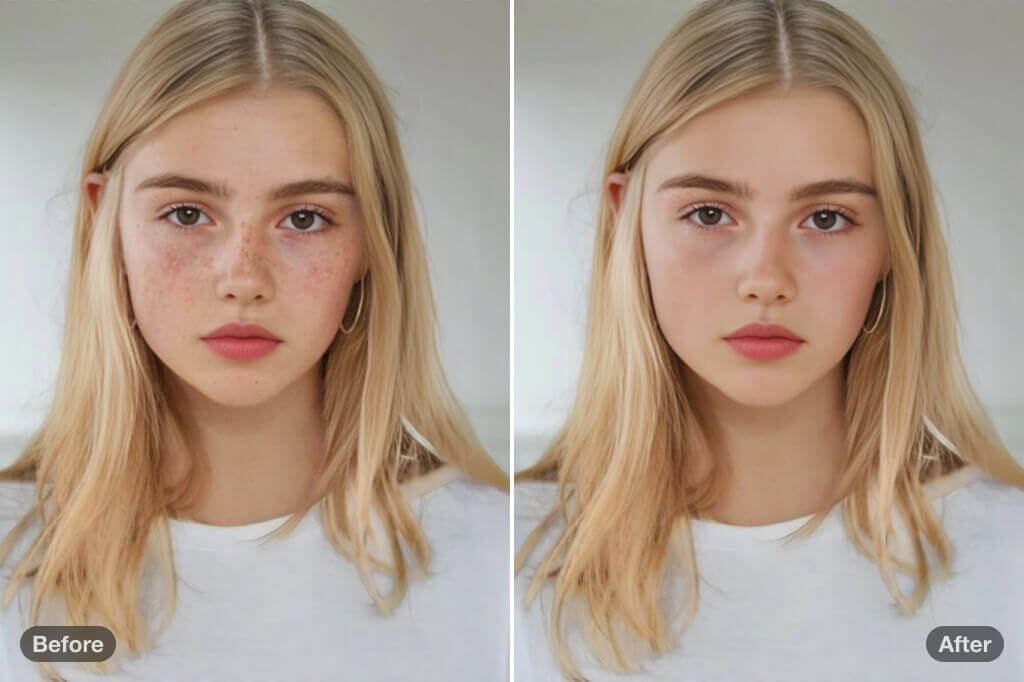
Skin blemish removal should be a photo-editing choice, not a rule about how someone should look. Decide which visible marks you want to reduce, and use local control to leave freckles, moles, pores, and other natural details untouched when they are part of the portrait.
For generic cleanup outside the face, use the Magic Eraser. For a broader portrait and clarity workflow, continue with the AI Face Enhancer.
Remove Blemishes from Multiple Photos in Batch
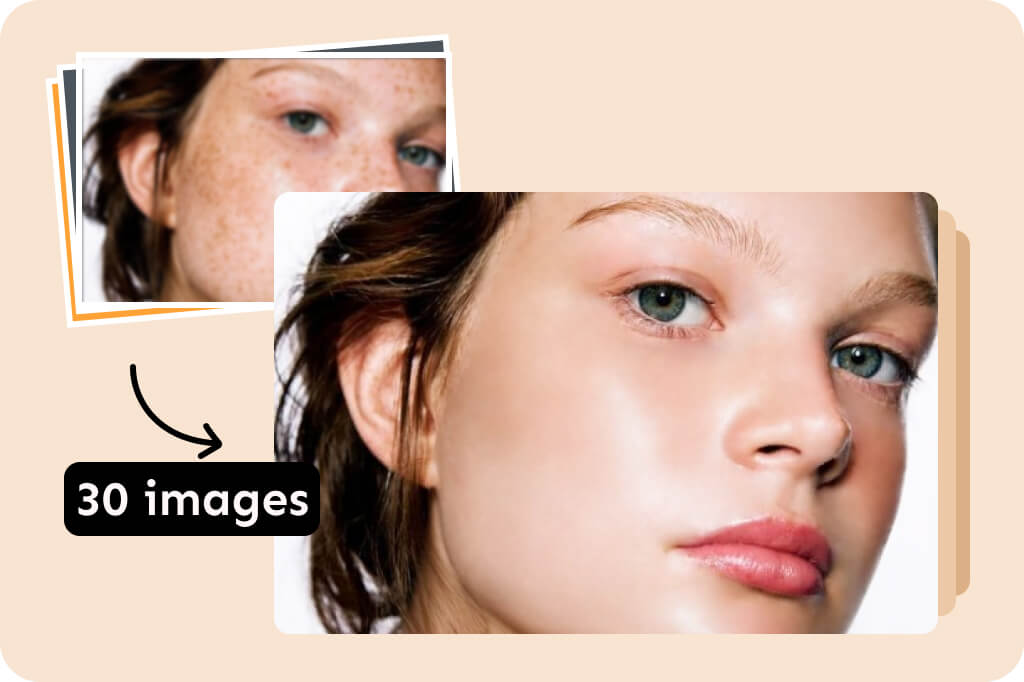
Upload up to 30 portraits when a shoot, creator set, or team gallery needs the same blemish-removal pass. Batch processing saves repeated uploads while the Remove Blemish option focuses each result on visible skin spots and pimples.
Faces, lighting, and image quality can vary across a set, so inspect every output. Use the single-photo editor for a local correction when one portrait needs a more selective touch.
More Tools for Portrait Retouching and Cleanup
How to Remove Blemishes from a Photo Online
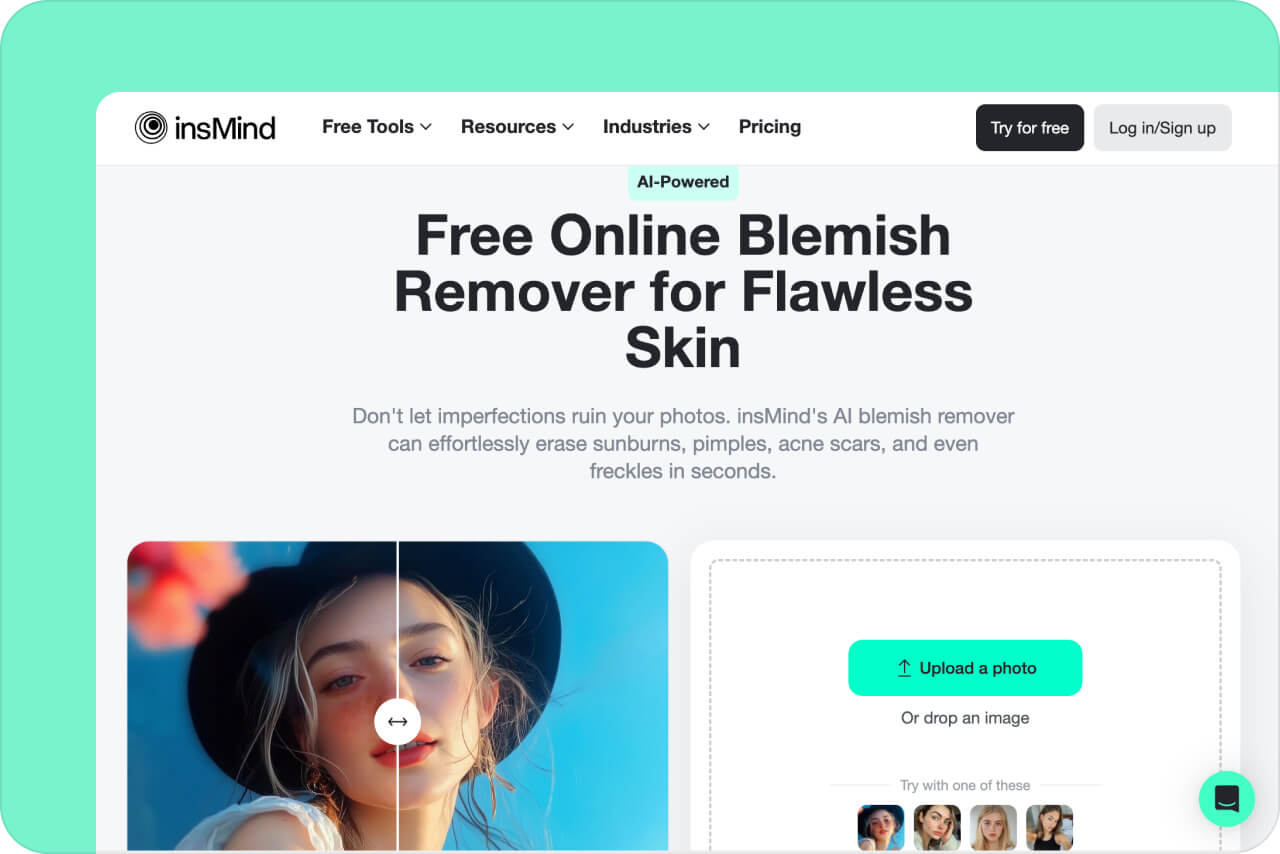
1 Step 1. Upload a Clear Portrait
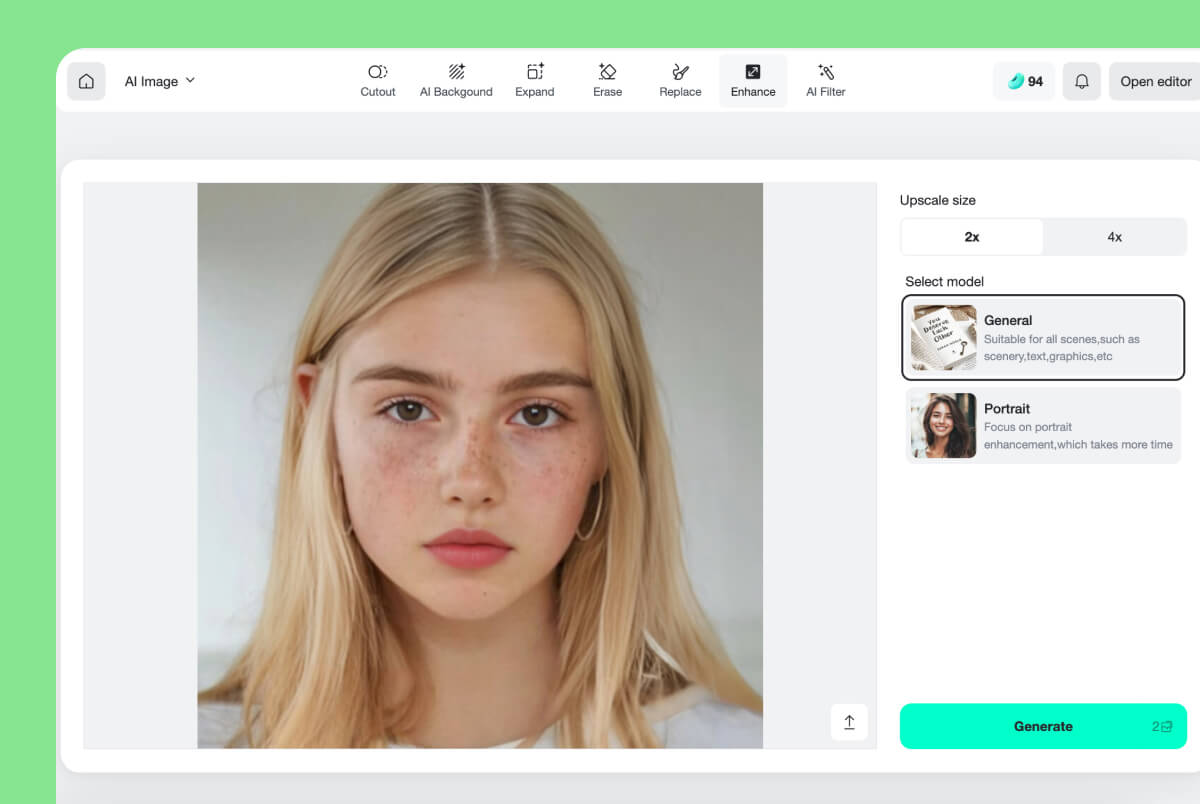
2 Step 2. Choose Remove Blemish
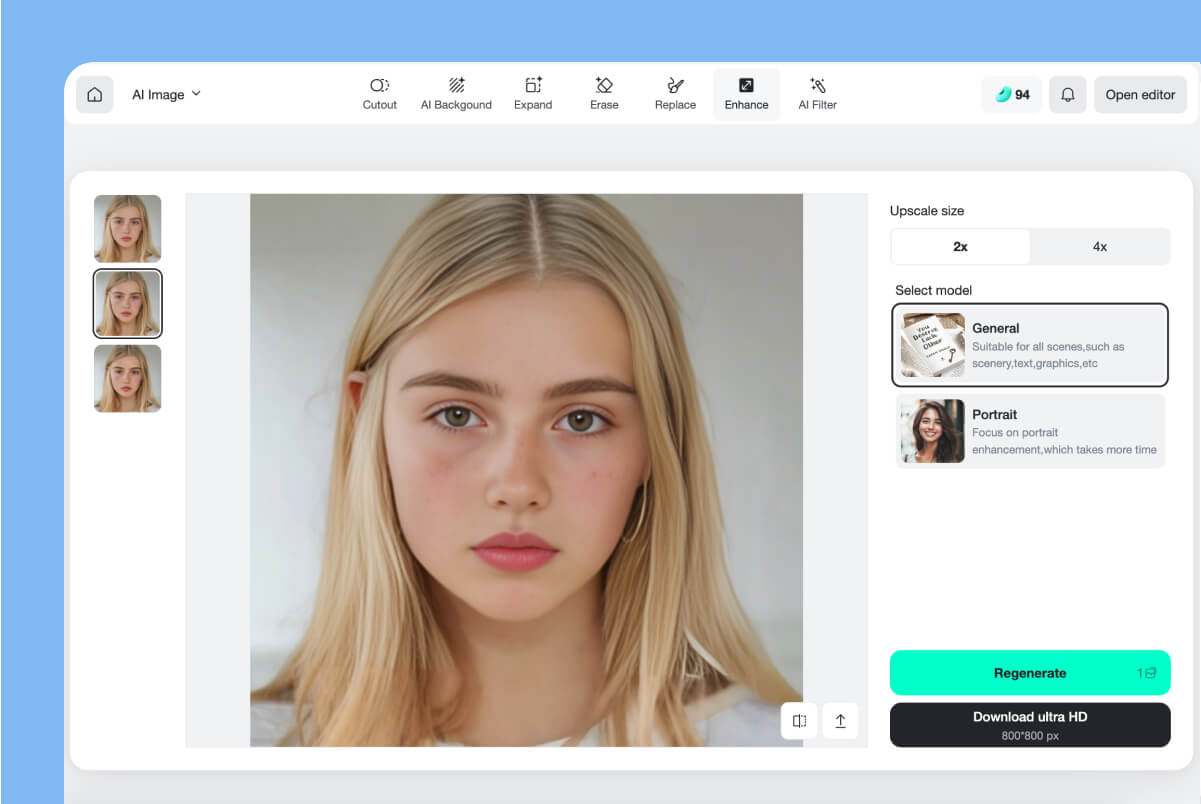
3 Step 3. Preview, Refine, and Download
Photo Blemish Removal for Everyday Portrait Workflows
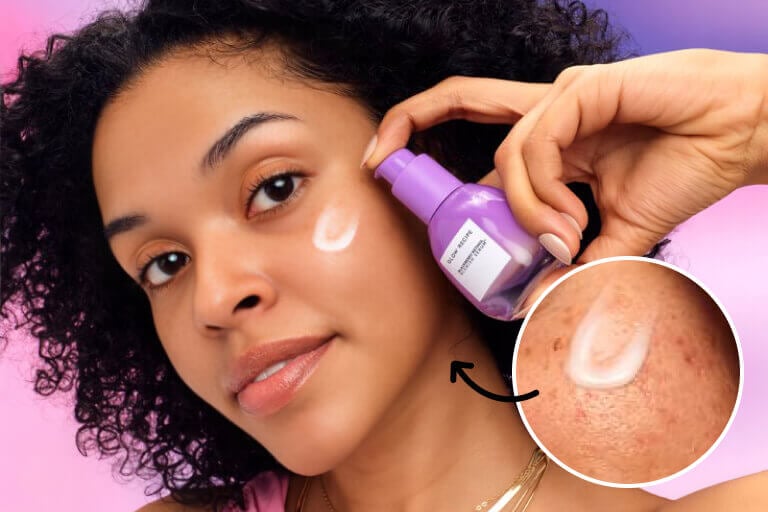
Use a light retouch when a temporary spot distracts from the photo. Keep the person recognizable, review the output at its final display size, and avoid edits that imply a skincare product changed someone's real skin.
Selfies, Group Photos, and Social Profiles
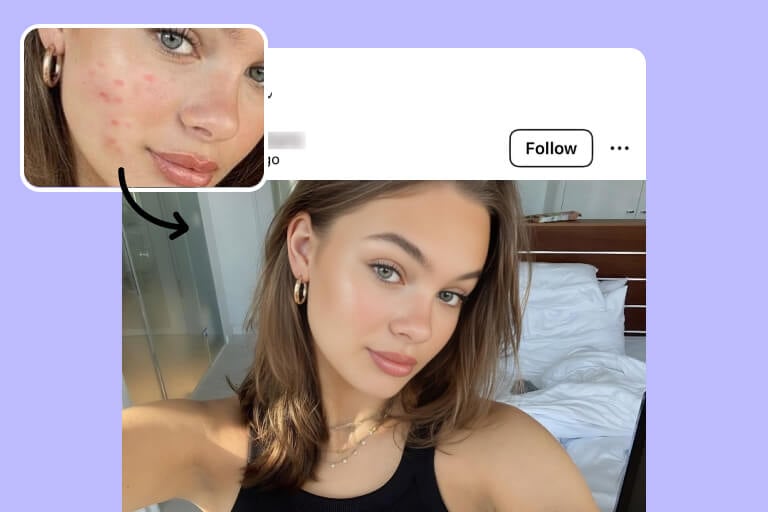
Reduce a visible pimple or temporary spot before using a selfie as a profile image or sharing a group photo. Check every detected face separately, because lighting, angle, focus, and partial occlusion can affect each result differently.
Headshots and Portrait Sessions
Apply a light photo retouch to a headshot or portrait proof when a client requests it. Check the image at full size and at the final crop, because over-smoothing can be more noticeable after resizing.
Campaign and Creator Images
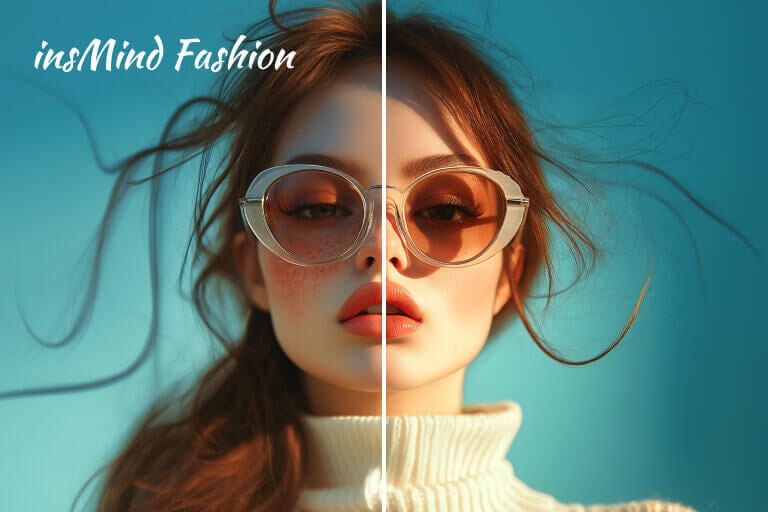
Prepare portraits for thumbnails, posts, and campaign layouts while keeping the edit separate from product-efficacy claims. A retouched image shows an editing choice; it does not prove that a cosmetic or skincare product produced the change.
Why Use insMind for Photo Blemish Removal?

Dedicated Remove Blemish Option
Open one focused tool for pimples, spots, and visible skin marks instead of searching through a general photo editor or applying a full-face effect.

Automatic Detection with Local Control
Start with AI detection for common blemishes, then include or exclude a specific area when the photo needs a more selective edit.

Review on Desktop or Mobile
Compare the result with the original before downloading on your computer or phone. Zoom in on skin texture and facial details, and retry or adjust the edited area when the first pass is too strong.
AI Blemish Remover FAQs
What is a photo blemish remover?


How do I remove blemishes from a photo online?
Can I remove pimples from selfies and group photos?
Will skin blemish removal change freckles, moles, or facial details?
Can I remove blemishes from multiple photos or on my phone?
Is the AI blemish remover free to use?
Continue Editing with Related Photo Tools
Choose a focused tool when the next step is broader portrait enhancement, object cleanup, background removal, image expansion, or clarity improvement.
AI Replace

AI Magic Eraser
Portrait Retoucher
Remove Image Background
AI Image Expander
"It saves me hours of editing time and always gives perfect results."
@Rachel Villanueva