
Remove Text from Image: Clean Up Images Online






How to Remove Text from an Image

1 Upload your image

2 Brush over the text

3 Start erasing and download


Remove Text From Pictures Without Rebuilding the Design
Sometimes the image is still useful, but the words are not. A price label, date stamp, caption, street sign, or old campaign line can make a picture hard to reuse. Remove the text first, then decide whether the image needs any other edits.
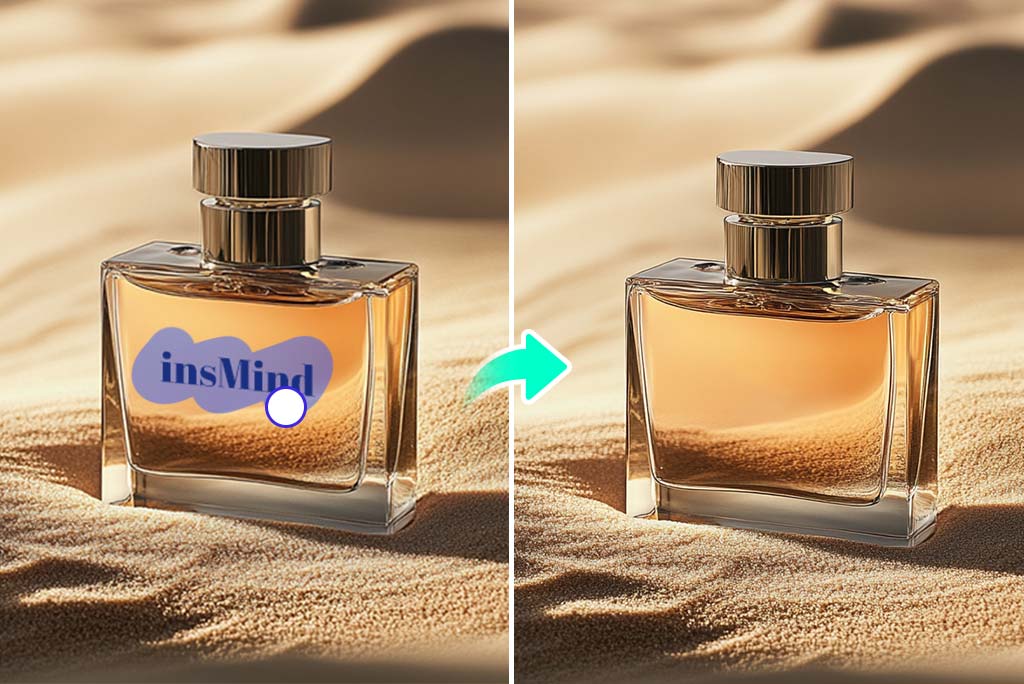
Remove Text Without Smearing the Background
Text is easiest to remove when you mark the letters and the little shadow around them. A plain wall or product box may only need one pass. Patterned fabric, grass, glass, and reflections usually need a closer brush and a quick second check.

Reuse Product Photos, Ads, and Social Images
Old prices, sale stickers, event dates, and campaign copy can make a good image feel expired. Clear the text, keep the part of the image that still works, and add new wording later in your design tool.

Remove Text from JPG, PNG, Screenshots, and Scanned Images
Use the text remover on everyday image files, not just studio photos. It can help with screenshots, posters, scanned pictures, packaging drafts, and social graphics when the original editable file is missing.

Download an Image You Can Keep Editing
After the text is gone, download the edited image or keep working on it in insMind. Before saving, zoom into the area where the letters were. If a faint edge is still there, mark only that small spot and run the eraser again.

More Than Just a Text Remover From Image
After the words are gone, you may still want to sharpen or resize the same picture with an image enhancement tool.
If the problem is not text, switch tools instead of forcing this one. Use remove people for someone in the frame, or use the related tools below for watermarks, shadows, glare, and larger objects.
Explore More AI Removal Tools
Use the AI Text Remover When the Image Is Worth Keeping
Remove words from pictures when the design, product, or background still works. The text may be outdated, misplaced, or in the wrong language; the image itself does not have to be thrown away.
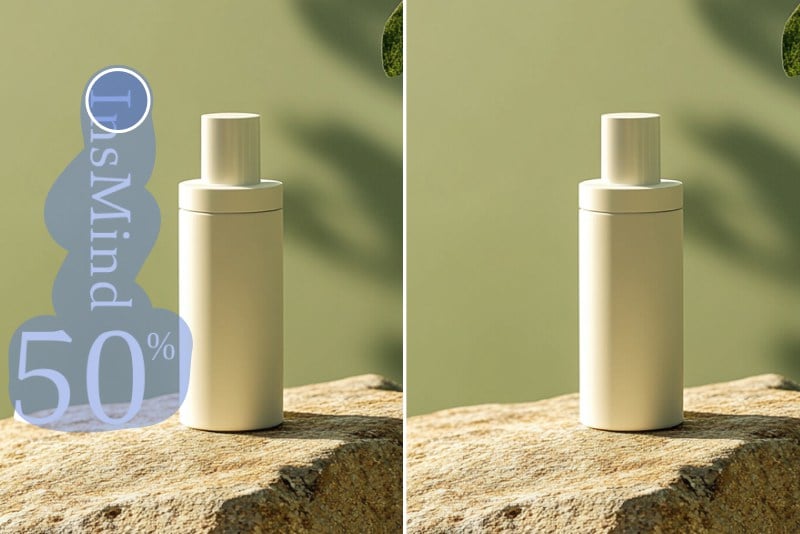
E-commerce
Remove supplier labels, price tags, or sale stickers before using a product photo in your own store. Check small print and shadows after the first pass; product packaging often has tight edges.
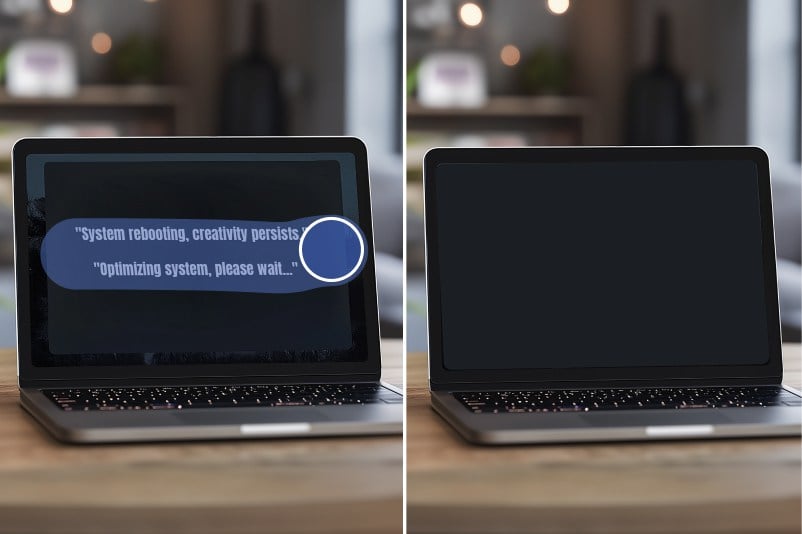
Mockups
Clear placeholder copy from packaging, posters, and label drafts. Once the old wording is gone, you can add the new brand text in your design file.
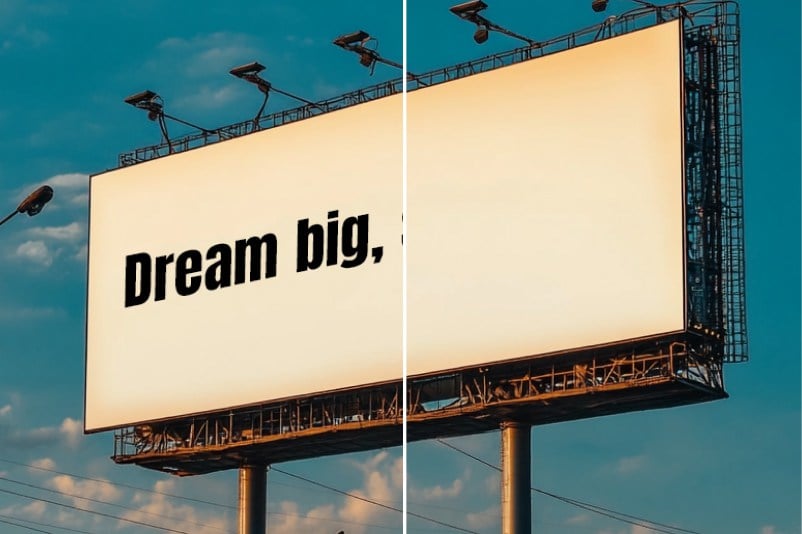
Marketing
Reuse campaign images after dates, slogans, or event names have changed. This works best when the text sits on a simple background or a large empty area.

Screenshots and scanned images
Delete words from screenshots, scanned pictures, or reference images when you need a cleaner visual for a deck or guide. Keep an untouched copy if the original wording matters for records or approvals.

Better for Text-Sized Edits
Text removal is usually a small, precise edit. The brush lets you mark the letters, the outline, and the shadow instead of changing the whole image.

Preview Before You Download
You can check the edited area before saving. If the background still looks uneven, mark just that spot and run another pass.

Works in the Browser
No design timeline is needed for simple fixes. Open the tool, upload the image, remove the words, and download the result when it is ready.
FAQs About Removing Text from Images
How do I remove text from an image online?


Can I remove words from a picture without affecting the background?
What kinds of text can I remove?
Is this AI text remover free to use?
Can I erase text from screenshots or scanned images?
Can I remove objects too?
You might be interested in
More tools for cleaning up images after text removal.

Remove People From Photo

Remove Shadow From Photo
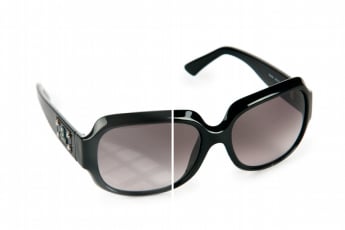
Remove Glare From Photo

Remove Watermark From Photo

AI Background

AI Image Enhancer

AI Filter

"I use it on mockups when the image is right but the wording needs to go."
@Laura