Remove Objects from Photos Online with AI

Upload a photo, brush over the unwanted object, and let insMind repair the selected area. Check edges, shadows, and repeated textures before downloading the result.

00:00
00:00
Or drop image here, paste image or URL
Try with one of these
Remove Object From Photo 1
Remove Object From Photo 2
Remove Object From Photo 3
Remove Object From Photo 4
Remove Object From Photo 5
00:00
00:00
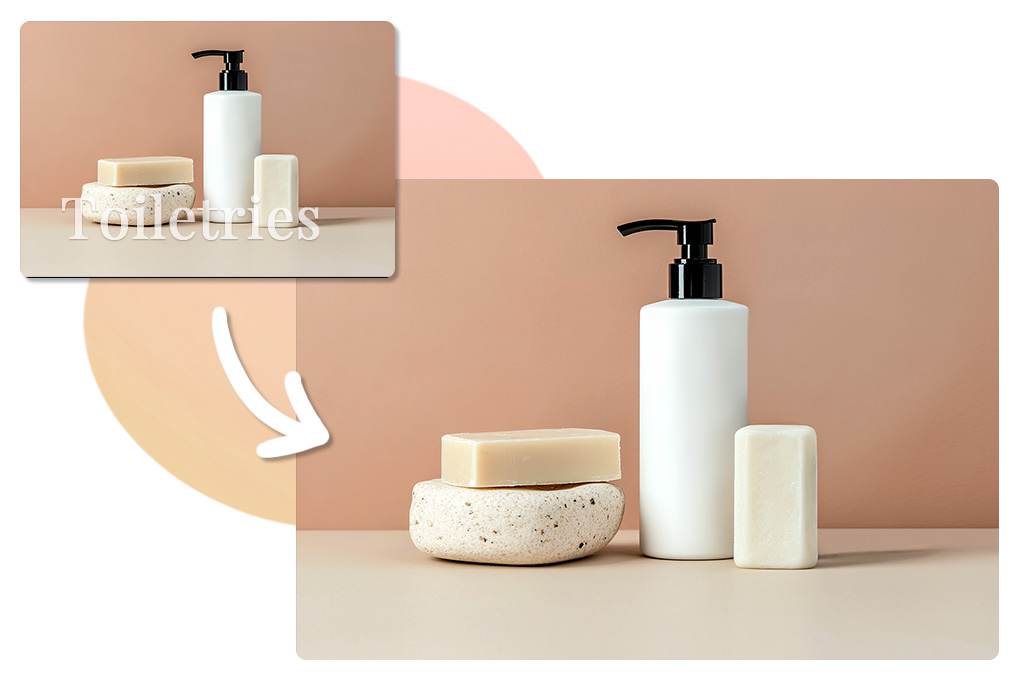
Remove Unwanted Objects from Product Photos

Remove Unwanted Objects from Product Photos

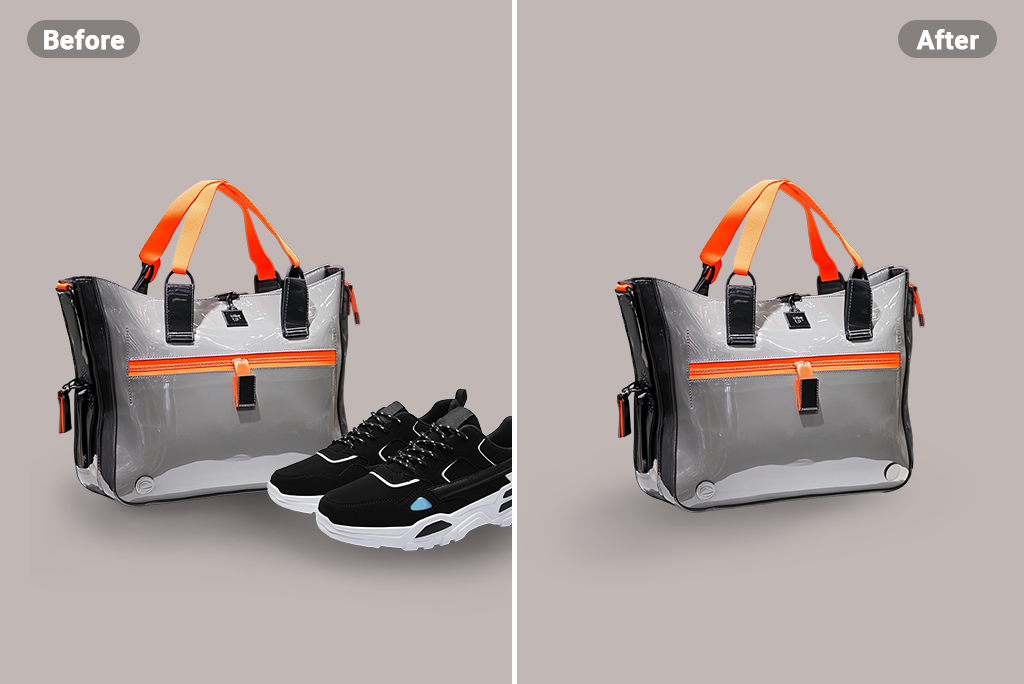
Erase price tags, props, cables, dust, packaging, or other distractions that pull attention away from the product. Keep the brush close to the object and include its connected shadow when that shadow should disappear too.


For a broader tidy-up across several small distractions, use Cleanup Pictures. After removal, inspect product edges, labels, reflections, and repeated patterns at the size used in your listing.
Try It Free
Remove Small Blemishes and Portrait Distractions

Remove Small Blemishes and Portrait Distractions

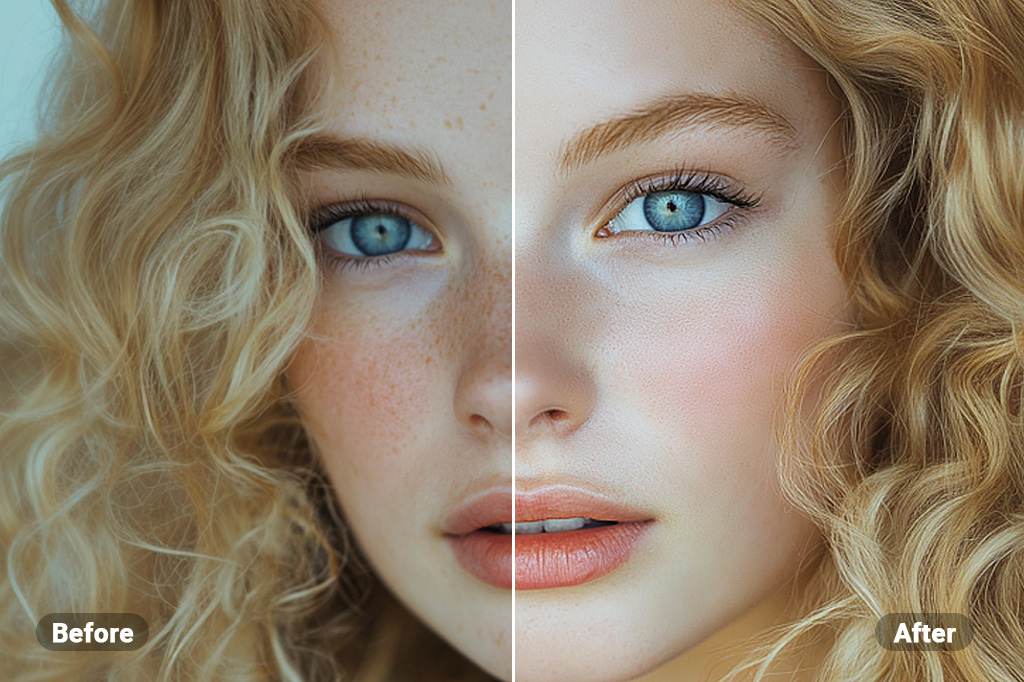
Mark a small blemish, stray makeup spot, or background speck without applying a broad beauty filter to the whole portrait. Keep the selection away from eyes, hair, and facial edges unless those details are part of the intended edit.


For skin-specific retouching, use the Blemish Remover. It keeps that narrower task separate from removing larger objects elsewhere in the picture.

Try It Free
Erase Text, Labels, and Small Overlays

Erase Text, Labels, and Small Overlays

Remove a caption, date stamp, price label, or small overlay by marking the complete text area. Simple backgrounds are usually easier to rebuild than text placed over faces, product details, or complex textures.


If text is the only distraction, use Remove Text from Image for a more focused workflow. Review the fill closely instead of assuming every letter or edge disappeared in one pass.
Try It Free
Remove People and Outdoor Distractions

Remove People and Outdoor Distractions

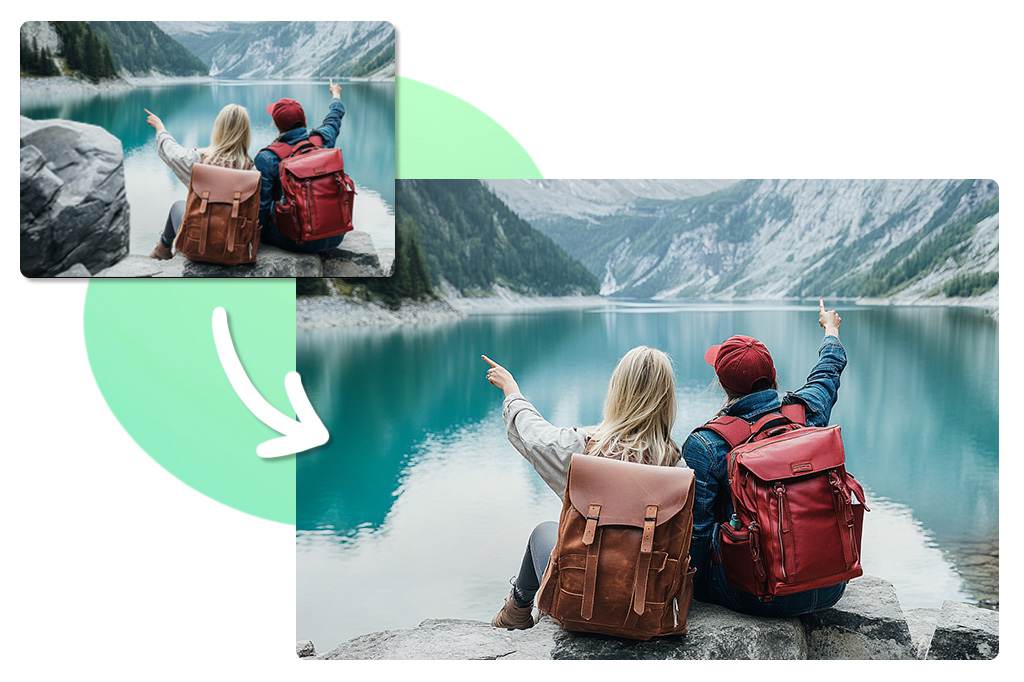
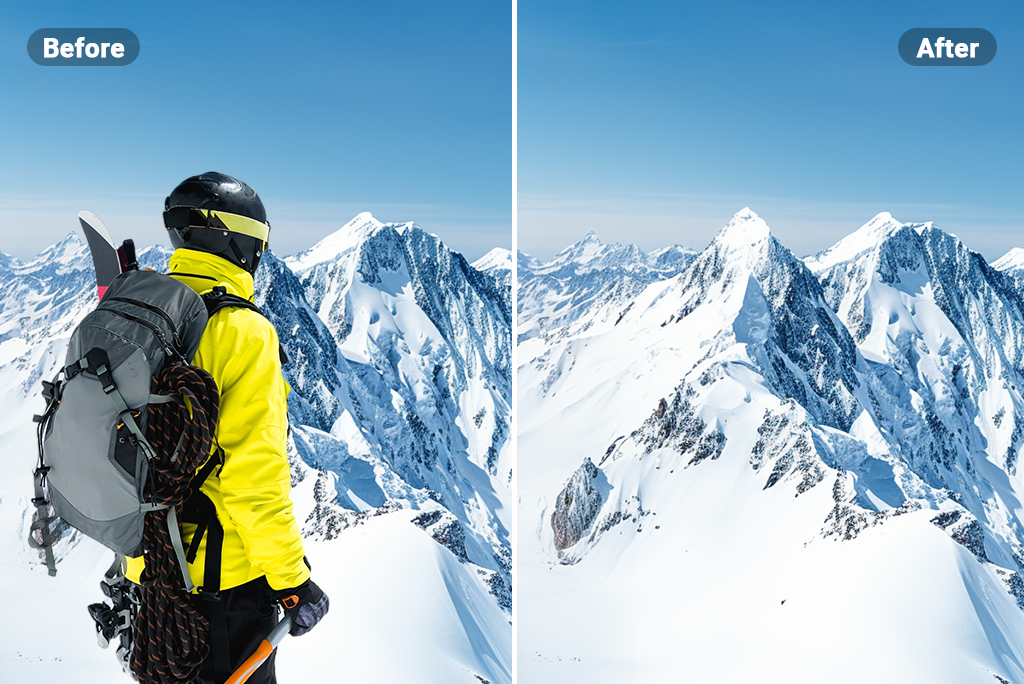
Brush over a passerby, sign, bin, cable, or other distraction in a travel or outdoor picture. When several people are present, remove them in separate passes so each repaired area is easier to inspect.


For a person-focused workflow, open Remove People from Photo. Check faces, hands, railings, water, foliage, and shadows around the removed subject.

Try It Free

More Tools for Removing Unwanted Details

How to Remove an Object from a Photo Online

Upload, mark the complete object, run the removal, then inspect the repaired background before downloading.

Upload Your Photo
1

1 Upload Your Photo

Choose the clearest version of the photo you want to edit. The current tool accepts one image at a time and opens it in the Magic Eraser workflow.
Brush Over the Complete Object
2

2 Brush Over the Complete Object

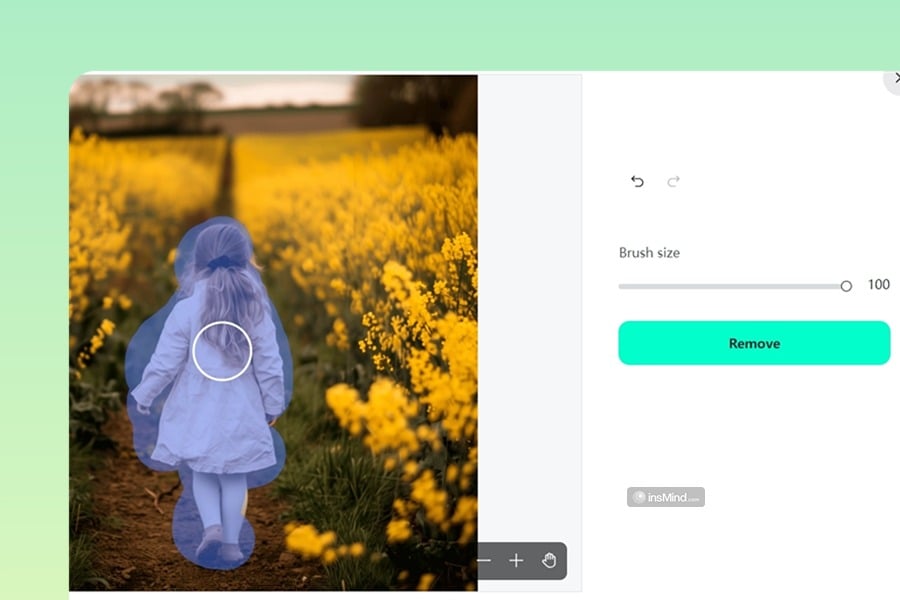
Adjust the brush and zoom in when needed. Cover the full object and any connected shadow or reflection that should be removed, while avoiding nearby details you want to keep.
Start the Removal and Inspect the Fill
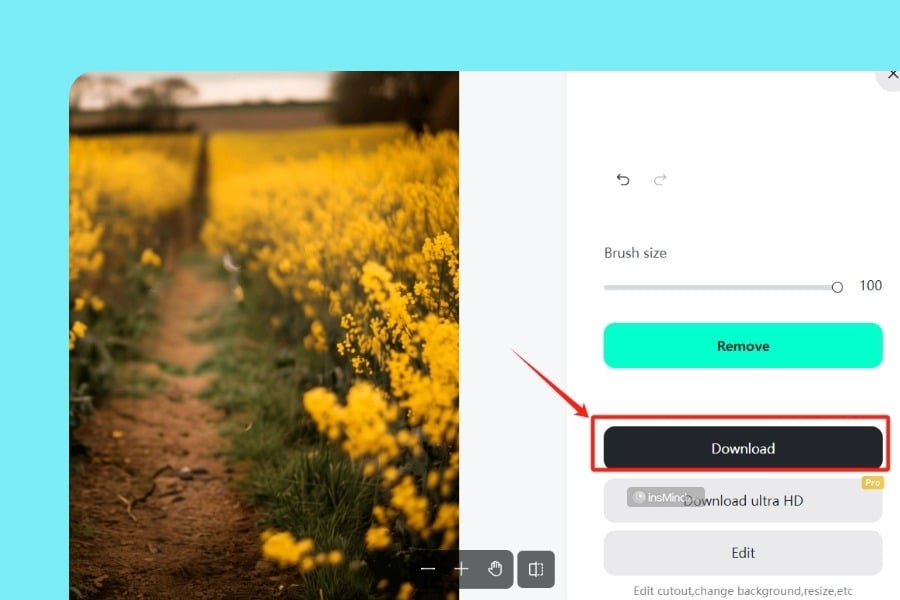
3

3 Start the Removal and Inspect the Fill

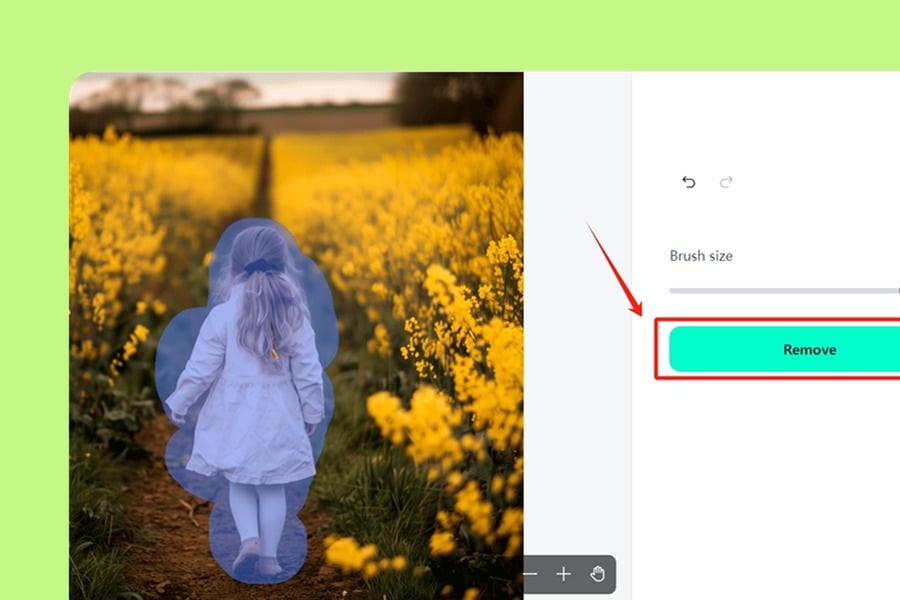
Run the AI removal, then check the repaired area. Pay extra attention to straight lines, brick, foliage, text, faces, hands, product edges, and repeating patterns.
Touch Up and Download
4

4 Touch Up and Download

If a fragment, blur, or repeated texture remains, refine the selection and try another pass. Download only after checking the result at the crop and size where you plan to use it.

Practical Ways to Remove Objects from Photos

Object removal works best when one visible distraction is blocking an otherwise useful photo. Choose a tight selection and review what the AI rebuilt behind it.
Product Photos and Online Listings
Product Photos and Online Listings

Remove props, price stickers, cables, dust, or stray packaging before publishing a product image. Keep labels and product edges outside the selection, then inspect reflections and contact shadows.
Travel Photos and Outdoor Scenes

Travel Photos and Outdoor Scenes

Erase a bin, sign, vehicle, tourist, or other distraction from a travel photo. Water, brick, fences, foliage, and repeating architecture deserve a close look after the background is repaired.
Social Photos and Creator Graphics

Social Photos and Creator Graphics

Erase a stray object, painted word, sticker, or background mark before posting. Review hair, clothing edges, balloons, props, and flat-color backgrounds where an incomplete selection is easy to spot.

Why Use insMind as an AI Object Remover?

Control the Area You Want to Remove

Control the Area You Want to Remove

Use the brush to define the unwanted object instead of changing the whole photo. Zoom and brush size help when the object sits close to a face, product edge, or line.
Repair the Selected Background with AI

Repair the Selected Background with AI

After the object is marked, AI fills the selected area using the surrounding scene. The result still needs a quick review when the background contains text, hard edges, or repeating texture.
Edit Online and Keep the Original

Edit Online and Keep the Original

Work from a desktop or mobile browser, preview the edited area, and download the version you approve. Keep the source file so you can compare or retry a difficult removal.

Frequently Asked Questions About Object Removal

Can I remove an object from a photo online for free?

insmind expand icon
You can open insMind online and start removing an object from a photo from this page. Upload one image, brush over the unwanted item, preview the repaired area, and check any current access or download conditions shown in the editor.

How does AI object removal from a photo work?

insmind expand icon
You mark the object you want to erase, and the AI rebuilds the selected area using information from the surrounding image. Results depend on what was hidden behind the object and how complex the nearby background is.

Can I remove several unwanted objects from one picture?

insmind expand icon
Yes, but separate passes are usually easier to control. Remove one object, inspect the filled area, then move to the next. This is especially useful for people, long cables, shadows, or objects over repeating patterns.

Will removing an object reduce photo quality?

insmind expand icon
The edit changes only the selected area, but a difficult fill can still show blur, repeated texture, bent lines, or missing detail. Use the clearest source available, keep the selection tight, and review the result before downloading.

What should I do if the removed area looks unnatural?

insmind expand icon
Zoom in, adjust the brush, and cover any remaining fragment or connected shadow. Try another pass with a smaller section. Objects over faces, text, transparent surfaces, or complex geometry may require more careful touch-up.

More Tools for Focused Photo Cleanup

Choose a dedicated remover for people, text, watermarks, or shadows, then enhance the photo only after the unwanted content is gone.