AI Background Generator for Product Photos, Portraits, and Campaigns
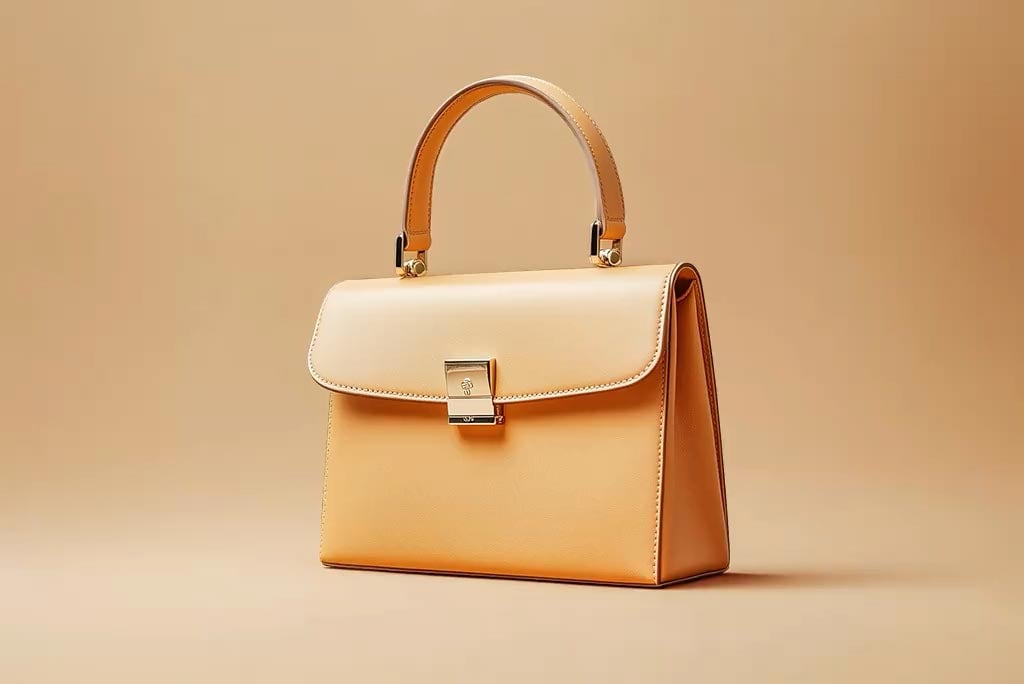


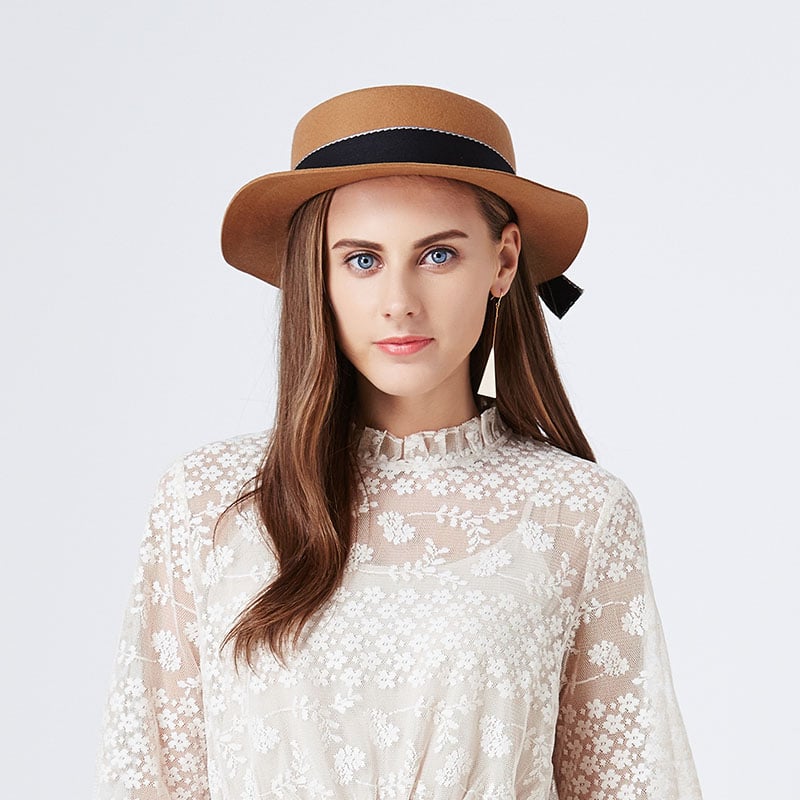
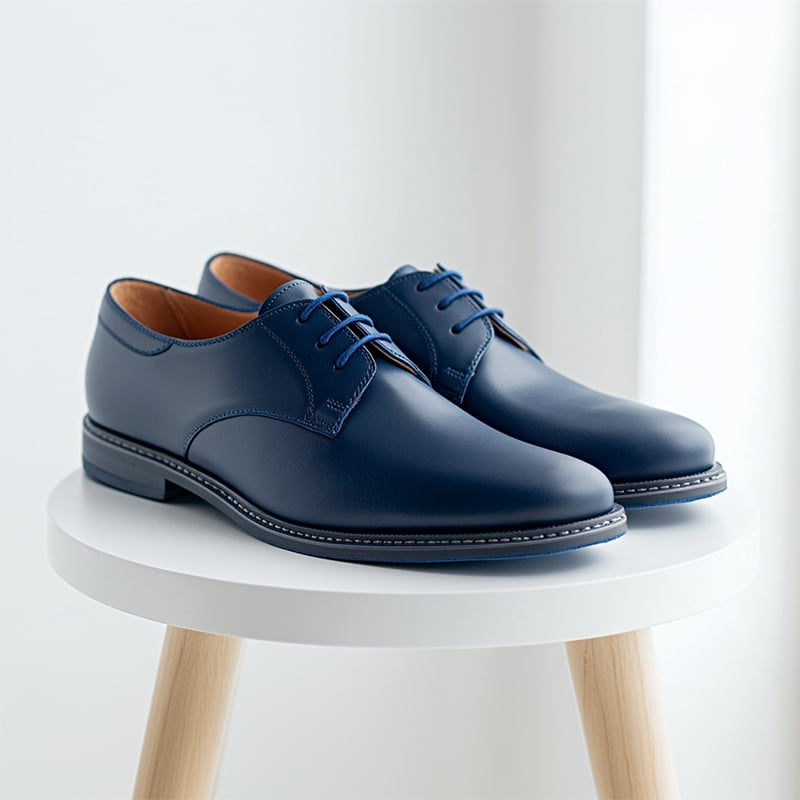
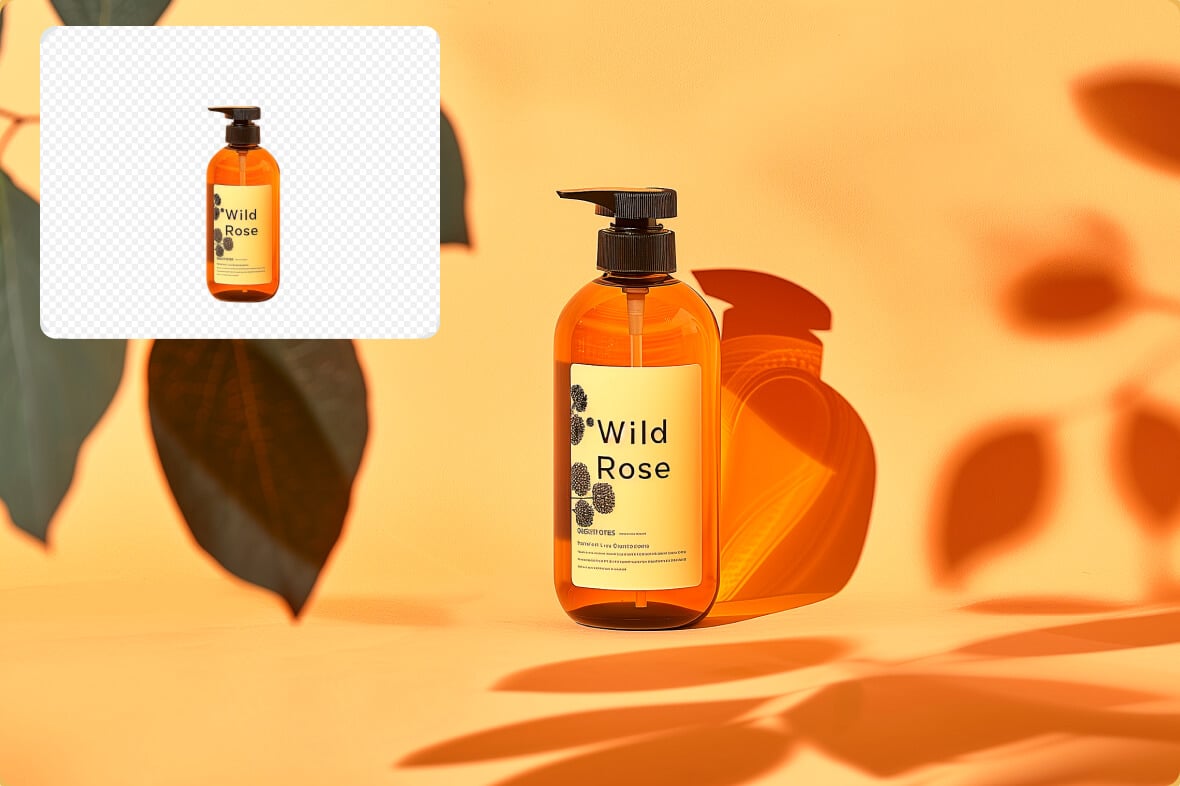
Generate AI Backgrounds from a Photo and Prompt
Start with a product shot, portrait, design draft, or social image. Upload the photo, enter a prompt for the scene, and let the AI build a new background around the subject instead of giving you a generic stock backdrop.
This page should own AI background generator queries. If the user already has a finished backdrop and only wants to swap it in, route that task to the background changer instead.
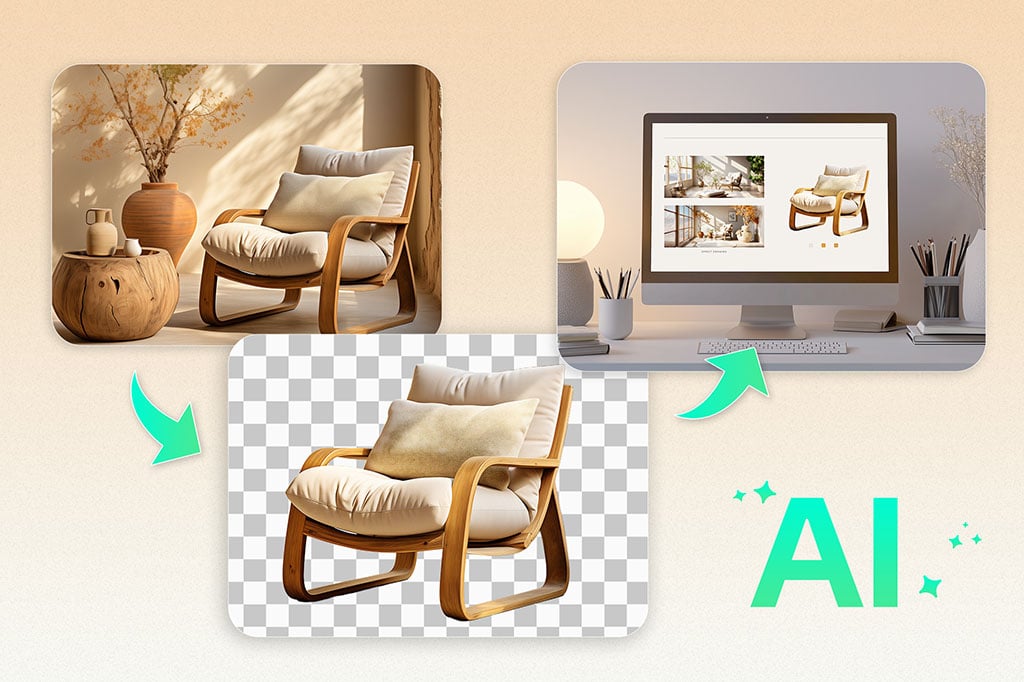
Create Product Backgrounds for Listings and Ads
Use prompts such as white studio counter, warm kitchen shelf, marble podium, outdoor summer table, or holiday gift setup. The subject stays the focus while the background gives the image a clear selling context.
For product sets, keep the prompt structure consistent across images. After this pass, use the AI shadows tool when the product needs stronger grounding.
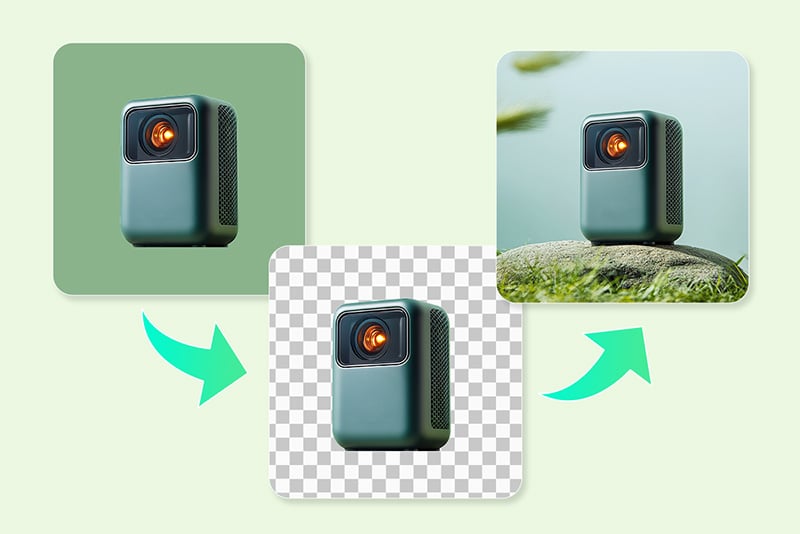
Make Brand-Matched Background Pictures, Not Stock Backdrops
A background picture generator is most useful when your shop, campaign, or profile needs a repeatable visual style. Describe the surface, lighting, color palette, props, and mood instead of asking for a broad professional background.
Keep one visual rule per prompt. For example: beige stone podium with soft side light works better than a long list of unrelated props and colors.
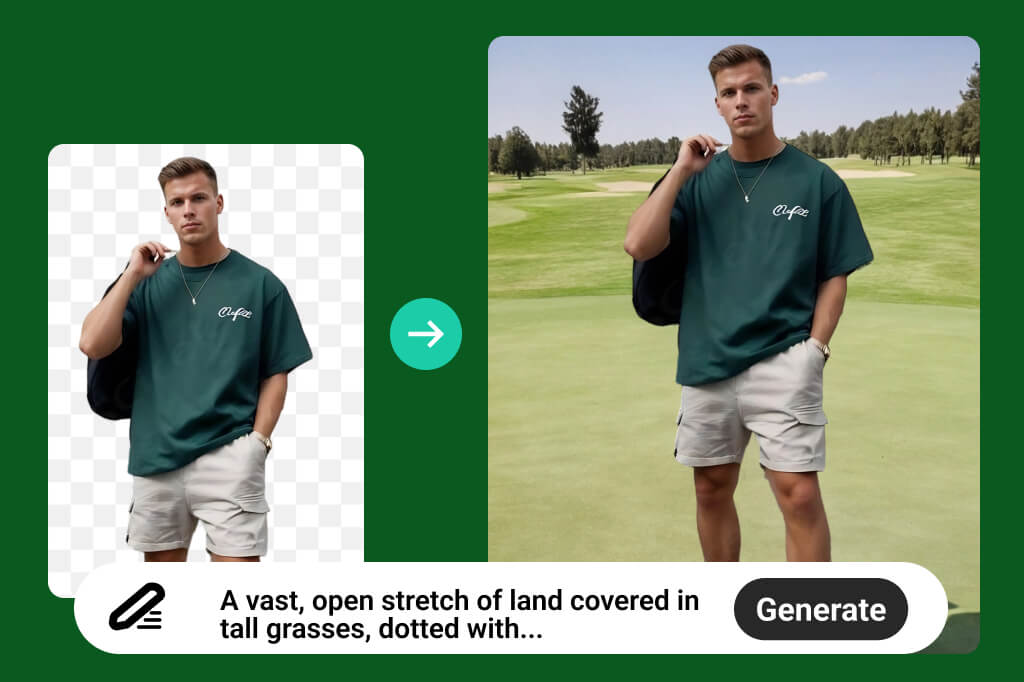
Control the Scene with Prompts and Reference Details
Tell the AI what should appear behind the subject, what should stay simple, and which colors or materials matter. You can mention a reference style, but avoid asking the tool to change the main subject if the goal is only an AI background.
Good prompt detail is concrete: a clean desk with soft morning light, a luxury cosmetic podium with pale pink fabric, or a city rooftop at sunset. That gives the model a scene to build rather than a list of keywords.
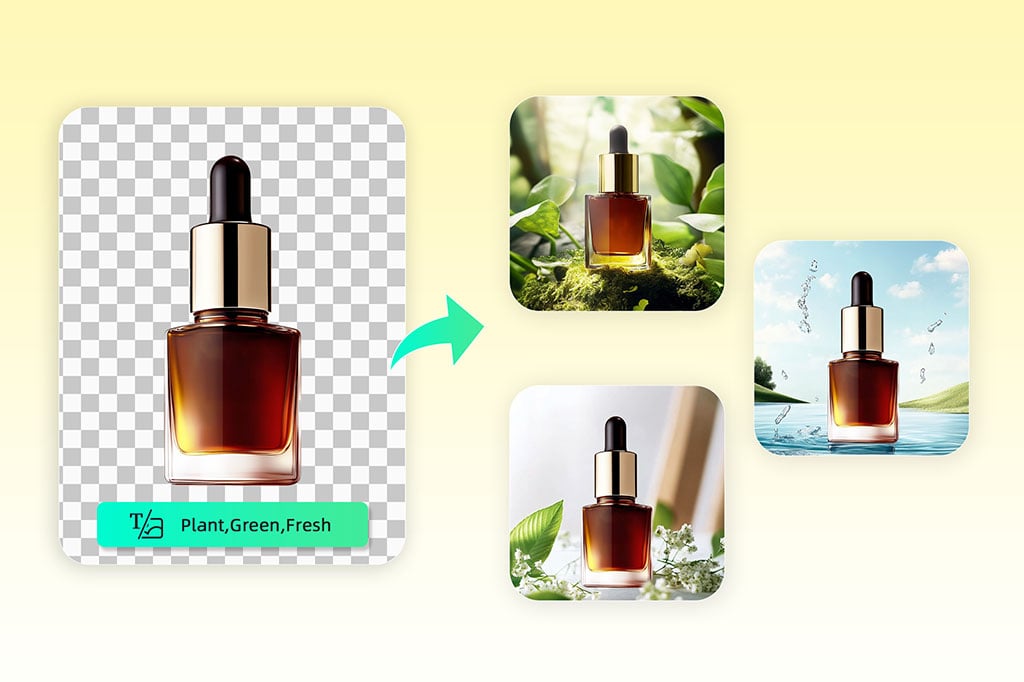
Start from Preset Background Styles When You Need Speed
If you do not want to write a prompt, begin with a ready-made scene such as indoor, outdoor, podium, prop, or seasonal background. Presets are useful for quick product tests and small batches where speed matters more than a custom art direction.
Preview the result before downloading. If the subject edge looks too sharp or the background feels unrelated, adjust the prompt or choose a simpler scene.
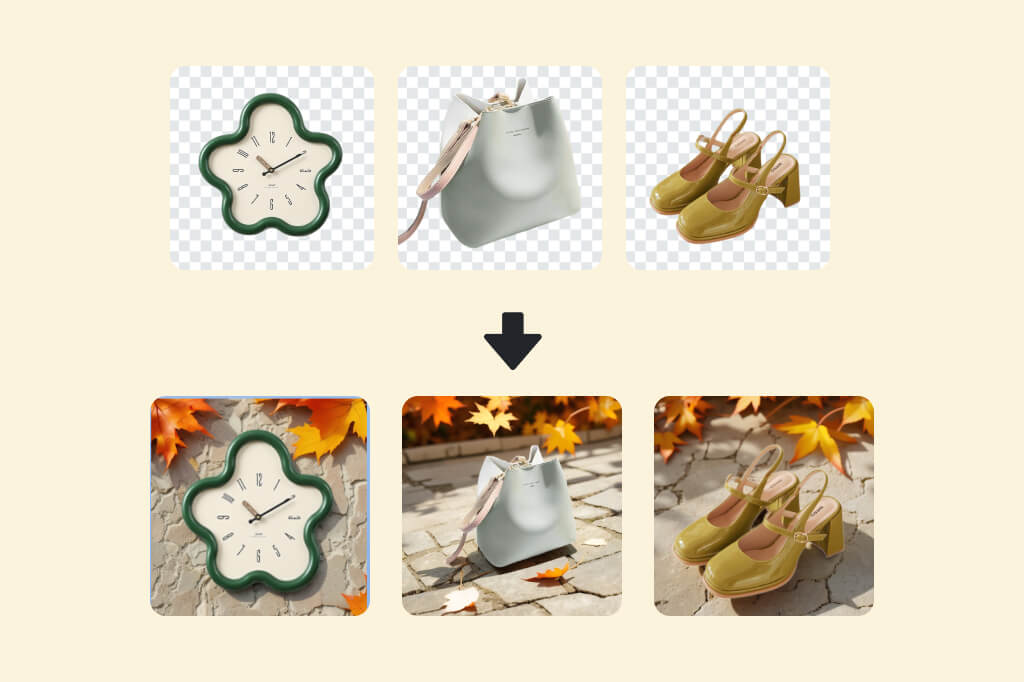
Batch Apply AI Backgrounds to Product Photos
Use batch photo editor when several photos need the same background direction. Keep the prompt, lighting, and output size consistent so the set looks like one campaign.
Batch generation is best for product lines with similar angles. If each image needs a different composition, generate them one by one and check the subject edge after every preview.
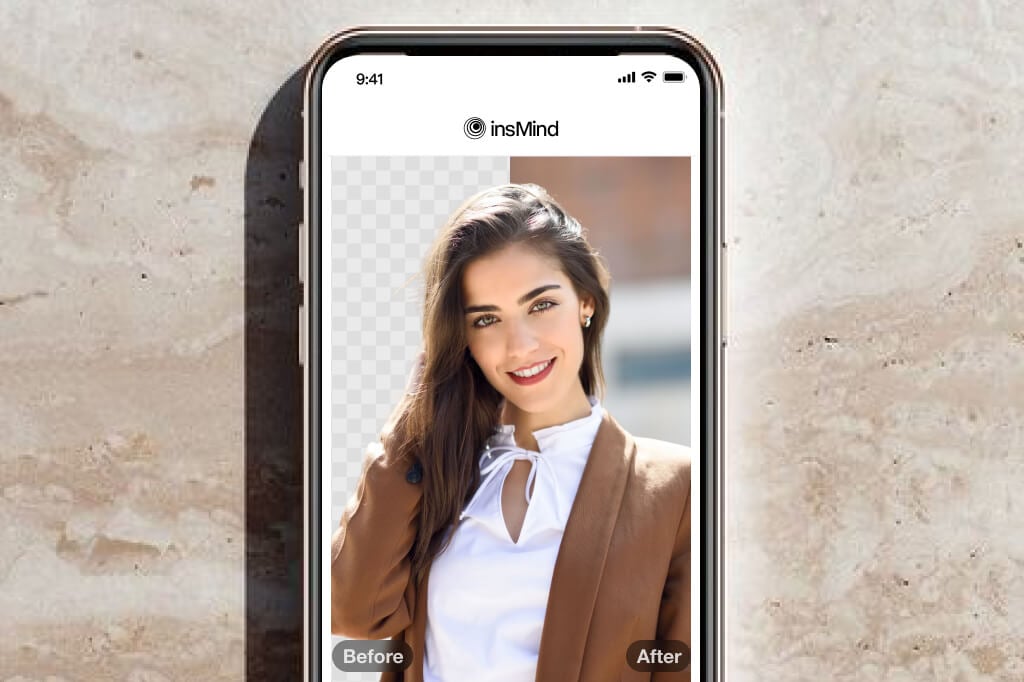
Add AI Backgrounds on Desktop or Mobile
You can add an AI background to a photo from a browser on desktop, tablet, or phone. Upload the image, enter the scene prompt, choose the model and resolution, and check the preview before saving.
For small screens, use a short prompt first. Long prompts are harder to review on mobile and make it easier to miss an unwanted detail in the generated background.
Background Styles and Editing Shortcuts
AI Background Generator for Real Photo Scenarios
Use this page when you want the AI to create a new background from a prompt. The strongest use cases are product images, portraits, campaign visuals, real estate, food, cars, and branded graphics.
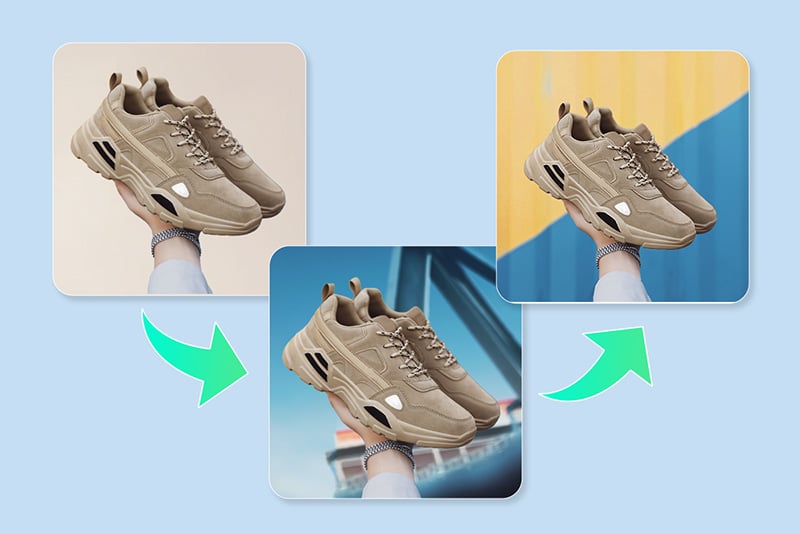
Product Photos
Create a studio, lifestyle, podium, or seasonal scene around a product photo. Keep the subject and product angle unchanged, then use the prompt to control the surface, props, and lighting.
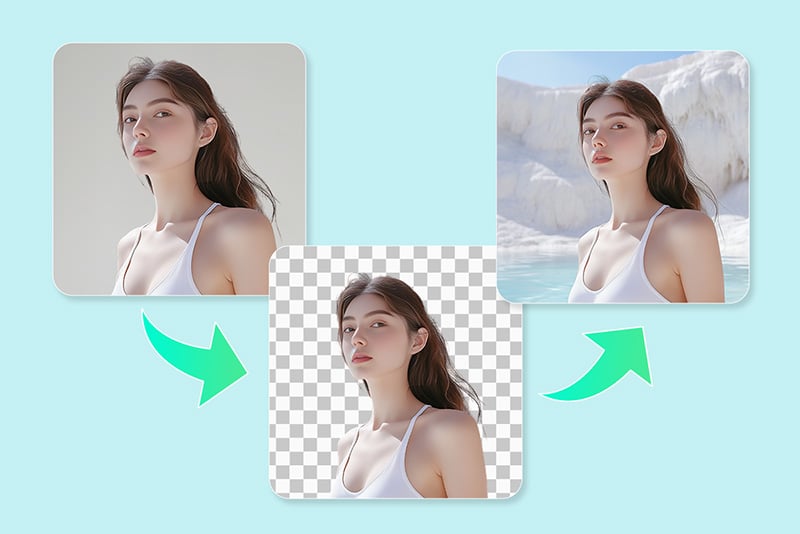
Portraits and Profile Images
Generate a clean office, studio, outdoor, or creator-style background for a portrait. Use a simple prompt if the face and hair edge are important.
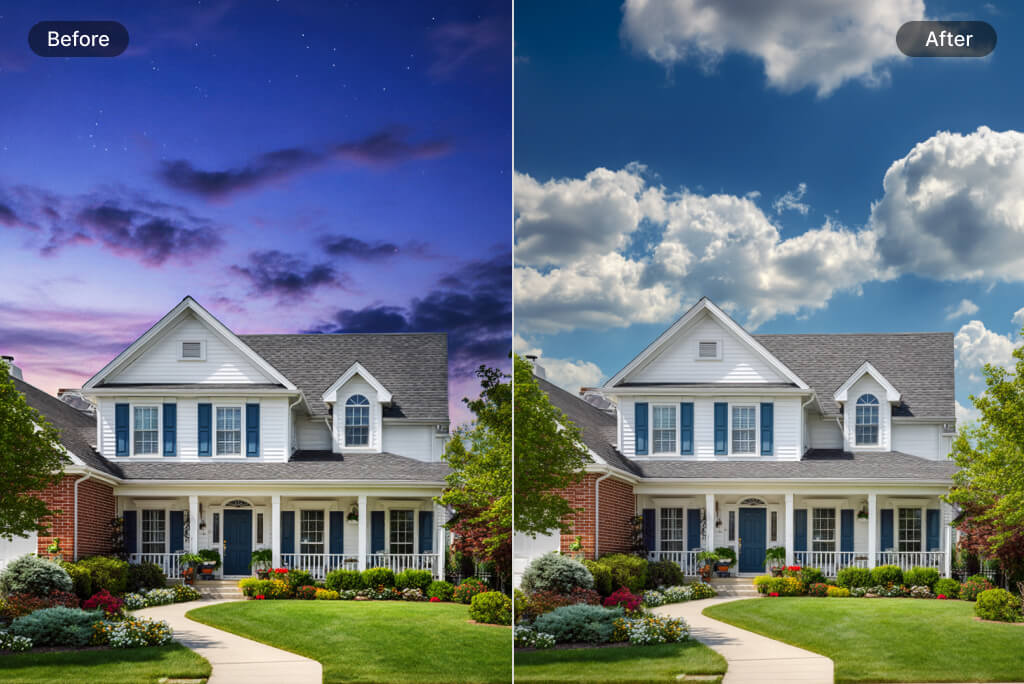
Real Estate and Interiors
Try furniture, room, or property backgrounds when the current photo needs a more inviting context. Keep prompts realistic so the result does not distract from the main object.
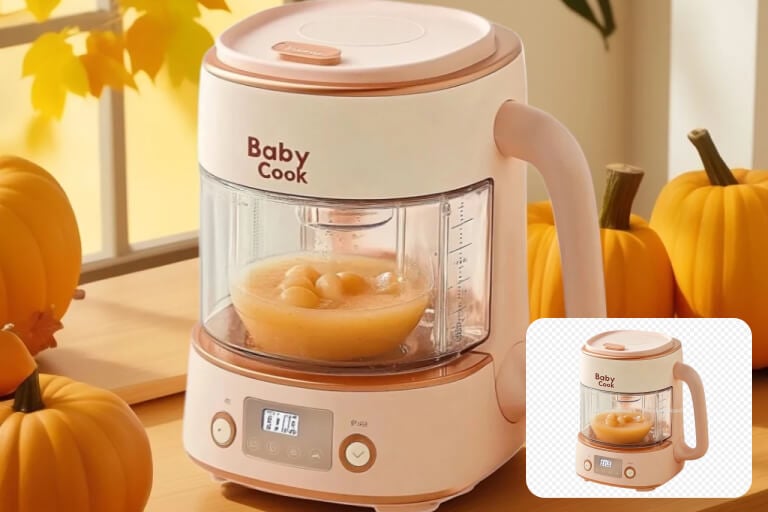
Food and Drink
Place dishes, drinks, packages, or menu images on fitting surfaces such as a cafe table, marble counter, picnic cloth, or seasonal setup.
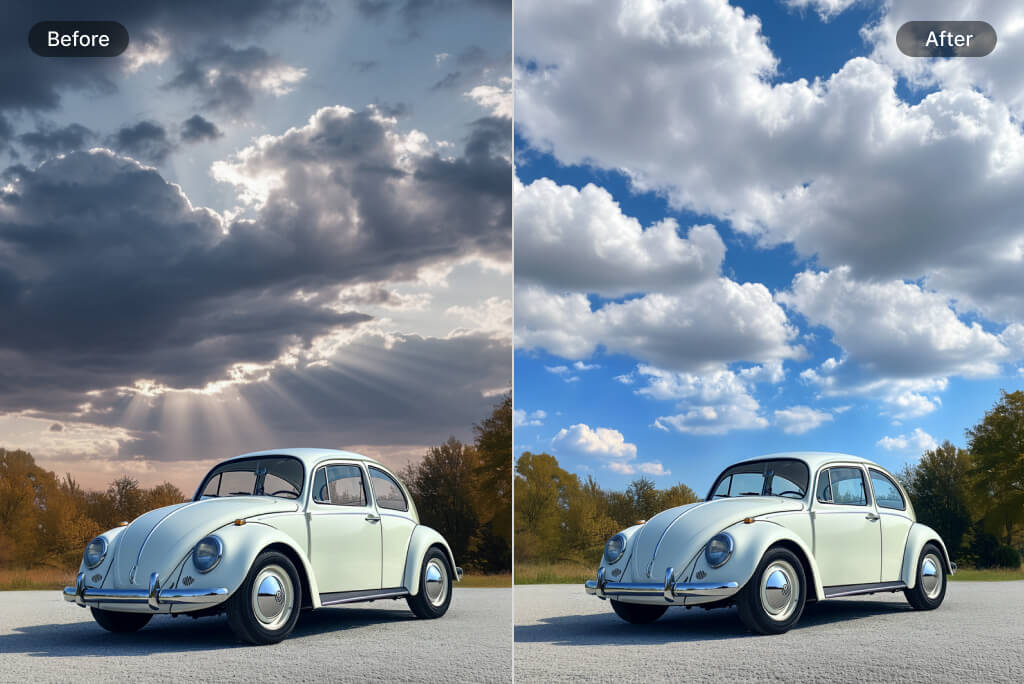
Cars and Vehicle Shots
Generate dealership, showroom, road, or lifestyle backgrounds for vehicle images. Check reflections and tire edges before downloading.
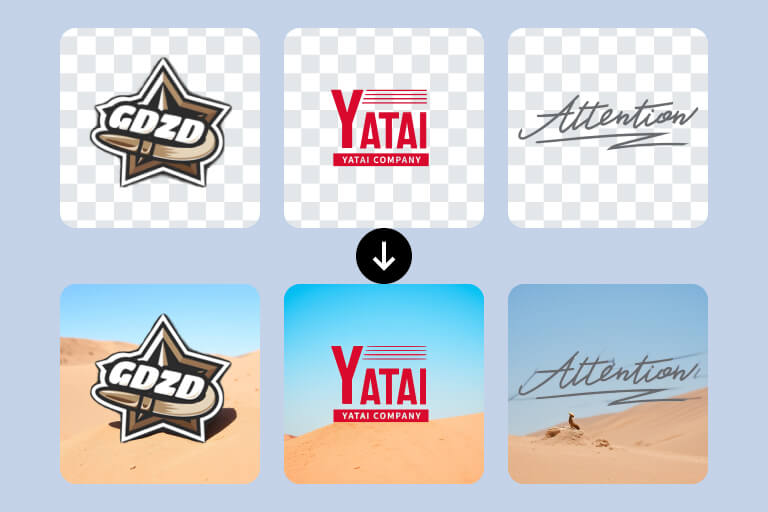
Graphics and Brand Assets
Create backgrounds for logos, app icons, banners, and launch visuals. Use brand colors and simple prop directions instead of forcing too many objects into the scene.
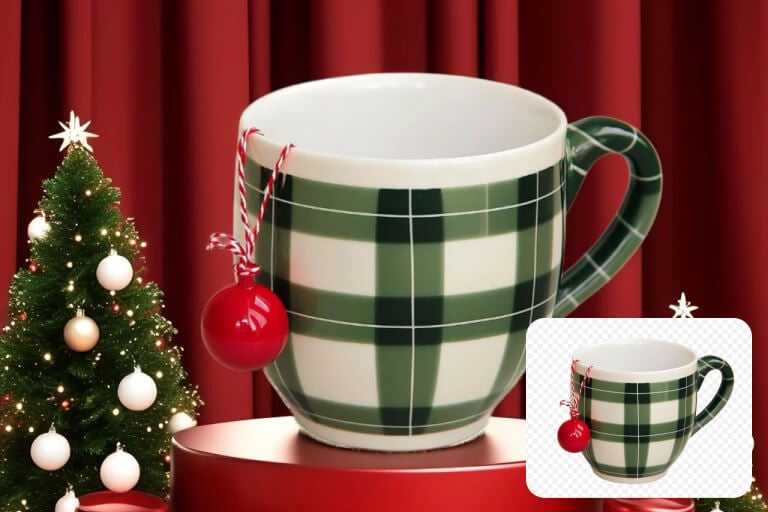
Seasonal Campaigns
Create holiday, sale, birthday, or event backgrounds without rebuilding the whole image. Keep seasonal props behind or beside the subject, not on top of it.
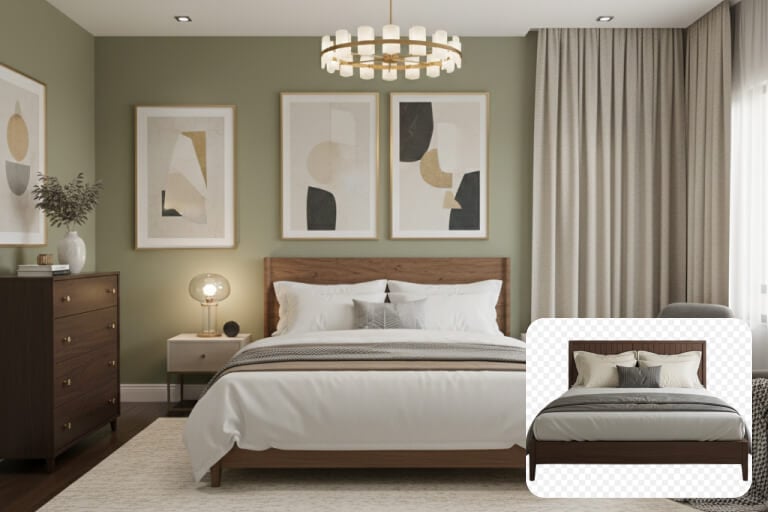
Social and Ad Creatives
Use prompt-made backgrounds to test different moods for posts, thumbnails, ads, and landing-page visuals. Generate a few controlled variations, then keep the one that makes the subject easiest to read.
Why Use insMind as Your AI Background Maker?

Prompt Control Without Manual Compositing
Describe the background instead of cutting, searching, and layering assets by hand. This is the main reason to use an AI background maker instead of a normal background library.

Consistent Scenes for Product Sets
Reuse a prompt structure across product photos to keep surfaces, lighting, and brand tone consistent. For large batches, keep the prompt short enough to review.

Editing Tools After the Background Pass
After generating the background, continue with crop, resize, image enhancement, or other insMind edits. Use the preview to catch edge or lighting issues before downloading.
FAQs About the AI Background Generator
What is an AI background generator?


How do I write a good AI background prompt?
Can I add an AI background to an existing photo?
What is the difference between this page and the background changer?
Can I create product photo backgrounds with AI?
Can I choose GPT Image 2, Nano Banana 2, and output resolution?
What should I do if the AI background looks unrealistic?
Is this a free AI background generator?
More Background Tools for the Next Edit
Switch, recolor, remove, resize, or polish backgrounds after you create the main scene.
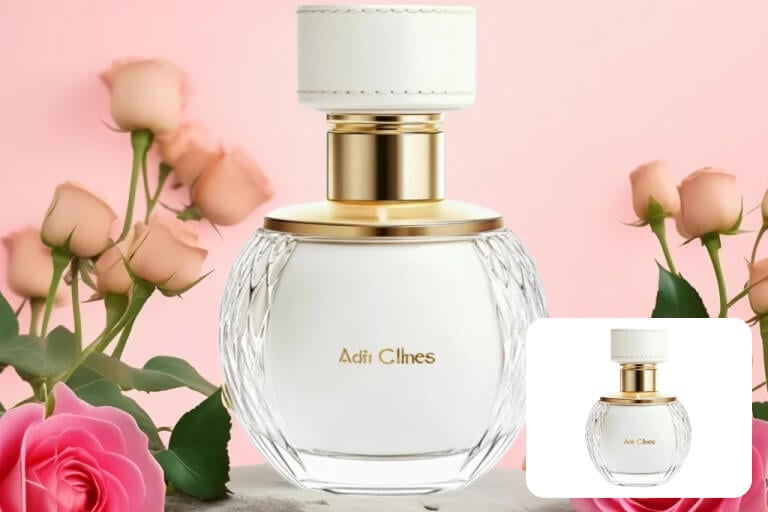
AI Background Changer
Add White Background
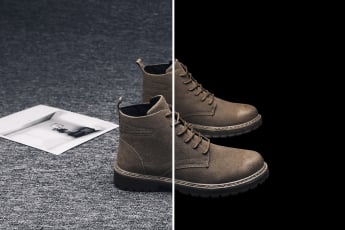
Add Black Background
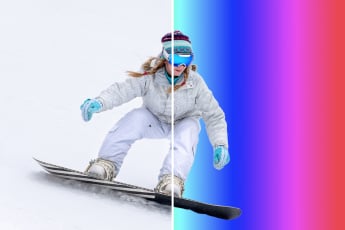
Change Background Color
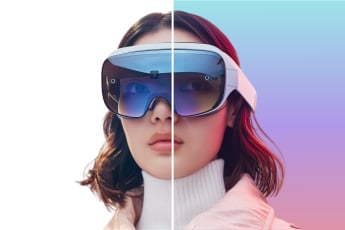
Gradient Background Generator

AI Magic Eraser

Smart Resize

Background Remover

AI Shadows & Reflections
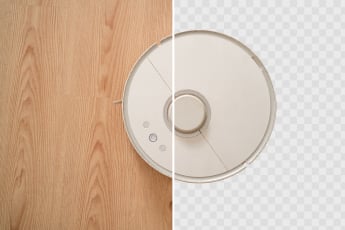
Make Background Transparent
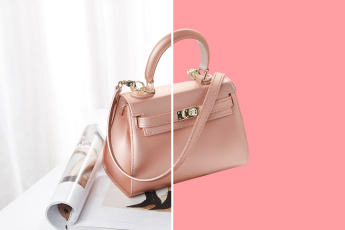
Add Pink Background
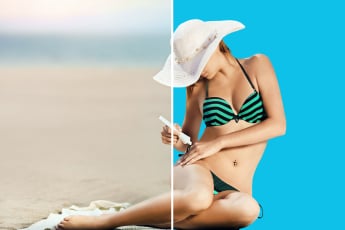
Add Blue Background