
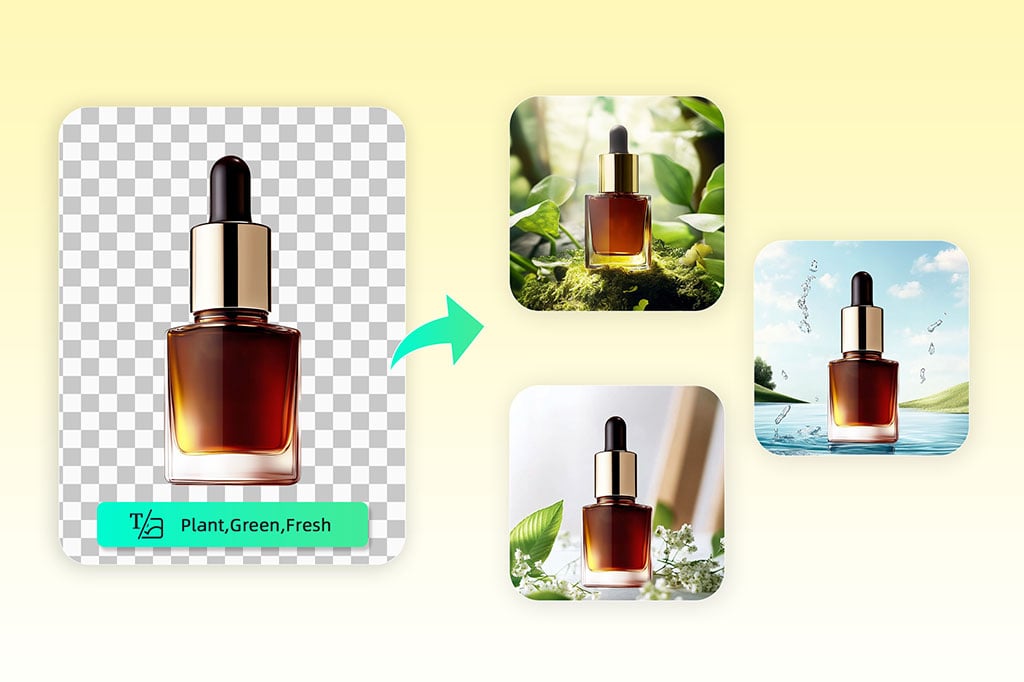
Replace Photo Backgrounds with AI Detection
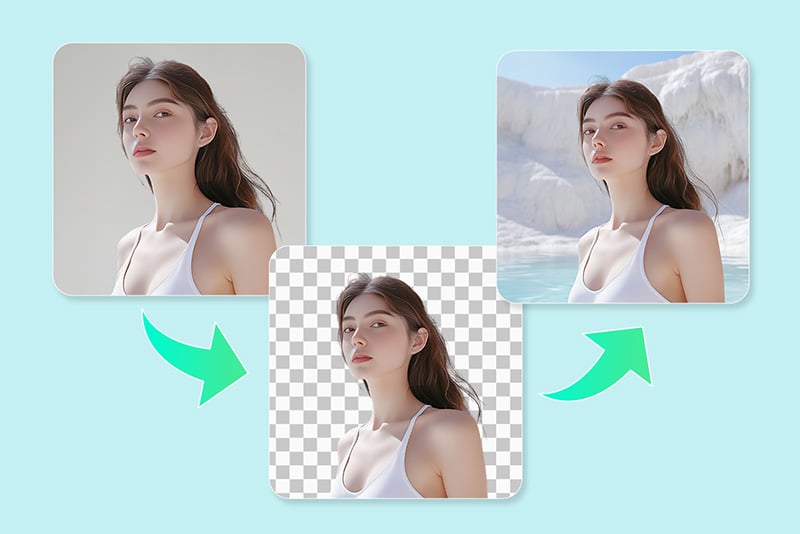
Upload an image and let the tool separate the subject from the original background. Then choose a new color, image, or generated scene that fits the photo.
This page should own background changer and background replacer intent. If the user wants to create a fresh scene from a prompt as the main task, send that intent to the AI background generator.
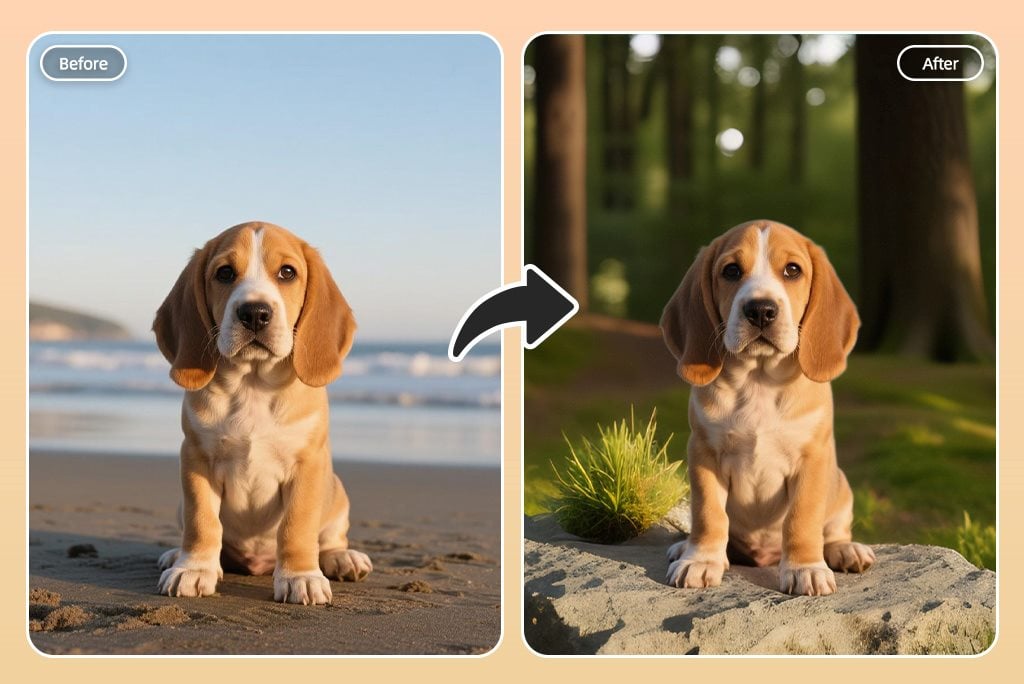
Change the Background of a Photo Online
Use it for portraits, product shots, profile photos, event images, and social posts when the old background is distracting or does not match the purpose of the image.
Keep the prompt practical: plain white studio, warm office, outdoor cafe, soft blue ID background, or branded product display. The cleaner the instruction, the easier it is to judge the result.
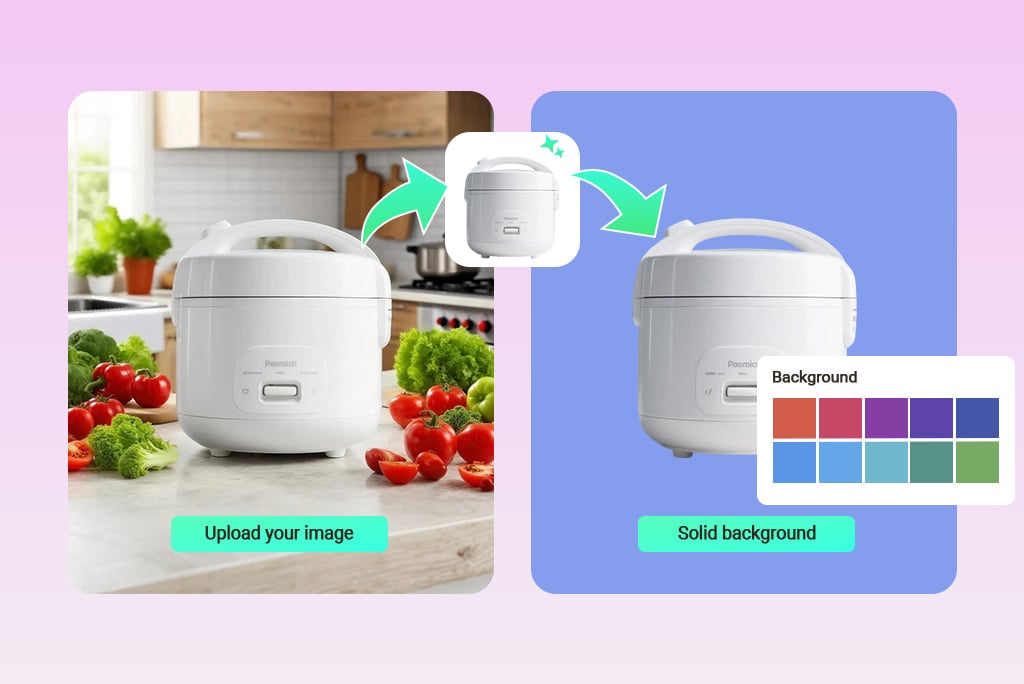
Switch to Solid Colors, Gradients, or Brand Backdrops
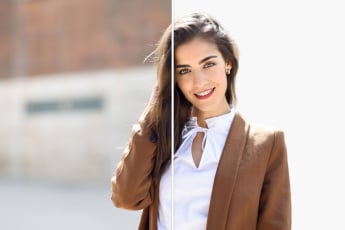
When you only need a simple color update, choose a solid background or gradient instead of generating a full scene. This is useful for IDs, profile photos, thumbnails, marketplace images, and brand visuals.
If the job is only color replacement, the dedicated change background color page can be a cleaner next step.
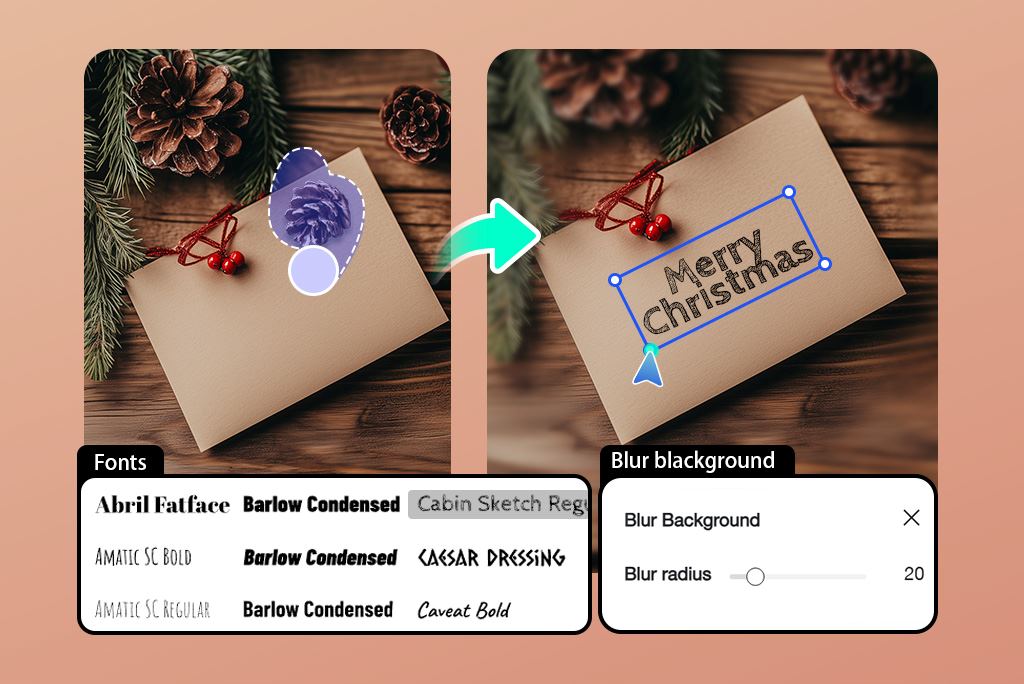
Edit the Photo Background After Replacement
After the background is changed, use the editor to crop, resize, adjust color, or remove small distractions. Do not download too quickly: check hair, hands, product edges, and shadows first.
If something in the old scene still remains, clean it with the AI Magic Eraser before the final download.
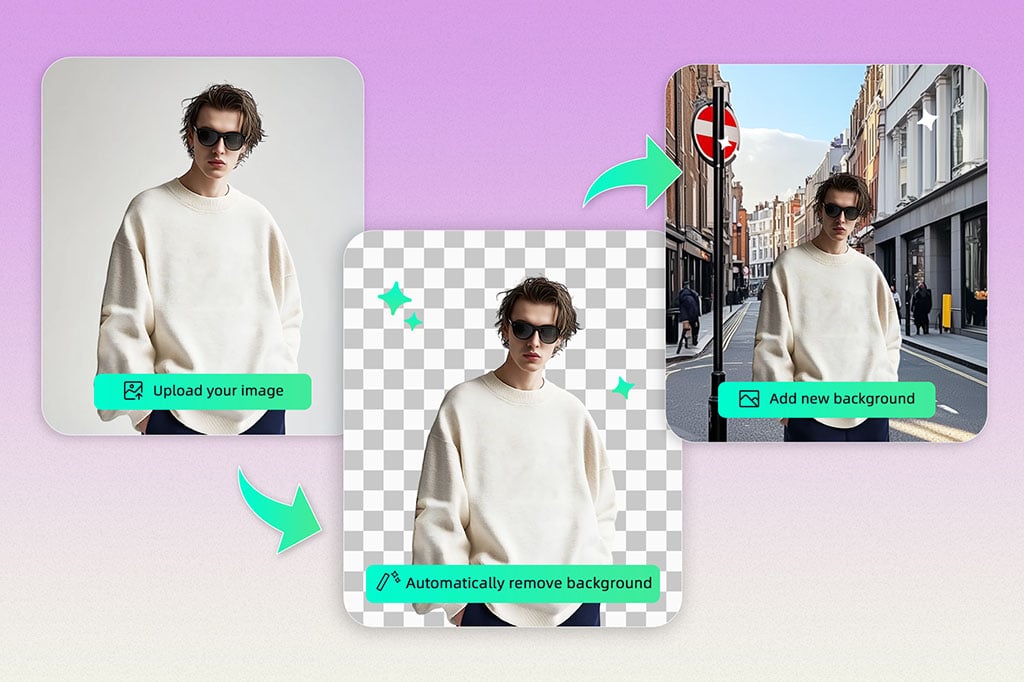
Add a Background to Portraits, Profiles, and Event Photos
Use the background adder workflow when the subject already looks good but the scene does not. A resume photo may need a plain office tone, while a party or travel image may need a more expressive scene.
For ID-style images, keep the background simple and check the requirements outside the tool before using the result for formal documents.
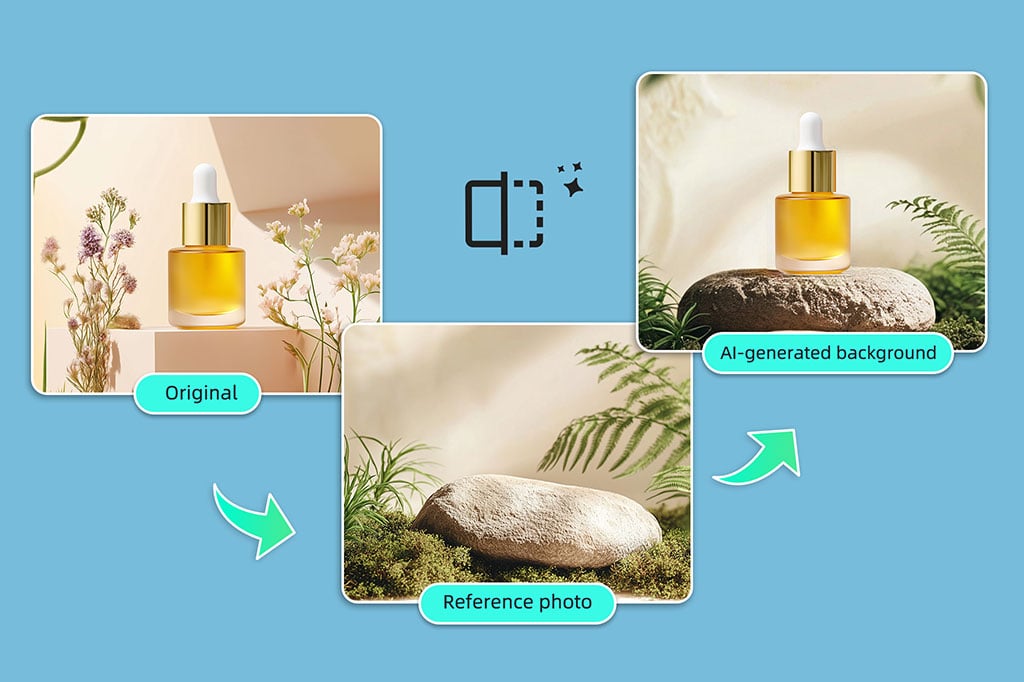
Match an Example Background Style
If you have a reference image or a brand style in mind, use it to guide the new background. Match lighting, color, and surface style, but keep the main subject unchanged.
This is useful for product series, creator portraits, and campaign sets where every image should look related.
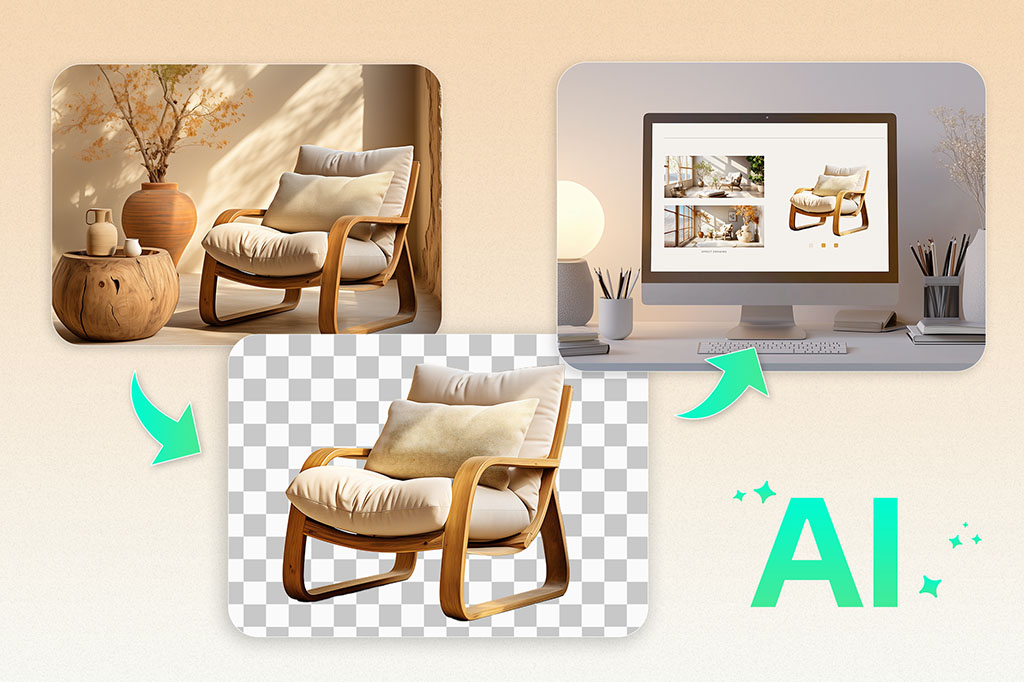
Photo Background Replacer for Product Images
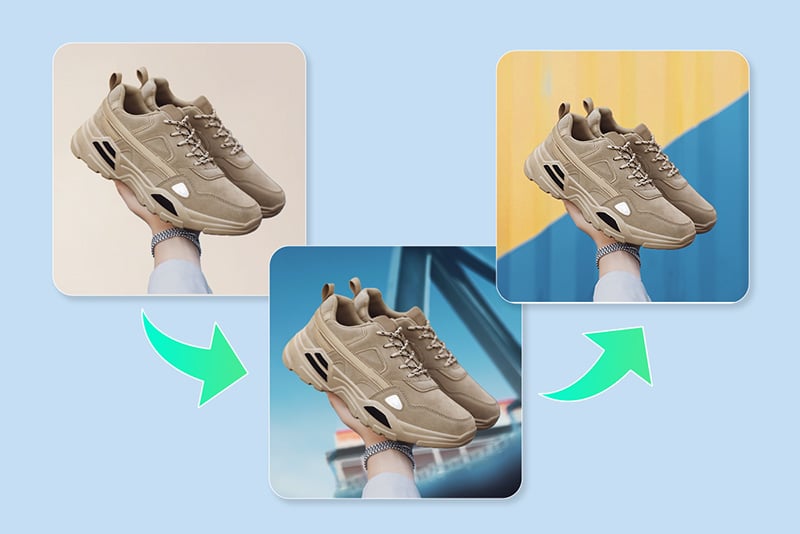
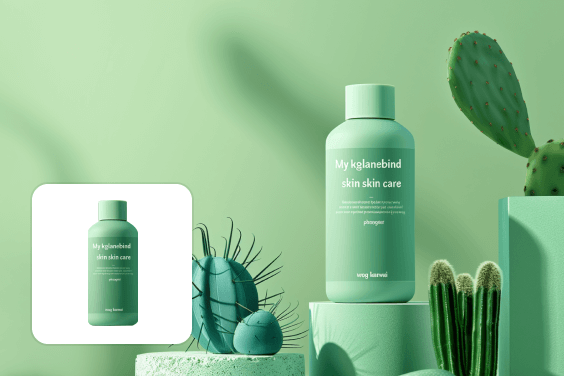
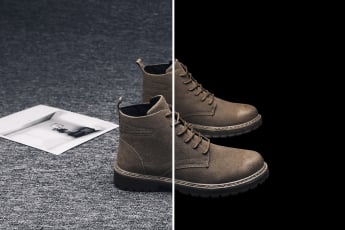
Replace messy product backgrounds with studio, lifestyle, or seasonal scenes. For marketplaces, simple white or neutral backgrounds often work better than busy generated scenes.
Check contact shadows and transparent edges before download. Product photos look more believable when the new background supports the item rather than competing with it.
Photo Background Editing Shortcuts
How to Change a Photo Background Online

1 Step 1: Upload Your Photo

2 Step 2: Enter a Background Prompt

3 Step 3: Generate the New Background

4 Step 4: Preview and Download


When to Use an AI Background Changer
Use this page when the subject is worth keeping but the background needs to change. It fits product photos, profile images, marketing visuals, ID-style photos, and creative edits.
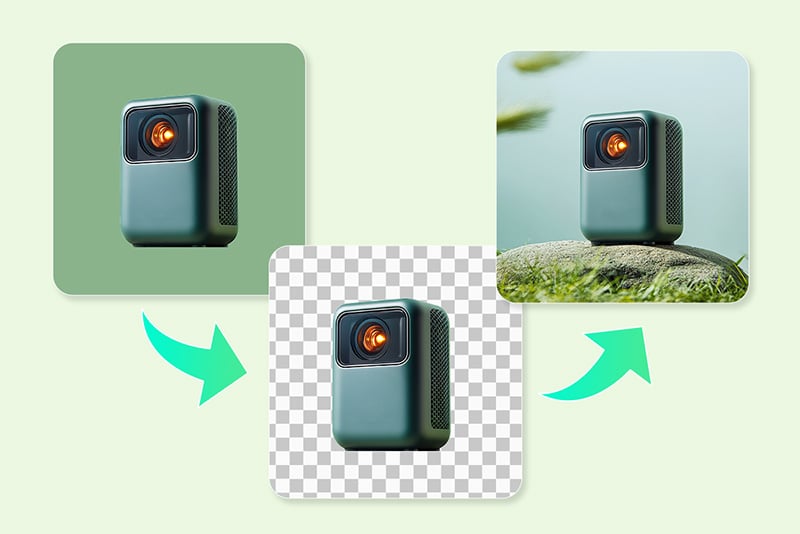
E-Commerce Product Shots
Replace a cluttered product scene with a clean studio, neutral marketplace, or lifestyle background. Check shadows and edges before using the image in a listing.
Marketing Campaigns
Change photo backgrounds to match a seasonal sale, launch theme, or brand campaign without reshooting the subject.
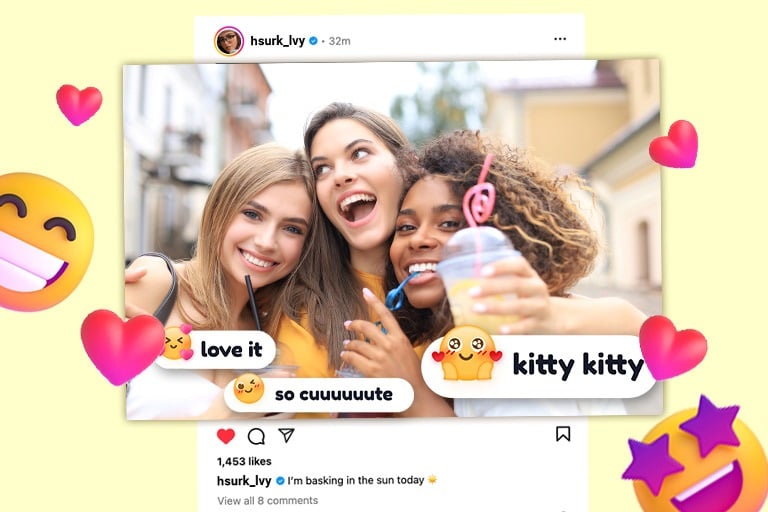
Social Media Posts
Put a selfie, creator photo, or product image into a background that matches the post format. Keep the scene readable on mobile.
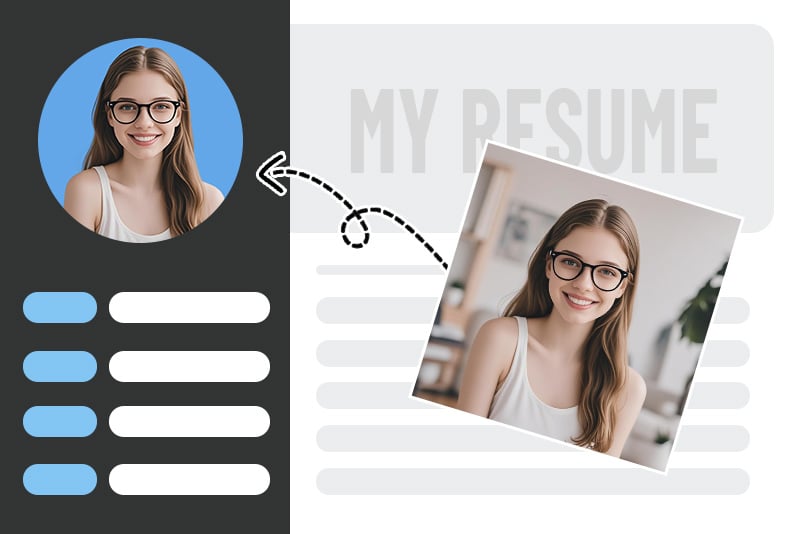
Profile and Resume Photos
Switch a casual background to a cleaner office, studio, or plain color. Review hair and shoulder edges before using the result.
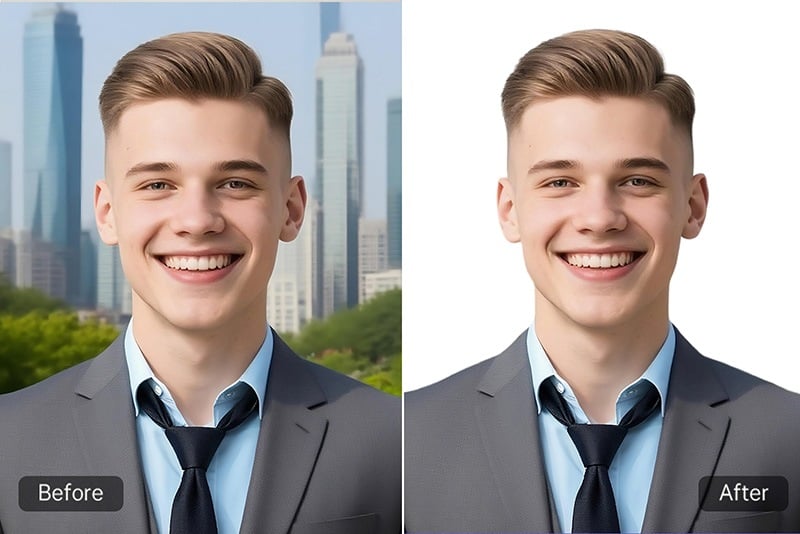
ID-Style and Document Photos
Add a simple blue, white, red, or neutral background when a document-style image needs a cleaner backdrop. Always check official photo requirements separately.
Travel, Events, and Creative Edits
Replace a dull or messy scene with a travel, party, studio, or themed background. Use one clear prompt so the subject does not get lost.
Reviews from Background Changer Users
Why Choose insMind Background Changer?

Subject-First Background Replacement
The edit starts by keeping the main subject and replacing the scene around it. That is the key difference between background changing and generating a fully new image.

Prompt, Color, and Image Options
Use a prompt for a generated scene, choose a simple color, or add a background image when you already know the exact look you need.

Preview Before You Download
Check the subject edge, lighting, and background fit before saving. A quick preview catches most issues that make a background replacement look fake.
FAQs About Changing Photo Backgrounds
How do I change the background of a photo online?


What is the difference between a background changer and a background generator?
Can I add my own background to a photo?
Can I change a photo background for free?
Which background should I choose for product photos?
Can I use GPT Image 2 or Nano Banana 2 when changing backgrounds?
What should I do if the replacement background looks fake?
More Tools for Background and Photo Cleanup
Generate a scene, recolor a backdrop, remove the old background, or clean the image after replacement.
AI Background Generator
Add White Background
Add Black Background
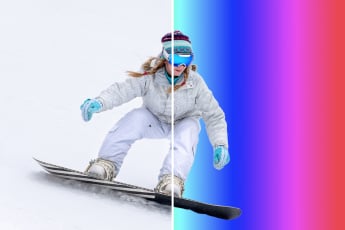
Change Background Color
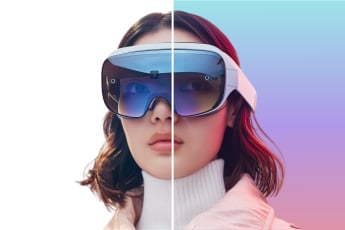
Gradient Background Generator

AI Magic Eraser

Smart Resize

Background Remover

AI Shadows & Reflections
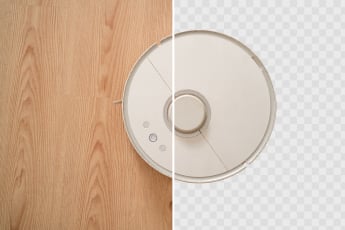
Make Background Transparent
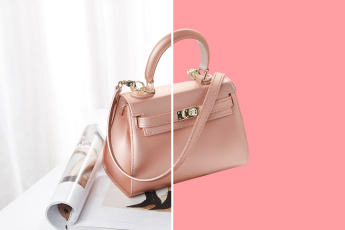
Add Pink Background
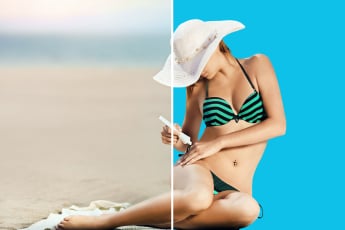
Add Blue Background

"Since using this tool, my online store looks much more polished. The branded background replacements make my product photos look premium."
@Emily T