
Photo to Line Drawing Online
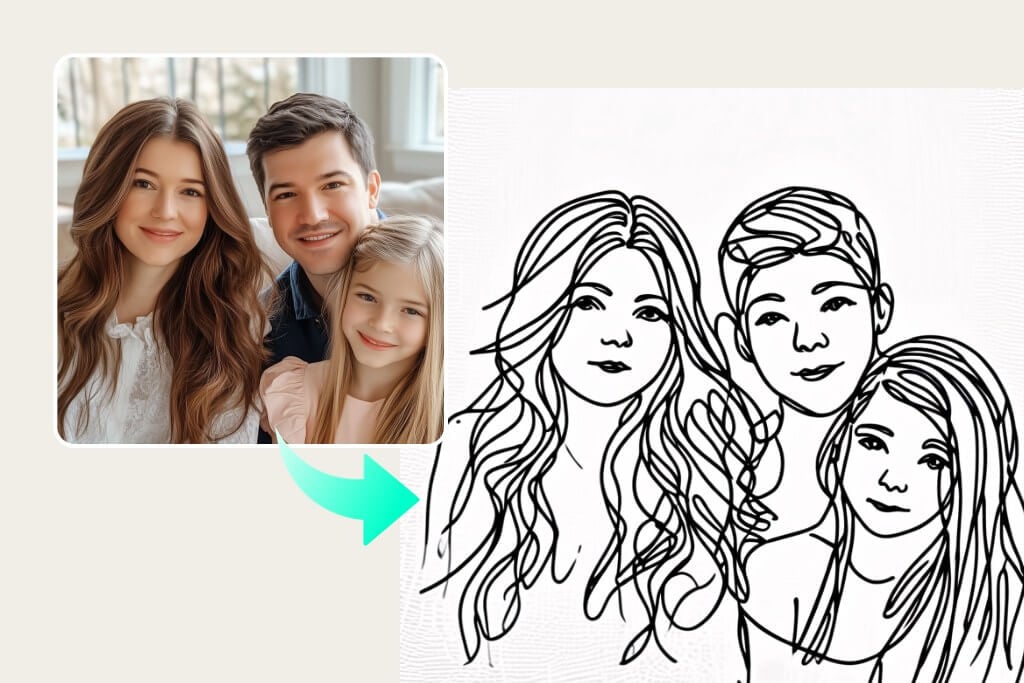




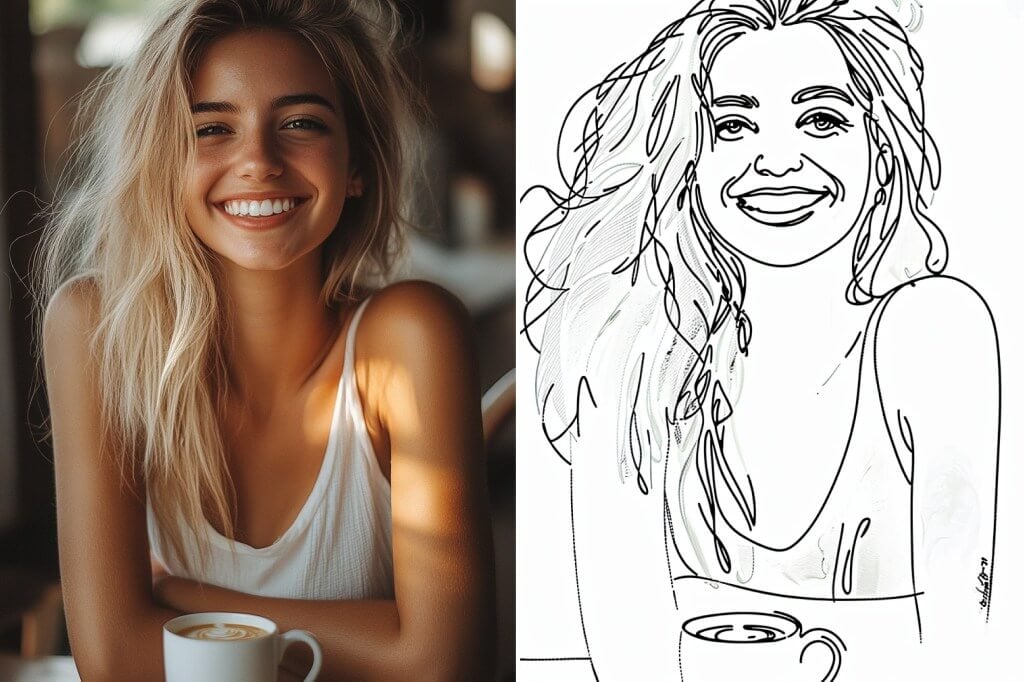
Turn a Portrait Photo into Line Drawing
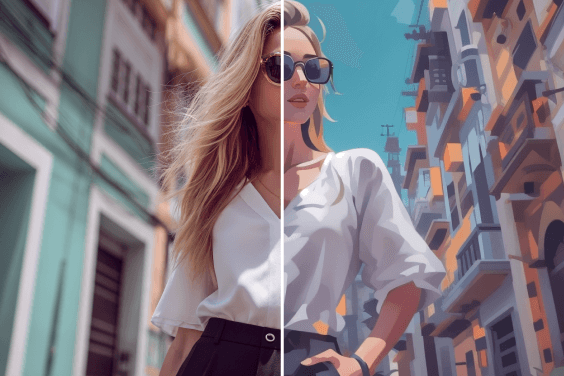
Create a clean line drawing from a portrait, selfie, or profile photo. Keep the face well lit and use a clear subject so the outline can separate hair, facial features, and clothing.
For a softer result, try a pencil or soft-pen style. For a graphic avatar or reference image, compare a sharper outline and a comic-style treatment before you download.
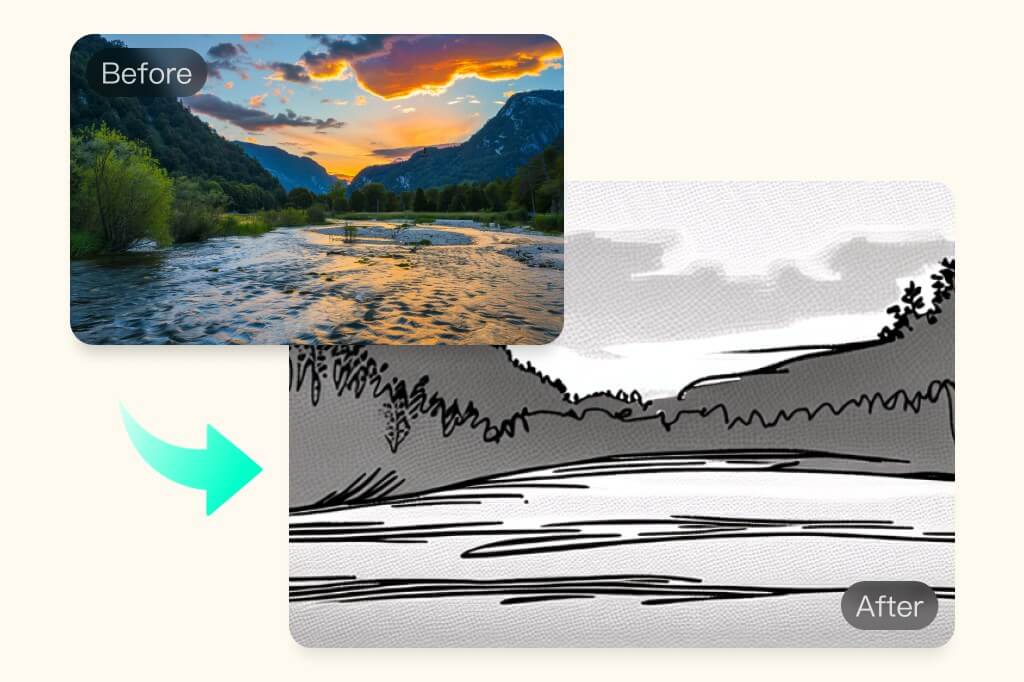
Convert a Landscape Photo to Line Art
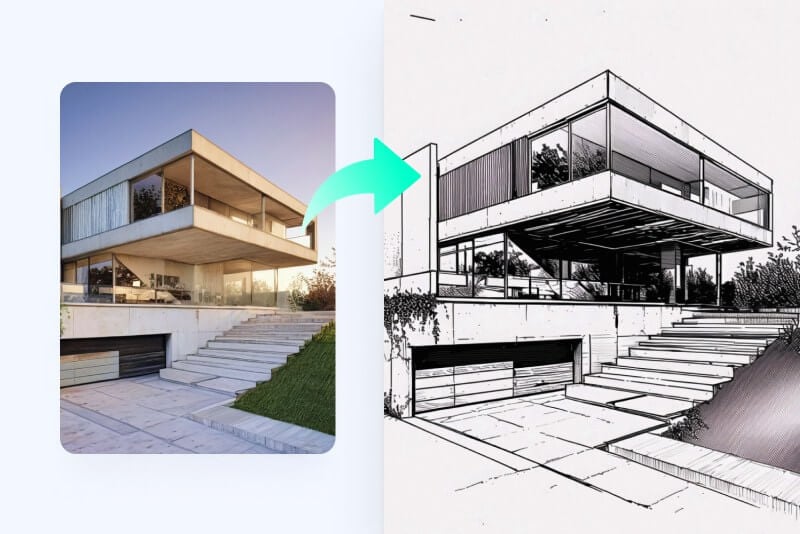
Turn a landscape, building, street, or travel photo into line art while keeping the main shapes readable. Images with clear contrast between the subject and background usually make a stronger starting point.
Use the result for a sketch reference, travel post, poster concept, or personal art study. Zoom in on fine branches, windows, and distant details before choosing the final version.
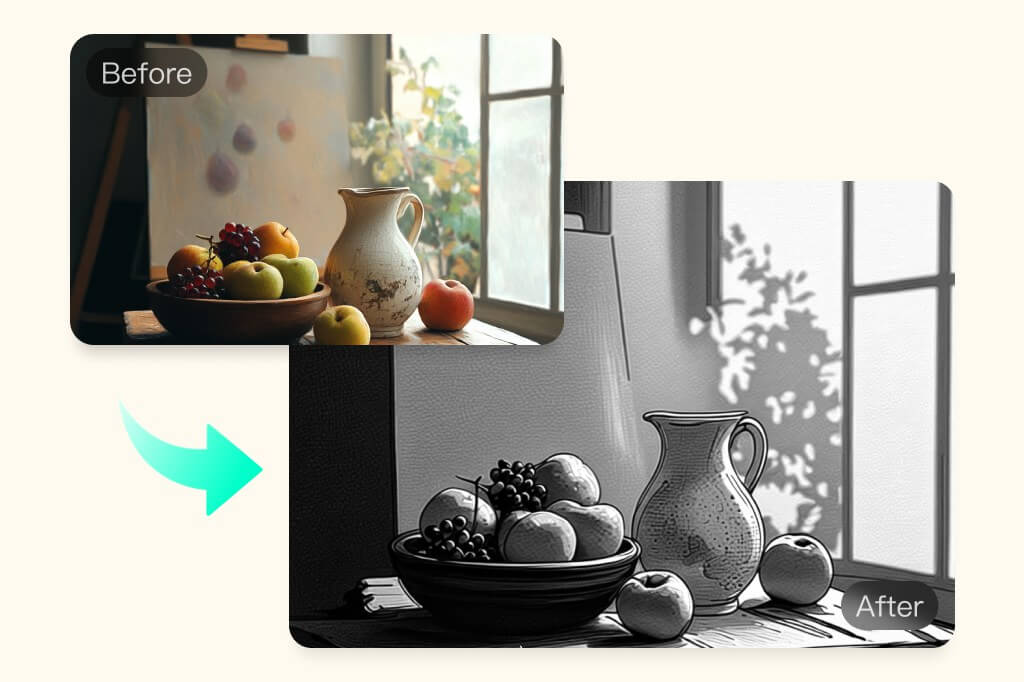
Choose the Right Line Drawing Style
Different styles serve different jobs: Outline and LineArt keep the drawing simple, Pencil and Sketch add shading, while Comic, Woodcut, Charcoal, and Needle Pen create a more distinctive surface.
Start with the simplest style that preserves the important shapes. If the first result loses small details, switch styles or use a clearer source photo rather than stacking more filters.
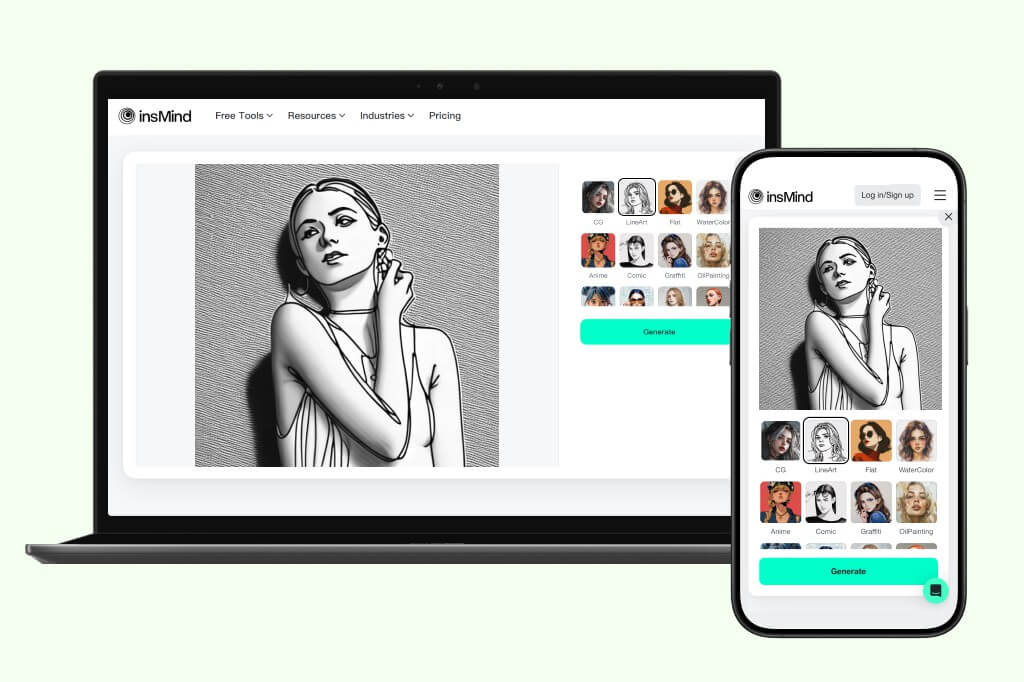
Convert a Photo to Line Art on Mobile or Desktop
Use the browser on a phone, tablet, or desktop to turn a picture into line art without opening Photoshop. The same upload-first workflow works for a quick social post, a reference sketch, or a personal project.
Check the preview at the size where you will use it. A line drawing that looks clear on a phone may need a simpler style when printed or placed in a small design.
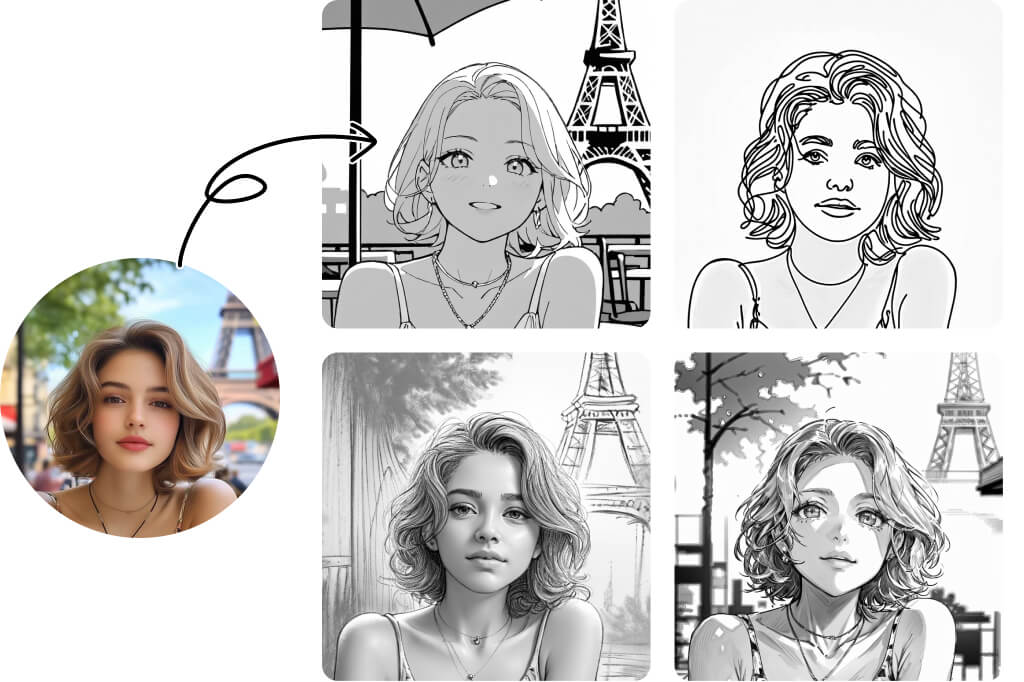
Explore 15+ Line Art and Sketch Styles
Choose from more than 15 available line-art and sketch treatments, including Outline, LineArt, Pencil, Sketch, Pen, Soft Pen, Comic, Retro, Woodcut, Charcoal, and Needle Pen.
Treat the style list as a starting point, not a promise that every source will suit every filter. Compare the subject edges, facial features, hands, text, and small logos in the preview before downloading.
Explore More AI Line Art Filters
How to Turn a Photo into a Line Drawing Online
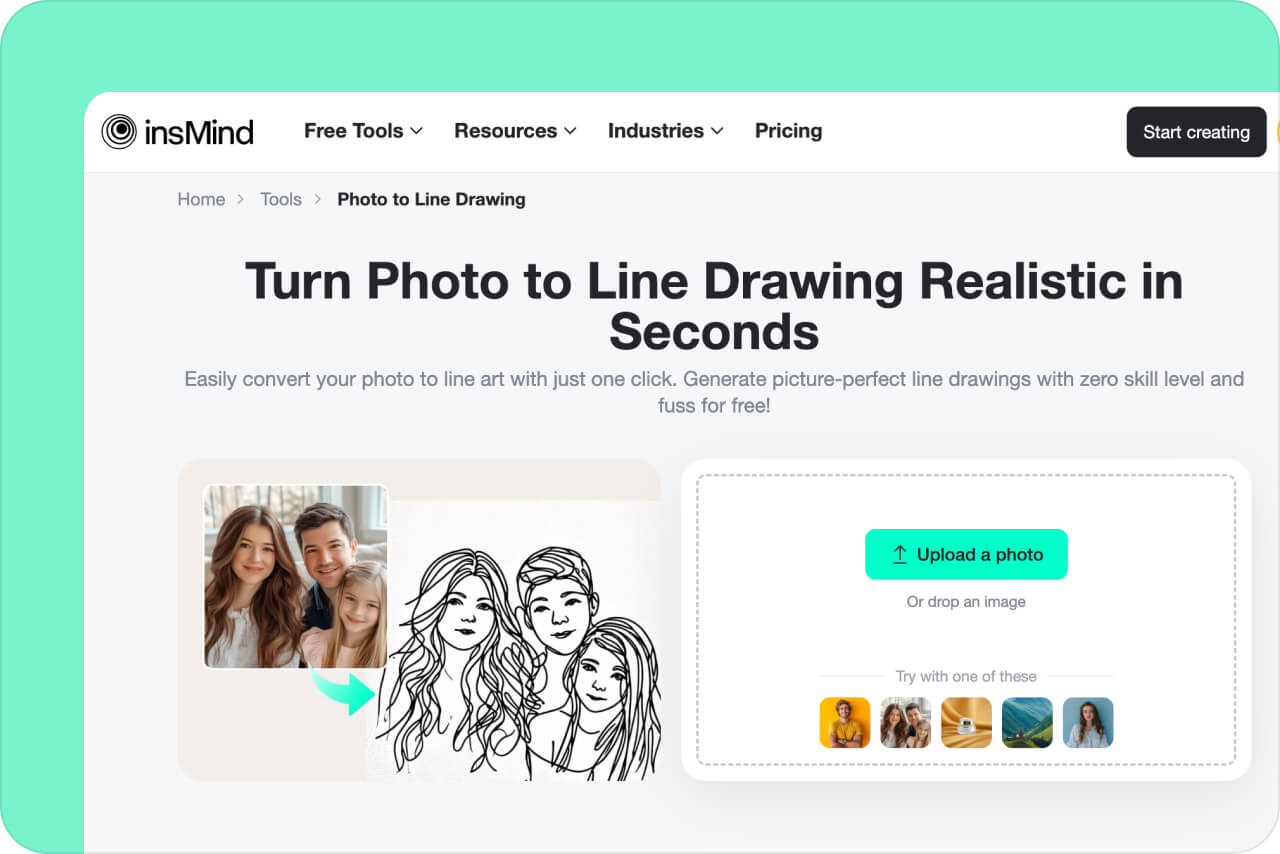
1 Step 1. Open the Photo to Line Drawing Tool

2 Step 2. Upload Your Photo
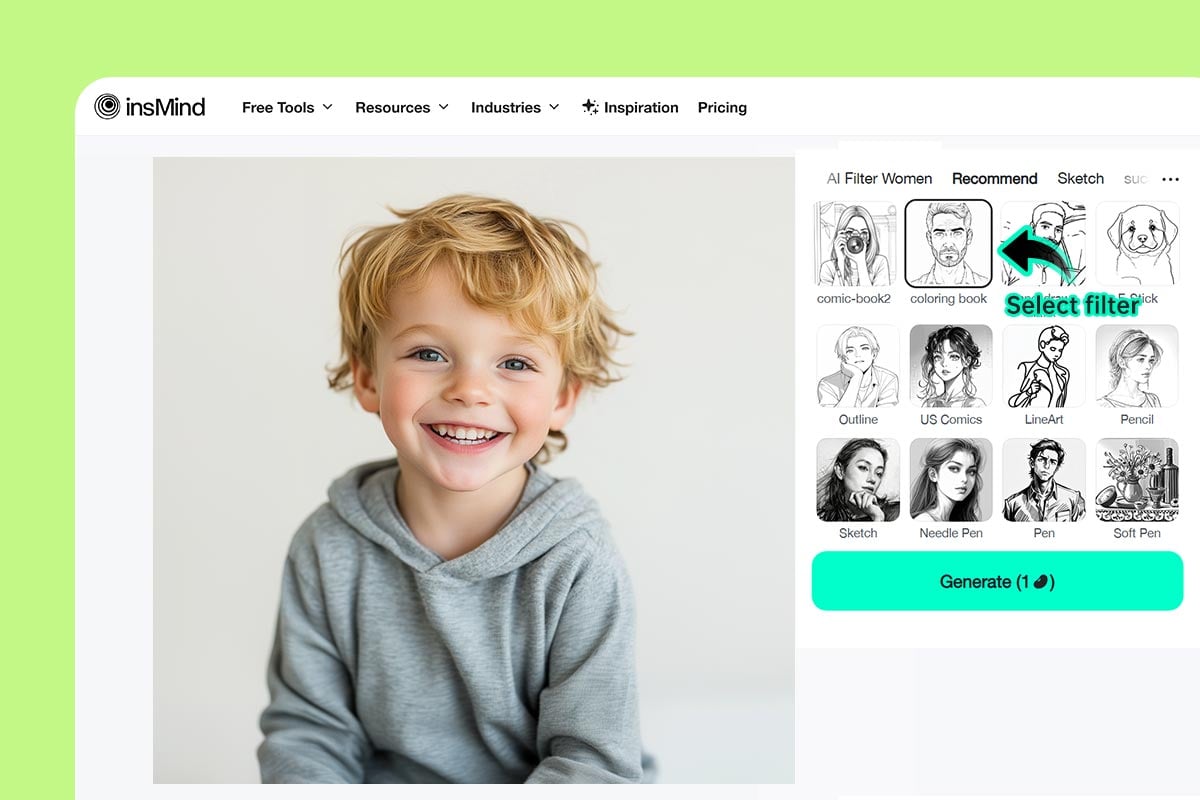
3 Step 3. Choose a Line-Art Style
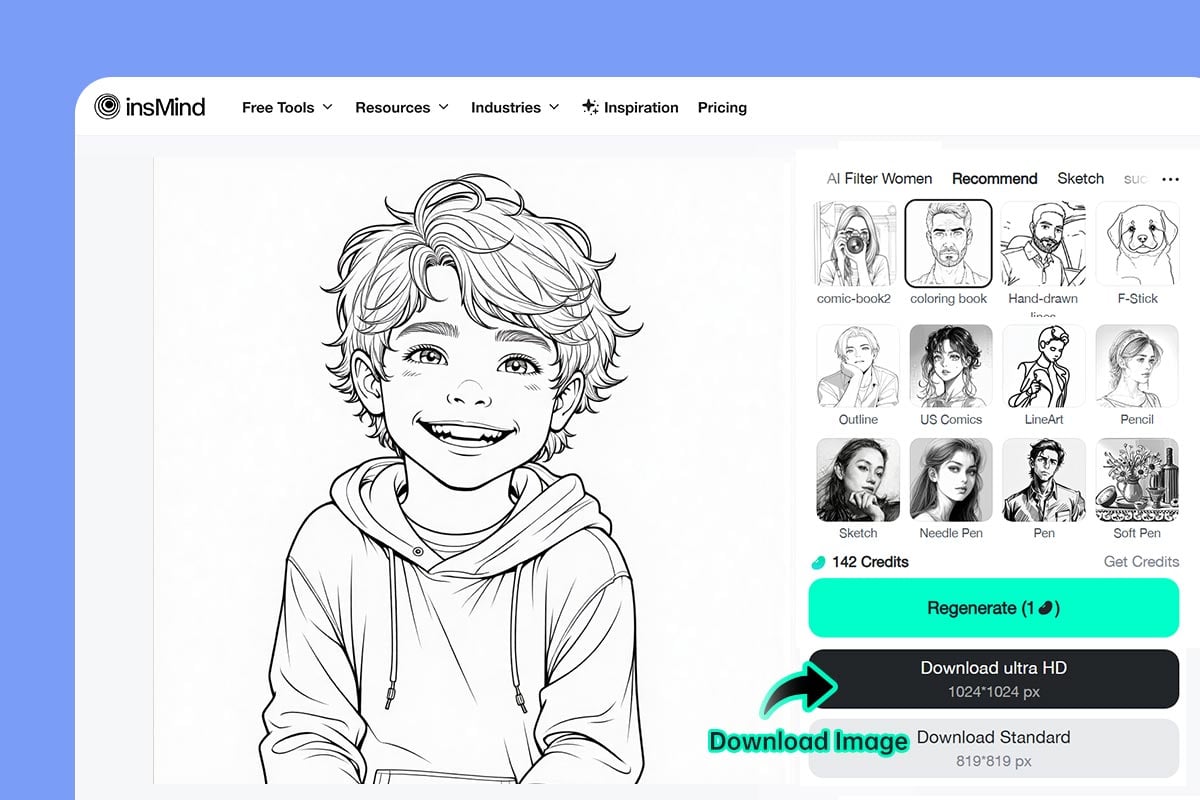
4 Step 4. Review and Download the Line Drawing

Practical Ways to Use a Photo-to-Line-Drawing Converter
A line drawing can be a finished visual, a reference, or a starting point. Choose the use case first so you can select the right source photo and style.
Portraits and Profile Artwork
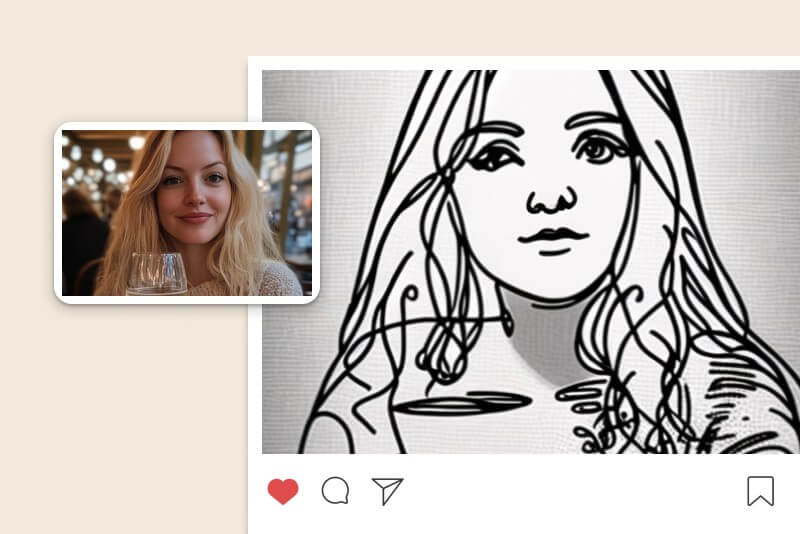
Turn a selfie or portrait into a line-art profile image, avatar concept, or sketch reference. Use a clear face and check hair, glasses, hands, and clothing edges in the preview.
Social Posts and Creative Concepts
Convert a travel photo, pet picture, or everyday scene into a graphic post or thumbnail concept. Keep the source composition simple when the image will be viewed at a small size.
Product and Marketing Outlines
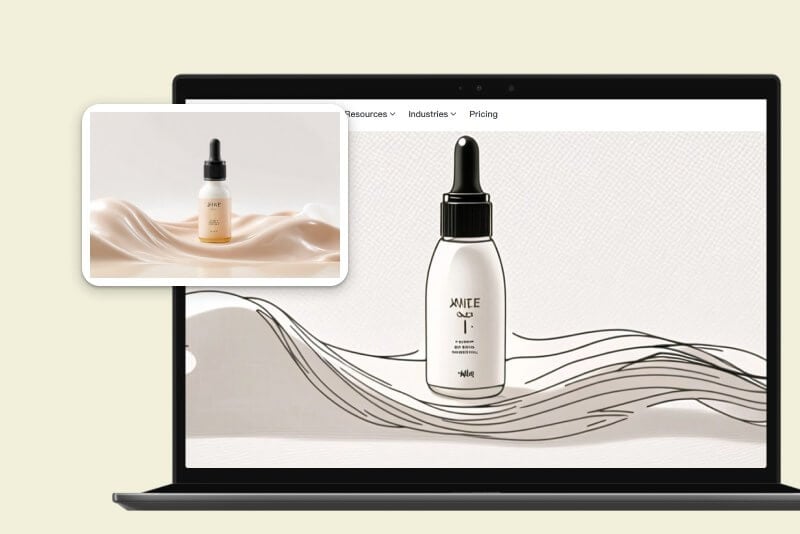
Create an outline treatment for a product, package, object, or campaign idea. Inspect labels and small text carefully; a stylized line drawing should not replace the original product image when exact details matter.
Printable Coloring-Page Ideas
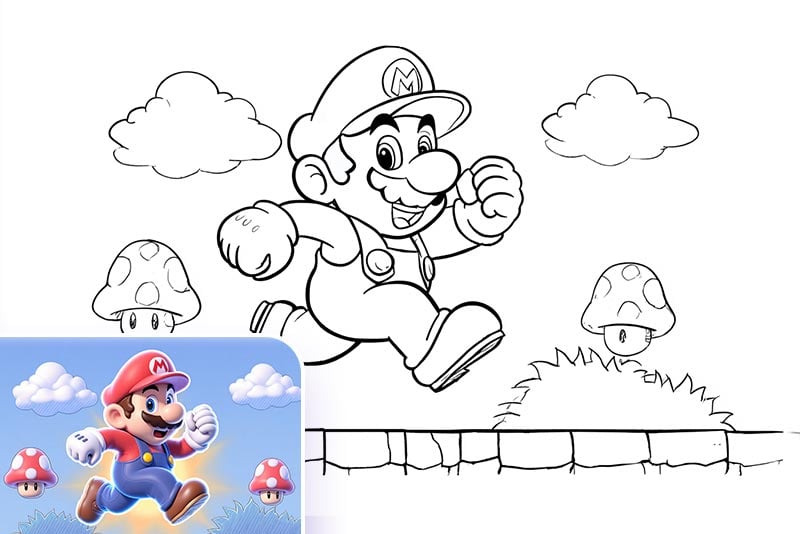
Turn a clear photo of an animal, vehicle, building, or character into an outline starting point for a coloring page. Check the line weight and simplify crowded backgrounds before printing or sharing.

Tattoo Reference Sketches
Use a converted photo as a visual reference for discussing a tattoo concept. The output is a starting sketch, not a final stencil or a placement recommendation; confirm scale, line weight, and detail with a professional artist.

Minimalist Gifts and Wall Art
Create a simple line-art version of a family photo, pet, or meaningful place for a card, framed print, or personal project. Compare a clean Outline style with a softer Pencil treatment to match the final format.
What Our Users Are Saying
Why Use insMind to Convert Photos to Line Art?

Styles for Different Drawing Goals
Choose from more than 15 line-art and sketch styles so a portrait, landscape, product outline, or coloring-page idea can start from the same upload workflow.

A Clear Upload-to-Preview Workflow
Upload one photo, select a style, and review the result in the editor. The short path makes it easier to compare styles before saving a line drawing.

Control the Result with Better Source Photos
The filter can only work with the visual information in the source. Clear edges, useful contrast, and a final preview check help you decide whether to keep the result or try another style.
FAQs about Photo to Line Drawing Converter
Can I turn a photo into a line drawing without Photoshop?


How do I convert a photo to line art online for free?
What is the difference between line art and a line drawing?
What kind of photo works best for a line drawing?
Can I turn a picture into a line drawing on my phone?
How many line-drawing styles can I try?
Can I use the result as a coloring page or tattoo reference?
More Tools for Sketches, Outlines, and Photo Effects
Use a related tool when you need a different finish, such as a pencil drawing, stencil, outline, watercolor, or broader AI filter treatment.
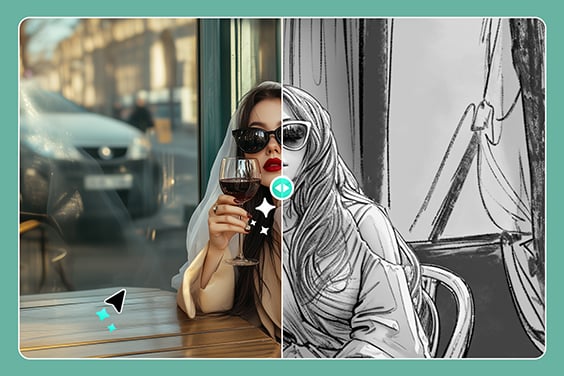
Photo to Pencil Drawing
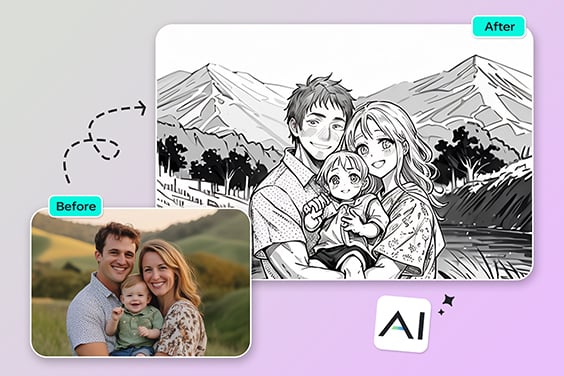
Photo to Outline
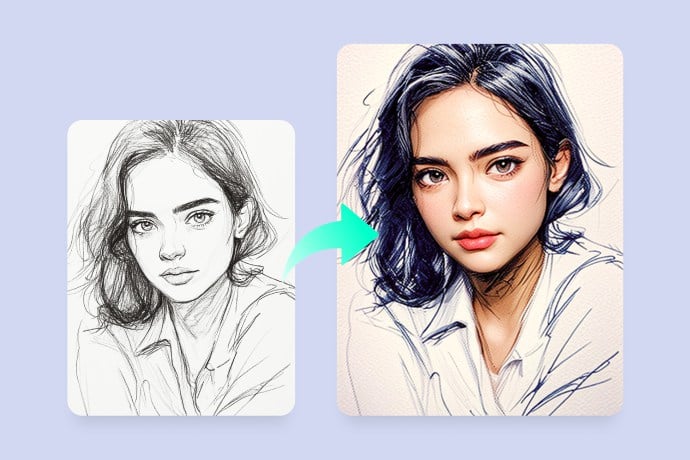
AI Sketch to Image Generator
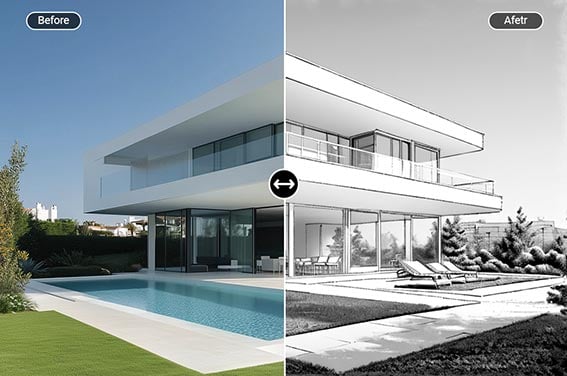
Picture Stencil Maker
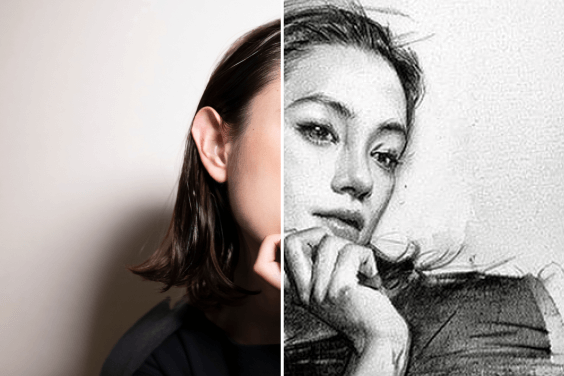
Photo to Sketch
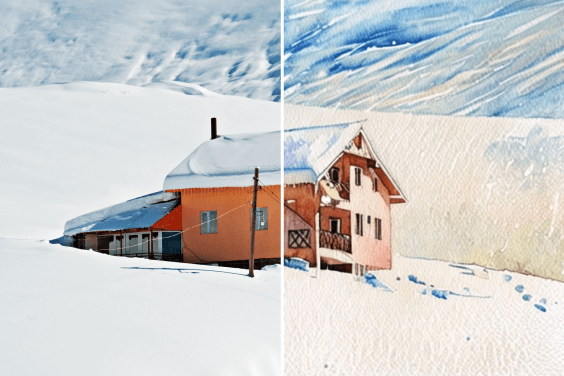
Photo to Watercolor
AI Cartoon Generator

"insMind is quick and easy, especially with AI filters. It smartly turned my images into minimalist line art. Very neat output image."
@Flora Cotton