
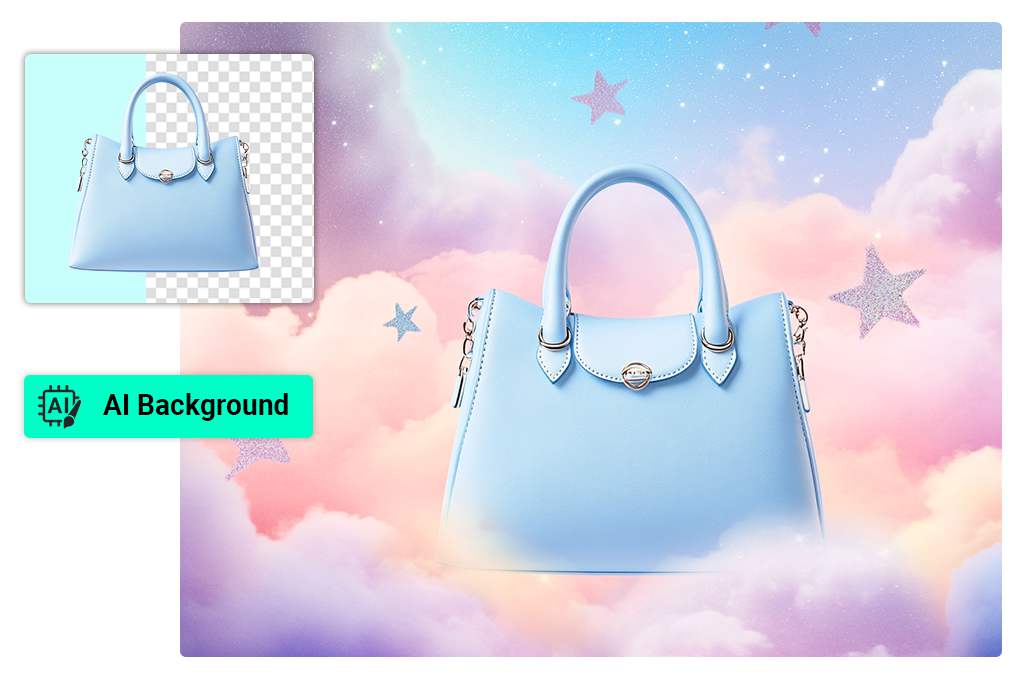
Remove or Replace a Photo Background
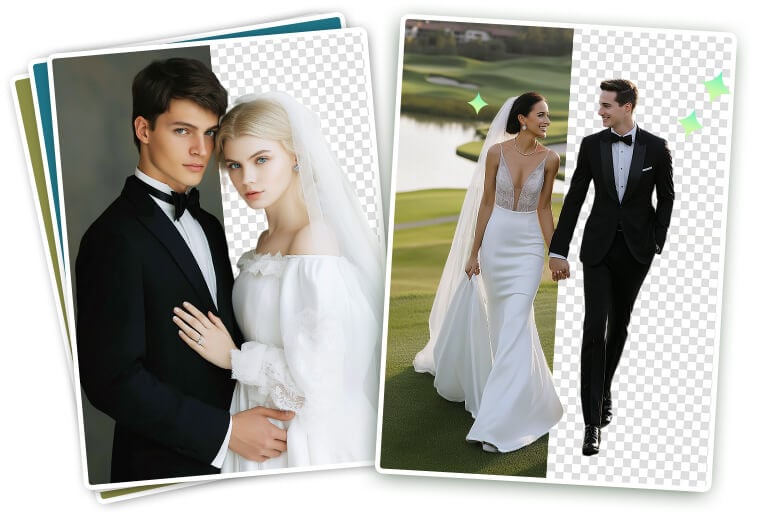
Start with the background when a product shot, portrait, or social post needs a cleaner setting. Use the AI background remover to cut out the subject, then keep a transparent background or place the subject on a new one.
For a newly generated scene, open AI Background. Check fine edges around hair, fabric, and transparent objects before you download.
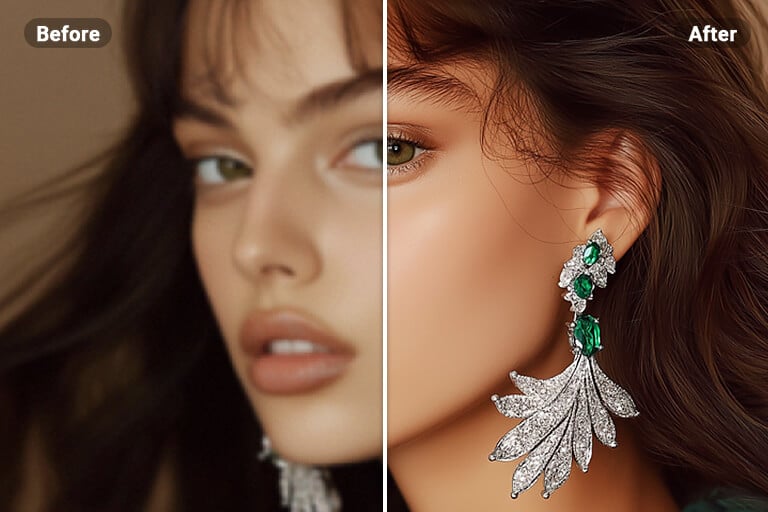
Sharpen Blurry Photos and Improve Resolution
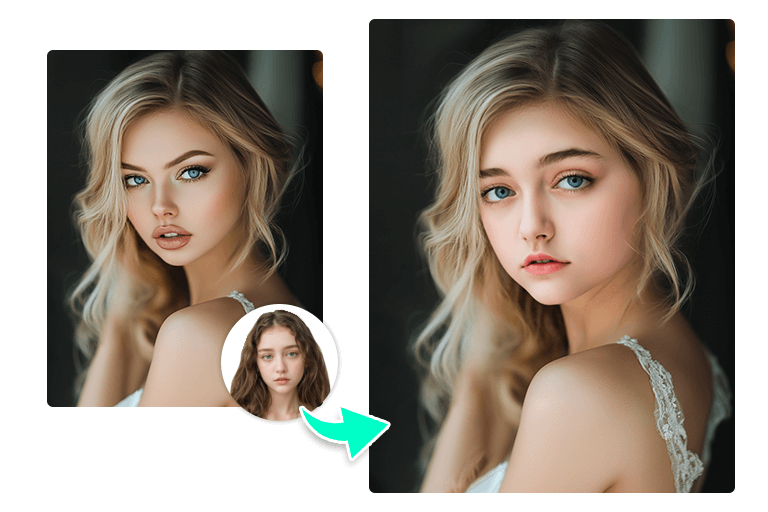
Open the AI image enhancer when a photo looks soft, pixelated, or too small for its intended layout. Preview faces, text, and product edges after enhancement; those details are the quickest way to spot an overprocessed result.
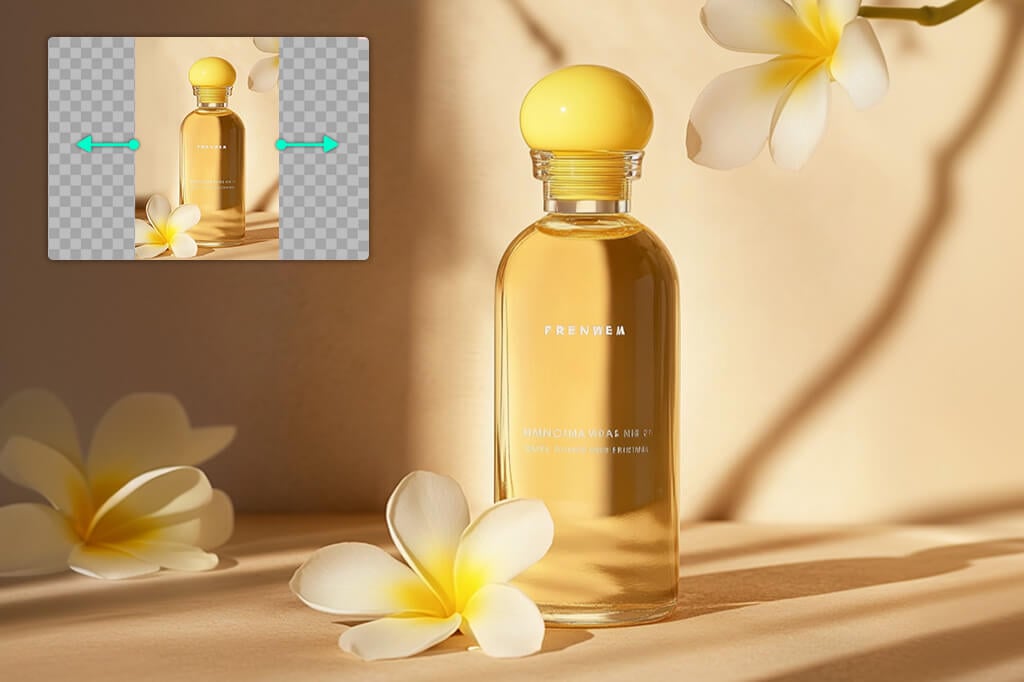
Expand, Crop, and Resize for a New Layout
Use the AI image expander when the subject is framed too tightly or the original canvas does not fit your design. Choose the space you need, generate the extended area, and inspect repeated patterns or stretched edges.
If the composition is already right, use Smart Resize to prepare another size without rebuilding the design from scratch.
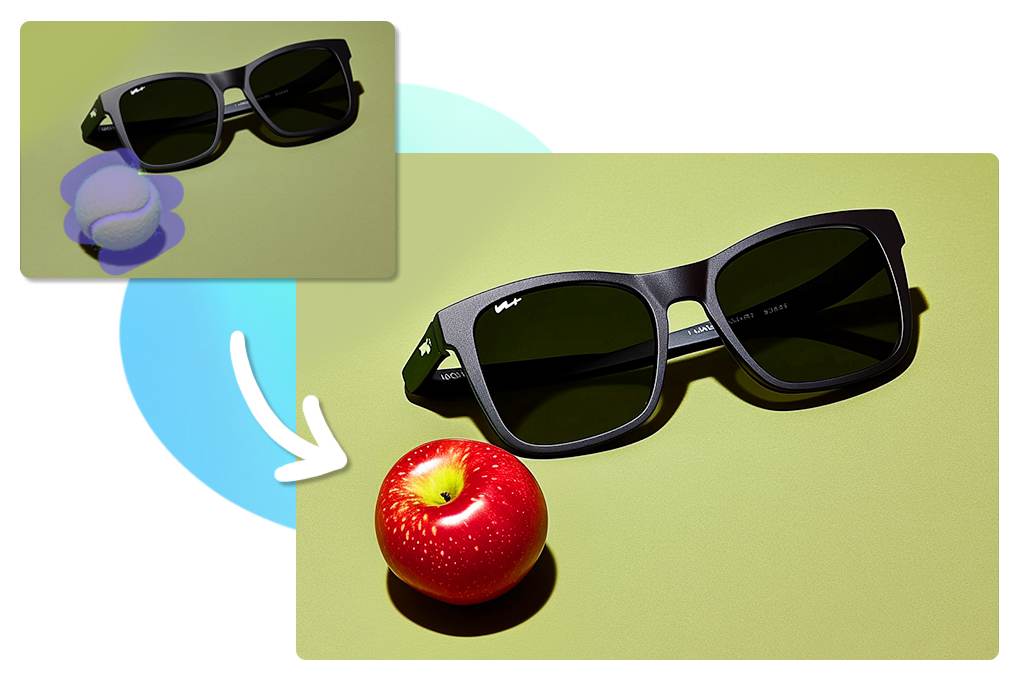
Replace Objects and Add New Details with a Prompt
Select the area you want to change, then describe the replacement with AI Replace. A specific prompt about the object, color, and placement gives the editor a clearer target than a broad instruction.
For adding or rebuilding a larger area, try Generative Fill. Review shadows, scale, and nearby textures after each result, and adjust the selection if the new detail does not blend with the original photo.
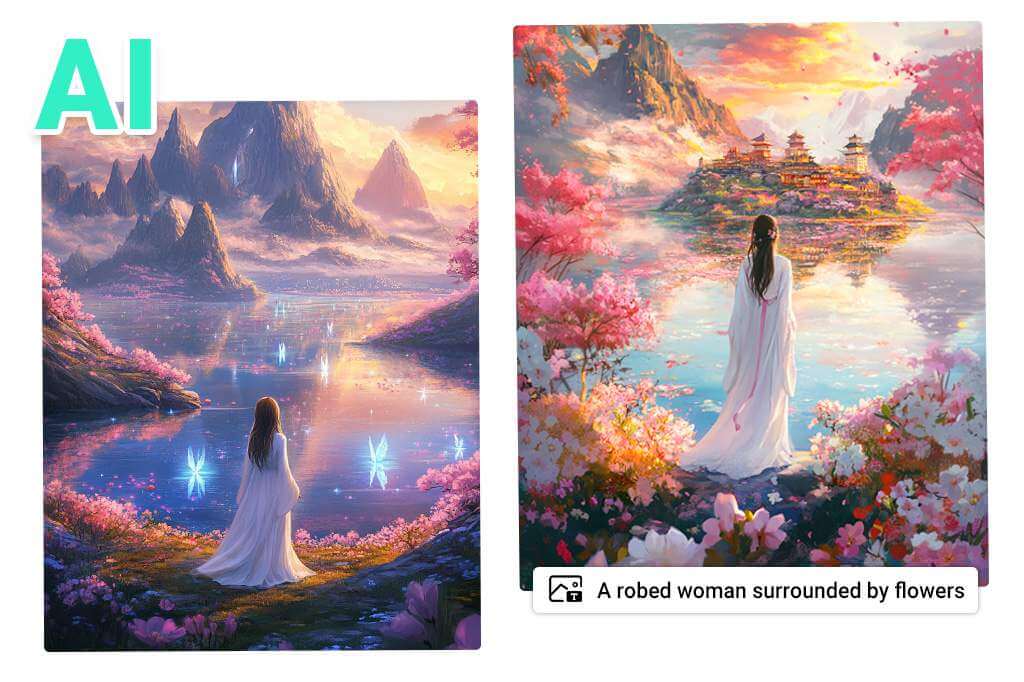
Create a New Image from a Text Prompt
When there is no source photo to edit, move to the AI image generator. Describe the subject, setting, composition, and visual style, then generate a new image that you can refine in the editor. This keeps image creation separate from edits that need to preserve an existing photo.
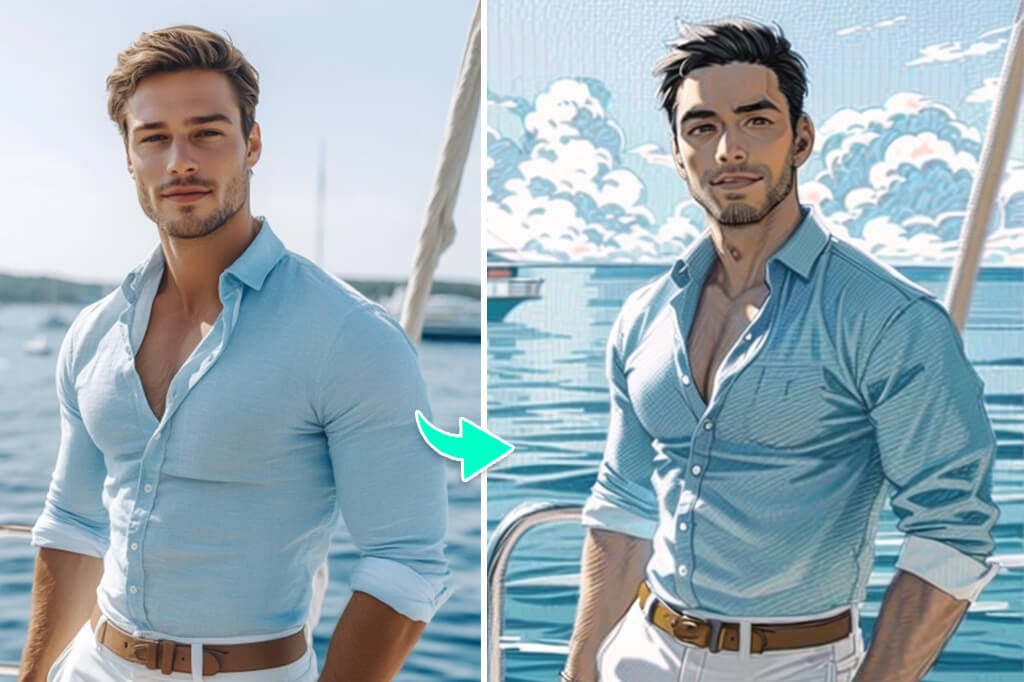
Try AI Filters for Fast Style Changes
Use AI photo filters when the goal is a clear style change rather than a repair. Compare the result with the original before downloading, especially when the photo contains a recognizable face, logo, or small text that should remain readable.
Explore AI Photo Editing Tools
How to Edit a Photo with insMind AI Photo Editor
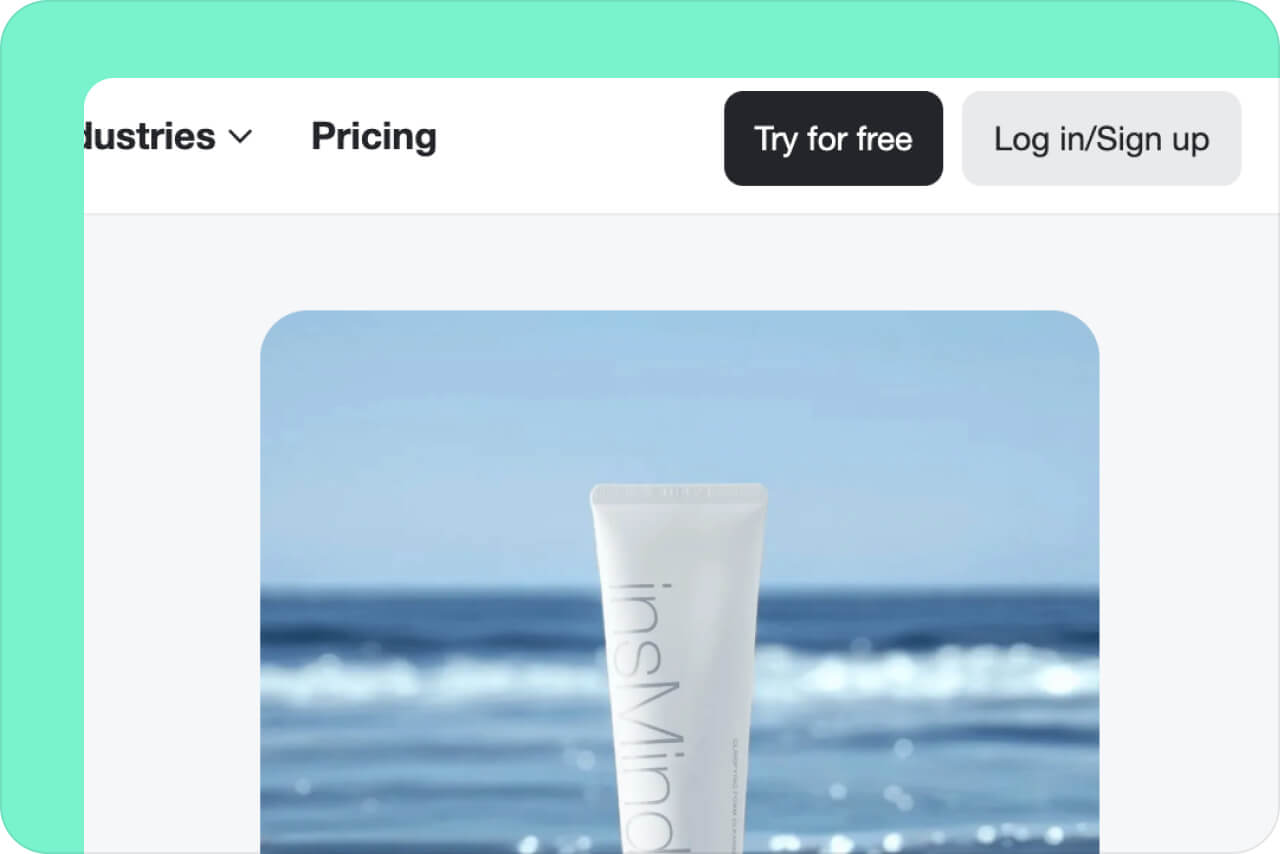
1 Upload Your Photo
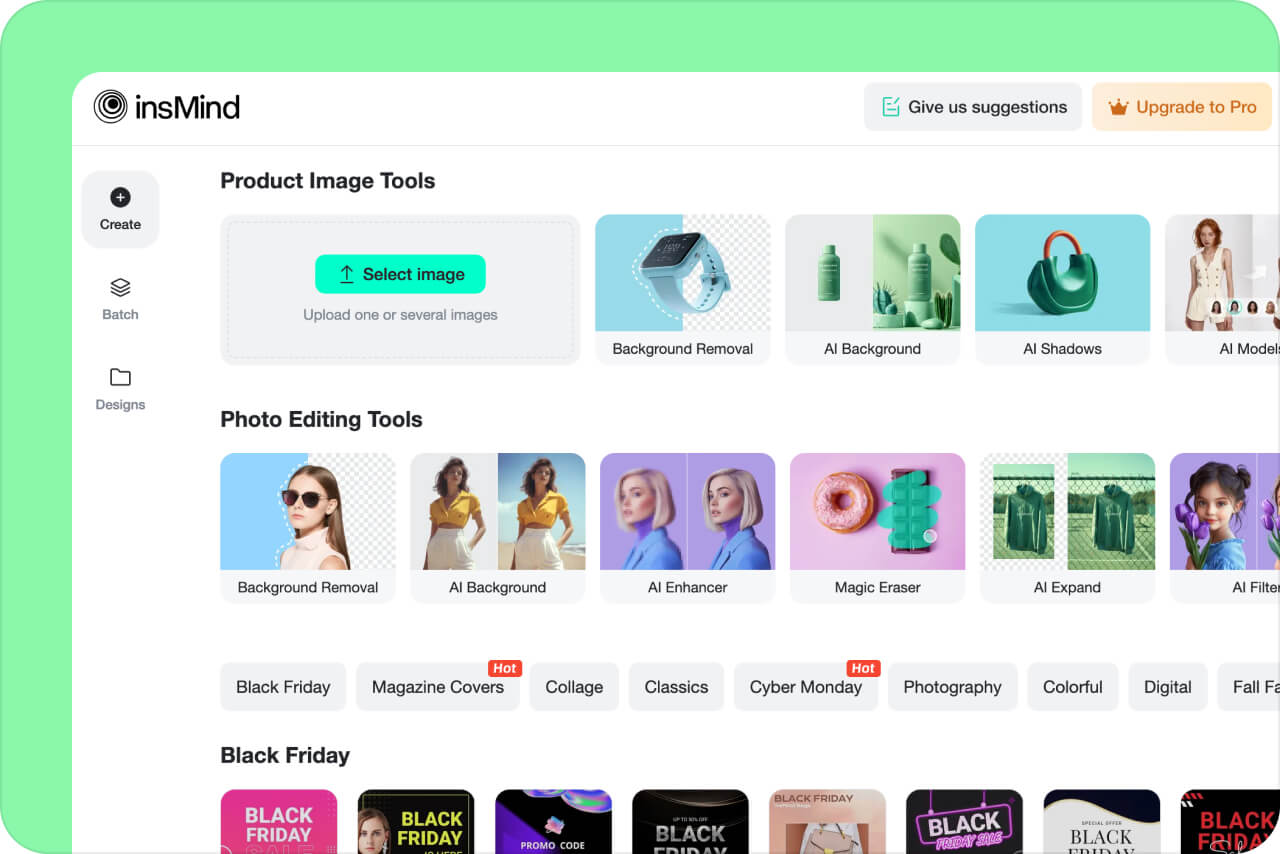
2 Choose an Editing Tool
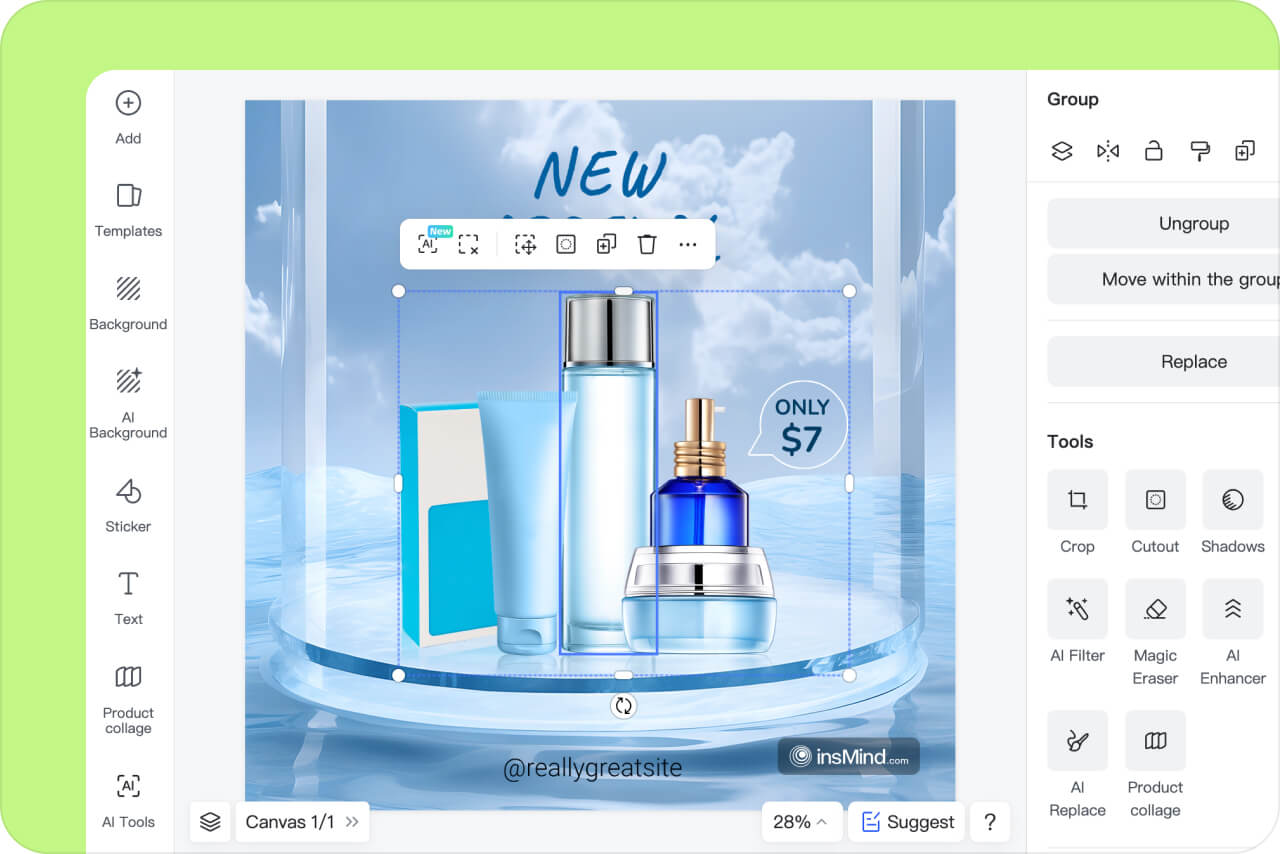
3 Preview and Refine the Result
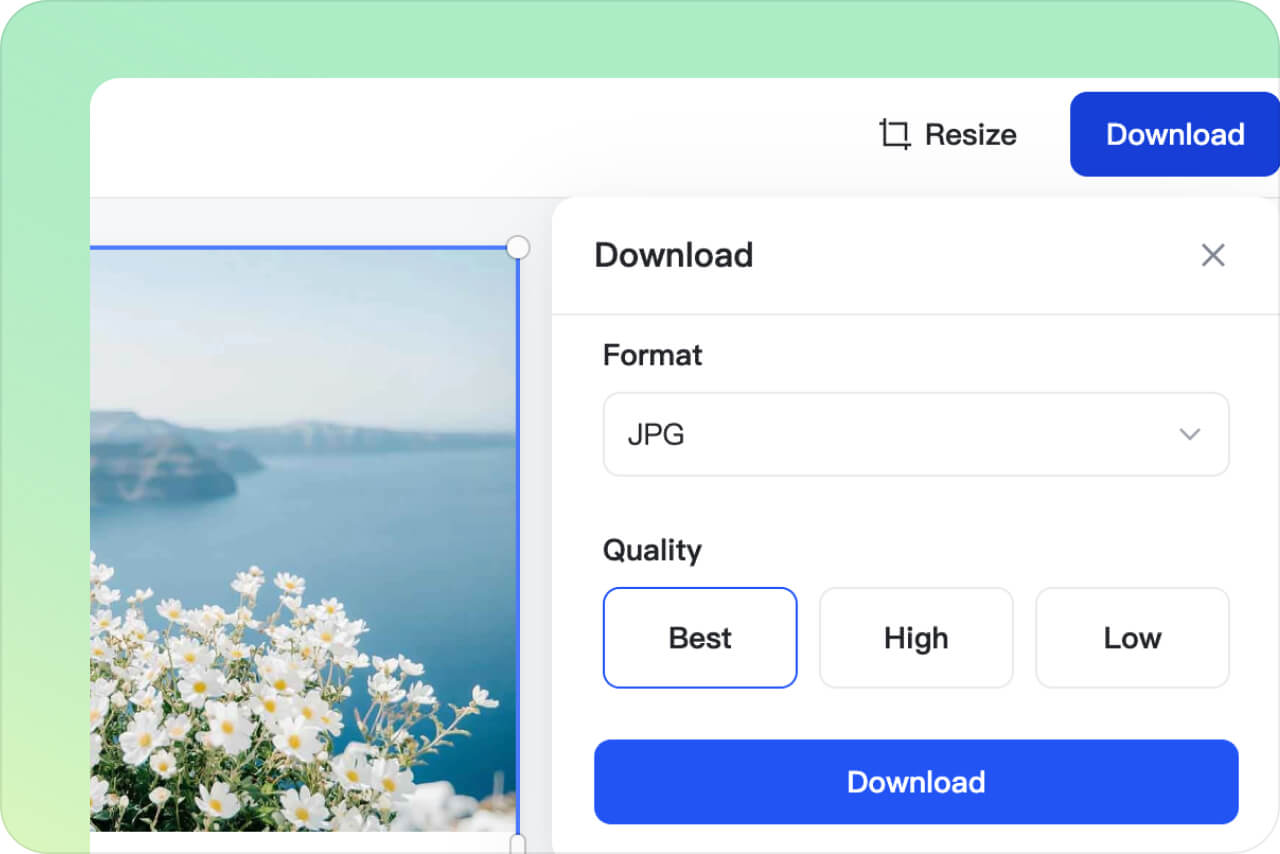
4 Download Your Image
AI Photo Editing for Everyday and Business Workflows
Use one workspace for common photo tasks, then move to a focused tool when the image needs a specific edit. The examples below show where an AI photo editor can shorten a real workflow without hiding the final quality check.

E-commerce Product Photos
Prepare a product photo for a listing by removing the original background, placing the item in a suitable scene, and checking its edges at full size. For catalog work across many files, continue with the batch photo editor.
Social Posts and Creator Graphics
Crop or resize a photo for the destination layout, then add text, stickers, or a filter only where they support the message. Use the collage maker when several images need to share one post instead of forcing them into a single edit.
Portrait and Studio Retouching
Use enhancement and object-removal tools for routine cleanup, then inspect skin texture, hair, clothing edges, and background transitions before delivery. AI can speed up a first pass, but client-facing photos still need a human review at the final size.
Why Choose insMind AI Photo Editor?

30+ AI Tools
insMind is no ordinary photo editor. It has an all-inclusive toolset with over 30+ photo editing features. From basic photo editing and cropping to advanced picture enhancement, it seamlessly caters to all.

1000+ Templates
insMind offers an extensive library of over 1,000 templates, including backgrounds, elements, stickers, collages, and designs—all available with free trial access.

10M+ User's Choice
Trusted by over 10 million users, insMind is a leader in professional photo editing. With AI-powered tools for precise and enhanced image output, insMind supports users in product marketing and everyday photography, showcasing its trademark of excellence.
AI Photo Editor FAQs
What can I edit with insMind AI Photo Editor?


Is insMind a free AI photo editor online?
How do I choose the best AI photo editor for my task?
Can I edit a photo with a text prompt?
Keep Editing with Related AI Photo Tools
Choose a focused tool when you need a specific result, such as sharpening a photo, expanding the canvas, changing the background, or replacing an object.
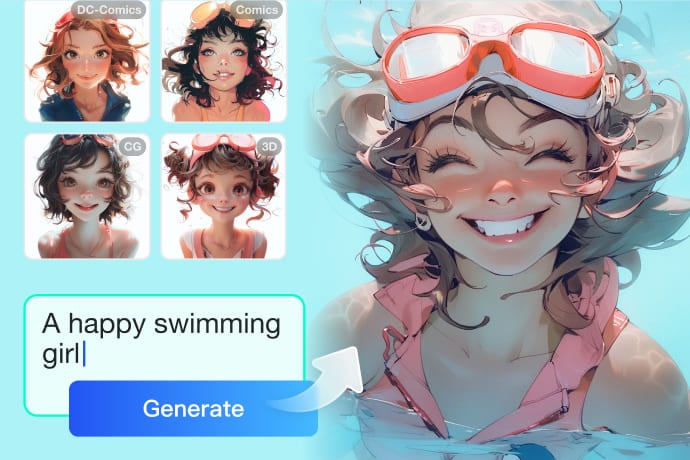
AI Image Generator
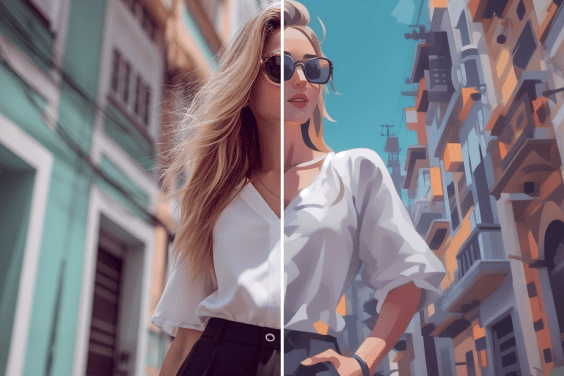
AI Cartoon Generator

AI Background Generator

Smart Resize

AI Expand

AI Image Enhancer

AI Filter

AI Shadows

"I've just switched from my usual AI editor to insMind, and I couldn't be happier. It has completely wowed me! The smart AI recognizes objects with impressive precision and accuracy, and you can even change backgrounds using AI. Truly impressive!"
@Juan Kimmy, Designer