
Photo Stitcher: Stitch Photos Together Online
00:00
00:00
00:00
00:00
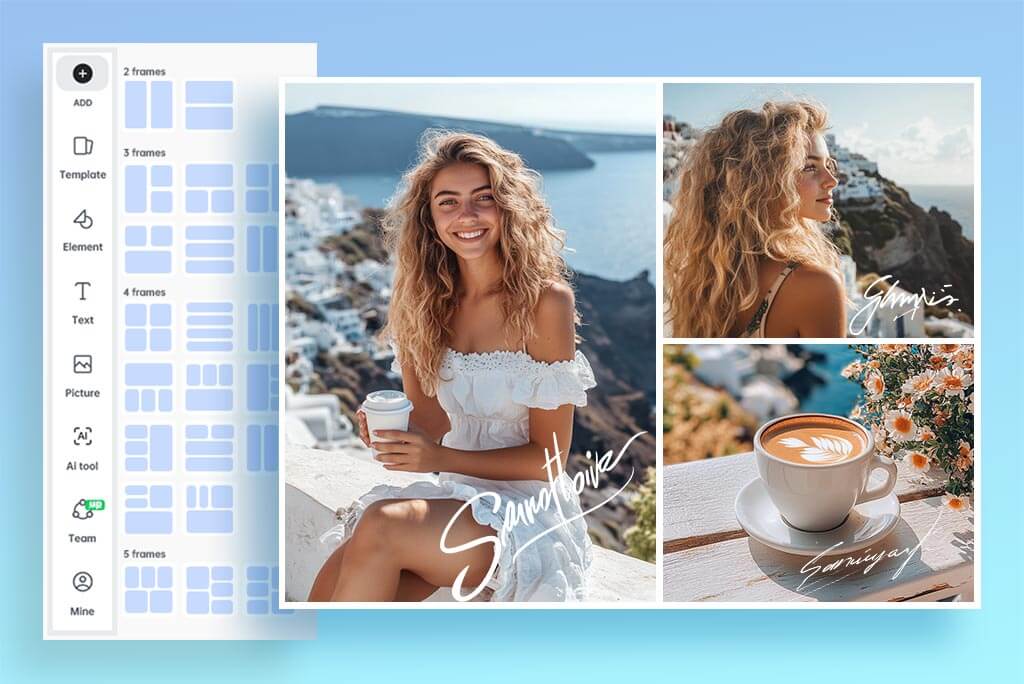
Join Photos Without Opening a Design App
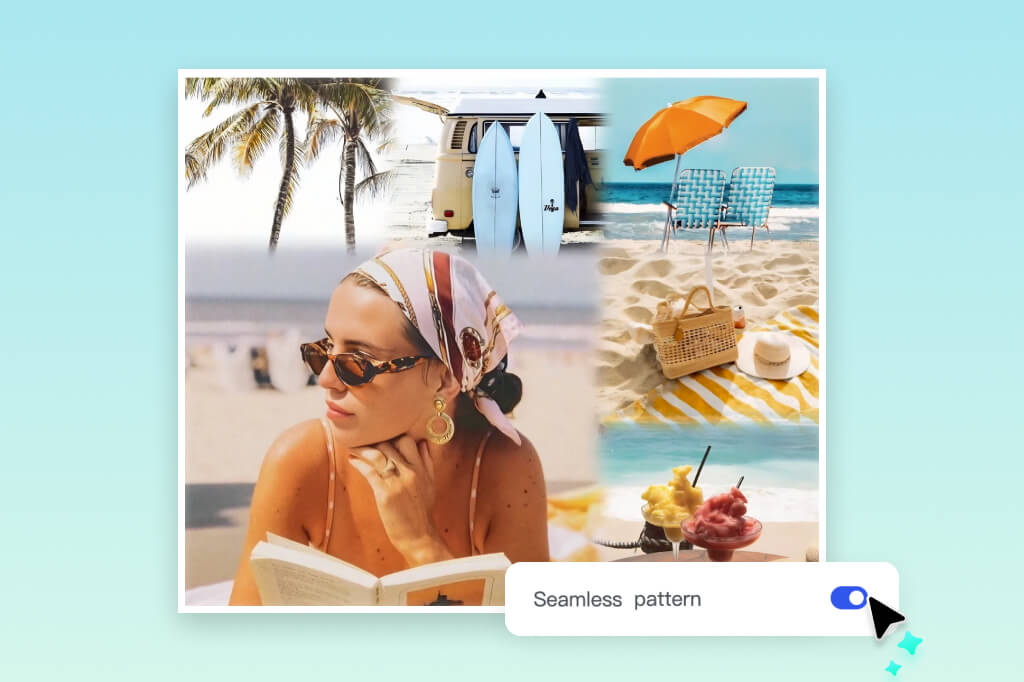
Control the Layout Instead of Accepting a Fixed Collage
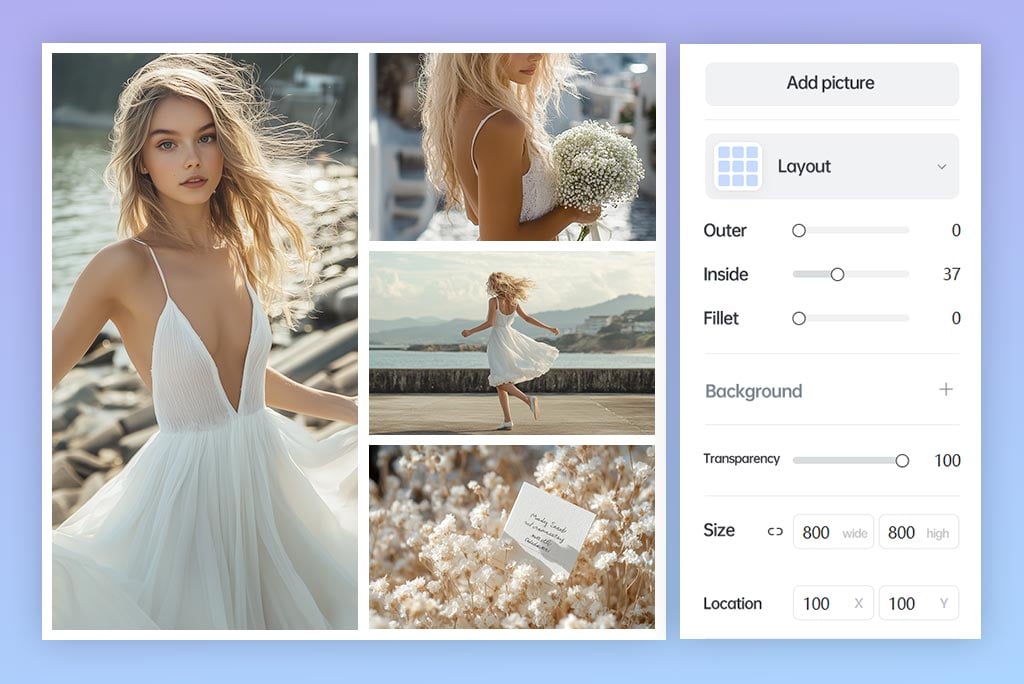
Make Photo Stitches Look Neat and Consistent
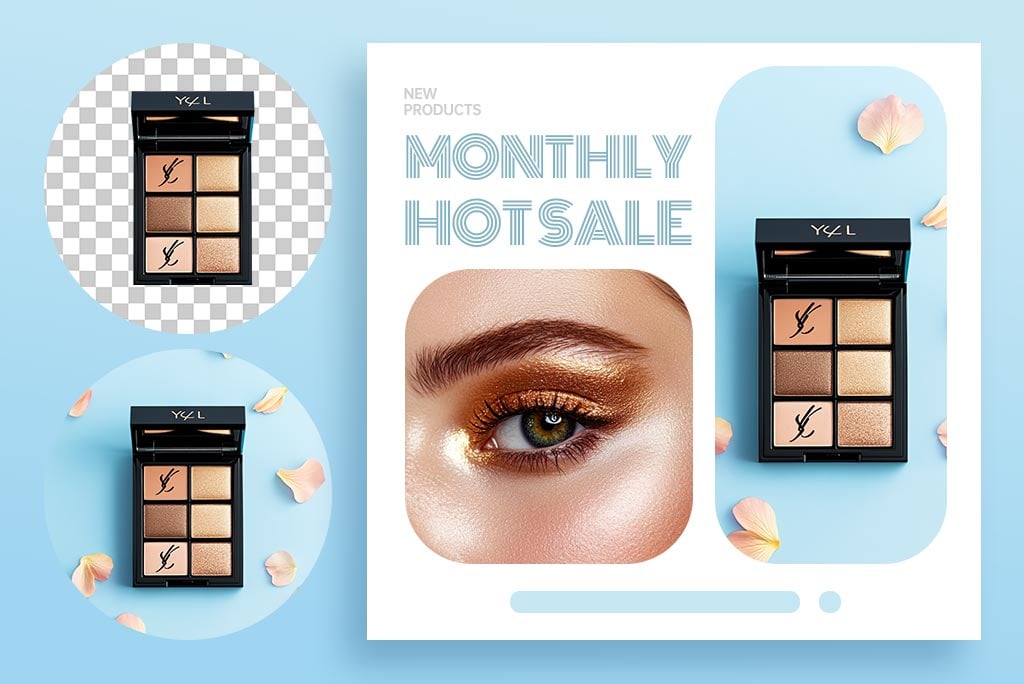
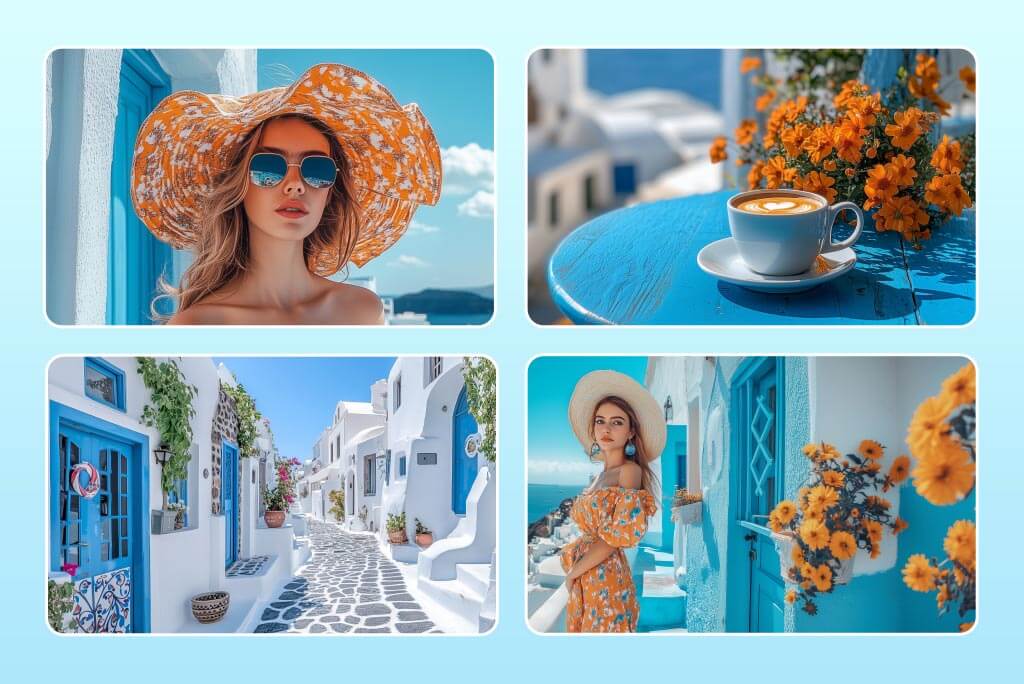
Stitch Photos Horizontally or Vertically
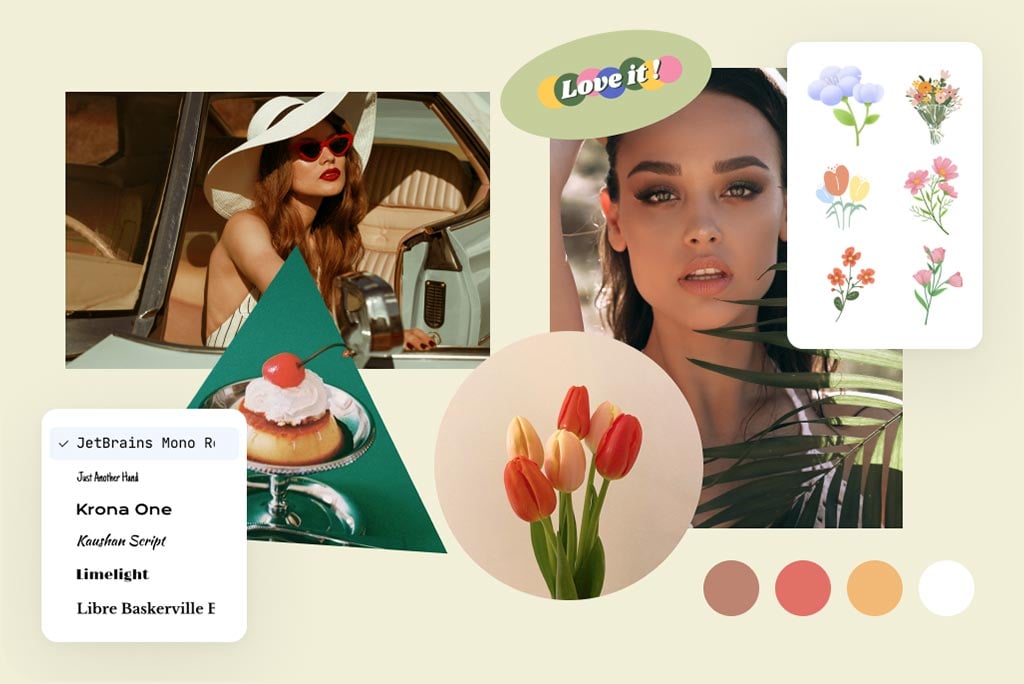
Use Pic Stitch Layouts for More Than Two Images
More Tools for Combining and Arranging Photos
How to Stitch Photos Together
1
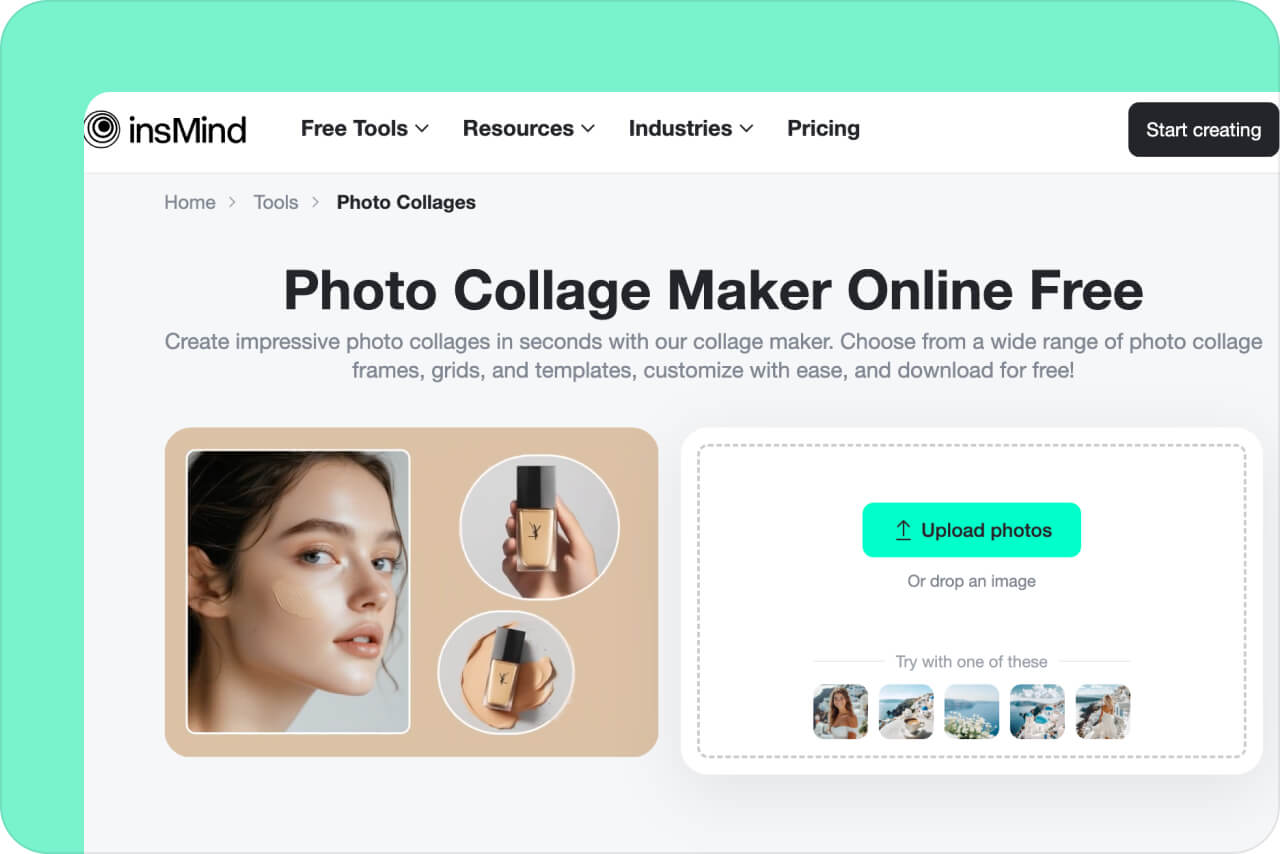
1 Upload your photos
Click Upload photos and select the images you want to join. Use photos with similar resolution when possible so the final layout looks balanced.
2
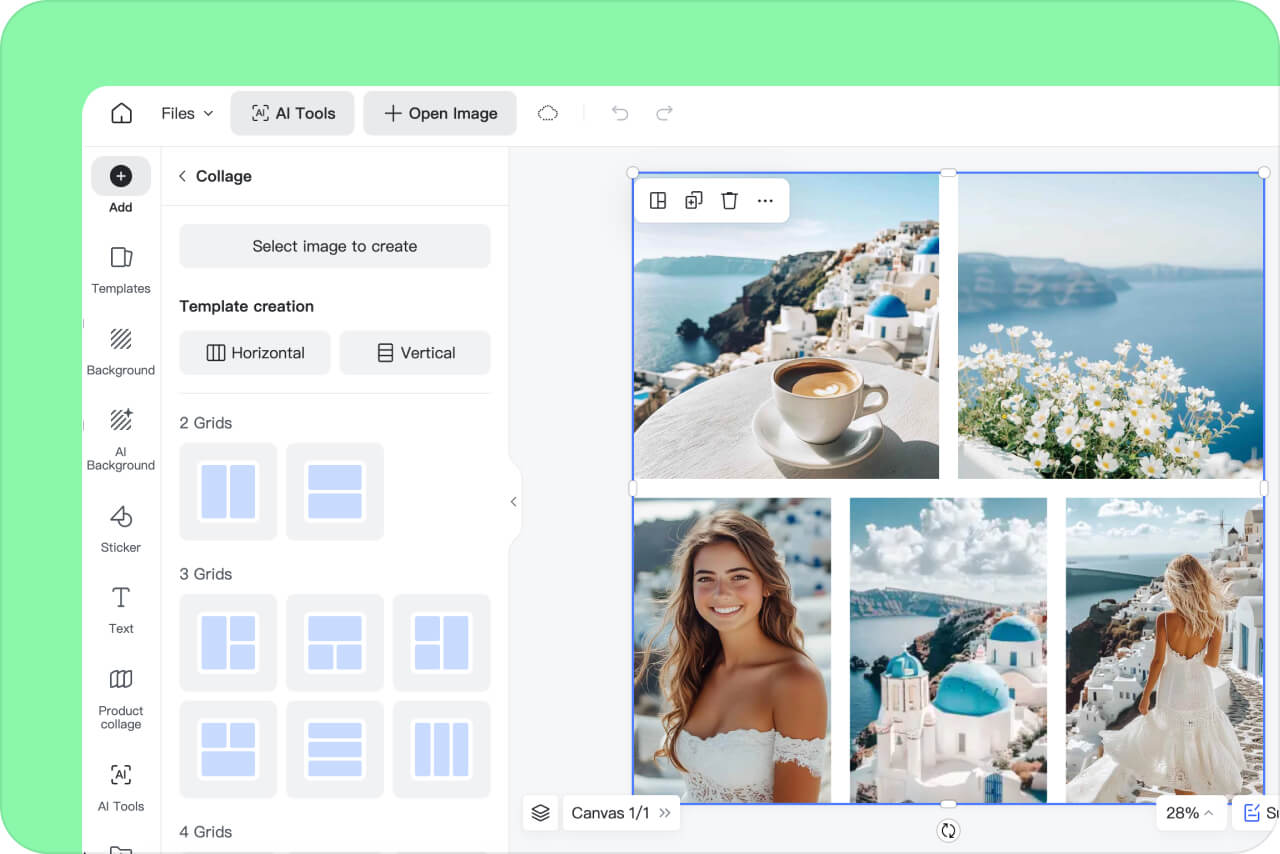
2 Choose a stitch layout
Pick a horizontal, vertical, grid, or collage layout. Use side-by-side for comparisons and vertical layouts for long stories or screenshots.
3
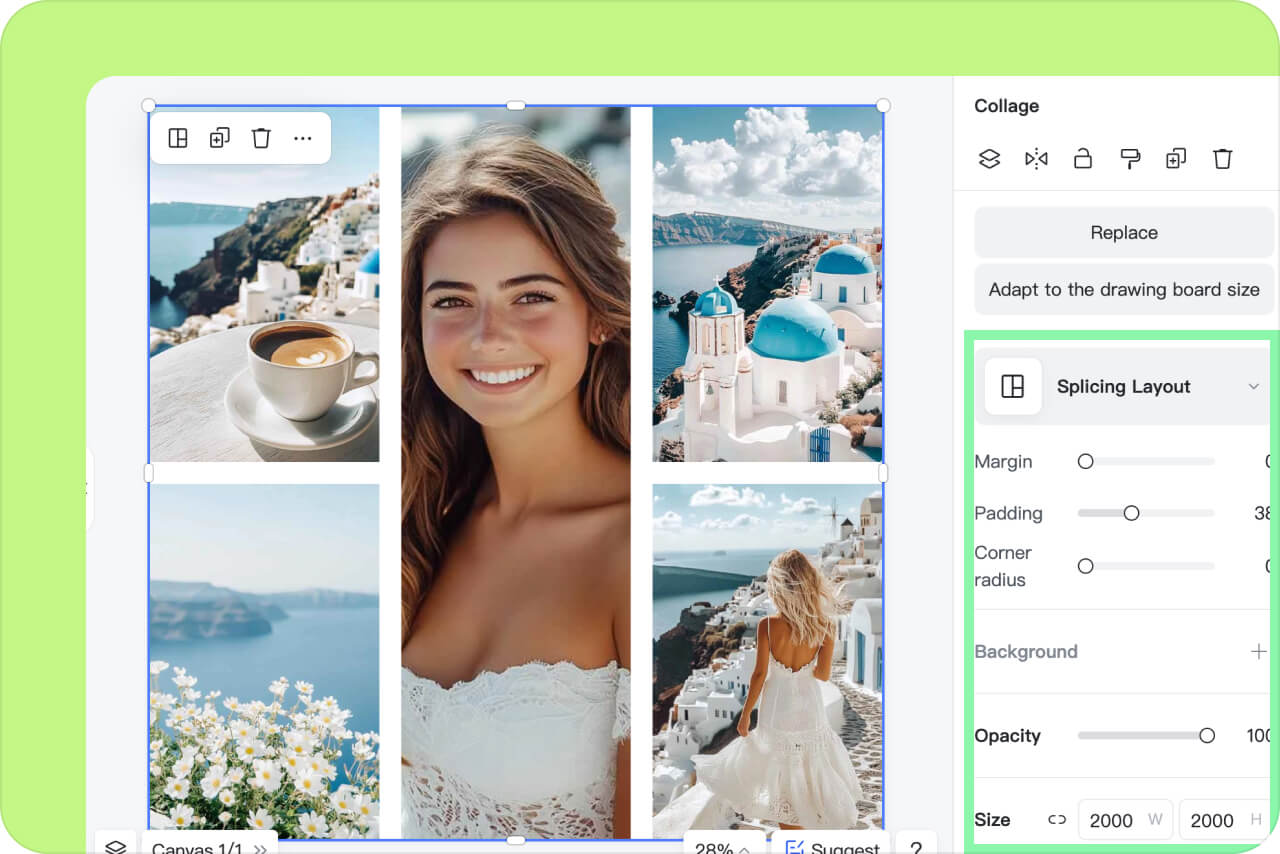
3 Arrange and fine-tune
Drag photos into order, replace any weak image, then adjust spacing, margins, rounded corners, background, and crop until the frame reads clearly.
4
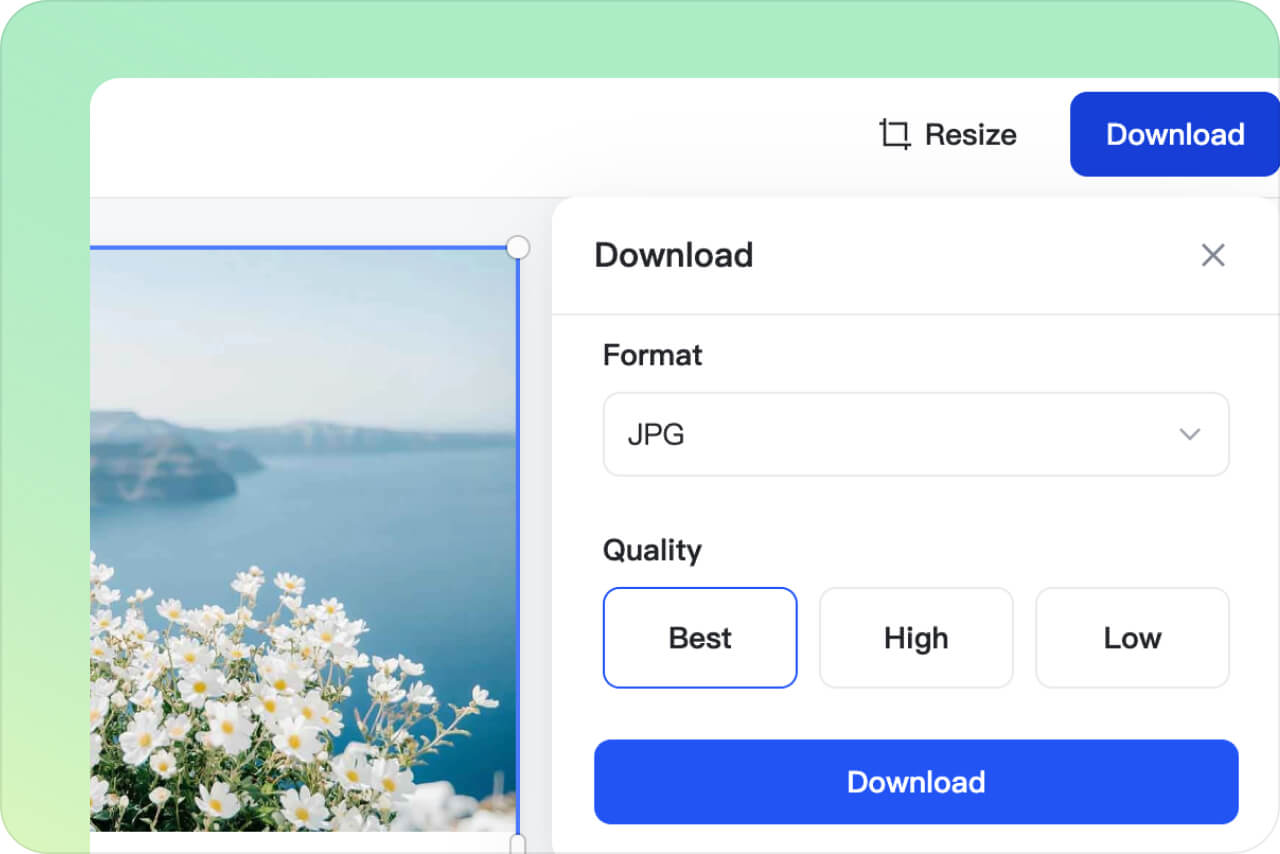
4 Download the stitched photo
Preview the final image at full size. If text or faces look too small, switch layout or reduce the number of photos before downloading.
When to Use a Photo Stitcher
Photo stitching is useful when separate images make more sense together: a comparison, a sequence, a memory set, or a simple visual story.

Before-and-after comparisons
Join two photos side by side to show progress, edits, makeovers, product changes, or room updates in one frame.
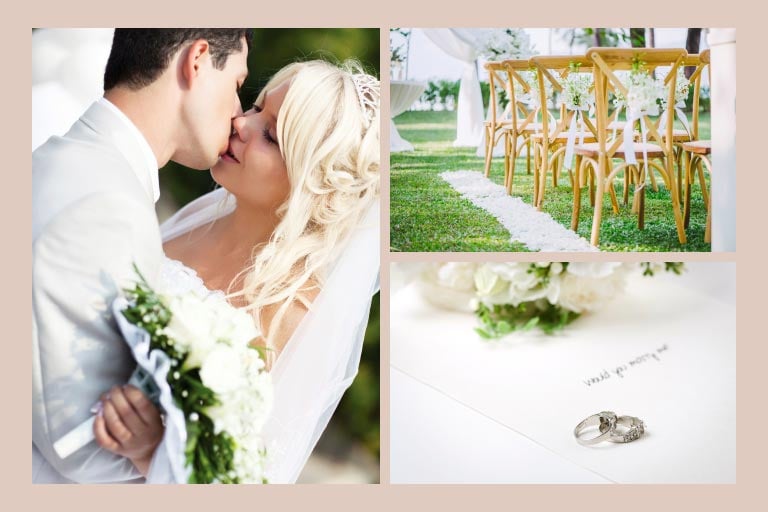
Travel and event stories
Combine highlights from a trip, wedding, concert, or family gathering without making viewers open multiple files.
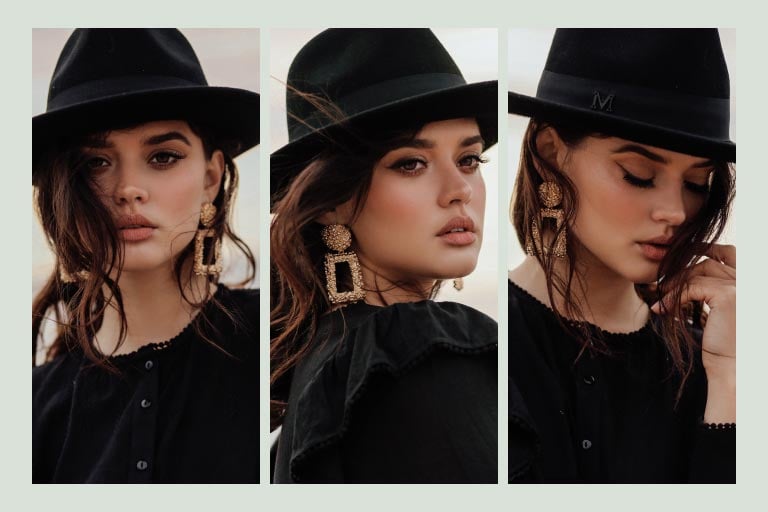
Product and social layouts
Show product angles, outfit options, recipe steps, or tutorial screenshots in a single layout that is easier to share.
What Makes insMind Photo Joiner Stand Out?

Simple upload-to-layout flow
Upload photos, choose a layout, adjust details, and export without learning a complex editor.

Layouts for different photo stories
Use grids, horizontal rows, vertical stacks, and collage layouts depending on how the images should be read.

Manual details when you need them
Adjust spacing, margins, corners, background, and order so the stitched image does not look randomly assembled.
FAQs about Photo Stitching
What is photo stitching?


Photo stitching means joining two or more images into one file. It can be a panorama, a side-by-side comparison, a vertical story, or a collage-style layout.
What is the best online photo stitcher?
A good photo stitcher should let you upload several images, choose horizontal or vertical layouts, adjust spacing, and download one clean image. insMind is useful when you want that workflow in the browser.
Why stitch photos together?
Stitching photos helps compare two images, show a sequence, group memories, build product views, share long screenshots, or turn several photos into one easier-to-share visual.
How do I join two photos together?
Upload both photos, choose a side-by-side or vertical layout, adjust spacing and crop, then download the merged result.
Can I stitch more than two photos?
Yes. You can upload multiple images and use a grid or collage layout. If the final image feels crowded, reduce the number of photos or choose a larger canvas.
Related Tools for Photo Layouts
Use these when you need a grid, montage, border, product collage, or another way to arrange images.
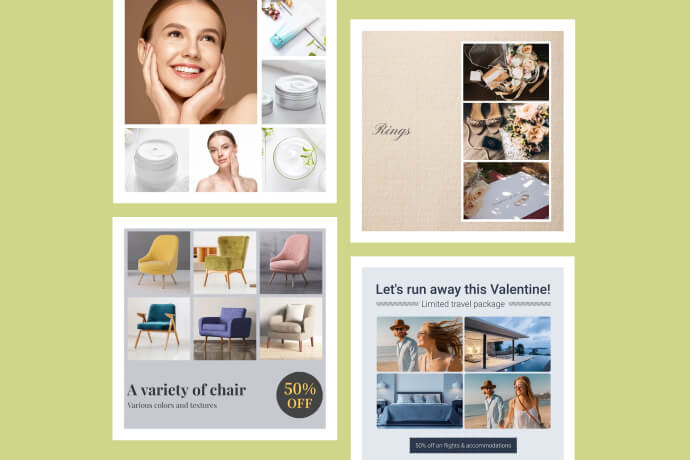
Photo Grid Maker
Arrange photos in a clean grid for social posts, portfolios, or mood boards.
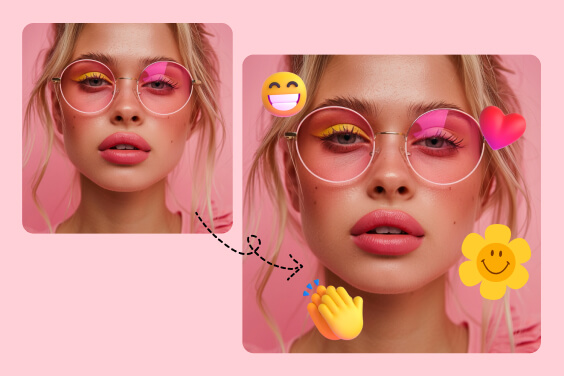
Add Emoji to Photo
Add small reactions or labels after stitching a social image.
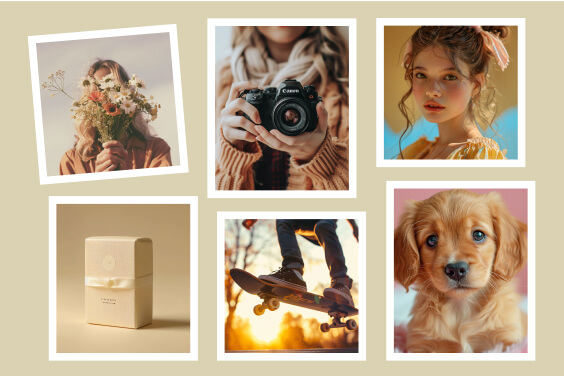
Add Border to Photo
Give the final stitched image a cleaner edge or frame.
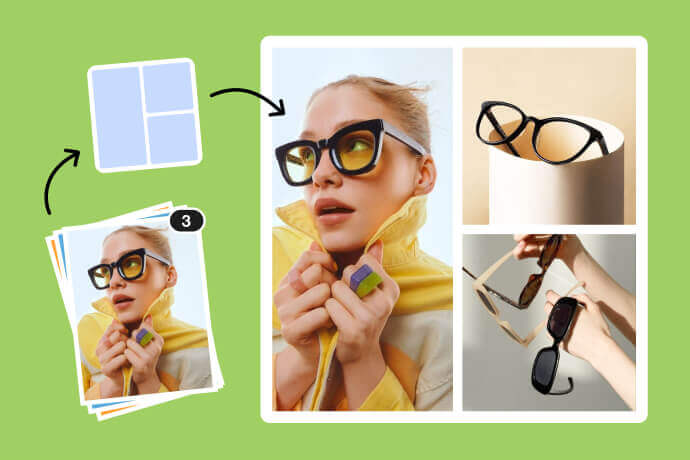
Combine Images
Merge images when you need a simpler image combiner workflow.
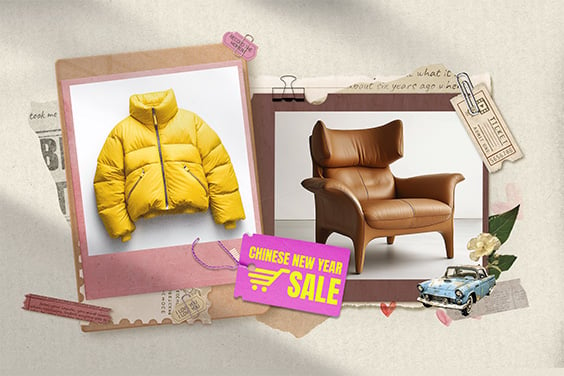
Photo Montage Maker
Create a more expressive photo montage from several images.
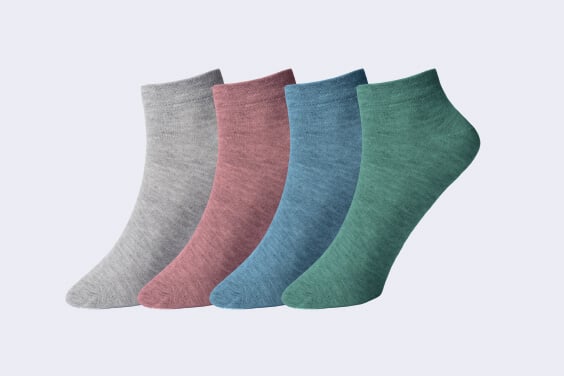
Product Image Collage
Build product-focused layouts for listings, ads, and comparison images.
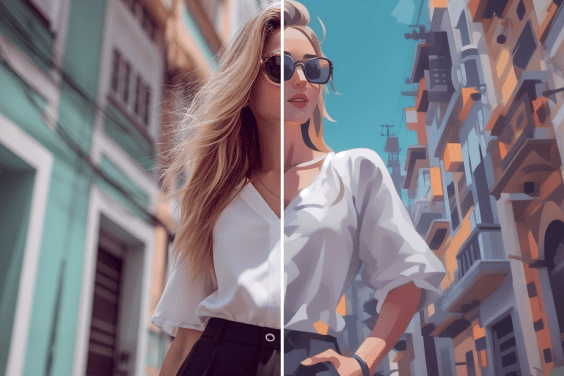
AI Cartoon Generator
Turn a stitched concept or prompt into cartoon-style visuals.
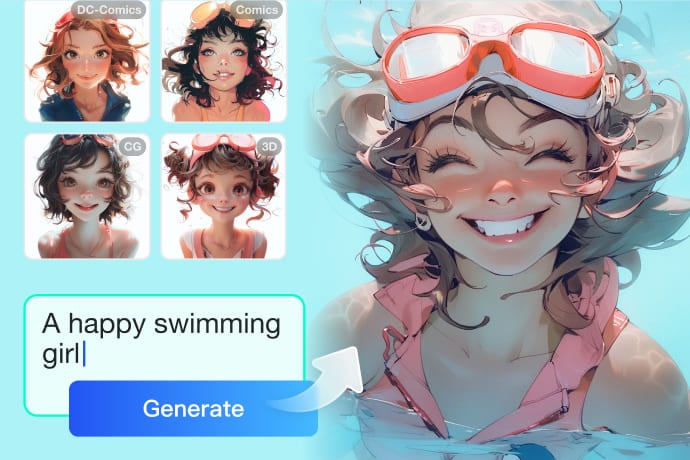
AI Image Generator
Create extra visuals when your collage needs generated scenes or backgrounds.