Wan 2.6 AI Video Generator for Image and Multi-Shot Clips
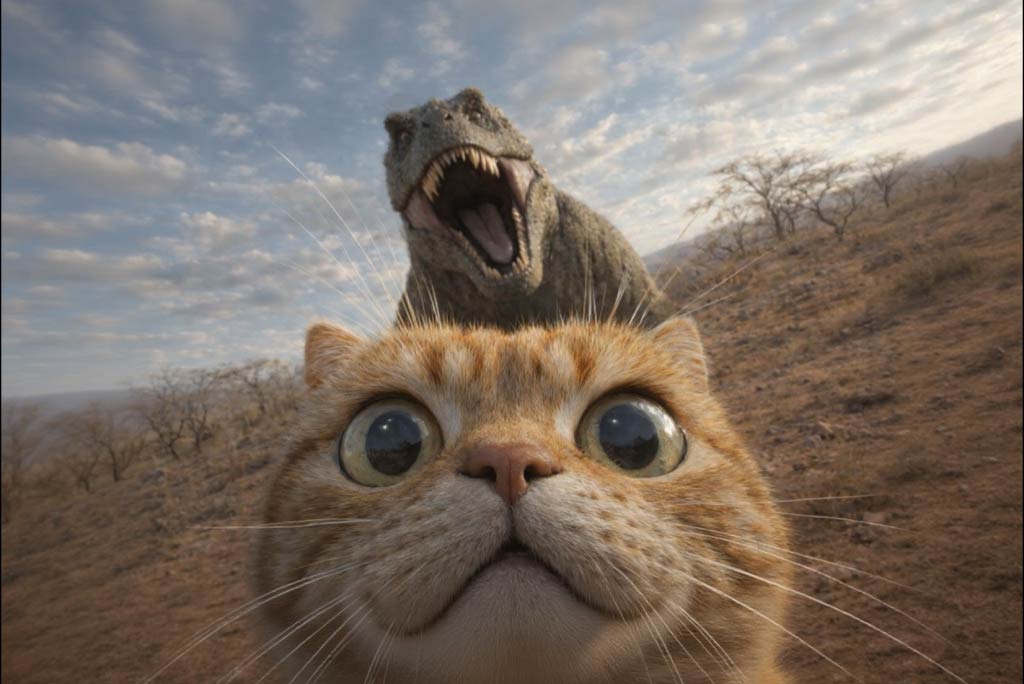
Use Wan 2.6-style generation for image-to-video, multi-shot planning, and short AI clips where continuity matters more than a single prompt.

00:00
00:00
00:00
00:00
Choose the Right Wan 2.6 Workflow

Choose the Right Wan 2.6 Workflow

Use this page to match prompt-only generation, image animation, and frame-guided motion with the task instead of treating every AI model page the same.

See Wan 2.6 Inputs Before You Generate

See Wan 2.6 Inputs Before You Generate

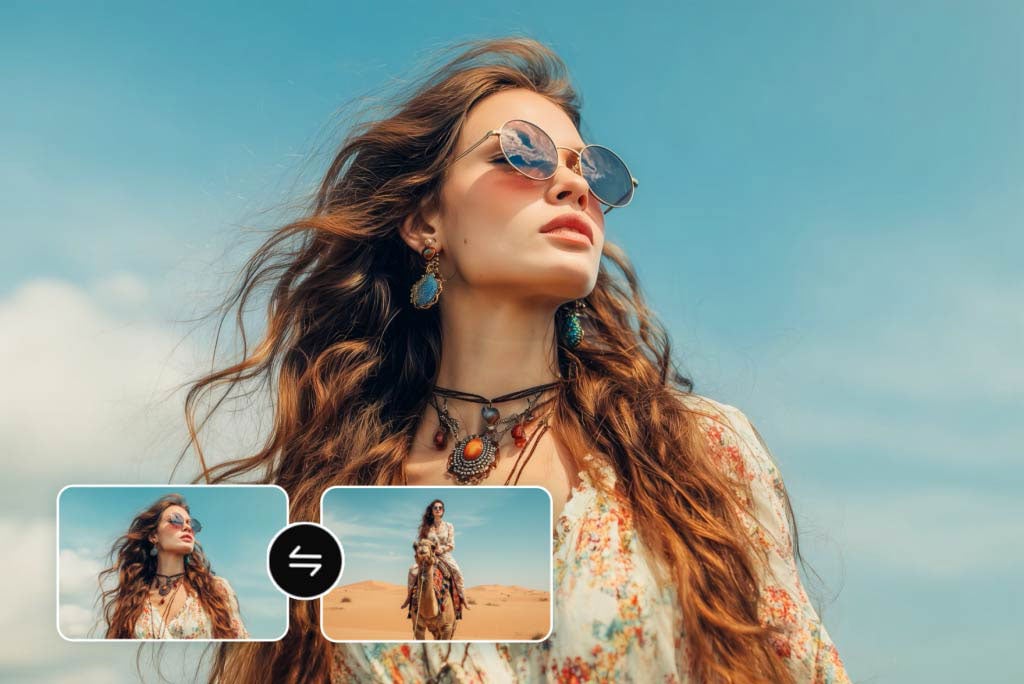
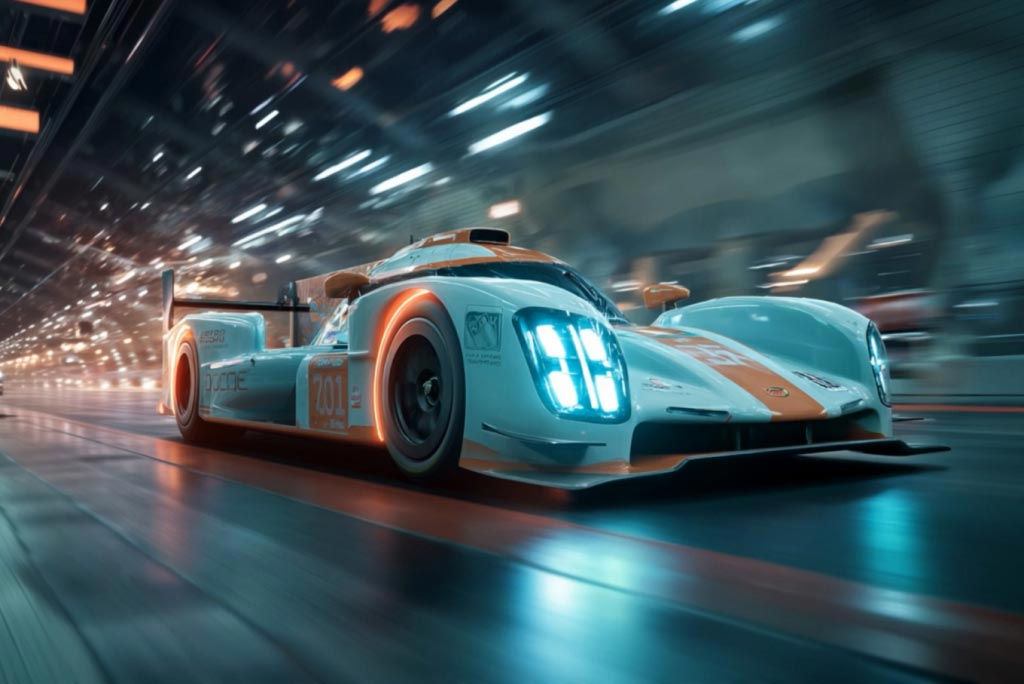
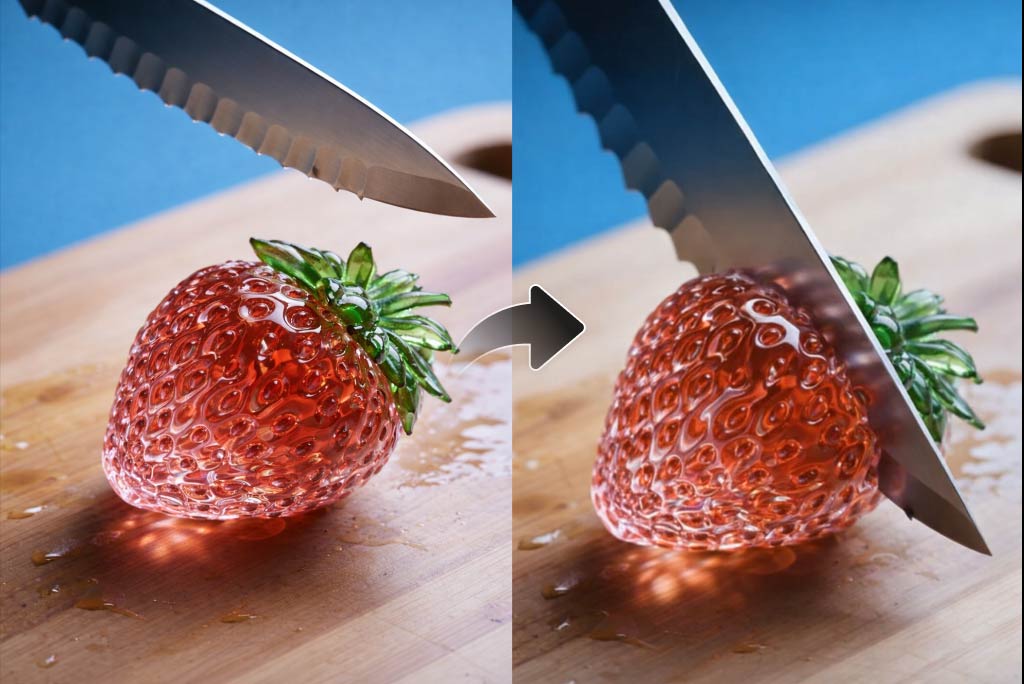
The rebuilt output examples now show exact input shapes, prompts, and output videos so users can understand what the page supports before clicking create.

Compare Wan 2.6 with Nearby Model Pages

Compare Wan 2.6 with Nearby Model Pages

This page now links naturally to the Wan AI video model hub and adjacent model pages so it supports model-selection intent instead of repeating generic AI video copy.

How to Generate Cinematic Videos with Wan 2.6 on insMind?

Step 1: Choose Your Input Type
1

1 Step 1: Choose Your Input Type

Start with text for story-based creation or images to guide characters and scenes visually.
Step 2: Enter Your Prompt
2

2 Step 2: Enter Your Prompt

Describe the characters, dialogue, camera shots, or story. Wan 2.6 understands both natural language and cinematic instructions.
Step 3: AI Generates Video and Audio Together
3

3 Step 3: AI Generates Video and Audio Together

Wan 2.6 performs native audio-visual co-generation, creating lip-synced dialogue, expressive voices, music, and sound effects automatically.
Step 4: Export a Multi-Shot 1080P Video
4

4 Step 4: Export a Multi-Shot 1080P Video

Download a fully composed cinematic video with smooth cuts, consistent characters, and synchronized audio—ready to use instantly.

Why Choose insMind Wan 2.6 AI Video Generator

Real Model Differentiation

Real Model Differentiation

Wan 2.6 now has a model-specific compare table and output examples instead of another reused generic video block.

Input Shapes Are Visible

Input Shapes Are Visible

Users can now see prompt-only, single-image, and two-image frame workflows directly in the table instead of guessing from reused assets.

Cleaner Module Order

Cleaner Module Order

The page order has been normalized so tables, how-to steps, FAQs, and related model links appear in the intended reading flow.

FAQs About Wan 2.6

What is Wan 2.6?

insmind expand icon
Wan 2.6 is an AI video model workflow on insMind for creating videos from prompts, images, and model-specific visual inputs.

Can I create text-to-video clips with Wan 2.6?

insmind expand icon
Yes. Use a prompt that describes the subject, action, camera movement, lighting, mood, and final style.

Can I use Wan 2.6 for image-to-video?

insmind expand icon
Yes. Upload a clean image and describe the motion. Simple images with one clear subject usually work best.

Does this page support start and end frame examples?

insmind expand icon
The examples show frame-guided workflows when predictable opening and final shots are useful. Dedicated start/end frame tasks should use a two-image workflow.

How is Wan 2.6 different from other AI video models?

insmind expand icon
Wan 2.6 is positioned around its specific model strengths, while adjacent pages cover speed, audio, frame control, latest-version testing, or broader model comparison.

What images work best for AI video generation?

insmind expand icon
Use sharp, uncluttered images with clear lighting, one main subject, and no watermarks, fake UI, or long text overlays.

Can I use the generated videos for TikTok, Reels, or product pages?

insmind expand icon
Yes. Download the generated clip and use it for social posts, ads, product pages, presentations, or creative drafts according to platform rules.

Is it free to try online?

insmind expand icon
You can start creating online on insMind. Credits, export options, and model availability may depend on the selected workflow and account status.

Compare More Wan and AI Video Models

Compare More Wan and AI Video Models