
AI Image Background Remover Online
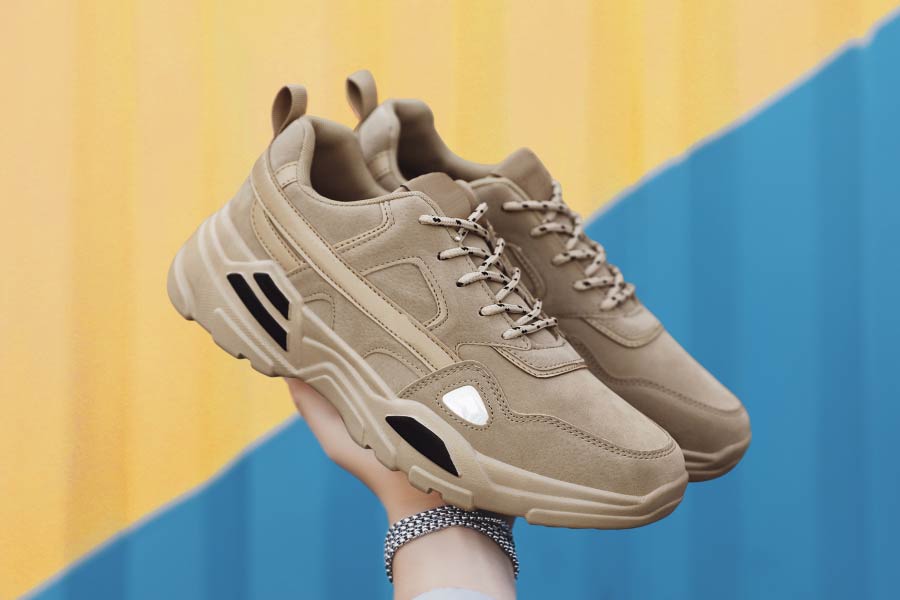






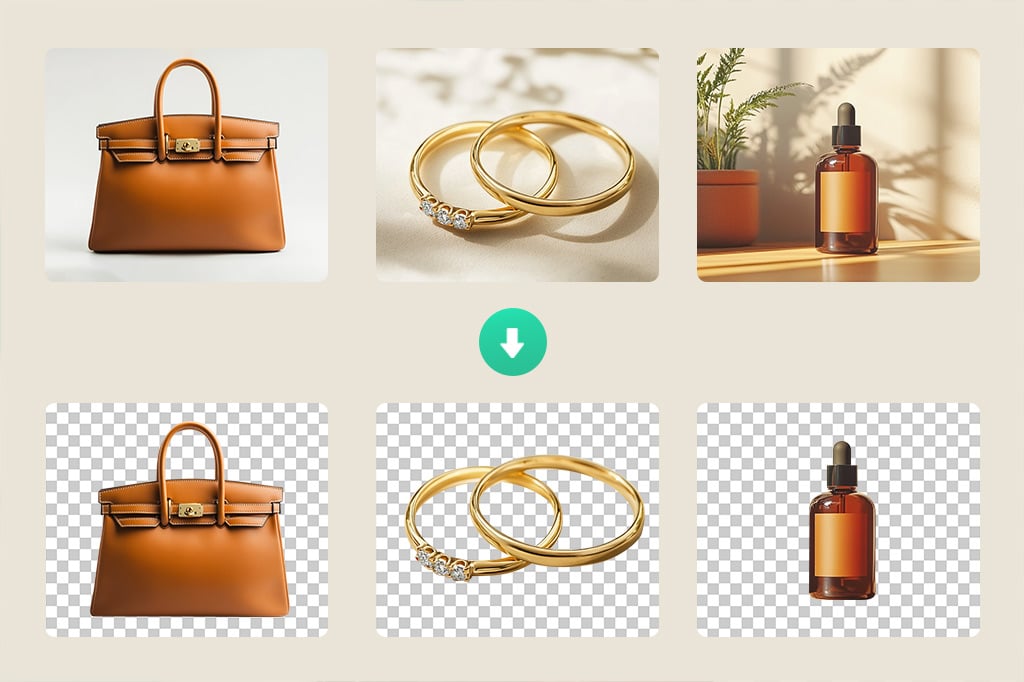
Remove an Image Background Automatically
Upload one photo and insMind identifies the main subject, removes the surrounding background, and opens the result in the editor. This gives you a fast first cutout without tracing the subject by hand.
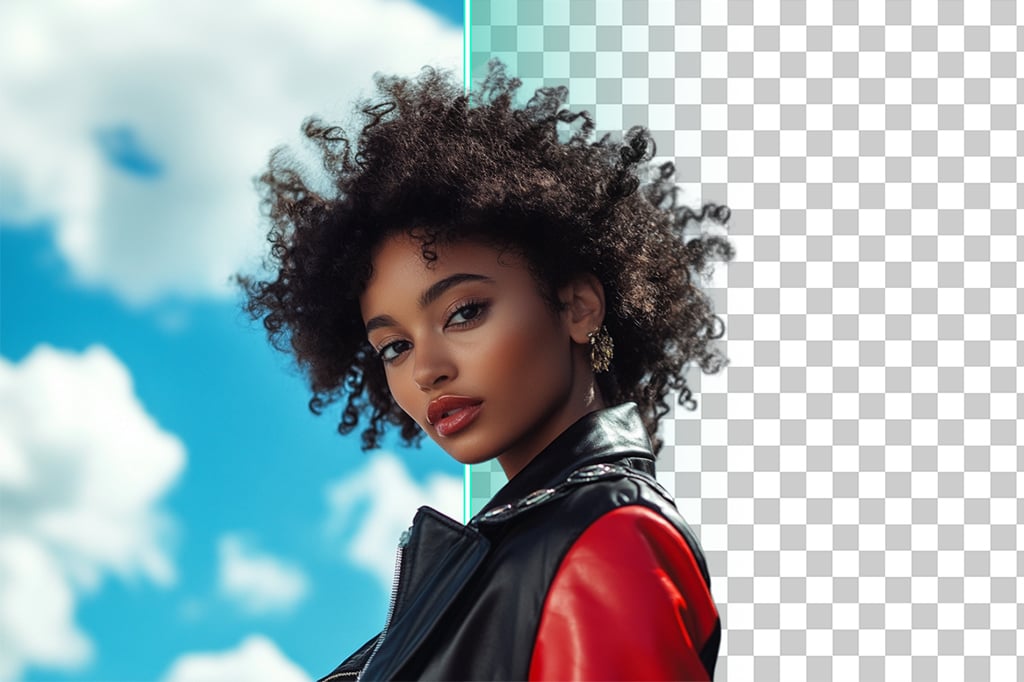
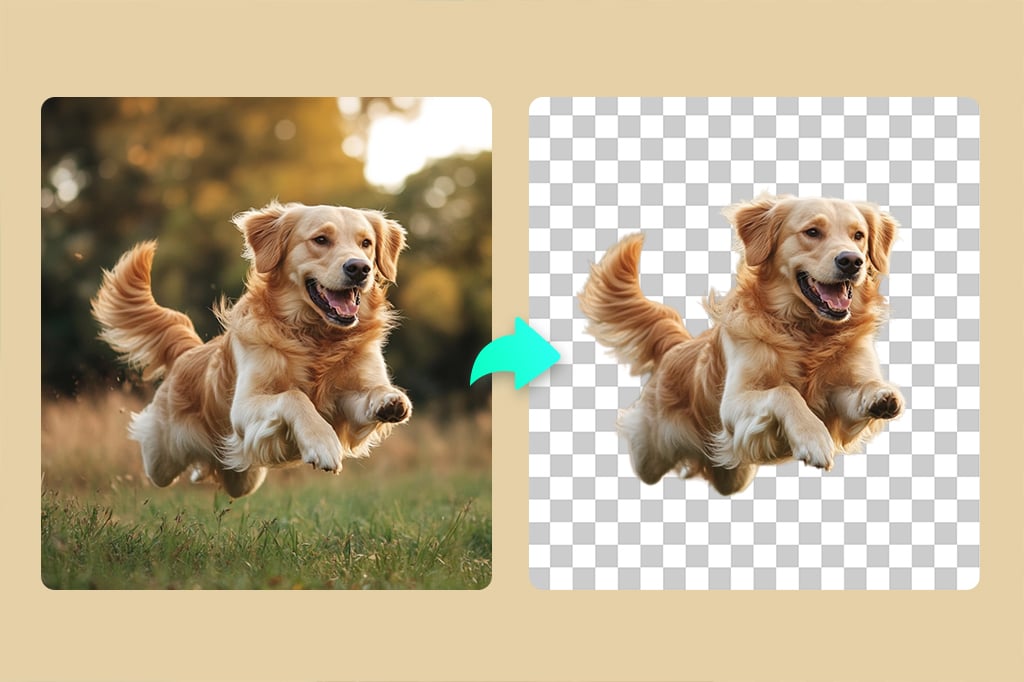
Before downloading, zoom in around hair, fur, transparent objects, narrow gaps, and low-contrast edges. Those details are harder for any automatic background remover, so the preview is the place to confirm that the subject is complete.

Create a Transparent Background for Reuse
Leave the canvas transparent when you need a cutout for a product listing, presentation, social graphic, profile image, or design file. The checkerboard preview helps you distinguish transparency from a white background.
Check for leftover color around the outline before export. If your main goal is a reusable transparent asset, continue with the PNG maker after the background is removed.

Remove Backgrounds from Multiple Images in a Batch
A catalog or content set needs a different workflow from a single photo. Use the bulk background remover when several images need cutouts, then review the group for consistent edges and subject placement.
For additional changes across the same set, the batch photo editor can help standardize backgrounds, sizes, and other repeated edits. This keeps bulk intent on the dedicated batch tools while this page stays focused on one image at a time.

Replace the Removed Background with a Better Fit
After the cutout is ready, keep it transparent or place it on a solid color, another image, or a generated scene. For marketplace-ready product photos, add a white background; for brand colors, use the background color changer.
When you need a new setting rather than a flat color, continue to the AI background generator. Match perspective, lighting, and contact shadows so the subject belongs in the replacement scene.
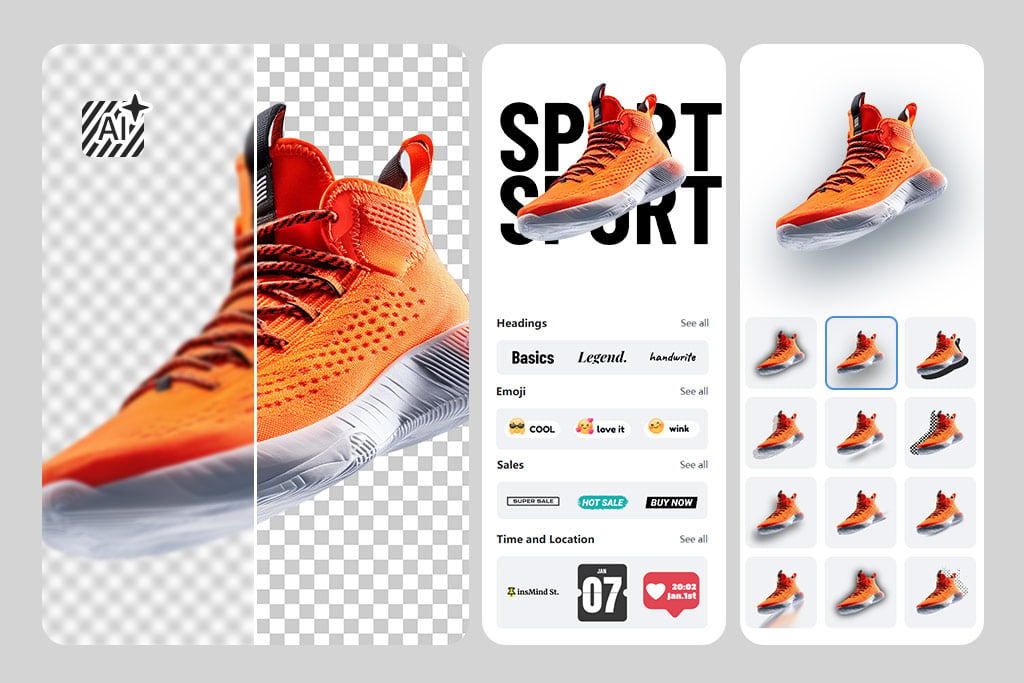
Continue Editing after Background Removal
A clean cutout is often the first step, not the final image. Add text for a promotion, remove a distracting object, sharpen a soft source, resize the canvas, or add a shadow after the background has been cleared.
Use the Magic Eraser for a specific unwanted object, the image sharpener for a soft photo, or add text to the photo. Keep each edit purposeful and check the finished image at its actual display size.
Background Removal Tools for Specific File Types
How to Remove the Background from an Image Online

1 Step 1: Upload an Image

2 Step 2: Let AI Remove the Background

3 Step 3: Check the Cutout or Add a New Background

4 Step 4: Preview and Download


Remove Photo Backgrounds for Everyday Creative Work
Start with a clean subject cutout, then prepare the background and canvas for the channel where the image will appear. The right finish depends on whether you are selling a product, building a campaign, or editing a portrait.
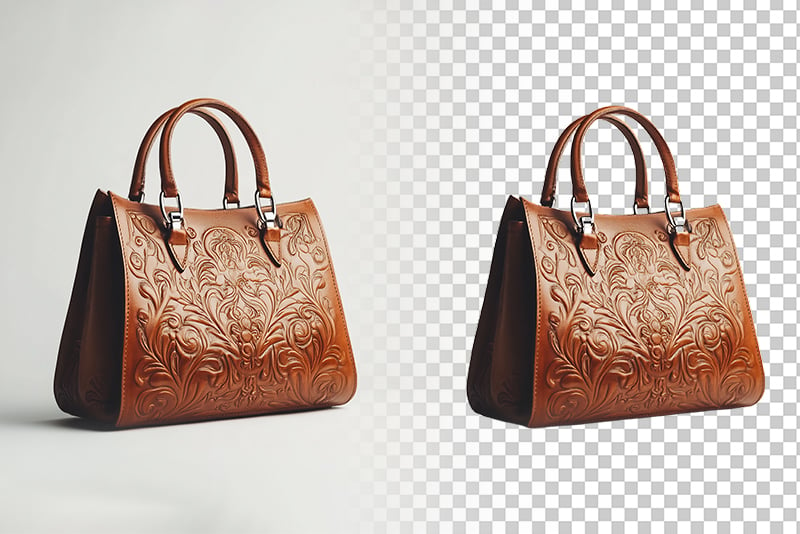
Ecommerce Product Photos
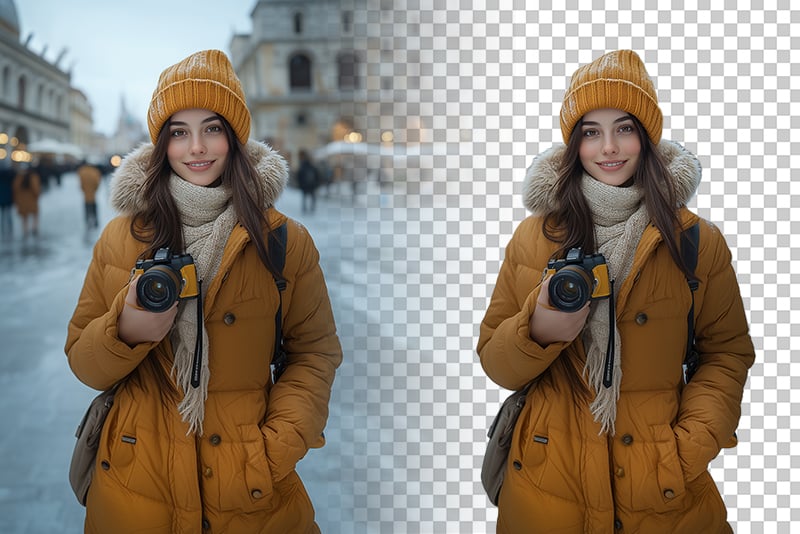
Marketing and Social Graphics

Portraits and Profile Images
What Images Can You Use with an AI Background Remover?
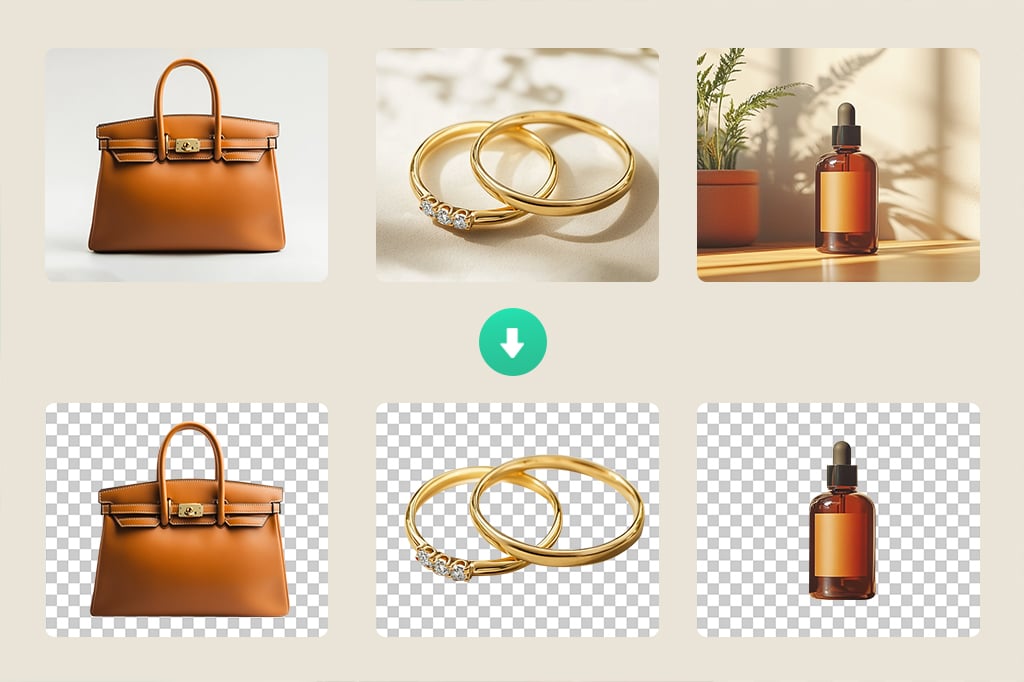
Automatic removal works across many common subjects, but edge difficulty varies. Start with a clear source, then inspect fine detail, similar foreground and background colors, transparency, reflections, and motion blur.
Products
People
Animals
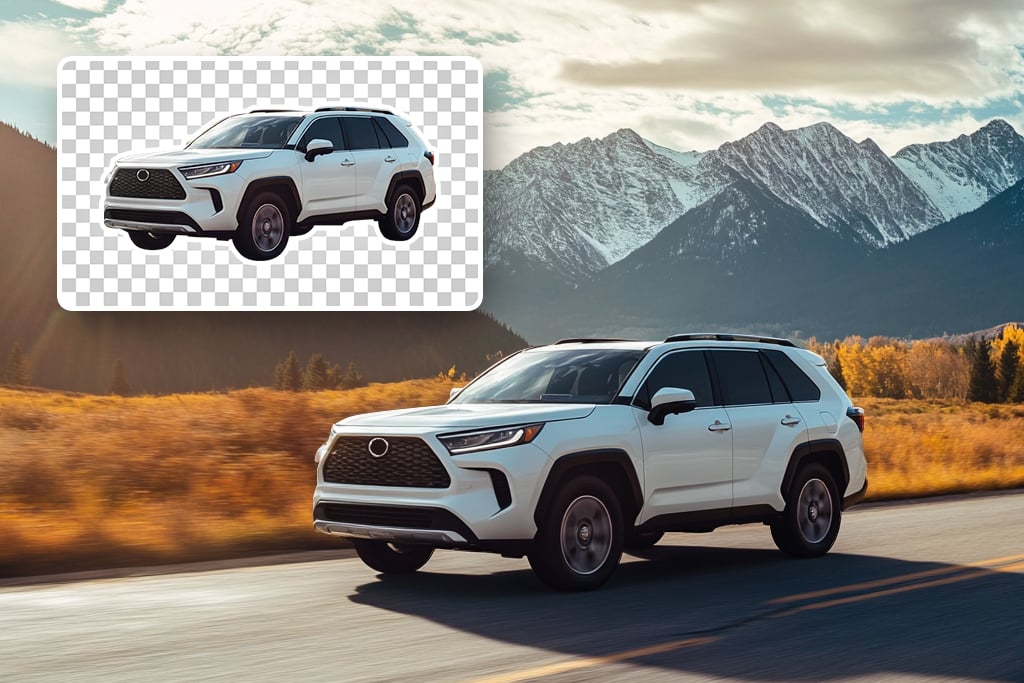
Cars
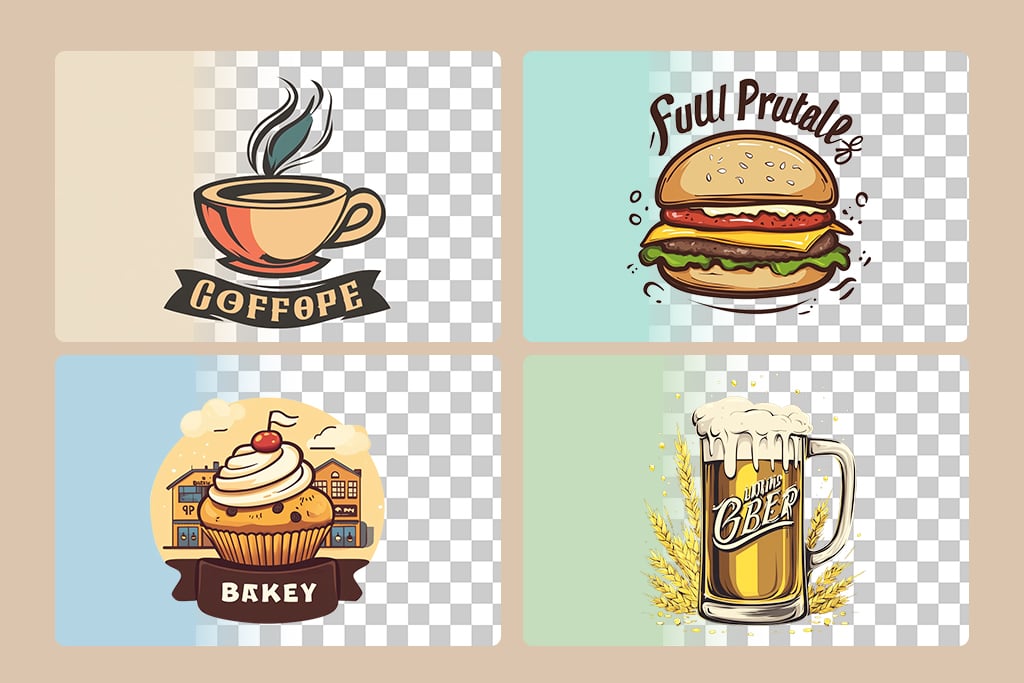
Logos
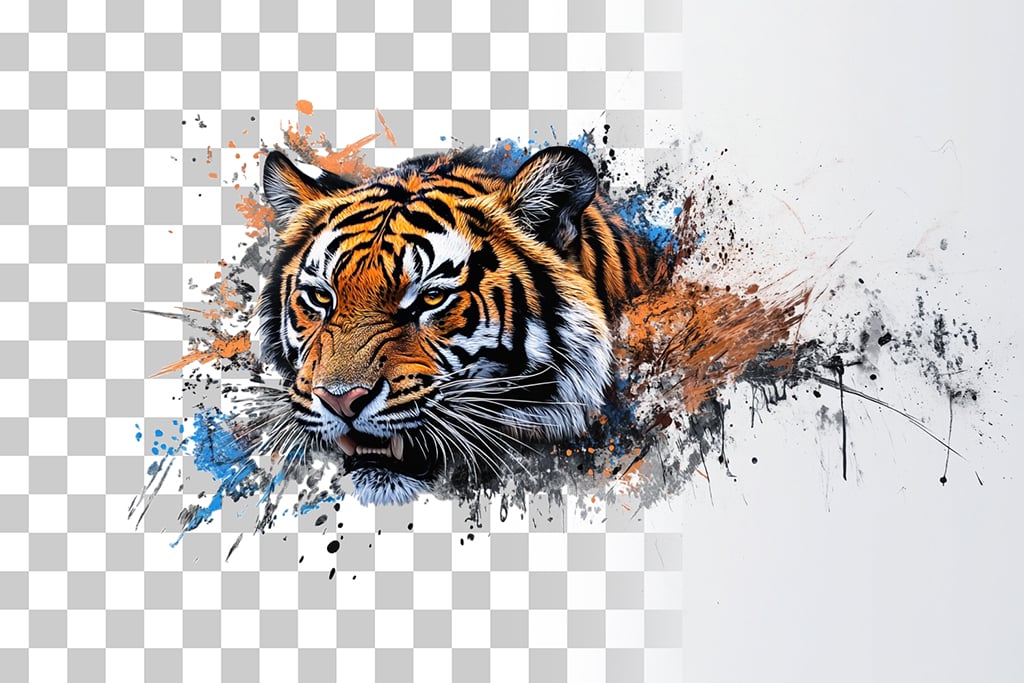
Graphics and Illustrations
Why Use insMind to Remove an Image Background?

Automatic First Cutout
Upload one image and start with an AI-generated cutout instead of tracing the full subject manually. The editor keeps the workflow focused: remove the background first, then review the outline before moving on.

Transparent or Replacement Background
Keep the result transparent for reuse, add a solid color, or continue to a new image or generated scene. This lets the same subject move from a source photo into a product listing, profile, campaign, or design layout.

A Browser-Based Editing Workflow
Open the tool on desktop or mobile without installing a separate background eraser. Work from the preview, check difficult edges, and choose the available export that fits the image's next destination.
insMind in Independent Media
Explore third-party coverage of insMind's AI photo editing tools and product experience.
Background Remover FAQs
How do I remove the background from an image online?


Can I use the background remover for free?
How do I make an image background transparent instead of white?
Can I remove a photo background on my phone?
What should I look for in the best background remover for my image?
Continue with Background and Cutout Tools
Use a dedicated remover for a specific background type, turn the cutout into a reusable asset, or finish the composition in the editor.

Black Background Remover
Remove Background From Signature
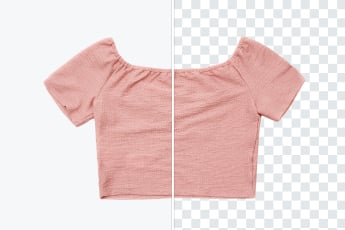
White Background Remover
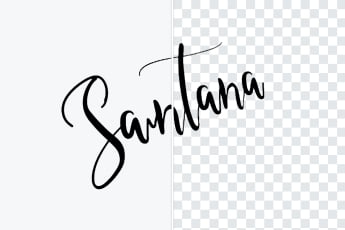
Remove Background From Logo

Photo to Sticker Maker

Remove Color from Image
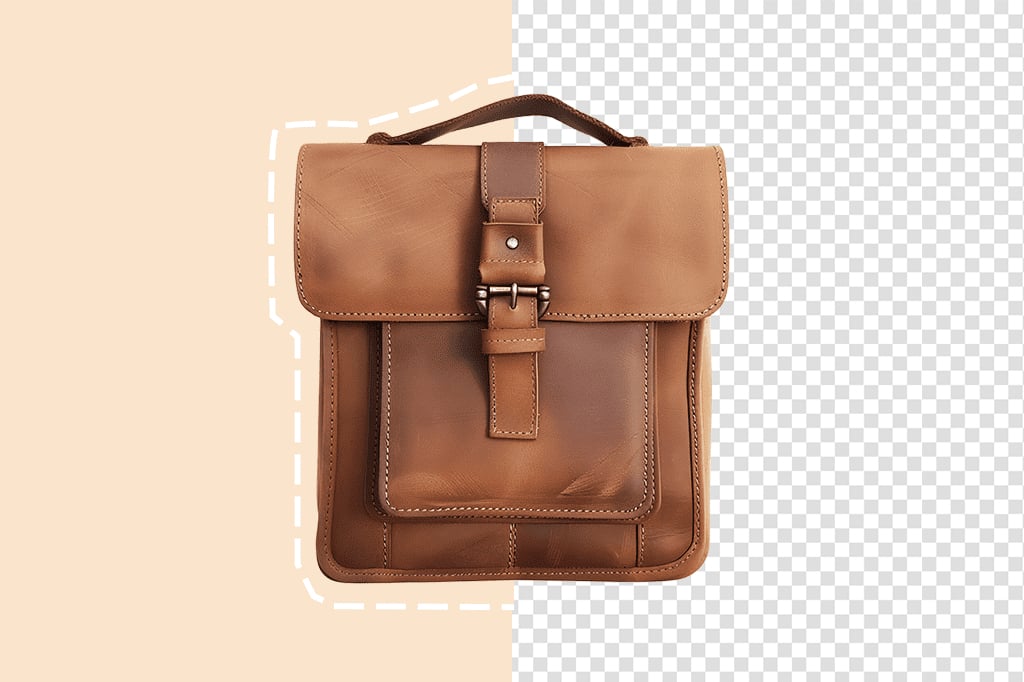
PNG Maker

Signature Maker

AI Replace

"Complex images come out looking professional and clean. I had no problem when it came to quality whatsoever."
@April Horton