
Photo Collage Maker Online
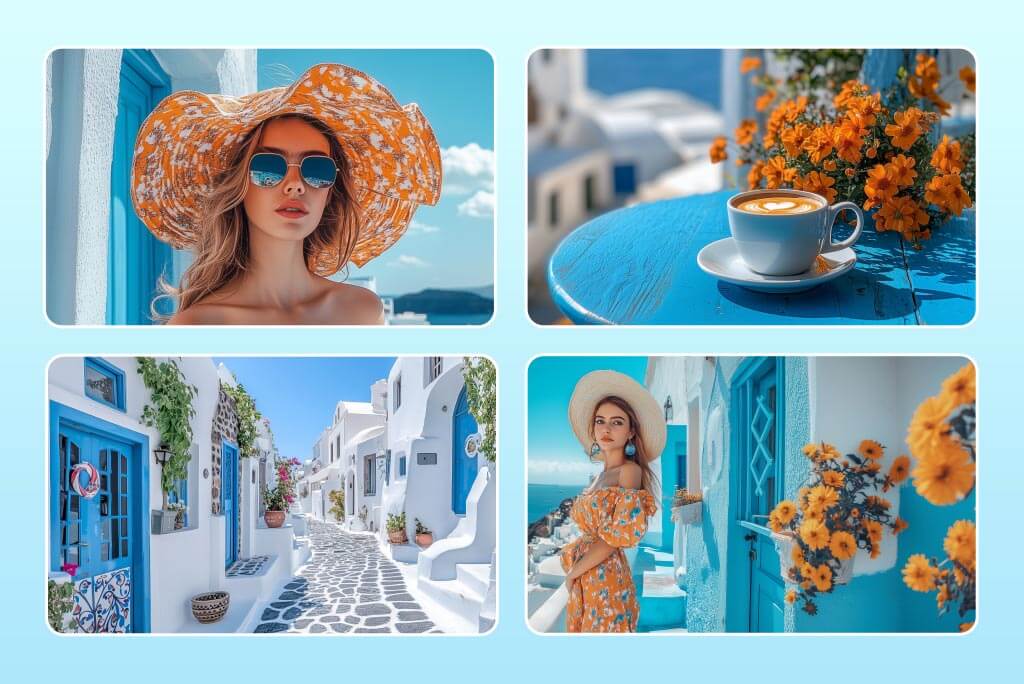
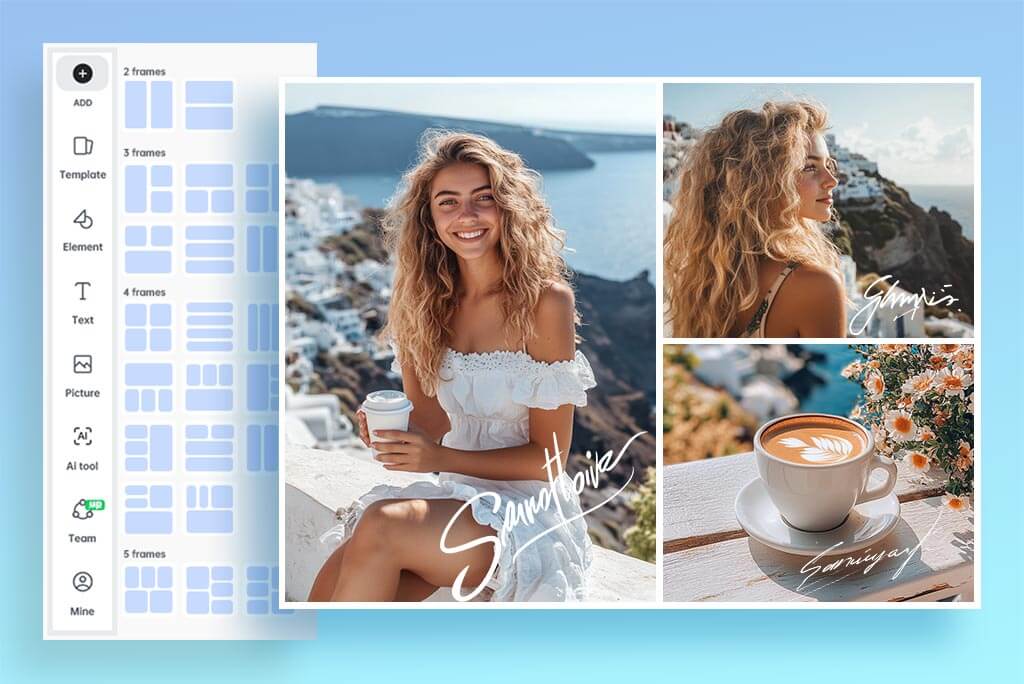
Build a Photo Collage Layout for 2 to 16 Photos
Upload 2 to 16 photos and place them in a single photo collage layout. Choose a balanced grid for an overview, a larger lead image with supporting photos, or a side-by-side frame for a direct comparison.
Drag and reposition each photo inside its cell so faces and important details are not cropped. If you only need evenly sized rows and columns, use the Photo Grid Maker instead.
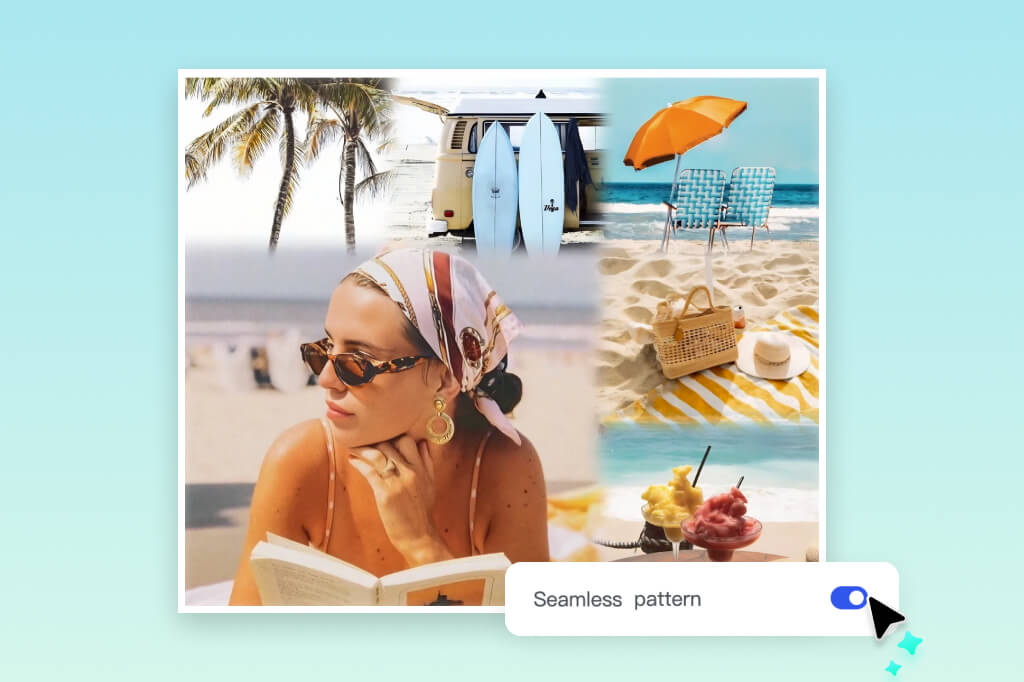
Choose Framed or Borderless Collage Styles
Use spacing and margins when each photo needs a visible frame. Reduce the gap for a tighter, borderless composition where the images read as one sequence.
Check narrow gaps and edges at full size before export. A borderless collage works best when neighboring images have compatible colors and no important subject sits against the crop.
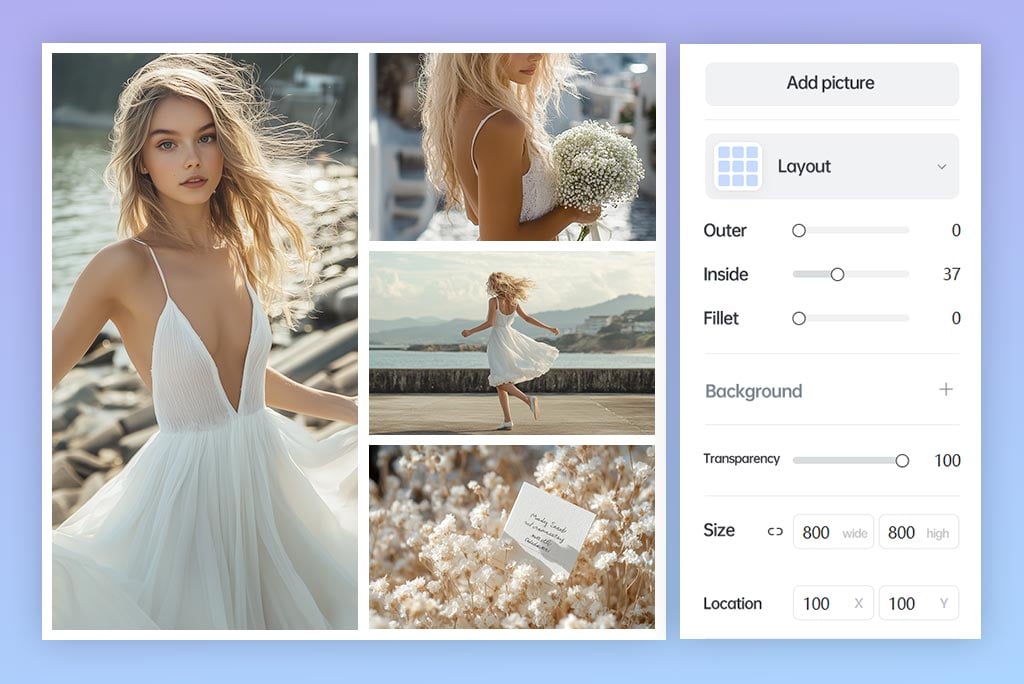
Customize Spacing, Corners, Background, and Crop
Change the space between photos, outer margin, corner radius, and background to match the final placement. A square canvas suits many feeds; a landscape layout fits banners and timelines; portrait formats leave room for mobile stories.
Reposition each photo after changing the layout. A new aspect ratio can crop a face, product, or caption that looked correct in the previous frame.
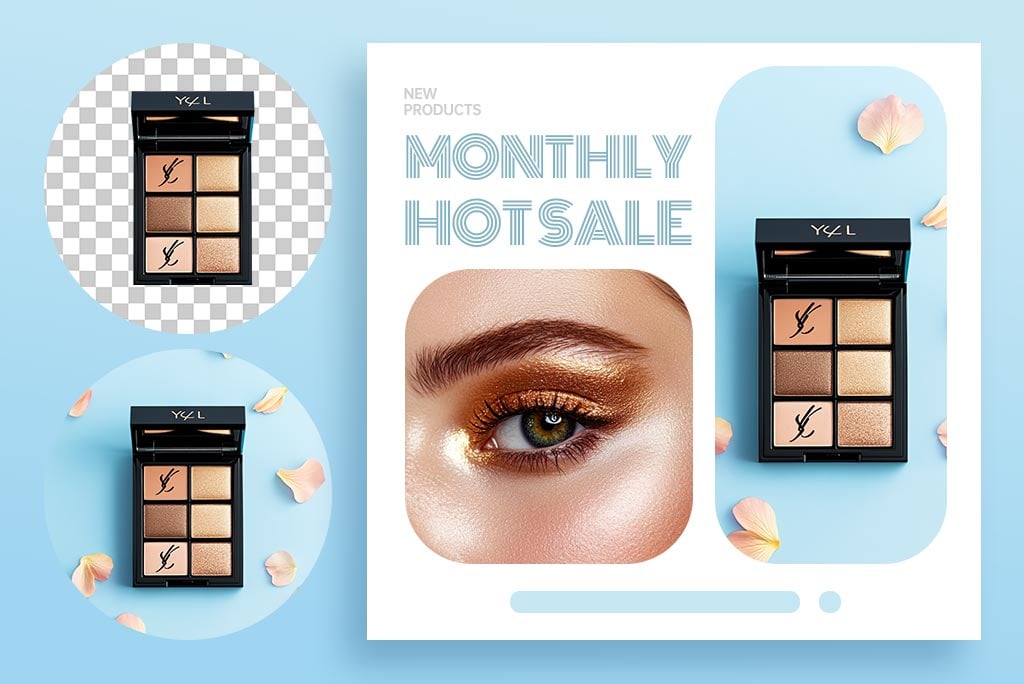
Edit Each Photo Before It Joins the Collage
A collage maker arranges photos; it does not need to turn every image into a generated result. Crop, improve, or restyle an individual photo only when it helps the set look consistent.
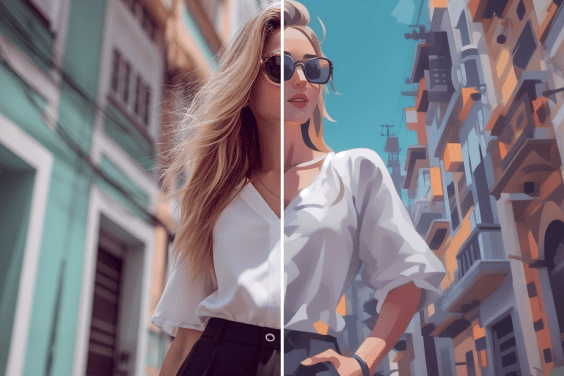
For a creative variation, apply an AI photo filter. For a small or soft source, try the AI image enhancer, then inspect faces, text, and fine edges before returning to the collage.
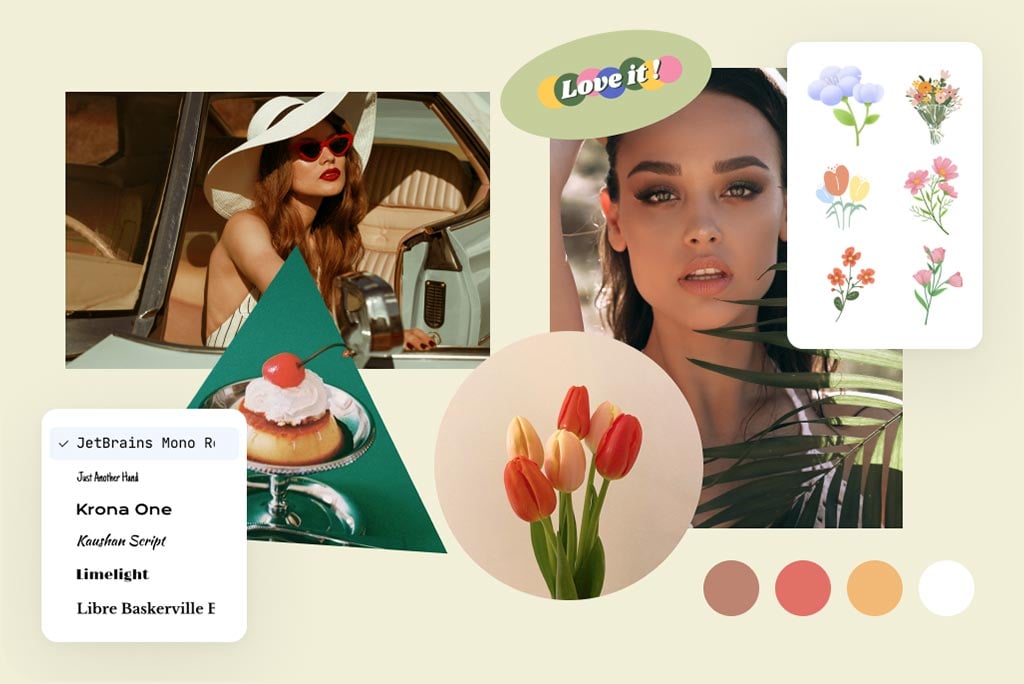
Start with a Photo Collage Template
Choose a template for birthdays, weddings, travel recaps, family memories, or social posts. Replace the sample photos, then check whether the template still works with your image orientations and subject placement.
Templates provide a starting structure, not a locked result. Remove decorative elements that compete with a face or caption, and change the frame when a key photo needs more space.
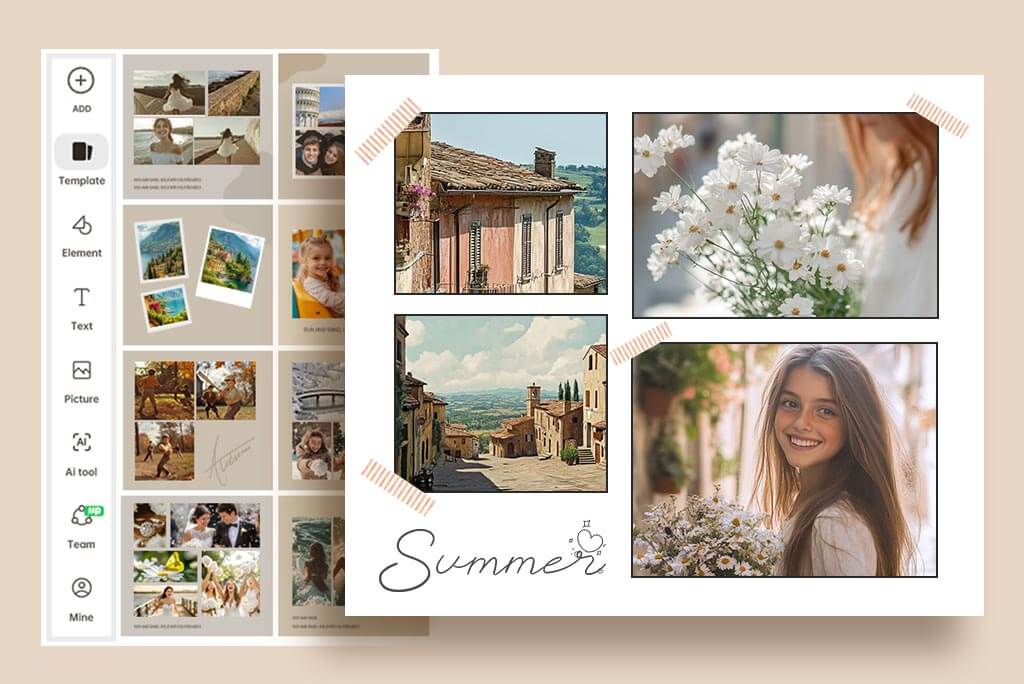
Add Text, Stickers, and Finishing Details
Add a short title, date, name, or caption when it helps explain the sequence. Use stickers as accents and keep them away from faces, products, and important background details.
For more text control, continue with Add Text to Photo. Keep the font readable at the size where the collage will actually be viewed.
Explore More Photo Editing Features
How to Make a Photo Collage Online
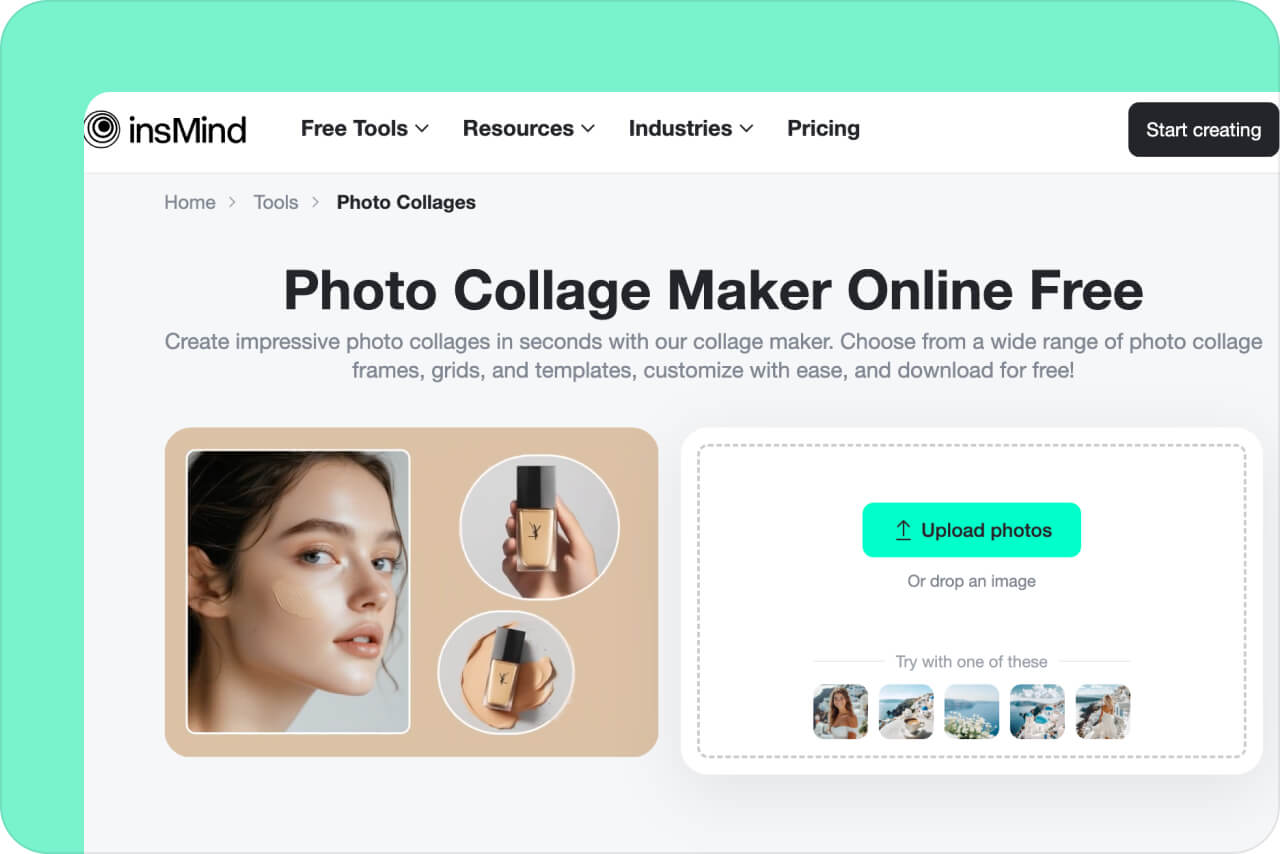
1 Upload 2 to 16 Photos
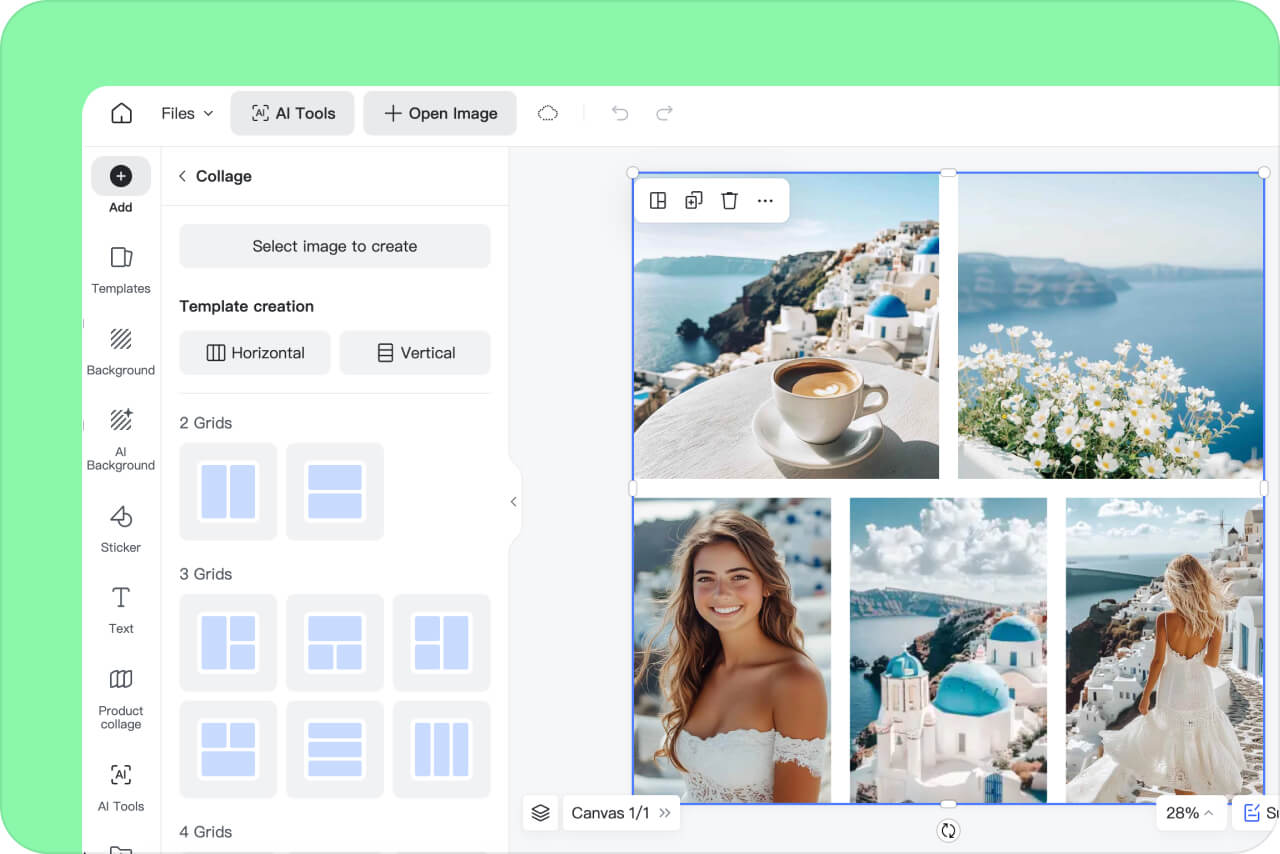
2 Choose a Collage Layout
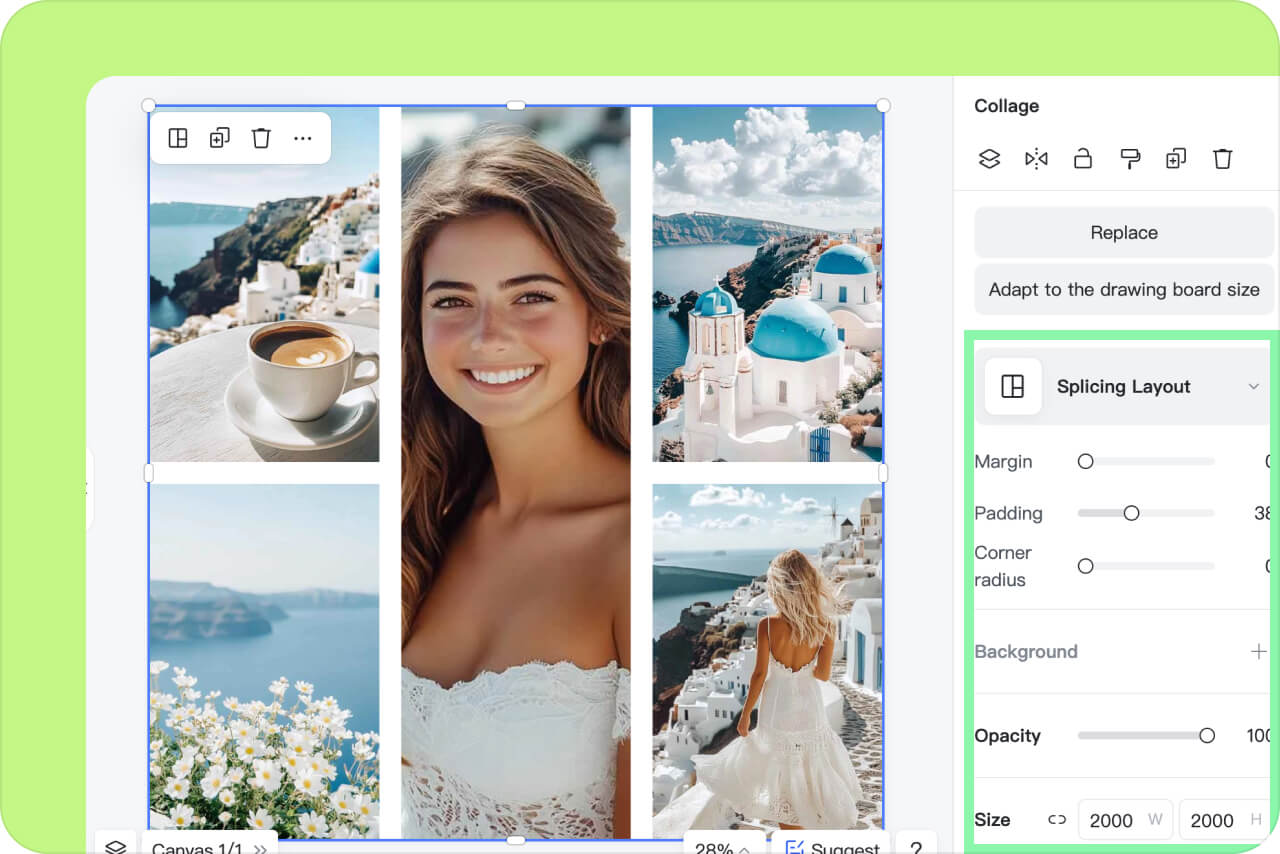
3 Reposition and Customize
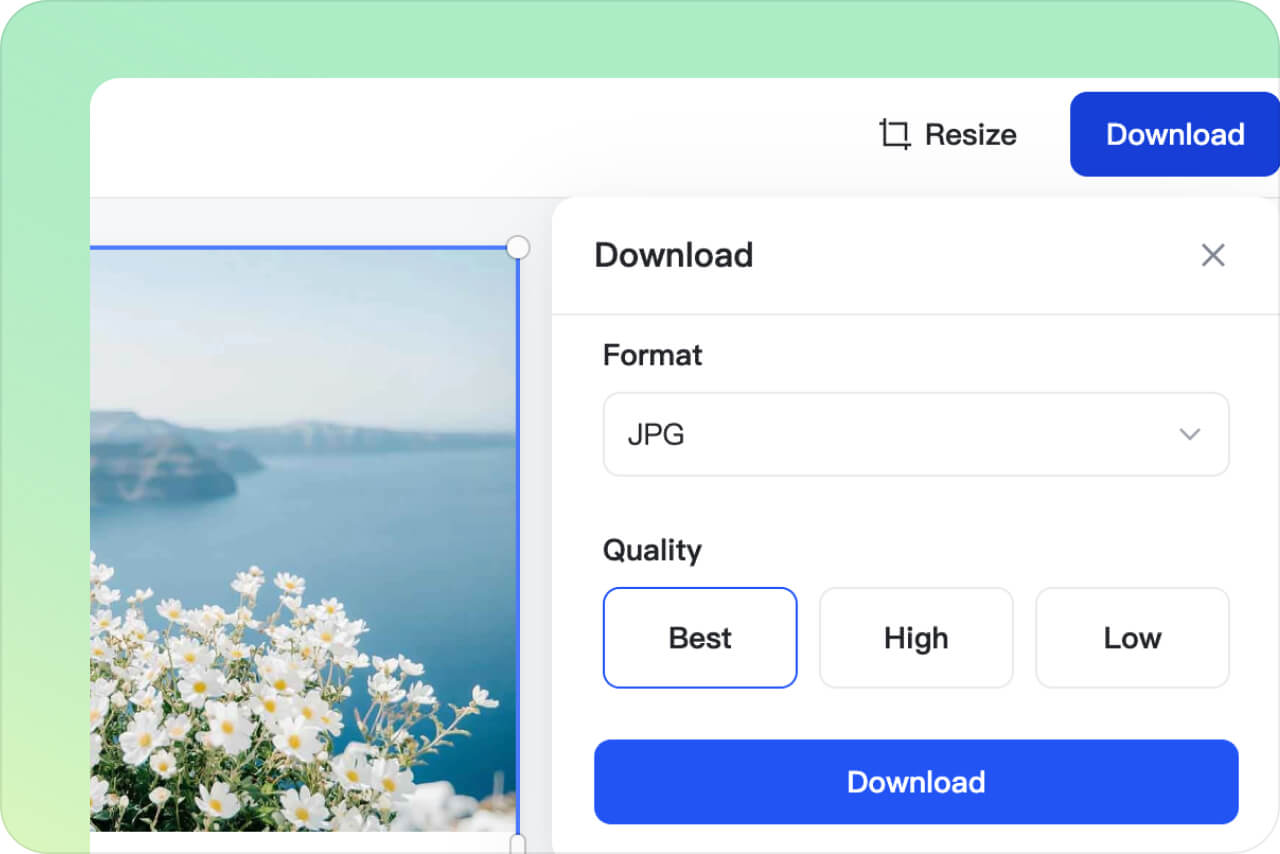
4 Review and Download
Create Photo Collages for Memories, Comparisons, and Posts
Match the layout to the story: give the key image more space, keep related photos together, and check every crop before sharing or printing.

Birthday and Family Collages
Bring portraits, candid moments, decorations, and group photos into one birthday or family collage. Use a larger frame for the main photo and smaller cells for supporting moments. Add a date or short message without covering faces.
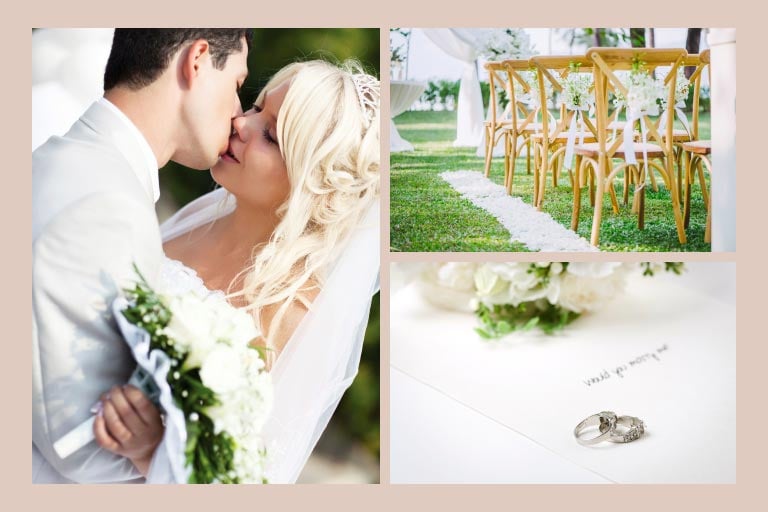
Wedding and Event Collages
Arrange ceremony, detail, group, and reception photos in a clear sequence. Keep skin tones and exposure reasonably consistent, and avoid placing small faces in narrow frames.
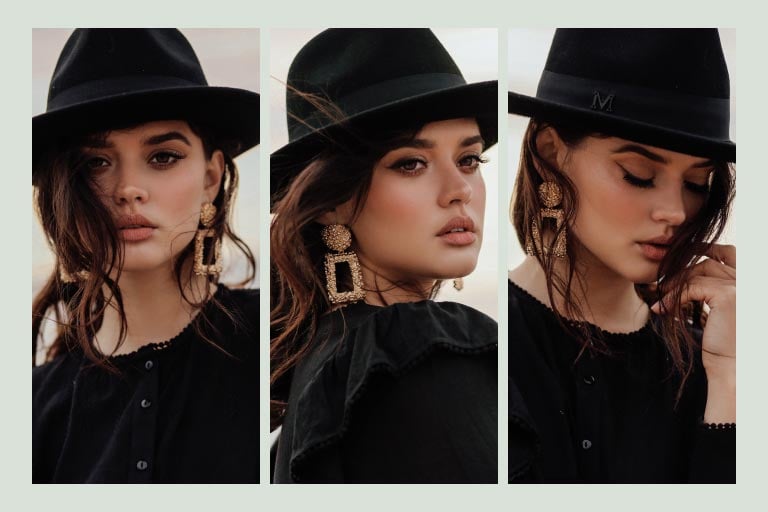
Side-by-Side and Before-and-After Collages
Place two or more photos side by side for comparisons, progress updates, product options, or visual timelines. Keep the crop and scale comparable when the differences matter. For a simple merge without a designed frame, use Combine Images.
Why Use insMind as a Photo Collage Creator?

Layouts for 2 to 16 Photos
Choose classic grids, mixed-size arrangements, and side-by-side photo frame layouts. Match the frame count to your photos instead of filling empty cells with duplicates.

Direct Control Over Every Frame
Upload your photos, select a layout, and reposition each image yourself. Adjust spacing, margins, corners, and background rather than relying on a one-click result you cannot inspect.

Preview Before You Export
Check the full collage and the individual crops before downloading. Export quality depends on the source images and available download settings, so inspect text and small faces at the intended display size.
Photo Collage Maker FAQs
What is a photo collage maker?


How do I make a photo collage online?
What is the difference between a photo collage, grid, and montage?
Can I create a photo collage online for free?
How many photos can I add to one collage?
More Tools for Grids, Montages, and Image Combining
Choose a focused tool when you need a regular grid, a layered montage, a simple image merge, or a product-specific collage.
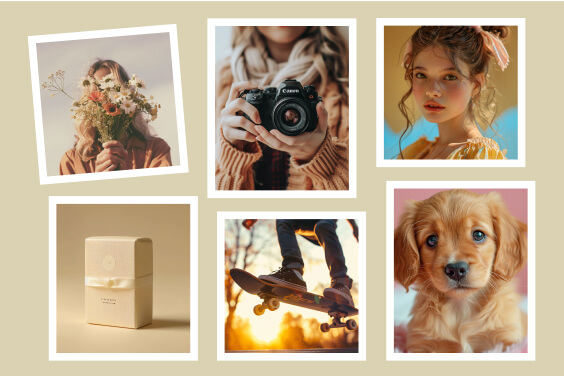
Add a Border to a Photo

Add Emoji to a Photo

Photo Grid Maker

Photo Montage Maker
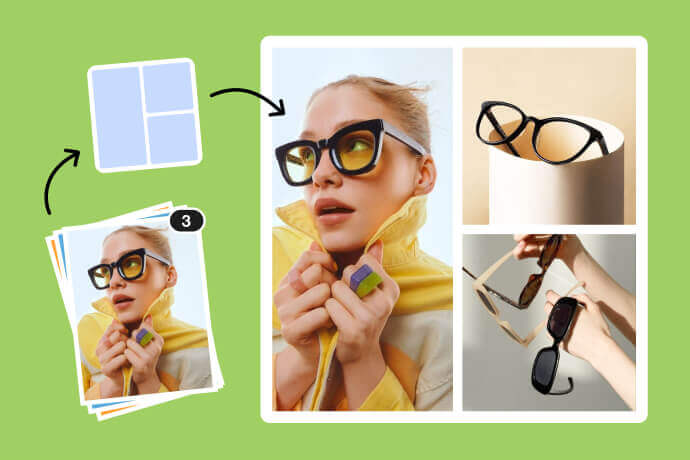
Combine Images
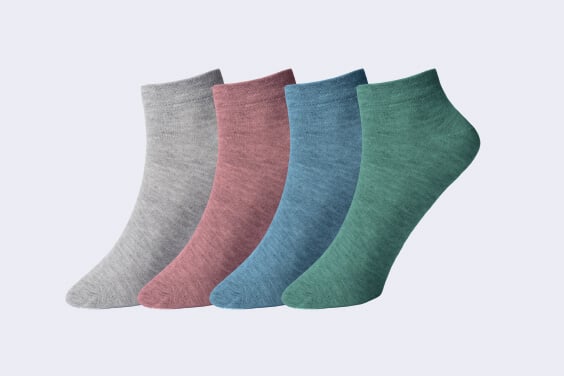
Product Image Collage

AI Image Generator
"This is hands down one of the best collage makers available. The outstanding quality impresses me every time, and the customizability is top-notch. I highly recommend trying it!"
@Tallulah Church