
Cleanup Pictures with AI Online




Remove Unwanted Objects from Pictures
Clean up a photo by brushing over objects that distract from the subject: signs, cables, bins, reflections, price tags, or people in the background.
Use a smaller brush around important edges and zoom in before you accept the result. If the removed area contains repeated texture or text, compare the preview carefully instead of assuming the fill is accurate.
Clean Up Pictures with a Simple Brush Workflow
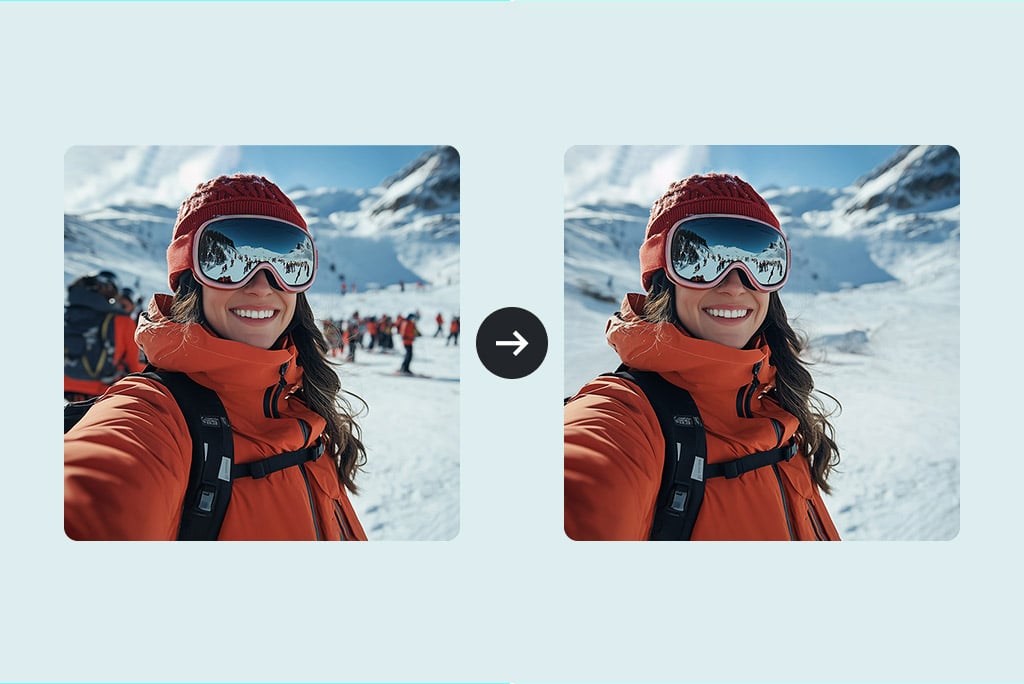
The cleanup picture workflow is direct: upload a photo, highlight the unwanted area, start the AI removal, and inspect the result. You do not need to build layers or manually clone a background.
Mark the complete object, including its shadow when the shadow should disappear. A partial selection can leave a visible fragment behind.

Cleanup Pictures for Products, Travel, and Social Posts
Use an AI photo cleaner for product listings, travel photos, event pictures, and social posts when a small distraction is more important than a full retouch.
For product images, check labels, edges, and reflections after removal. For personal photos, remove strangers or clutter while keeping the main subject and scene recognizable.
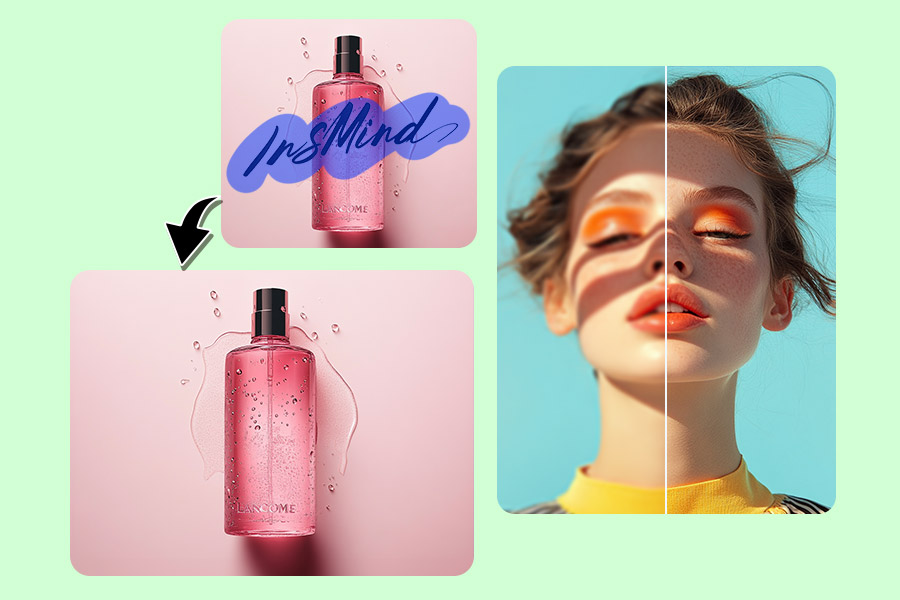
Review the Cleaned Photo Before You Share It
A cleanup tool fills the marked area using the surrounding image. Inspect repeating patterns, straight lines, faces, hands, text, and hard edges where a fill can be easier to notice.
If the cleanup is complete but the whole photo still looks soft or unclear, use the AI image enhancer as a separate next step rather than treating removal and enhancement as the same task.
More Tools for Cleaning Up Photos
Choose a focused removal tool when you need to erase a person, shadow, watermark, text, glare, or background instead of cleaning a general area.
How to Clean Up Pictures Online with an AI Photo Cleaner

1 Step 2. Upload Your Picture

2 Step 3. Highlight the Entire Distraction
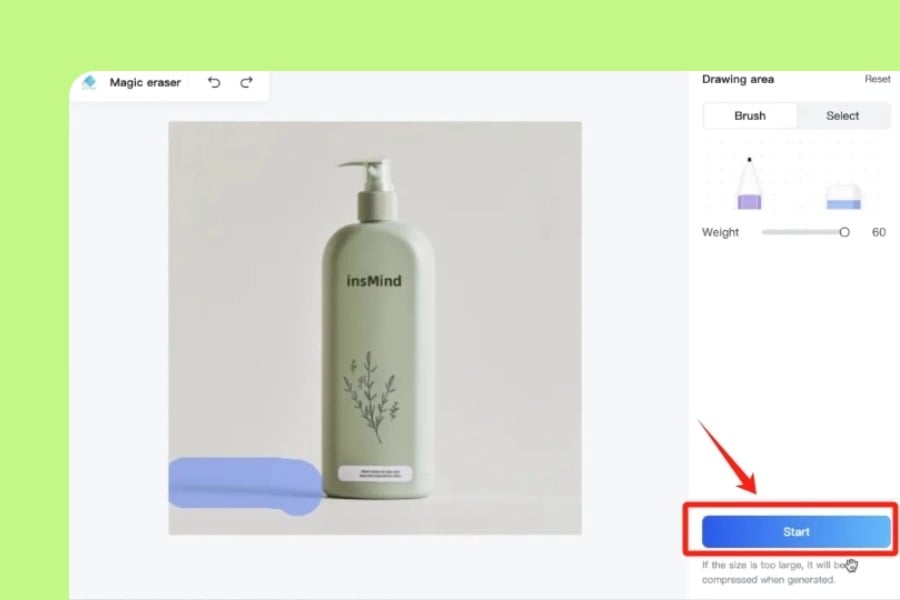
3 Step 4. Run the Cleanup and Inspect the Fill

4 Step 5. Download the Result You Reviewed


What Can You Clean Up from a Picture?
Compare real before-and-after examples for objects, background people, text, and shadows. Mark only what should disappear, then inspect the filled area before downloading.

Remove an Unwanted Object
Brush over a product prop, sign, cable, bin, or other object that distracts from the main subject. Include connected shadows when they should disappear too.
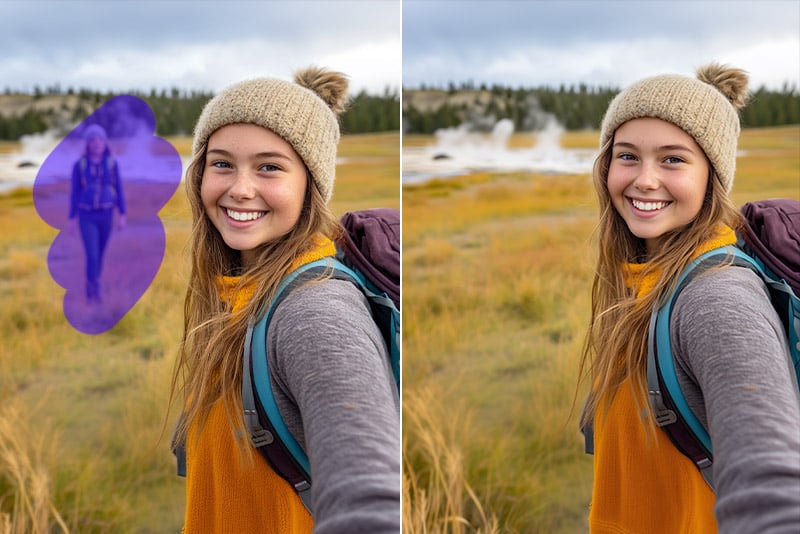
Remove a Background Person
Mark the complete person and inspect nearby faces, clothing, landscape details, and repeated textures after the background is filled.
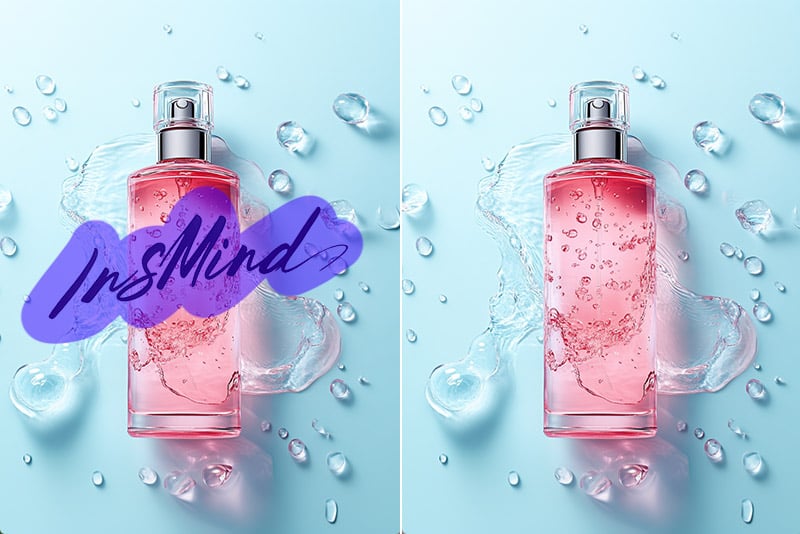
Remove Text from a Photo
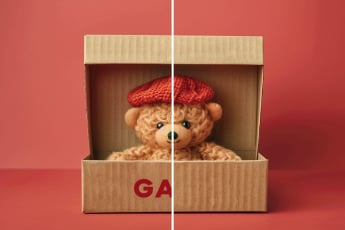
Clean up unwanted text or a permitted logo by selecting the full overlay. Check patterns and product details behind the edited area before using the result.
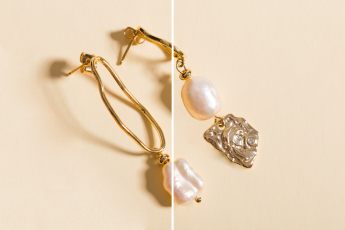
Remove a Shadow
Remove a distracting shadow when it is separate from the subject you need to keep. Review contact edges, surfaces, and the object’s natural depth after cleanup.
Practical Ways to Clean Up Pictures with AI
A photo cleaner is most useful when one visible distraction is blocking an otherwise usable picture. Choose the cleanup approach based on what needs to disappear and what must stay exact.
Product Photos and Listings
Remove dust, price stickers, or distracting props from a product image. For tighter selection around a single item, open Remove Object from Photo. Inspect the product outline, label, logo, and reflection after cleanup.
Photobombers and Background People
Clean up a travel, event, or family photo by marking an unwanted person in the background. For a person-focused workflow, use Remove People from Photo. Check nearby faces, rails, walls, textures, and shadows.
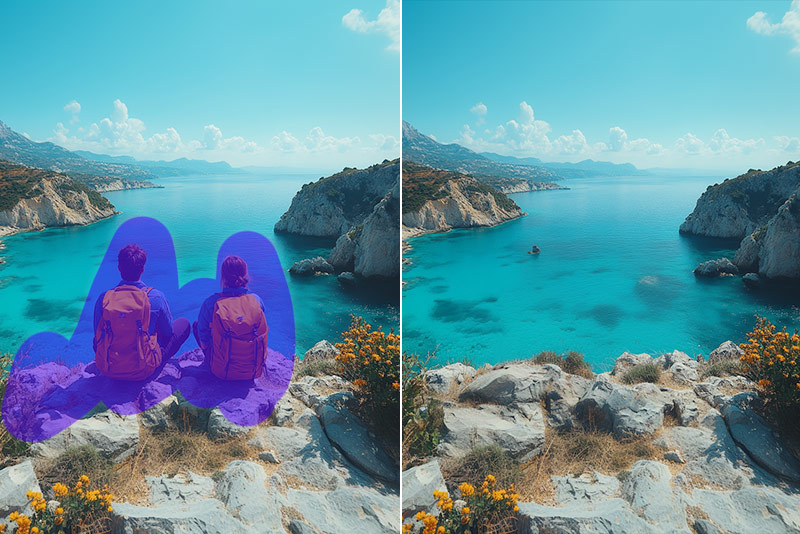
Travel Scenes and Landscapes
Remove a bin, sign, cable, or small foreground distraction without rebuilding the whole landscape. Straight lines, water, brick, and foliage deserve a close preview after the fill.
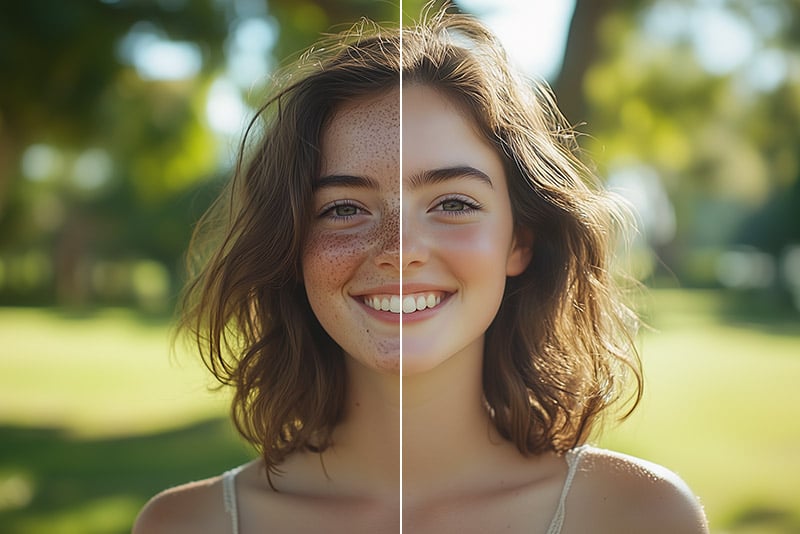
Portrait Distractions
Clean up a portrait by removing a stray object, background mark, or small visual distraction. Keep the face, hair, skin texture, and clothing edges outside the brush selection.
Text, Labels, and Small Marks
Use Remove Text from Image when unwanted captions, date stamps, or overlays are the main problem. Check the filled background, and do not remove product labels or legal notices without permission.
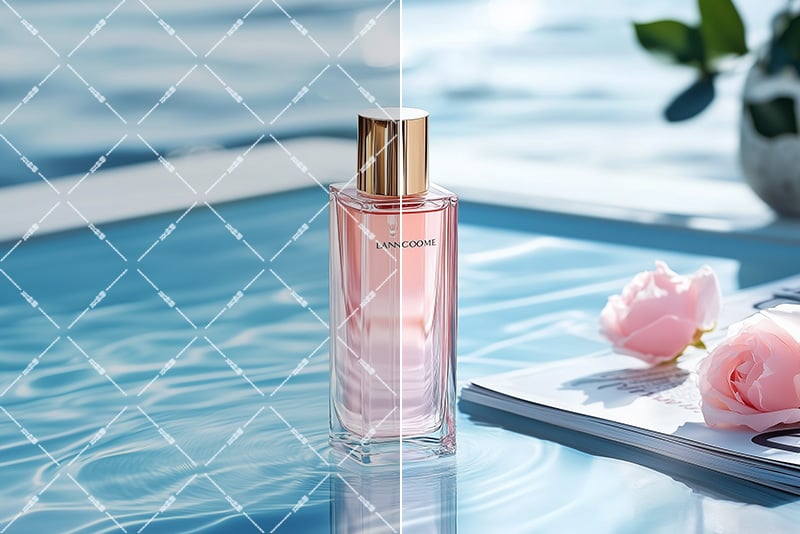
Watermarks and Ownership Boundaries
Use Remove Watermark from Photo only when you own the image or have permission to edit it. For third-party work, respect the creator’s rights rather than bypassing attribution.

Social Feed Cleanup
Prepare a photo for a post by removing a stray object, passerby, or background clutter that pulls attention away from the subject. Preview it at the crop and size used in the feed.

Old Photo Spot Cleanup
Remove a small dust mark or distracting spot from a scanned or older photo, then compare the cleaned version with the original. For broad restoration, color repair, or sharpening, use a dedicated restoration workflow.
Why Use insMind as an AI Photo Cleaner?

Mark the Area You Want to Clean
Brush over the unwanted object or distraction instead of changing the whole image. When a cast shadow is the main issue, use Remove Shadow from Photo and inspect the object’s contact edges after removal.

Useful for More Than One Cleanup Task
Use the general cleanup workflow for objects, people, text, watermarks, shadows, dust, and background clutter, then switch to a focused tool when the task needs narrower control.

Preview Edges and Background Fills
The important check is not whether something was removed, but whether the surrounding fill still looks believable. Inspect patterns, lines, faces, hands, and text before you share the image.
FAQs About Cleanup Picture
What is an AI photo cleaner?


Can I clean up pictures online for free?
What can I remove from a picture?
How do I remove a watermark or text from a photo?
Can I remove people from a picture?
You might be interested in
Make your pictures pop with creative AI tools you can explore during a free trial.
Remove Text From Image

Remove People From Photo
Remove Shadow From Photo

Remove Watermark From Photo
Remove Glare From Photo

AI Background

AI Expand

AI Image Enhancer

"This tool is a game-changer for picture cleanup on my social media posts. The process to cleanup pictures is smooth, and the final images always come out looking flawless."
@Michael