
Color Correct Images Online with AI
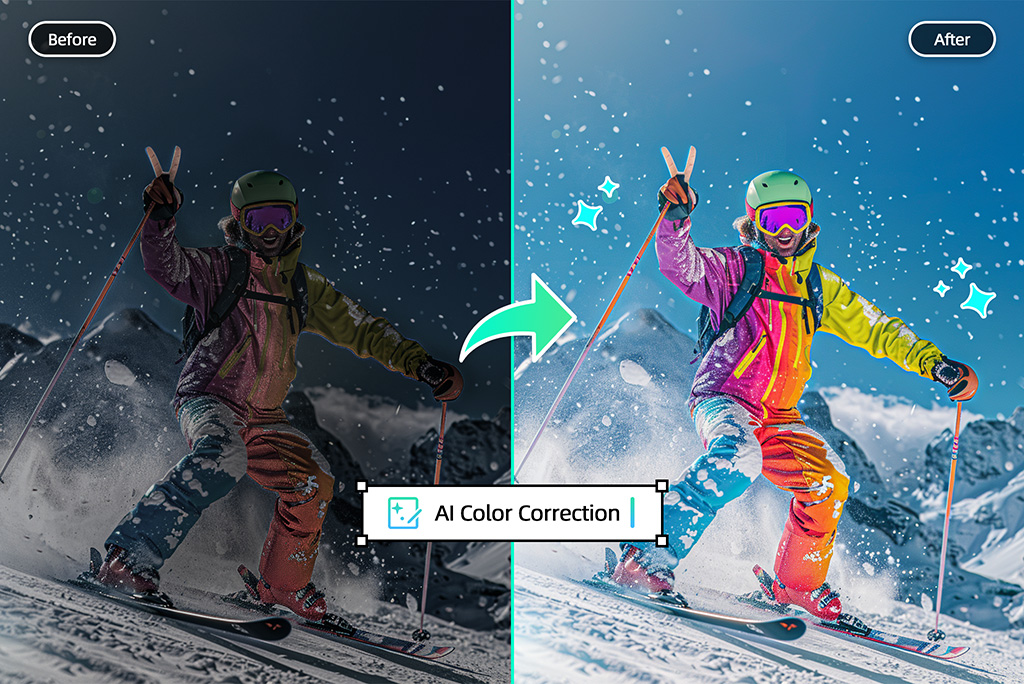
How to Color Correct an Image Online
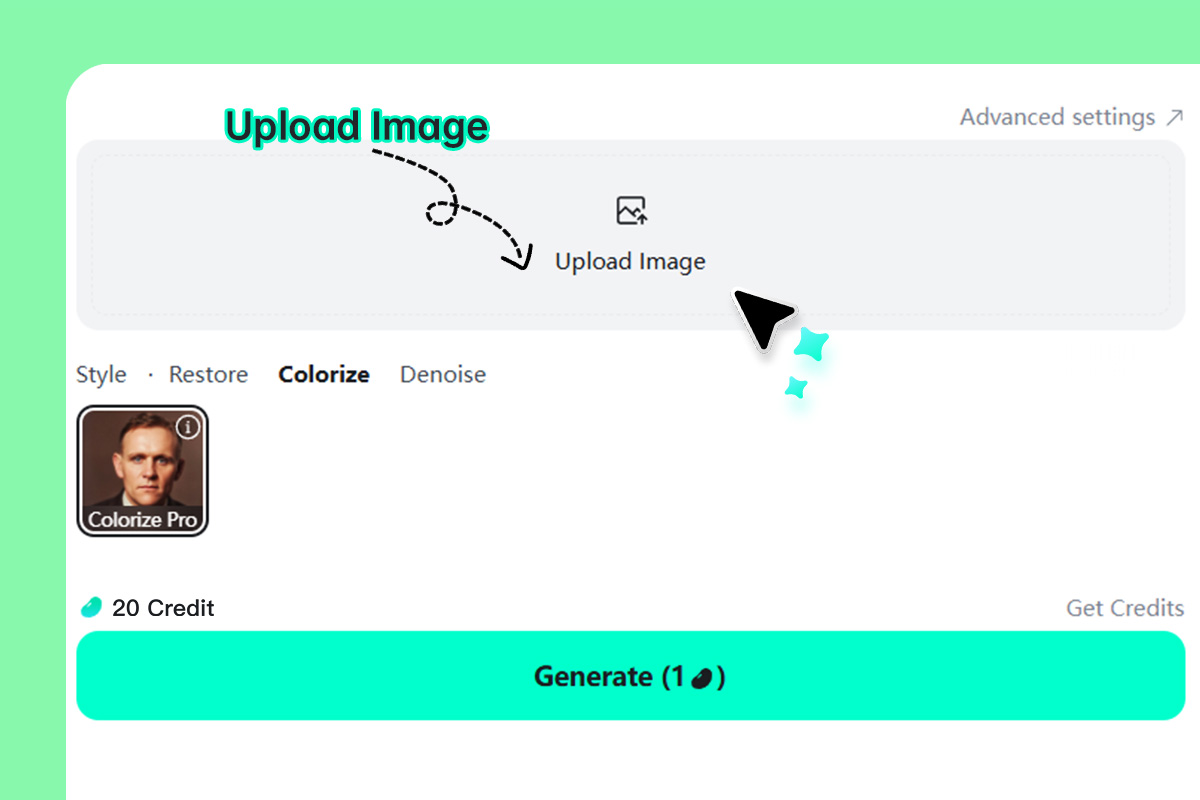
1 Upload your photo
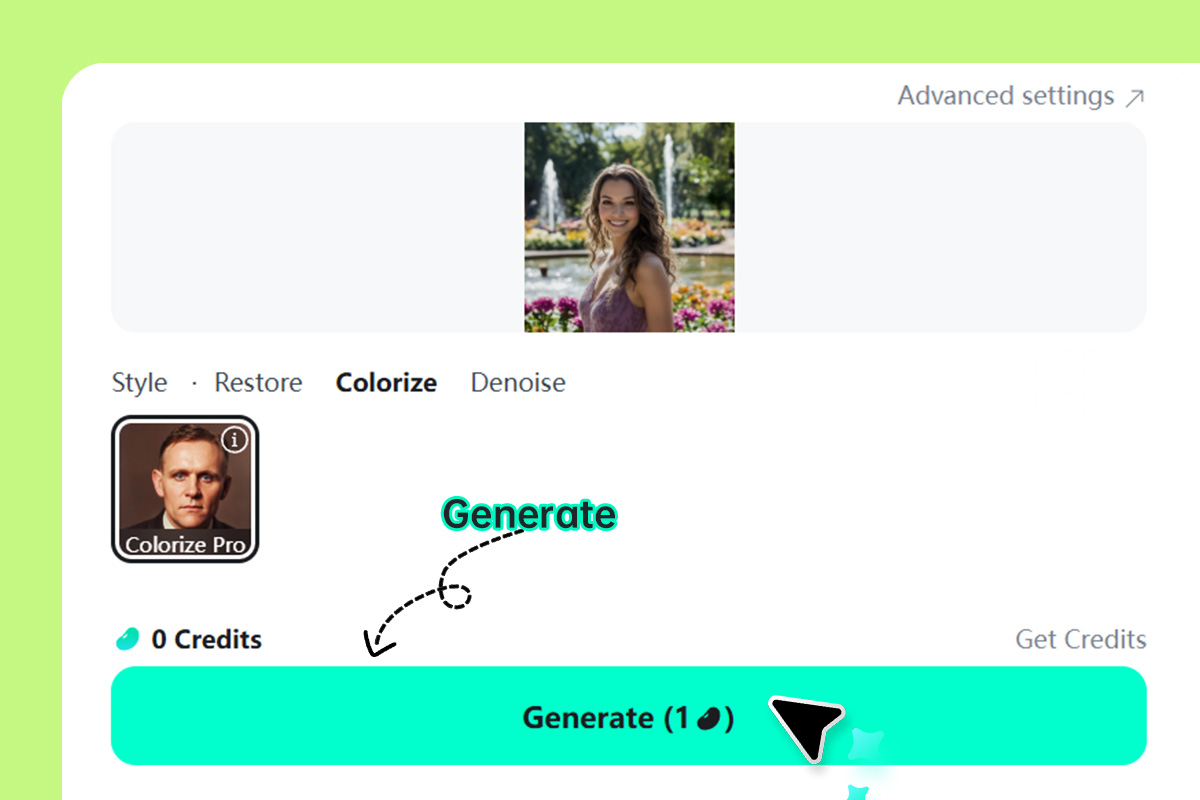
2 Apply AI color correction

3 Preview and download
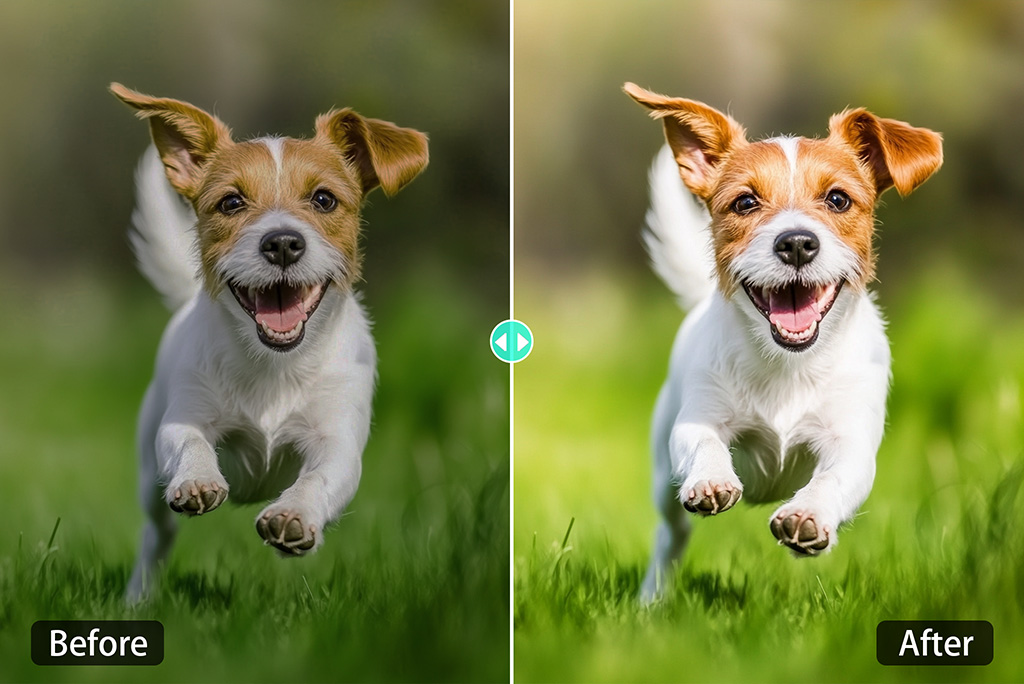
Fix Dull or Off-Color Photos Without Sliders
Use insMind when a photo looks flat, yellow, blue, or washed out after shooting. The AI reads the overall lighting and color balance, then gives you a cleaner version without asking you to adjust every slider by hand.
This is useful for quick edits before posting, listing a product, printing a photo, or sending a client preview. You still get a chance to compare the result with the original before saving it.
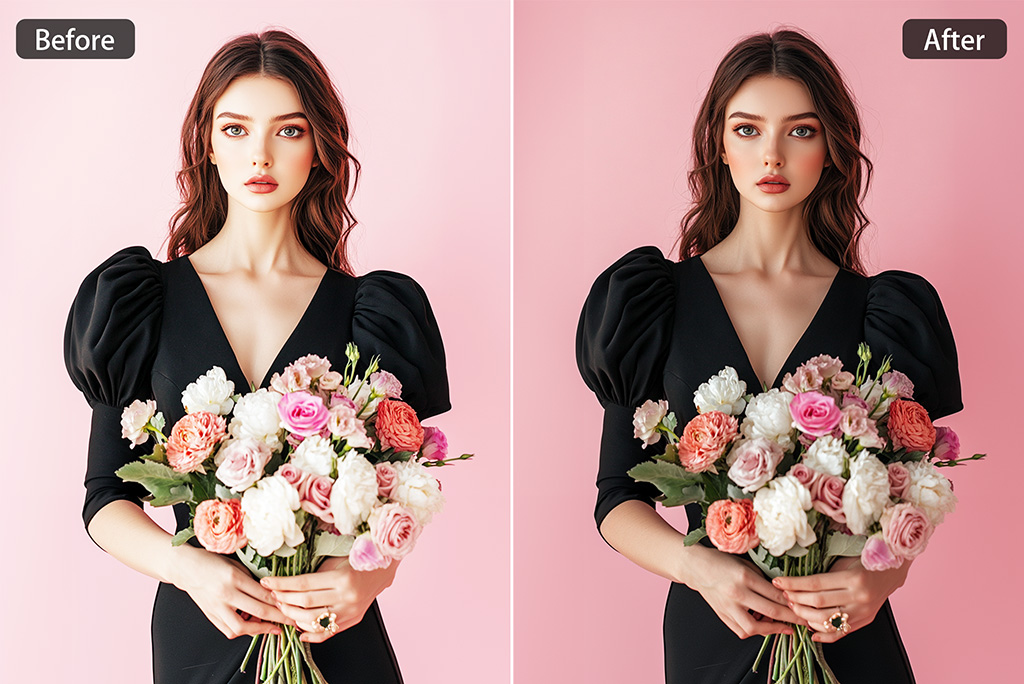
Balance Exposure in Bright or Shadowy Photos
Some photos lose detail because the light was too harsh, too dim, or uneven across the frame. AI color correction can brighten dark areas, reduce a washed-out look, and make the subject easier to see.
For best results, start with a photo that still has visible detail. If the image is badly blurred or fully overexposed, use color correction as the first cleanup step, then continue with an AI image enhancer if needed.
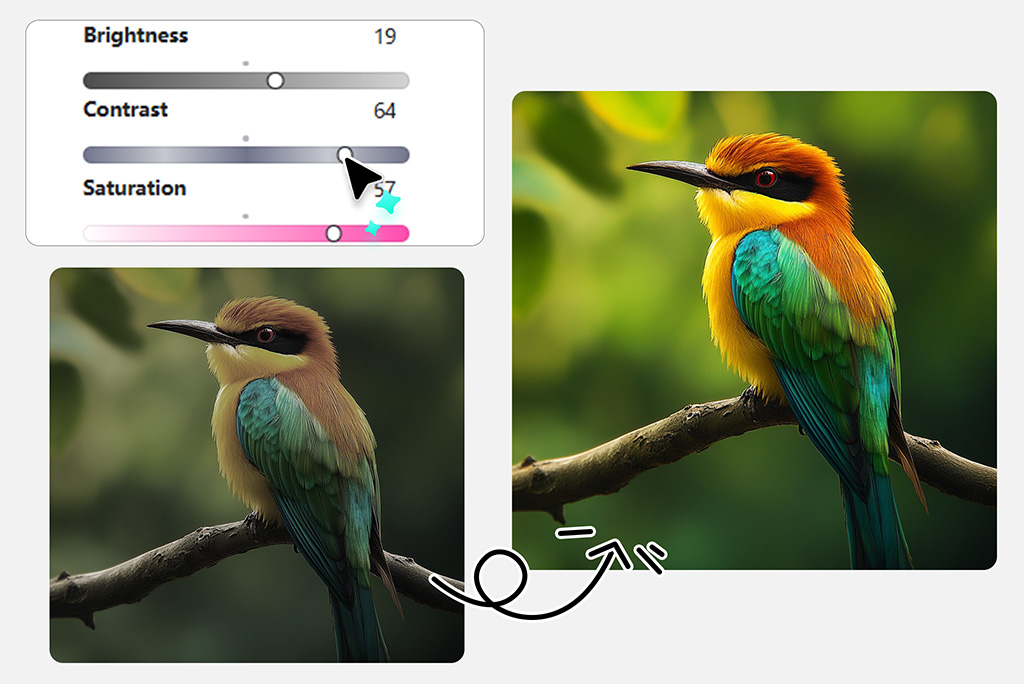
Bring Saturation Back Without the Overcooked Look
A photo can feel lifeless when colors are muted, but pushing saturation too far makes skin, clothes, food, and skies look fake. insMind helps bring back color while keeping the image believable.
Use it for product photos, social posts, event shots, and travel images where you want the scene to look clearer, not artificially painted.
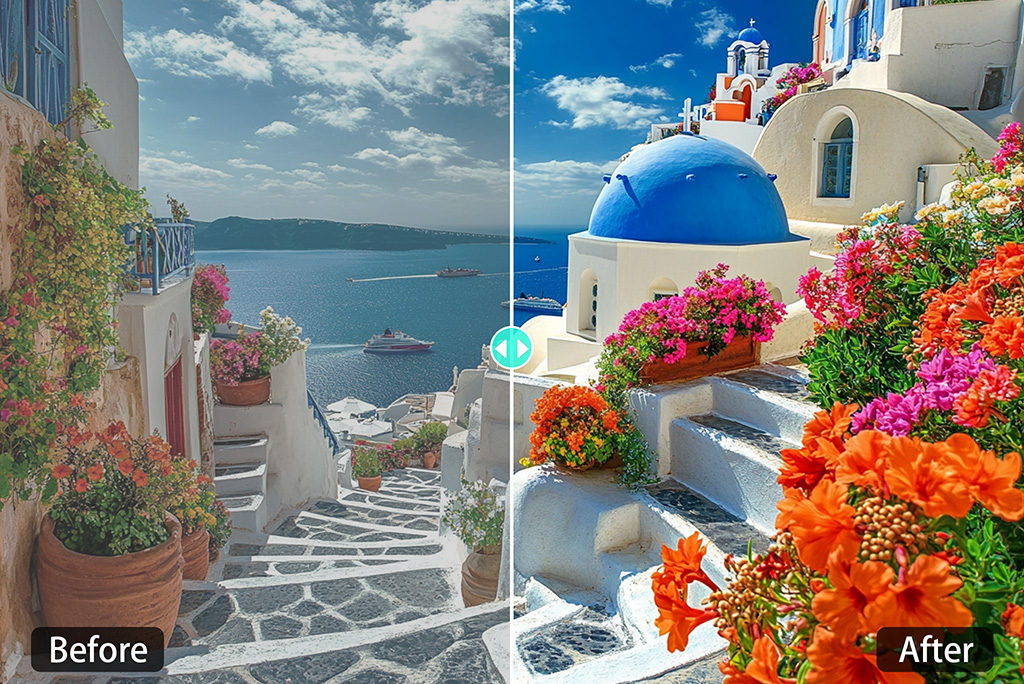
Correct White Balance and Color Casts
Indoor light, sunset light, snow, and tinted windows can leave a photo with a yellow, blue, green, or red cast. The color corrector helps neutralize that cast so white objects, skin, and backgrounds look closer to the real scene.
This is especially helpful for portraits, product shots, and scanned photos where accurate color matters more than a dramatic filter.
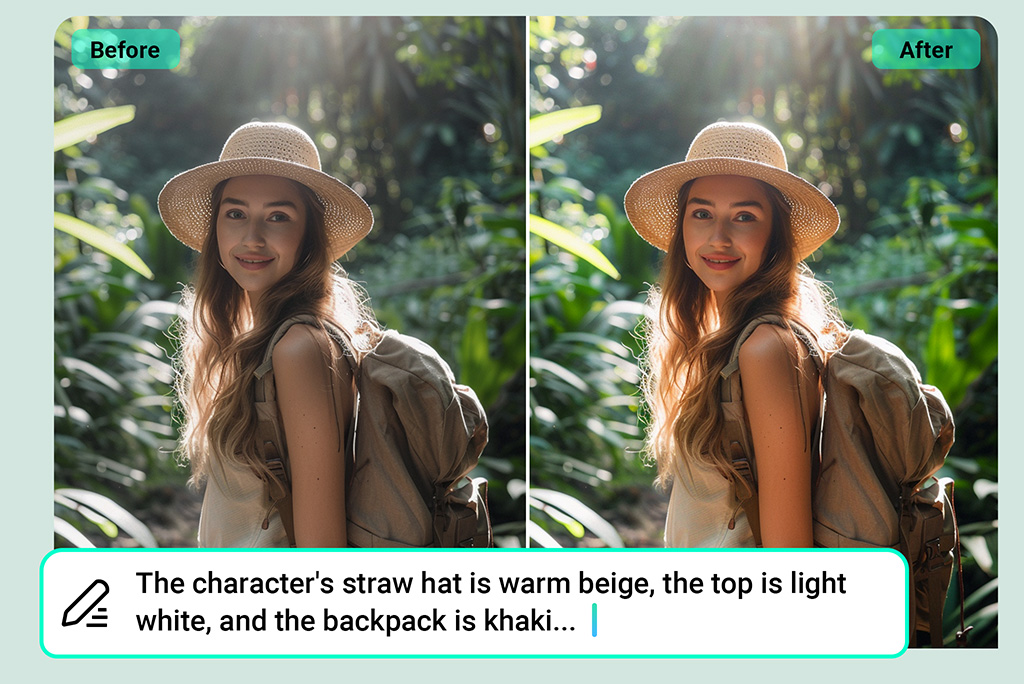
Use AI Color Correction Before Other Edits
Color correction works best early in the editing workflow. Fix the tone first, then crop, sharpen, remove objects, or restore old details after the photo already has a cleaner base.
If the picture needs a different task, keep the next step focused: use the image brightener for dark photos, recolor image for selective color changes, or photo restoration for old damaged photos.
Explore More Color Editing Tools
AI Photo Color Correction for Common Photo Problems
Photo color issues could be due to bad lighting, camera settings, or plenty of other reasons. Regardless of color issues, the insMind's AI photo color correction tool ensures that your photos look charming and natural.
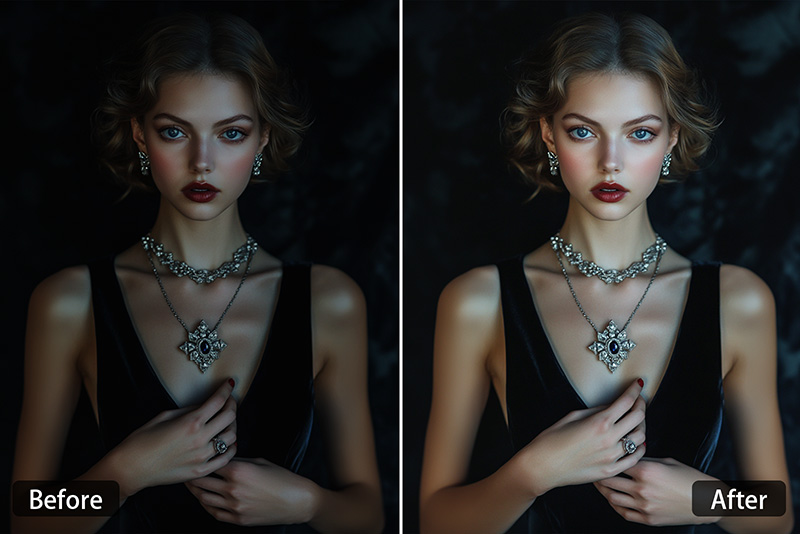
Fix Low-Light Photos
Night shots, indoor photos, and backlit pictures often look dull or muddy. Use color correction to bring the subject back into view before making any heavier edits.
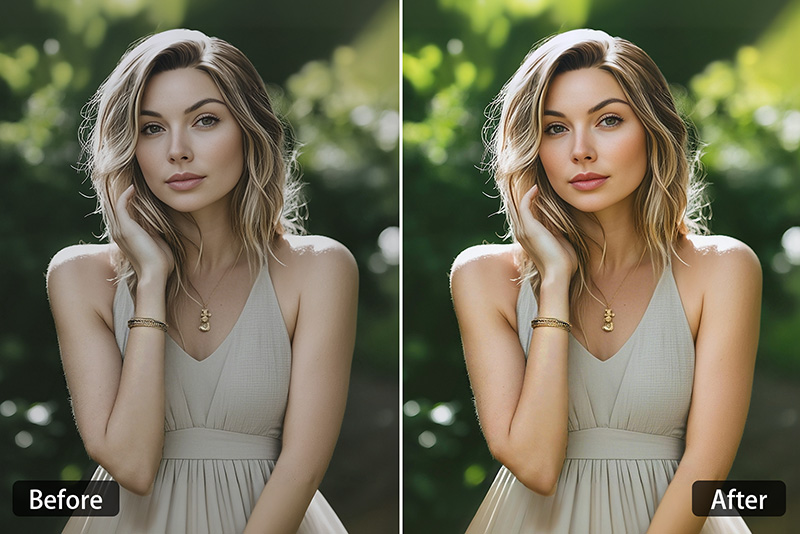
Improve Skin Tones
Portraits can turn too red, too pale, or too yellow depending on the light. Correct the color first, then check the face, hair, and background together so the edit does not look patched together.
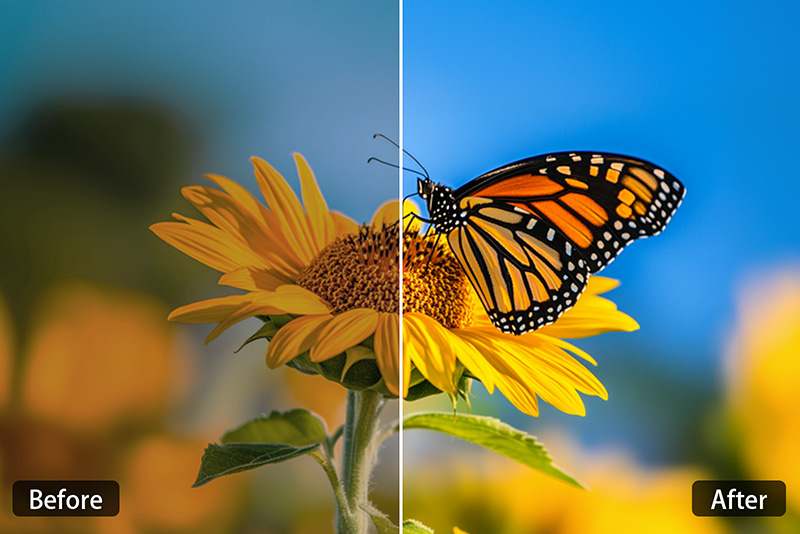
Clean Up Phone Camera Color
Phone cameras often guess the lighting wrong, especially under mixed light. Upload the photo and let the AI rebalance the color before you post, print, or reuse it.
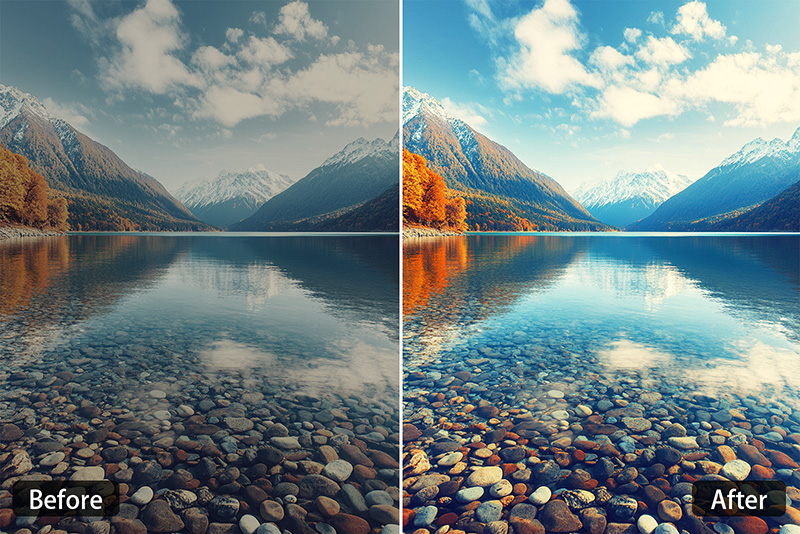
Prepare Photos for Printing
A photo that looks fine on a screen may print too dark or too warm. Color correction gives you a better base before resizing, sharpening, or sending the file to print.
Online Color Fixer for Different Photo Types
insMind's AI color correction tool is your go-to tool to fix colors on all types of photos. You can bring out vibrant and true colors in seconds with a simple tap.
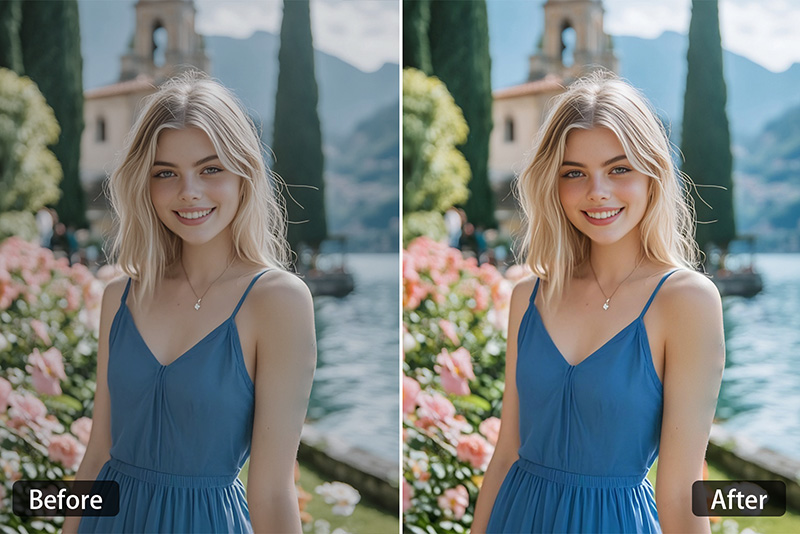
Portrait Photos
Correct skin tone, indoor color casts, and dull lighting while keeping the face recognizable. Check the eyes, hairline, and background before downloading.
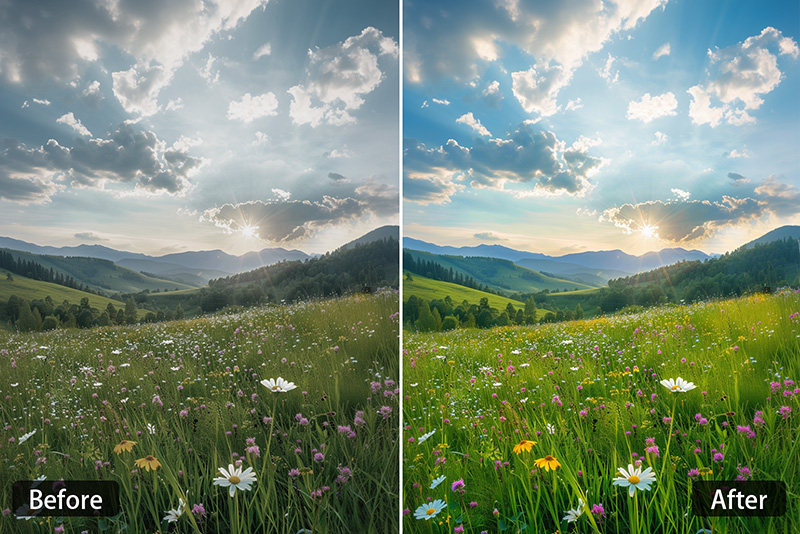
Landscape Photos
Bring back sky color, greenery, water, and sunset tones without turning the scene into a heavy filter. Good for travel, outdoor, and nature photos.
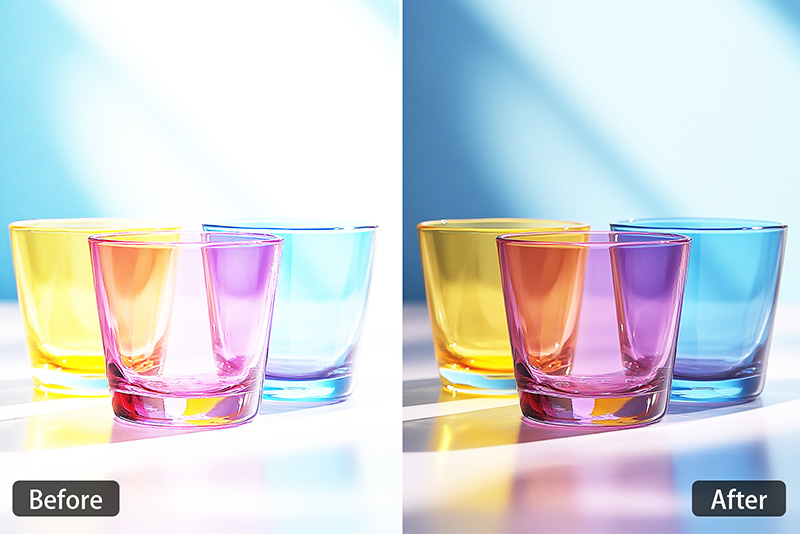
Product Photos
Make product colors easier to judge before listing or sharing. Correct yellow light, grey backgrounds, and flat colors so the item looks closer to the real object.
Why Use insMind for AI Photo Color Correction?

Fast Color Fix
Upload the photo, run the correction, and compare the result in the same workflow. It is built for quick fixes, not a long manual editing session.

Useful Before Other Edits
Start with color correction, then continue with brightening, restoration, sharpening, or background edits if the photo needs more work.

Works Across Photo Types
Use it for portraits, product photos, travel shots, old scans, social posts, and everyday phone pictures that need cleaner color.

Clear Preview Before Download
Do not save blindly. Compare the corrected version with the original, look for over-bright areas or odd skin tone, and download only when the photo feels ready.
FAQs about AI Photo Color Correction
What is photo color correction?


Can I color correct an image online for free?
Can AI brighten or color correct a photo?
What is the difference between color correction and color grading?
Can I use AI color correction for product photos?
Should I use color correction or colorize photo?
More Tools for Better Photo Color
Brighten, recolor, restore, or retouch photos when color correction is only the first step.
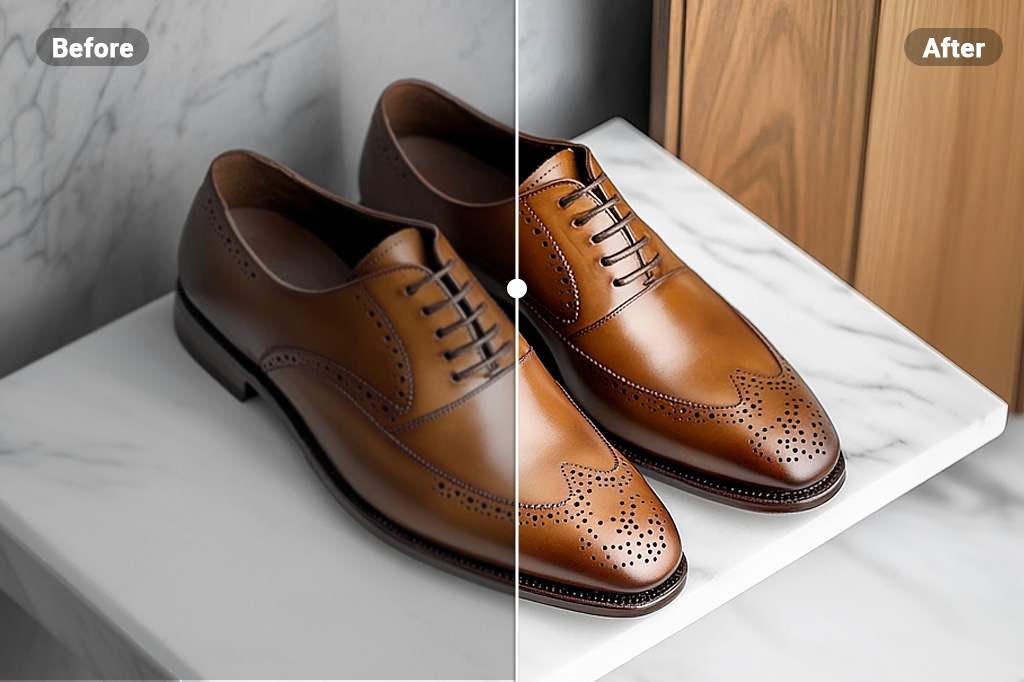
Brighten Your Image
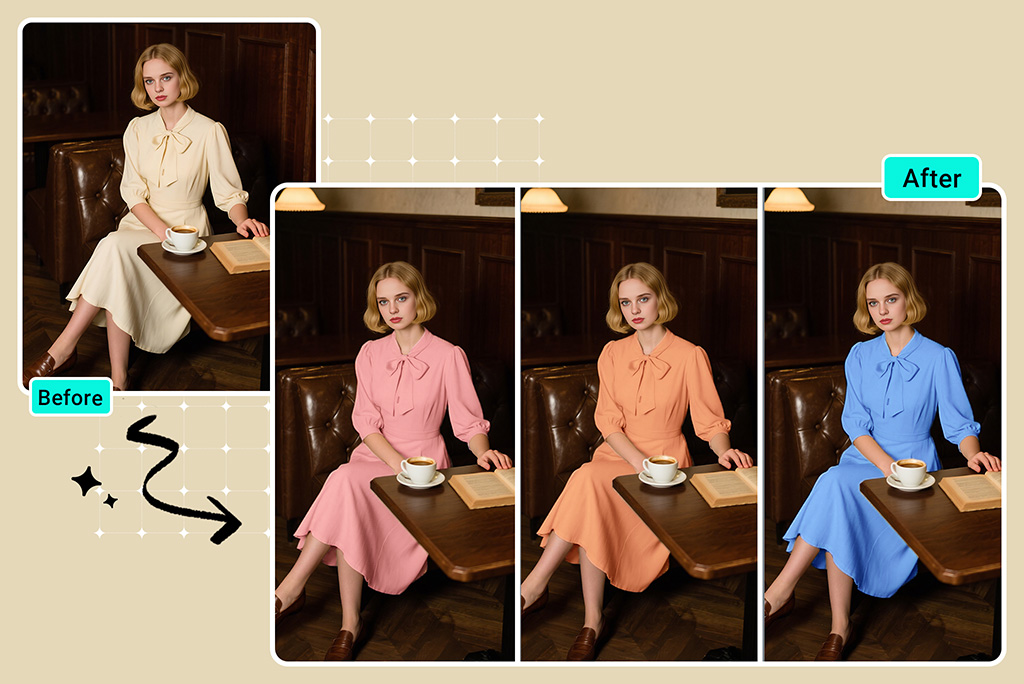
Recolor Image
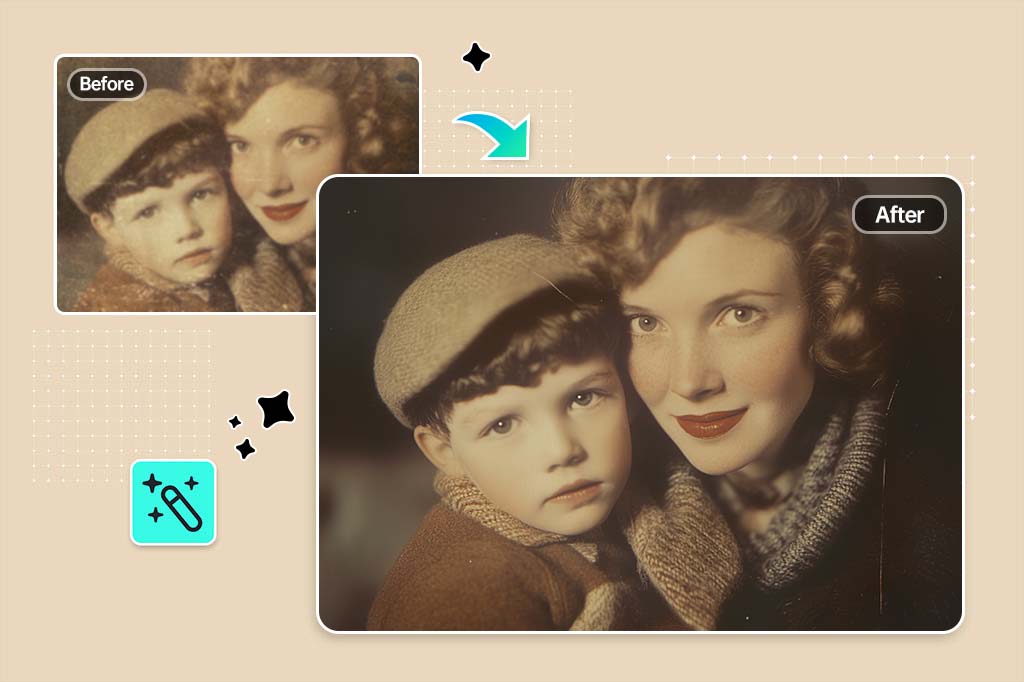
Photo Restoration
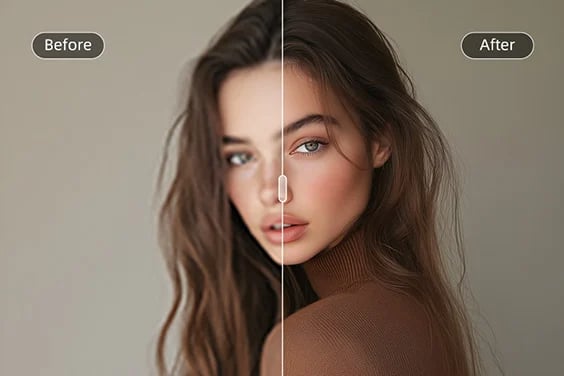
HD Photo Converter
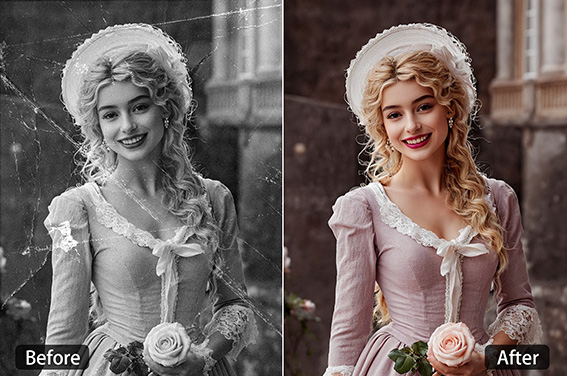
Colorize Photo
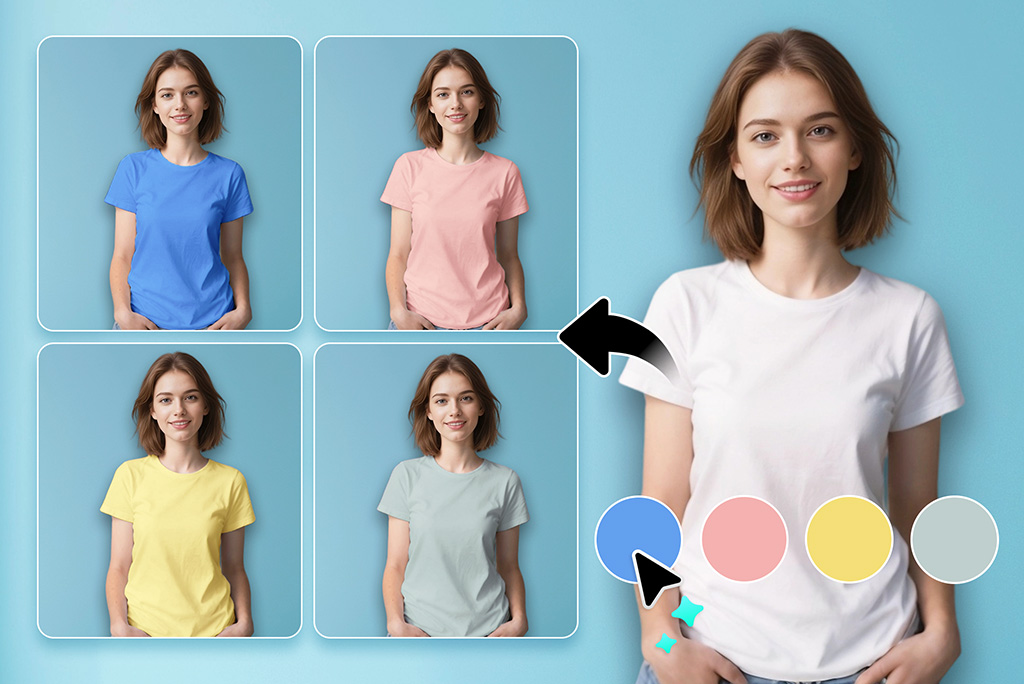
Clothes Color Changer
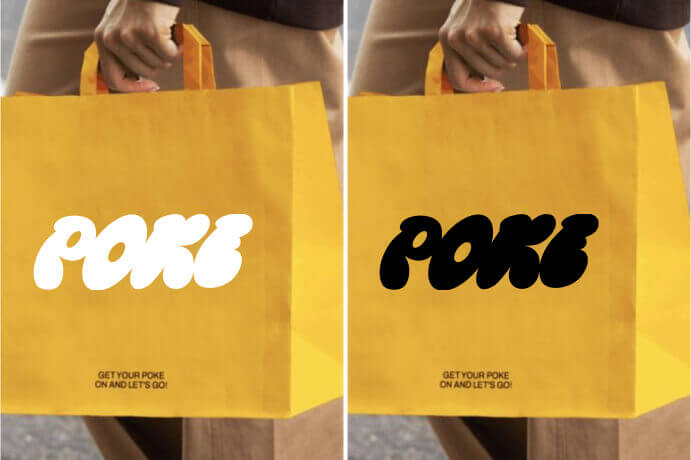
Logo Color Changer
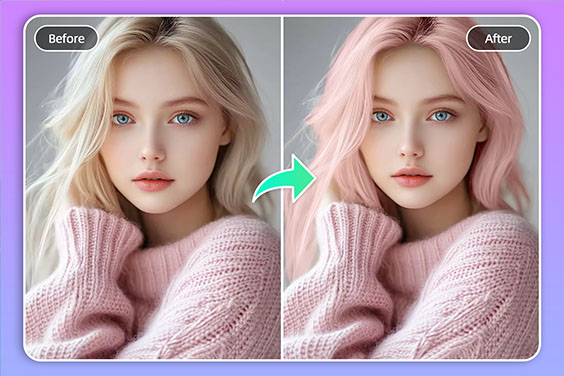
"I'm not a professional photographer, but I'm good with tools. This AI-powered photo color fixer makes my casual shots look like they were taken by a pro."
@Juliana