
Colorize Photo Tool – Restore Black and White Images
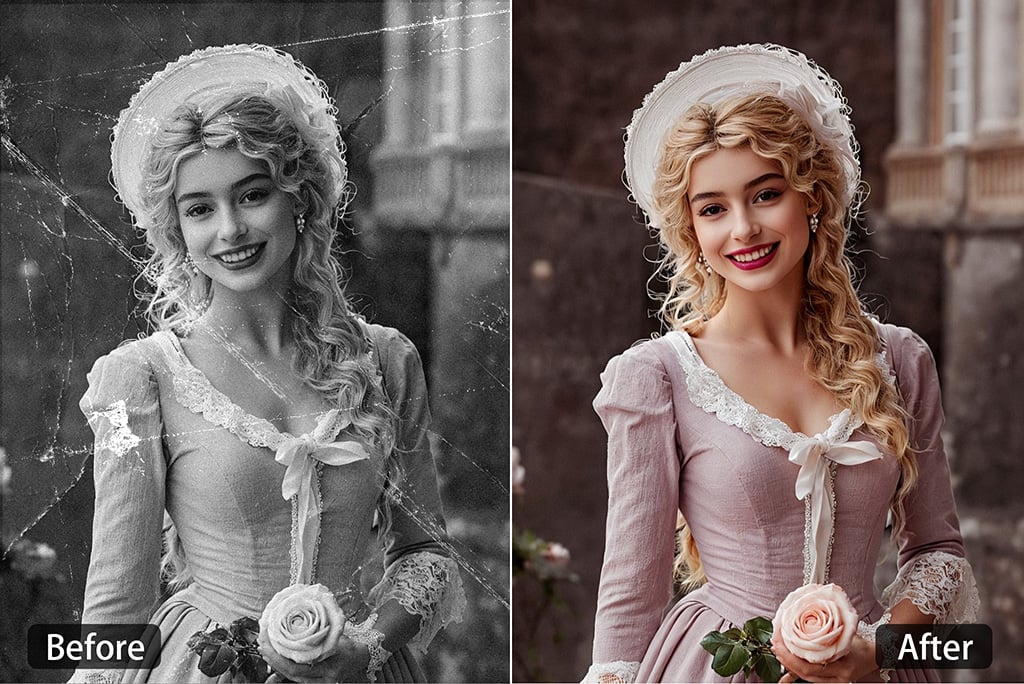
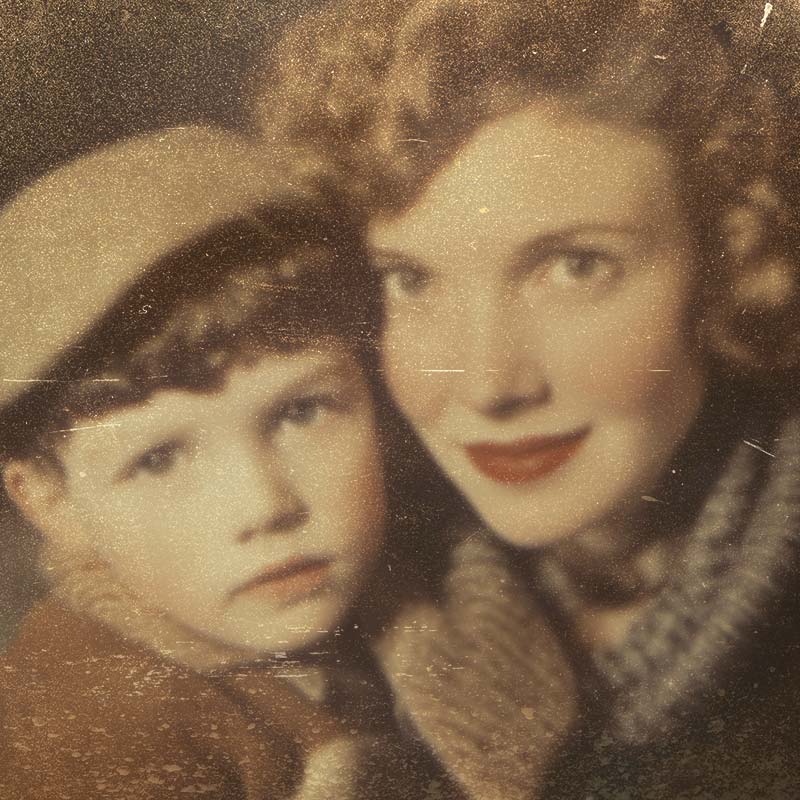
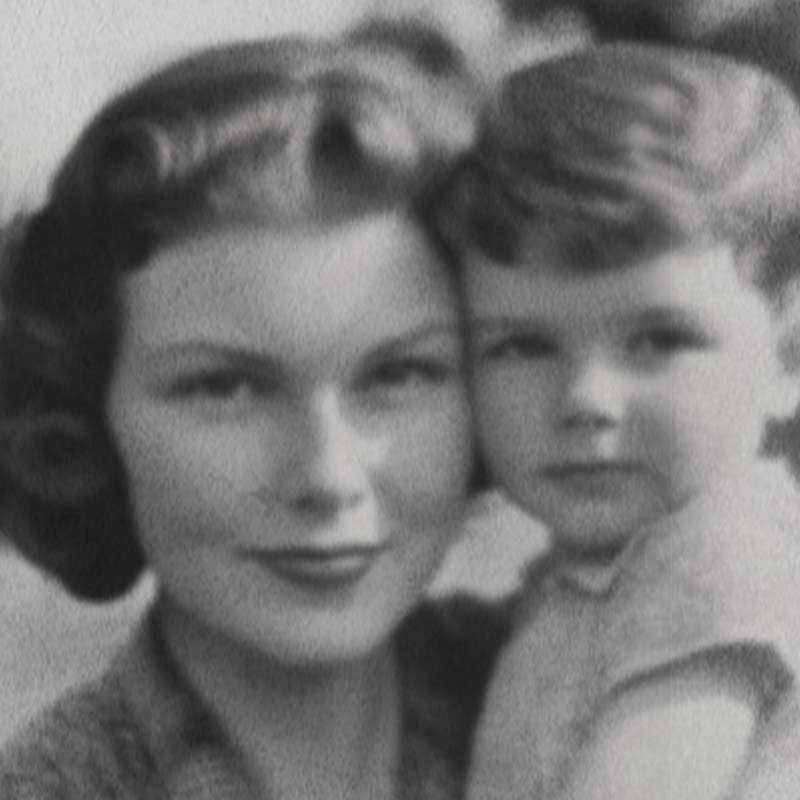
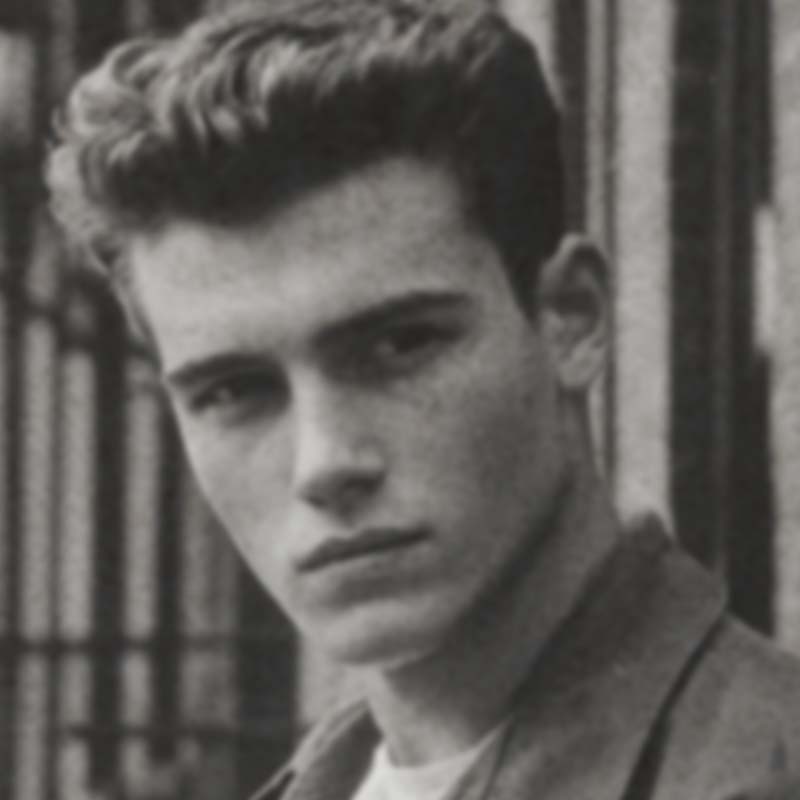
How to Colorize a Black and White Photo
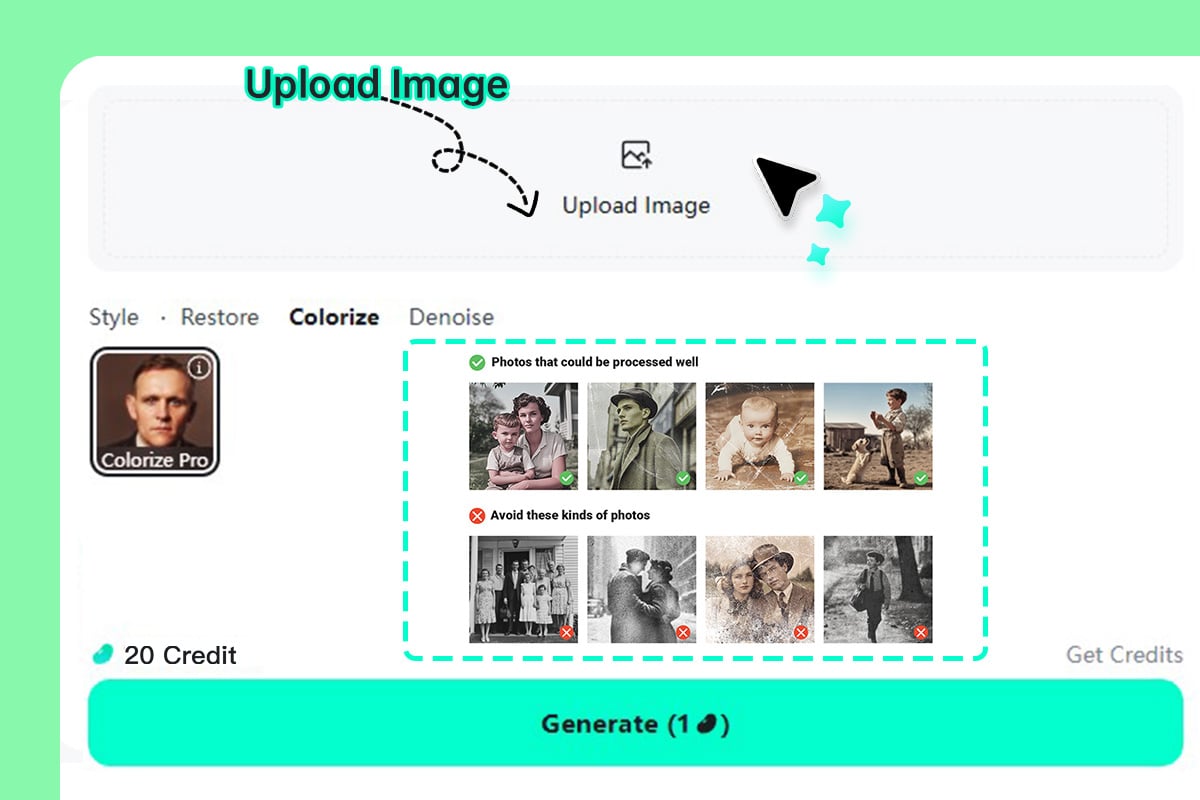
1 Upload your black and white photo
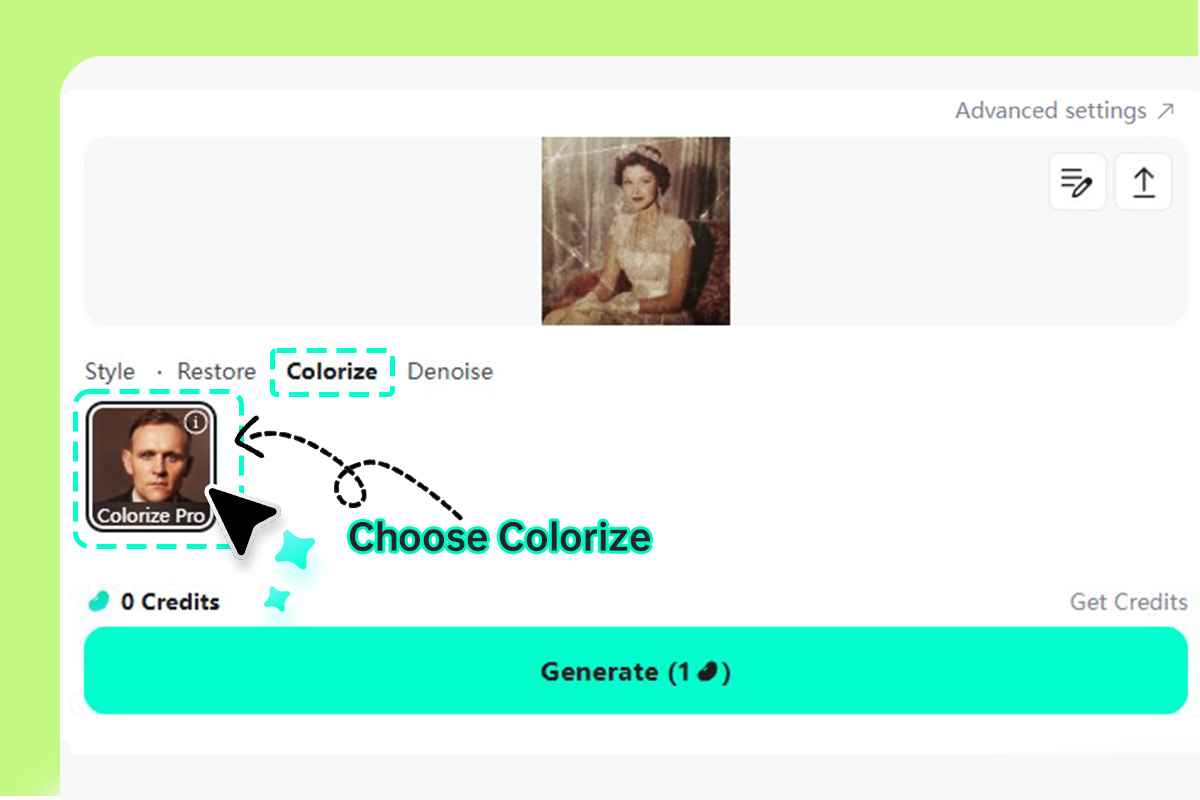
2 Select Colorize Pro
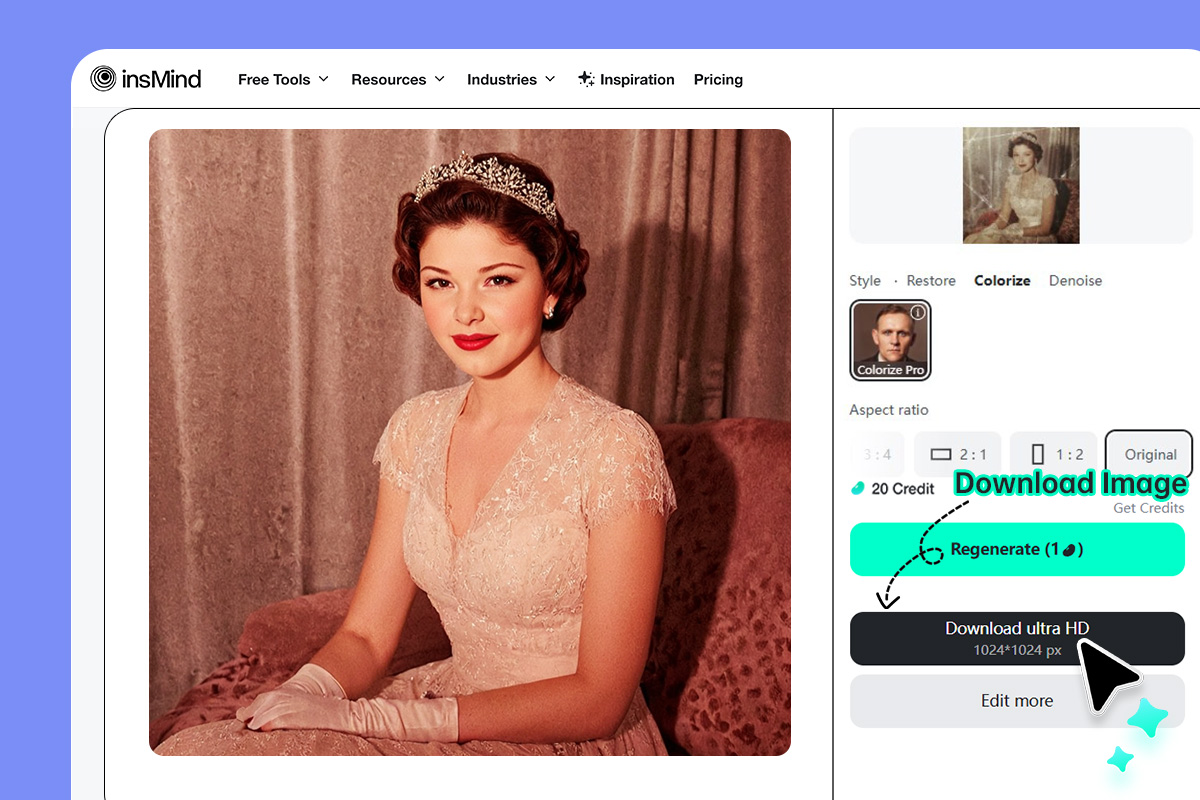
3 Generate, preview, and download
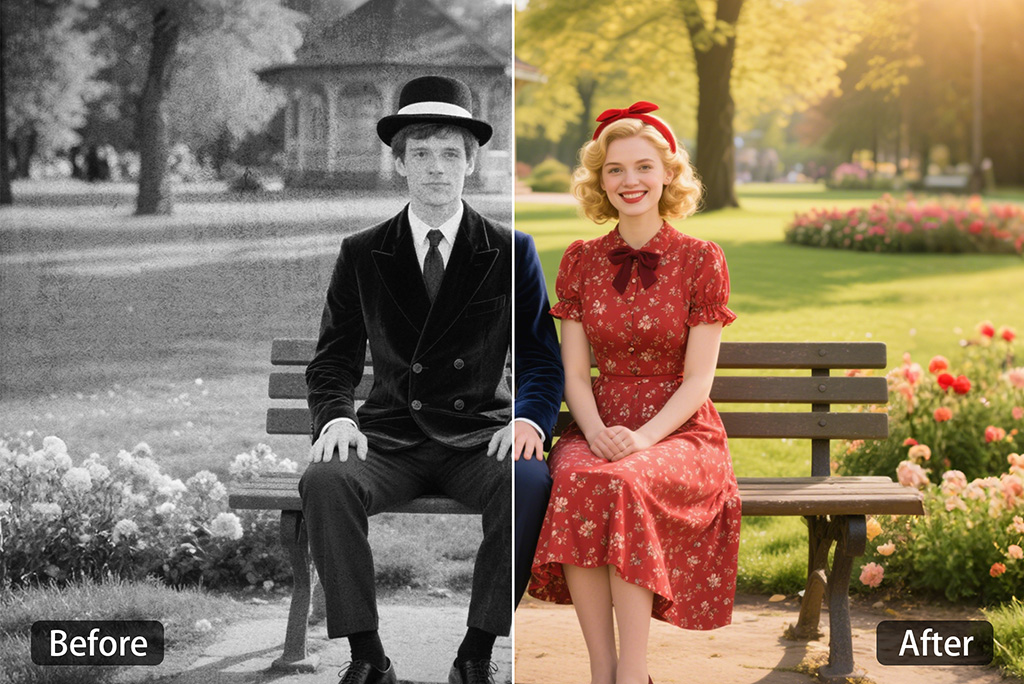
Colorize Black and White Photos Without Guesswork
A useful photo colorizer should not simply splash color over the whole image. insMind reads the scene first, then adds believable tones to faces, clothes, furniture, sky, and background details. The goal is a photo that still feels like the original, just easier to see and share.
If you need to change a specific color after colorizing, use the recolor a specific area tool for that separate edit.
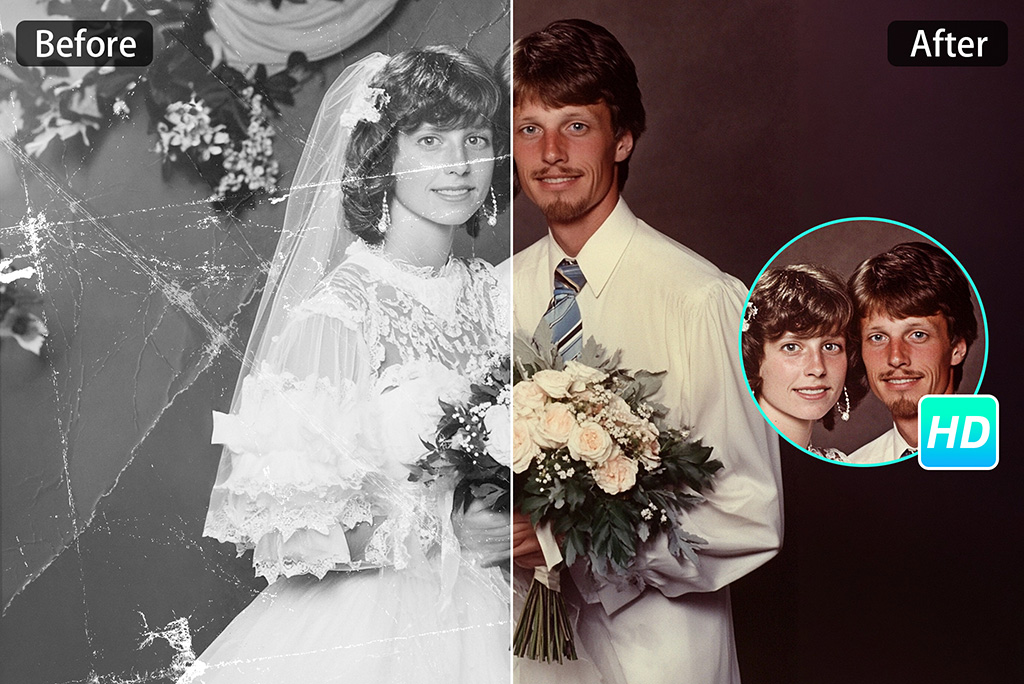
Colorize Faded Photos After Basic Restoration
Old pictures often have two problems at once: no color, plus scratches, faded contrast, or small cracks. Colorizing can make the memory easier to read, but restoration may need to come first when the damage crosses a face or an important detail.
For photos with visible damage, try restore old photos before or alongside colorization so the final image does not colorize over dust and scratches.
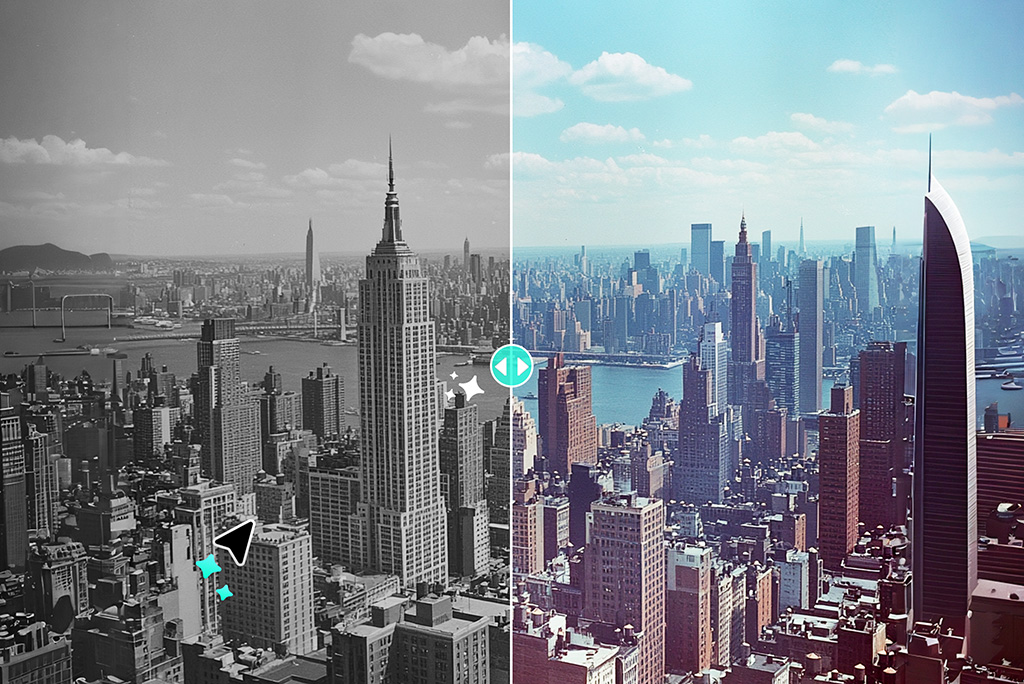
Turn Black and White Photos into Color with One Generate Click
For most family photos, you do not need to paint every area by hand. Upload the image, choose the Colorize Pro card, and click Generate. The AI photo colorizer makes the first color pass based on the faces, clothing, and background it can read from the scene.
If the sky, skin tone, or clothing color needs a nudge, add a short prompt and generate another version instead of starting over manually.
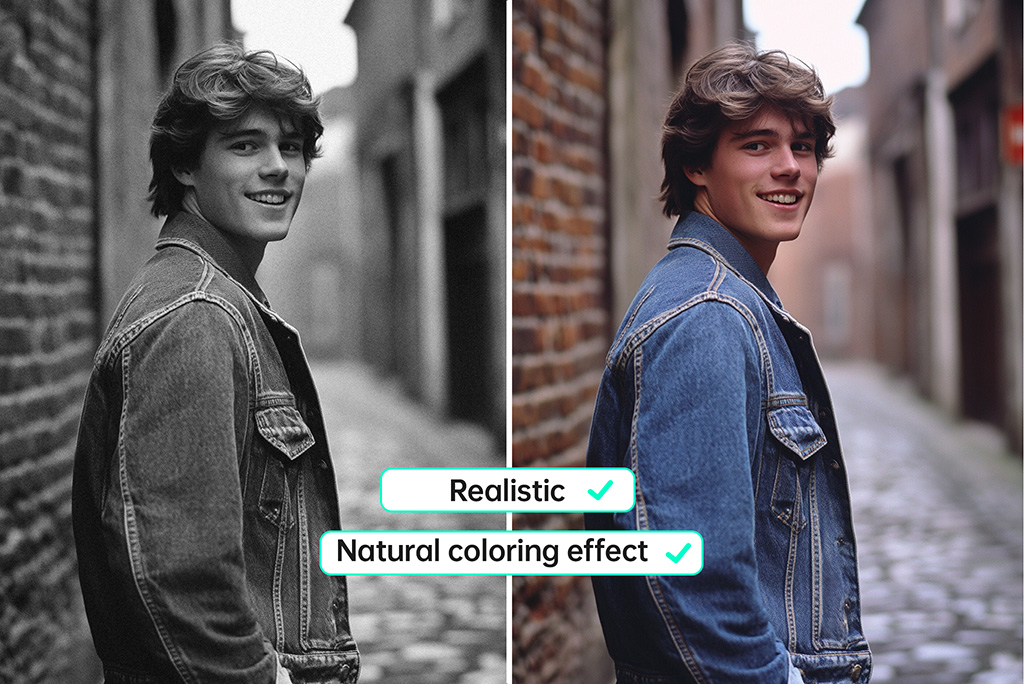
Add Color to Black and White Photos Naturally
Colorizing black and white photos is a balancing act. Skin should not look orange, grass should not look neon, and old indoor photos should not suddenly feel like studio shots. The better result is usually the quieter one.
insMind aims for natural-looking color across people, clothing, light, and scenery. After the first result, zoom in on faces and hands first; those are the places where an unrealistic color is easiest to notice.
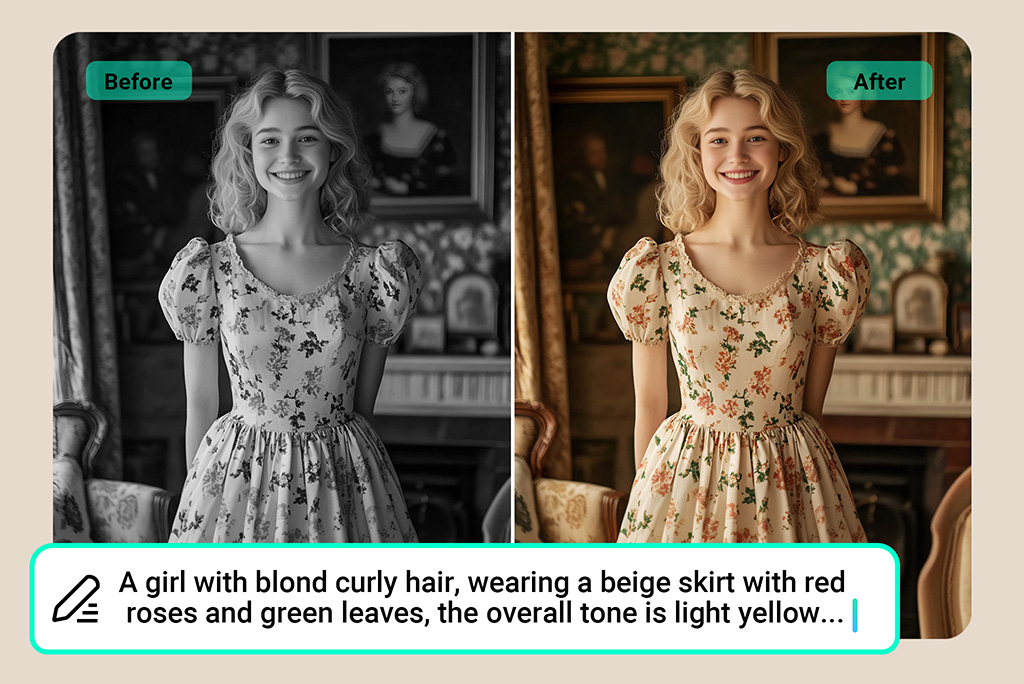
Guide the AI Photo Colorizer with Simple Prompts
Sometimes you know something the photo does not show: the dress was blue, the car was red, or the room had warm yellow light. Colorize Pro lets you add that instruction before generating the image.
Write prompts like “make the jacket dark green” or “keep the background warm and soft.” Short, specific prompts usually work better than long descriptions with too many color requests.
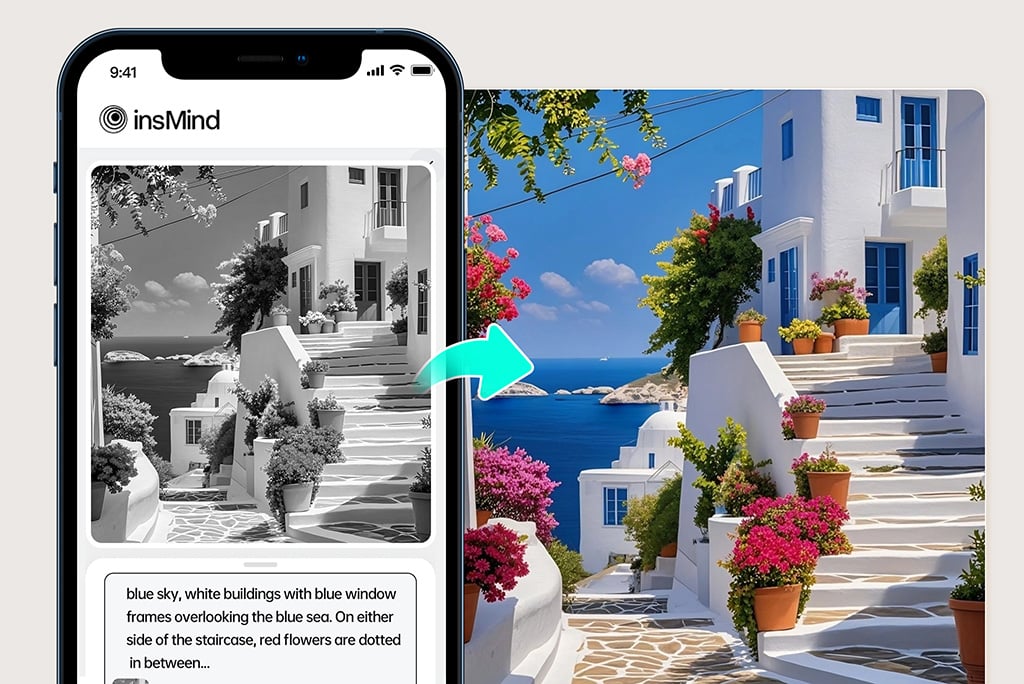
Colorize Any Photo Online, on Desktop or Mobile
You can colorize photos in the browser without installing editing software. Open the tool, upload the image, generate a color version, and download it when it looks right.
For phone uploads, use the original photo file when possible rather than a compressed chat screenshot. More detail gives the colorizer more to work with, especially around faces and textured clothing.
Explore More Photo Color and Restoration Tools
Best Uses for an AI Photo Colorizer
Use insMind when a black and white photo is worth keeping, but the lack of color makes the people, place, or story harder to read.
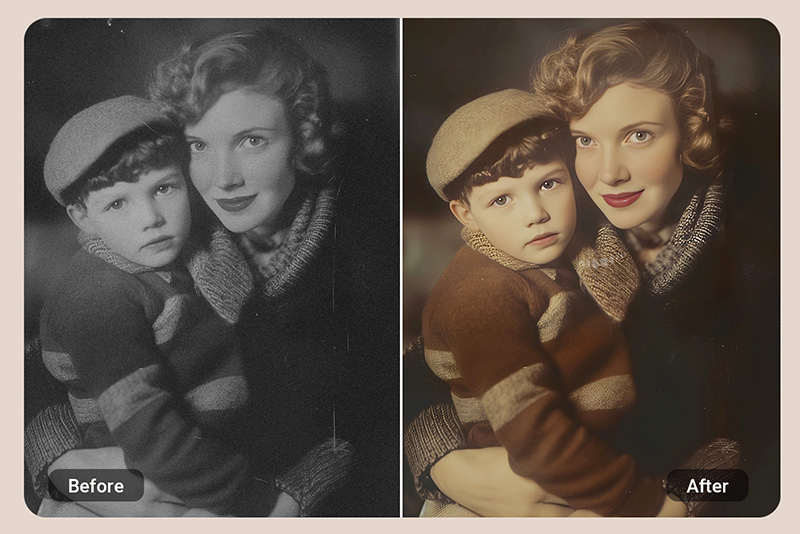
Colorize Old Family Photos
Bring out faces, clothing, and room details in old family pictures. Keep the original file, then save the colorized version for sharing with relatives or adding to a digital album.
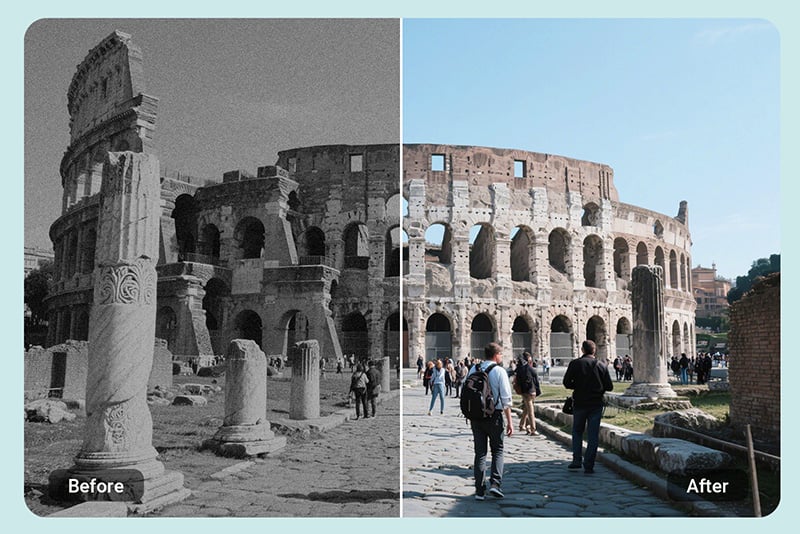
Colorize Landscape Photos
Add color back to skies, water, trees, and distant buildings in old travel or landscape photos. A natural result usually works better than a very bright one, especially for older film scans.
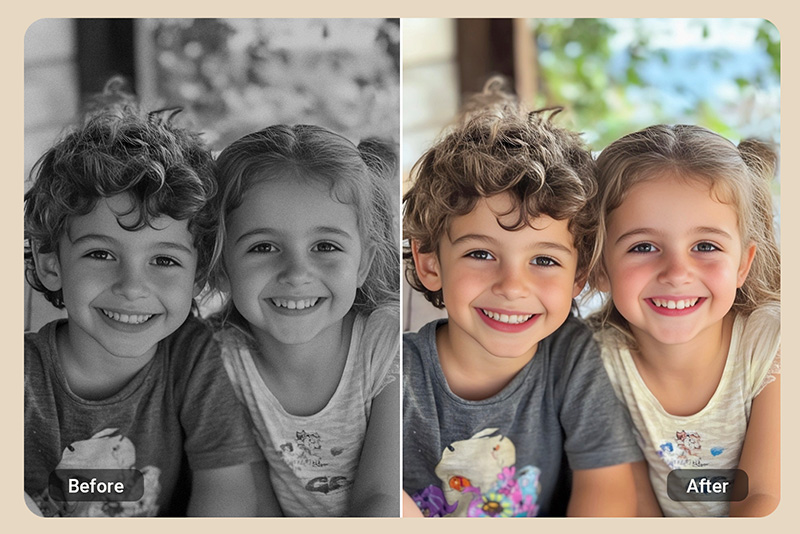
Colorize Childhood Photos
Turn a faded childhood photo into something easier to recognize and share. Check skin tones and clothing after the first version; small faces may need a cleaner source image.
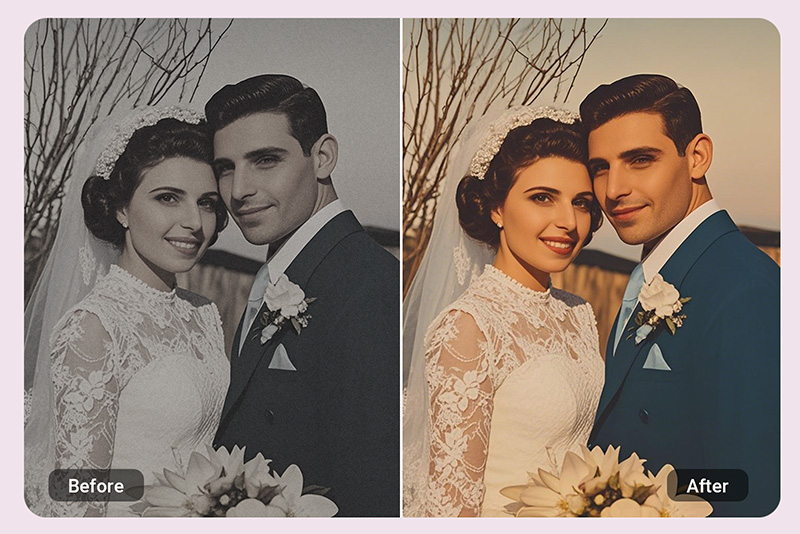
Colorize Wedding Photos
Add gentle color to old wedding photos without making them look newly staged. Dresses, flowers, wood, and indoor lighting should stay soft enough to match the age of the image.
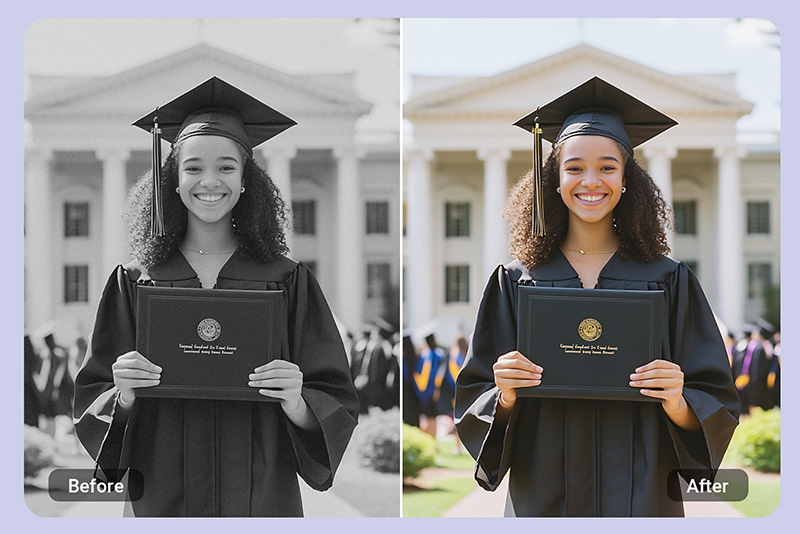
Colorize Graduation Photos
Bring color back to caps, gowns, school buildings, and group portraits. This is useful when the photo has good detail but the black and white version feels flat.
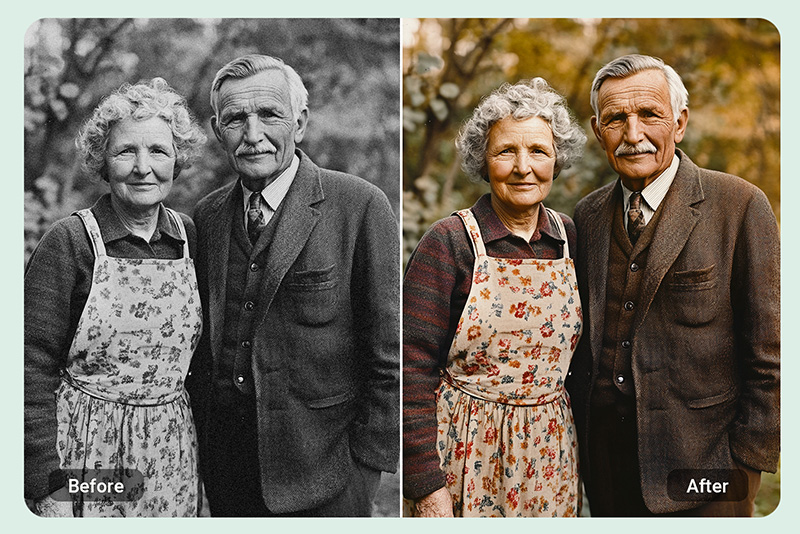
Colorize Ancestral Photos
Add color to family heritage photos so younger relatives can connect with the people in them. For archive work, keep the black and white original next to the colorized copy.
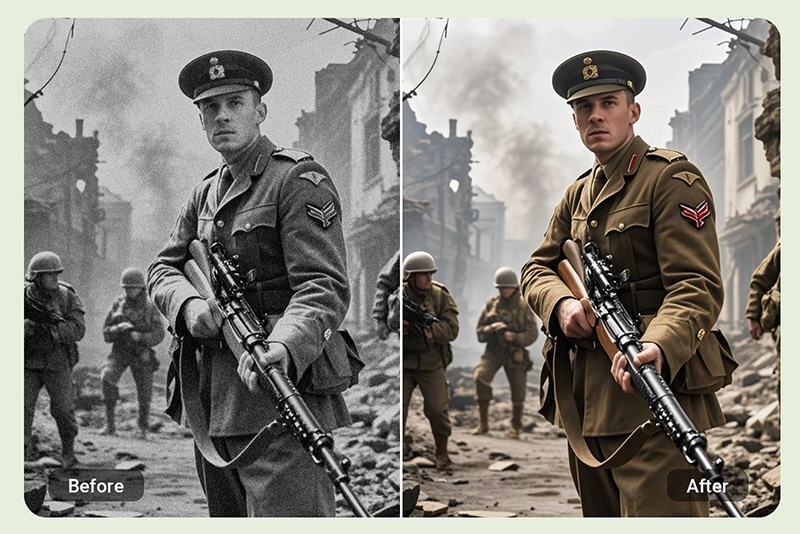
Colorize Historical Photos
Use color to make historical scenes easier to understand for presentations, exhibits, or classroom materials. Avoid over-editing; the color should support the scene, not rewrite it.
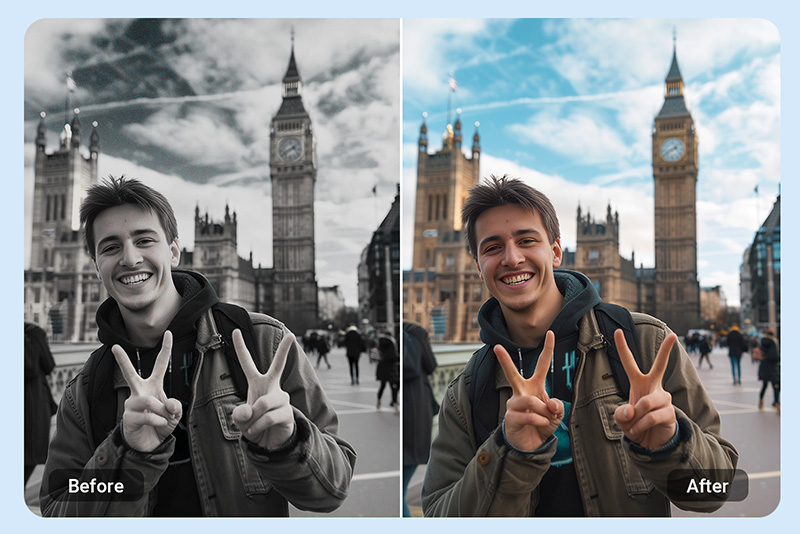
Colorize Old Travel Photos
Revive old trips by adding color to streets, monuments, beaches, cars, and clothing. If the scan is faded, enhance or restore the image before colorizing it.
Colorize Specific Parts of a Photo
If the first generated version is close but not quite right, use a short prompt in Colorize Pro to guide clothing, interiors, flowers, lighting, or background areas.
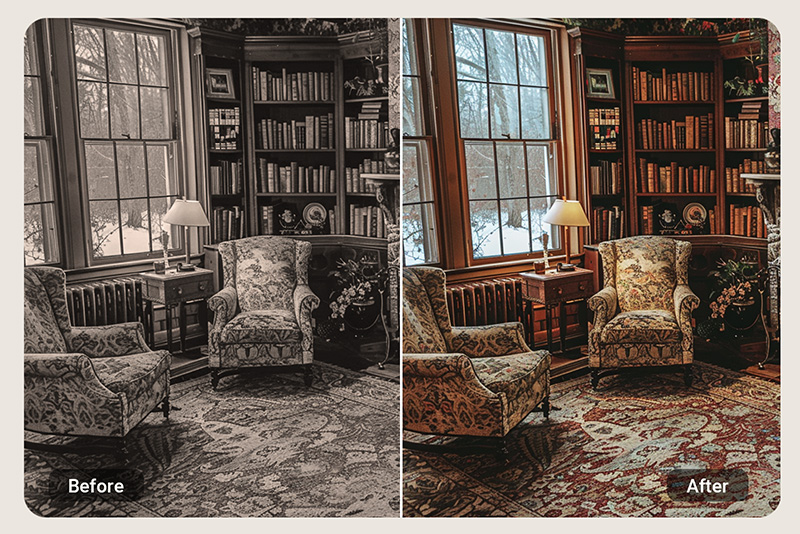
Colorize Interiors
Add warmer tones to rooms, furniture, floors, and wall details in old indoor photos. This works best when the room layout is still visible.
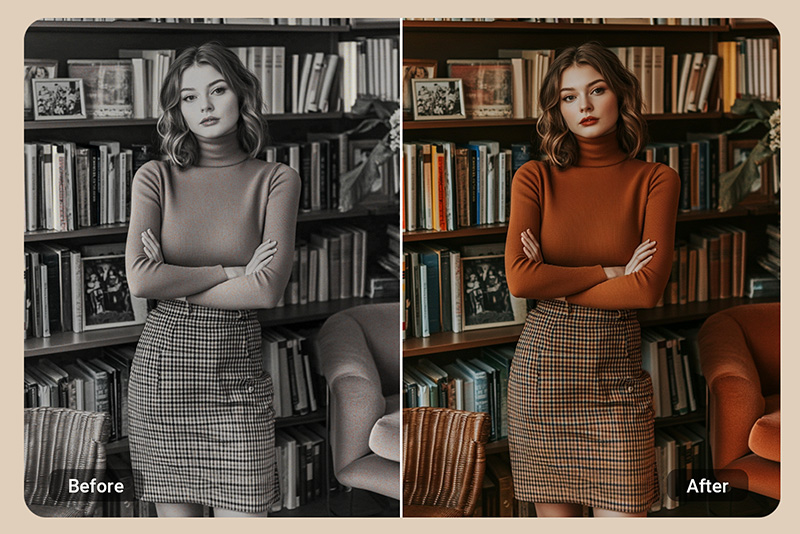
Colorize Clothes
Guide clothing colors when you remember what someone wore, or when you want the result to feel closer to the original day.
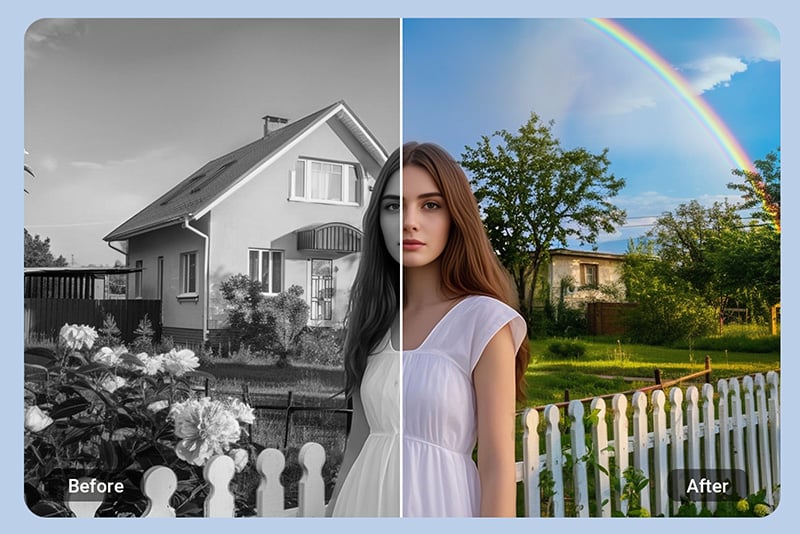
Colorize Light and Background
Adjust the mood of a photo by guiding the background, sky, or indoor light. Keep prompts simple so the main subject stays believable.
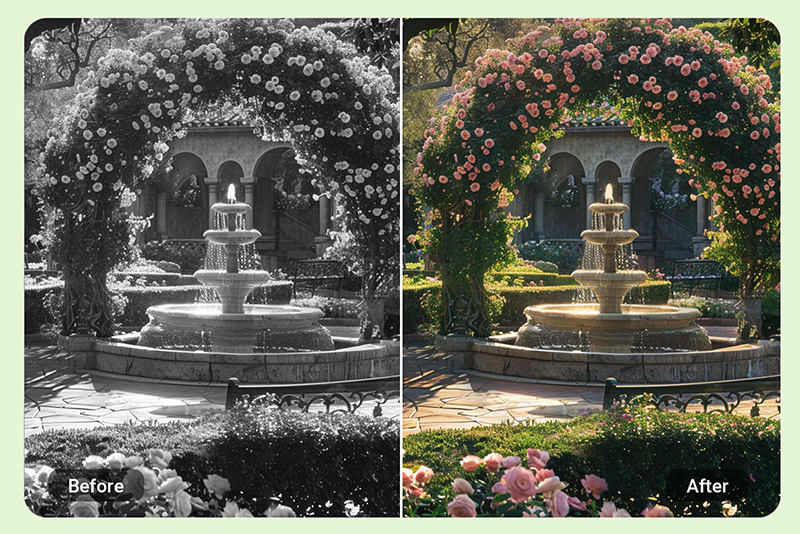
Colorize Flowers
Bring back color in bouquets, gardens, and floral details. If the flower shapes are clear, the AI has a better chance of choosing colors that feel natural.
Why Use insMind to Colorize Photos?

Online Photo Colorizer
Colorize a photo in your browser without installing desktop editing software. Upload, preview, and download the result from the same page.

Prompt-Guided Colorizing
Use the Colorize Pro card when you want to guide a jacket, background, flower, or lighting color before clicking Generate.

Useful for Old Photo Workflows
Colorization sits naturally beside restoration, enhancement, and recoloring, so you can clean up an old photo before or after adding color.
FAQs About Colorizing Photos
How do I colorize a black and white photo online?


Can I colorize a photo online for free?
Can I add color to an old family photo?
How accurate is AI photo colorization?
Can I colorize faded or damaged photos?
What photos work best with a photo colorizer?
How do I guide the colors in Colorize Pro?
Explore More Tools for Old Photo Editing
Restore, enhance, recolor, or clean up a photo after you add color.
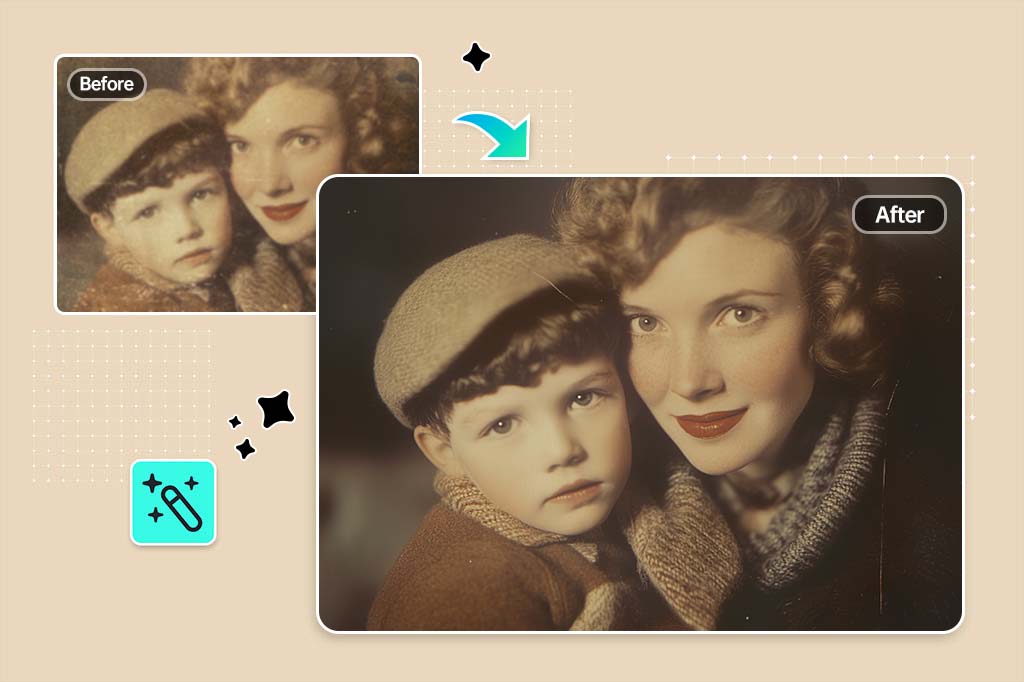
Photo Restoration
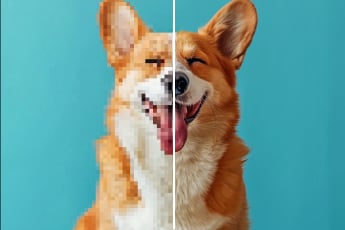
AI Image Enhancer
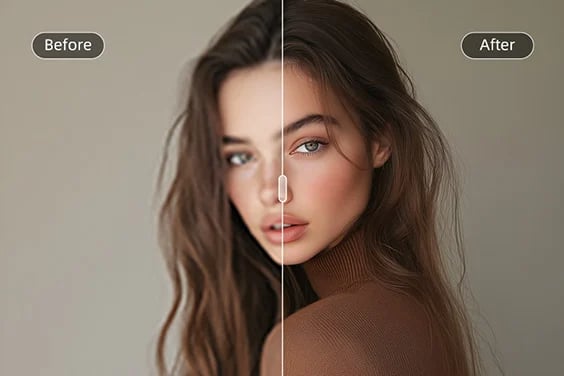
HD Photo Converter
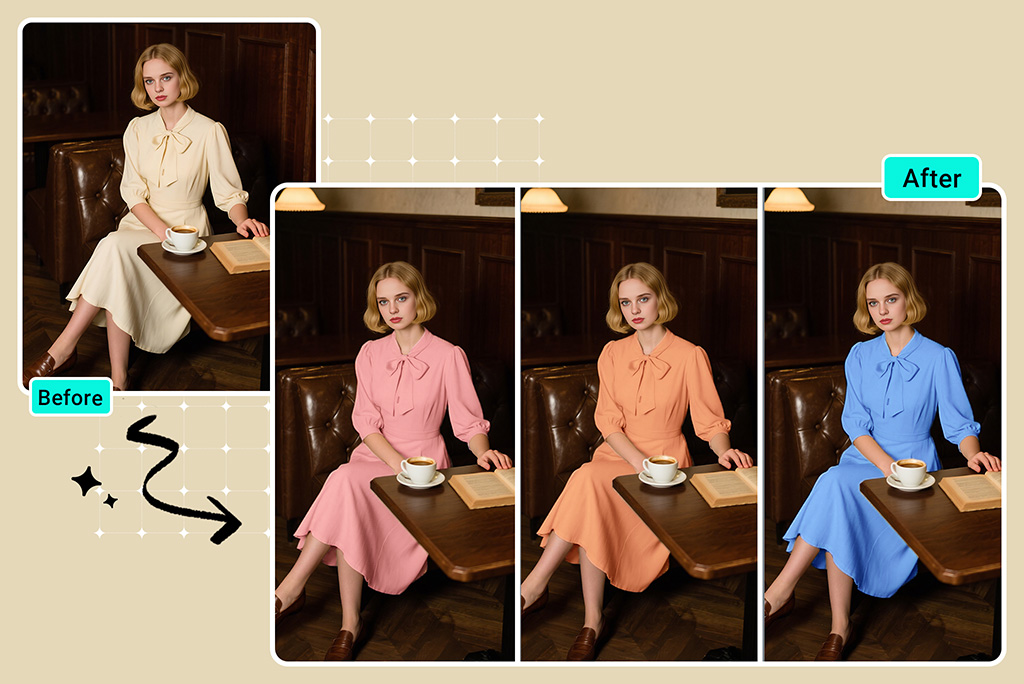
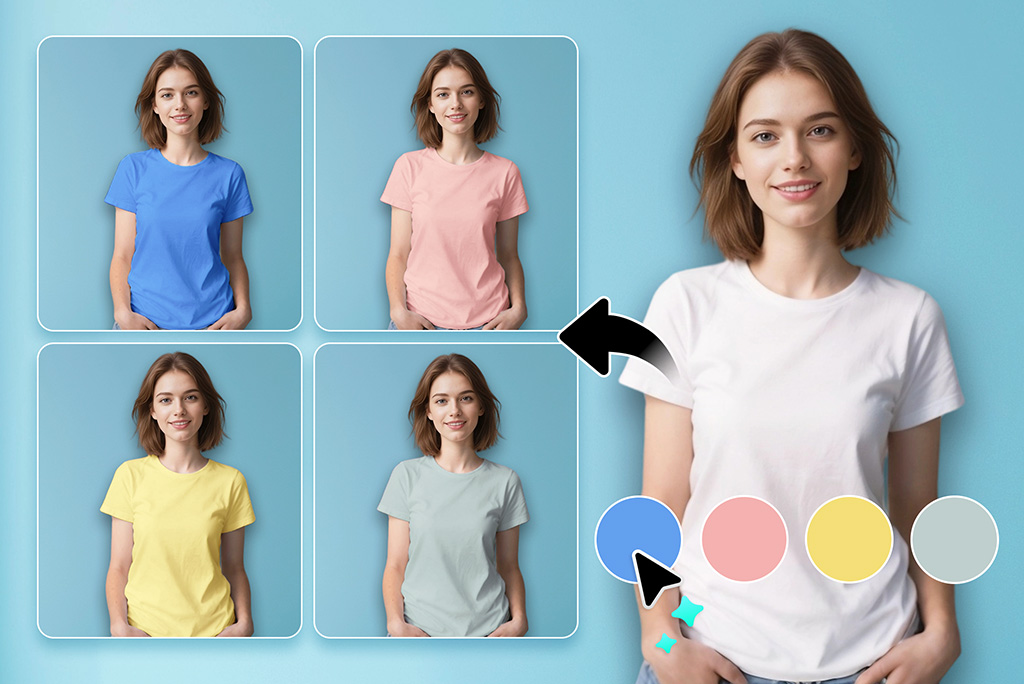
Recolor Image
"My grandma’s wedding photo looked softer after colorizing. I kept the original scan too, but the color version is the one we shared."
@Linda Tong