


 Ryan Barnett·April 24, 2026
Ever wished you could share a ten-second clip of your baby “dancing” without choreography, costumes, or a film crew? You are in the right place. With a clear photo and a thoughtful prompt, modern image-to-video tools can turn a still portrait into a short, loopable clip that feels made for Reels, Shorts, or a family group chat.
This guide explains how to make a baby dance video with AI in plain English: what the technology is doing under the hood, how to set up your photo, how to write motion prompts that read well on screen, and how to avoid the glitches that make tiny hands look smeary. You will leave with a repeatable workflow you can reuse for siblings, cousins, or even stuffed-animal comedy bits.
When you are ready to try the same flow inside a browser tool, open insMind’s picture to video workspace and keep this article open in another tab so you can copy settings as you go.
-
Pick a well-lit baby photo with visible hands and feet so the model can invent believable motion.
-
Write a short scene: outfit vibe, dance style, camera, and one comedic beat if you want personality.
-
Choose model, duration, resolution, and audio thoughtfully, then generate a few takes and keep the smoothest.
Table of Contents
- 01 How to Make a Baby Dance Video with AI
- 02 What Is an AI Baby Dance Video?
- 03 Why Image-to-Video Works for Baby Clips
- 04 How to Make a Baby Dance Video with insMind
- 05 Prompts and Settings for Smoother Motion
- 06 Safety, Consent, and Responsible Sharing
- 07 Common Mistakes to Avoid
- 08 Frequently Asked Questions
- 09 Create Your Baby Dance Clip Today
How to Make a Baby Dance Video with AI
Making a baby dance video with AI is less about “magic” and more about giving a model a stable starting frame plus a clear motion brief. You upload a portrait, describe how the baby should move across a few seconds, pick a model and duration, then generate one or more clips until you find a take that feels funny or adorable without looking uncanny.
The sweet spot for social feeds is usually five to ten seconds. That is enough time for a setup, a few dance moves, and a tiny punchline if you want one. You can always trim in a mobile editor afterward, add captions, and layer trending audio. The AI step is about motion and continuity; the polish step is optional but helps the clip feel native to TikTok or Instagram.
If your source photo has busy clutter behind the crib, consider a quick cleanup pass first. Tools that let you change picture background can help the subject read faster on a small screen, which indirectly helps motion quality because the model wastes fewer tokens guessing what is furniture versus limbs. If window light blows out highlights, nudge exposure down in your phone editor before upload.
What Is an AI Baby Dance Video?
An AI baby dance video starts from a still photograph. An image-to-video model predicts how pixels could move forward in time: shoulders might lift, knees might bend, and the head might bob on beat. The result is a short MP4 that looks like a staged performance even though you never filmed video on a camera.
This is different from face editing or synthetic media drama you may have read about in headlines. In a typical creative workflow, you are animating a photo you already own, exaggerating motion for humor, and labeling the output as AI-generated when platforms ask. Transparency matters, especially for content that features children.
Some families also like a light stylization pass before video, such as a gentle cartoon look, which can hide sensor noise from indoor phone shots. If you experiment with stylization, you can try a cartoonize photo filter first, then feed that still into the same image-to-video flow for a different comedic tone.
Why Image-to-Video Works for Baby Clips
Babies move unpredictably in real life, which makes traditional filming a timing game. Image-to-video flips the problem: you lock the cutest expression in a photo, then ask the model to invent motion on top of it. That is why a calm, front-facing portrait often outperforms a crying or motion-blurred candid for this particular effect.
Short clips also match parental attention spans. You can generate a handful of variants while the baby naps, pick the best one, and share it privately before posting publicly. Iteration is cheap, which encourages playful prompts instead of pressure for a perfect first take.
Finally, the format maps cleanly to platform algorithms. Vertical video, clear subject, readable motion in the first second, and a loopable ending all help retention. When you are batching ideas, the same photo to video AI entry point works for siblings or themed holiday cards with only prompt swaps.
How to Make a Baby Dance Video with insMind
Below is the same three-step flow reflected in the product screenshots: upload, prompt, then configure generation. Follow in order so the model always sees the final photo before you describe motion.
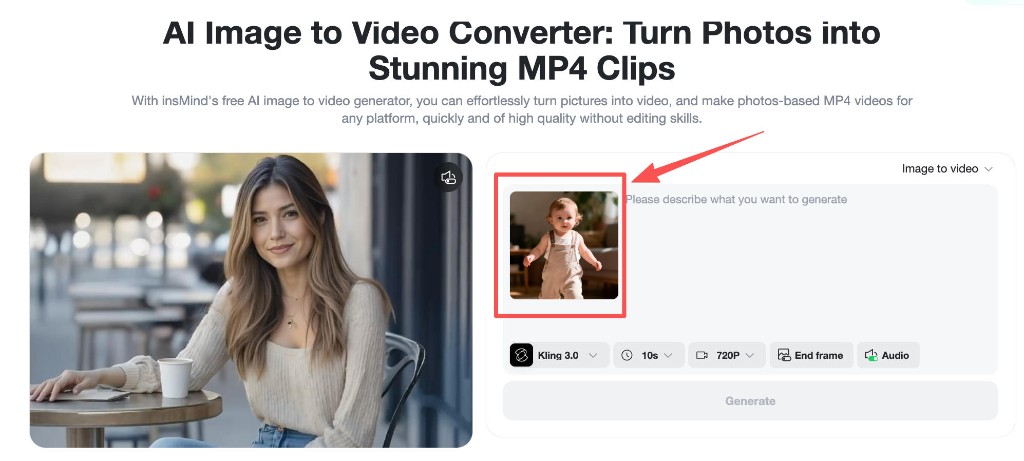
Step 1: Upload a sharp baby photo
Choose a portrait where the face is in focus and hands are not cropped at the wrists. Soft window light is better than harsh overhead yellow bulbs. Leave a little margin around the body so the model can extend arms without inventing new wall texture.
Step 2: Write a motion-focused prompt
Describe outfit, dance style, facial attitude, and camera behavior. Here is a tested pattern you can adapt: “A cute baby wearing oversized streetwear (hoodie and sneakers) standing in a simple indoor room. The baby suddenly starts dancing hip-hop with surprisingly smooth moves: arm swings, footwork, small spins, and head nodding to the beat. Facial expression: confident, slightly serious, acting like a professional dancer. Add exaggerated but smooth body motion while keeping proportions realistic.” Shorter prompts work too, but specificity reduces random limb crossings.
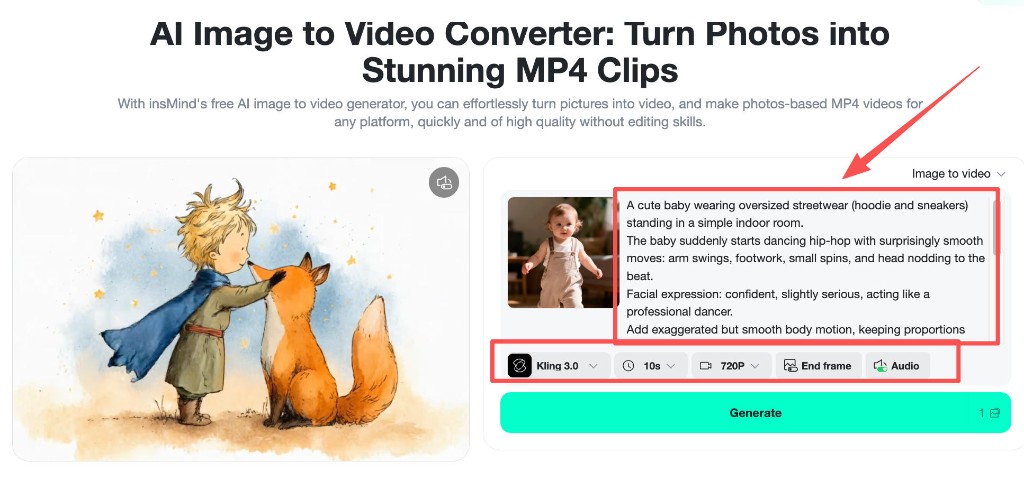
Step 3: Pick model, duration, then generate
Choose a capable video model, set duration to match your joke pacing (often ten seconds for a full mini-arc), and pick a resolution that balances clarity with upload time. Enable audio only if you want the tool to propose sound; otherwise plan to add music in an editor. When settings look right, press generate and review a few variants.
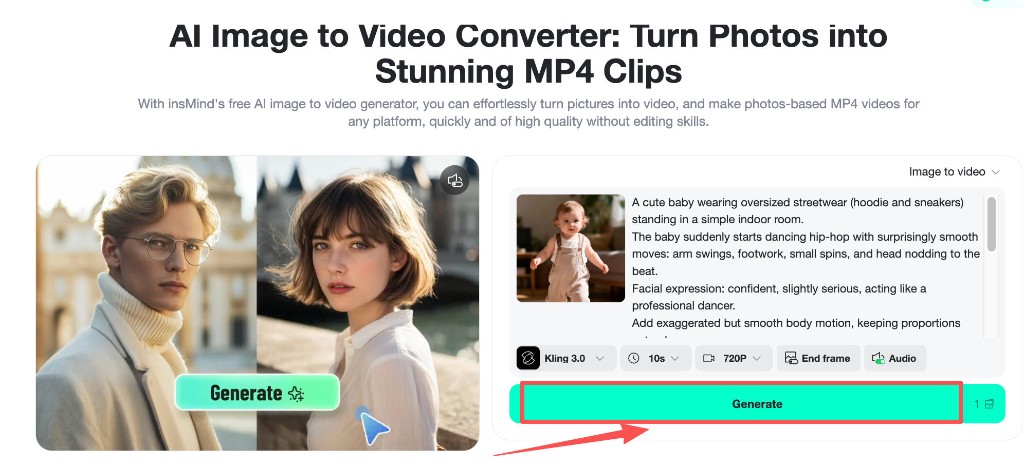
After the clip renders, preview for face stability and hand smear. If motion feels rushed, shorten the action list in the prompt or reduce duration slightly, then regenerate.
Prompts and Settings for Smoother Motion
Name the camera: “steady tripod,” “gentle handheld,” or “slow push-in.” Camera words reduce accidental jitter. Pair them with one primary dance adjective such as hip-hop, bouncy, or salsa-inspired so the model does not blend incompatible styles.
Duration interacts with complexity. A ten-second clip can carry a two-beat joke; a five-second clip should focus on one move plus a reaction. Resolution affects how forgiving the motion looks on fine fingers; if you see blockiness, bump quality before you rewrite the entire prompt.
For a softer storybook vibe before you animate, you can also explore a turn photo into anime still as an alternate source image, then run the same dance prompt on that stylized frame.
Safety, Consent, and Responsible Sharing
Only animate photos you have the rights to use. For children, that usually means your own child or explicit permission from a guardian when you are creating for someone else. Avoid impersonating strangers or using school directory portraits without consent.
When posting publicly, follow each platform’s rules for minors and disclose AI-generated motion when the product or network asks. Many families prefer sharing inside private chats first. Humor is fun; dignity still matters, so steer away from prompts meant to mock or embarrass.
If a clip looks unintentionally uncanny, delete it and regenerate with simpler motion language. Iteration is part of the workflow, not a failure.
Common Mistakes to Avoid
Tight crops that cut off elbows or toes force the model to hallucinate limbs, which invites glitches. Mixed lighting cues, such as “neon club” paired with a sunlit nursery photo, confuse depth. Prompts that pile on ten simultaneous actions rarely finish cleanly in a single short clip.
Another pitfall is ignoring audio planning. If you toggle sound on without a music idea, you may get generic noise. Decide early whether the soundtrack will be AI-assisted or added later in CapCut, Reels editor, or Shorts tools.
Frequently Asked Questions
Is it safe to make AI baby dance videos?
It can be, when you use your own photos, obtain consent for any child not in your household, label AI motion where required, and share responsibly. Skip public posts if anything about a clip feels off.
What photo angle works best?
A three-quarter or front-facing angle with visible hands and feet usually animates cleanly. Avoid extreme profiles where one eye disappears and avoid motion blur in the source still.
How long should the clip be?
Five to ten seconds is ideal for a single gag. Use shorter durations for one move plus a reaction; stretch toward ten seconds when you want a mini story arc.
Why do hands sometimes look smeary?
Small fingers occupy few pixels. Simplify motion, brighten the scene slightly, or regenerate with fewer crossing actions. A sharper source photo is the best fix.
Can I use the same workflow for toddlers?
Yes. Keep the same structure: clear full-body photo, one dominant dance style, explicit camera, reasonable duration. Adjust the prompt language to match age and personality.
Create Your Baby Dance Clip Today
You now have a practical recipe: a clean portrait, a descriptive dance prompt, sensible model settings, and a quick ethics check before you share. The fastest way to learn the rhythm is to generate two or three variants and compare them side by side. Want to see your little one headline the timeline tonight?
Ryan Barnett
I'm a tech enthusiast and writer who loves exploring AI, digital tools, and the latest tech trends. I break down complex topics to make them simple and useful for everyone.


