


Want to bring your anime art to life with motion, voice, and cinematic effects? Thanks to advances in AI video generation, creating anime videos no longer requires a full animation studio, frame-by-frame drawing, or months of production. Whether you’re a manga artist, a fan animator, or a content creator looking to ride the anime wave on TikTok, AI tools make it possible to generate stunning anime videos in minutes.
In this step-by-step guide, you’ll learn exactly how to create anime videos with AI — from choosing the right creation method (text-to-video vs. image-to-video) to customizing animation styles, adding camera effects, and exporting for social media. We’ll walk you through the entire process using the insMind AI anime video generator, one of the most versatile platforms for anime video creation in 2026.
Ready to turn your anime ideas into real videos? Let’s get started.
Table of Contents
What Is AI Anime Video Generation?
AI anime video generation uses artificial intelligence to transform static images, text prompts, or rough sketches into fully animated anime-style videos. Instead of drawing every frame by hand — the traditional animation process that takes professional studios weeks or months — AI handles the heavy lifting: generating keyframes, interpolating motion between them, and applying anime-specific visual styles like cel shading, bold linework, and expressive character movement.
The typical AI anime video workflow looks like this:
-
Prompt or image → AI generates or uses your reference
-
Animation → AI creates motion, expressions, and camera movement
-
Export → Download and share or stitch multiple clips together
Many creators generate multiple short clips and stitch them into longer sequences — this gives you more control over pacing, scene transitions, and character consistency. Tools like insMind support both text-to-video and image-to-video creation, giving you maximum flexibility.
Why Image-to-Video Is the Best Approach for Anime
So how should you actually create anime videos with AI? There are two main methods: text-to-video and image-to-video. While both work, experienced anime creators strongly prefer the image-to-video approach. Here’s why.
Text-to-Video: Creative but Inconsistent
Text-to-video lets you describe a scene in words and the AI generates it from scratch. It’s great for brainstorming and quick scene generation, but it comes with a major drawback: character drift. The AI may change your character’s appearance, proportions, or style between frames, making it hard to maintain a consistent look across scenes.
Image-to-Video: Stable and Recommended
Image-to-video starts with a reference image — your anime illustration, character design, or AI-generated artwork — and animates it. Because the AI has a fixed visual reference, the character’s appearance stays consistent throughout the animation. This is the industry-standard approach used by most professional anime content creators.
The best strategy? Use image-to-video as your primary method for character shots and key scenes, and text-to-video as a supplementary tool for generating background scenes or establishing shots. insMind supports both methods, plus first-and-last-frame video generation for even more precise control over your animations.
How to Create Anime Videos with insMind AI (Step-by-Step)
Ready to create your first AI anime video? Here’s how to do it step by step with insMind’s AI video generator.
Step 1: Open insMind AI Anime Video Generator
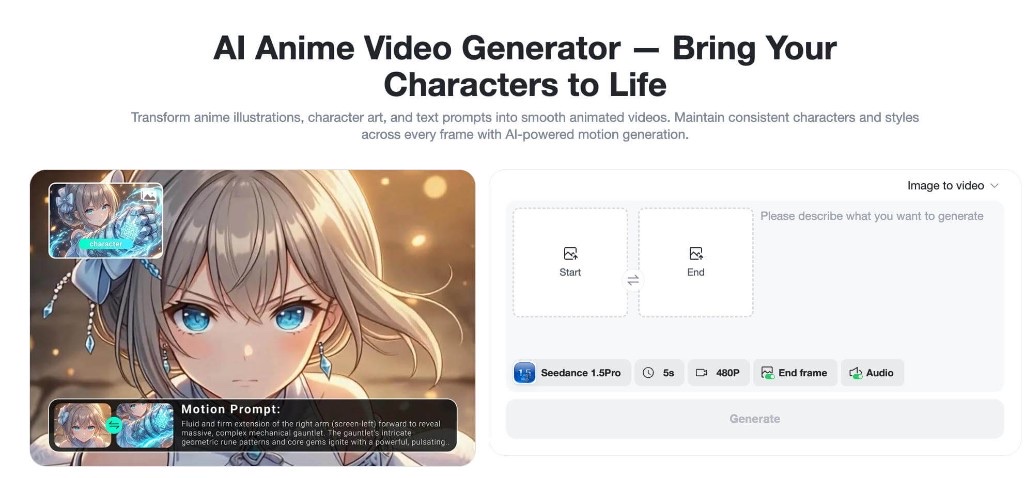
Head to insMind and open the AI Anime Video Generator. You’ll see options for text-to-video, image-to-video, and video effects. For anime video creation, you can start with either method depending on your source material.
The platform gives you access to multiple AI models optimized for different styles and output quality — including OmniVideo 2.0, Kling 3.0, and Seedance 1.5 Pro, all of which handle anime content exceptionally well.
Step 2: Choose Your Creation Method
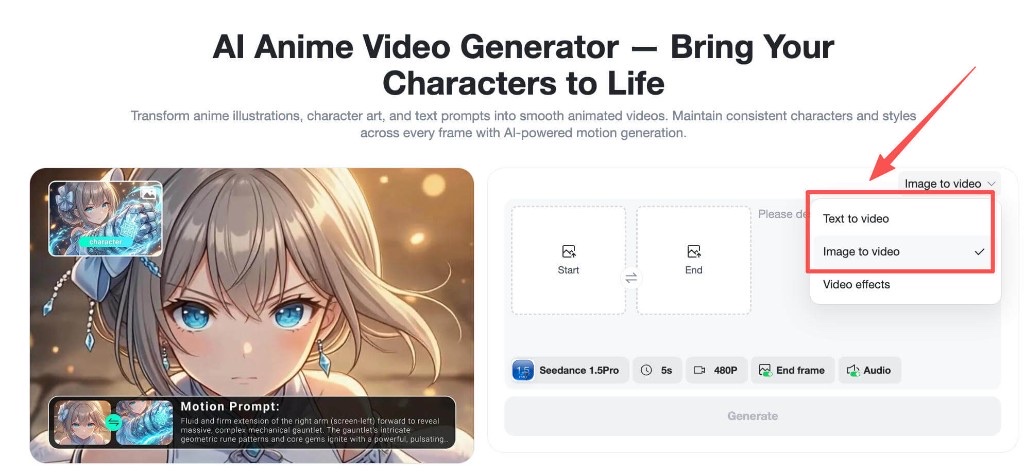
This is where you decide how to feed your idea to the AI.
Option A: Text-to-Video (Creative Mode)
Describe your anime scene in detail. The more specific your prompt, the better the result. For example:
“A cyberpunk anime girl walking through neon streets at night, rain falling, cinematic lighting, slow motion, cel-shaded style”
Option B: Image-to-Video (Recommended)
Upload your anime artwork for the most consistent results. You can use:
-
Anime illustrations and character designs
-
AI-generated anime images
-
Manga panels or fan art
This method is the go-to choice for maintaining character consistency — a common challenge in AI anime video creation. You can also use first-and-last-frame generation for precise control over how your animation starts and ends.
Step 3: Customize Animation Style and Effects
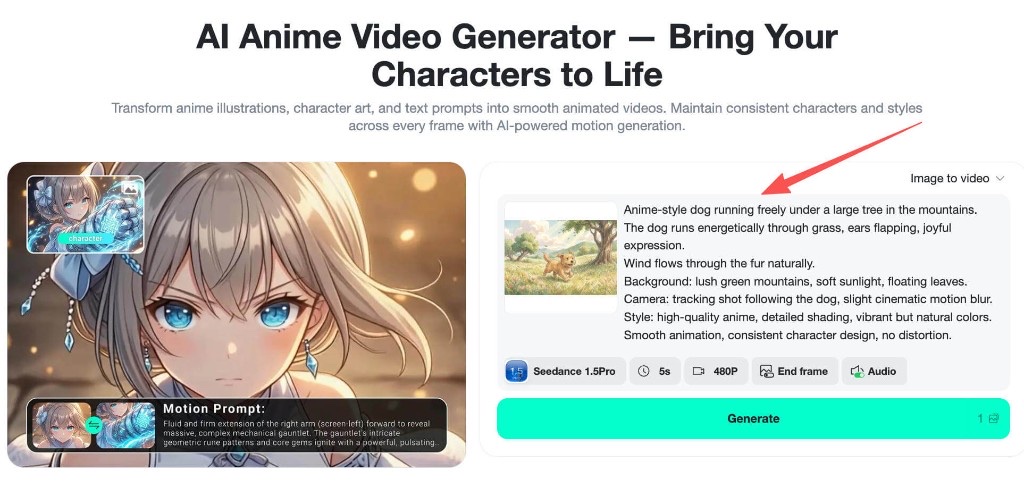
This is where the magic happens. Select an AI model that excels at anime content — we recommend Seedance 2.0 for general anime, Kling 3.0 for audio-synced animation, or Seedance 1.5 Pro for dynamic character movement.
Use your prompt to control the anime style:
-
Classic anime — traditional cel-shaded look with clean lines
-
Ghibli-inspired — soft watercolor backgrounds with gentle motion
-
Cyberpunk anime — neon lighting, dark tones, futuristic settings
-
Action / shonen — fast-paced movement, dramatic camera angles
Then add motion and camera effects to bring your scene to life:
-
Character movement: walking, facial expressions, gestures, fighting poses
-
Environmental motion: wind blowing through hair, rain, shifting light
-
Camera movement: pan, zoom, tracking shots, dramatic angles
The AI automatically handles cel shading, line art style, and anime-specific lighting — all you need to do is describe what you want.
Step 4: Generate Your Anime Video
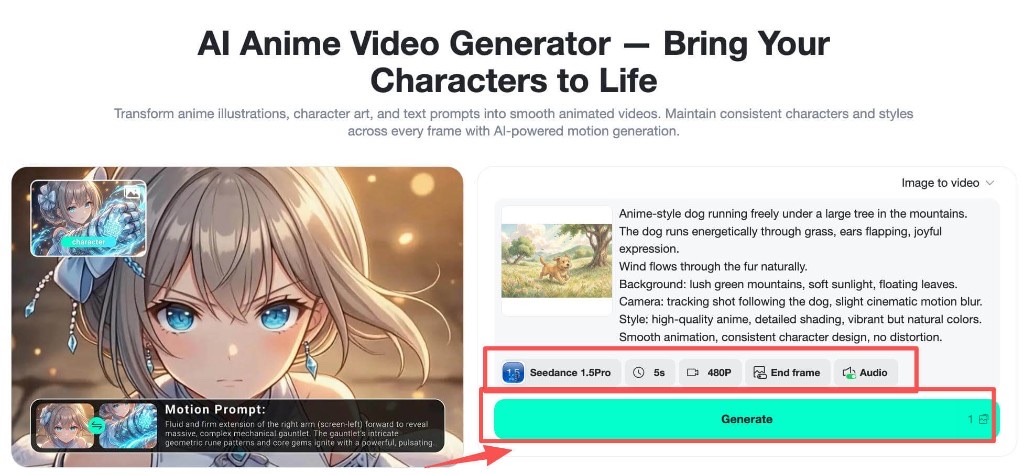
Click Generate and let the AI work its magic. insMind will:
-
Render anime scenes with proper cel shading and linework
-
Animate characters with smooth, natural movement
-
Create fluid transitions between keyframes
-
Apply your chosen camera and motion effects
Generation typically takes just a few minutes. You can preview the result and regenerate with adjusted prompts if needed — no credits lost for previews.
Step 5: Download and Share
Once your anime video looks perfect, download it and share it anywhere. Export optimized for:
-
TikTok / Instagram Reels — 9:16 vertical format for maximum reach
-
YouTube Shorts — short-form vertical content
-
Anime edits / AMV — 16:9 widescreen for cinematic compilations
Pro tip: Generate multiple short clips with consistent character images and stitch them together for longer anime sequences. This gives you full control over pacing and story flow.
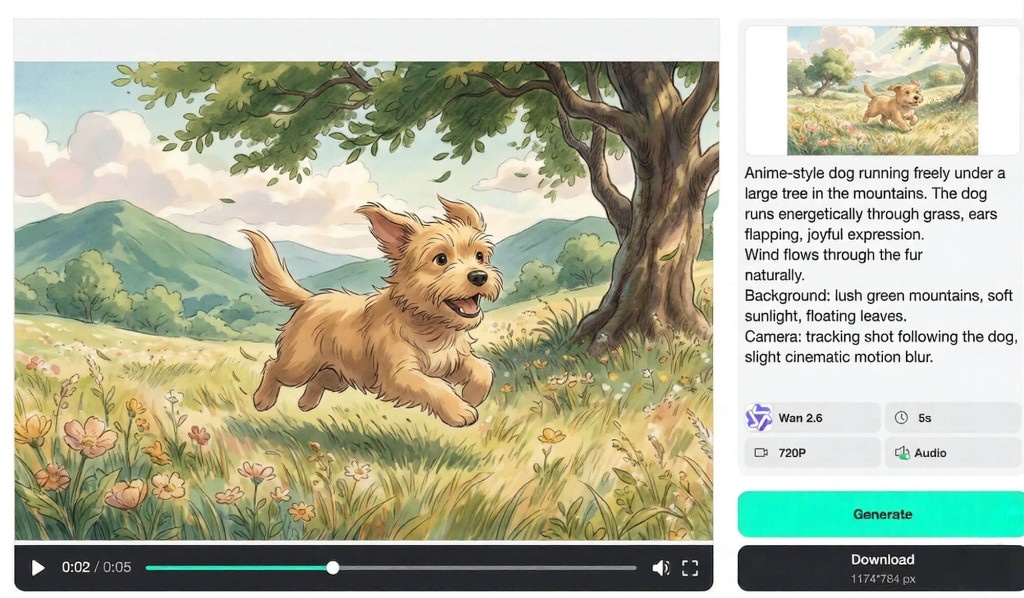
Best Anime Styles and Prompt Tips
Not getting the anime look you want? The secret is in your prompt. Here are the most effective styles and prompt strategies for creating professional-quality anime videos.
Anime Style Prompts That Work
Be specific about the anime sub-genre you’re targeting. Each style produces dramatically different results:
| Style | Prompt Keywords | Best For |
|---|---|---|
| Classic Anime | “cel-shaded, clean linework, vibrant colors, anime aesthetic” | General anime content, fan art |
| Studio Ghibli | “Ghibli-inspired, watercolor background, soft lighting, gentle motion” | Scenic, emotional, peaceful scenes |
| Cyberpunk Anime | “cyberpunk anime, neon glow, dark atmosphere, futuristic city” | Sci-fi, action, urban scenes |
| Shonen / Action | “dynamic action, dramatic angles, speed lines, intense expression” | Fight scenes, battle sequences |
| Slice of Life | “soft pastel, warm lighting, everyday scene, cozy atmosphere” | Character-focused, daily life scenes |
Pro Tips for Better Anime Prompts
-
Describe the motion — don’t just describe the scene. Specify what moves: “hair flowing in wind,” “eyes slowly opening,” “walking toward camera.”
-
Specify camera behavior — “slow zoom in,” “tracking shot from left,” “dramatic low angle” make a huge difference.
-
Reference specific aesthetics — naming art styles helps the AI understand your vision: “Makoto Shinkai lighting,” “90s anime VHS grain.”
-
Keep character descriptions consistent — if generating multiple clips, repeat the same character description across prompts to maintain consistency.
-
Use negative prompts when available — exclude unwanted elements: “no blurry, no morphing, no realistic style.”
Want to explore other creative styles beyond anime? You can also turn your photos into anime first and then animate them for a unique hybrid look.
Common Mistakes to Avoid
Not getting the results you expected? Here are the most common pitfalls when creating anime videos with AI — and how to fix them.
1. Using Only Text-to-Video for Character Scenes
Text-to-video is great for generating backgrounds and atmospheric shots, but characters tend to drift in appearance between frames. For any scene featuring a specific character, use image-to-video with a reference image instead.
2. Vague Prompts
“Anime girl fighting” gives the AI too little to work with. Be specific: “Anime girl with blue hair and a katana performing a spinning slash, speed lines, dramatic lighting, shonen style.” The more detail you provide, the more control you have over the output.
3. Ignoring Aspect Ratio
Different platforms require different formats. A 16:9 cinematic anime clip won’t perform well on TikTok, where 9:16 vertical dominates. Choose your aspect ratio before generating — not after.
4. Trying to Generate Very Long Videos at Once
AI video generators work best with shorter clips (4–10 seconds). For longer anime sequences, generate multiple short clips with consistent character references and stitch them together. This gives you better quality and more control over the final result.
5. Not Matching the AI Model to Your Style
Different AI models excel at different things. OmniVideo 2.0 handles general anime well. Kling 3.0 adds audio synchronization. Seedance 1.5 Pro excels at dynamic character movement. For the best anime results, try creating anime videos with insMind and experiment with different models to find your perfect match.
Frequently Asked Questions
Can I create anime videos with AI for free?
Yes. insMind offers a free tier that lets you generate anime videos without a watermark. You get access to multiple AI models and can create both text-to-video and image-to-video anime content. Premium plans unlock higher resolution, longer clips, and priority generation.
What is the best AI model for anime video generation?
It depends on your goal. For general anime animation, OmniVideo 2.0 delivers excellent cel-shaded results. For anime with synchronized audio or dialogue, Kling 3.0 is ideal. For highly dynamic character movement and action sequences, Seedance 1.5 Pro is the top choice. insMind gives you access to all of these in one platform.
How do I keep my anime character consistent across multiple clips?
Use the image-to-video method with the same reference image for every clip. This locks in the character’s appearance, outfit, and proportions. If you also use consistent prompt descriptions alongside the reference image, the AI will maintain a cohesive look across your entire anime sequence.
Can I use AI-generated anime videos commercially?
Yes, most AI video platforms including insMind allow commercial use of generated content on paid plans. This covers YouTube monetization, social media content, client work, and merchandise. Always check the specific terms for the AI model you’re using.
How long can AI anime videos be?
Individual AI-generated clips are typically 4–10 seconds long. For longer anime videos, the standard practice is to generate multiple clips and stitch them together using a video editor. Many creators produce 1–3 minute anime compilations this way, maintaining quality and character consistency throughout by using the same reference images.
Start Creating Anime Videos Today
AI has fundamentally changed what’s possible for anime creators. Whether you’re building an anime edit for TikTok, creating an AMV for YouTube, or prototyping scenes for a larger project, tools like insMind put professional-quality AI animation generation at your fingertips.
The best part? You don’t need animation experience, expensive software, or weeks of production time. Upload your anime art, describe the motion you want, and let the AI handle the rest.
Ready to bring your anime vision to life?

Sid Buckley
I'm a professional writer and amateur photographer, and I author insightful articles at insMind to help you integrate AI into compelling image creation.
Keep reading

How to Use Seedance 2.5 for AI Videos
Learn how to use Seedance 2.5 for text-to-video and image-to-video, write stronger prompts, guide motion with references, and review results.

How to Make a Creepy Voice for Horror Content Step by Step
Learn how to make a creepy voice for horror videos, podcasts, and games with insMind.

How to Remove TikTok Watermark: 4 Easy Steps for Clean Videos
Learn how to remove TikTok watermark from videos in four practical steps with insMind.

Top 10 Seedance 2.5 Alternatives for AI Video in 2026
Compare top Seedance 2.5 alternatives and learn how to create AI videos with insMind.

Seedance 2.5 vs. MiniMax H3: Which AI Video Model Should You Use?
Compare Seedance 2.5 and MiniMax H3 for AI video creation.

30 Instagram Reels Prompts You Can Copy and Try
Copy-ready Instagram Reels prompts for products, fashion, creators, travel, food, pets, and lifestyle videos.

How to Write Instagram Reels Prompts for AI Videos
Learn to write Instagram Reels prompts for polished AI videos, product clips, creator posts, and lifestyle content.

30 TikTok Video Prompts You Can Copy and Try
Copy-ready TikTok video prompts for ads, creators, products, fashion, pets, travel, and more.

How to Create an AI Micro-drama: A Step-by-Step Guide
Learn how to create an AI micro-drama with insMind.

How to Create a Short Film Using AI in 2026
Learn how to create a short film using AI with insMind.

Instagram Reel Ads: Examples, Specs, Sizes, and Best Practices
Learn Instagram Reel ad specs, examples, safe zones, and best practices.

YouTube Ads Best Practices: How to Create Video Ads
Learn YouTube ads best practices and create video ads with insMind.

YouTube Channel Trailer Examples: 15 Inspiring Ideas for Your Channel
Explore YouTube channel trailer examples and create a polished trailer with insMind.

15 Best YouTube Ad Examples and Templates to Inspire Your Next Campaign
Explore YouTube ad examples and templates, then create video ads with insMind.

How to Make a Hype Video with AI: The Easy Guide
Learn how to make a hype video with AI using insMind.

Instagram Ad Templates for Feed, Stories, Reels, and Carousel Ads
Learn Instagram ad templates for Feed, Stories, Reels, and Carousel Ads.

Facebook Video Ad Specs: Sizes, Formats, and Lengths for 2026
Learn Facebook video ad specs, sizes, formats, and lengths for 2026, then make ad-ready videos with insMind fast.

How to Create Facebook Video Templates for Posts, Ads, Covers, and Live Video
Learn how to use Facebook video templates for posts, ads, covers, and live video with insMind.

Instagram Ad Examples: 15 Creative Ideas That Convert
Explore 15 Instagram ad examples and learn how to make them with insMind.

Instagram Ad Sizes and Specs: Complete 2026 Guide
Find Instagram ad sizes, specs, ratios, and dimensions for every major placement.

10+ Video Resume Examples with Scripts for Every Career Stage
Explore video resume examples and scripts, then create a polished video resume with insMind.

How to Make a Sports Hype Video with AI: A 4-Step Guide
Learn how to make a sports hype video with AI.

YouTube Ad Specs for 2026: Sizes, Formats, and Lengths
YouTube ad specs for sizes, formats, dimensions, and lengths, plus a four-step insMind workflow.

30 Best Grok Imagine Video Prompts You Can Copy and Try
Copy 30 Grok Imagine video prompts and learn how to write better prompts for creative AI videos.

50 Scroll-Stopping AI Brainrot Prompts for Viral Meme Videos
Copy 50 scroll-stopping AI brainrot prompts for chaotic meme videos.

How to Turn Any Photo into a Brainrot Meme Video
Learn how to turn any photo into a brainrot meme video with AI.

How to Make a Retirement Video with AI
Learn how to make a retirement video with AI.

How to Make Your Own Graduation Video from Photos with AI
Learn how to make a graduation video from photos with AI.

How to Make Your Own Outro Video
Learn how to make your own outro video with insMind.

Higgsfield vs Pollo AI: Which Video Platform Fits You?
Compare Higgsfield vs Pollo AI for cinematic control, model choice, ease of use, and pricing.

Pollo AI Review 2026: Features, Pros, Cons, and Verdict
Read our Pollo AI review for 2026 and explore its features, pricing, strengths, limitations, ideal users, and practical tips for better results.

How to Create Cute Baby Talking Videos from Photos
Learn how to create baby talking videos from photos with text, audio, and AI lip sync.

How to Make Your Own Talking Avatar with AI
Learn how to make your own talking avatar with AI from a portrait and script.

Seedance 2.0 Mini vs Seedance 2.0: Which Model Should You Use?
Compare Seedance 2.0 Mini and Seedance 2.0 for AI video creation.

How to Create Talking Animal Videos from Photos That Steal the Show
Learn how to create talking animal videos from photos with AI.

How to Turn a Character Image into a Consistent AI Video
Learn how to turn a character image into a consistent AI video with insMind.

10 Krea AI Alternatives for Creating and Editing AI Videos in 2026
Compare the best Krea AI alternatives for creating and editing AI videos, including insMind, Runway, Kling AI, Luma, Pika, VEED, and more.

Seedance 2.0 Mini Prompts to Copy: 20 Video Ideas
Copy Seedance 2.0 Mini prompts for cinematic AI videos with insMind.

Seedance 2.0 vs Seedance 2.5: What Changed?
Compare Seedance 2.0 and Seedance 2.5 with examples, prompts, and insMind workflow.

10 Best Pollo AI Alternatives for AI Video Creation in 2026
Compare the best Pollo AI alternatives for AI video creation, including insMind, Runway, Kling AI, Luma, Pika, VEED, and more.

How to Make an AI Video of Yourself That Actually Feels Like You
Create a realistic AI video of yourself from a photo and script.

How to Turn Old Photos into a Beautiful Tribute Video with AI
Turn old photos and memories into beautiful AI tribute videos.

How to Make a Daily Vlog with AI in Minutes
Create daily AI vlogs from photos, prompts, or ideas in minutes.

How to Create 2026 FIFA World Cup Highlights with AI
Create 2026 FIFA World Cup highlights, fan clips, and football videos with AI.

Best AI Video Extender for Creators: Top Tools Compared
Compare the best AI video extender tools for creators in 2026 and learn how to make short videos longer with insMind.

How to Edit YouTube Videos Faster with AI
Edit YouTube videos faster with AI background and style tools.

How to Create Training Videos with AI: A Complete Guide for Beginners
Create clear training videos from images and prompts with AI.

Create Product Reveal Videos with an AI Unboxing Video Maker
Learn how to create AI unboxing videos for product reveals, UGC, teasers, and ecommerce demos.

Create Smooth AI Video Transitions with Kling Start/End Frame
Learn how to create smooth AI video transitions with Kling Start/End Frame.

What Can You Choose for the Best InVideo Alternatives in 2026?
Compare the best InVideo alternatives and see why insMind is a strong AI video generator for creators and marketers.

10 Best Animaker Alternatives in 2026: New Trends in AI Video Creation
Compare the best Animaker alternatives for AI video creation, including free and open-source picks.

10 Best HeyGen Alternatives in 2026: Create AI Videos with More Freedom
Compare the best HeyGen alternatives for AI video creation, including free and open-source picks.

How to Make a Faceless YouTube Channel with AI
Make a faceless YouTube channel with AI tools, scripts, video ideas, and insMind.

Best CapCut Alternatives: 8 AI Video Editors Compared
Compare the best CapCut alternatives for iPhone, Android, PC, and AI video editing.

How Ecommerce Brands Replace Products in Videos with AI
Replace products in ecommerce videos with AI for ads, listings, and creative testing.

How to Change Video Background Without Green Screen: Step-by-Step Guide
Learn how to change video backgrounds without a green screen using simple AI editing steps.

How to Seamlessly Replace Objects in Videos with AI
Step-by-step guide on replace objects in videos with AI: how it works, best practices, and how to do it free with insMind.

How to Identify AI-Generated Videos: A Comprehensive Guide
Learn how to identify AI-generated videos using expert tips and insMind's tools for authenticity verification.

Can AI Really Edit Videos For You? A Deep Dive Into AI Video Editing
Discover how AI can edit videos effectively, using insMind and other top tools. Learn workflows, compare features, and explore future trends.

Crafting Viral Bigfoot AI Videos: A Step-by-Step Guide
Create viral Bigfoot AI videos with insMind. Learn how to optimize for TikTok and YouTube, avoid common mistakes, and more.

Discover the Versatility of Happy Horse 1.0 for AI Video Creation
Happy Horse 1.0 review explores AI video generation, integration with insMind, and practical applications for content creators.

Seedance 2.0 vs. Happy Horse 1.0: Which AI Video Generator Fits Your Needs?
Discover the differences between Seedance 2.0 and Happy Horse 1.0. Learn which AI video generator suits your needs best.

How to Make Educational Videos for Kids with AI (4 Easy Steps)
Write a structured script, choose model and audio, generate, and download—a step-by-step guide to making AI educational videos for kids with prompt templates.

Best AI Prompts for Explainer Videos (Proven Templates)
Four proven AI prompt templates for explainer videos—presenter, product demo, faceless brand, and tutorial—plus how to use insMind in 3 steps.

Best AI Explainer Video Generator for Business (2026 Guide)
Choose text-to-video or image-to-video, configure model and audio, generate and download—a complete 2026 guide to AI explainer videos for business with insMind.

Best Prompts for Wan 2.7: Multi-Shot Guide for Cinematic AI Video
Choose text or image mode, write scene-block prompts for Wan 2.7, set duration and audio, then download—plus 40+ language narrative tips.

How to Create Kids Videos with AI: A Parent-Friendly Guide
Upload art or start from text, write kid-safe prompts, pick Google Veo 3.1, generate and download—steps for parents and teachers.

From Script to Screen: How to Create Engaging Story Videos with AI Tools
Learn how to create story videos with AI: split scripts into scenes, optional reference images, generate clips in insMind, then merge. No pro editor required to start.

How to Make a Baby Dance Video with AI: Step-by-Step Guide
Turn a baby photo into a cute AI dance clip. Upload, write a motion prompt, pick model and duration, generate—no editing skills needed.

How to Make a Cat Dance Video with AI: Step-by-Step Guide
Turn a cat photo into a funny dance clip with AI image to video. Upload, write a motion prompt, generate, and download—no editing skills.

Best AI Tool for Pet Dance Videos (2026 Compared)
Compare top AI pet dance video tools with real screenshots, pros and cons, and a tested insMind image-to-video workflow plus copy-ready prompt.

Top 20 AI Fruit Video Prompts to Copy & Paste
Discover top AI fruit video prompts for creating engaging, trendy videos. Perfect for TikTok and other platforms, these prompts inspire creative content.

Funny AI Video Prompts That Work (Tested Examples)
Get 20+ tested funny AI video prompts that actually make people laugh. Copy-paste prompts for TikTok, Reels, and YouTube Shorts with step-by-step instructions.

Affordable AI Video Solutions for E-commerce Startups
Discover affordable AI video solutions for e-commerce startups. Learn about budget-friendly tools and maximize ROI with AI-generated content.

Transforming Marketing with AI Video Ads
Discover how AI video ads are transforming online marketing with personalized, efficient, and creative solutions. Learn techniques and examples.

Mastering Cinematic Ad Creation with Seedance 2.0
Create cinematic ads with Seedance 2.0, a powerful AI tool for video advertisements. Learn how to make stunning video ads using Seedance 2.0.

Mastering Viral Video Creation with Seedance 2.0
Discover how to create viral videos using Seedance 2.0 with tips, prompts, and insights on social media trends.

Close-Up Shot: Definition, Story Uses & Tighter Framing
What is a close-up shot? Definition, when to use tight framing for emotion and detail, and tips for shooting cleaner inserts on any camera.

YouTube Equipment for Beginners: Gear, AI Video & Your First Upload (2026)
Beginner YouTube equipment: priority order for mic, light, and camera; clear audio on a budget; phone vs dedicated camera; Shorts and 16:9 basics.

How to Create Anime Videos with AI (Step-by-Step Guide)
Learn how to create anime videos with AI step by step. Use text-to-video and image-to-video to generate stunning anime animations with insMind.

How to Make Viral Funny Videos with AI in 5 Minutes
Learn how to make viral funny videos with AI in minutes. Step-by-step guide to creating hilarious TikTok and Instagram clips using insMind AI funny video generator.

How to Create Talking Old Photo Videos with AI
Learn how to animate old photos with AI. Turn vintage portraits into talking videos with realistic motion using insMind free photo animation tool.

7 Best Sora 2 Alternatives for AI Video Generation in 2026
Discover the best Sora 2 alternatives for AI video generation. Compare insMind, Runway, Kling AI, Pika, and more to find the right tool for your needs.

AI Prompts for TikTok Video Generator: Complete Guide
Discover the best AI prompts for TikTok video generation. 20+ ready-to-use prompts plus a step-by-step guide to creating viral TikTok content with AI.

How to Upscale Anime Video to 4K with AI (Step-by-Step)
Learn how to upscale anime video to 4K using AI. Step-by-step guide to enhancing low-res anime with sharper lines and cleaner colors.

AI Marketing Video Generator: Create Promo Videos from Text
Learn how to turn text into professional marketing videos using AI. Step-by-step guide to creating promo videos in minutes.

Text-to-Video AI Ranked: Which Generator Wins in 2026?
Compare the 7 best text-to-video AI generators in 2026 including insMind, Sora 2, Runway, Kling AI, Pika, and more.

Animate Anime Images with AI: Turn Static Art into Dynamic Anime Videos
Learn how to animate anime images with AI. Turn static anime art into stunning animated videos easily.

How to Remove Kling Watermark from AI Videos
Explore the best ways to remove Kling AI watermark. Compare editing methods and discover watermark-free Kling generation options.

AI Video Editor: Edit Videos Instantly with Prompts
Use insMind AI Video Editor and prompts to edit videos, remove objects, change backgrounds and more.

Control the Narrative: Create Cinematic AI Videos with Start & End Frames
From start to finish, take control of AI video storytelling with Start & End Frames.

How to Create a Stranger Things Transition Video (Step-by-Step Guide)
Create a Stranger Things–style Upside Down transition with AI in just a few steps using insMind.

Transform Your Ideas: Generate Videos from Text Instantly
Turn text into videos in seconds with InsMind's AI—ideal for social media, ads, and presentations. No editing skills required.

Tralalero Tralala: How to Animate the Italian Shark Meme with AI Flair
Animate the viral “Tralalero Tralala” Italian Shark meme with AI for fun, shareable content.

Top TikTok Memes 2025: 'Tung Tung Tung Sahur' & Viral Trends You Can't Miss
2025 TikTok trends: AI-generated Italian Brainrot memes and creepy Tung Tung Tung Sahur dominate viral humor.