


Need to train new hires, explain a product workflow, or turn a standard operating procedure into something people will actually watch? A long PDF can be useful, but a short training video is often easier to understand, remember, and share.
The challenge is production. Traditional training videos can require a camera setup, presenter, editor, voiceover, revisions, and another round of filming every time your policy or process changes. That is a lot of work for a simple onboarding lesson or product walkthrough.
With an AI training video generator, beginners can start from a training image, write a clear prompt, adjust the format, and generate a short video for onboarding, internal learning, customer education, or team enablement. In this guide, you will learn how to create training videos with AI using insMind, plus practical tips to make your clips clearer and more useful.
Table of Contents
- 01 What Is an AI Training Video Generator?
- 02 Why Create Training Videos with AI?
- 03 How to Create Training Videos with insMind
- 04 Best Use Cases for AI Training Videos
- 05 Prompt Tips for Better Training Videos
- 06 Common Mistakes to Avoid
- 07 FAQs About AI Training Video Generators
- 08 Start Creating Training Videos Today
What Is an AI Training Video Generator?
An AI training video generator is a tool that helps you turn learning material into short, structured video content. Instead of filming a presenter from scratch, you can upload a training-related image, write a prompt, choose video settings, and let AI create a clip that explains the topic visually.
Ever wondered what types of material can become a training video? Think of onboarding slides, product screenshots, SOP visuals, workflow diagrams, workplace safety scenes, sales enablement notes, or customer education assets. A clear image gives the AI a visual starting point, while your prompt tells it what the viewer should learn.
For beginners, the biggest benefit is control without complexity. You do not need a studio or timeline editing skills. You only need a focused learning goal, a useful visual, and a prompt that explains the action, tone, and outcome.
Why Create Training Videos with AI?
So why should you care about AI training videos? Because most teams need more training content than they have time to produce. HR needs onboarding clips. Product teams need feature explainers. Sales teams need quick enablement videos. Support teams need customer tutorials. Every department has knowledge that could be easier to absorb as video.
AI helps by reducing the slowest parts of production. You can create a short training clip from a screenshot or visual concept, test a prompt, adjust the duration or ratio, and regenerate when the message changes. That makes AI useful for training content that needs frequent updates.
It also helps teams create more visual variety. A presenter-led video can make onboarding feel more personal. A scene-based video can explain a workplace procedure. A short AI UGC video generator can feel more natural for social learning, sales coaching, or customer-facing education.
For business teams, this workflow can support internal communication, brand education, HR announcements, and quick campaign assets when you need to create commercial videos without forcing every update through a full video production cycle.
How to Create Training Videos with insMind
Ready to make your first AI training video? The workflow is simple: upload a training image, describe the lesson in a prompt, choose your video settings, generate the clip, then download and share it with your learners.
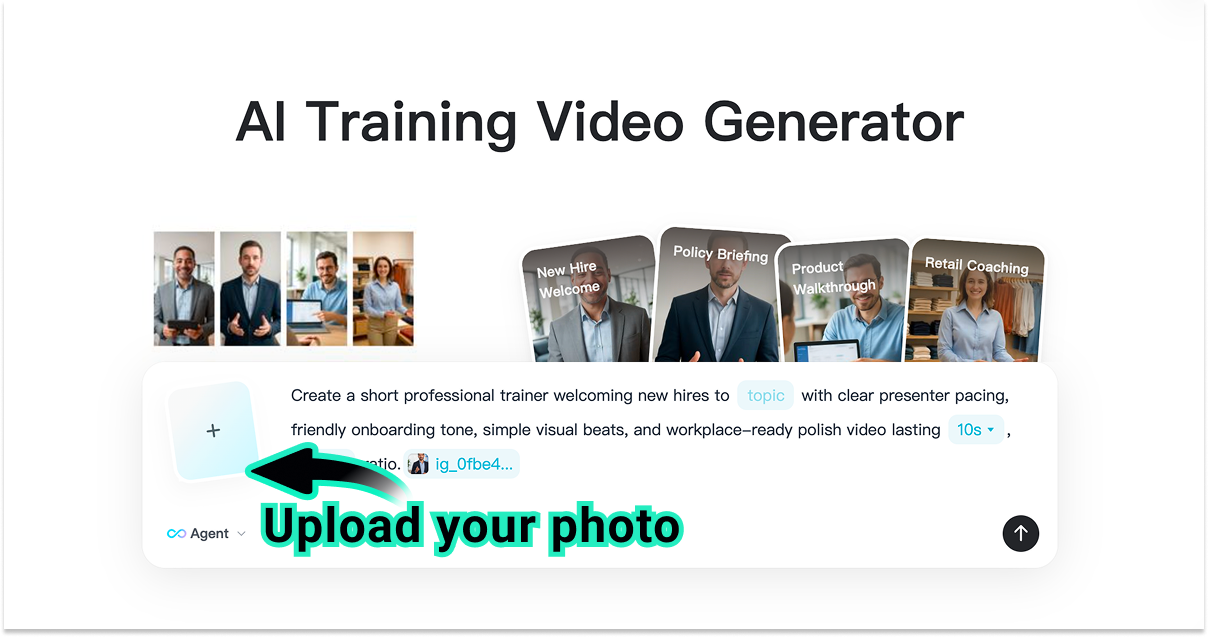
Step 1: Upload Your Training Image
Start by uploading a training-related image. This can be an onboarding slide, product screenshot, SOP visual, workflow diagram, workplace training scene, or another clear reference that represents the lesson.
Choose an image with a simple layout and one main subject. If the image is crowded, the AI may focus on the wrong visual detail. For a beginner-friendly result, use a clear presenter image, dashboard screenshot, checklist visual, or training scene that supports one learning goal.
Step 2: Enter Your Prompt and Adjust Settings
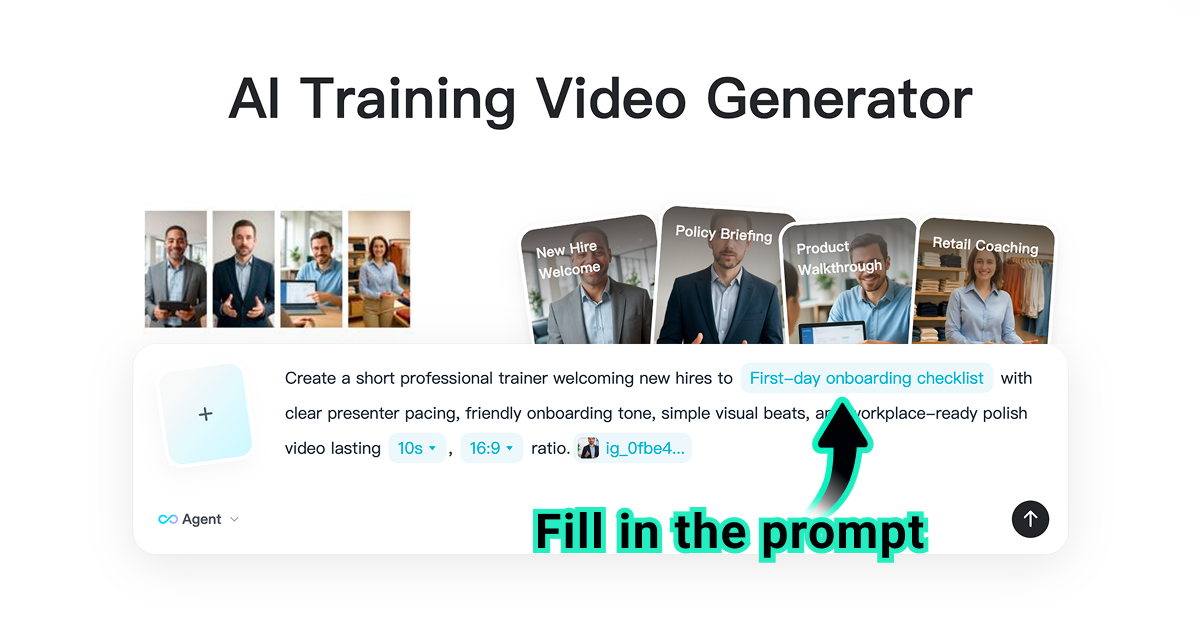
Next, write a prompt that explains what should happen in the video. Include the presenter's action, the training topic, the visual style, and the learning goal. A good prompt gives the AI a job: teach one concept clearly.
Then adjust the video settings. For quick mobile-friendly clips, use a 9:16 ratio, 720p resolution, and a 10-second duration. If you want a presenter-style lesson from a portrait or profile image, a AI Talking Photo Generator can help turn a still trainer image into a more engaging learning moment.
Step 3: Generate the Training Video
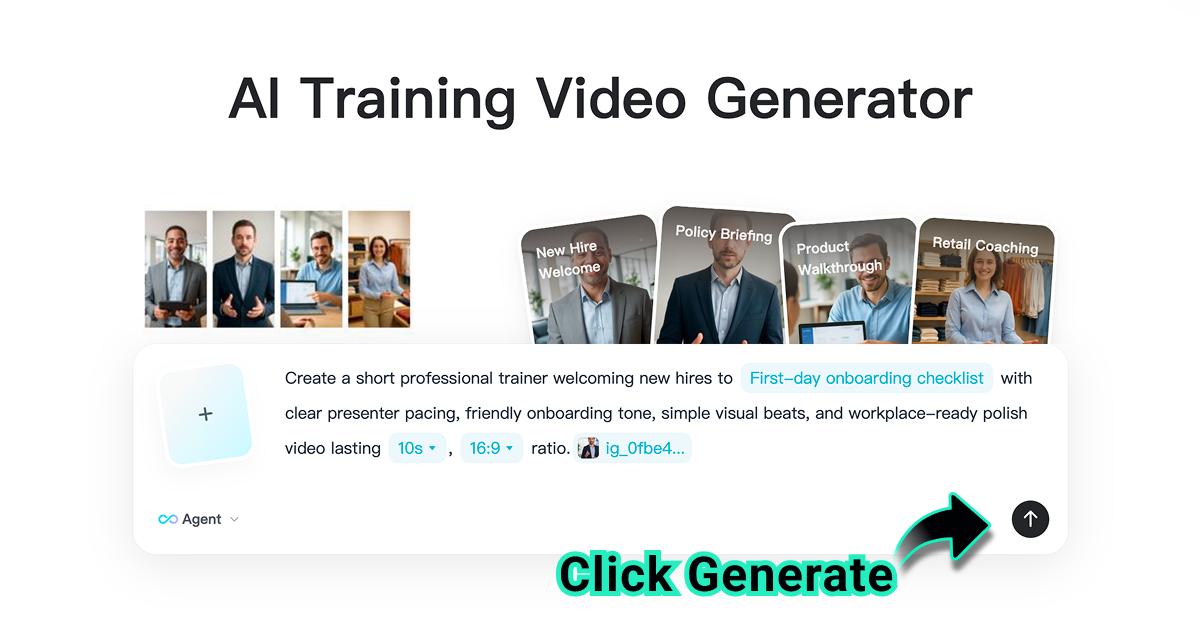
When your image, prompt, and settings are ready, click Generate. insMind uses your uploaded visual, prompt direction, and selected video settings to create a presenter-led or scene-based training clip for review.
Watch the full result before downloading. Does the trainer look natural? Is the lesson clear? Is the pacing calm enough for a learner to follow? If not, refine the prompt with more specific action, tone, and visual instructions, then generate another version.
Step 4: Download and Deliver Learning
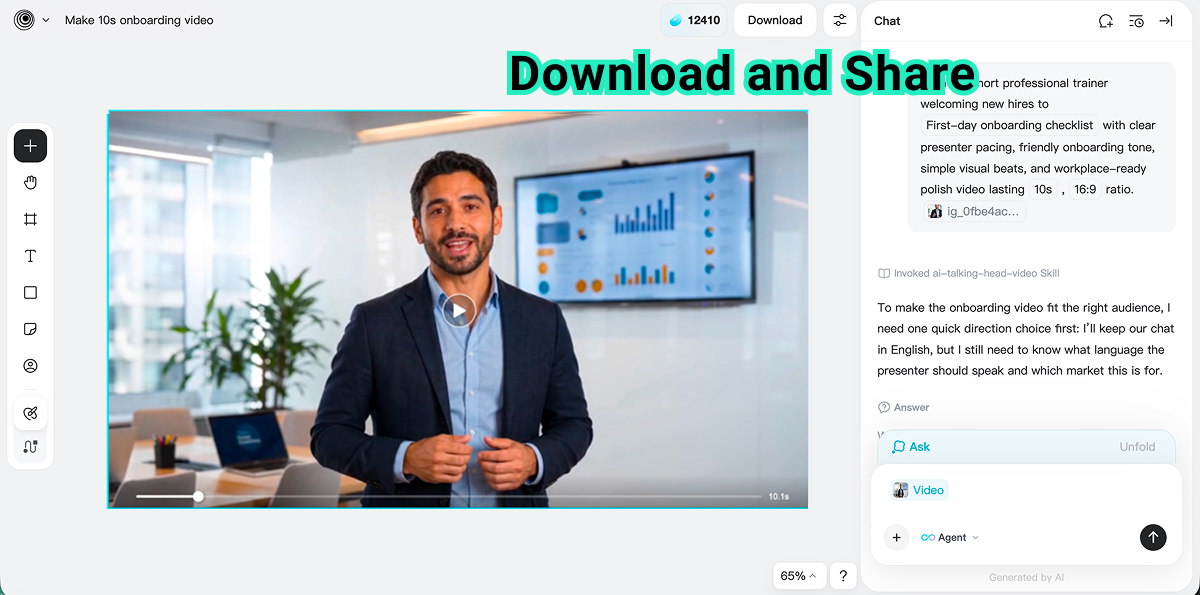
After the video looks ready, download it and share it where your learners already work. Add it to onboarding flows, LMS modules, team chats, internal training pages, customer education hubs, or product help centers.
The best part? When the training content changes, you do not need to film everything again. Update the image, revise the prompt, adjust the settings, and regenerate a new version. This makes AI especially useful for fast-moving teams.
Best Use Cases for AI Training Videos
AI training videos work best when the lesson is short, focused, and repeatable. Instead of trying to replace a full course, use AI to create the smaller clips that make learning easier to access.
| Use Case | Best Video Style | Why It Works |
|---|---|---|
| Employee onboarding | Presenter-led welcome clip | Gives new hires a clear first-day message without repeating the same briefing live. |
| Product training | Screenshot walkthrough | Turns product screens, dashboards, and feature visuals into easier explanations. |
| SOP training | Workflow-based clip | Shows the sequence of actions instead of making employees read a dense procedure. |
| Sales coaching | Role-play or talking presenter | Helps reps practice messaging, objections, and product positioning. |
| Customer education | Short explainer clip | Helps customers understand setup, features, and next steps faster. |
The key is to match the format to the learner. A new hire may need a friendly presenter. A customer may need a simple product walkthrough. A retail employee may need a quick scenario-based lesson. If the content needs to feel more creator-like, you can also test AI UGC video ideas for lighter internal communications or customer education.
Prompt Tips for Better Training Videos
Your prompt is the script, creative brief, and learning objective in one place. The clearer it is, the easier it is for AI to generate a useful result. What should the viewer know after watching? What should the presenter do? What should the video avoid?
Use this beginner-friendly prompt formula:
Prompt formula:
Create a short professional training video based on this image. Show a friendly trainer explaining [training topic] to [audience]. Use a clear teaching tone, natural presenter pacing, simple visual beats, and a polished workplace style. The learning goal is to help viewers understand [main lesson]. Keep the video concise, realistic, and easy to follow. Avoid unreadable text, distracting motion, logos, watermarks, or distorted faces and hands.
Start with the learning goal: Say what the viewer should understand or do after watching.
Name the audience: New hires, retail staff, sales reps, customers, managers, or support agents all need different pacing.
Describe the trainer action: Use words like welcomes, explains, demonstrates, points to, introduces, or summarizes.
Keep it short: A 10-second clip should teach one idea, not an entire course.
Add quality constraints: Ask for natural gestures, clear pacing, no distorted hands, and no extra text.
Want a simple example? Try: Create a short professional trainer welcoming new hires to a first-day onboarding checklist with clear presenter pacing, friendly onboarding tone, simple visual beats, and workplace-ready polish.
Common Mistakes to Avoid
Not getting the results you expected? The problem is usually not the idea. It is the input. AI works better when the image, prompt, and settings all support the same learning goal.
Using a cluttered image
If the upload has too many subjects, tiny labels, crowded charts, or unrelated objects, the video may feel unfocused. Use one main visual and let the prompt explain the lesson.
Trying to teach too much at once
A beginner training clip should be narrow. One prompt, one audience, one takeaway. If your topic needs five lessons, create five short videos instead of one overloaded clip.
Forgetting the delivery channel
A vertical 9:16 onboarding video may work well in a mobile learning flow, but a horizontal clip may work better for an internal knowledge base or presentation. Choose the ratio before generation, not after.
Skipping review
Always review the final video for accuracy before sharing it with learners. Check the message, visuals, tone, face quality, hand movement, and any implied instruction. Training content should be clear and trustworthy.
FAQs About AI Training Video Generators
Can beginners create training videos with AI?
Yes. Beginners can start with a clear training image, write a short prompt, choose basic settings, and generate a simple clip. You do not need a studio or editing timeline to make a first draft.
What image should I upload for an AI training video?
Use a clear onboarding slide, product screenshot, SOP visual, workflow diagram, or workplace training scene. The best image has one main subject and supports one learning goal.
How long should an AI training video be?
For quick learning clips, 10 to 30 seconds can work well. For onboarding or compliance topics, split longer material into short modules so each video teaches one clear idea.
Can AI training videos be used for onboarding?
Yes. AI-generated training clips are useful for welcome messages, first-day checklists, policy summaries, product introductions, and repeatable team briefings. Review the final content before publishing it internally.
How do I make AI training videos look professional?
Use a clean source image, write a specific prompt, choose the right aspect ratio, keep the lesson short, and add quality instructions such as natural presenter pacing, no distracting motion, and no unreadable text.
Start Creating Training Videos Today
Training content does not have to stay trapped in slides, SOP documents, or long internal emails. With the right image and prompt, you can turn a single learning idea into a short video that feels easier to watch and easier to share.
Use insMind to upload your training visual, describe the lesson, choose a mobile-friendly or business-ready format, generate the clip, and download it for onboarding, team learning, customer education, or internal knowledge sharing. Ready to make your first training video?

Ryan Barnett
I'm a freelance writer with a passion for editing and designing photos. Here at insMind, I strive to educate users on image creativity, photography, and enhancing product photos to help grow their businesses.


