


Making a video of yourself used to mean setting up a camera, finding good light, recording the same line again and again, and editing everything afterward. Now you can create a realistic AI video of yourself from one clear photo and a short script.
This guide walks through how to make an AI video of yourself with insMind. You will learn how to upload a photo, write a natural script, customize the avatar style, generate the video, and download a polished clip for a website, profile intro, training page, or social post.
Table of Contents
What Is an AI Video of Yourself?
An AI video of yourself is a generated video that uses your photo as the visual starting point. Instead of recording a live clip, you upload a portrait, enter a script or prompt, and let AI create a video where the person appears to speak or move naturally. A good result keeps the face recognizable, matches the script, and feels like a short camera-facing clip.
With an AI avatar video generator, you can create this kind of video directly in your browser. You do not need a studio, camera, microphone, or editing timeline. If the video needs stronger mouth movement or speech matching, an AI lip sync video generator can help the avatar match spoken words more closely.
The best AI self videos are short, clear, and purposeful. They are ideal when you need to say something simple but do not want to record yourself on camera that day.
Why Make an AI Video of Yourself?
AI self videos reduce the friction between having an idea and publishing it. You can turn a photo into a clear message, test different tones, and create multiple versions without reshooting. That is especially helpful for creators, marketers, educators, founders, and anyone who needs simple on-camera content often.
A realistic AI video also helps you stay consistent. Your avatar can keep the same look across different short clips, while the script changes for each campaign, announcement, or tutorial. You can make a warm welcome video today, a product explainer tomorrow, and a social caption clip next week with the same source portrait.
It also makes video creation less intimidating. Many people know exactly what they want to say but freeze when the camera turns on. AI gives you a lower-pressure way to create a polished talking video from a script you can edit until it feels right.
How to Make an AI Video of Yourself with insMind
Follow these steps to create a talking AI video from your photo. Keep the first version simple, then refine the prompt, tone, and settings once you see the result.
Step 1. Upload Your Photo
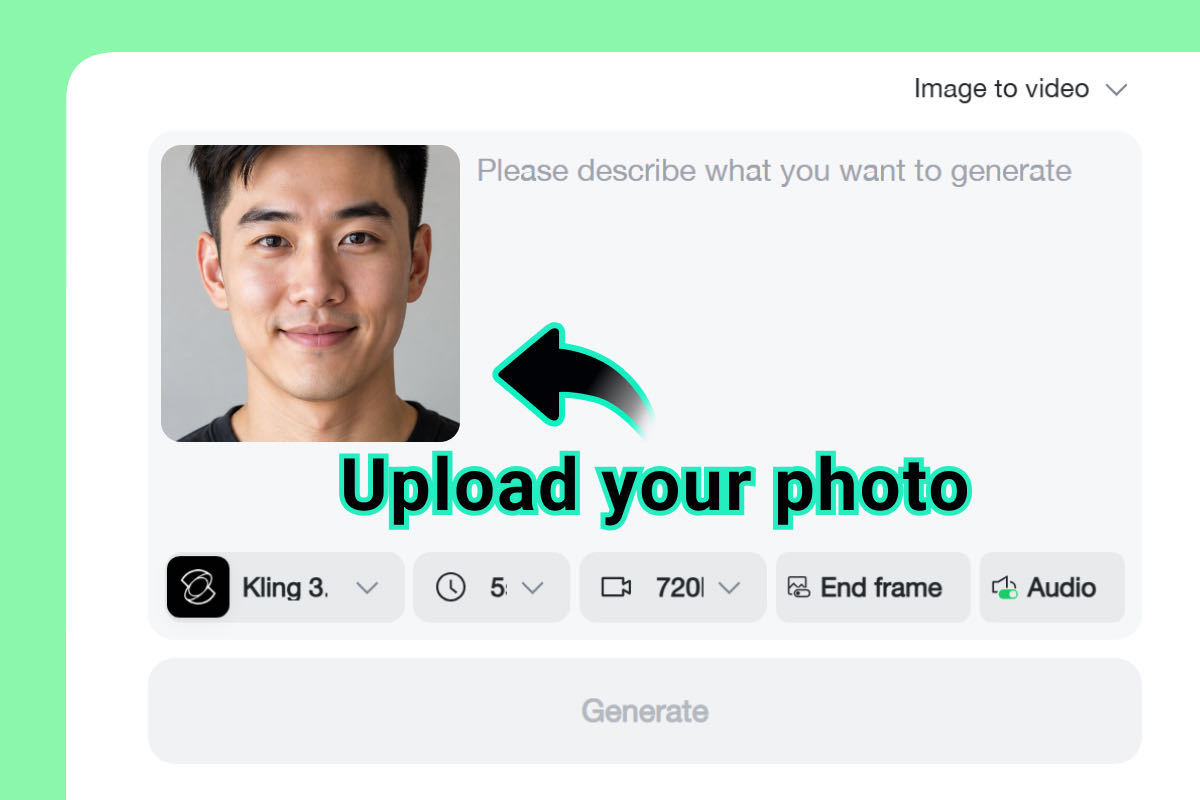
Open insMind's avatar video tool and upload a clear photo of yourself. Choose a front-facing portrait with sharp facial details, natural lighting, and minimal background clutter. A clean head-and-shoulders image works better than a full-body photo because the AI can read facial structure more clearly.
Step 2. Enter a Script or Prompt
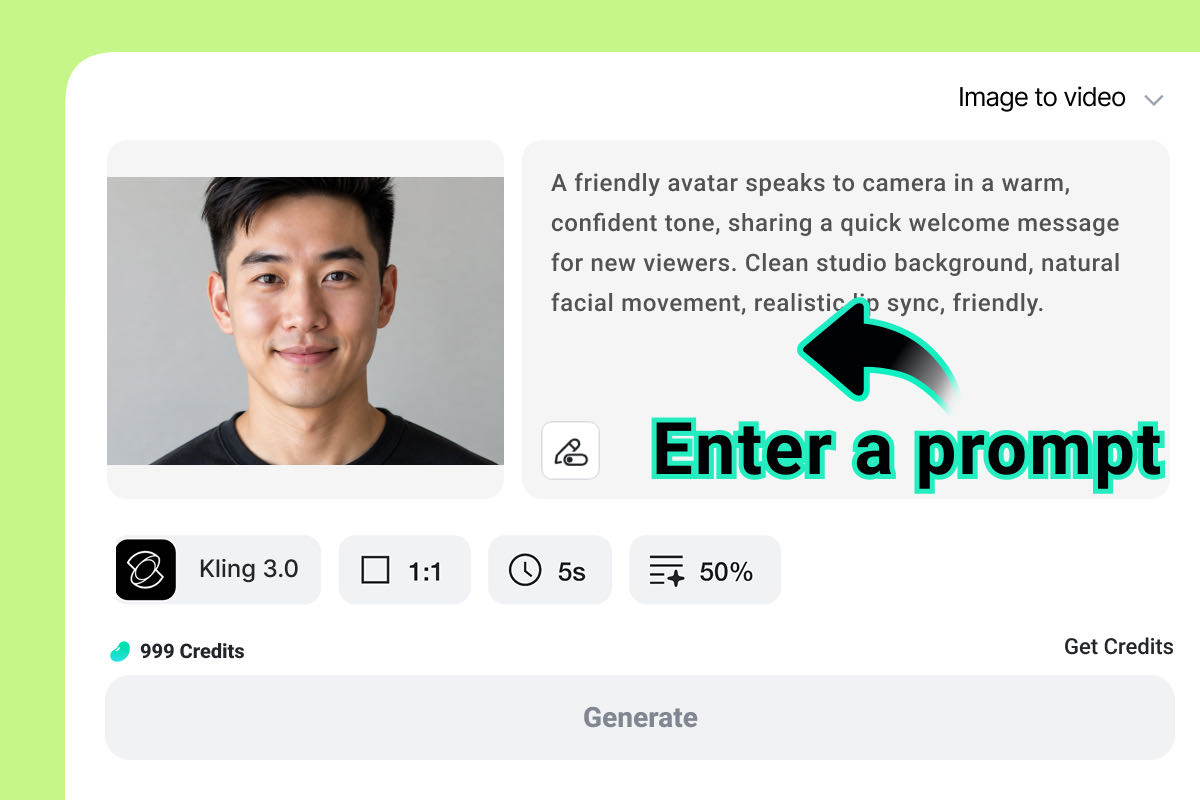
Type the message you want your AI avatar to deliver. A strong script sounds conversational and direct. Instead of writing a long block of text, focus on one idea, one audience, and one clear purpose. You can also describe the preferred content, background, avatar style, and tone.
For example, you might write: "A friendly avatar speaks to camera in a warm, confident tone, sharing a quick welcome message for new viewers. Clean studio background, natural facial movement, realistic lip sync, friendly." This kind of prompt gives the AI enough direction without overloading the scene.
Step 3. Customize Video Settings
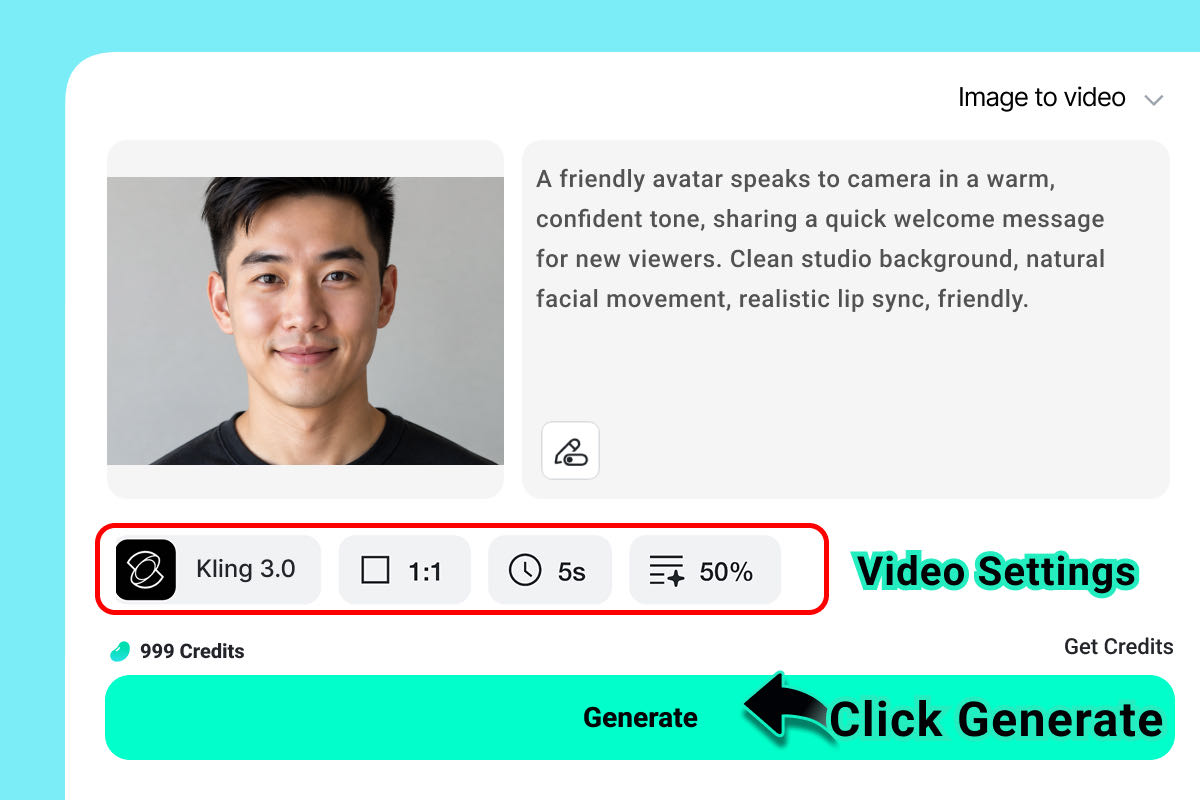
Adjust the video settings based on where you plan to publish. A square format is useful for profile-style posts, while horizontal video works well for websites, presentations, and blog embeds. Keep the duration short at first. A five-second or ten-second test is usually enough to check whether the face, expression, tone, and script feel natural.
If your clip includes speech, keep audio enabled and make sure the prompt asks for realistic lip sync. If you only need a visual avatar preview, a silent version can work, but a talking personal video usually benefits from audio.
Step 4. Generate and Download
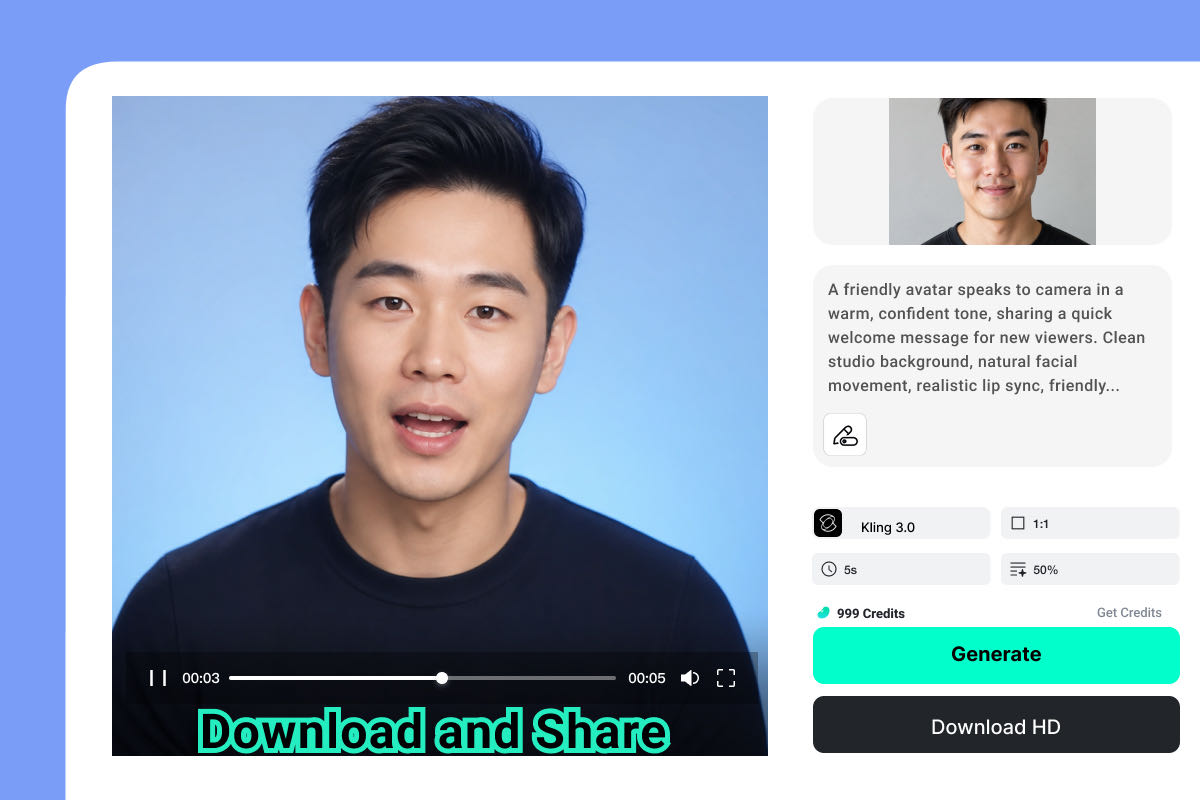
Click generate and wait for insMind to create your AI video. Preview the result carefully. Check whether the avatar still looks like you, whether the expression matches the message, and whether the mouth movement feels believable. If something feels off, revise one part at a time: shorten the script, clarify the tone, or adjust the background.
When you are satisfied, download the video and use it in your website, profile intro, social post, presentation, or email campaign. Keep the original photo and prompt saved so you can create related clips later with a consistent style.
Tips for a More Natural AI Self Video
Start with a high-quality portrait. AI video tools depend heavily on the source image, so a blurry selfie or harsh shadow can reduce the quality of the final result. Use even lighting, keep your face visible, and avoid sunglasses, heavy filters, or extreme angles.
Write like you speak. The script should feel natural when read aloud. Short sentences, clear verbs, and a friendly tone usually work better than formal copy. If the avatar sounds too stiff, rewrite the script as if you were talking to one person.
Give the AI a clear performance direction. Words like "warm," "confident," "calm," "energetic," or "professional" help define the delivery. You can also mention a clean studio background, soft lighting, natural head movement, and realistic lip sync.
Keep the first version short. A short AI video is easier to evaluate and faster to regenerate. Once you like the style, create longer versions or multiple variations for different platforms.
Common Mistakes to Avoid
Do not upload a low-resolution or heavily edited photo. The AI needs a clean face reference to create a believable result. If the input image looks unnatural, the video can look unnatural too.
Do not write an overloaded script. Long scripts can make the performance feel rushed and reduce clarity. Start with a short message, then add detail only if the result still feels smooth.
Do not ask for too many style changes at once. If you change the background, expression, camera style, pacing, and tone all in one prompt, it becomes harder to know what caused a weak result. Adjust one or two elements per generation.
Do not publish without checking rights and consent. Use your own photo, or make sure you have permission to use the image and voice style involved. For personal avatar videos, consent and authenticity matter.
Frequently Asked Questions
Can I make an AI video of myself from one photo?
Yes. With insMind, you can upload a clear portrait, enter a script or prompt, and generate an AI avatar video from that single image.
What kind of photo works best?
A sharp front-facing portrait with good lighting works best. Avoid blurry images, extreme angles, heavy filters, and cluttered backgrounds.
Can the AI avatar speak my script?
Yes. Write a clear script and choose settings that support audio or lip sync. For speech-focused clips, use the lip sync workflow for better mouth movement.
How long should the video be?
Start with five to ten seconds for testing. Short videos are easier to review, regenerate, and adapt for social media or website use.
Can I use the video for business content?
Yes, as long as you have the rights to the source photo, script, and any voice or brand elements used in the video.
Create Your AI Self Video Now
You do not need a camera setup to create a polished video of yourself. With insMind, one clear photo and one focused script can become a realistic AI avatar clip in minutes. Upload your portrait, describe the message, choose the tone, and generate a share-ready video.

Ryan Barnett
I'm a freelance writer with a passion for editing and designing photos. Here at insMind, I strive to educate users on image creativity, photography, and enhancing product photos to help grow their businesses.


