


Graduation photos already carry the big feelings: the cap toss, the campus portrait, the proud family picture, the diploma handoff, and the blurry-but-perfect shared celebration after the ceremony. But a still photo can only hold one second. What if you want a keepsake that feels alive enough to send to family, post on social media, or play during a graduation party?
That is where insMind can help. Instead of building a full slideshow timeline from scratch, you can upload a meaningful graduation photo, describe the motion and mood you want, and create a short AI graduation video that feels warm, polished, and easy to share. In this guide, you will learn how to make a graduation video with pictures and music using a simple photo-to-video workflow.
Table of Contents
What Is a Graduation Video?
A graduation video is a short memory video made from graduation photos, school moments, ceremony scenes, or personal messages. It can be a photo slideshow, a class tribute, a ceremony recap, a party invitation, or a heartfelt family keepsake. The goal is not just to show pictures. The goal is to turn important moments into a story that has motion, rhythm, and emotion.
Traditional graduation videos often require a video editor, timeline transitions, text overlays, and music syncing. That works, but it can take longer than expected, especially if you are making something at the last minute. With an AI workflow, you can start with one strong photo and use a prompt to guide the result. insMind's image to video tools are especially useful when you want a still photo to feel like a short cinematic memory.
What Photos Should You Use?
The best graduation video begins with the right image. Choose a photo where the graduate is clear, the face is visible, and the graduation details are easy to recognize. Cap-and-gown portraits, campus gate photos, family pictures, diploma handoff shots, classmate good wishes, classroom memories, and ceremony snapshots all work well.
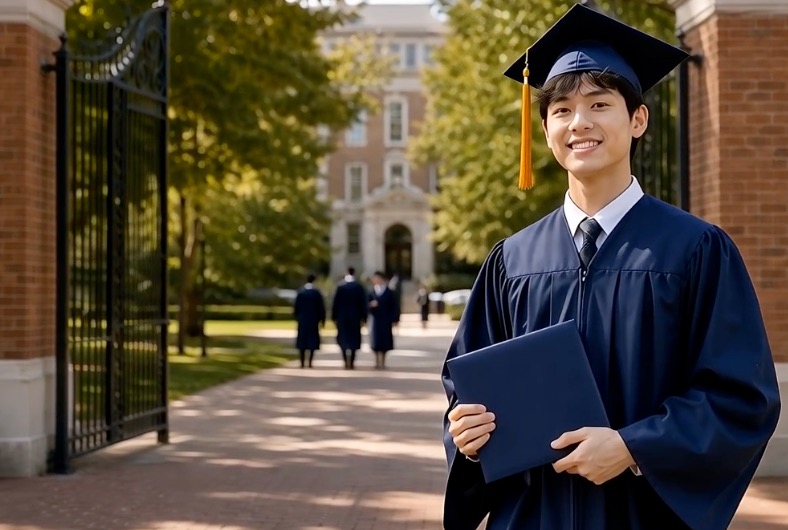
If you want the video to feel emotional, pick a photo with a clear relationship or moment. A parent fixing the graduate's gown, friends laughing together, a student holding a diploma, or a family standing on the campus lawn gives the AI more storytelling context. If you want the video to feel public and celebratory, use a wider group image or a ceremony stage photo. If you want a party invite, start with a bright portrait and describe a festive mood.
How to Make a Graduation Video with insMind
Here is how to make a graduation video with insMind in four practical steps. The workflow matches the graduation video maker page: upload your photo, choose the scene and settings, generate the clip, then download and share it.
Step 1: Upload Your Graduation Photos
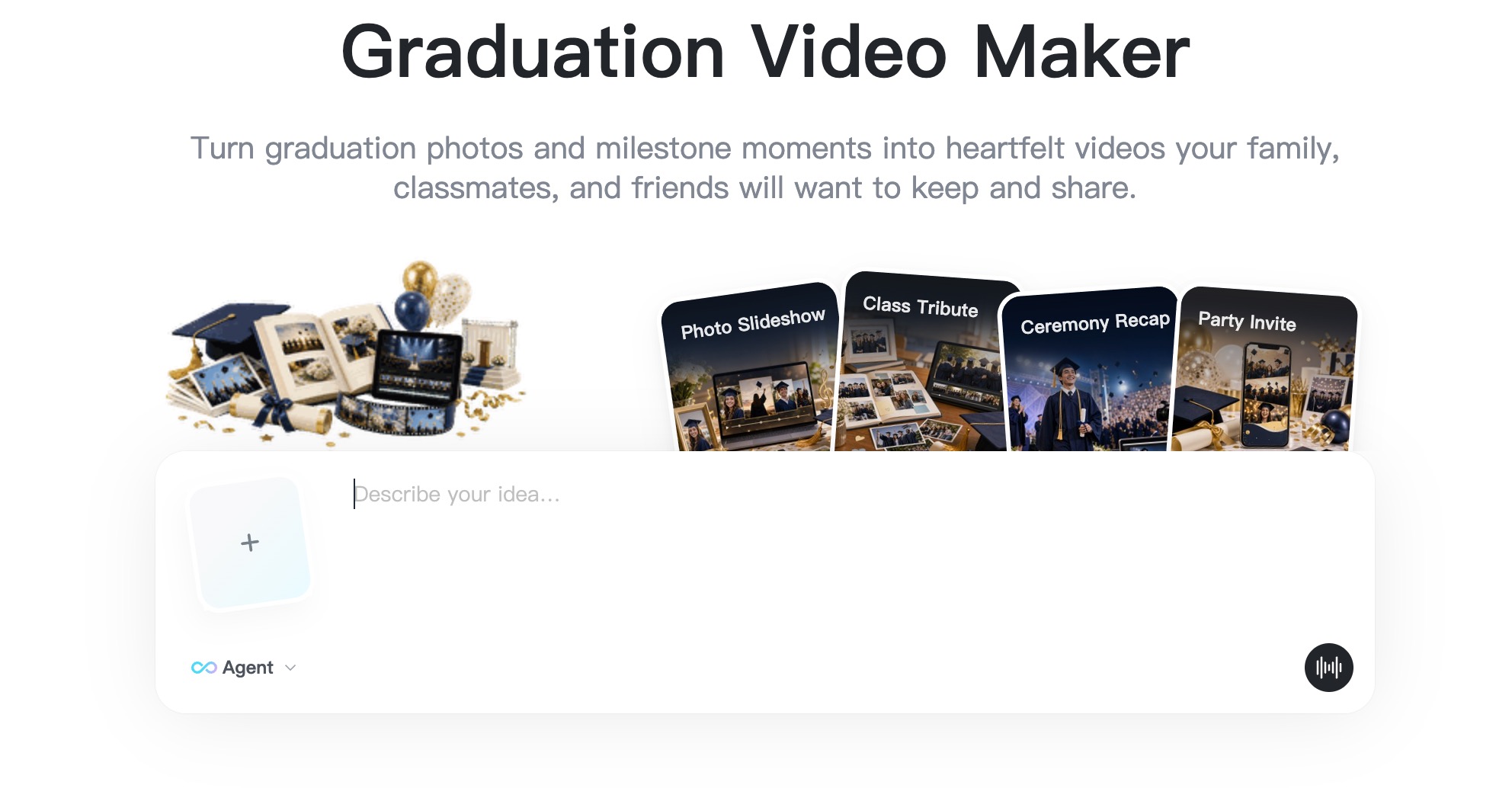
Open the Graduation Video Maker and upload the photo you want to animate. You can use a solo graduation portrait, a family picture, a school-gate shot, a diploma moment, or a classmate celebration photo. For best results, use a bright image where faces, caps, gowns, hands, and background edges are not hidden or heavily blurred.
Step 2: Choose Video Settings and Scene
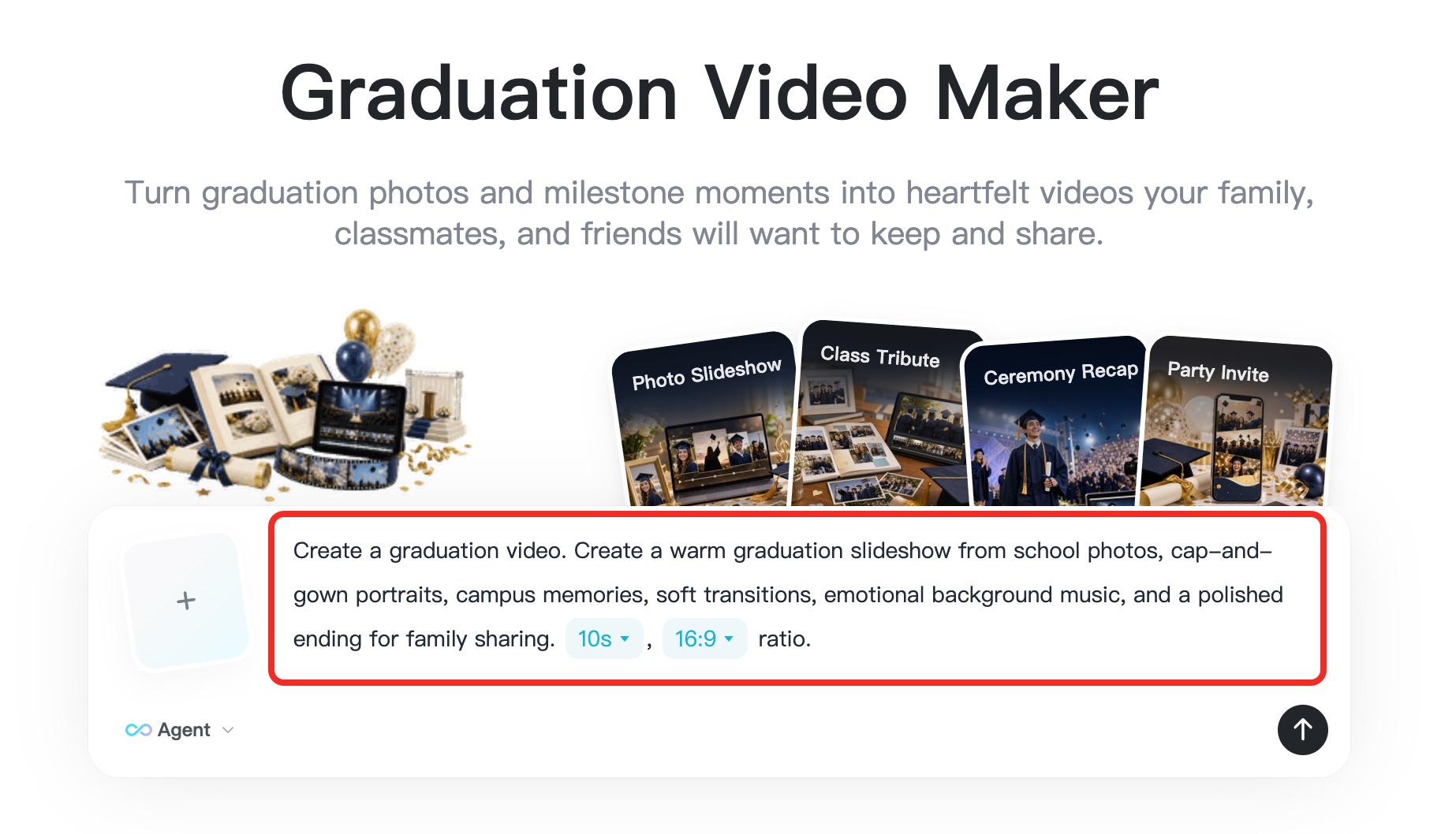
Next, choose the graduation direction you need. Are you making a warm photo slideshow, a class tribute, a ceremony recap, or a party invite? Set the format based on where the video will appear: 16:9 for screens and YouTube-style viewing, or 9:16 for TikTok, Reels, and Shorts. Then write a prompt that describes the scene, mood, camera movement, duration, and music feel.
For example: “Create a 10-second graduation family tribute video. Keep the graduate and family recognizable. Add a slow cinematic dolly-in, soft campus sunlight, gentle movement in gowns and hair, and a warm piano music feeling.” That kind of prompt helps insMind understand both the visuals and the emotional pacing. If you need a broader AI workflow, the main AI video generator page is useful for exploring related video formats.
Step 3: Generate the Graduation Video
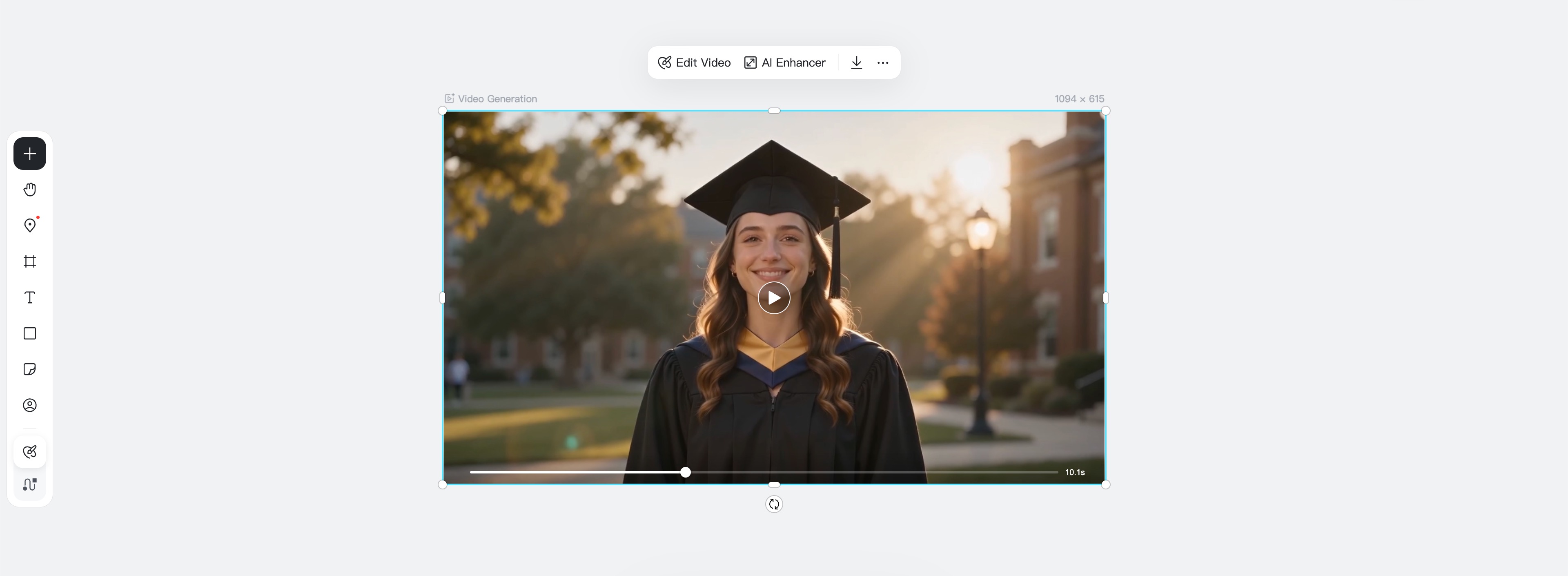
Click generate and let insMind turn your photo into a short video. The AI can add practical motion such as a gentle camera pull, subtle parallax, warm lighting, light applause, classmates celebrating together, or a proud diploma close-up. The result is not a complex edited movie; it is a polished short clip that gives your photo movement and a memory-video feeling.
After the first result, watch it once like a viewer and once like an editor. As a viewer, ask whether the moment feels warm and recognizable. As an editor, check faces, hands, caps, gowns, diplomas, and background lines. If something feels too busy, simplify the prompt. If the motion feels too flat, add one camera instruction such as “slow dolly-in” or “soft pan across the group.”
Step 4: Download and Share the Memory
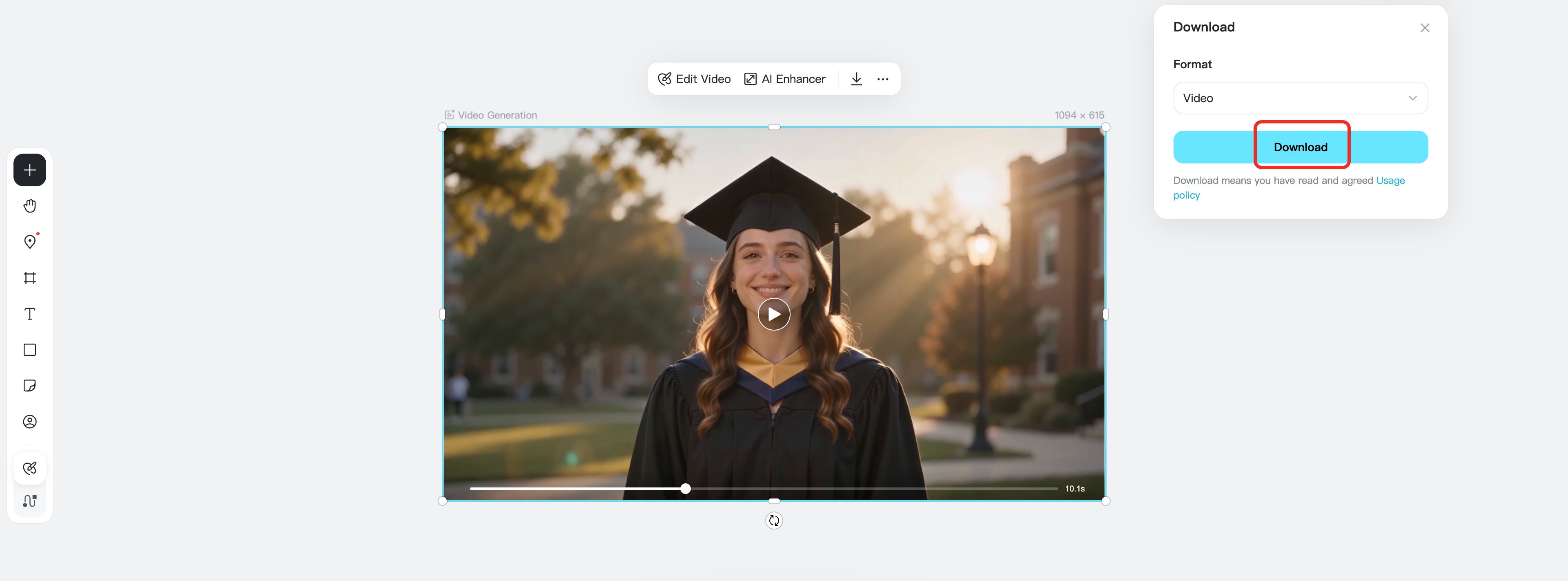
When the video looks right, download it and share it wherever the memory belongs. You can send it in family chats, post it on Instagram or TikTok, play it during a graduation party, add it to a class group recap, or combine several clips into a longer slideshow with music in your favorite editor. If you are wondering how to make a video for graduation quickly, this is the easiest path: one strong photo, one clear prompt, one generated keepsake.
Graduation Video Ideas
Not sure what kind of graduation video to create? Start with the person who will watch it. A family audience may love a heartfelt keepsake. Classmates may prefer a fun recap. Teachers and school communities may want something polished for a ceremony screen or social post.
| Video Idea | Best Starting Photo | Prompt Direction |
|---|---|---|
| Family keepsake | Graduate with parents or siblings | Warm light, gentle camera movement, emotional piano mood |
| Class tribute | Group portrait or friend friendly greeting | Celebratory campus atmosphere, soft smiles, subtle movement |
| Ceremony recap | Diploma handoff or stage photo | Formal lighting, applause feeling, proud ceremony mood |
| Party invite | Bright portrait or cap toss | Upbeat motion, festive energy, vertical social format |
You can also use insMind's text to video AI workflow if you want to generate a scene from a written graduation message instead of starting with a photo.
Tips for Better Results
- Use one main subject. A clear graduate or small group is easier to animate than a crowded ceremony hall.
- Describe the music mood, not just the visuals. Phrases like “soft piano feeling,” “uplifting celebration mood,” or “formal ceremony pacing” help shape the emotional rhythm.
- Pick the right aspect ratio. Use 16:9 for TVs, projectors, and YouTube. Use 9:16 for Reels, TikTok, and Shorts.
- Keep motion gentle. Graduation videos usually look better with soft camera moves than with dramatic action.
- Generate short clips first. A 10-second clip is easier to review, refine, and combine into a longer photo montage.
Common Mistakes to Avoid
The biggest mistake is using a photo that is too blurry, dark, or crowded. AI can add motion, but it cannot magically recover every hidden detail. If faces are tiny or hands are cropped at strange angles, the generated movement may feel less natural.
Another mistake is asking for too much in one prompt. A graduation video should usually have one clear emotional direction: proud family tribute, joyful class recap, formal ceremony moment, or upbeat party invite. If you ask for confetti, fireworks, spinning cameras, dancing, text, applause, and a dramatic zoom all at once, the result may feel chaotic. Keep the prompt focused and build from there.
Frequently Asked Questions
How do I make a graduation video with pictures and music?
Upload a clear graduation photo to insMind, choose the video scene and format, and write a prompt that includes the visual motion plus the music feeling you want, such as warm piano or uplifting celebration. If you want to animate still photos beyond graduation, try the image to video workflow as well. Generate the video, then download it. If you need a full song track, you can add the final clip to your preferred editor and place music underneath.
Can I make a graduation video from only one photo?
Yes. A single strong graduation photo can become a short AI video with camera motion, soft lighting, and memory-style pacing. You can later combine multiple generated clips into a longer slideshow if you want a full class or family recap. For other milestone memories, insMind also offers a tribute video maker for heartfelt personal stories.
What should I write in a graduation video prompt?
Mention the people, setting, mood, camera movement, length, and aspect ratio. A strong prompt might say: “Create a 10-second graduation tribute video from this family photo, keep everyone recognizable, add a slow dolly-in, soft campus light, gentle gown movement, and a warm emotional mood.” If you prefer building a scene from text instead of a photo, use text to video AI for prompt-first video ideas.
What is the best length for a graduation video?
For one animated photo, 6 to 10 seconds is usually enough. For a full slideshow, combine several short clips and keep the final video around 30 to 90 seconds, depending on whether it is for social media, family sharing, or a ceremony screen. You can also explore the broader AI video generator hub for more video styles.
Create Your Graduation Video
Graduation goes by fast, but the photos do not have to stay still. With insMind, you can turn a meaningful graduation picture into a polished keepsake video in minutes. Upload the photo, describe the moment, choose the format, generate the clip, and share a memory that feels alive.
Keep reading

How to Use Seedance 2.5 for AI Videos
Learn how to use Seedance 2.5 for text-to-video and image-to-video, write stronger prompts, guide motion with references, and review results.

How to Make a Creepy Voice for Horror Content Step by Step
Learn how to make a creepy voice for horror videos, podcasts, and games with insMind.

How to Remove TikTok Watermark: 4 Easy Steps for Clean Videos
Learn how to remove TikTok watermark from videos in four practical steps with insMind.

Top 10 Seedance 2.5 Alternatives for AI Video in 2026
Compare top Seedance 2.5 alternatives and learn how to create AI videos with insMind.

Seedance 2.5 vs. MiniMax H3: Which AI Video Model Should You Use?
Compare Seedance 2.5 and MiniMax H3 for AI video creation.

30 Instagram Reels Prompts You Can Copy and Try
Copy-ready Instagram Reels prompts for products, fashion, creators, travel, food, pets, and lifestyle videos.

How to Write Instagram Reels Prompts for AI Videos
Learn to write Instagram Reels prompts for polished AI videos, product clips, creator posts, and lifestyle content.

30 TikTok Video Prompts You Can Copy and Try
Copy-ready TikTok video prompts for ads, creators, products, fashion, pets, travel, and more.

How to Create an AI Micro-drama: A Step-by-Step Guide
Learn how to create an AI micro-drama with insMind.

How to Create a Short Film Using AI in 2026
Learn how to create a short film using AI with insMind.

Instagram Reel Ads: Examples, Specs, Sizes, and Best Practices
Learn Instagram Reel ad specs, examples, safe zones, and best practices.

YouTube Ads Best Practices: How to Create Video Ads
Learn YouTube ads best practices and create video ads with insMind.

YouTube Channel Trailer Examples: 15 Inspiring Ideas for Your Channel
Explore YouTube channel trailer examples and create a polished trailer with insMind.

15 Best YouTube Ad Examples and Templates to Inspire Your Next Campaign
Explore YouTube ad examples and templates, then create video ads with insMind.

How to Make a Hype Video with AI: The Easy Guide
Learn how to make a hype video with AI using insMind.

Instagram Ad Templates for Feed, Stories, Reels, and Carousel Ads
Learn Instagram ad templates for Feed, Stories, Reels, and Carousel Ads.

Facebook Video Ad Specs: Sizes, Formats, and Lengths for 2026
Learn Facebook video ad specs, sizes, formats, and lengths for 2026, then make ad-ready videos with insMind fast.

How to Create Facebook Video Templates for Posts, Ads, Covers, and Live Video
Learn how to use Facebook video templates for posts, ads, covers, and live video with insMind.

Instagram Ad Examples: 15 Creative Ideas That Convert
Explore 15 Instagram ad examples and learn how to make them with insMind.

Instagram Ad Sizes and Specs: Complete 2026 Guide
Find Instagram ad sizes, specs, ratios, and dimensions for every major placement.

10+ Video Resume Examples with Scripts for Every Career Stage
Explore video resume examples and scripts, then create a polished video resume with insMind.

How to Make a Sports Hype Video with AI: A 4-Step Guide
Learn how to make a sports hype video with AI.

YouTube Ad Specs for 2026: Sizes, Formats, and Lengths
YouTube ad specs for sizes, formats, dimensions, and lengths, plus a four-step insMind workflow.

30 Best Grok Imagine Video Prompts You Can Copy and Try
Copy 30 Grok Imagine video prompts and learn how to write better prompts for creative AI videos.

50 Scroll-Stopping AI Brainrot Prompts for Viral Meme Videos
Copy 50 scroll-stopping AI brainrot prompts for chaotic meme videos.

How to Turn Any Photo into a Brainrot Meme Video
Learn how to turn any photo into a brainrot meme video with AI.

How to Make a Retirement Video with AI
Learn how to make a retirement video with AI.

How to Make Your Own Graduation Video from Photos with AI
Learn how to make a graduation video from photos with AI.

How to Make Your Own Outro Video
Learn how to make your own outro video with insMind.

Higgsfield vs Pollo AI: Which Video Platform Fits You?
Compare Higgsfield vs Pollo AI for cinematic control, model choice, ease of use, and pricing.

Pollo AI Review 2026: Features, Pros, Cons, and Verdict
Read our Pollo AI review for 2026 and explore its features, pricing, strengths, limitations, ideal users, and practical tips for better results.

How to Create Cute Baby Talking Videos from Photos
Learn how to create baby talking videos from photos with text, audio, and AI lip sync.

How to Make Your Own Talking Avatar with AI
Learn how to make your own talking avatar with AI from a portrait and script.

Seedance 2.0 Mini vs Seedance 2.0: Which Model Should You Use?
Compare Seedance 2.0 Mini and Seedance 2.0 for AI video creation.

How to Create Talking Animal Videos from Photos That Steal the Show
Learn how to create talking animal videos from photos with AI.

How to Turn a Character Image into a Consistent AI Video
Learn how to turn a character image into a consistent AI video with insMind.

10 Krea AI Alternatives for Creating and Editing AI Videos in 2026
Compare the best Krea AI alternatives for creating and editing AI videos, including insMind, Runway, Kling AI, Luma, Pika, VEED, and more.

Seedance 2.0 Mini Prompts to Copy: 20 Video Ideas
Copy Seedance 2.0 Mini prompts for cinematic AI videos with insMind.

Seedance 2.0 vs Seedance 2.5: What Changed?
Compare Seedance 2.0 and Seedance 2.5 with examples, prompts, and insMind workflow.

10 Best Pollo AI Alternatives for AI Video Creation in 2026
Compare the best Pollo AI alternatives for AI video creation, including insMind, Runway, Kling AI, Luma, Pika, VEED, and more.

How to Make an AI Video of Yourself That Actually Feels Like You
Create a realistic AI video of yourself from a photo and script.

How to Turn Old Photos into a Beautiful Tribute Video with AI
Turn old photos and memories into beautiful AI tribute videos.

How to Make a Daily Vlog with AI in Minutes
Create daily AI vlogs from photos, prompts, or ideas in minutes.

How to Create 2026 FIFA World Cup Highlights with AI
Create 2026 FIFA World Cup highlights, fan clips, and football videos with AI.

Best AI Video Extender for Creators: Top Tools Compared
Compare the best AI video extender tools for creators in 2026 and learn how to make short videos longer with insMind.

How to Edit YouTube Videos Faster with AI
Edit YouTube videos faster with AI background and style tools.

How to Create Training Videos with AI: A Complete Guide for Beginners
Create clear training videos from images and prompts with AI.

Create Product Reveal Videos with an AI Unboxing Video Maker
Learn how to create AI unboxing videos for product reveals, UGC, teasers, and ecommerce demos.

Create Smooth AI Video Transitions with Kling Start/End Frame
Learn how to create smooth AI video transitions with Kling Start/End Frame.

What Can You Choose for the Best InVideo Alternatives in 2026?
Compare the best InVideo alternatives and see why insMind is a strong AI video generator for creators and marketers.

10 Best Animaker Alternatives in 2026: New Trends in AI Video Creation
Compare the best Animaker alternatives for AI video creation, including free and open-source picks.

10 Best HeyGen Alternatives in 2026: Create AI Videos with More Freedom
Compare the best HeyGen alternatives for AI video creation, including free and open-source picks.

How to Make a Faceless YouTube Channel with AI
Make a faceless YouTube channel with AI tools, scripts, video ideas, and insMind.

Best CapCut Alternatives: 8 AI Video Editors Compared
Compare the best CapCut alternatives for iPhone, Android, PC, and AI video editing.

How Ecommerce Brands Replace Products in Videos with AI
Replace products in ecommerce videos with AI for ads, listings, and creative testing.

How to Change Video Background Without Green Screen: Step-by-Step Guide
Learn how to change video backgrounds without a green screen using simple AI editing steps.

How to Seamlessly Replace Objects in Videos with AI
Step-by-step guide on replace objects in videos with AI: how it works, best practices, and how to do it free with insMind.

How to Identify AI-Generated Videos: A Comprehensive Guide
Learn how to identify AI-generated videos using expert tips and insMind's tools for authenticity verification.

Can AI Really Edit Videos For You? A Deep Dive Into AI Video Editing
Discover how AI can edit videos effectively, using insMind and other top tools. Learn workflows, compare features, and explore future trends.

Crafting Viral Bigfoot AI Videos: A Step-by-Step Guide
Create viral Bigfoot AI videos with insMind. Learn how to optimize for TikTok and YouTube, avoid common mistakes, and more.

Discover the Versatility of Happy Horse 1.0 for AI Video Creation
Happy Horse 1.0 review explores AI video generation, integration with insMind, and practical applications for content creators.

Seedance 2.0 vs. Happy Horse 1.0: Which AI Video Generator Fits Your Needs?
Discover the differences between Seedance 2.0 and Happy Horse 1.0. Learn which AI video generator suits your needs best.

How to Make Educational Videos for Kids with AI (4 Easy Steps)
Write a structured script, choose model and audio, generate, and download—a step-by-step guide to making AI educational videos for kids with prompt templates.

Best AI Prompts for Explainer Videos (Proven Templates)
Four proven AI prompt templates for explainer videos—presenter, product demo, faceless brand, and tutorial—plus how to use insMind in 3 steps.

Best AI Explainer Video Generator for Business (2026 Guide)
Choose text-to-video or image-to-video, configure model and audio, generate and download—a complete 2026 guide to AI explainer videos for business with insMind.

Best Prompts for Wan 2.7: Multi-Shot Guide for Cinematic AI Video
Choose text or image mode, write scene-block prompts for Wan 2.7, set duration and audio, then download—plus 40+ language narrative tips.

How to Create Kids Videos with AI: A Parent-Friendly Guide
Upload art or start from text, write kid-safe prompts, pick Google Veo 3.1, generate and download—steps for parents and teachers.

From Script to Screen: How to Create Engaging Story Videos with AI Tools
Learn how to create story videos with AI: split scripts into scenes, optional reference images, generate clips in insMind, then merge. No pro editor required to start.

How to Make a Baby Dance Video with AI: Step-by-Step Guide
Turn a baby photo into a cute AI dance clip. Upload, write a motion prompt, pick model and duration, generate—no editing skills needed.

How to Make a Cat Dance Video with AI: Step-by-Step Guide
Turn a cat photo into a funny dance clip with AI image to video. Upload, write a motion prompt, generate, and download—no editing skills.

Best AI Tool for Pet Dance Videos (2026 Compared)
Compare top AI pet dance video tools with real screenshots, pros and cons, and a tested insMind image-to-video workflow plus copy-ready prompt.

Top 20 AI Fruit Video Prompts to Copy & Paste
Discover top AI fruit video prompts for creating engaging, trendy videos. Perfect for TikTok and other platforms, these prompts inspire creative content.

Funny AI Video Prompts That Work (Tested Examples)
Get 20+ tested funny AI video prompts that actually make people laugh. Copy-paste prompts for TikTok, Reels, and YouTube Shorts with step-by-step instructions.

Affordable AI Video Solutions for E-commerce Startups
Discover affordable AI video solutions for e-commerce startups. Learn about budget-friendly tools and maximize ROI with AI-generated content.

Transforming Marketing with AI Video Ads
Discover how AI video ads are transforming online marketing with personalized, efficient, and creative solutions. Learn techniques and examples.

Mastering Cinematic Ad Creation with Seedance 2.0
Create cinematic ads with Seedance 2.0, a powerful AI tool for video advertisements. Learn how to make stunning video ads using Seedance 2.0.

Mastering Viral Video Creation with Seedance 2.0
Discover how to create viral videos using Seedance 2.0 with tips, prompts, and insights on social media trends.

Close-Up Shot: Definition, Story Uses & Tighter Framing
What is a close-up shot? Definition, when to use tight framing for emotion and detail, and tips for shooting cleaner inserts on any camera.

YouTube Equipment for Beginners: Gear, AI Video & Your First Upload (2026)
Beginner YouTube equipment: priority order for mic, light, and camera; clear audio on a budget; phone vs dedicated camera; Shorts and 16:9 basics.

How to Create Anime Videos with AI (Step-by-Step Guide)
Learn how to create anime videos with AI step by step. Use text-to-video and image-to-video to generate stunning anime animations with insMind.

How to Make Viral Funny Videos with AI in 5 Minutes
Learn how to make viral funny videos with AI in minutes. Step-by-step guide to creating hilarious TikTok and Instagram clips using insMind AI funny video generator.

How to Create Talking Old Photo Videos with AI
Learn how to animate old photos with AI. Turn vintage portraits into talking videos with realistic motion using insMind free photo animation tool.

7 Best Sora 2 Alternatives for AI Video Generation in 2026
Discover the best Sora 2 alternatives for AI video generation. Compare insMind, Runway, Kling AI, Pika, and more to find the right tool for your needs.

AI Prompts for TikTok Video Generator: Complete Guide
Discover the best AI prompts for TikTok video generation. 20+ ready-to-use prompts plus a step-by-step guide to creating viral TikTok content with AI.

How to Upscale Anime Video to 4K with AI (Step-by-Step)
Learn how to upscale anime video to 4K using AI. Step-by-step guide to enhancing low-res anime with sharper lines and cleaner colors.

AI Marketing Video Generator: Create Promo Videos from Text
Learn how to turn text into professional marketing videos using AI. Step-by-step guide to creating promo videos in minutes.

Text-to-Video AI Ranked: Which Generator Wins in 2026?
Compare the 7 best text-to-video AI generators in 2026 including insMind, Sora 2, Runway, Kling AI, Pika, and more.

Animate Anime Images with AI: Turn Static Art into Dynamic Anime Videos
Learn how to animate anime images with AI. Turn static anime art into stunning animated videos easily.

How to Remove Kling Watermark from AI Videos
Explore the best ways to remove Kling AI watermark. Compare editing methods and discover watermark-free Kling generation options.

AI Video Editor: Edit Videos Instantly with Prompts
Use insMind AI Video Editor and prompts to edit videos, remove objects, change backgrounds and more.

Control the Narrative: Create Cinematic AI Videos with Start & End Frames
From start to finish, take control of AI video storytelling with Start & End Frames.

How to Create a Stranger Things Transition Video (Step-by-Step Guide)
Create a Stranger Things–style Upside Down transition with AI in just a few steps using insMind.

Transform Your Ideas: Generate Videos from Text Instantly
Turn text into videos in seconds with InsMind's AI—ideal for social media, ads, and presentations. No editing skills required.

Tralalero Tralala: How to Animate the Italian Shark Meme with AI Flair
Animate the viral “Tralalero Tralala” Italian Shark meme with AI for fun, shareable content.

Top TikTok Memes 2025: 'Tung Tung Tung Sahur' & Viral Trends You Can't Miss
2025 TikTok trends: AI-generated Italian Brainrot memes and creepy Tung Tung Tung Sahur dominate viral humor.