


 Ryan Barnett·April 28, 2026
Product demos. Brand stories. LinkedIn thought-leadership clips. Every business now needs short video, but most teams do not have a studio, a director, or two weeks of post-production. That is where the best AI explainer video generator for business becomes a genuine competitive edge: upload a spokesperson photo or type a prompt, dial in duration and model, hit Generate, and download an on-brand clip in minutes.
This 2026 guide walks through how insMind’s all-in-one AI video workspace handles the full workflow—text-to-video for scripted spots, image-to-video when you need a real face on screen, smart model and settings selection, and one-click export. You will also find prompt examples, ratio guidance for every distribution channel, and answers to the questions marketing teams ask most.
If your team runs social advertising, the same tool doubles as an AI ad video generator that can localize tone, swap backdrops, and iterate in bulk without reshooting. And when you need the clip to sit on a landing page or pitch deck, the output quality competes with UGC-style production at a fraction of the cost.
-
Choose text-to-video for scripted explainers or image-to-video to animate a real avatar or product photo.
-
Select model, aspect ratio, duration, resolution, and audio to match your distribution channel.
-
Generate, preview, and download your business explainer clip as a ready-to-publish MP4.
Table of Contents
- 01 Why Businesses Are Switching to AI Explainer Video Generators in 2026
- 02 Text-to-Video vs. Image-to-Video: Which Mode Fits Your Campaign?
- 03 How to Create Business Explainer Videos with insMind
- 04 Model, Ratio, and Audio Settings That Matter
- 05 Prompt Strategies for Professional Business Video
- 06 Use Cases: From Product Demos to Sales Enablement
- 07 Frequently Asked Questions
- 08 Make Your First Business Explainer Today
Why Businesses Are Switching to AI Explainer Video Generators in 2026
Traditional explainer video production costs between $1,500 and $10,000 per finished minute when you factor in script, voiceover, motion graphics, and revisions. AI-driven platforms have compressed that timeline from weeks to hours and the cost to near zero for first-pass creative. Marketing teams that used to budget six weeks for a product launch video are now iterating daily.
The change is not just about speed. AI video generators let you test messaging variations, localize for different markets, and keep a consistent on-screen persona across campaigns without rebooking a studio. Want a confident corporate spokesperson delivering the same script in English, Spanish, and Portuguese? Generate three clips, same face, same setting, different audio—done before your agency even replies to the brief.
insMind’s workspace bundles text-to-video, image-to-video, and a broad model roster into one interface. Whether you need a polished AI business video generator for the boardroom or a quick social clip for LinkedIn, the same three-step workflow covers both.
Text-to-Video vs. Image-to-Video: Which Mode Fits Your Campaign?
The two modes answer different creative briefs. Text-to-video is best when you are still discovering the visual language. Type a prompt that describes the setting, spokesperson look, action, and tone; the model invents the frame from scratch. That flexibility makes it ideal for concept testing and motion graphics-style explainers where brand guidelines are broad.
Image-to-video anchors motion to an existing visual. Upload a professional headshot, a product render, or a brand mascot illustration and the model animates it while respecting color, silhouette, and likeness. That consistency is hard to replicate in text-only generation and is why image-to-video is the default choice for spokesperson-driven corporate content.
For campaigns that blend both—for example, a scripted voiceover B-roll followed by a product close-up—generate each segment separately and stitch them in a lightweight editor. insMind also supports an ai influencer video generator path if you want a branded virtual character to carry the narrative across multiple clips and platforms.
How to Create Business Explainer Videos with insMind
The production flow inside insMind is deliberately short: three decisions map directly to three steps. Here is exactly what to click.
Step 1: Choose your generation mode
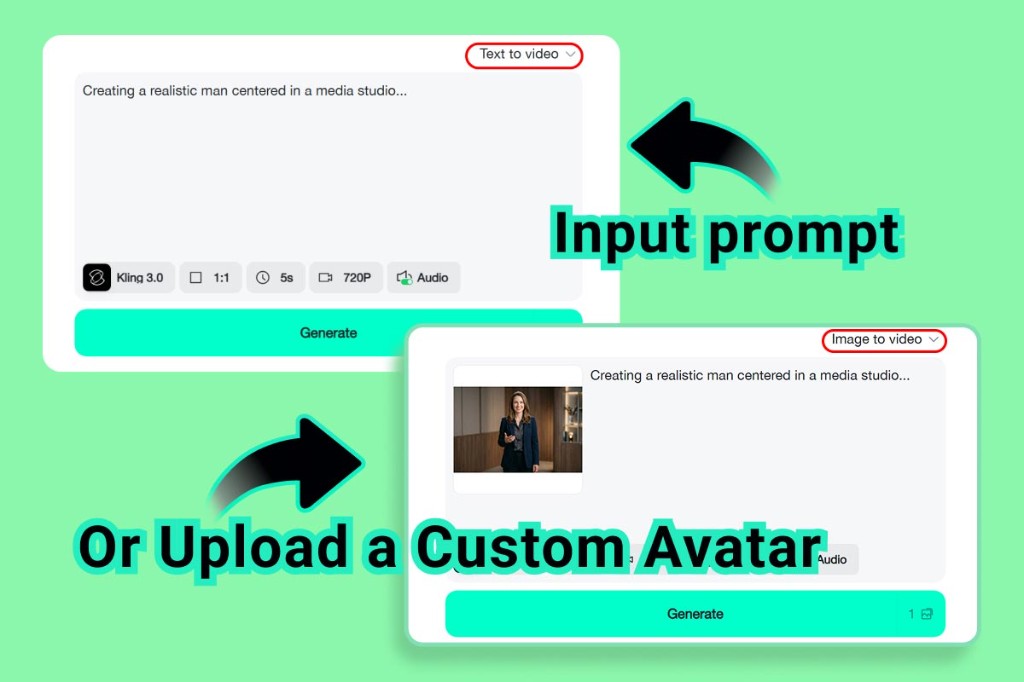
Open the generator and select either Text to video or Image to video from the dropdown at the top right. Text to video displays a clean prompt area; Image to video adds a media upload slot beside the prompt field. For a custom spokesperson, switch to Image to video and upload the portrait — the model will animate the face and body naturally from the still.
Step 2: Configure model, ratio, duration, and audio
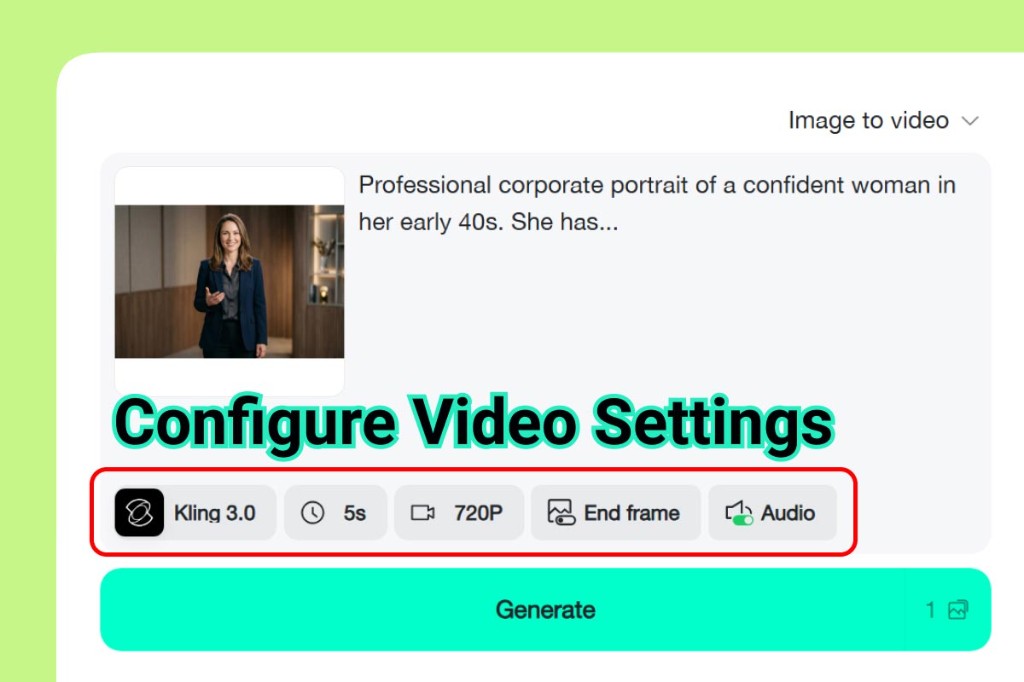
In the settings bar below the prompt, choose the AI model that fits your quality and speed need. Match aspect ratio to distribution: 16:9 for YouTube and presentations, 1:1 for LinkedIn and email headers, 9:16 for Instagram Reels and TikTok. Set duration to five seconds for a punchy hook or ten seconds for a miniature story arc. If you want dialogue, music, or ambient sound baked into the clip, select a model with the Audio toggle enabled — voiceover-ready models blend lip sync and background music automatically.
Step 3: Generate and download your clip
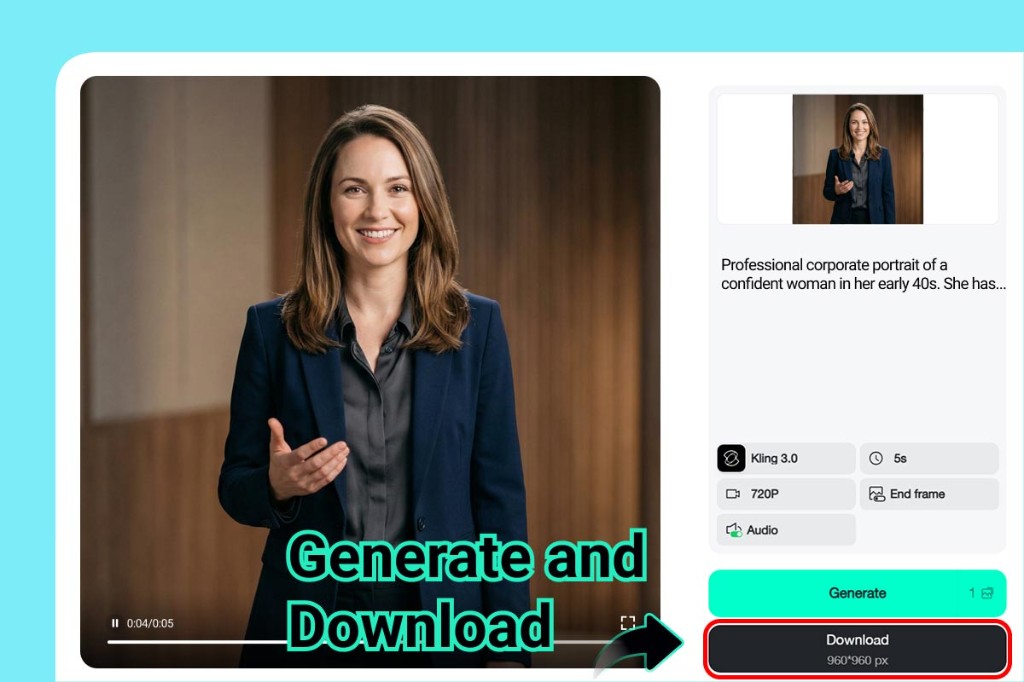
Hit Generate. The progress bar fills while the model renders your clip. Preview the result in the built-in player; if the motion or audio feels slightly off, tighten one prompt phrase and regenerate — single tweaks rarely require a full rewrite. When the preview is right, click Download to save the MP4 at the resolution you selected. The filename includes pixel dimensions, so organizing by campaign is straightforward.
Model, Ratio, and Audio Settings That Matter
Model selection is the single biggest lever on output quality. High-tier flagship models produce sharper facial details, smoother hand gestures, and more coherent background elements. Mid-tier models are faster and cheaper for first-pass concepting. A practical rule: use the fastest model for iteration, then switch to a flagship for the deliverable.
Aspect ratio shapes how the viewer reads the frame. A 16:9 landscape encourages context and two-shots; a 9:16 vertical forces tight framing and immediate eye contact. When you distribute the same message across LinkedIn (1:1), YouTube pre-roll (16:9), and Stories (9:16), generate each version separately rather than cropping after the fact — ratio-specific framing reads more professional.
Audio-enabled models are worth the extra generation time for client-facing content. They synchronize lip movement with generated dialogue, blend a music bed at a sensible level, and add ambient sound that anchors the scene. If you are building a AI UGC video generator workflow where creators film themselves, mute the AI audio layer and mix the recorded track instead to keep authenticity.
Prompt Strategies for Professional Business Video
Corporate prompts fail when they are vague. “Professional business video” is not a prompt; it is a category. Strong business prompts include a subject description, an action verb, an environment, a lighting mood, and a camera intention. Below is a format that converts reliably for spokesperson-style explainers.
For product-first explainers, put the product in the subject line and add a “Reveal:” block that describes how it appears in the frame. Short sentences per block outperform run-on descriptions because the model weights earlier phrases more heavily. When you want tighter brand control, generate a AI promo video maker pass first, check the palette and typography fit, then refine the spokesperson generation to match.
Use Cases: From Product Demos to Sales Enablement
Product demos — Show the product in use within the first two seconds. Keep the environment neutral so the product stays dominant. Use close-ups for physical products; widescreen cuts for software that needs context around the UI.
Onboarding and training — Text-to-video handles animated explainers and screen-overlay style content well. Narrated walkthroughs benefit from audio-enabled models so learners can follow along without reading captions. Keep scenes short (five seconds each) so clips feel modular and editable.
Investor and pitch decks — A thirty-second AI-generated video embedded in a pitch deck stands out in any raise. Use a polished spokesperson framing, a clean branded backdrop, and a single compelling data-driven claim per clip. Prioritize 16:9 at the highest resolution available.
Social proof and testimonial-style clips — Animate a quote from a written review by placing it as dialogue in the prompt. Pair it with a realistic persona in the subject description. This technique scales review-based content without recording sessions. It pairs naturally with a business video maker strategy where volume and speed matter more than studio perfection.
Sales enablement — AEs can generate personalized intro clips using image-to-video with their headshot, a custom greeting line, and the prospect’s industry setting. A five-second “looking forward to connecting” clip in a cold outreach email increases reply rates significantly over plain text.
Frequently Asked Questions
Do I need video editing skills to use an AI explainer video generator?
No. insMind’s workflow is click-through: mode selection, settings, generate. You do not need timeline editing, keyframing, or rendering knowledge. If you want to chain clips or add captions, a basic mobile editor handles the light assembly work after you download.
Which mode is better for B2B versus B2C video?
B2B content almost always benefits from image-to-video with a real or hyper-realistic portrait because professional trust depends on face-to-face association. B2C campaigns often do better with text-to-video that can iterate style quickly for A/B tests. That said, image-to-video for product close-ups works equally well in both contexts.
Can I use AI-generated explainer video for paid advertising?
Yes, with disclosure where required by platform policy. Most major ad networks (Meta, Google, LinkedIn) now require AI content labeling in the submission flow. insMind’s output is MP4 with no proprietary watermark on paid tiers, so compliance workflow is the same as any produced asset.
What duration works best for explainer videos?
Ten to sixty seconds is the proven range for retention. For social and ads, fifteen to thirty seconds captures attention before the skip option. For product demos embedded in pages, thirty to ninety seconds gives enough room for a single feature story. Generate in shorter segments and join them so each clip can stand alone or play in sequence.
Do I need to upload a specific image format?
JPEG and PNG are both accepted. Portrait orientation or square crops work best for spokesperson generation; landscape photos can introduce unexpected composition choices. High-res originals (at least 800px on the short edge) produce cleaner animation, especially for close-up facial detail.
Make Your First Business Explainer Today
The best AI explainer video generator for business in 2026 is the one your team will actually use—fast to set up, flexible enough for every distribution channel, and capable of producing spokesperson-quality clips without a crew. insMind delivers all three in a three-step flow that runs from blank canvas to downloadable MP4 in under ten minutes.
Pick a mode, write a structured prompt or upload your avatar, configure model and audio to match the channel, and hit Generate. Your next product demo, sales intro, or investor story is one session away. Which use case will you ship first?
Ryan Barnett
I'm a tech enthusiast and writer who loves exploring AI, digital tools, and the latest tech trends. I break down complex topics to make them simple and useful for everyone.


