


 Ryan Barnett·April 24, 2026
Want your cat to hit a dance break without a film crew, green screen, or animation degree? You are not alone. Short clips of pets “dancing” took over Reels and Shorts because they are funny, shareable, and oddly heartwarming. The good news is that you can start from a single clear photo and let AI handle the motion.
This guide walks you through how to make a cat dance video with AI using an image-to-video workflow: upload your picture, describe the movement, generate a clip, then download it for social or messages. We will also cover what makes a prompt work, which photos look best, and the mistakes that cause wobbly paws or blurry faces.
If you already love turning stills into motion, you can explore a picture to video workflow on insMind and follow the same pattern for other pets or meme ideas.
You will learn what AI needs from a cat photo before it can fake a dance convincingly.
You will get a copy-ready prompt pattern you can tweak for comedy, cute, or cinematic vibes.
You will see the exact click path: upload, prompt, model settings, generate, download.
Table of Contents
- 01 How to Make a Cat Dance Video with AI
- 02 What Happens When You Animate a Cat Photo?
- 03 Why Creators Love AI Pet Dance Clips
- 04 How to Animate Cat Photos with insMind
- 05 Tips for Smarter Prompts and Cleaner Motion
- 06 Common Mistakes to Avoid
- 07 Frequently Asked Questions
- 08 Make Your Cat Dance Today
How to Make a Cat Dance Video with AI
At a high level, you are doing four things: pick a photo where your cat reads clearly, describe the dance and camera in plain language, choose duration and quality that match the platform, then generate a few takes and keep the funniest one. You do not need timeline editing software for a first version. Most creators treat the first clip as a draft, then tighten captions or music in a short-form editor afterward.
The biggest mindset shift is to think like a director of a tiny stage play. You are not asking the model to “know” what dance means in the abstract. You are giving it a beat-by-beat visual story: posture, rhythm, camera position, and a small twist at the end if you want comedy. A little specificity goes a long way toward paws that land where viewers expect them to land.
If you want a cleaner stage before you animate, you can change picture background so the cat pops off the frame. That is optional, but it helps when your living room is busy with furniture legs, cables, or reflective glass.
What Happens When You Animate a Cat Photo?
Image-to-video models look at edges, textures, and depth cues in a still image, then predict how those regions could move over a few seconds. When the subject is a cat, the model pays extra attention to the face, ears, and outline of the body because viewers judge realism there first. That is why a front-facing or three-quarter pose often feels more convincing than a extreme profile where one eye disappears.
Dance motion is harder than a simple head tilt because limbs cross in front of the torso and the tail swings through negative space. The model has to invent plausible in-between frames. When your prompt names the kind of motion, tempo, and framing, you reduce guesswork. When you only write “dance,” you get random choreography that may not match your cat’s personality or the room lighting.
Some creators preprocess a photo for a stylized look before video, for example a soft cartoon line art pass. That is a creative choice, not a requirement. If you ever go that route, you can experiment with filters such as turn photo into anime for a different comedic tone, then feed the result back into image-to-video.
Why Creators Love AI Pet Dance Clips
Pet content already earns outsized engagement because it triggers quick emotions. A dance twist adds surprise: viewers know cats do not rehearse tap routines, so the mismatch is the joke. Brands use the same pattern for lighthearted product spots, and families use it for invitations or birthday greetings when a live shoot is not practical.
For independent creators, the cost profile is friendly. Instead of blocking an afternoon for lighting and multiple takes, you spend minutes iterating on prompts. You can also produce several variants with the same base photo to see which motion feels smoothest. That iteration loop is where AI tools shine compared with traditional keyframe animation for one-off jokes.
Finally, short vertical clips match how people scroll today. If you export a clip that loops cleanly, you get extra watch time without asking viewers to interpret a complex plot. Pair a strong opening frame with readable motion in the first second, and you stack the odds for retention.
How to Animate Cat Photos with insMind
Open insMind’s image-to-video experience and sign in if needed. The flow below matches the screenshots captured from the product: each step lines up with a panel in the interface so you can follow visually while you read.
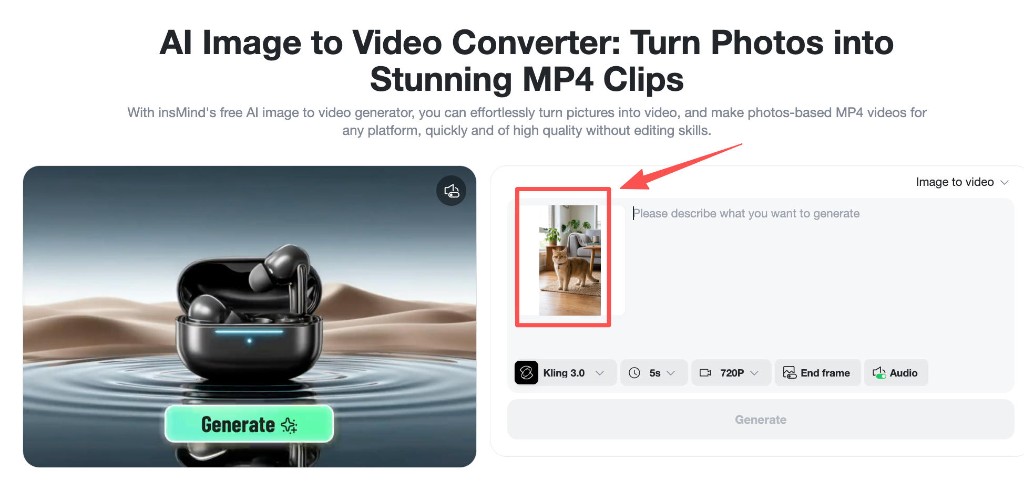
Step 1: Upload your cat photo
Choose a sharp image where your cat is fully in frame. Natural light through a window is ideal. If your cat is sitting, make sure the paws and tail are not cropped out, because the model will invent motion around those edges first. Drag the file into the upload area or use the picker, then wait until the thumbnail looks crisp.
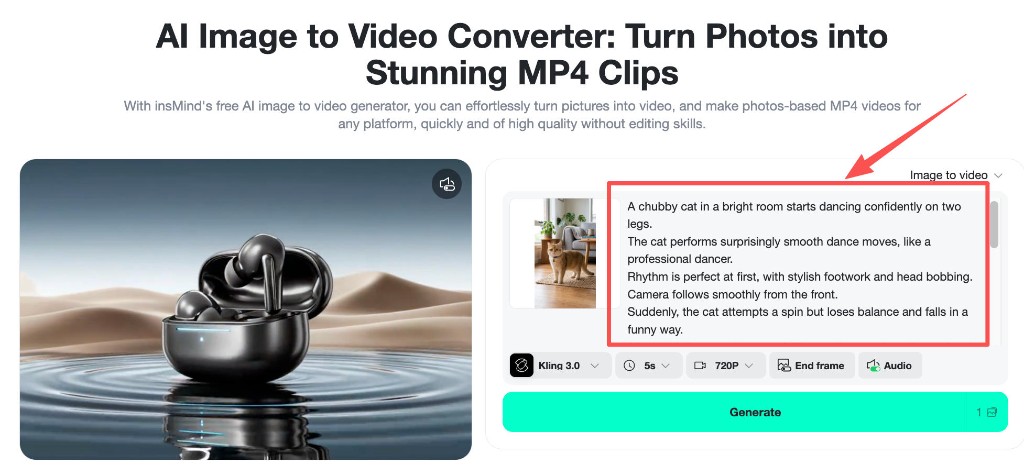
Step 2: Write a motion-focused prompt
Describe what should happen across a few seconds. Mention posture, rhythm, camera follow, and a small story beat if you want humor. Here is an example you can adapt: “A chubby cat in a bright room starts dancing confidently on two legs. The cat performs surprisingly smooth dance moves, like a professional dancer. Rhythm is perfect at first, with stylish footwork and head bobbing. Camera follows smoothly from the front. Suddenly, the cat attempts a spin but loses balance and falls in a funny way.” That pattern sets expectations, then delivers a punchline.
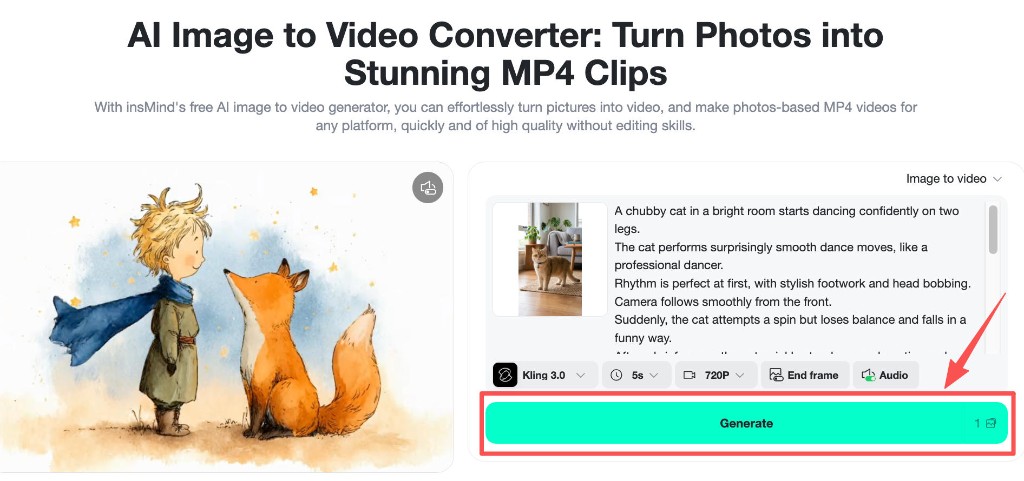
Step 3: Choose model, duration, and resolution
Pick a video model that fits the motion style you want. Newer models often handle subtle weight shifts better, which matters for dance gags. Set duration based on platform: a five-second clip is easy to loop for TikTok, while a ten-second clip gives you more time for a setup and payoff inside one take. Choose a resolution that balances clarity with upload time, and toggle audio only if you plan to use the baked-in sound instead of a trending track later.
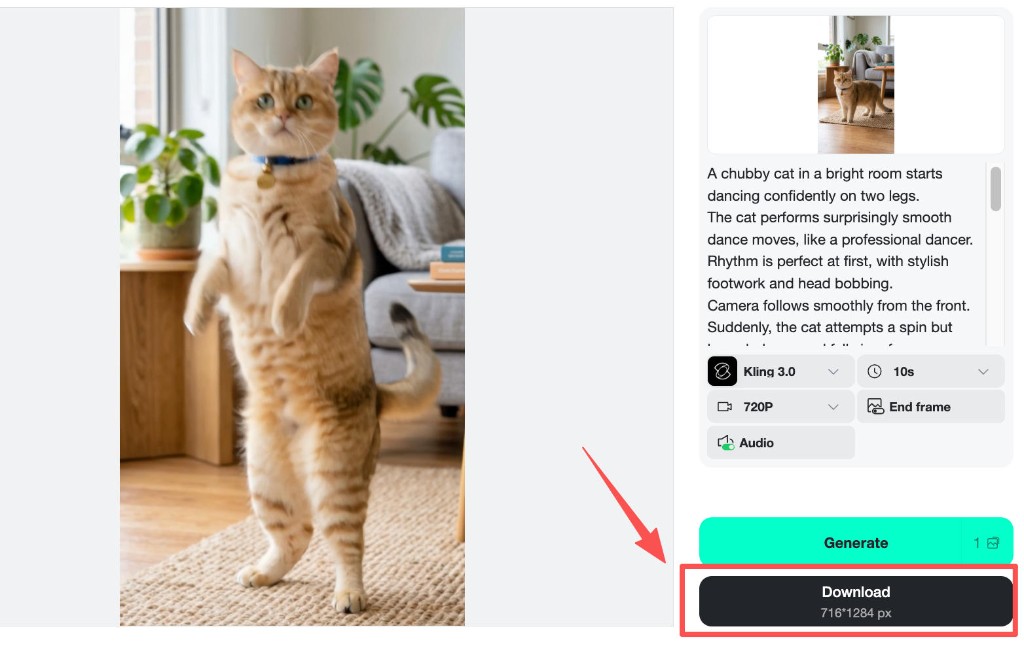
Step 4: Generate, preview, and download
Press generate and let the job finish. If the motion feels too fast or the punchline lands late, shorten the prompt or reduce the number of simultaneous actions. When you like a take, download the MP4. You can trim the first and last frames in any short-form editor, add captions, and sync to music. Keep a folder of “almost” clips; sometimes the second or third variant has the perfect tail flick.
Throughout the flow, remember you can always return to the same photo to video AI entry point if you want to try a second pose or a different punchline with the same cat.
Tips for Smarter Prompts and Cleaner Motion
Start with one primary action, not three. If you ask for spins, jumps, and high kicks in the same breath, the model may blend them into mush. Anchor the scene with lighting words that match your photo so the AI does not try to relight the room in a conflicting way. Phrases like “bright living room” or “soft window light” help continuity.
Name the camera behavior explicitly: handheld wobble, smooth dolly-in, or locked tripod. Viewers forgive slightly unrealistic paws sooner than they forgive a camera that jitters without intent. If you want comedic pacing, place the twist in the final third of the clip so the setup has time to read.
Generate small batches and compare. Tiny edits to wording, such as swapping “hop” for “shuffle,” can change foot placement a lot. Keep a notes doc with your favorite phrases so your next cat video starts from a proven baseline.
Common Mistakes to Avoid
Ultra-tight crops are the classic pitfall. If you cut off paws at the edge of the frame, the model has to hallucinate them, which invites glitches. Another pitfall is contradictory motion, for example “sleeping” in the same sentence as “high-energy tap dance” without a story bridge. Pick one energy level per clip.
Busy backgrounds steal attention. Random objects moving in the background can look like mistakes even when the cat looks fine. A quick pass to declutter the floor, or a background swap, keeps the joke on your pet. Finally, avoid stacking too many rare props; simple rooms read faster on a phone screen.
Frequently Asked Questions
What kind of cat photo works best for a dance video?
Use a well-lit image where the full body is visible and the face points mostly toward the camera. Avoid heavy motion blur in the source still. If you only have a sleeping shot, try a playful wake-up story in the prompt instead of forcing a standing dance.
How long should the clip be for TikTok or Reels?
Five to ten seconds is the sweet spot for a single gag. Shorter loops are easier to replay, while ten seconds gives you room for setup and payoff. Export vertical if you are targeting phone-first feeds.
Does this work for dogs or other pets?
Yes. The same prompt structure applies: clear photo, simple motion, explicit camera. Adjust body language words to match the animal, for example tail wag versus tail flick.
Why does my first generation look jittery?
Jitter often comes from conflicting motion cues or a cluttered background. Simplify the prompt, reduce simultaneous actions, and try again. A slightly lower duration can also help if the model struggles to hold coherence across the whole clip.
Do I need professional editing software afterward?
Not for a first share. Many creators only add captions, music, and a trim. If you want polish, free mobile editors are enough for cuts, speed ramps, and stickers.
Make Your Cat Dance Today
You now have a practical path from a single cat photo to a short dance clip: clean framing, a descriptive prompt, sensible model settings, then generate and download. The next step is to try it with your own pet, pick the take that makes you laugh, and share it. Ready to see your cat headline the timeline?
Ryan Barnett
I'm a tech enthusiast and writer who loves exploring AI, digital tools, and the latest tech trends. I break down complex topics to make them simple and useful for everyone.


