


A polished explainer video that converts is 40% content and 60% prompt engineering. The model cannot read your mind; it reads your text. When that text is vague, the output is generic. When it is structured like a mini shooting script—subject, environment, motion, camera, audio, style—the model has everything it needs to generate a clip that looks like it came from a real production.
This guide breaks down the best AI prompts for explainer videos across four use cases: product demos, talking-head presenters, tutorial walkthroughs, and faceless brand spots. Each template is copy-paste ready and tested in insMind’s video workspace, which lets you switch between text-to-video and image-guided generation depending on how much creative control you need.
If you already have a spokesperson photo or product render, use image-to-video so motion stays tied to your exact visual. If you are still exploring, text-to-video lets you iterate on framing and style without any source asset. Either way, the same prompt logic applies: be specific, label your sections, and let the AI explainer video generator handle the rendering.
-
Pick text-to-video or image-to-video based on whether you have a reference asset.
-
Set model, aspect ratio, duration, and audio to match your distribution channel.
-
Paste a structured prompt, generate, and download your finished clip as an MP4.
Table of Contents
- 01 What Makes a Great AI Prompt for Explainer Videos?
- 02 Proven Prompt Templates by Explainer Type
- 03 How to Generate Explainer Videos with insMind
- 04 Settings That Amplify Prompt Quality
- 05 Common Prompt Mistakes and How to Fix Them
- 06 Frequently Asked Questions
- 07 Ship Your First Prompted Explainer Today
What Makes a Great AI Prompt for Explainer Videos?
The best prompts for explainer videos work like a condensed shot list. They tell the model who is on screen, where they are, what they do, how the camera frames it, and what we hear. That five-part structure is the difference between a generic “woman explains product” clip and a polished presenter-to-camera video that holds attention past the three-second mark.
Subject specificity is the most underused lever. Swap “professional person” for “confident woman in her early 40s, tailored cream blazer, direct eye contact, warm studio with soft bokeh background” and the model has concrete visual targets instead of an average. The same principle applies to action: “gestures open-palm toward viewer” generates better hand motion than “talks to camera.”
Audio lines are often forgotten but disproportionately impactful. When a model supports audio generation, a single line like “clear authoritative voiceover, 85 BPM ambient piano, no reverb on speech” often separates a marketable clip from a mute test. Whether you are building a AI tutorial video generator workflow or a brand-awareness spot, labeling audio intent in the prompt makes the difference.
Proven Prompt Templates by Explainer Type
Template 1 — Talking-Head Presenter
Use this for spokesperson videos, thought-leadership clips, and virtual presenter explainers. Works best with image-to-video when you have a portrait asset.
Template 2 — Product Demo
Ideal for SaaS walkthroughs, physical product reveals, and e-commerce launch clips. Focus the subject line on the product, not a person.
Template 3 — Faceless Brand Spot
Perfect for anonymous B-roll, motion graphics-style intros, and social ads that do not require a real face. This is where a AI faceless video generator workflow thrives: you define the world without an actor.
Template 4 — Step-by-Step Tutorial Clip
This structure works for onboarding videos, how-to shorts, and micro-learning content. Pair it with short durations (five to eight seconds per step) so clips stay modular and editable.
How to Generate Explainer Videos with insMind
insMind combines all four explainer types in one workspace. Here is the three-step workflow that takes you from a blank canvas to a downloadable MP4.
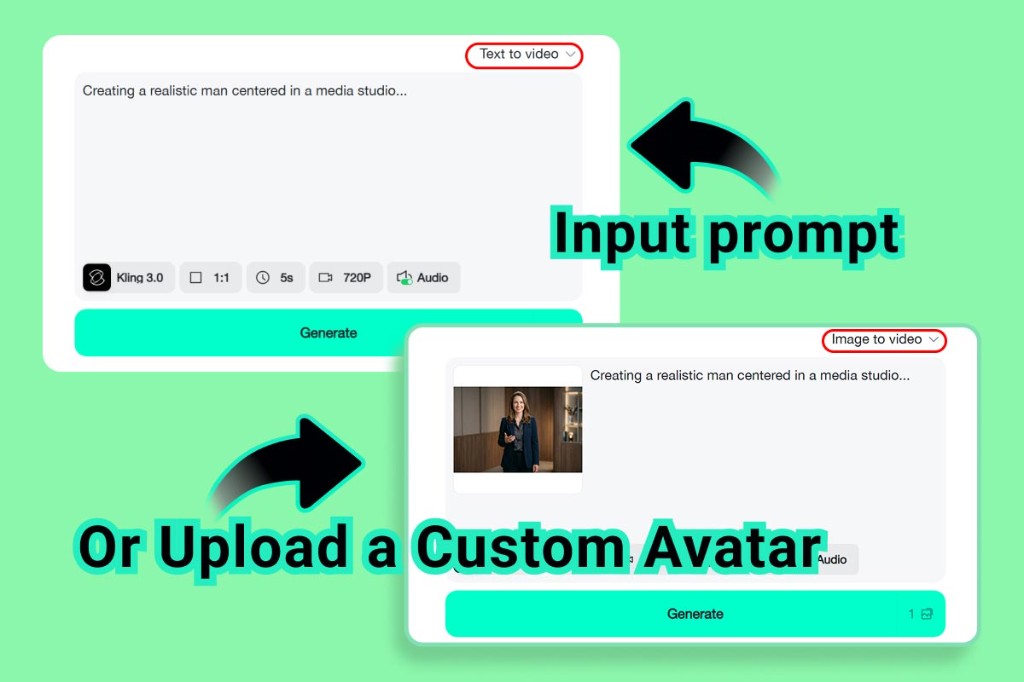
Step 1: Choose text-to-video or image-to-video
Open the generator and select your mode from the top-right dropdown. Text to video gives you a clean prompt area and full creative freedom. Image to video adds a media slot so you can anchor motion to an existing portrait, product photo, or brand illustration. The prompt logic is identical in both modes; only the starting visual differs.
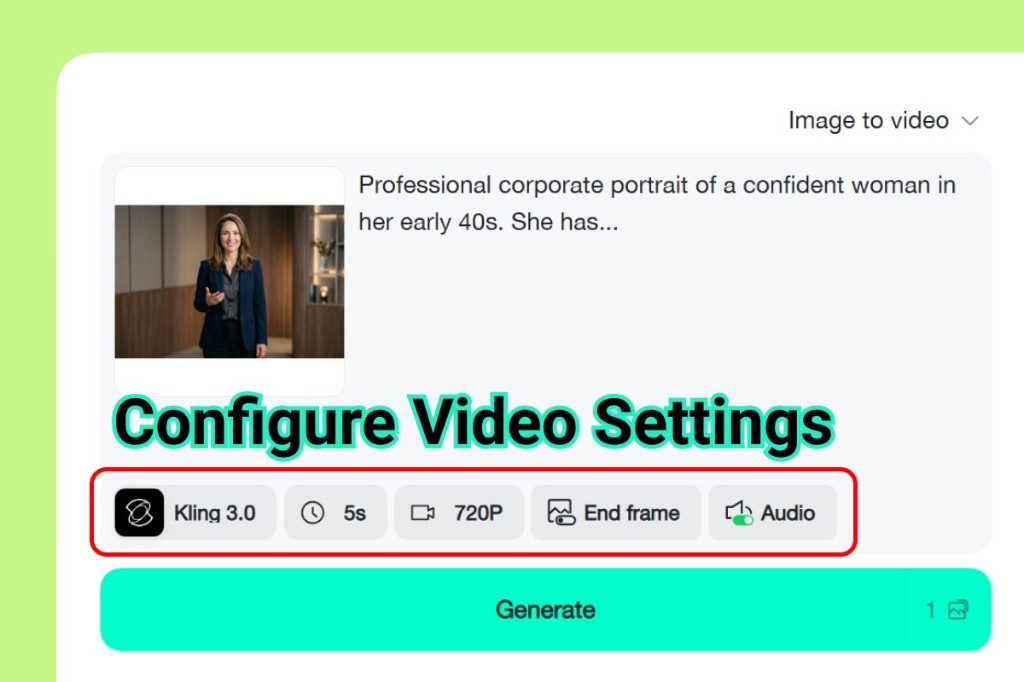
Step 2: Configure model, ratio, duration, and audio
Select your model in the settings bar. Match aspect ratio to distribution: 16:9 for YouTube and presentations, 1:1 for LinkedIn, 9:16 for Reels and TikTok. Set duration to five or ten seconds per logical beat rather than trying to cram a full story into one clip. Enable audio when your prompt includes voiceover or sound design lines; disable it when you plan to add licensed music post-export. The model and audio toggle together determine how closely the rendered clip follows your audio prompt lines.
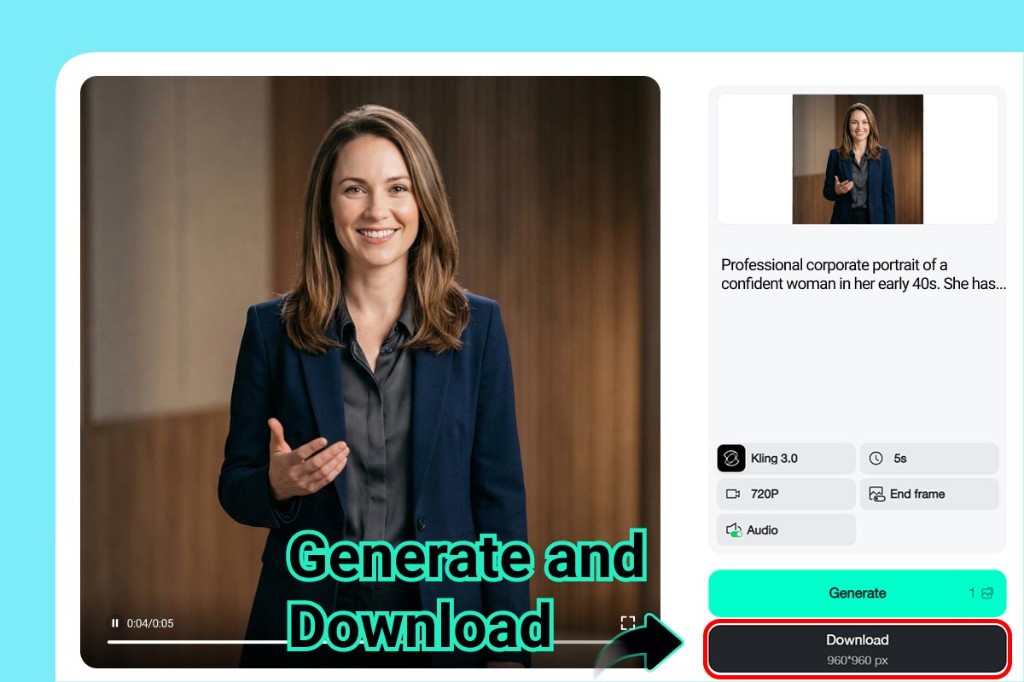
Step 3: Generate and download your clip
Paste your structured prompt, hit Generate, and preview the result in the built-in player. If anything feels off—motion too fast, hands looking strange, audio mixed poorly—adjust one prompt block and regenerate rather than rewriting everything. When the preview passes your eye test, click Download to save the MP4. Name files by template type and version so you can A/B test variations without confusion.
Settings That Amplify Prompt Quality
Model choice: Higher-tier flagship models handle nuanced prompt instructions better. They catch sub-clauses like “slight push-in” or “no reverb on speech” that faster models tend to ignore. For a final deliverable, always use the highest model tier available to you. For rapid-fire iteration, a mid-tier model saves time and quota without costing quality on the next pass.
Aspect ratio and duration: These are creative decisions, not technical ones. A 1:1 ratio rewards subjects that fill the center of the frame; widescreen accommodates two-shots and environmental context. Duration acts as a pacing constraint: a five-second clip forces you to write one clear action; a ten-second clip accommodates two. Either way, match the prompt length to the duration setting or beats will be dropped. For multi-step explainers, think of each clip as a AI story video generator segment: self-contained, but designed to play in sequence.
End frame: When an end-frame control is available, use it for product demos. Setting a clean end frame with the product centered and a text-safe zone gives your editor a stable freeze for adding a CTA overlay without fighting motion blur.
Audio toggle: On means the model blends speech, music, and ambience from your prompt. Off means the picture renders without a baked track. For paid ads that need a licensed soundtrack, always render without audio and swap the track in post. For organic social, baked audio from the model is often good enough and saves one editing step.
Common Prompt Mistakes and How to Fix Them
Too vague on the subject. “Professional person” produces an average. Add title, approximate age, wardrobe color, and eye-contact intent. If the subject still looks generic after two passes, add a nationality or regional styling cue to steer the visual reference further.
Stacking too many actions. Three simultaneous actions (“walks, gestures, and speaks”) compete for priority. Sequence them into separate clips or pick the most important one per generation. If you need all three, label them with time references: “first two seconds: walk; seconds three to five: gesture; final second: hold.”
Ignoring camera language. No camera line means the model picks its own framing, which varies wildly. Even a single instruction (“medium shot, static”) anchors the composition. Add a movement verb (“slow push-in,” “subtle handheld”) and the clip immediately reads more intentional.
Forgetting audio when it is enabled. If audio is toggled on and you have no audio line in the prompt, the model guesses. Sometimes it guesses well; often it does not. A ten-word audio line (“light piano music bed, clear narration, no reverb”) eliminates that variance and produces a clip you can hand off without re-mixing.
Mixing styles in one prompt. “Photorealistic but also animated cartoon look” is an instruction that cancels itself. Commit to one visual register per clip. If you need both styles in the same project, generate them as separate clips and join them with a transition in post.
Frequently Asked Questions
How long should an AI prompt for an explainer video be?
Aim for six to ten labeled lines. Below six, you leave too much creative latitude to the model. Above fifteen, competing instructions start to cancel each other. The sweet spot is one clear line per creative dimension: subject, environment, action, camera, lighting, audio, style, and technical flags.
Can I use the same prompt template for every explainer type?
The structure is the same; the field values are not. A product demo swaps the human subject for an object and skips the voiceover line. A faceless spot drops the subject block entirely and leans harder on environment and camera. Start from the template and delete whichever blocks do not apply to your specific use case.
Should I use image-to-video or text-to-video for a spokesperson video?
Image-to-video when likeness or brand consistency matters. The model inherits face, skin tone, wardrobe color, and backdrop from your uploaded portrait, which is near-impossible to replicate precisely through text alone. Text-to-video when you are exploring spokesperson personas before committing to a specific look.
Why do hands look wrong even with a good prompt?
Hands are difficult for all current generation models. Reduce the number of simultaneous gestures to one, use simple descriptors (“open palm toward viewer,” “holds device with both hands”), and avoid foreshortening requests (“pointing directly at camera”). If the first pass still has hand issues, change the camera angle line to a three-quarter shot and regenerate.
Can AI-generated explainer videos be used in paid ads?
Yes, with required AI disclosure where your ad platform mandates it. Meta, Google, and LinkedIn all have AI content labeling requirements in their ad submission flows. insMind output is a standard MP4 with no proprietary watermark on paid tiers, so the compliance workflow is identical to any produced asset you upload.
Ship Your First Prompted Explainer Today
The best AI prompts for explainer videos are not secret formulas. They are structured briefs that respect the model’s need for specificity. Subject, environment, action, camera, lighting, audio, style, technical flags—fill each slot and the model fills the frame. Leave slots empty and the model guesses, which is where generic-looking output comes from.
Pick a template from the four above, swap in your product details or brand character, set your mode and audio toggle in insMind, and generate a first pass. Which explainer type will you test first—the presenter template or the faceless brand spot?

Jayson Harrington
I am the Chief Editor of insMind. I provide tips and skills to help users design better photos with insMind, whether for e-commerce, social media, or any other use.


