


You already have the story. Maybe it is a seven-beat rescue arc, a product myth, or a bedtime-style fable. The hard part used to be cameras, actors, and timelines. Today, if you want to learn how to create story videos with AI, you can treat each scene like a mini film strip: write the beat, optionally anchor it with a reference image, generate a clip, then stitch the pieces together in any simple editor.
This article focuses on a practical pipeline: how to turn a story into a video by splitting a script into scenes, generating motion clips from text plus optional stills, and merging results without learning professional editing first. You will also see how how to generate storytelling videos changes when you care about character consistency versus mood-only B-roll.
When you are ready to try the workflow in-browser, open insMind’s picture to video workspace alongside this guide so you can mirror the clicks while you read.
-
Break your script into labeled scenes with camera and emotion cues.
-
Upload a reference portrait or illustration when you need the same character across clips.
-
Pick model, duration, and resolution, generate each scene, then merge and add music.
Table of Contents
- 01 How to Create Story Videos with AI
- 02 How to Turn a Story Into a Video
- 03 Scene Beats Before You Press Generate
- 04 How to Create Story Videos with insMind
- 05 Example Prompt: Seven-Scene Puppy Arc
- 06 How to Generate Storytelling Videos That Stay Cohesive
- 07 How to Create Animated Story Videos Without Glitches
- 08 Frequently Asked Questions
- 09 Convert Your Script to Video Today
How to Create Story Videos with AI
Story-first video with AI is not one magic button. It is a loop: write a beat, generate motion, watch the take, adjust language or settings, repeat. The upside is that you can create story videos without editing heavy timelines at first; trimming clips and adding music in a phone editor is enough for many launches, internal reviews, or pitch teasers.
Readers searching for an AI story video generator from text usually want two things: readable structure and predictable visuals. Structure comes from scene labels. Visuals come from optional reference frames, clear lighting words, and camera vocabulary that matches what you actually want viewers to feel.
If your opening shot depends on a clean plate, you can simplify backgrounds before generation using tools like change picture background on a still frame, then feed that frame into the same image-to-video flow so the model spends tokens on motion, not clutter.
How to Turn a Story Into a Video
Start by deciding runtime. A thirty-second emotional arc might need six to eight micro-clips at five seconds each, while a two-minute explainer wants fewer, longer segments with title cards between them. Once runtime is clear, list beats in order: setup, rising tension, reversal, payoff.
Next, translate each beat into a scene card: one paragraph with subject, action, environment, camera, and tone. That is the unit you will paste into the generator. This mirrors how writers room boards work, except your board is a text file you can version in Git or Notion.
Finally, plan audio. If you want score-like emotion, decide whether you will lean on model audio or drop a track in post. Many creators convert script to video automatically for visuals first, then layer voiceover or music once the cut is locked.
Scene Beats Before You Press Generate
Scenes should not fight each other. If Scene 2 introduces rain and Scene 3 returns to harsh noon sun without a story reason, viewers feel a continuity break. Carry lighting language forward (“overcast,” “warm street lamp”) the same way you would on a real set.
Character consistency is the other big lever. If you need the same face or mascot silhouette across clips, reuse one approved reference still for every scene that features that character. If the story is mood-only, skip the upload and lean on pure text. Both are valid; they optimize for different goals.
For stylized campaigns, some teams run key art through a cartoonize photo pass to exaggerate shapes before video so motion reads clearly on small screens.
How to Create Story Videos with insMind
Below is the exact insMind-side flow that matches the product screenshots: script first by scene, optional reference upload, settings, generate, then download for merging.
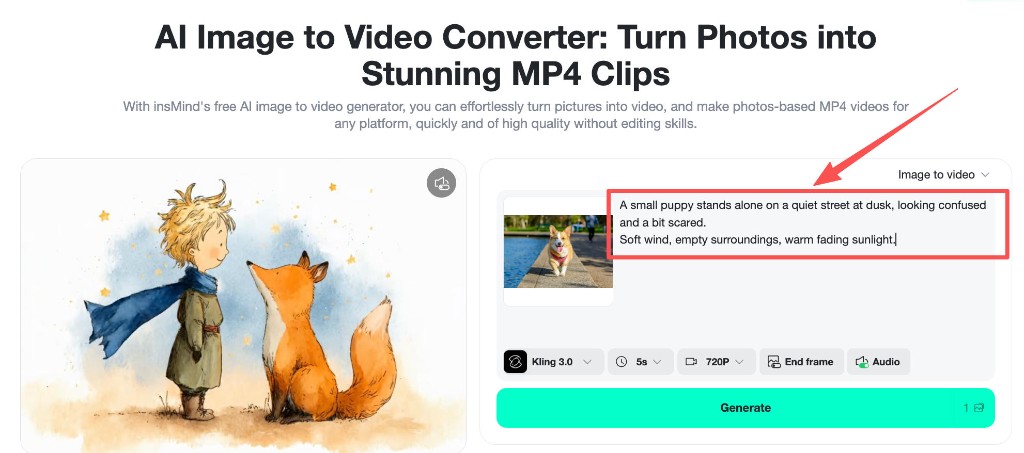
Step 1: Enter your story script by Scene
Open Image to video and paste one scene at a time into the prompt area. Label scenes (“Scene 1,” “Scene 2”) so you can sort files later. After you generate all clips, merge them in CapCut, iMovie, Premiere Rush, or any editor you already use. The merge step is where you add cross-fades, on-screen titles, and final music.
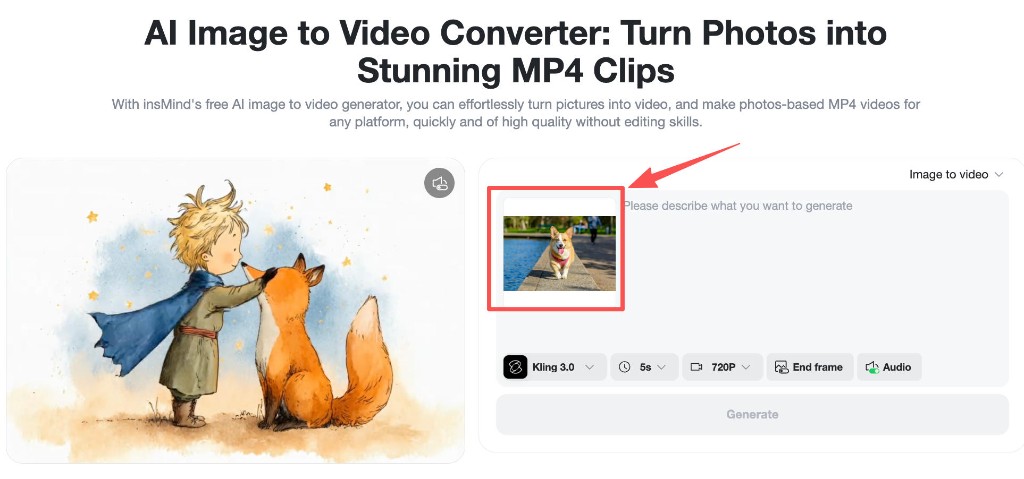
Step 2: Upload a reference photo (optional)
If you need the same character, outfit, or illustrated mascot across scenes, upload a portrait or key illustration. If the story is environment-first, skip this step. Consistency improves when the reference crop leaves margin around limbs so the model can move without inventing new edges.
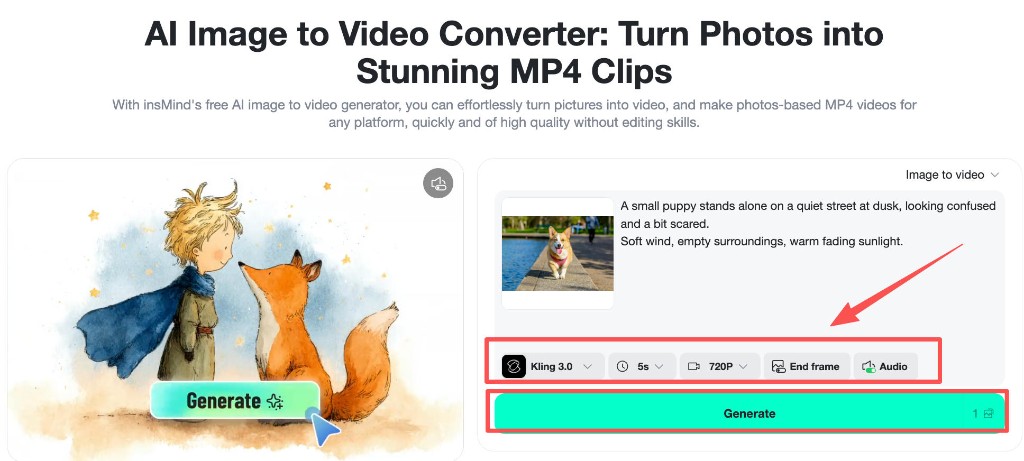
Step 3: Adjust settings and generate
Pick a model that fits your look, set duration per scene (often five seconds for social pacing), choose resolution, toggle audio if you want built-in sound, then press Generate. Regenerate any beat that feels off before moving to the next scene so you do not carry continuity errors downstream.
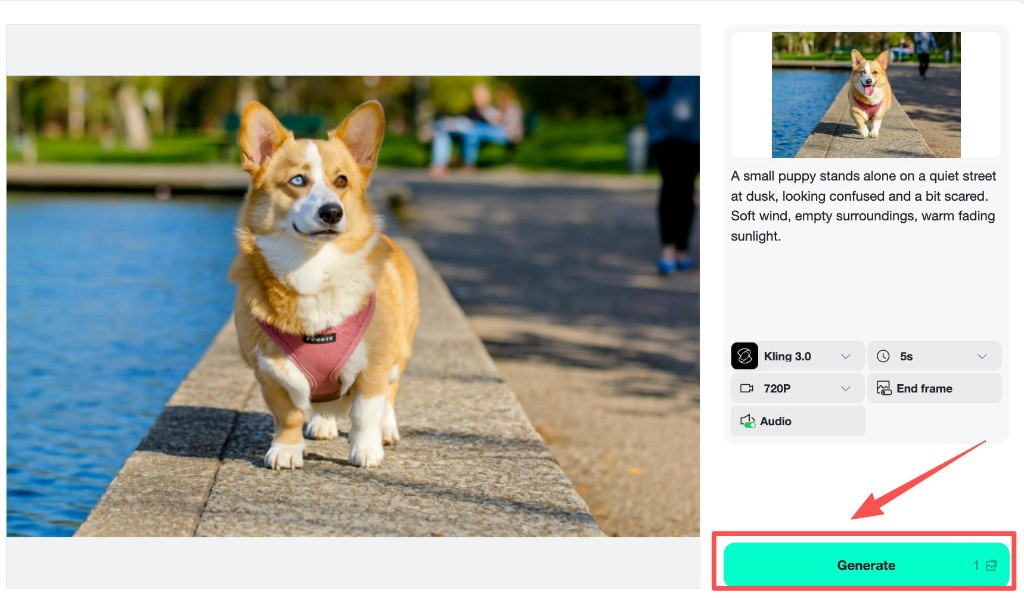
Step 4: Download your clips
Download each finished scene to a folder with scene numbers in the filename. Import them in order, add transitions, optional captions, and export your master story. That merge pass is where you finalize pacing even if you never touch keyframes.
For a second pass on mood boards, the same photo to video AI entry point supports quick reshoots: duplicate the prompt doc, tweak one line, regenerate only the scenes that changed.
Example Prompt: Seven-Scene Puppy Arc
Below is the optional sample you can paste scene-by-scene. Keep the style line on every generation if you want matching grade across clips.
Generate Scene 1 alone first. If the look matches your plan, keep model and resolution locked while you iterate through later scenes so exposure stays in family.
How to Generate Storytelling Videos That Stay Cohesive
Cohesion is a language problem more than a software problem. Repeat color words, weather, and time-of-day cues. If Scene 4 introduces a whistle, mention distant sound again in Scene 5 so viewers understand why the puppy accelerates.
When people compare options for the best AI storytelling video generator for their team, they usually rank batch speed second and continuity first. A slightly slower model that preserves faces beats a fast model that reinvents the character every clip.
Set dressing can be reinforced with still prep: if a classroom needs the same poster on the wall, fix it in a reference still using an ai background generator pass before you animate so later scenes inherit the same prop silhouette.
How to Create Animated Story Videos Without Glitches
How to create animated story videos in the stylized sense often starts from illustrations. If your pipeline mixes illustrated characters with realistic lighting words, the model may blend styles awkwardly. Pick one lane: cinematic photo-real, or soft illustration, and keep prompts in that lane.
Distortion usually comes from cramming too many actions into one five-second clip. Prefer one primary verb per scene (“runs,” “hides,” “listens”) plus camera motion. Save complex choreography for longer durations or split across two scenes.
For a softer illustrated look before motion, run a stylized still pass on a key frame first, then animate from that frame when you want a storybook finish.
Frequently Asked Questions
Is there an AI story video maker free online for drafts?
Many tools, including insMind, let you try short clips in-browser before you commit to a full series. Treat free tiers as a storyboard phase: validate pacing, then scale up production once the beats feel right.
Do I need different prompts for every scene?
Yes. One giant paragraph often confuses motion priority. Scene cards keep the model focused on a single beat, which improves success rates when you merge later.
What if my character drifts between scenes?
Reuse the same approved reference image, lock model and resolution, and simplify motion verbs. If drift persists, regenerate only the offending scene with tighter framing words.
How long should each scene be?
Five seconds is a strong default for social pacing. Use longer takes when dialogue or atmosphere needs room, but keep one main action per clip.
Does this replace a full video editor?
Not entirely. You still merge, mix audio, and export. The win is that you skip filming and heavy compositing for many narrative prototypes.
Convert Your Script to Video Today
You now have a scene-first method, an insMind click path, and a ready-made seven-beat sample you can remix. The fastest learning loop is to generate Scene 1 twice with different camera words and compare them before you invest time in later beats. Ready to see your script move?

Sarah Michelle
I'm a freelance writer with a passion for editing and designing photos. Here at insMind, I strive to educate users on image creativity, photography, and enhancing product photos to help grow their businesses.


