


 Ryan Barnett·April 24, 2026
Parents, teachers, and creators are all asking the same thing: how do you make short, watchable clips for kids without a studio, puppets, or a weekend lost in editing? When you want to create kids videos with AI, a practical path is to start from one clear image or a text idea, add a kid-safe prompt with sound and camera notes, pick a strong video model, then export a clip you can trim or chain into a longer story.
This guide walks through insMind’s image-to-video flow in four moves: upload (or skip straight from text), write a structured prompt, choose settings like model and duration, then download. You will also see how to keep tone bright, avoid scary beats, and reuse the same character when you generate sequels.
If you prefer to start from words only, you can open script to video ai instead, sketch the scene in prose, then switch to image-guided clips once you have a still you love.
-
Upload a reference illustration or photo, or begin from text-to-video if you do not have art yet.
-
Write prompts with action, dialogue, camera, audio, style, and safety lines so the model knows the vibe.
-
Pick model and duration, enable audio when you want music and SFX, generate, then download for sharing or editing.
Table of Contents
How to Create Kids Videos with AI
Kid-facing motion does not need complex plots. Young viewers respond to clear emotions, bright color, and sound that matches what they see. AI video tools shine when you give them a single scene with explicit beats: who is on screen, what they do, how the camera moves, and what we hear.
The workflow mirrors how you might storyboard a commercial: one panel at a time. You can still pictures into mp4 from a bedtime doodle or a classroom mascot sketch, then iterate on timing or dialogue without reshooting live actors.
When you want a slightly more cinematic cartoon look across episodes, explore an AI animation video generator mindset: consistent line weight, soft shadows, and repeatable color palettes help sequels feel like part of the same show.
What Makes a Clip Kid-Safe and Engaging?
Safety starts in the prompt. Call out “no scary elements,” “friendly atmosphere,” and age-appropriate voice tone. Avoid horror cues, sudden loud shocks, or adult themes. If you are posting publicly, follow each platform’s rules for minors and disclose AI-generated motion when required.
Engagement comes from contrast: curiosity, a small surprise, then joy. A meadow rabbit that discovers carrots is a classic pattern because the emotion arc is easy to read in under ten seconds. Keep camera moves gentle; fast whip pans can feel intense even when the subject is cute.
Audio is half the experience for kids. Mention music tempo, simple percussion, and light SFX so the model does not default to generic noise. If the built-in mix is not perfect, export and swap the track in a free mobile editor while keeping the same visuals.
How to Create Kids Videos with insMind
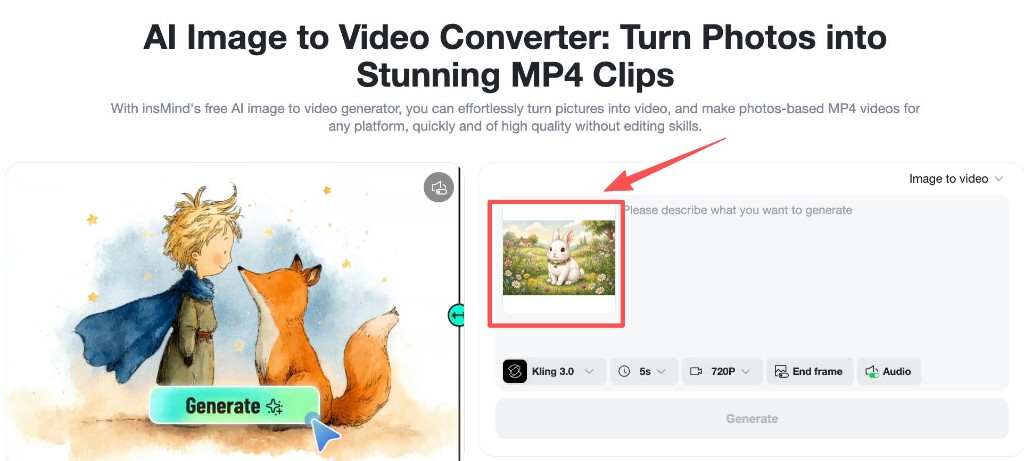
Step 1: Upload a reference image (or start from text-to-video)
If you already have character art, upload it so the clip inherits colors and silhouette. If you only have a story idea, start in text-to-video to visualize a still, then bring that frame into image-to-video for motion. Either path keeps you inside the same creative family of tools.
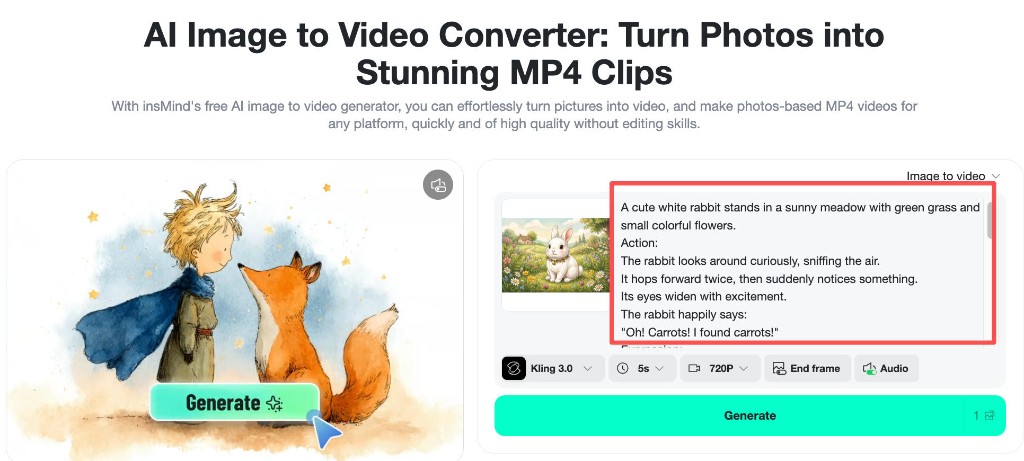
Step 2: Enter your prompt and choose Google Veo 3.1
Paste a structured prompt with sections for action, dialogue, expression, environment, camera, audio, style, safety, and technical notes. In the model menu, select Google Veo 3.1 when it is listed for your workspace. Model catalogs can change by rollout; if you temporarily see another flagship name in the UI, pick the newest Google Veo entry available to you.
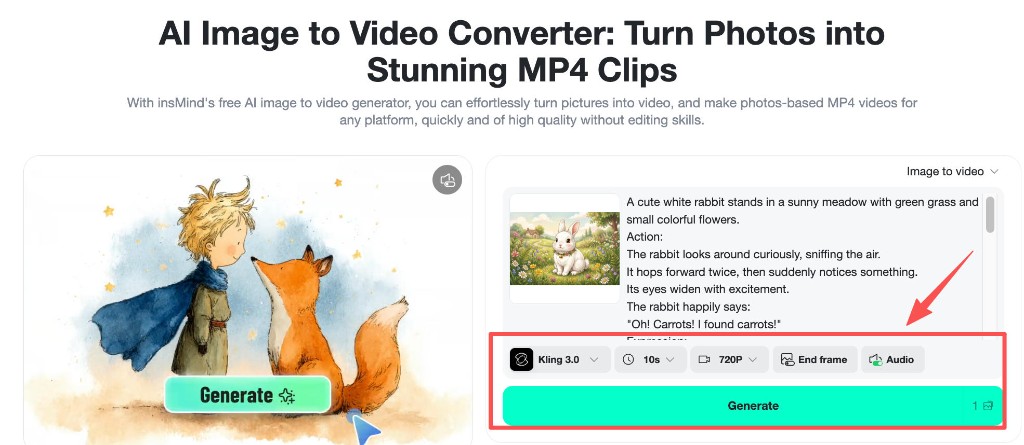
Step 3: Choose duration, resolution, audio, then generate
Match duration to attention span: five to ten seconds is plenty for one joke or discovery. Enable audio when you want music and voice baked in. Review the first pass for hand smear or face drift; if anything feels off, tighten motion verbs before you regenerate.
Step 4: Download your clip
When the preview looks right, download the MP4. Rename files with the episode and scene number so a later edit session stays organized. From here you can chain clips, add captions for early readers, or drop in a licensed song track.
Example Prompt for a Meadow Rabbit
Copy the block below into the prompt field when you are ready to test the same scene. Adjust names or props to fit your classroom story.
Tips for Parents and Teachers
Preview on the device kids will actually use. Small screens hide background detail, which can help forgiving motion but also hides subtitles you add later. Export at a resolution that balances clarity with file size for classroom Wi-Fi.
Co-create prompts with children when possible. They will suggest wild sound effects that actually help the model understand tone. Keep a running doc of lines that worked so your next class session starts from proven language.
Finally, treat AI clips as one layer in a lesson plan: pair them with a discussion question or a drawing prompt so the technology supports learning goals instead of replacing them.
Frequently Asked Questions
Do I always need an uploaded image?
No. You can start from text-to-video to explore a still, then animate it. Uploads help when you already have a character sheet or student artwork you want to preserve.
What if Google Veo 3.1 is not visible in my menu?
Pick the newest Google Veo entry available to your account, or use the latest cinematic model listed while you wait for rollout. Prompt structure still applies.
How do I keep the same rabbit in the next clip?
Reuse the same approved reference frame, keep model and style language consistent, and regenerate with a new action block instead of rewriting everything from scratch.
Is classroom sharing allowed?
Check your school media policy and the platform where you post. Many educators prefer private links or downloads shown in class rather than public feeds.
Can I replace the music later?
Yes. Treat model audio as a scratch track if you prefer royalty-free songs from your library. The important part is syncing footfalls and dialogue first.
Make Your Next Kids Clip Today
You now have a four-step path, a copy-ready meadow rabbit prompt, and safety language you can reuse. Try one clip tonight, preview it with a young viewer, and note what made them laugh. Ready to animate your first scene?
Ryan Barnett
I'm a tech enthusiast and writer who loves exploring AI, digital tools, and the latest tech trends. I break down complex topics to make them simple and useful for everyone.


