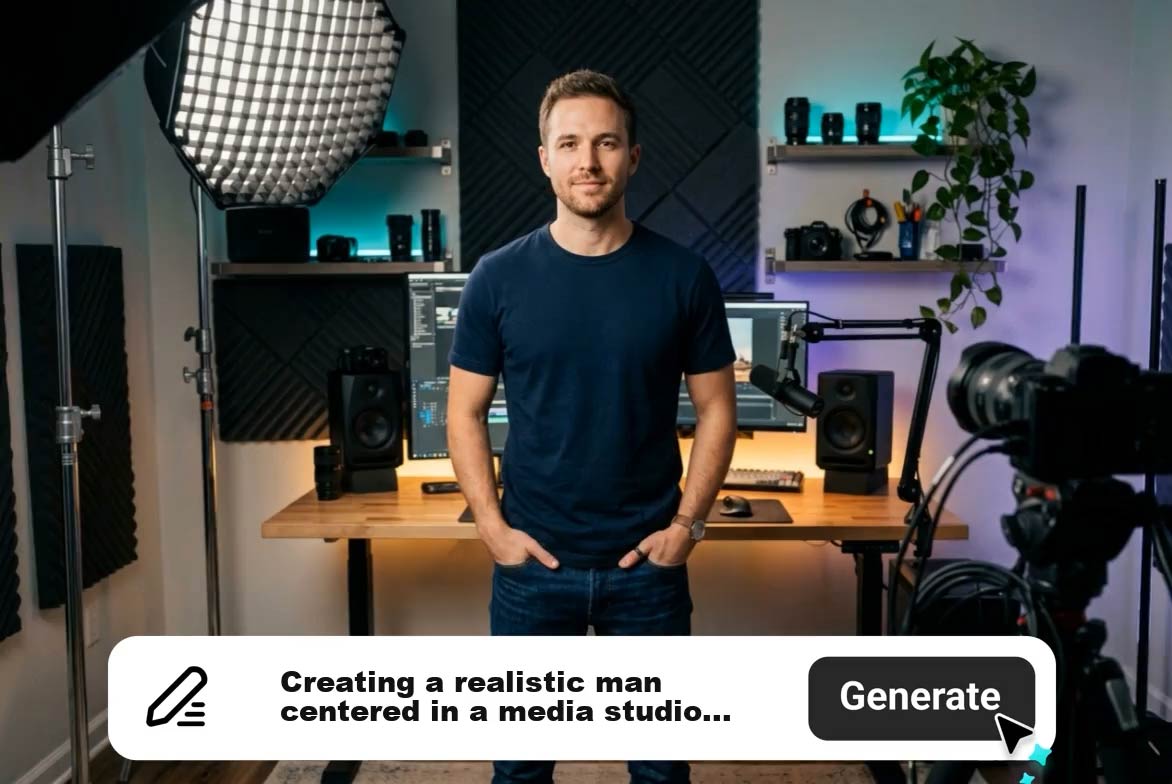
AI Script to Video Generator

Turn a script or outline into a short clip or longer multi-scene video. Use the Agent to plan scenes, generate visuals and narration, and assemble a draft you can review.
00:00
00:00

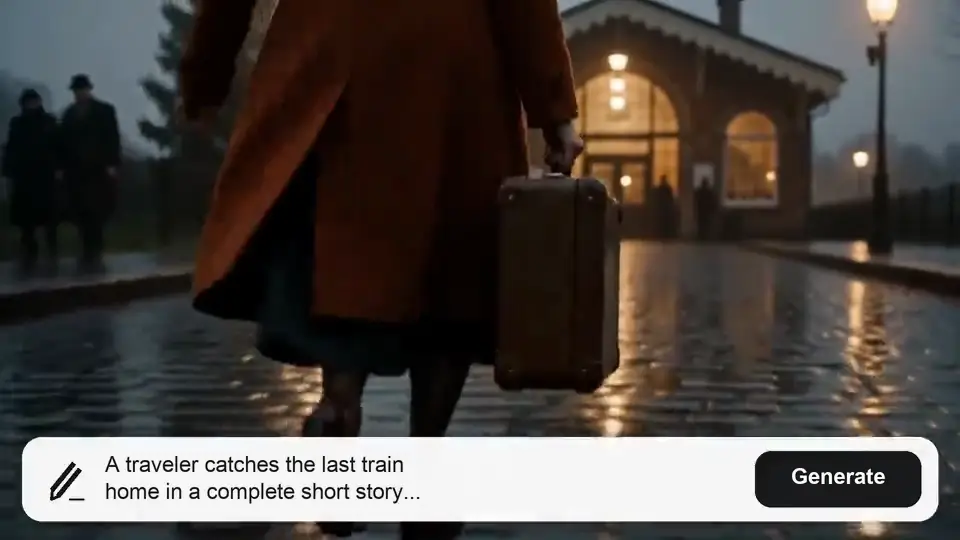
Turn a Script into a Complete Video

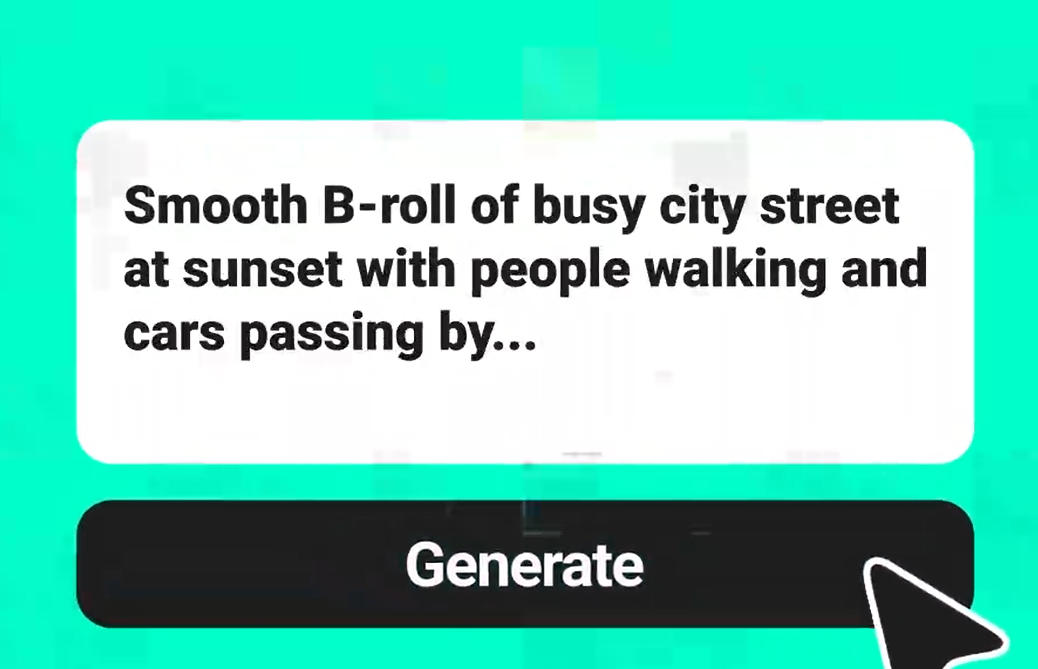
Give the Agent a full script or outline and a target video length. It can plan the story into scenes, generate visuals, and assemble a reviewable draft. If you only need one moment, use the text-to-video generator for a quick clip.

Create from Your Script
00:00
00:00

Plan Scenes Before You Generate

Set the audience, visual style, pacing, and key beats. Review the Agent's scene plan and narration direction before generating a longer video, then adjust the script where the story needs more detail.
Plan My Video
00:00
00:00

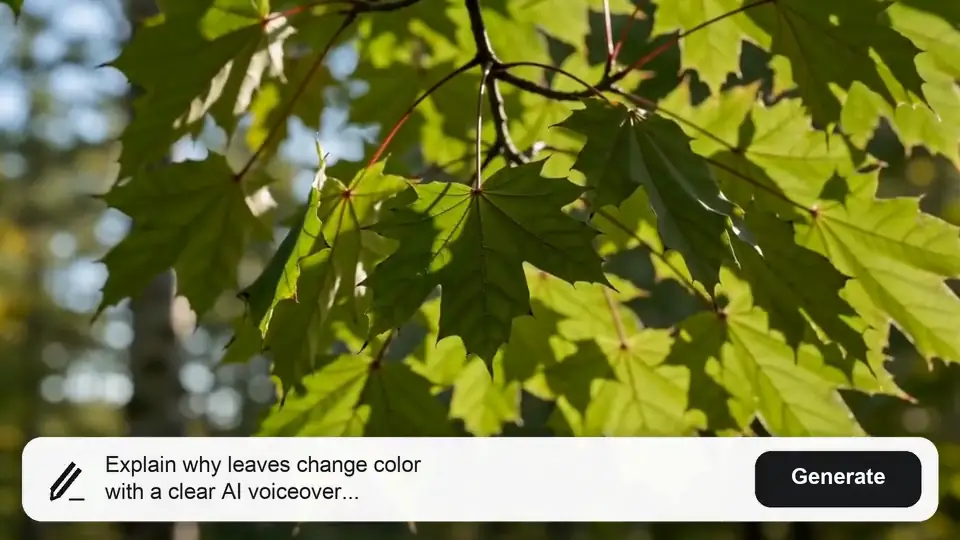
Create Stories, Lessons, and Marketing Videos

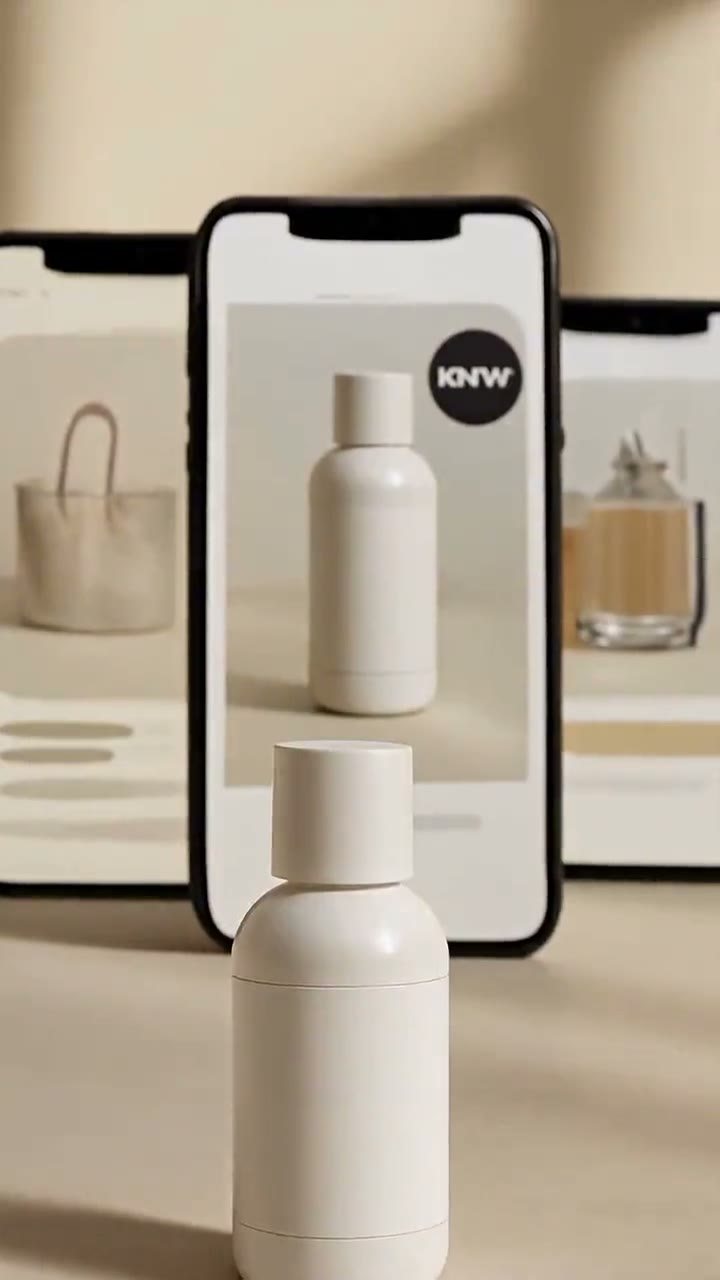
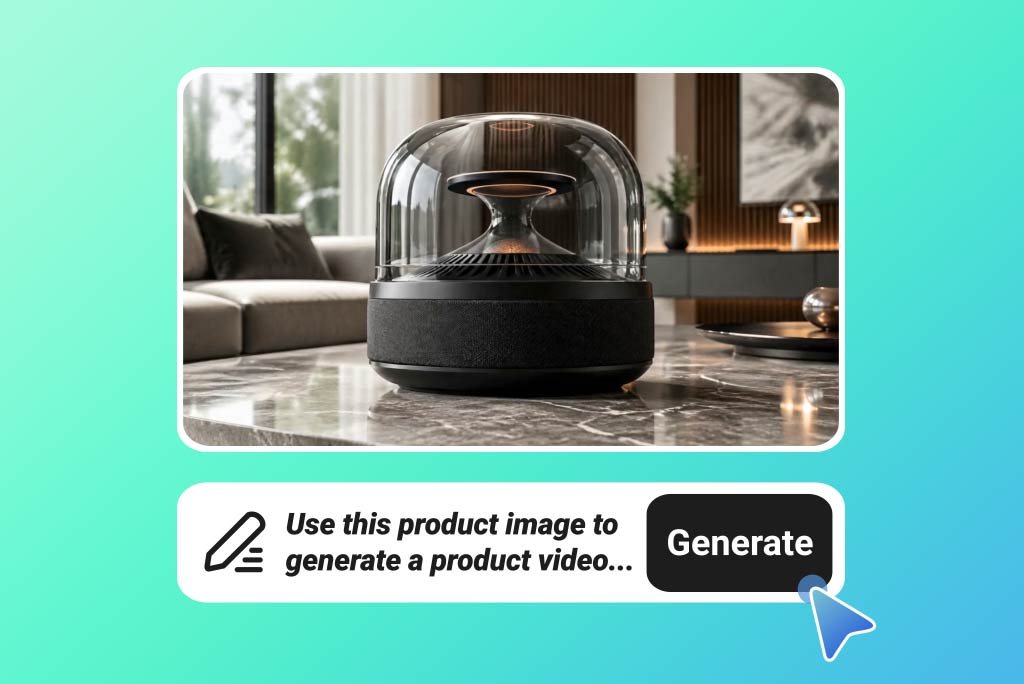
Use a script for a narrated story, educational video, product explanation, or campaign video. Start with a single clip or build a longer sequence of connected scenes, depending on your project.
Explore Script Presets
00:00
00:00

Review Visuals, Voiceover, and the Final Cut

Check each generated scene against your script. Refine visuals and requested narration, then review the assembled video for order, pacing, and accuracy before export.

Create a Narrated Video

How to Turn a Script into an AI Video

Step 1: Add Your Script and Video Goal

Paste a full script, outline, or single scene into the Agent. Set your audience, target length, visual style, and format.

Step 2: Review the Scene Plan

For a longer video, review the proposed structure, storyboard, narration, and continuity before generating scenes. For a quick clip, describe just one moment.

Step 3: Generate and Check Each Scene

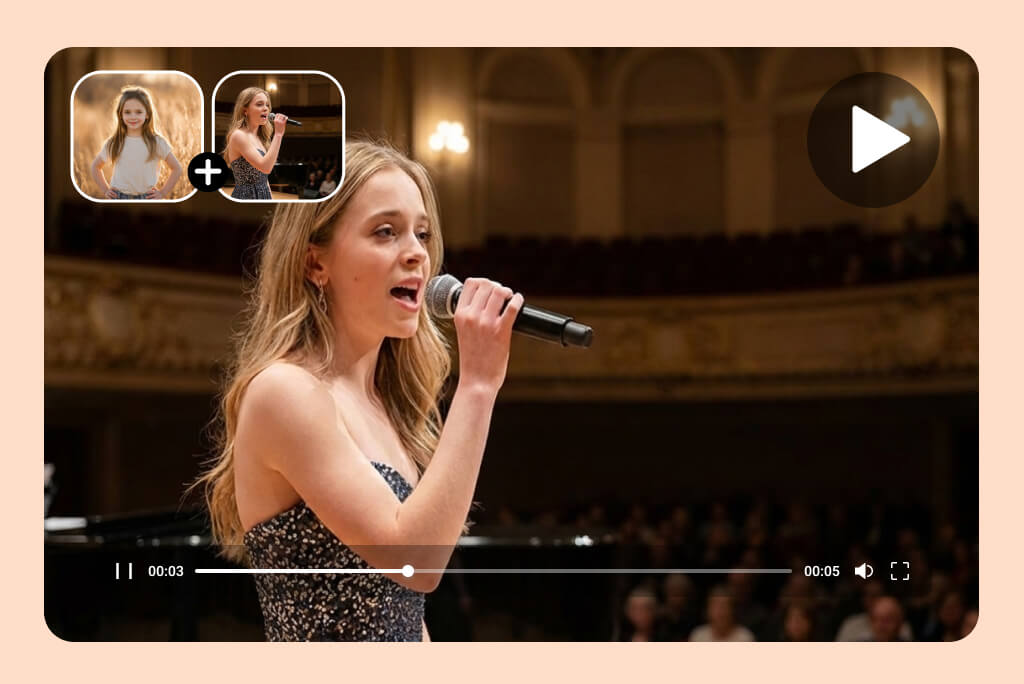
Let the Agent create the visuals and requested narration. Review scene accuracy, pacing, and character or product details; revise any take that misses the script.

Step 4: Assemble and Export the Video

Ask the Agent to combine the approved scenes into a draft, review the full sequence, and export the finished version. Longer projects may require a confirmation of what to assemble.

Why Choose insMind AI Script to Video Generator

Your Script Guides the Video

Your Script Guides the Video

Give the Agent a scene, outline, or full script. Specify the audience and outcome so the visuals follow your intended message.
Plan and Assemble with the Agent

Plan and Assemble with the Agent

For longer projects, review a scene plan, generate takes, and ask the Agent to assemble approved scenes into a draft.
Short Clips and Longer Videos

Short Clips and Longer Videos

Create a quick scene or work from a full script toward a multi-scene video. For a dedicated long-video workflow, explore the AI long video generator.
Review Each Scene Before Assembly

Review Each Scene Before Assembly

Check visual details, continuity, and pacing scene by scene. Revise a take before it becomes part of the full video.
Narration and Final Review

Narration and Final Review

Ask for narration when your script needs it, then listen through the assembled draft and check timing, pronunciation, and factual claims.
Choose a Format for the Destination

Choose a Format for the Destination

Choose an available aspect ratio for the intended platform and review the full export against its current specifications.

AI Script to Video Generator FAQs

What is an AI script to video generator?

insmind expand icon
An AI script-to-video generator uses a scene, outline, or full script to guide video creation. With the Agent, you can make one clip or plan multiple scenes and assemble a longer video.

Can I create AI videos from scripts for free?

insmind expand icon
You can try this tool online for free. Available Agent features, usage limits, and export options may vary by account and plan.

What type of script should I enter?

insmind expand icon
You can enter a single scene, an outline, or a full script. For a longer video, include the audience, target length, story beats, visual style, and narration needs so the Agent can plan the sequence.

Do I need video editing experience?

insmind expand icon
You do not need to build every scene on a timeline to get started. Review the Agent's plan and generated takes, and check the assembled draft before publishing.

Can I choose different video formats?

insmind expand icon
Choose from the aspect ratios and other options currently available in the Agent. For long videos, set a target total length and review the proposed scene plan before generation.

Is this suitable for marketing teams?

insmind expand icon
Yes. Marketing teams can turn a campaign script into a short video or a longer multi-scene product story. Check all product details and claims before using the result in a campaign.

Can I use it for educational content?

insmind expand icon
Yes. Use a lesson outline or full script to plan an educational video with scenes and narration. Review visuals and facts carefully before publishing.

Can I turn a full script into one finished video?

insmind expand icon
Yes. Give the Agent the full script and a target length. Review its storyboard, generate and revise the scenes, then ask it to assemble a draft from the approved takes. Larger projects may require confirmation of the final assembly scope.

Explore Other Hot Video Tools from insMind