


 Ryan Barnett·April 28, 2026
Educational videos for kids follow different rules than adult content. Concepts must arrive one at a time. Visuals must match the spoken word almost perfectly. Repetition is a feature, not a flaw. And pace needs to slow down enough for a five-year-old to absorb what just appeared on screen before the next scene cuts in.
AI video generation is a natural fit for this format because it responds to structured scripts. When you write a prompt that labels each scene explicitly—concept, visual, voiceover, transition—the model generates clips that feel more like planned curriculum than random animation. This guide walks through how to build that structured script, choose the right settings, generate, and download a finished educational clip using insMind’s text-to-video workspace.
Whether you are a teacher creating a color-recognition lesson, a parent building bedtime story clips, or a content creator producing STEM shorts, the same four-step workflow applies. The example prompt in this guide uses a colors lesson as a practical reference you can adapt to any subject. An AI kids video generator built around structured scripting removes the gap between what you imagine for your classroom and what actually plays on screen.
-
Write a structured script prompt with labeled scenes, voiceover lines, and transitions.
-
Select model, audio, duration, and aspect ratio to match your learning platform or channel.
-
Generate and download your finished MP4, ready for classroom playback or social sharing.
Table of Contents
- 01 Why Structured Scripting is the Key to Kids Educational Video
- 02 Prompt Templates for Common Kids Learning Topics
- 03 How to Make Educational Videos for Kids with insMind
- 04 Choosing the Right Model, Audio, and Duration
- 05 Tips for Making Kids Videos That Actually Teach
- 06 Frequently Asked Questions
- 07 Start Your First Kids Lesson Video Today
Why Structured Scripting is the Key to Kids Educational Video
Most AI video prompts fail for kids content because they describe a scene rather than a learning sequence. “A colorful classroom with letters” is a set description. “Scene 1: large letter A appears on white background. Voiceover: ‘This is the letter A.’ Scene 2: an apple fades in next to the A. Voiceover: ‘A is for Apple.’” is a lesson.
That distinction matters because young viewers cannot fill in logical gaps. If a visual and a voiceover are even slightly misaligned, the child watches the wrong thing while the narration plays. Structured scripting forces the model to treat each scene as a discrete unit with its own visual intent, spoken content, and transition beat. The result is a clip where image and audio arrive together, which is exactly how children learn best.
The scene-label format also makes iteration fast. If Scene 3 is weak, rewrite that block and regenerate without touching the rest of the script. That modularity is what makes AI-generated education a practical tool rather than a lucky experiment. When you use a free ai video generator with this approach, you get curriculum-grade pacing from a prompt box instead of a studio.
Prompt Templates for Common Kids Learning Topics
Template 1 — Colors Lesson (Beginner, ages 2–5)
This is the most popular starting point for preschool creators. The key is one color per scene, a clear visual anchor object, and short repeated voiceover structure.
Template 2 — Numbers Lesson (Beginner, ages 3–6)
Numbers content works best when the count matches the objects on screen simultaneously. Keep counts below five for under-fours; go up to ten for kindergarten.
Template 3 — Science Concept (Ages 6–10)
Older children benefit from cause-and-effect structure. Use a question-in, answer-out format that mirrors how science content flows in school. This template pairs well with an AI animation maker workflow when you want the diagrams to feel hand-drawn rather than photorealistic.
How to Make Educational Videos for Kids with insMind
insMind’s text-to-video workspace handles structured scripts natively. The four-step flow below mirrors exactly how the tool works when you bring a scene-labeled prompt.
Step 1: Write and paste your structured script prompt
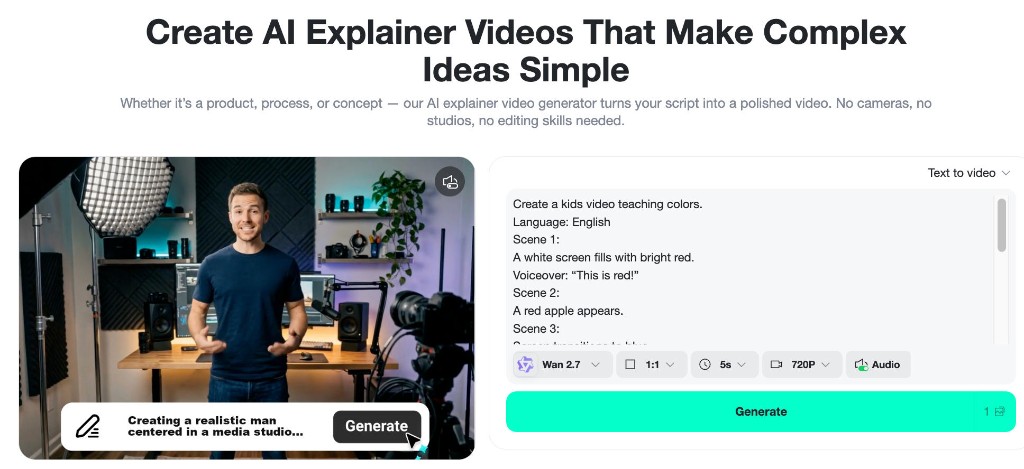
Open the text-to-video workspace and paste your scene-labeled script into the prompt field. Lead with the overall goal (“Create a kids video teaching colors”), then list scenes in order. Each scene should have a visual description and, where relevant, a voiceover line. End with a style instruction and an audio character line so the model calibrates tone from the first frame.
If you prefer to build the script from scratch rather than adapt a template, think of it as a screenplay for a very short film: one idea per scene, one spoken sentence per scene, and a clear final beat. The ai video creator from script path in insMind is designed for exactly this kind of scene-level narrative structure.
Step 2: Choose model, audio, duration, and aspect ratio
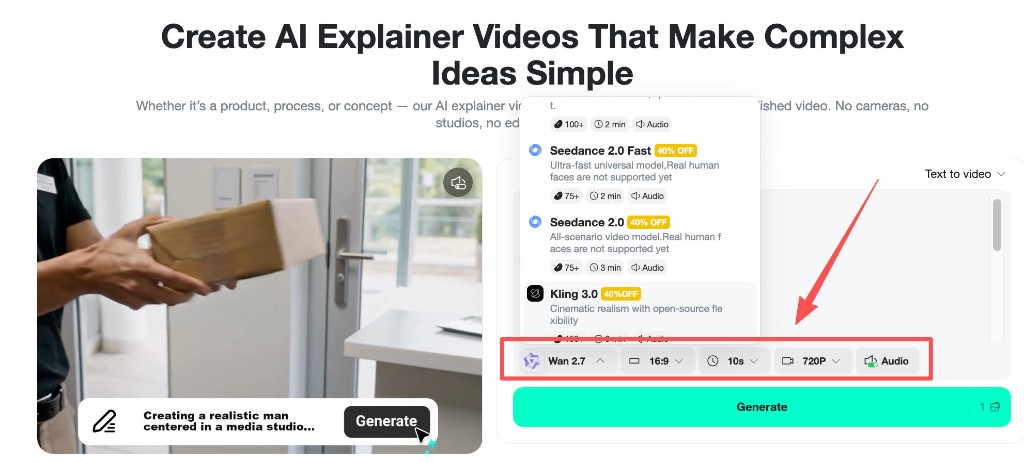
Click the model selector to choose the AI model. For voiceover-heavy kids content, pick a model that lists Audio support in its description. Wan 2.7 handles multi-scene narrative well and produces smooth scene transitions that suit the structured script format. Models like Seedance 2.0 Fast are faster for iteration passes, while Kling 3.0 gives sharper photorealistic detail if your script calls for realistic objects.
Set duration based on scene count: five scenes at two seconds each needs at least ten seconds. Use 16:9 for YouTube and smart TV playback; 1:1 or 9:16 for social short-form. Enable Audio so the model bakes voiceover and music from your audio line directly into the clip.
Step 3: Generate
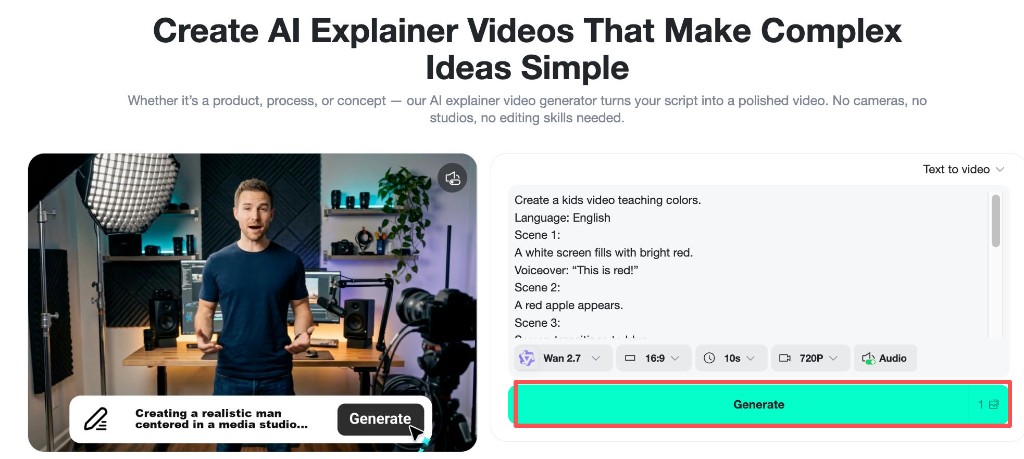
Hit Generate. The progress indicator fills while the model processes each scene in sequence. Longer scripts with more scenes take slightly more time. Once the preview appears, watch it once before downloading. Check that voiceover timing roughly matches the visual on screen, that colors and objects match your scene descriptions, and that transitions between scenes feel smooth rather than abrupt. If one scene is off, adjust that scene’s description and regenerate before downloading.
Step 4: Download your finished clip
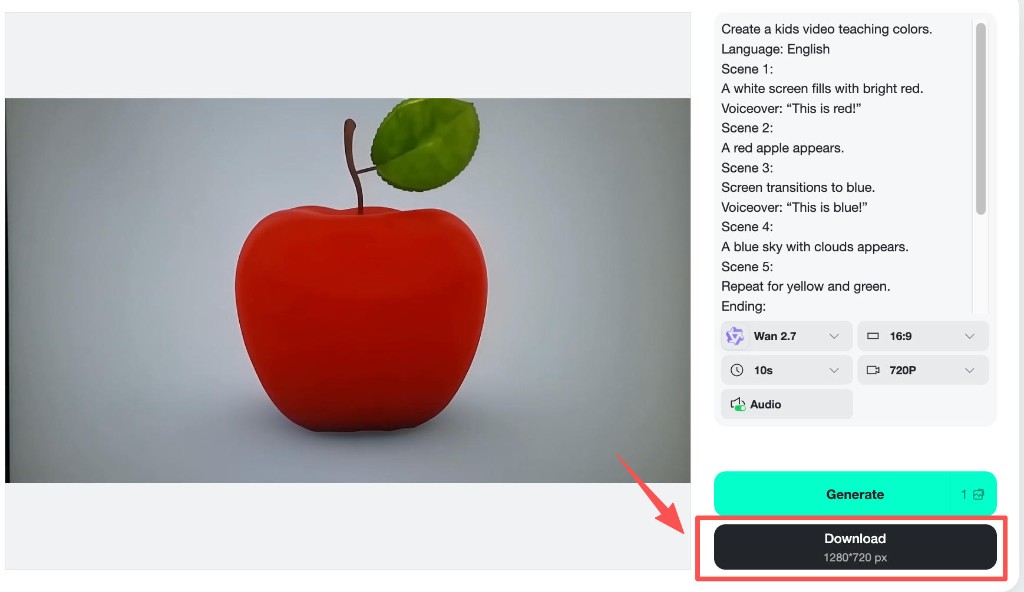
When the preview passes, click Download to save the MP4 at your selected resolution (720P gives a clean file size for sharing; 1080P if the platform supports it and file size permits). Name your files by lesson topic and version so you can organize a series: `colors-lesson-v1.mp4`, `colors-lesson-v2.mp4`. Chain individual clips in a free editor to build a longer curriculum module.
Choosing the Right Model, Audio, and Duration
Model: For kids educational content, prioritize models that handle smooth transitions, clear object representation, and stable color accuracy. Wan 2.7 is a strong choice because it processes narrative scene structures and produces clean object-to-background contrast, which is critical when a child needs to identify a specific color or shape on screen. Seedance 2.0 Fast is great for rapid A/B testing of scene sequences before you commit to a final render.
Audio: Always enable audio for educational kids content. The learning loop depends on simultaneously seeing and hearing the concept. Without audio, the clip becomes passive entertainment; with it, the voiceover + visual pairing creates the repetition that drives retention. Specify music tempo in the 80–100 BPM range for calm focus; go lower (60–70 BPM) for winding-down bedtime content.
Duration: Match duration to age. Two-to-four-year-olds benefit from five-to-eight second clips per concept (short enough to replay as a loop). Five-to-ten-year-olds can process ten-to-fifteen second segments that introduce and reinforce one idea. If your script covers five concepts, generate five clips and chain them rather than forcing all five into a single over-long generation. A multi-segment approach also lets you swap out a weak clip without regenerating the whole series.
Aspect ratio: 16:9 for YouTube Kids, classroom projectors, and smart TVs. 1:1 for Instagram and apps that crop aggressively. 9:16 for TikTok and YouTube Shorts if you are building a short-form educational channel. The AI cartoon video generator style settings work especially well in 16:9 because they give more horizontal space for side-by-side object comparisons.
Tips for Making Kids Videos That Actually Teach
One concept per clip. Resist the temptation to teach red, blue, and the alphabet in the same video. Young brains categorize what they saw last. A clean ten-second clip that introduces one color and shows two real-world examples of it outperforms a thirty-second clip that cycles through ten concepts without repetition.
Name the object before the concept. “A red apple. The apple is red.” works better than “Red! Here is something red.” Naming a familiar object first gives the child a cognitive anchor before the abstract concept arrives.
Use repetition deliberately. In your script, write the same voiceover line twice if the concept warrants it: once when the visual appears, once at the end of the scene. Repetition is not padding for kids content; it is the learning mechanism.
Keep the camera static. Rapid camera moves (push-ins, whip pans) compete for attention with the educational content. Locked-off or very slow tracking shots keep the child focused on what you want them to learn, not on the camera motion. Add a “static camera” line to every kids script prompt.
Test with the intended age group. Play a clip for a child in your target age range before publishing. If they are confused by the transition or do not repeat the voiceover word, the scene needs a simpler visual or slower pacing. No prompt template replaces that feedback loop.
Frequently Asked Questions
Do I need video editing skills to make kids educational videos with AI?
No. The insMind workflow is entirely prompt-based: write your script, configure settings, generate. If you want to chain multiple clips into a full lesson, any basic free video editor (CapCut, iMovie, DaVinci Resolve free tier) handles the assembly without requiring advanced skills.
Can I use AI-generated kids videos for my YouTube Kids channel?
Yes, with proper labeling. YouTube requires AI-generated content to be disclosed in the advanced settings when uploading. Mark your videos as “Made with AI.” Also review YouTube Kids content policies for your category; educational content generally has less restrictive requirements than entertainment formats.
How long should each kids educational video be?
For toddlers (ages 2–4): five to eight seconds per concept. For preschool (ages 4–6): up to fifteen seconds. For early elementary (ages 6–10): up to ninety seconds for a complete concept arc with introduction, example, and recap. If your script runs longer than that, split it into a series.
What if the AI skips or merges my scenes?
This usually happens when the script is too dense for the selected duration. Either raise the duration setting to give the model more time per scene, or reduce the number of scenes in one generation. Another fix: add a transition instruction between scenes (“Smooth cut to Scene 2.”) to make scene breaks explicit.
Is the voiceover in the generated clip clear enough for kids to understand?
Quality varies by model. Specify “clear child-friendly voiceover, slow speech rate, no reverb” in your audio line to guide the output. If the generated voice is still unclear, export the clip without audio and add a recorded or TTS voiceover in post. Many educational creators use AI video for visuals and a separate voiceover tool for narration to keep maximum control over both.
Start Your First Kids Lesson Video Today
Making educational videos for kids with AI comes down to one discipline: write the script before you touch the settings. Scene labels, voiceover lines, and a clear audio character instruction do more for output quality than any single model setting. Start with the colors template above, adapt one scene to your subject, generate a ten-second preview, and see how closely the clip matches your lesson intent.
Which subject will you teach first—colors, numbers, or a science concept your class has been working through?
Ryan Barnett
I'm a tech enthusiast and writer who loves exploring AI, digital tools, and the latest tech trends. I break down complex topics to make them simple and useful for everyone.


