


 Jordan Miller·May 09, 2026
Ever wondered how to change video background without a green screen? With advancements in AI technology, it’s now possible to achieve seamless background changes in videos with ease. This guide will walk you through the process using insMind, a powerful AI video editor designed for both beginners and professionals.
Whether you're a content creator, marketer, or filmmaker, changing video backgrounds can enhance your projects dramatically. Gone are the days when a green screen was necessary. Discover how to transform your videos with the help of AI, making your editing process smoother and more efficient.
Table of Contents
What is a Video Background Changer?
A video background changer is a tool that allows users to alter the background of their videos. Traditionally, this required a green screen and complex editing software. However, with AI video background changers, the process has become more accessible and efficient.
These tools use advanced algorithms to detect the foreground and replace the background, offering users the flexibility to choose any scene they desire. Whether it’s for a professional project or a personal video, changing the background can significantly enhance visual appeal.
Imagine being able to transport your video to any location without ever leaving your home. A video background changer makes this possible by using sophisticated algorithms to replace the existing background with a new one. This technology is not only for Hollywood studios; it's accessible to anyone with the right tools. For instance, a travel blogger could record in their living room and make it appear as if they are in the bustling streets of Tokyo. This level of creativity and flexibility can significantly enhance the storytelling aspect of videos, making them more engaging and appealing to viewers.
For example, educators can use video background changers to create immersive learning experiences. By simulating different environments, teachers can take students on virtual field trips to historical sites or natural wonders, enriching the educational content. Businesses, too, can benefit by creating professional-looking marketing videos without the need for expensive sets or locations. The ability to customize backgrounds effortlessly allows for tailored content that can resonate better with target audiences, thus driving higher engagement and conversion rates.
Imagine shooting a video in your living room and instantly transporting yourself to a bustling cityscape or a serene beach. That's the magic a video background changer can bring to your content. This tool allows creators to overlay different backgrounds onto their videos, giving them the flexibility to tell their stories without being limited by their physical location. For instance, a travel vlogger can shoot content from home and superimpose famous landmarks to create an engaging narrative. With the rise of remote work, professionals can conduct meetings with a polished office backdrop, enhancing their virtual presence. The possibilities are endless, making video background changers invaluable in a digital-first world.
For example, consider a small business owner creating promotional videos. By using a video background changer, they can showcase their products in various settings, like a trendy cafe or a vibrant marketplace, without the logistical challenges of on-location shoots. This not only saves time and resources but also allows for creative freedom. With insMind, users can seamlessly integrate these backgrounds, ensuring high-quality results that captivate audiences. This tool democratizes video production, enabling anyone from amateur creators to seasoned professionals to elevate their content with stunning visual backdrops.
No need for a green screen
User-friendly interface
AI-powered precision
Why Change Video Background Without a Green Screen?
Changing video backgrounds without a green screen offers several benefits. Firstly, it saves time and resources by eliminating the need for physical setups. Secondly, it provides creative freedom, allowing users to experiment with different backgrounds without limitations.
With tools like insMind, users can replace video backgrounds seamlessly, enhancing their storytelling and presentation. This flexibility is invaluable for creators looking to produce high-quality content quickly and effectively.
Did you know that over 70% of marketers believe video is the most effective medium for driving conversions? Yet, traditional video production can be costly and time-consuming, especially when using green screens. By changing video backgrounds without a green screen, creators can streamline their workflow and reduce production costs significantly. This approach is particularly beneficial for small businesses and independent creators who may not have access to professional studios. With tools like insMind, the process becomes more efficient, allowing for quick adjustments and iterations, ensuring the content is always fresh and relevant.
Consider the scenario of a content creator working from a small apartment with limited space. Traditional green screen setups can be cumbersome and require ample lighting to achieve a seamless background change. However, by using AI-powered tools, creators can bypass these limitations, enabling them to produce high-quality videos in confined spaces. This flexibility not only saves time and resources but also empowers creators to focus on the content itself rather than logistical constraints, thereby enhancing creativity and output quality.
Did you know that 63% of video marketers say video gets more engagement than other types of content? By changing video backgrounds without a green screen, creators can produce dynamic and engaging videos with minimal setup. This approach is particularly beneficial for those with limited space or resources. For instance, a content creator living in a small apartment can film against a plain wall and later swap in an exciting background to add depth and interest. This flexibility allows for quick changes and experimentation, which is crucial in keeping up with fast-paced digital trends.
Consider the scenario where you're filming a tutorial video in a cluttered room. Removing the need for a green screen means you can focus on delivering valuable content without worrying about the perfect setup. The ability to change backgrounds on the fly can also aid in storytelling, allowing you to shift scenes effortlessly and maintain viewer interest. With tools like insMind, this process is streamlined, ensuring the final product looks professional and cohesive. This not only enhances the viewer's experience but also strengthens your brand's visual identity.
Save time and resources
Enhance creative freedom
Improve storytelling
How to Change Video Background Without Green Screen with insMind?
Changing your video background using insMind is a straightforward process. Follow these simple steps to get started:
For example, insMind simplifies the background changing process with its intuitive interface. Start by uploading your video to the platform. The AI automatically detects the subjects and separates them from the background. Users can then select from a library of backgrounds or upload their own. With a few clicks, the background is seamlessly replaced. This process is not only quick but also ensures high-quality results, making it accessible for users of all skill levels. The ease of use means more time can be spent on creative aspects rather than technical hurdles.
Imagine you're a fitness instructor wanting to create workout videos with diverse backgrounds to keep your audience engaged. With insMind, you can easily switch from a serene beach setting to a vibrant gym environment without any technical expertise. The platform's AI ensures smooth transitions and realistic renderings, allowing you to focus on delivering impactful content. This capability is particularly useful for instructors aiming to stand out in a crowded market by offering visually appealing and dynamic videos that capture and retain viewer attention.
For those new to video editing, the process of changing a background without a green screen might seem daunting. However, insMind simplifies this with an intuitive interface and powerful AI capabilities. Start by uploading your video to the platform, then select the background you wish to apply. The AI will automatically detect and separate the foreground from the background, ensuring a clean and precise transition. This is particularly useful for creators working with complex scenes or intricate details, where manual editing would be time-consuming and challenging.
Imagine you're filming a product demo and want to highlight your brand's aesthetic. With insMind, you can easily swap in a custom background that aligns with your brand's colors and themes, creating a cohesive visual experience. This tool supports various formats and resolutions, ensuring compatibility with different platforms and devices. Additionally, insMind offers a library of high-quality backgrounds, allowing you to experiment and find the perfect match for your project. By leveraging these features, you can produce professional-grade videos that resonate with your audience and elevate your content strategy.
Step 1: Upload the video you want to edit to the insMind video background changer
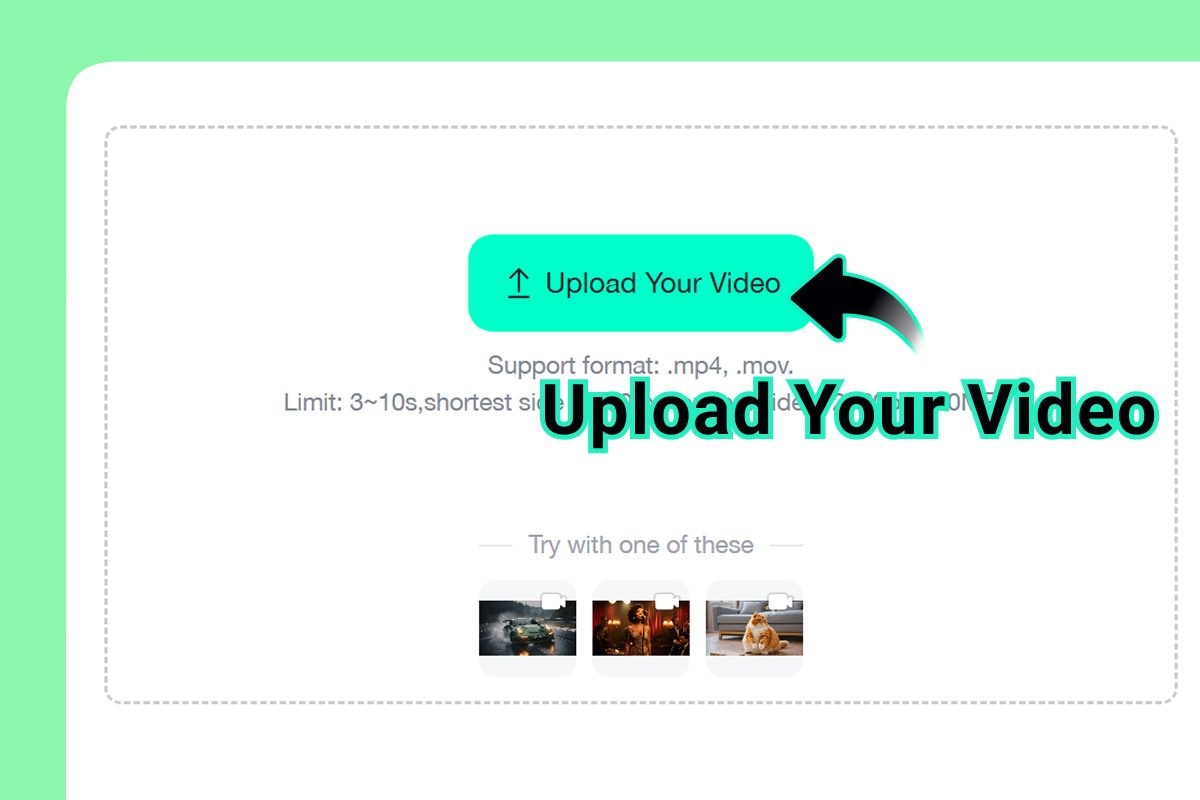
Upload the video you want to edit to the insMind video background changer. This is your first step towards transforming your video’s backdrop effortlessly.
Step 2: Describe the new background you want in the prompt box, such as a sky, beach, city, studio, or travel scene
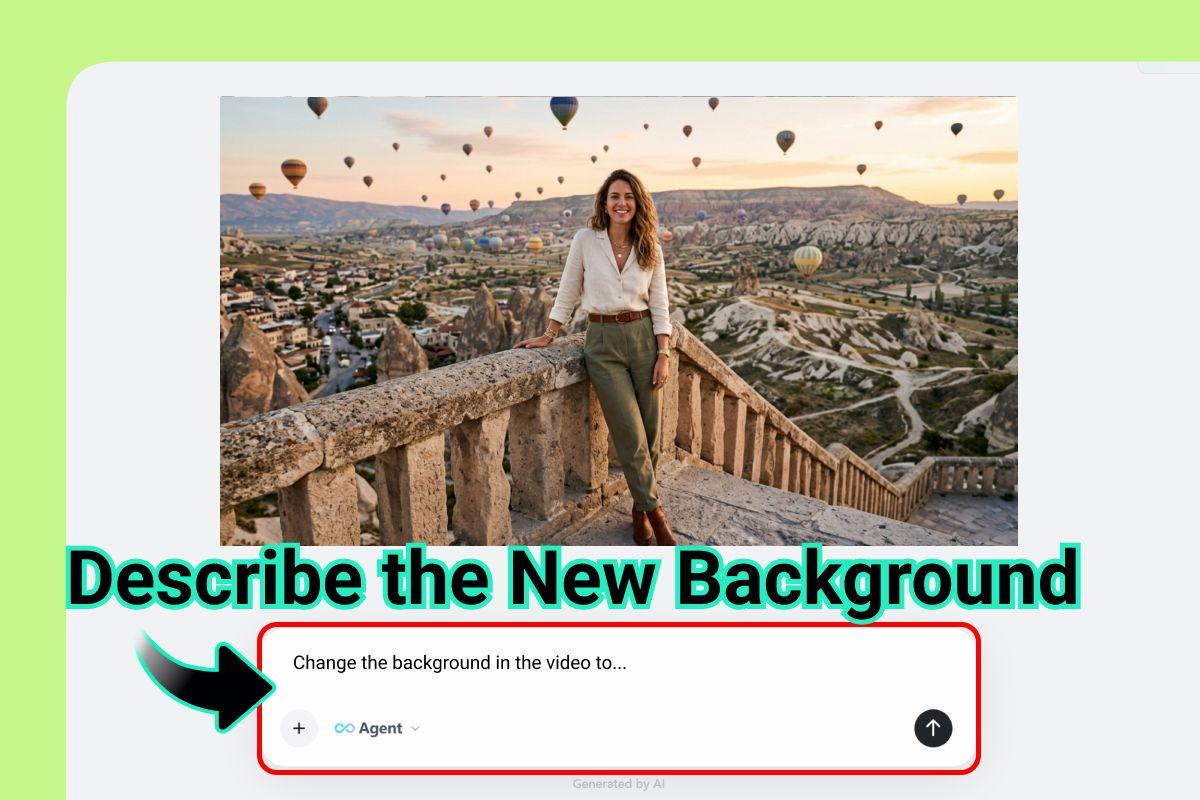
Describe the new background you want in the prompt box, such as a sky, beach, city, studio, or travel scene. This helps insMind generate the perfect background for you.
Step 3: Generate the edited video and preview how the subject looks with the new background
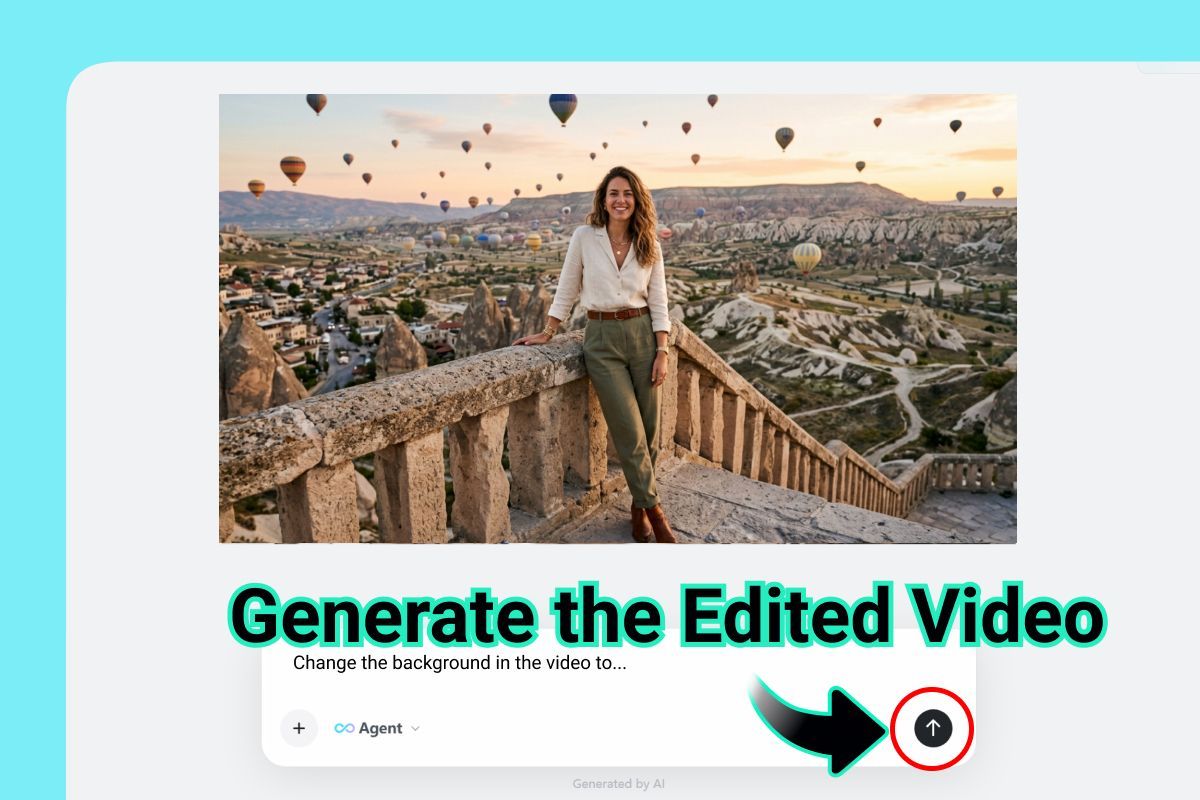
Generate the edited video and preview how the subject looks with the new background. This step allows you to ensure the changes meet your expectations.
Step 4: Download the finished video once the background replacement looks natural
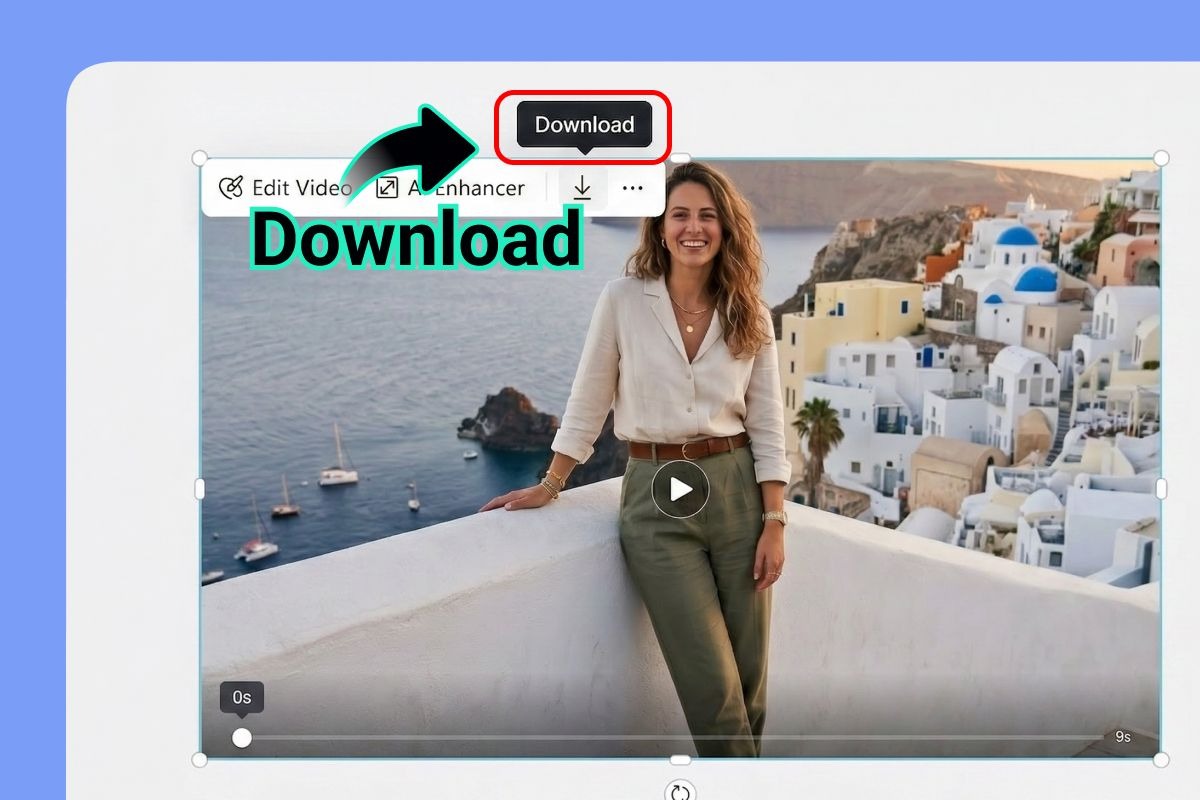
Download the finished video once the background replacement looks natural. Enjoy your newly edited video with its fresh background!
Tips for Better Video Background Replacement
To achieve the best results, consider the following tips when changing video backgrounds. First, ensure your video quality is high, as this will improve the AI's ability to detect and replace the background accurately.
Experiment with different backgrounds to see what works best for your content. Use high-contrast backgrounds to make your subject stand out, and always preview your video before finalizing it.
Imagine shooting a video in a room with cluttered backgrounds; it can be challenging for AI to distinguish between the subject and the background. To achieve better results, ensure your subject is well-lit and the background is as plain as possible. This contrast helps the AI in identifying the subject more accurately. Additionally, using high-resolution videos can enhance the effectiveness of background replacement, as the AI can process finer details, resulting in a more polished output.
For example, if you're producing a cooking show from your home kitchen, consider using a white or solid-colored backdrop. This makes it easier for the AI to isolate you from the background, ensuring a seamless transition to your chosen backdrop, whether it's a professional kitchen or an outdoor barbecue setting. Paying attention to these details not only improves the quality of the final product but also enhances the viewer's experience, making your content more professional and engaging.
For optimal results, consider lighting as a critical factor in video background replacement. Proper lighting can significantly impact how seamlessly the new background integrates with the original footage. For instance, if your video subject is lit from the left, ensure the background has a similar light source. This creates a natural look and prevents the subject from appearing out of place. Using soft, diffused lighting can also help minimize shadows, making the blending process smoother and more professional.
Another tip is to pay attention to the scale and perspective of your chosen background. If your subject is close to the camera, select a background that matches this perspective to maintain realism. For example, if you're using a street scene, ensure the elements like buildings and vehicles are proportionate to the subject. This attention to detail can dramatically enhance the quality of your video. With insMind's advanced editing tools, you can adjust these elements easily, ensuring a polished and visually appealing final product that captivates your audience.
Use high-quality videos
Experiment with backgrounds
Preview before finalizing
Common Mistakes to Avoid When Changing Video Backgrounds
Avoid using low-resolution videos, as they can lead to poor background replacement quality. Ensure your lighting is consistent to prevent shadows that may confuse the AI.
Choosing overly complex backgrounds can distract from the main subject. Opt for simpler backgrounds that complement, rather than compete with, your content.
Avoid low-resolution videos
Maintain consistent lighting
Choose complementary backgrounds
Frequently Asked Questions
Can I change video backgrounds without a green screen?
Yes, using tools like insMind, you can change video backgrounds without a green screen. AI technology allows seamless background replacement.
What types of backgrounds can I use?
You can use a variety of backgrounds such as skies, beaches, cities, studios, and travel scenes. The choice depends on your video’s theme.
Is there a limit to video length?
The length of the video you can edit may depend on the tool you use. Check insMind’s guidelines for any restrictions on video duration.
How does AI help in video editing?
AI assists by detecting the subject and replacing the background with precision. It simplifies the editing process, making it more efficient.
Are there any costs involved?
Costs can vary based on the tool and features used. Some basic functionalities might be free, while advanced features could require a subscription.
How do I ensure the background looks natural?
Use high-quality videos and ensure consistent lighting. Preview your video to make sure the background complements your subject.
Ready to Get Started?
Changing your video background without a green screen has never been easier. With insMind, you can effortlessly transform your videos, enhancing their appeal and storytelling potential. Whether you're a novice or a seasoned video editor, these tools provide the flexibility and ease you need.
Ready to take your video editing to the next level? Explore the AI video background changer and discover a world of creative possibilities. With the right tools, your video projects can captivate and engage your audience like never before.
Jordan Miller
I'm a digital creator and content marketer. I write practical, no-nonsense guides on AI image and video tools that creators actually use day to day.
Keep reading

How to Use Seedance 2.5 for AI Videos
Learn how to use Seedance 2.5 for text-to-video and image-to-video, write stronger prompts, guide motion with references, and review results.

How to Make a Creepy Voice for Horror Content Step by Step
Learn how to make a creepy voice for horror videos, podcasts, and games with insMind.

How to Remove TikTok Watermark: 4 Easy Steps for Clean Videos
Learn how to remove TikTok watermark from videos in four practical steps with insMind.

Top 10 Seedance 2.5 Alternatives for AI Video in 2026
Compare top Seedance 2.5 alternatives and learn how to create AI videos with insMind.

Seedance 2.5 vs. MiniMax H3: Which AI Video Model Should You Use?
Compare Seedance 2.5 and MiniMax H3 for AI video creation.

30 Instagram Reels Prompts You Can Copy and Try
Copy-ready Instagram Reels prompts for products, fashion, creators, travel, food, pets, and lifestyle videos.

How to Write Instagram Reels Prompts for AI Videos
Learn to write Instagram Reels prompts for polished AI videos, product clips, creator posts, and lifestyle content.

30 TikTok Video Prompts You Can Copy and Try
Copy-ready TikTok video prompts for ads, creators, products, fashion, pets, travel, and more.

How to Create an AI Micro-drama: A Step-by-Step Guide
Learn how to create an AI micro-drama with insMind.

How to Create a Short Film Using AI in 2026
Learn how to create a short film using AI with insMind.

Instagram Reel Ads: Examples, Specs, Sizes, and Best Practices
Learn Instagram Reel ad specs, examples, safe zones, and best practices.

YouTube Ads Best Practices: How to Create Video Ads
Learn YouTube ads best practices and create video ads with insMind.

YouTube Channel Trailer Examples: 15 Inspiring Ideas for Your Channel
Explore YouTube channel trailer examples and create a polished trailer with insMind.

15 Best YouTube Ad Examples and Templates to Inspire Your Next Campaign
Explore YouTube ad examples and templates, then create video ads with insMind.

How to Make a Hype Video with AI: The Easy Guide
Learn how to make a hype video with AI using insMind.

Instagram Ad Templates for Feed, Stories, Reels, and Carousel Ads
Learn Instagram ad templates for Feed, Stories, Reels, and Carousel Ads.

Facebook Video Ad Specs: Sizes, Formats, and Lengths for 2026
Learn Facebook video ad specs, sizes, formats, and lengths for 2026, then make ad-ready videos with insMind fast.

How to Create Facebook Video Templates for Posts, Ads, Covers, and Live Video
Learn how to use Facebook video templates for posts, ads, covers, and live video with insMind.

Instagram Ad Examples: 15 Creative Ideas That Convert
Explore 15 Instagram ad examples and learn how to make them with insMind.

Instagram Ad Sizes and Specs: Complete 2026 Guide
Find Instagram ad sizes, specs, ratios, and dimensions for every major placement.

10+ Video Resume Examples with Scripts for Every Career Stage
Explore video resume examples and scripts, then create a polished video resume with insMind.

How to Make a Sports Hype Video with AI: A 4-Step Guide
Learn how to make a sports hype video with AI.

YouTube Ad Specs for 2026: Sizes, Formats, and Lengths
YouTube ad specs for sizes, formats, dimensions, and lengths, plus a four-step insMind workflow.

30 Best Grok Imagine Video Prompts You Can Copy and Try
Copy 30 Grok Imagine video prompts and learn how to write better prompts for creative AI videos.

50 Scroll-Stopping AI Brainrot Prompts for Viral Meme Videos
Copy 50 scroll-stopping AI brainrot prompts for chaotic meme videos.

How to Turn Any Photo into a Brainrot Meme Video
Learn how to turn any photo into a brainrot meme video with AI.

How to Make a Retirement Video with AI
Learn how to make a retirement video with AI.

How to Make Your Own Graduation Video from Photos with AI
Learn how to make a graduation video from photos with AI.

How to Make Your Own Outro Video
Learn how to make your own outro video with insMind.

Higgsfield vs Pollo AI: Which Video Platform Fits You?
Compare Higgsfield vs Pollo AI for cinematic control, model choice, ease of use, and pricing.

Pollo AI Review 2026: Features, Pros, Cons, and Verdict
Read our Pollo AI review for 2026 and explore its features, pricing, strengths, limitations, ideal users, and practical tips for better results.

How to Create Cute Baby Talking Videos from Photos
Learn how to create baby talking videos from photos with text, audio, and AI lip sync.

How to Make Your Own Talking Avatar with AI
Learn how to make your own talking avatar with AI from a portrait and script.

Seedance 2.0 Mini vs Seedance 2.0: Which Model Should You Use?
Compare Seedance 2.0 Mini and Seedance 2.0 for AI video creation.

How to Create Talking Animal Videos from Photos That Steal the Show
Learn how to create talking animal videos from photos with AI.

How to Turn a Character Image into a Consistent AI Video
Learn how to turn a character image into a consistent AI video with insMind.

10 Krea AI Alternatives for Creating and Editing AI Videos in 2026
Compare the best Krea AI alternatives for creating and editing AI videos, including insMind, Runway, Kling AI, Luma, Pika, VEED, and more.

Seedance 2.0 Mini Prompts to Copy: 20 Video Ideas
Copy Seedance 2.0 Mini prompts for cinematic AI videos with insMind.

Seedance 2.0 vs Seedance 2.5: What Changed?
Compare Seedance 2.0 and Seedance 2.5 with examples, prompts, and insMind workflow.

10 Best Pollo AI Alternatives for AI Video Creation in 2026
Compare the best Pollo AI alternatives for AI video creation, including insMind, Runway, Kling AI, Luma, Pika, VEED, and more.

How to Make an AI Video of Yourself That Actually Feels Like You
Create a realistic AI video of yourself from a photo and script.

How to Turn Old Photos into a Beautiful Tribute Video with AI
Turn old photos and memories into beautiful AI tribute videos.

How to Make a Daily Vlog with AI in Minutes
Create daily AI vlogs from photos, prompts, or ideas in minutes.

How to Create 2026 FIFA World Cup Highlights with AI
Create 2026 FIFA World Cup highlights, fan clips, and football videos with AI.

Best AI Video Extender for Creators: Top Tools Compared
Compare the best AI video extender tools for creators in 2026 and learn how to make short videos longer with insMind.

How to Edit YouTube Videos Faster with AI
Edit YouTube videos faster with AI background and style tools.

How to Create Training Videos with AI: A Complete Guide for Beginners
Create clear training videos from images and prompts with AI.

Create Product Reveal Videos with an AI Unboxing Video Maker
Learn how to create AI unboxing videos for product reveals, UGC, teasers, and ecommerce demos.

Create Smooth AI Video Transitions with Kling Start/End Frame
Learn how to create smooth AI video transitions with Kling Start/End Frame.

What Can You Choose for the Best InVideo Alternatives in 2026?
Compare the best InVideo alternatives and see why insMind is a strong AI video generator for creators and marketers.

10 Best Animaker Alternatives in 2026: New Trends in AI Video Creation
Compare the best Animaker alternatives for AI video creation, including free and open-source picks.

10 Best HeyGen Alternatives in 2026: Create AI Videos with More Freedom
Compare the best HeyGen alternatives for AI video creation, including free and open-source picks.

How to Make a Faceless YouTube Channel with AI
Make a faceless YouTube channel with AI tools, scripts, video ideas, and insMind.

Best CapCut Alternatives: 8 AI Video Editors Compared
Compare the best CapCut alternatives for iPhone, Android, PC, and AI video editing.

How Ecommerce Brands Replace Products in Videos with AI
Replace products in ecommerce videos with AI for ads, listings, and creative testing.

How to Change Video Background Without Green Screen: Step-by-Step Guide
Learn how to change video backgrounds without a green screen using simple AI editing steps.

How to Seamlessly Replace Objects in Videos with AI
Step-by-step guide on replace objects in videos with AI: how it works, best practices, and how to do it free with insMind.

How to Identify AI-Generated Videos: A Comprehensive Guide
Learn how to identify AI-generated videos using expert tips and insMind's tools for authenticity verification.

Can AI Really Edit Videos For You? A Deep Dive Into AI Video Editing
Discover how AI can edit videos effectively, using insMind and other top tools. Learn workflows, compare features, and explore future trends.

Crafting Viral Bigfoot AI Videos: A Step-by-Step Guide
Create viral Bigfoot AI videos with insMind. Learn how to optimize for TikTok and YouTube, avoid common mistakes, and more.

Discover the Versatility of Happy Horse 1.0 for AI Video Creation
Happy Horse 1.0 review explores AI video generation, integration with insMind, and practical applications for content creators.

Seedance 2.0 vs. Happy Horse 1.0: Which AI Video Generator Fits Your Needs?
Discover the differences between Seedance 2.0 and Happy Horse 1.0. Learn which AI video generator suits your needs best.

How to Make Educational Videos for Kids with AI (4 Easy Steps)
Write a structured script, choose model and audio, generate, and download—a step-by-step guide to making AI educational videos for kids with prompt templates.

Best AI Prompts for Explainer Videos (Proven Templates)
Four proven AI prompt templates for explainer videos—presenter, product demo, faceless brand, and tutorial—plus how to use insMind in 3 steps.

Best AI Explainer Video Generator for Business (2026 Guide)
Choose text-to-video or image-to-video, configure model and audio, generate and download—a complete 2026 guide to AI explainer videos for business with insMind.

Best Prompts for Wan 2.7: Multi-Shot Guide for Cinematic AI Video
Choose text or image mode, write scene-block prompts for Wan 2.7, set duration and audio, then download—plus 40+ language narrative tips.

How to Create Kids Videos with AI: A Parent-Friendly Guide
Upload art or start from text, write kid-safe prompts, pick Google Veo 3.1, generate and download—steps for parents and teachers.

From Script to Screen: How to Create Engaging Story Videos with AI Tools
Learn how to create story videos with AI: split scripts into scenes, optional reference images, generate clips in insMind, then merge. No pro editor required to start.

How to Make a Baby Dance Video with AI: Step-by-Step Guide
Turn a baby photo into a cute AI dance clip. Upload, write a motion prompt, pick model and duration, generate—no editing skills needed.

How to Make a Cat Dance Video with AI: Step-by-Step Guide
Turn a cat photo into a funny dance clip with AI image to video. Upload, write a motion prompt, generate, and download—no editing skills.

Best AI Tool for Pet Dance Videos (2026 Compared)
Compare top AI pet dance video tools with real screenshots, pros and cons, and a tested insMind image-to-video workflow plus copy-ready prompt.

Top 20 AI Fruit Video Prompts to Copy & Paste
Discover top AI fruit video prompts for creating engaging, trendy videos. Perfect for TikTok and other platforms, these prompts inspire creative content.

Funny AI Video Prompts That Work (Tested Examples)
Get 20+ tested funny AI video prompts that actually make people laugh. Copy-paste prompts for TikTok, Reels, and YouTube Shorts with step-by-step instructions.

Affordable AI Video Solutions for E-commerce Startups
Discover affordable AI video solutions for e-commerce startups. Learn about budget-friendly tools and maximize ROI with AI-generated content.

Transforming Marketing with AI Video Ads
Discover how AI video ads are transforming online marketing with personalized, efficient, and creative solutions. Learn techniques and examples.

Mastering Cinematic Ad Creation with Seedance 2.0
Create cinematic ads with Seedance 2.0, a powerful AI tool for video advertisements. Learn how to make stunning video ads using Seedance 2.0.

Mastering Viral Video Creation with Seedance 2.0
Discover how to create viral videos using Seedance 2.0 with tips, prompts, and insights on social media trends.

Close-Up Shot: Definition, Story Uses & Tighter Framing
What is a close-up shot? Definition, when to use tight framing for emotion and detail, and tips for shooting cleaner inserts on any camera.

YouTube Equipment for Beginners: Gear, AI Video & Your First Upload (2026)
Beginner YouTube equipment: priority order for mic, light, and camera; clear audio on a budget; phone vs dedicated camera; Shorts and 16:9 basics.

How to Create Anime Videos with AI (Step-by-Step Guide)
Learn how to create anime videos with AI step by step. Use text-to-video and image-to-video to generate stunning anime animations with insMind.

How to Make Viral Funny Videos with AI in 5 Minutes
Learn how to make viral funny videos with AI in minutes. Step-by-step guide to creating hilarious TikTok and Instagram clips using insMind AI funny video generator.

How to Create Talking Old Photo Videos with AI
Learn how to animate old photos with AI. Turn vintage portraits into talking videos with realistic motion using insMind free photo animation tool.

7 Best Sora 2 Alternatives for AI Video Generation in 2026
Discover the best Sora 2 alternatives for AI video generation. Compare insMind, Runway, Kling AI, Pika, and more to find the right tool for your needs.

AI Prompts for TikTok Video Generator: Complete Guide
Discover the best AI prompts for TikTok video generation. 20+ ready-to-use prompts plus a step-by-step guide to creating viral TikTok content with AI.

How to Upscale Anime Video to 4K with AI (Step-by-Step)
Learn how to upscale anime video to 4K using AI. Step-by-step guide to enhancing low-res anime with sharper lines and cleaner colors.

AI Marketing Video Generator: Create Promo Videos from Text
Learn how to turn text into professional marketing videos using AI. Step-by-step guide to creating promo videos in minutes.

Text-to-Video AI Ranked: Which Generator Wins in 2026?
Compare the 7 best text-to-video AI generators in 2026 including insMind, Sora 2, Runway, Kling AI, Pika, and more.

Animate Anime Images with AI: Turn Static Art into Dynamic Anime Videos
Learn how to animate anime images with AI. Turn static anime art into stunning animated videos easily.

How to Remove Kling Watermark from AI Videos
Explore the best ways to remove Kling AI watermark. Compare editing methods and discover watermark-free Kling generation options.

AI Video Editor: Edit Videos Instantly with Prompts
Use insMind AI Video Editor and prompts to edit videos, remove objects, change backgrounds and more.

Control the Narrative: Create Cinematic AI Videos with Start & End Frames
From start to finish, take control of AI video storytelling with Start & End Frames.

How to Create a Stranger Things Transition Video (Step-by-Step Guide)
Create a Stranger Things–style Upside Down transition with AI in just a few steps using insMind.

Transform Your Ideas: Generate Videos from Text Instantly
Turn text into videos in seconds with InsMind's AI—ideal for social media, ads, and presentations. No editing skills required.

Tralalero Tralala: How to Animate the Italian Shark Meme with AI Flair
Animate the viral “Tralalero Tralala” Italian Shark meme with AI for fun, shareable content.

Top TikTok Memes 2025: 'Tung Tung Tung Sahur' & Viral Trends You Can't Miss
2025 TikTok trends: AI-generated Italian Brainrot memes and creepy Tung Tung Tung Sahur dominate viral humor.