


Want to edit YouTube videos faster without opening a complex desktop editor? You are not alone. YouTube creators often need to clean up backgrounds, improve lighting, replace distracting objects, or make a video feel more polished before publishing.
Traditional editing can take time. You may need masks, keyframes, color tools, background cleanup, export presets, and multiple apps just to fix one clip. An AI YouTube video editor changes that workflow. Instead of manually adjusting every detail, you upload a video, describe the edit, generate the result, and download a cleaner version for YouTube, blogs, or social media.
In this beginner-friendly guide, you will learn how to edit YouTube videos faster with AI using insMind. We will focus on practical edits creators actually need: background changes, style cleanup, lighting improvements, and quick visual fixes that make YouTube videos look more professional.
Table of Contents
What Is an AI YouTube Video Editor?
An AI YouTube video editor is a tool that helps you edit video clips with text prompts and automated AI processing. Instead of manually masking a background, adjusting lighting frame by frame, or replacing objects with advanced editing software, you describe the change you want and let AI apply the edit.
For YouTube videos, this is especially useful because creators often need cleaner visuals before publishing, embedding, or repurposing a clip. You may need to turn a messy room into a cleaner studio, remove a distracting object, brighten a dark talking-head clip, or make a rough video feel more polished before uploading.
AI editing is not just about saving time. It also makes editing more accessible. If you know what you want the clip to look like, you can write a simple prompt and generate a new version without learning every technical setting behind the edit.
How to Edit YouTube Videos Faster with insMind
Ready to turn a rough clip into a cleaner YouTube video? The insMind workflow is designed around four simple actions: upload your video, describe your edit, let AI process the change, then preview and download the result.
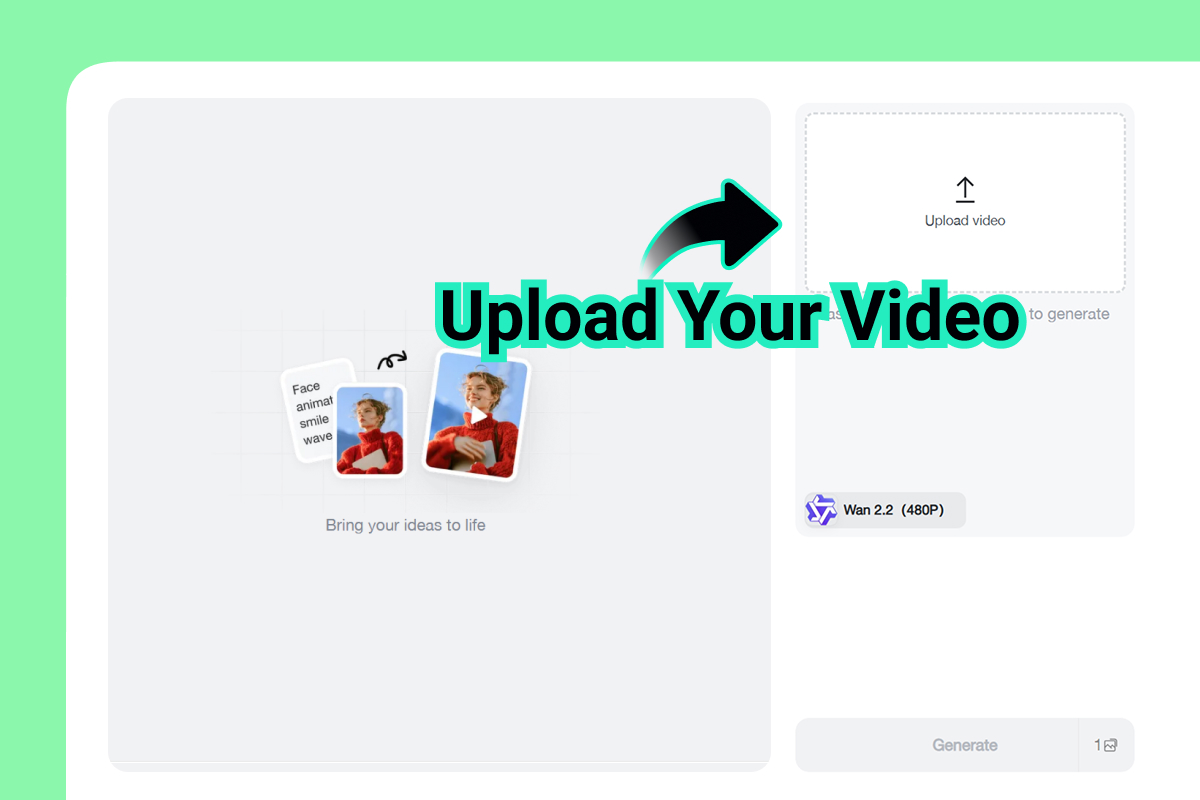
Step 1: Upload Your Video
Start by uploading the YouTube video you want to edit. Choose a clip with a clear subject, stable framing, and enough visible background so the AI can understand what needs to be changed.
For talking-head YouTube videos, a steady shot works best. If the subject is centered and the background is visible, the AI has a better chance of separating the person from the scene and applying a cleaner edit.
Step 2: Describe Your Edit
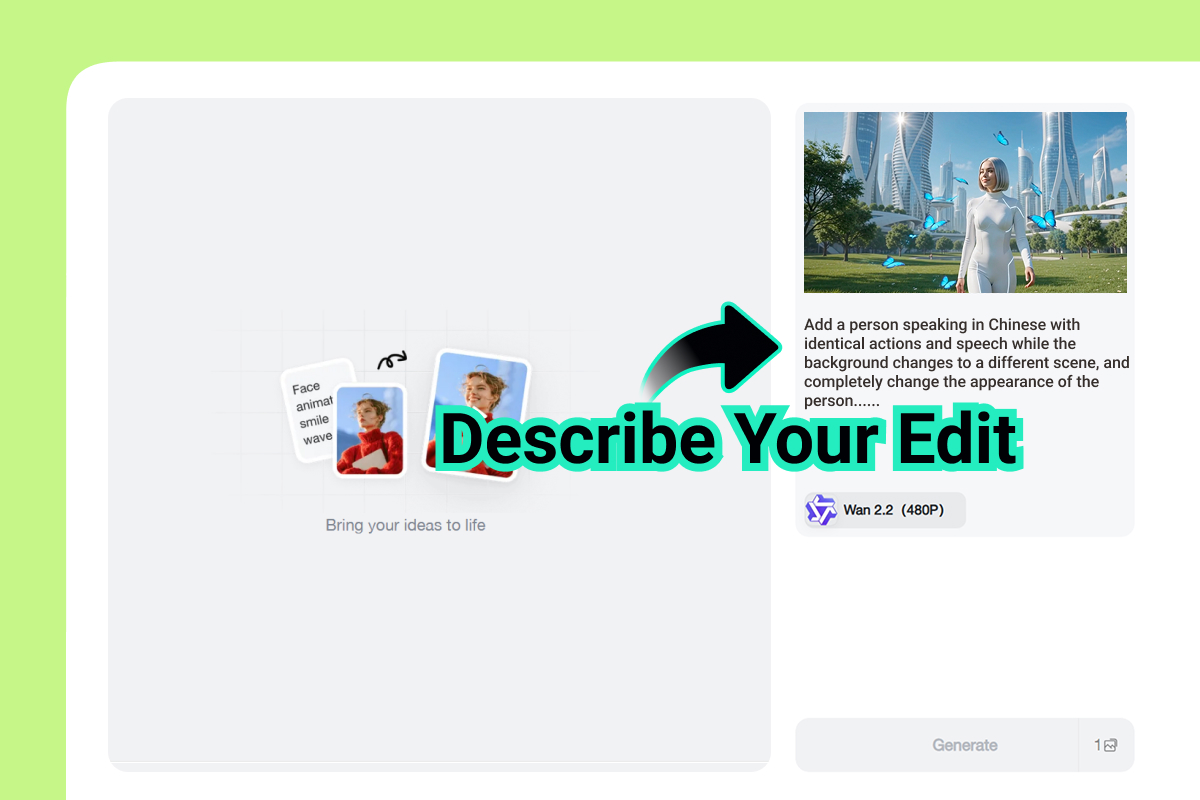
Next, enter a simple prompt that tells the AI exactly what you want to change. You do not need a technical editing command. Write the result you want in plain English.
For example, you can ask insMind to transform a messy bedroom-office into a clean, modern YouTube studio while keeping the subject and camera angle natural. This type of prompt works well for a background transformation because it gives the AI a clear before-and-after direction.
Step 3: Let AI Apply the Edit
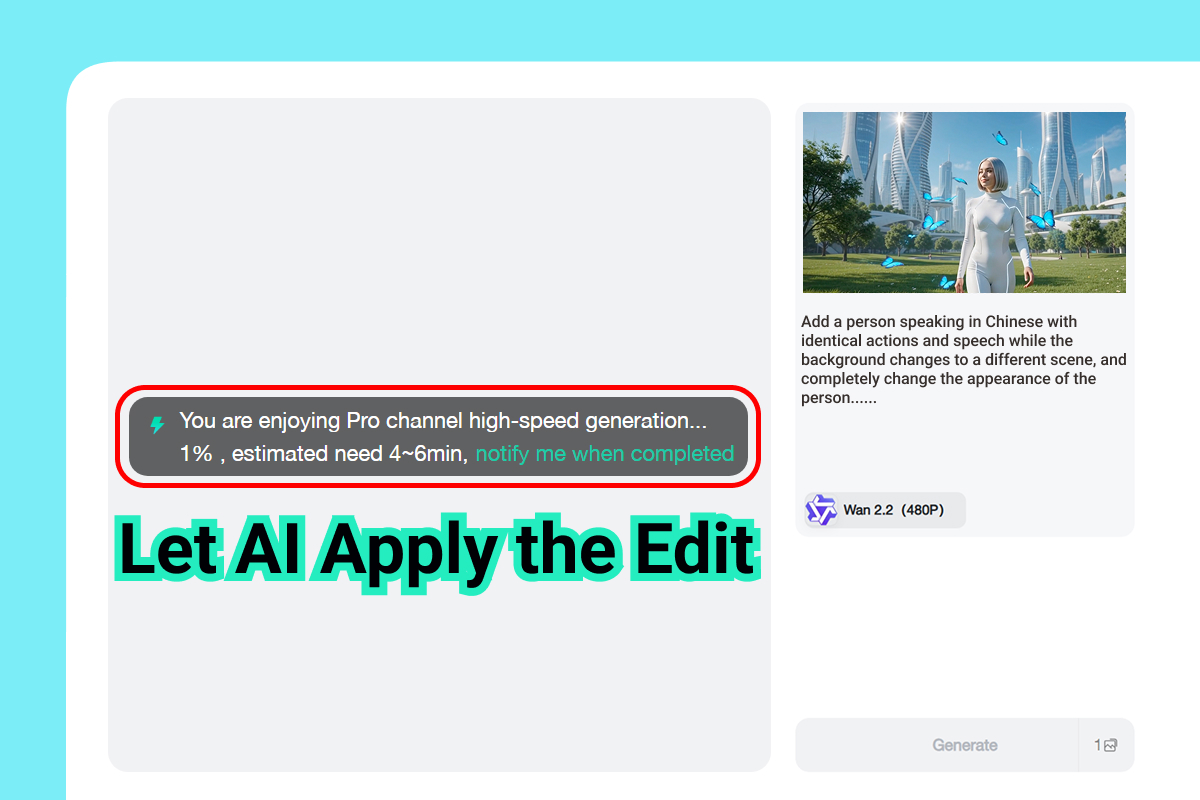
Click Generate and let AI process your request. The AI analyzes your video, follows your prompt, and automatically applies the background, lighting, or style changes.
This step is where AI saves the most time. Instead of manually cutting masks or building a studio background from scratch, you let the tool generate an edited version that you can review. If an object in the frame is the problem, an video object replacement can help you swap distracting elements for cleaner visual details.
Step 4: Preview and Download
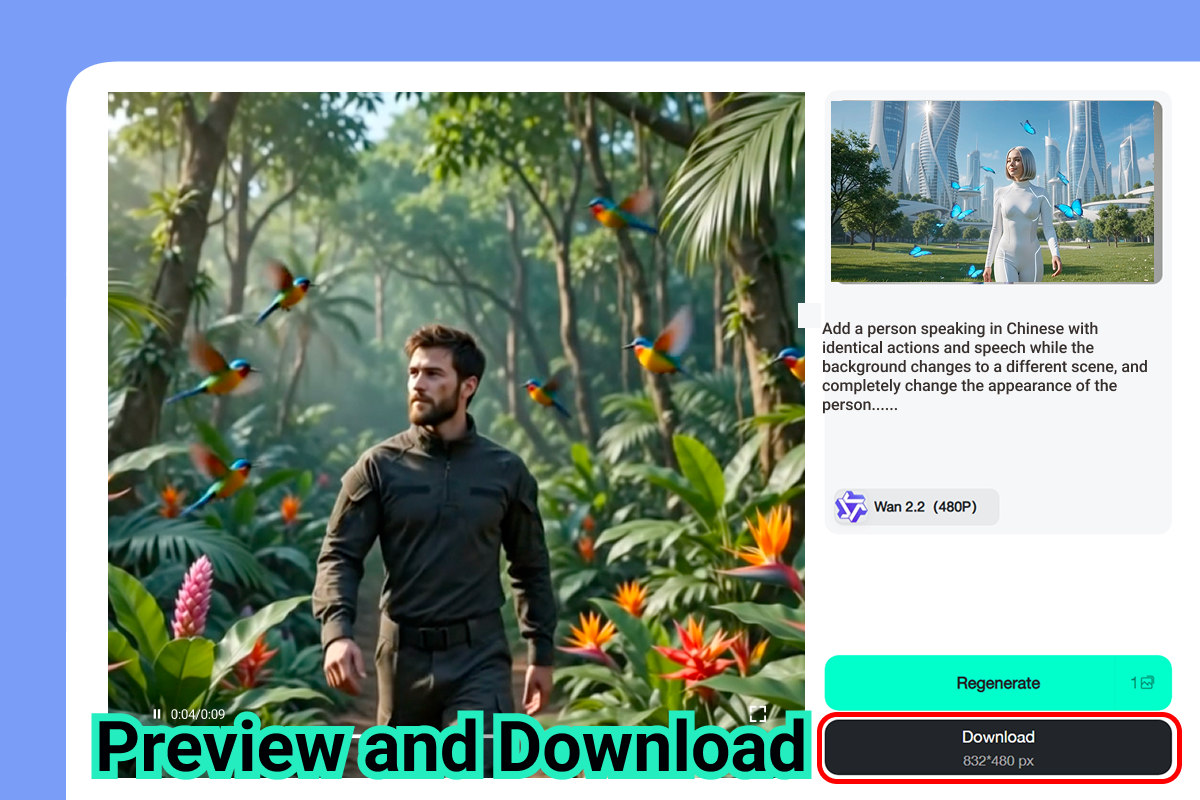
When generation is complete, preview the edited video before downloading. Check the background, subject edges, lighting, face quality, and overall style. Does the edit improve the video without making it look fake?
If the result looks good, download the final video and use it for your YouTube channel, blog page, social media, or other content channels. If it needs a little more polish, revise your prompt and generate a cleaner version.
AI Edits That Work Well for YouTube Videos
What should you edit with AI first? Start with the changes that make a YouTube video look cleaner in the fastest amount of time. You do not need to rebuild the whole video. A few smart edits can make the clip feel more watchable.
| Editing Need | Best AI Edit | Why It Helps Videos | Suggested Prompt |
|---|---|---|---|
| Messy room or office | Background change | Makes a casual recording feel like a cleaner creator setup. | Transform the messy bedroom-office background into a clean, modern YouTube studio. Keep the speaker, camera angle, and natural framing unchanged. Add warm studio lighting, a tidy desk setup, and soft background depth. |
| Distracting item in frame | Object replacement | Removes visual distractions that pull attention away from the creator. | Replace the distracting object in the background with a simple, clean decor item that matches the room. Keep the subject, lighting direction, and camera perspective natural. Do not change the person's face, pose, or outfit. |
| Dark or flat footage | Color and lighting correction | Makes faces, backgrounds, and products easier to see on mobile screens. | Brighten the video and improve the color balance while keeping skin tones realistic. Add soft creator-studio lighting, slightly stronger contrast, and a clean YouTube video look. Avoid overexposure, harsh shadows, or unnatural saturation. |
| Low-quality source clip | Quality enhancement | Improves clarity before posting, embedding, or repurposing content. | Enhance the video quality for a sharper YouTube video. Improve facial detail, reduce compression blur, balance brightness, and keep the motion smooth. Preserve the original subject, composition, and natural video style. |
If your video looks soft, blurry, or compressed, try a video quality boost before publishing. If the color looks dull or inconsistent, a quick video color correction can make the clip feel brighter and more polished.
Prompt Tips for Better AI Video Edits
Your prompt is the creative brief. It tells AI what to keep, what to change, and what the final video should feel like. The best prompts are specific, visual, and realistic.
Prompt example:
Transform the messy bedroom-office background into a clean, modern YouTube studio. Keep the speaker, face, pose, camera angle, and framing natural. Add warm studio lighting, a tidy desk setup, soft background depth, and a creator-friendly look. Do not change the person's identity, facial expression, or body shape. Avoid distorted hands, flickering edges, unreadable text, logos, or unrealistic background movement.
Say what to keep: Mention the subject, face, camera angle, pose, and natural framing.
Say what to change: Be direct about the background, lighting, color, object, or style you want edited.
Choose a creator style: Try modern YouTube studio, clean podcast setup, cozy creator room, tech review background, or bright lifestyle studio.
Add quality limits: Ask for no face changes, no distorted hands, no flickering, and no unreadable text.
Keep the prompt focused: One main edit per generation is usually cleaner than asking for five changes at once.
Common Mistakes to Avoid
Not every AI video edit will be perfect on the first try. The quality of your source clip and prompt both matter. Avoid these beginner mistakes if you want faster, cleaner results.
Uploading a shaky or crowded clip
AI can work with casual videos, but a stable clip with a clear subject is easier to edit. If the camera shakes heavily or the subject is blocked, the final result may look less consistent.
Writing a vague prompt
A prompt like "make it better" is too broad. Say exactly what should change: background, lighting, color, object, studio style, or video quality.
Changing too many things at once
If you ask AI to change the room, outfit, lighting, face, camera style, and objects at the same time, the edit may look unstable. Start with the most important fix first.
Skipping the preview
Always preview the full edited video before posting. Look for flicker, edge issues, face changes, background mistakes, or unwanted style shifts. videos are fast, but quality still matters.
FAQs About AI YouTube Video Editors
What kind of YouTube video works best for AI editing?
A clear, stable clip with one main subject works best. Talking-head videos, product videos, tutorials, and creator-style clips are good starting points.
Can I change the background of a YouTube video?
Yes. Upload your clip and describe the new background you want, such as a modern studio, clean office, podcast room, or branded creator setup. Keep the subject and camera angle natural for better results.
How do I make AI edits look more realistic?
Use a specific prompt, ask AI to preserve the subject, and avoid extreme changes. Natural lighting, realistic backgrounds, and one main edit usually look better than dramatic transformations.
Can I use AI-edited YouTube videos for blogs and social media?
Yes, as long as you have the rights to the original video and any assets used in the edit. Review the final result for accuracy before posting it publicly or using it in ads.
Edit Your Next YouTube Video with AI
YouTube videos do not need a full editing suite every time you want a cleaner look. If the video idea is strong but the background, lighting, or visual polish is holding it back, AI can help you make the clip more publish-ready in fewer steps.
Upload your video to insMind, describe the edit you want, let AI apply the change, then preview and download the result. Whether you are fixing a messy room, improving color, replacing an object, or upgrading a creator setup, AI can help you move from rough clip to ready-to-post video faster.

Jayson Harrington
I am the Chief Editor of insMind. I provide tips and skills to help users design better photos with insMind, whether for e-commerce, social media, or any other use.


