


Want to create YouTube Shorts without filming, editing timelines, or hunting for stock clips? An AI YouTube Shorts generator can help you turn a simple prompt or a single image into a vertical video that feels made for fast scrolling.
The hard part is not just making a short video. It is making one with a clear hook, strong motion, and a visual idea people understand in the first second. That is where insMind can help creators, marketers, and small teams move from idea to polished short-form content much faster.
In this guide, you will learn how to create YouTube Shorts from prompts, images, or templates, how to customize animation style and effects, and how to improve your chances of making a Short people actually want to watch.
Table of Contents
What Is an AI YouTube Shorts Generator?
An AI YouTube Shorts generator is a tool that helps you create short vertical videos using text prompts, uploaded images, or both. Instead of building every scene by hand, you describe what should happen and let AI generate the motion, camera movement, and visual style.
For creators, this changes the workflow. You do not need a camera setup, a full editing suite, or hours of clip trimming before you can test an idea. An AI Shorts maker can help you turn a rough concept into a ready-to-preview clip in just a few steps.
This is especially useful when your channel depends on volume. Trend-based content, product teasers, visual jokes, transformation clips, and quick storytelling all move fast. If you can generate more ideas, test more hooks, and publish more consistently, you give your channel more chances to find what works.
How to Create YouTube Shorts with insMind
Ready to make your first AI Short? The workflow is now even more direct: choose how you want to start, customize the animation style and effects, generate the final clip, then download and share it. Follow these four steps to turn an idea, image, or template into scroll-stopping short-form content.
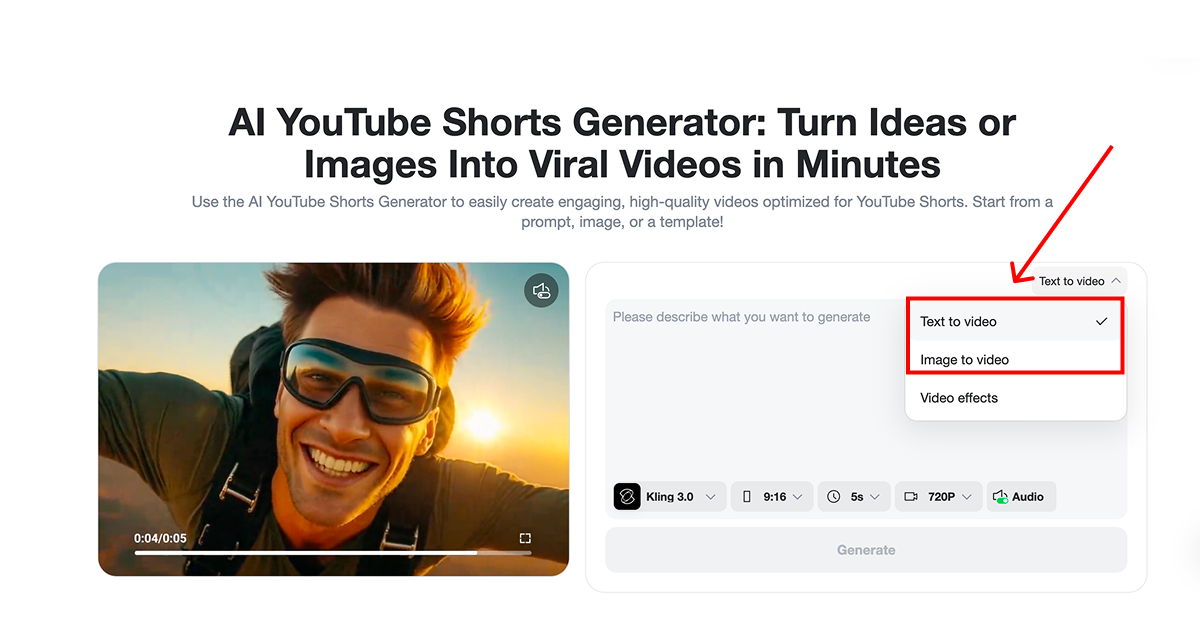
Step 1: Choose Your Creation Method
Start by choosing how you want to create your Short. You can begin with a text prompt, upload an image, or use a ready-made template depending on the idea you want to test.
If you already have a strong visual, image-to-video mode gives the AI a clear subject to animate. If you are starting from scratch, text-to-video mode is better for exploring a fresh scene, style, or story hook.
Step 2: Customize Animation Style and Effects
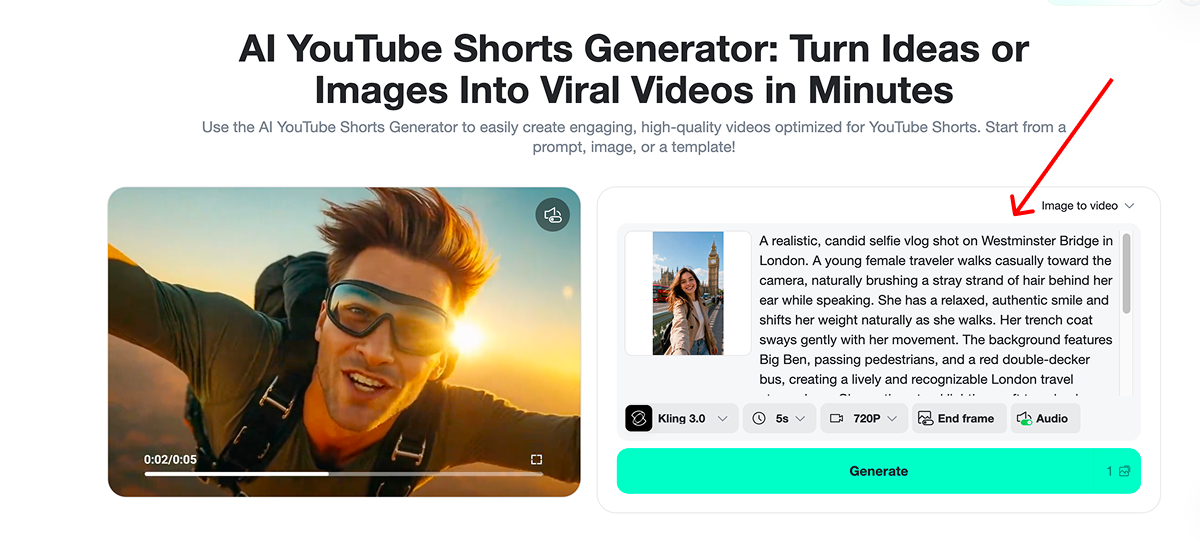
Next, customize the animation style and effects that match your Short. Add or refine the prompt, choose the model, set the duration, and adjust creative options such as resolution, end frame, or audio when they fit your idea.
This step shapes the viewer experience. A stronger prompt can make the motion feel more natural, while the right settings help the clip feel polished enough for YouTube Shorts, Reels, TikTok, or paid social tests.
Step 3: Click Generate to Create Your YouTube Short
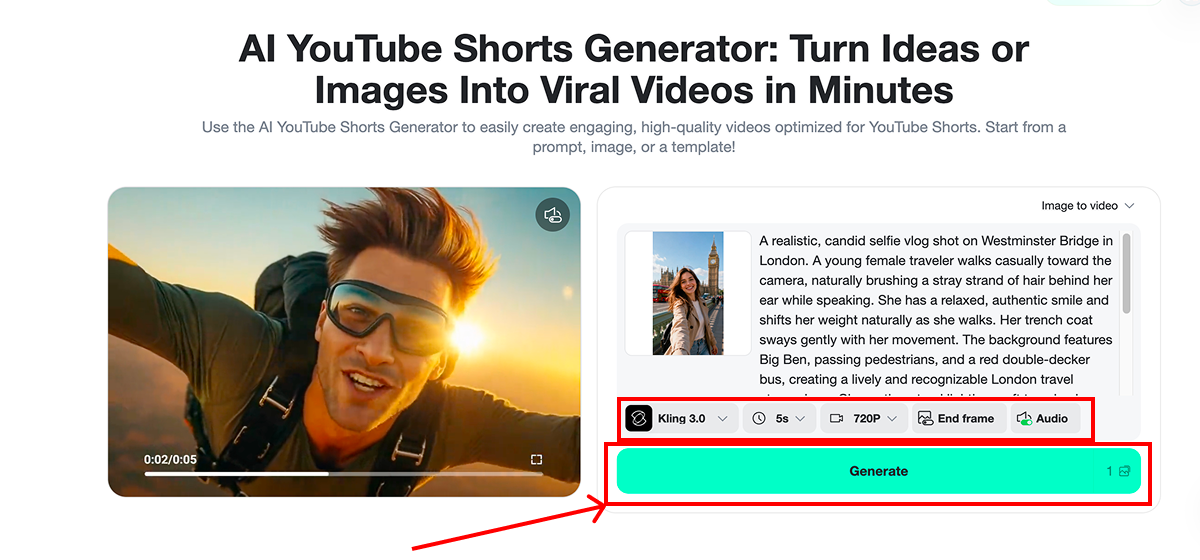
When your input and settings are ready, click Generate. insMind will create the video based on your chosen method and animation direction, turning your concept into a vertical Short you can preview and refine.
If the first version is close but not perfect, adjust the prompt or settings and generate again. Small changes to action, camera movement, or style can make the final Short feel much more watchable.
Step 4: Download and Share
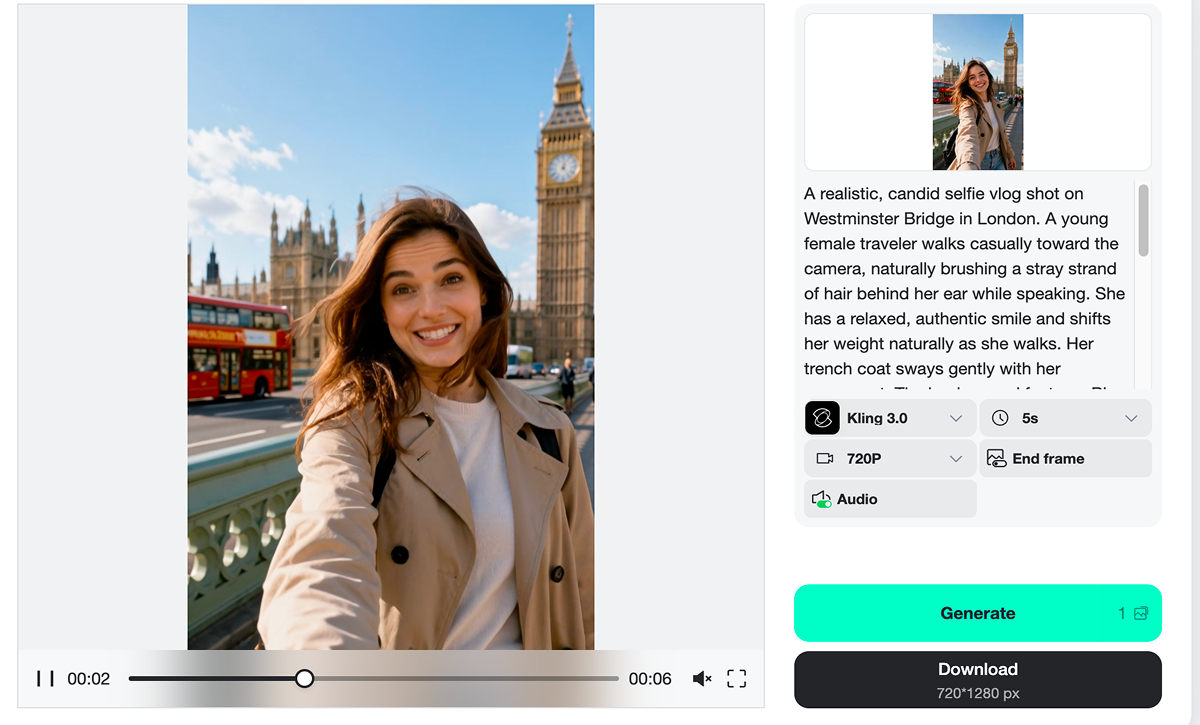
Once the Short is ready, preview the result and download the finished video. You can then share it to YouTube Shorts, reuse it across social platforms, or keep testing new versions until the hook feels strong.
Recommended YouTube Shorts Types and Prompts
Not sure what kind of Short to make first? AI works best when the idea has one clear visual payoff. These YouTube Shorts formats are especially easy to test with prompts, images, or templates:
Product reveal Shorts: Show a product, packaging moment, before-and-after result, or quick use case in a few seconds.
Travel and lifestyle Shorts: Turn a city photo, selfie, or scenic image into a moving vertical clip with natural camera motion.
Character or portrait animation: Animate a person, avatar, or branded character while keeping the main subject recognizable.
Trend and meme Shorts: Test quick visual jokes, reactions, transformations, or surreal scenes while the topic is still fresh.
Faceless channel Shorts: Create visual content for tutorials, facts, quotes, stories, or niche channels without filming yourself.
YouTube Shorts Style Prompts That Work
Be specific about the type of Short you want to create. Each style needs a complete prompt with the subject, action, camera movement, visual mood, and pacing. Use these examples as starting points, then replace the bracketed details with your own idea:
| Shorts Style | Complete Prompt Example | Best For |
|---|---|---|
| Product Reveal | "Create a 9:16 YouTube Short showing [product] on a clean studio surface. Start with a close-up detail shot, then use a smooth camera push-in as the product rotates slightly. Add bright natural lighting, crisp shadows, premium e-commerce style, and a quick final frame with space for a short caption." | Product launches, ads, e-commerce clips |
| Travel Vlog | "Create a vertical handheld vlog shot of a traveler walking toward the camera in [city or location]. Keep the face natural and expressive, add lively background movement, golden-hour light, slight camera shake, and a friendly creator-style mood. The clip should feel spontaneous, bright, and ready for a travel Short." | Lifestyle, travel, creator updates |
| Transformation | "Create a 9:16 before-and-after transformation Short. Begin with the original scene for one second, then use a fast swipe transition into the improved result. Add dramatic lighting change, clear visual contrast, energetic motion, and a satisfying reveal that is easy to understand without sound." | Makeovers, edits, AI effects, tutorials |
| Faceless Story | "Create a vertical cinematic Short for a faceless channel about [topic]. Show symbolic visuals instead of a presenter, with slow camera movement, emotional lighting, text-friendly empty space, and subtle motion in the background. Keep the pacing calm and make the scene suitable for captions or narration." | Quotes, facts, storytelling, niche channels |
| Meme or Reaction | "Create a short vertical reaction clip with an exaggerated expression or playful object movement. Start with a surprising moment in the first second, then add a quick zoom, slight camera shake, bright social-media style, and a clear punchline or visual twist by the final frame." | Trend posts, humor, fast social tests |
Tips to Make AI YouTube Shorts More Watchable
How do you make an AI-generated Short feel less random and more watchable? Start with the hook. The first second should show action, contrast, surprise, or a clear visual question. If viewers need three seconds to understand what is happening, many will scroll away.
Use prompts that include motion words. Instead of "a woman on a beach," write "a young woman jumping in mid-air on a beach with natural momentum, wind-blown hair, and a bright handheld camera feel." The second version gives the AI more direction and gives viewers more movement to follow.
Describe the motion: do not just describe the scene. Specify what moves, such as "hair flowing in wind," "walking toward camera," or "camera slowly zooms in."
Add camera direction: use phrases like "handheld vlog shot," "close-up reveal," "low-angle action shot," or "smooth tracking camera."
Open with visible action: start with motion, contrast, or a clear reveal instead of a static setup.
Use 9:16 framing: keep the subject centered so the clip feels made for the mobile screen.
Give the Short one job: focus on one reveal, one product moment, one reaction, or one visual transformation per clip.
Test several prompt variations: small changes to action, camera movement, or style can make the final clip much stronger.
Match the style to the platform: make the action readable on mobile and leave room for captions when needed.
To create faceless Shorts, use a faceless video generator to build visuals around the story instead of filming the creator. Starting from a still photo? You can turn a photo into a video so the Short feels more alive.
FAQs About AI YouTube Shorts Generator Workflows
Can I create YouTube Shorts from text only?
Yes. You can enter a prompt that describes the scene, action, subject, and style, then generate a vertical video from that text. This is ideal when you want to test ideas quickly without preparing source footage.
Can I upload an image to make a Short?
Yes. If you have a product photo, portrait, character image, or lifestyle shot, you can upload it and use AI to animate it. This is useful when you want the generated Short to stay close to a specific visual asset.
What duration works best for AI YouTube Shorts?
Start short when the idea is simple. A 5-second clip can work for one clear action, while 10 to 15 seconds gives you more room for a reveal, product moment, or mini story. insMind also provides different video duration options depending on the AI model you choose, so you can match the length to the model, motion style, and type of Short you want to create.
How do I choose the video size for AI YouTube Shorts?
It depends on how you start. In text-to-video mode, you can choose the video size yourself, such as a vertical 9:16 format for Shorts. In image-to-video mode, the generated video keeps the same size and ratio as the uploaded image.
Can I use AI-generated YouTube Shorts commercially?
Yes, but review the rights for every asset you use. Make sure your prompts, uploaded images, music, captions, brand elements, and final export comply with the platform rules and the terms of the AI tool before using the Short in ads, monetized channels, or client work.
Can I make faceless YouTube Shorts with AI?
Yes. AI is a good fit for faceless Shorts because you can create scenes, product clips, animated visuals, quote videos, story clips, or educational content without appearing on camera.
How do I write a good prompt for AI YouTube Shorts?
Start with the subject, then add action, setting, camera movement, mood, and style. A strong prompt should make the visual easy to imagine and should include motion words so the generated Short does not feel static.
Can I use AI-generated Shorts for YouTube, TikTok, and Instagram Reels?
Yes. A vertical 9:16 AI video can usually be repurposed across YouTube Shorts, TikTok, and Instagram Reels. Before posting, adjust captions, hashtags, audio, and pacing for each platform.
Start Creating YouTube Shorts Today
You do not need a studio, a camera crew, or a complicated editing workflow to start publishing Shorts. With the right prompt or image, you can create vertical videos that fit your channel, test ideas faster, and stay active in a format that rewards consistency.
Ready to turn your next idea into a scroll-stopping AI Short? Open insMind, enter a prompt or upload an image, choose your settings, and generate a video you can preview, download, and post.

Jayson Harrington
I am the Chief Editor of insMind. I provide tips and skills to help users design better photos with insMind, whether for e-commerce, social media, or any other use.


![How to Add Logo to Photos Online for Free [The Simplest Method]](https://static.xsbapp.com/market-operations/market/side/1718795949162.jpg?x-oss-process=image/resize,w_690,h_460,type_6/interlace,1,image/format,webp "How to Add Logo to Photos Online for Free [The Simplest Method]")
![How to Remove Tattoos from Photos [Ultimate Guide 2025]](https://static.xsbapp.com/market-operations/market/side/1718787534476.jpg?x-oss-process=image/resize,w_690,h_460,type_6/interlace,1,image/format,webp "How to Remove Tattoos from Photos [Ultimate Guide 2025]")


