


To create Facebook videos with AI, start by choosing where the video will appear: Feed, Reels, Stories, an ad placement, or a page post. Each placement changes the ideal aspect ratio, pacing, text placement, and call to action.
This guide shows how to plan Facebook videos, write AI prompts, generate clips with insMind, and adapt one idea into multiple social video versions. The goal is not just to make a video quickly. It is to make a Facebook-ready video that fits the viewer, the placement, and the action you want them to take.
Table of Contents
- 01Quick Verdict: Better Facebook Videos Start with the Right Format
- 02What Kinds of Facebook Videos Can You Create with AI?
- 03Match Your Facebook Video Format to the Goal
- 04Write a Facebook Video Brief an AI Tool Can Follow
- 05Choose the Best AI Facebook Video Maker Workflow
- 06How to Create Facebook Videos with AI Using insMind
- 07Make AI Facebook Videos Feel More Human and Native
- 08Optimize Facebook Videos for Captions, CTAs, and Engagement
- 09Repurpose One AI Video into Multiple Facebook Assets
- 10AI Facebook Video Mistakes to Avoid
- 11FAQs about Creating Facebook Videos with AI
- 12Conclusion
Quick Verdict: Better Facebook Videos Start with the Right Format
AI can make Facebook video production much faster, but it cannot guess your placement strategy. A full-screen Reel, a Feed post, a Story, and a video ad all need different framing decisions. If you start with the wrong format, even a good AI clip can feel awkward after upload.
The best workflow is to choose the placement first, write a tight video brief, generate the main version, then create adapted cuts for other placements. That gives you speed without turning every Facebook video into a generic AI clip.
What Kinds of Facebook Videos Can You Create with AI?
AI can help with many Facebook video types, from simple page posts to campaign assets. The key is to match the creative style to the way people will see it.
- Facebook Reels: Short vertical videos for fast discovery and entertainment.
- Stories: Vertical, temporary videos that need quick context and clear text.
- Feed videos: Videos that may appear around text posts, links, comments, and page content.
- Product demos: Short clips that show an outcome, use case, or before-and-after result.
- Video ads: Campaign assets with a stronger offer, CTA, and landing-page connection.
- Community posts: Simple videos that ask questions, show updates, or invite discussion.
This is where an AI social media video maker is useful. Instead of editing every version from scratch, you can create the main concept once and adapt the prompt, frame, or first scene for each Facebook surface.
Match Your Facebook Video Format to the Goal
Facebook supports many video contexts. For Reels and Stories, vertical 9:16 is the natural fit. For Feed, square 1:1 or portrait 4:5 can often feel more stable because the video appears inside a scrolling feed with surrounding UI. If you are running ads across Meta placements, plan for more than one crop instead of forcing one file everywhere.
| Facebook Placement | Good Starting Format | Creative Priority |
|---|---|---|
| Reels | 9:16 vertical | Fast hook, native pacing, safe text |
| Stories | 9:16 vertical | Clear context and simple CTA |
| Feed | 1:1 or 4:5 | Readable subject and caption support |
| Ads | Multiple crops | Offer clarity and placement-safe design |
Meta's Reels ads guidance also emphasizes 9:16 video, audio, and keeping key creative elements in the safe zone. Even when you are not running ads, those rules are useful because they reflect how vertical video is consumed on Facebook and Instagram.
Write a Facebook Video Brief an AI Tool Can Follow
A good AI brief gives the video generator enough direction to create something useful. Do not write only "make a Facebook video." Include the audience, placement, subject, first scene, movement, style, text-safe area, and CTA.
Use this brief structure:
- Goal: awareness, clicks, comments, product education, or retargeting.
- Placement: Feed, Reels, Stories, or ad campaign.
- Audience: who should stop scrolling?
- Opening frame: what do they see first?
- Visual beats: two or three changes that carry the message.
- CTA: what should the viewer do next?
Example: "Create a 12-second vertical Facebook Reel for small business owners. Start with a messy product photo, then show it becoming a polished social video. Bright workspace, clean motion, caption-safe center area, friendly educational tone, ending text: Create videos faster."
Choose the Best AI Facebook Video Maker Workflow
The best workflow depends on your source material. If you have only an idea, use text-to-video. If you have a product image, logo, portrait, or campaign visual, use image-to-video. If you want a repeatable brand look, keep the same prompt structure and change only the product, scene, or offer.
| Input | Workflow | Facebook Use Case |
|---|---|---|
| Prompt or script | Text to video | Explainers, announcements, Reels concepts |
| Product image | Image to video | Demos, product reveals, campaign clips |
| Existing campaign idea | Variant generation | Ads, A/B tests, seasonal posts |
For script-first Facebook posts, use a text to video tool. For product campaigns, an image to video generator helps preserve the original product or brand visual while adding motion.
How to Create Facebook Videos with AI Using insMind
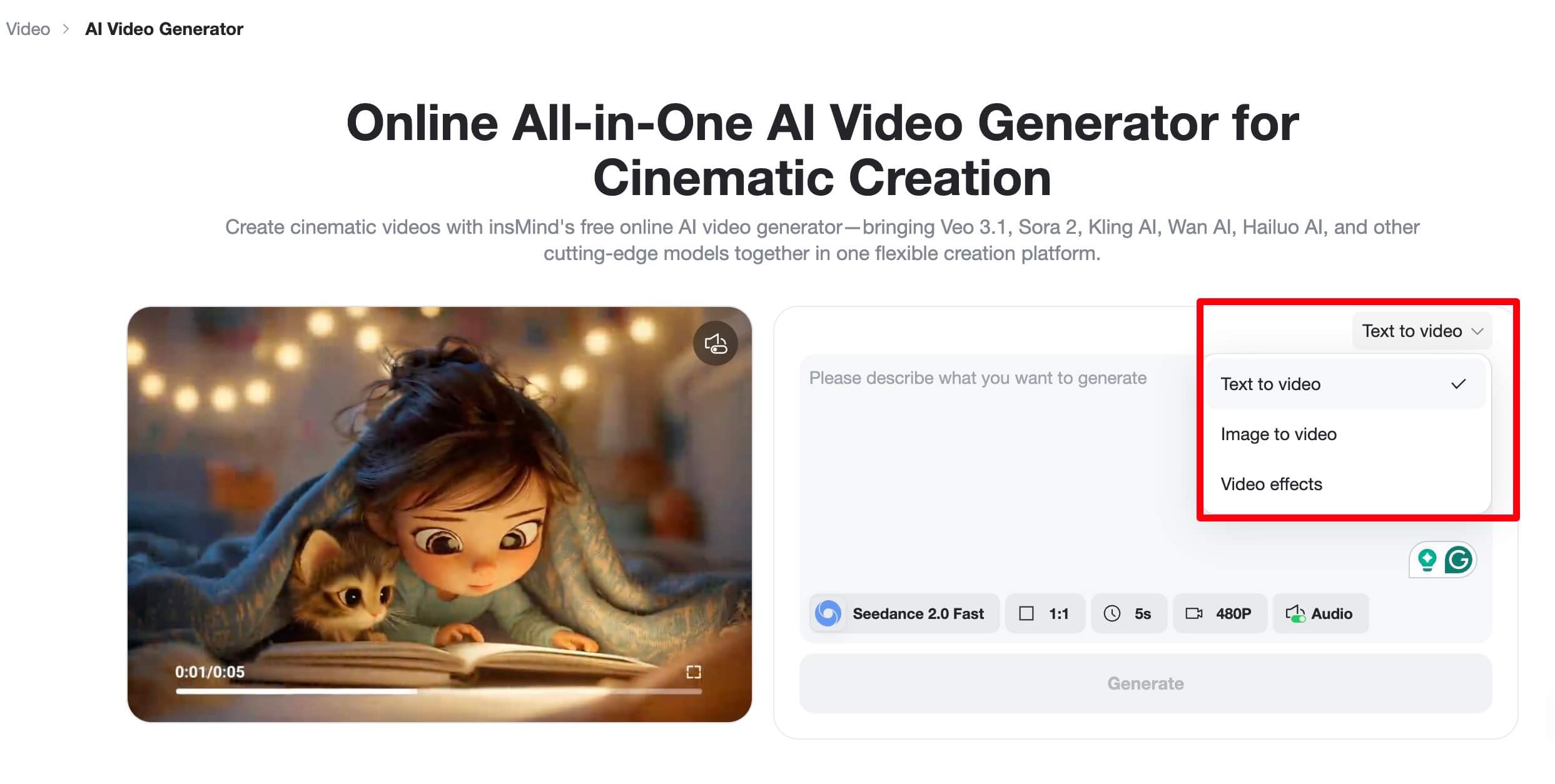
The AI video generator in insMind can turn prompts or images into short video clips for Facebook posts, Reels, Stories, and campaigns. Its official workflow has three steps: enter a text prompt or upload an image, choose video settings, then generate, preview, and download.
Step 1 - Enter a Text Prompt or Upload Your Image
Start by deciding whether the Facebook video should come from text or an image. For text-to-video, type a detailed prompt that describes the audience, placement, opening frame, visual beats, and CTA. For image-to-video, upload a high-quality product photo, brand visual, logo, or portrait first, then add a prompt that explains the motion.
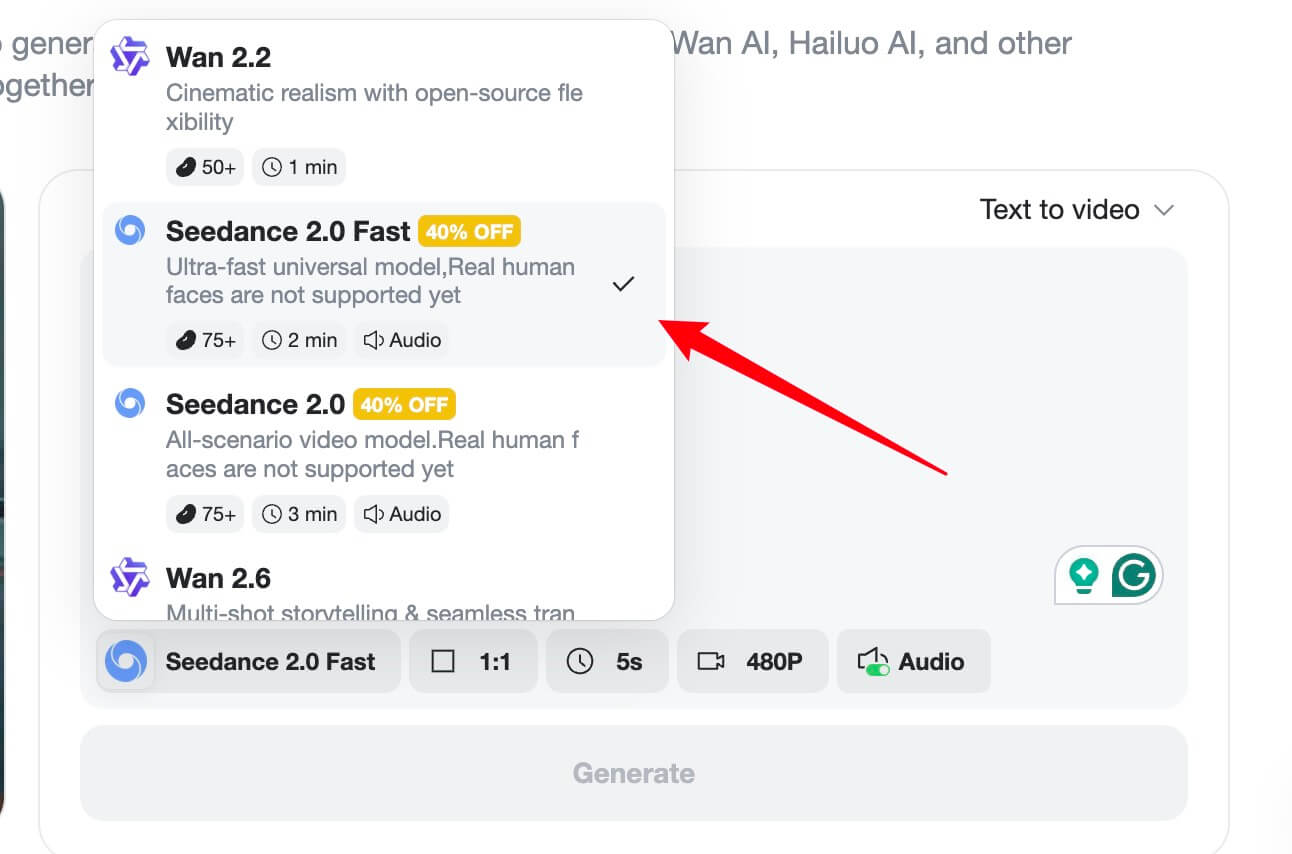
Step 2 - Choose Video Settings
Customize the video by selecting the AI model, aspect ratio, video length, and prompt strength. For Facebook Reels and Stories, plan for 9:16. For Feed, keep the subject centered so the video can still work when adapted to 4:5 or 1:1.
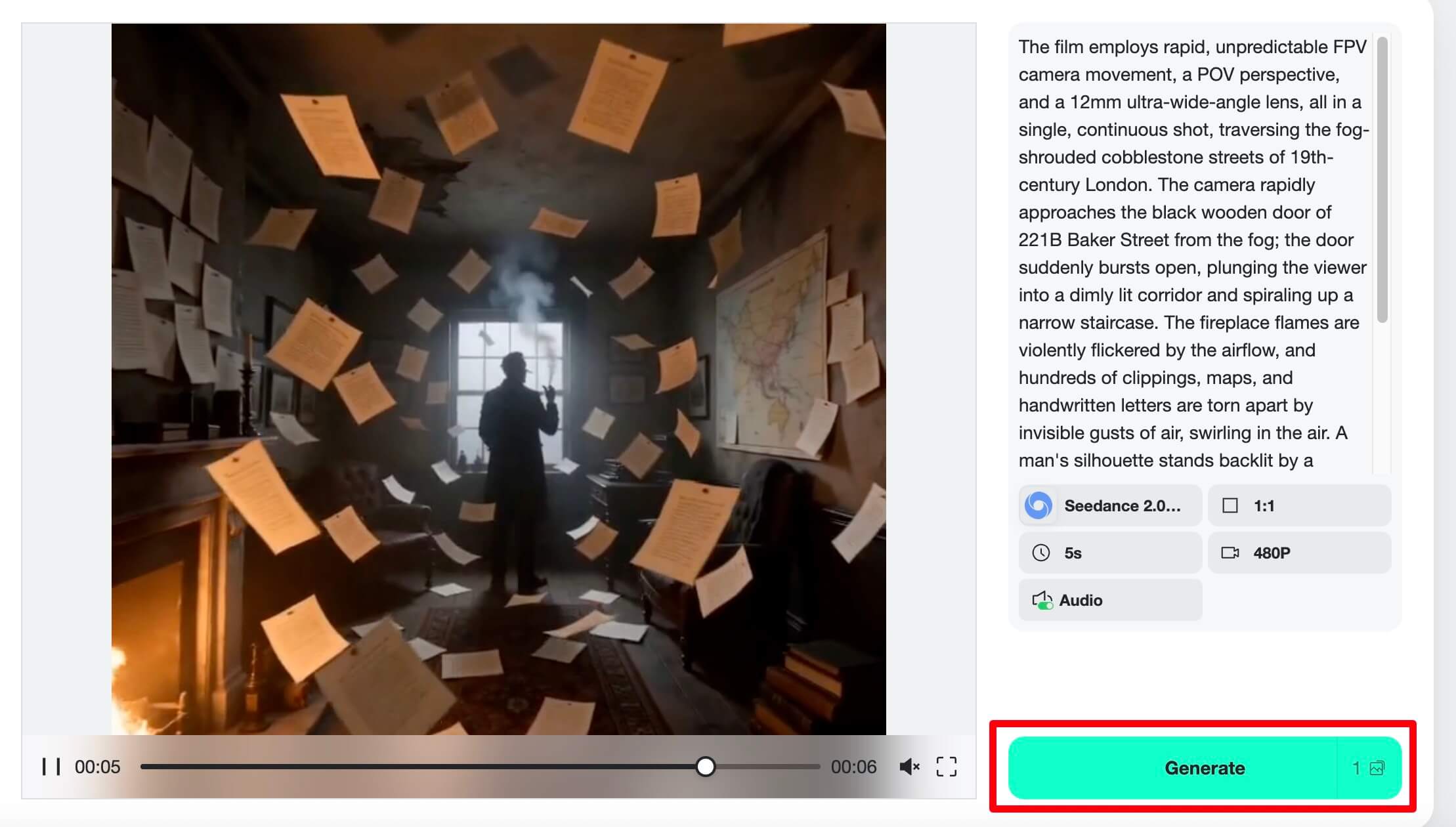
Step 3 - Generate, Preview, and Download the Video
Click Generate to create the video. Preview it for first-frame clarity, readable subject, and CTA fit. If the video is for Facebook Feed, make sure the main action still works when cropped tighter. If it is for Reels or Stories, make sure the vertical frame does not hide key text near the UI. Once it works, download the video and add final captions, thumbnail frame, post copy, or ad setup details.
Make AI Facebook Videos Feel More Human and Native
Facebook videos often appear next to personal posts, comments, group content, and page updates. If the video looks too generic, viewers may ignore it. Make the first frame feel specific: a product in use, a person reacting, a problem being solved, or a clear before-and-after.
A good AI Facebook video should feel like a useful post first and a generated asset second.
Use natural motion, readable captions, and simple scenes. Avoid fake-looking overproduction unless your brand intentionally uses a highly stylized look.
Optimize Facebook Videos for Captions, CTAs, and Engagement
Facebook viewers may watch with sound off, sound on, in Feed, in Reels, or inside an ad experience. Captions and first-frame clarity matter because the video has to communicate before the viewer commits attention.
- Use readable captions: Keep text short and high contrast.
- Show the benefit early: Do not wait until the end to reveal what the video is about.
- Match CTA to intent: Use "Shop now" for product ads, "Comment below" for community posts, and "Watch the full guide" for educational funnels.
- Keep safe zones clean: Avoid putting critical text at the very top, bottom, or extreme edges.
- Write a useful post caption: Add context, a question, or a reason to click.
Repurpose One AI Video into Multiple Facebook Assets
One AI-generated video can become several Facebook assets if you plan variants from the start. Create the main vertical version first, then adapt it for Feed, Reels, Stories, and ads.
For example, a product reveal can become:
- A 9:16 Reel with a fast before-and-after hook.
- A 4:5 Feed video with more text-safe space.
- A Story version with a direct CTA.
- An ad version with a stronger offer and cleaner ending frame.
This is where AI saves time. Instead of asking your team to build every variation manually, use the same brief and adjust the prompt for each placement.
AI Facebook Video Mistakes to Avoid
The first mistake is creating one video and forcing it into every Facebook placement. Reels, Stories, Feed, and ads do not behave the same way. Generate or adapt the video for the surface where it will appear.
The second mistake is using prompts that are too broad. "Create a Facebook ad" is not enough. Include the audience, product, offer, placement, tone, first frame, and CTA.
The third mistake is making the video look detached from your brand. Use consistent colors, product references, caption style, and visual tone so AI output still feels like your business.
FAQs about Creating Facebook Videos with AI
Can I create Facebook videos with AI from text?
Yes. Use a text-to-video workflow when you have a script, campaign concept, or post idea. The more specific your brief is, the better the generated video will fit Facebook.
What format should I use for Facebook videos?
Use 9:16 for Facebook Reels and Stories. For Feed, 1:1 or 4:5 can be easier to view in a scrolling context. If you are running ads, prepare multiple crops for different placements.
Can AI Facebook videos be used for ads?
Yes, as long as the video follows Meta policies and fits the placement. For ads, pay extra attention to offer clarity, safe zones, captions, and landing-page consistency.
Is an AI Facebook video maker useful for small businesses?
Yes. Small businesses can use AI to turn product photos, announcements, testimonials, and offers into short videos without a full production team.
Should I make one Facebook video or several versions?
Make several versions when the video will appear in different placements. A 9:16 Reel and a 4:5 Feed post can use the same idea, but the framing and CTA may need to change.
Conclusion
Creating Facebook videos with AI is fastest when you plan the placement first. Decide whether the video is for Feed, Reels, Stories, or ads, then write a brief that gives the AI a clear audience, opening frame, visual action, and CTA.
With insMind, you can turn prompts or images into video drafts, then adapt them for Facebook's different surfaces. That gives you a practical way to publish more social videos while keeping each asset connected to a real goal.


![How to Add Logo to Photos Online for Free [The Simplest Method]](https://static.xsbapp.com/market-operations/market/side/1718795949162.jpg?x-oss-process=image/resize,w_690,h_460,type_6/interlace,1,image/format,webp "How to Add Logo to Photos Online for Free [The Simplest Method]")
![How to Remove Tattoos from Photos [Ultimate Guide 2025]](https://static.xsbapp.com/market-operations/market/side/1718787534476.jpg?x-oss-process=image/resize,w_690,h_460,type_6/interlace,1,image/format,webp "How to Remove Tattoos from Photos [Ultimate Guide 2025]")


