


Recording a YouTube voiceover sounds simple until you actually do it. You write the script, find a quiet room, test the microphone, record a few takes, cut out mistakes, and then realize one sentence needs to change. For long videos, that can slow down the whole edit. For Shorts, it can feel like too much work for a clip that needs to move fast.
AI voiceovers make the process lighter. Instead of recording your own voice every time, you can paste your script, choose a voice that fits your channel style, generate clean audio, and download the result for your video edit. This guide shows you how to make AI voiceovers for YouTube videos and Shorts with insMind, plus practical tips for writing scripts that sound natural when spoken.
Table of Contents
What Is an AI Voiceover for YouTube?
An AI voiceover is spoken narration generated from written text. You write the words, choose a voice, and let an AI tool turn the script into audio. For YouTube, that audio can become a tutorial narration, a Shorts hook, an explainer voice, a product review intro, a faceless channel narration, or a quick update for a community-style video.
The main difference between a basic text reader and a good AI voice over workflow is tone. A YouTube voiceover needs to match the pace of the edit. A fast Short may need energy in the first sentence. A tutorial may need a calmer and clearer voice. A review or product demo may need a voice that sounds confident without feeling too dramatic.
AI voiceovers are especially useful when your channel depends on consistent publishing. You can update a script without setting up a new recording session, test multiple hooks, and keep a repeatable narration style across videos.
Why Use AI Voiceovers Instead of Recording?
Recording your own voice is still a good option when you want a personal, familiar sound. But it is not always the fastest option. Background noise, room echo, microphone quality, and repeated takes can make a simple voiceover take longer than expected.
AI voiceovers help when speed matters. If you are editing a YouTube Short, you can test several versions of the opening line before deciding which one fits the cut. If you are creating a tutorial, you can revise one paragraph and generate the audio again. If you run a faceless channel, AI narration lets you publish without appearing on camera or building a recording setup.
The result is a smoother workflow. You still control the message, the script, and the final edit. The AI simply helps turn your written narration into usable audio faster. If you need a broader audio workflow, a text to speech tool can also help you transform written copy into spoken narration for other content formats.
How to Make AI Voiceovers for YouTube with insMind
With insMind, you can create a YouTube voiceover in a few simple steps. Start with a script that sounds natural, choose a fitting AI voice and language, generate the audio, then preview and download it for your video editor.
Step 1: Add Your YouTube Script
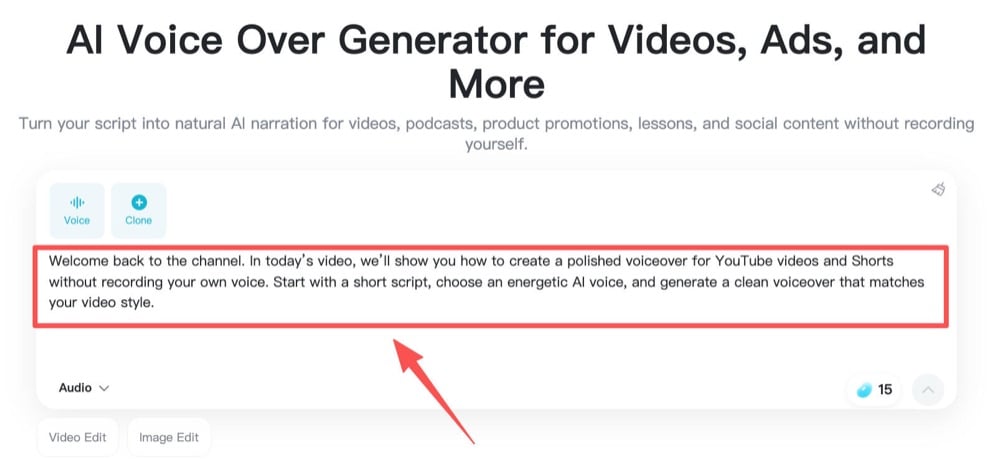
Open insMind AI Voice Over and paste the exact words you want the voice to say. This could be a hook for a Short, an intro for a tutorial, a product line for a sponsored segment, or a full narration paragraph for a longer video.
Write for the ear, not just the screen. YouTube narration should be easy to follow while viewers are watching visuals. Keep sentences direct. Break long ideas into shorter lines. If the script starts with a hook, make sure the first sentence gives viewers a reason to keep watching.
Step 2: Choose a Voice and Language
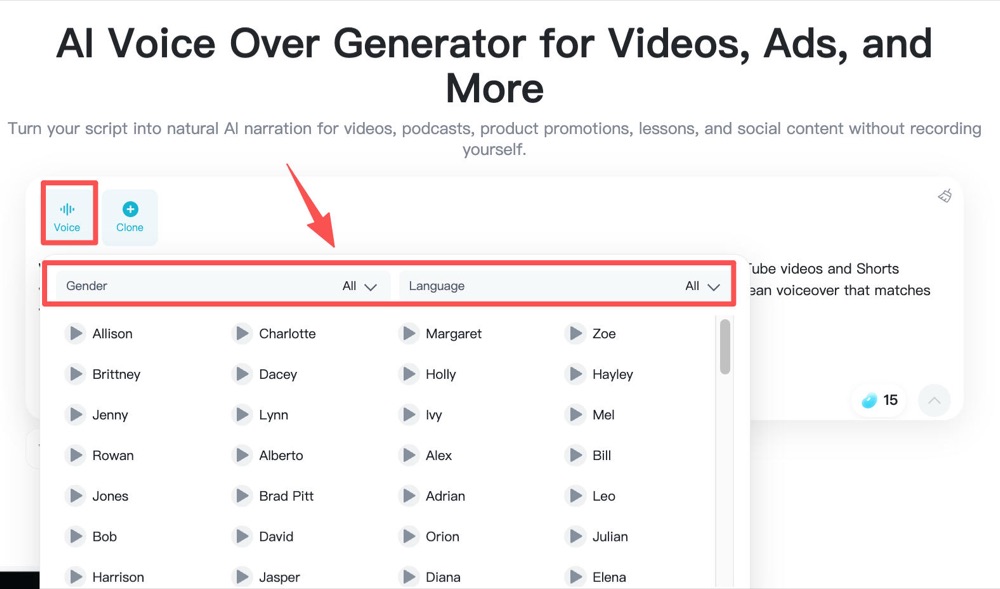
Next, select a voice that matches your video style. A fast-paced Shorts channel may need an energetic voice. A how-to channel may need a calm and friendly voice. A product demo may need something clear, polished, and steady.
Choose the right language before generating, especially if your audience is international or if you are localizing a video. Voice and language should work together. A strong script can feel wrong if the voice does not fit the audience, pace, or topic.
Step 3: Generate Your AI Voiceover
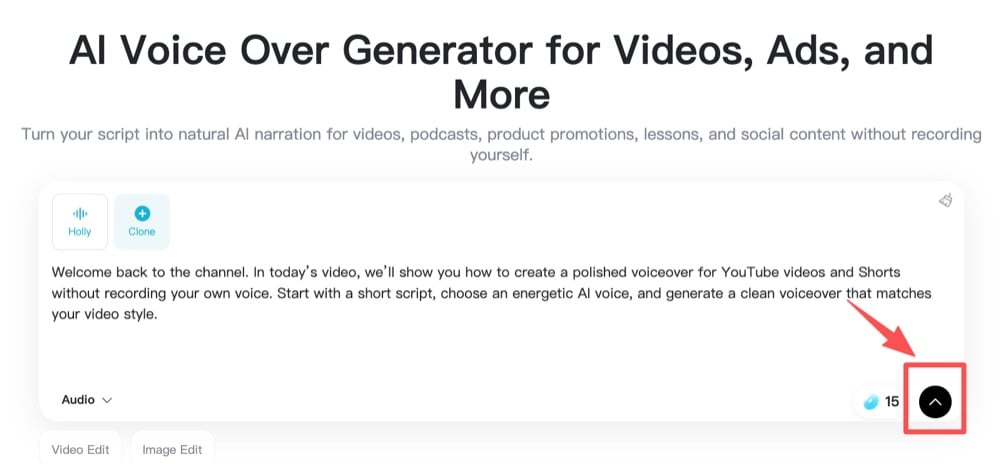
Once the script and voice are ready, generate the AI voiceover. insMind turns the text into smooth audio that can be used for YouTube videos, Shorts, ads, lessons, or social clips.
Listen to the first result with your video in mind. Does the opening line land quickly enough? Does the voice leave enough room for captions, cuts, and visuals? If it feels too slow or too crowded, revise the script before downloading.
Step 4: Preview, Download, and Add It to Your Edit
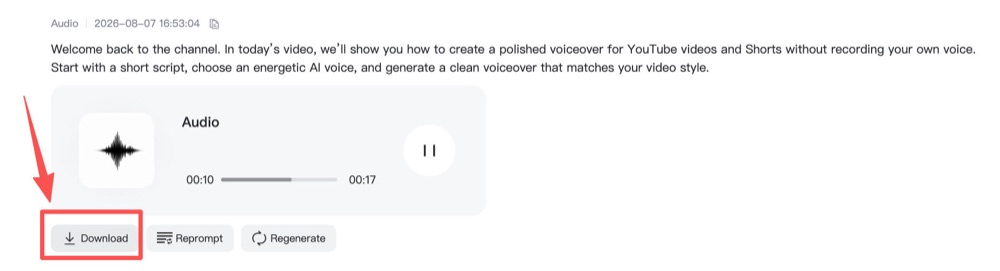
Preview the audio before using it. Check pronunciation, rhythm, and tone. If the voice sounds good, download the generated audio and bring it into your editing workflow.
For Shorts, align the first sentence with the strongest visual moment. For longer YouTube videos, place the voiceover against the rough cut and check whether the narration gives viewers enough context without explaining too much. If you also need to build visuals from a written idea, a Script to Video AI workflow can help you turn the same script into a more complete video concept.
Tips for Better YouTube AI Voiceovers
Start with a strong first sentence. YouTube viewers decide quickly, and Shorts move even faster. Your first line should make the topic clear and create a reason to keep watching. Avoid slow openers like "Today we are going to talk about..." when a direct hook would work better.
Write in short spoken lines. A sentence that looks fine in a blog post may sound heavy in audio. Use simple verbs, natural transitions, and clear pauses. If the script feels stiff, read it out loud once and rewrite the parts that sound unnatural.
Match voice energy to video pacing. A high-energy voice can work well for Shorts, countdowns, product teasers, and quick transformations. A calmer voice may work better for tutorials, explainers, and educational videos. The goal is not to choose the loudest voice. The goal is to choose the voice that helps viewers understand the video.
Leave space for the edit. Do not fill every second with narration. YouTube videos often need room for captions, sound effects, visual reveals, and music. A good voiceover guides the viewer without fighting the rest of the video.
Common Mistakes to Avoid
One common mistake is pasting a script that was written only for reading. Voiceover scripts need rhythm. If every sentence is long, the audio can sound rushed or hard to follow.
Another mistake is choosing a voice before thinking about the video format. A voice that works for a 10-minute explainer may not work for a 20-second Short. If you are making Shorts regularly, pair your audio workflow with a dedicated YouTube Shorts generator or editing process so the narration and visuals stay aligned.
Creators also forget to preview the final audio against the cut. The voice may sound good alone but feel too slow when placed under fast visuals. Always test the voiceover inside the actual timeline before publishing.
Finally, do not over-explain. YouTube voiceovers should support the viewer, not read every visible detail on screen. Let visuals do some of the work.
FAQ
Can I make YouTube voiceovers without recording my own voice?
Yes. You can write a script, choose an AI voice, generate the narration, and download the audio without using a microphone. This is useful for faceless videos, Shorts, tutorials, ads, and draft narration.
Are AI voiceovers good for YouTube Shorts?
Yes, AI voiceovers can work well for YouTube Shorts when the script is short, direct, and timed to the visuals. Keep the opening line clear and avoid long sentences that slow down the clip.
How do I make an AI voiceover sound natural?
Start with conversational writing. Use short sentences, natural punctuation, and a voice that fits the video pace. Preview the result and revise any line that sounds stiff, too fast, or too formal.
Can I use AI voiceovers for tutorials?
Yes. AI voiceovers are useful for tutorials because they let you update instructions quickly without re-recording the entire video. Use a calm, clear voice and make sure each step matches what viewers see on screen.
What should I do after downloading the voiceover?
Add the audio to your video timeline, align it with the visuals, and adjust music or sound effects so the narration stays clear. If you need to polish the final cut, use a YouTube video editor workflow to keep the video ready for publishing.
Create Your YouTube Voiceover Today
You do not need a studio setup to make clear narration for YouTube. With the right script and the right AI voice, you can turn written ideas into audio for Shorts, tutorials, product videos, explainers, and faceless channels.
Ready to make your next YouTube voiceover without recording? Open insMind AI Voice Over, paste your script, choose a voice, generate the audio, and download a clean narration track for your next edit.

Ryan Barnett
I'm a tech enthusiast and writer who loves exploring AI, digital tools, and the latest tech trends. I break down complex topics to make them simple and useful for everyone.


![How to Add Logo to Photos Online for Free [The Simplest Method]](https://static.xsbapp.com/market-operations/market/side/1718795949162.jpg?x-oss-process=image/resize,w_690,h_460,type_6/interlace,1,image/format,webp "How to Add Logo to Photos Online for Free [The Simplest Method]")
![How to Remove Tattoos from Photos [Ultimate Guide 2025]](https://static.xsbapp.com/market-operations/market/side/1718787534476.jpg?x-oss-process=image/resize,w_690,h_460,type_6/interlace,1,image/format,webp "How to Remove Tattoos from Photos [Ultimate Guide 2025]")


