


Want a clean, mechanical voice for a game NPC, sci-fi narrator, training video, or Halloween short, but you do not want to mess with a vocoder, EQ plugins, or hours of audio cleanup? You can skip the hardware. With a modern text-to-speech tool, you can paste a line, choose a voice, and download a robotic-sounding take in under a minute. That is the simplest way to how to make robot sounds today, and it fits creators who already have a script but no microphone setup.
The trick is knowing how to write a script that reads well in a synthetic voice, which settings actually control the robotic feel, and where the output fits into your larger project. This guide walks through the full process. You will see what makes robot speech convincing, how to write a clean script, how to use the insMind robot voice generator in four practical steps, and how to avoid the most common mistakes that make AI speech sound cheap instead of cinematic.
What Makes a Robot Voice Sound Convincing?
Ever listened to a robot character and immediately knew it was fake? The problem is rarely the voice itself. It is usually a mismatch between the character, the script, and the audio. When all three align, even a short line can feel like part of a real machine or synthetic persona.
There are four ingredients that hold a robot voice together: steady pacing, clipped phrasing, a clear emotional register, and the right technical delivery. A delivery voice that is monotone and lifeless is just bad audio. A delivery voice that is robotic on purpose feels designed.
1. Pacing and Rhythm
Robots do not pause the way humans do. They pause between short phrases, often with a slight gap between commands. Real people also speed up when excited and slow down when nervous. Robots stay steady, which makes them feel efficient and slightly alien.
2. Clipped, Short Phrasing
The best robot lines are written the way a system status update reads. Short sentences, one idea per line, clear nouns and verbs. Long, flowing sentences almost always sound wrong in a robot voice because the AI tries to add natural inflection that breaks the mechanical feel.
3. Consistent Volume and Tone
A human voice has tiny volume dips, breath sounds, and emotional swells. Robot speech stays flatter and more uniform. That uniformity is what makes it feel mechanical. If the audio suddenly surges or drops, the effect breaks.
4. Right Use Case
Different robot characters need different feels. A friendly sidekick sounds different from a damaged AI, and a starship computer sounds different from a security bot. Decide your character first, then match the script, voice, and pacing to that role.
How to Write a Script That Reads Well in a Robot Voice
Wondering where most creators go wrong? They write a normal human paragraph and expect the tool to make it sound mechanical. It will not. The script has to be designed for delivery, the same way a song is written for performance.
Use the table below as a quick checklist before you click Generate.
| Script Element | Why It Matters | Practical Example |
|---|---|---|
| Character intent | Decide what your robot is and how it should sound | Friendly helper, dry starship computer, glitchy AI |
| Sentence length | Short lines keep the mechanical feel | "System online. Awaiting input." instead of "The system has now been brought online and is awaiting further input from the user." |
| Punctuation | Periods create clean pauses between commands | "Power nominal. Shields active. Route locked." |
| Numbers and codes | Specific data feels technical | "Unit 7 online. Battery at 82 percent. Route Delta-9 active." |
| Vocabulary | Use words robots are expected to know | "Initiate," "Confirm," "Acknowledged," "Standby," "Calibrating" |
If you want a fast starting template, copy this skeleton and replace the brackets:
System check complete. [Status phrase]. [Action verb] [object]. [Final result]. Awaiting further instruction.
For example:
System check complete. Navigation is stable. Preparing route to Sector 9. Estimated arrival in 4 minutes. Awaiting further instruction.
That single block already feels more mechanical than a paragraph of casual English, even before any audio processing.
For deeper script planning or a separate narration voice, a flexible text to speech tool can also help you test short lines before locking the script.
Creative Projects You Can Build with a Robot Voice
Not sure if a robot voice fits your project? Try one of these common use cases. Each one has a clear job for the audio, so the robotic feel becomes a feature, not a gimmick.
Game Characters and NPCs
Generate dialogue for shop keepers, drones, repair bots, security systems, or AI companions without recording a single line of voice acting.
Sci-Fi Video Intros
Open a short film, explainer, or teaser with a brief status update or mission briefing. Pair it with on-screen text for a polished intro.
Training and Explainer Content
Use a calm, neutral robot voice for software walkthroughs, onboarding videos, or internal training. The tone feels instructional, not salesy.
Podcast Segments and Ads
Drop a 10-second robot line into a podcast intro, sponsor read, or transition. It adds a memorable moment without needing a custom actor.
Halloween and Costume Content
Create creepy AI whispers, warning messages, or audio logs for Halloween shorts, haunted house apps, or themed costume reveals.
Product Prototypes and Demos
Prototype an AI assistant, smart speaker, or robot concept for a pitch deck or investor demo without booking a real voice actor.
How to Make Robot Sounds with insMind
Ready to generate your first line? insMind keeps the workflow focused. You write the script, pick a voice, generate the take, and download the audio. Below are the four steps with screenshots from the live interface so you can match what you see on your screen.
Step 1: Type or Paste Your Robot Script
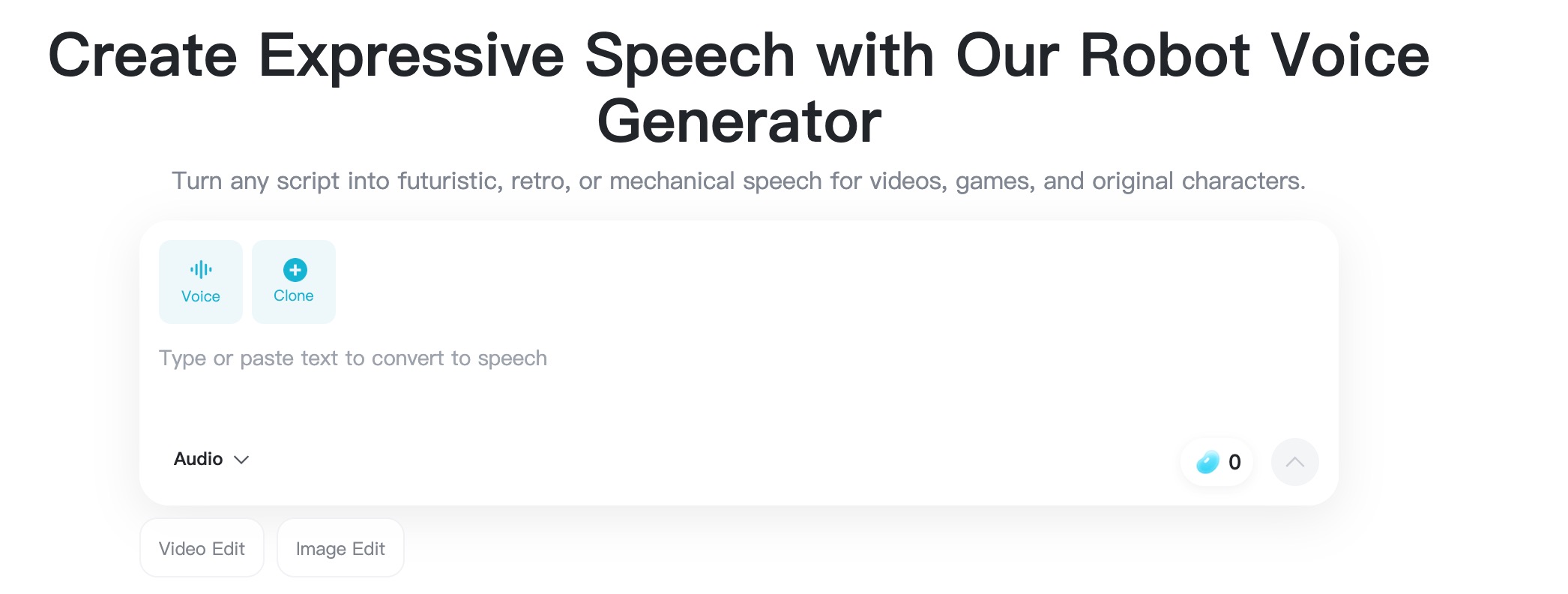
Open the insMind robot voice generator and place your cursor in the text box at the top of the workspace. Type or paste the line you want to convert. Short, clean text works best. For your first test, try a simple status update such as "Unit 7 online. Navigation stable. Welcome aboard, Captain. Ready for launch."
Keep the output type set to Audio so the system knows you want a voice file, not a video. You will see the Voice and Clone tabs at the top, with Voice active by default. Once your text is ready, the generation button at the bottom right becomes active.
Step 2: Pick a Voice That Fits the Character
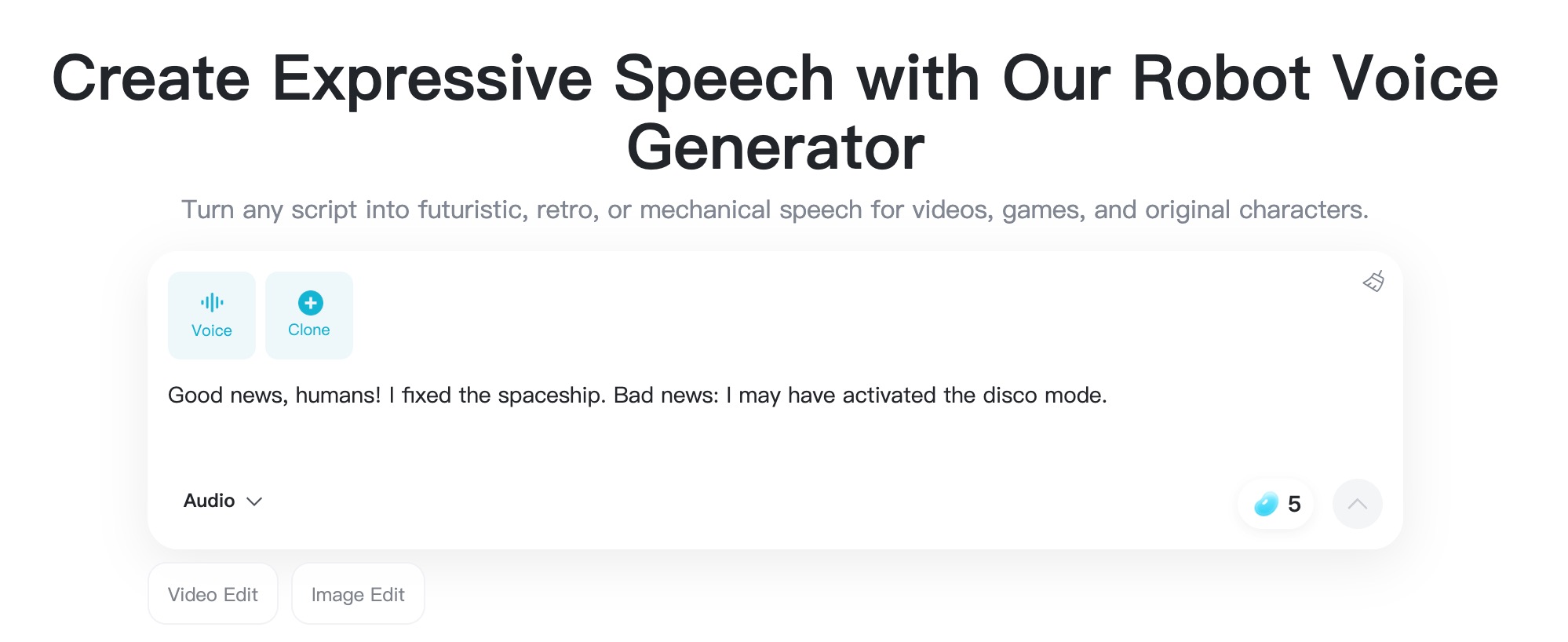
Click the voice selector to open the full voice library. You will see a long list of available voices arranged by Gender and Language. For a robot character, choose a voice that sounds clean and steady. Voices like Orion, Adrian, or Leo often work well for a mechanical feel. For a softer helper bot, try a warmer voice such as Allison or Holly.
Hover over any voice to preview a short sample before you commit. You can also filter by language if your script includes non-English phrases. When you have selected a voice, the active name appears at the top of the text box so you can confirm before generating.
Step 3: Generate the Robot Audio
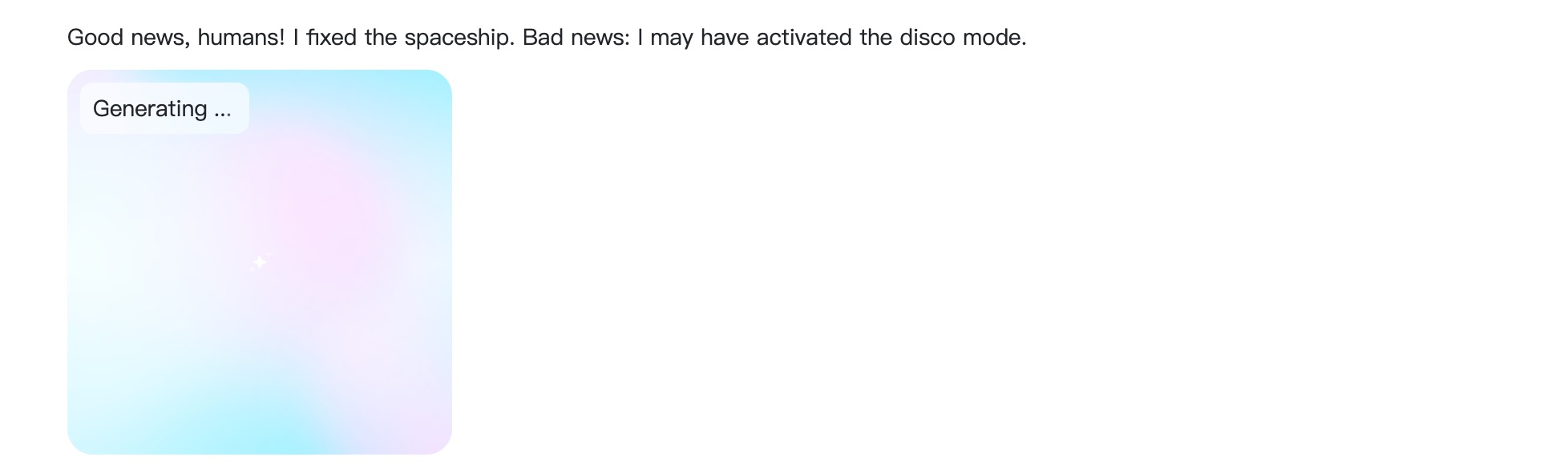
When your script and voice are ready, click the generation button. The system processes the text and selected voice in a few seconds. During that time, the workspace shows a brief loading state, then the result appears below the input box with a small audio waveform and a play button.
Click play and listen to the full take. Pay attention to pacing, clarity of important words, and how the pauses between sentences feel. If a name or number sounds off, that is a cue to edit the script and regenerate. Small text changes almost always produce cleaner audio than re-running the same input.
Step 4: Preview, Reprompt, and Download
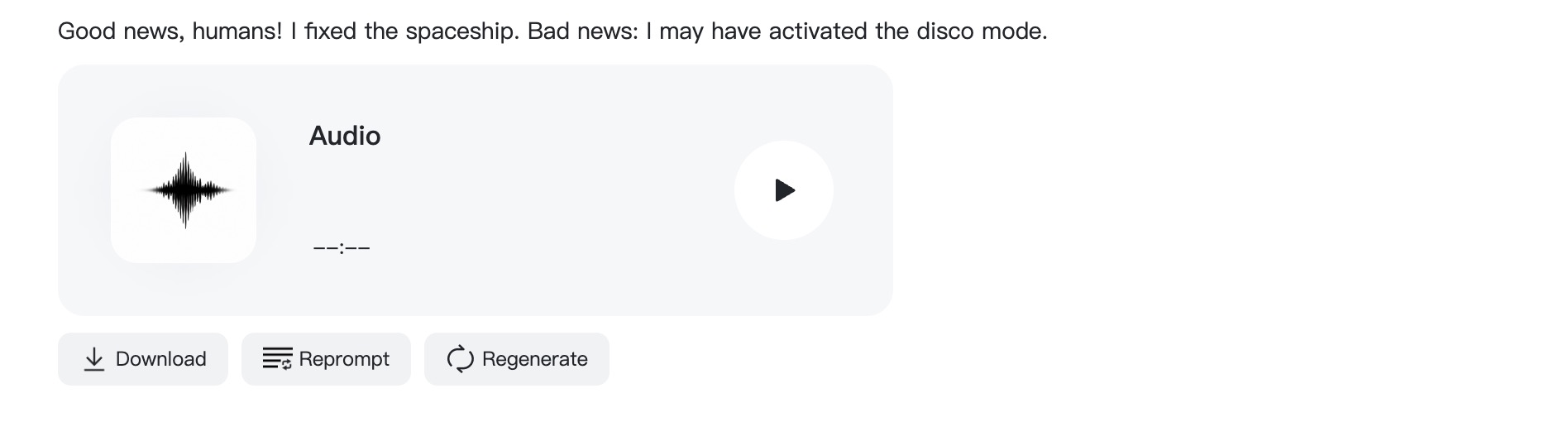
Below each completed audio, you will find three controls: Download, Reprompt, and Regenerate. Use Download to save the file you want to keep. Use Reprompt if you want to rewrite the text without losing the selected voice. Use Regenerate to create a new take from the same script and voice so you can compare variations.
Listen to the take one more time on the device where it will live. A robot line for a TikTok clip should sound clean through phone speakers. A game line should sound right through headphones. Once the audio passes that test, download it and drop it into your video editor, game engine, prototype, or social post.
FAQs About Creating a Robot Voice Effect
What is the fastest way to create a robot voice effect?
The fastest method is to use an online robot voice generator. Type a short, status-style script, choose a clean voice, generate the audio, preview the result, and download the file. The whole process usually takes under a minute.
Do I need a microphone to make robot sounds?
No. Modern text-to-speech tools generate robotic audio directly from text, so you do not need a microphone, audio interface, or recording space. You only need a written script and a working browser.
How long should a robot voice line be?
For social clips, intros, or app prompts, 8 to 20 seconds is plenty. For game dialogue, training, or longer narration, the line can run longer as long as you keep the pacing clear and the words easy to hear.
Can I make different robot characters with the same tool?
Yes. The character comes from the script, the voice, and the pacing. A glitchy AI, a friendly helper bot, and a starship computer each use different word choices, voices, and sentence structures. Change the script and voice, and the same tool gives you a new character.
Can I use AI robot voices in commercial projects?
For most commercial projects you can use generated robot audio as long as you own or have licensed the script, any included names or brands, and the final project. Avoid using the voice to impersonate real people or brands, and check your platform terms before publishing or monetizing.


![How to Add Logo to Photos Online for Free [The Simplest Method]](https://static.xsbapp.com/market-operations/market/side/1718795949162.jpg?x-oss-process=image/resize,w_690,h_460,type_6/interlace,1,image/format,webp "How to Add Logo to Photos Online for Free [The Simplest Method]")
![How to Remove Tattoos from Photos [Ultimate Guide 2025]](https://static.xsbapp.com/market-operations/market/side/1718787534476.jpg?x-oss-process=image/resize,w_690,h_460,type_6/interlace,1,image/format,webp "How to Remove Tattoos from Photos [Ultimate Guide 2025]")


