


Have you ever written the perfect script, then realized recording it would take more time than writing it? Maybe you need a voiceover for a video, a short ad line, a tutorial paragraph, a presentation intro, or a social post. Recording your own voice can work, but it often means finding a quiet room, doing multiple takes, editing pauses, and fixing small mistakes.
That is where AI voice tools help. With insMind, you can turn written text into clear, natural speech online. Instead of setting up a microphone, you paste your script, choose a voice and language, generate audio, preview the result, and download the finished file. In this guide, you will learn what text to speech means, why natural AI voice matters, and how to create your own voice audio step by step.
Table of Contents
What Is Text to Speech?
Text to speech is a technology that converts written words into spoken audio. You type or paste a script, and the tool reads it aloud using a synthetic voice. Modern AI makes that voice sound smoother, more expressive, and more natural than the robotic text readers people used years ago.
For creators, marketers, educators, and small teams, text to speech can be a practical shortcut. You can create narration without hiring a voice actor for every draft. You can test several versions of a script before choosing the final line. You can also keep your audio style more consistent when you publish regularly.
The goal is not just to make any sound from text. The better goal is to create speech that feels clear, easy to understand, and appropriate for the content. A tutorial may need a calm instructional voice. A short ad may need a brighter and more confident delivery. A story or audiobook draft may need pacing that feels more relaxed.
Why Natural AI Voice Matters
Voice changes how people understand your content. A clear voiceover can make a tutorial easier to follow, help an ad sound more polished, and make a presentation feel more complete. When audio sounds rough, too fast, or mismatched with the message, viewers may leave before the idea has a chance to land.
Natural AI voice also gives you speed. If you need to update a sentence, you can edit the script and generate a new version instead of recording the whole line again. That is useful for product demos, learning materials, short-form videos, social posts, and draft voiceovers that may change several times before publishing.
It also opens up creative options. You can use an AI voice generator to compare different tones, create multiple versions of the same message, or make a script easier to share with teammates before the final edit. Good audio does not replace strong writing, but it can make strong writing much easier to hear.
How to Turn Text into Natural AI Voice Online with insMind
Creating voice audio with insMind is simple. You do not need recording equipment or audio-editing experience. Start with a clean script, choose the voice style that fits your purpose, then generate and download the result.
Step 1: Add Your Script
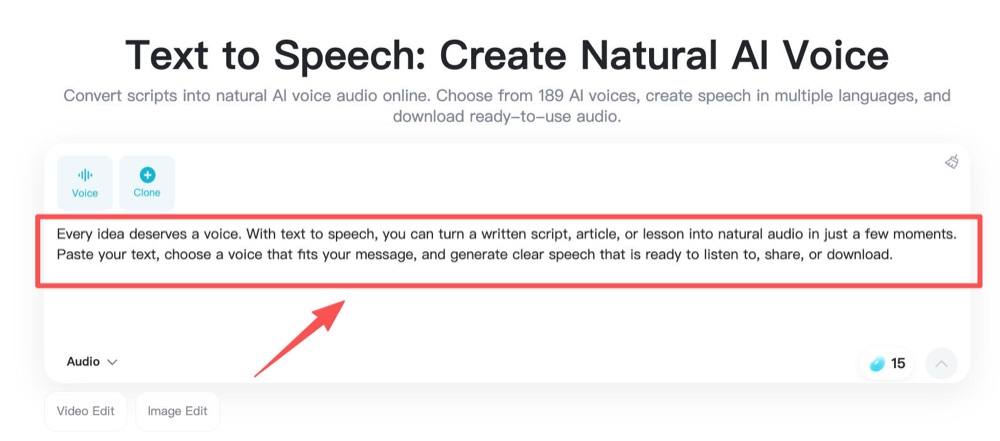
Open insMind Text to Speech and paste the exact text you want the voice to say. This can be a short caption, a product ad line, a lesson paragraph, a tutorial script, or a longer narration draft. If the script is meant for a video, read it once silently and check whether it sounds natural when spoken.
Keep sentences clear and direct. AI voices can read long text, but short sentences usually sound easier to follow. If you want a pause, use punctuation naturally. If a product name, number, or acronym matters, double-check the spelling before generating.
Step 2: Choose a Voice and Language
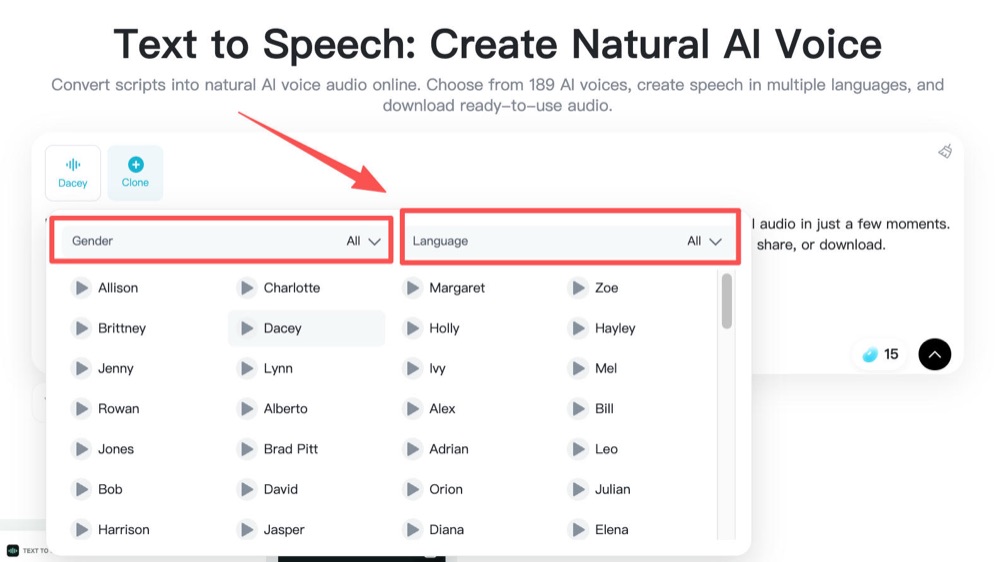
Next, pick the AI voice and language that match your audience. A calm voice may work well for education or onboarding. A brighter voice may suit a social video, product teaser, or quick promotional message. If your content targets a specific region or language group, choose the matching language before generating.
This step is where you decide the personality of the audio. The same sentence can feel friendly, professional, dramatic, or energetic depending on the voice you choose. If you are creating an AI voice over for a video, listen for pacing and clarity, not only the sound of the voice.
Step 3: Generate Your AI Voice
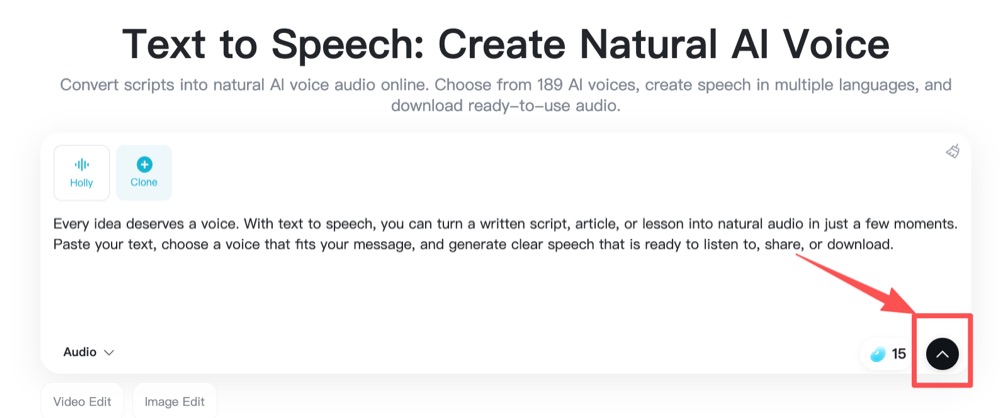
Once your text and voice are ready, generate the speech. insMind turns the written script into smooth voice audio that you can use for content drafts, final videos, ads, lessons, presentations, and social posts.
If the result feels too dense, shorten the script and try again. If the tone does not match your project, choose another voice before exporting. This is one of the biggest advantages of online AI voice tools: you can revise the text and regenerate quickly without starting a recording session from scratch.
Step 4: Preview and Download the Audio
Listen to the generated audio before you download it. Make sure the voice says every line correctly, the tone fits the message, and the pacing works for where the audio will appear. If you plan to use the track in a video, play it alongside the visual timing when possible.
When the result sounds right, download the audio and add it to your project. You can use it in social clips, product explainers, training videos, podcast-style segments, online lessons, or presentation materials.
Tips for Better AI Voice Results
Start with a script that is written for listening, not just reading. Web copy can be dense, but voiceover copy should feel lighter. Read the sentence out loud once before pasting it into the tool. If you stumble, your listeners may stumble too.
Use punctuation to guide rhythm. Periods create firmer stops, commas create lighter pauses, and shorter paragraphs make narration easier to follow. Avoid stacking too many clauses into one sentence.
Match the voice to the purpose. A polished business presentation, a friendly tutorial, and a dramatic story intro should not all sound the same. If you are preparing long-form narration, you can also explore an audiobook generator workflow for story-style pacing and listening comfort.
Test more than one version. A small wording change can make a line sound more natural. For example, "Download the file after previewing the result" may sound more natural than "Upon completion of preview, proceed to download." Simple language usually wins.
Common Mistakes to Avoid
The first mistake is pasting unfinished text. AI voice can make a script sound polished, but it cannot fix unclear thinking. Remove filler phrases, repeated points, and awkward transitions before you generate the audio.
The second mistake is choosing a voice only because it sounds impressive for five seconds. A voice that sounds dramatic in a preview may feel tiring in a two-minute tutorial. Think about the full listening experience.
The third mistake is ignoring pronunciation. Names, acronyms, brand terms, and technical words deserve extra attention. If something sounds off, adjust the wording or spelling and generate again.
The fourth mistake is using the same style for every project. A voice that works for a fast social ad may not work for training narration. If you need identity-style experiments, understand the difference between general text-to-speech generation and AI voice cloning, which is a separate use case with different expectations.
Frequently Asked Questions
Can I convert text to speech online for free?
Yes, you can use online text-to-speech tools to turn written scripts into voice audio without recording your own voice. Availability, limits, and export options may vary by tool and plan, so check the current product page before starting a large project.
What kind of scripts work best for AI voice?
Clear, conversational scripts work best. Use short sentences, natural punctuation, and direct wording. If the audio is for a video, write with timing in mind so the voice does not feel rushed.
Can I use AI voice audio in videos and ads?
Yes. AI voice audio is commonly used for product videos, short ads, tutorials, explainers, lessons, and social content. Always review the final audio to make sure it fits your brand tone and publishing context.
How do I make AI voice sound more natural?
Start with a natural script, choose a fitting voice, and preview the result before downloading. If the audio sounds too flat or too fast, revise the sentence structure and test another voice style.
Do I need a microphone to create AI voice audio?
No. Text-to-speech tools generate audio from written text, so you do not need a microphone, recording booth, or voice-editing setup for basic narration.
Start Creating AI Voice Audio Today
Turning text into speech online is one of the easiest ways to move from written ideas to ready-to-use audio. Whether you are making a tutorial, an ad, a social video, a lesson, or a presentation, a clear AI voice can help your message feel easier to hear and easier to share.
Ready to turn your next script into natural voice audio? Open insMind Text to Speech, paste your words, choose a voice, generate the result, and download your audio for your next project.

Ryan Barnett
I'm a tech enthusiast and writer who loves exploring AI, digital tools, and the latest tech trends. I break down complex topics to make them simple and useful for everyone.


![How to Add Logo to Photos Online for Free [The Simplest Method]](https://static.xsbapp.com/market-operations/market/side/1718795949162.jpg?x-oss-process=image/resize,w_690,h_460,type_6/interlace,1,image/format,webp "How to Add Logo to Photos Online for Free [The Simplest Method]")
![How to Remove Tattoos from Photos [Ultimate Guide 2025]](https://static.xsbapp.com/market-operations/market/side/1718787534476.jpg?x-oss-process=image/resize,w_690,h_460,type_6/interlace,1,image/format,webp "How to Remove Tattoos from Photos [Ultimate Guide 2025]")


