
00:00
00:00
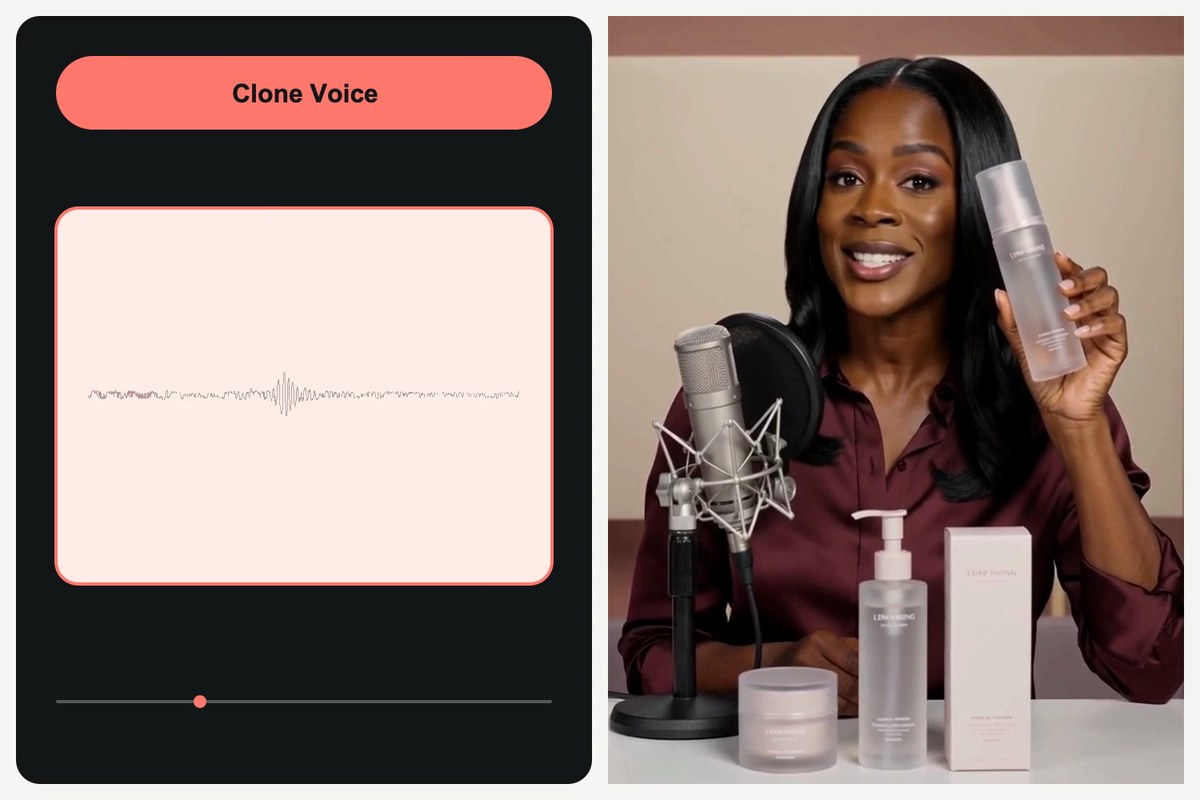
What Is AI Voice Cloning?
00:00
00:00
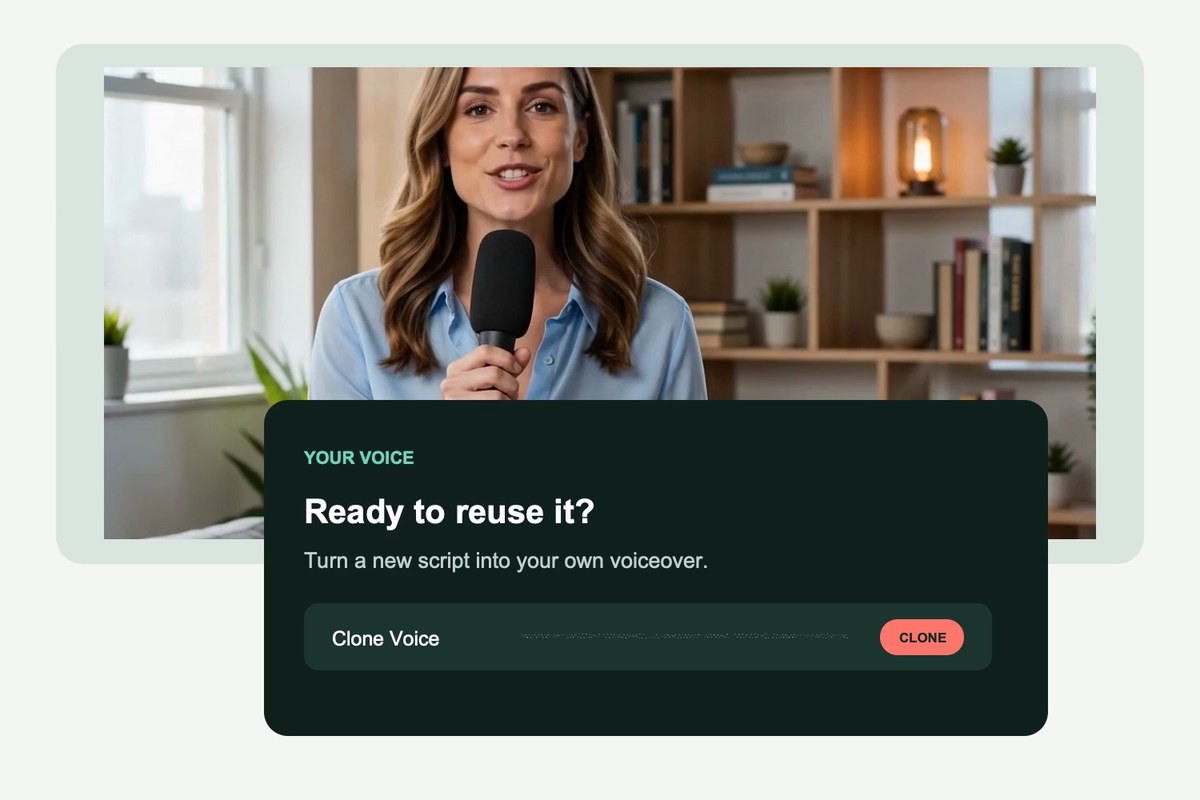
Clone Your Voice from an Existing Recording
00:00
00:00
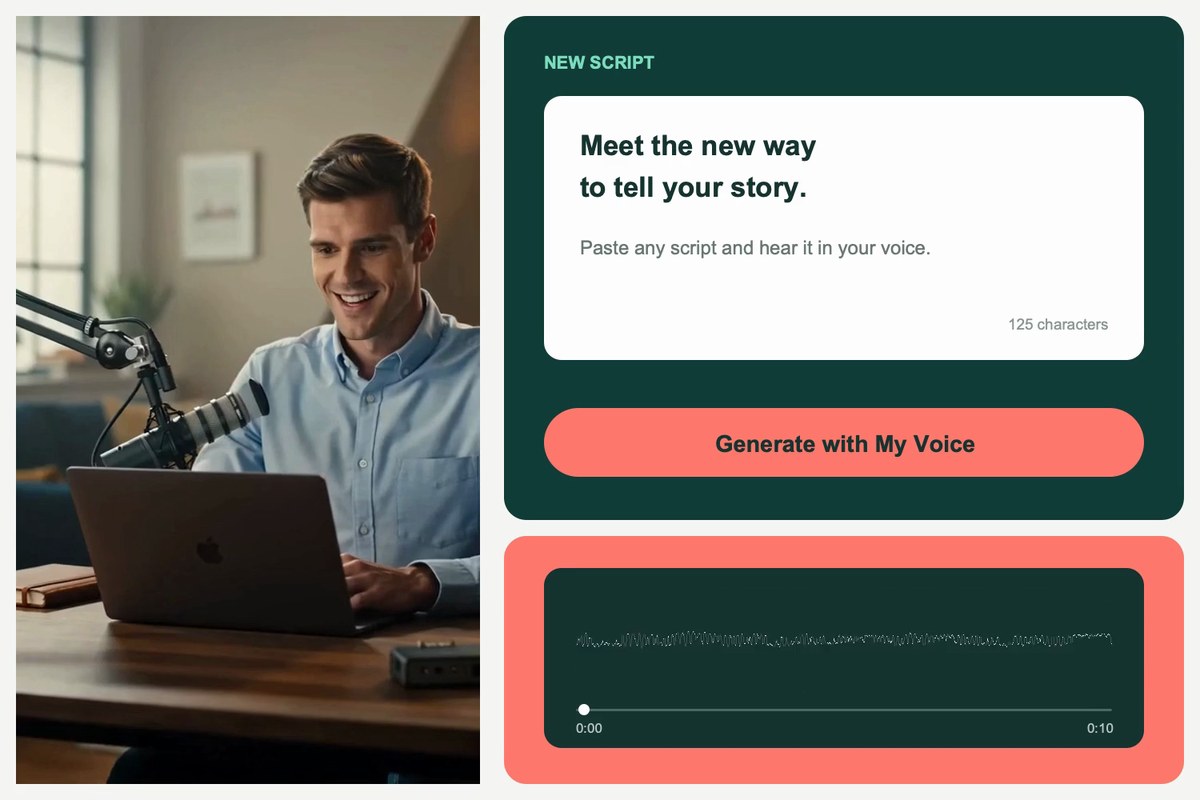
Make Your Own AI Voice Read Any Script
00:00
00:00
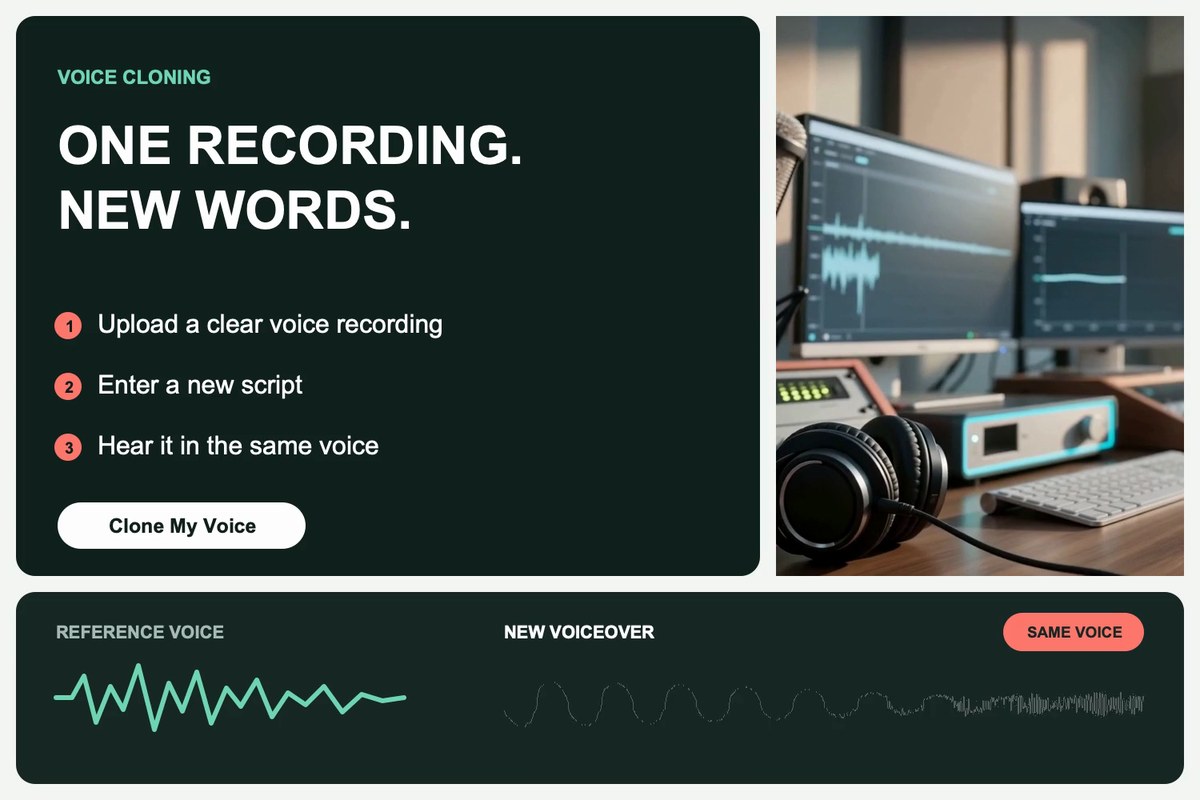
Keep Your Voice Consistent Across New Scripts
What Can You Create with AI Voice Cloning?
From video narration to course updates, use one familiar voice across the content you create.

00:00
00:00
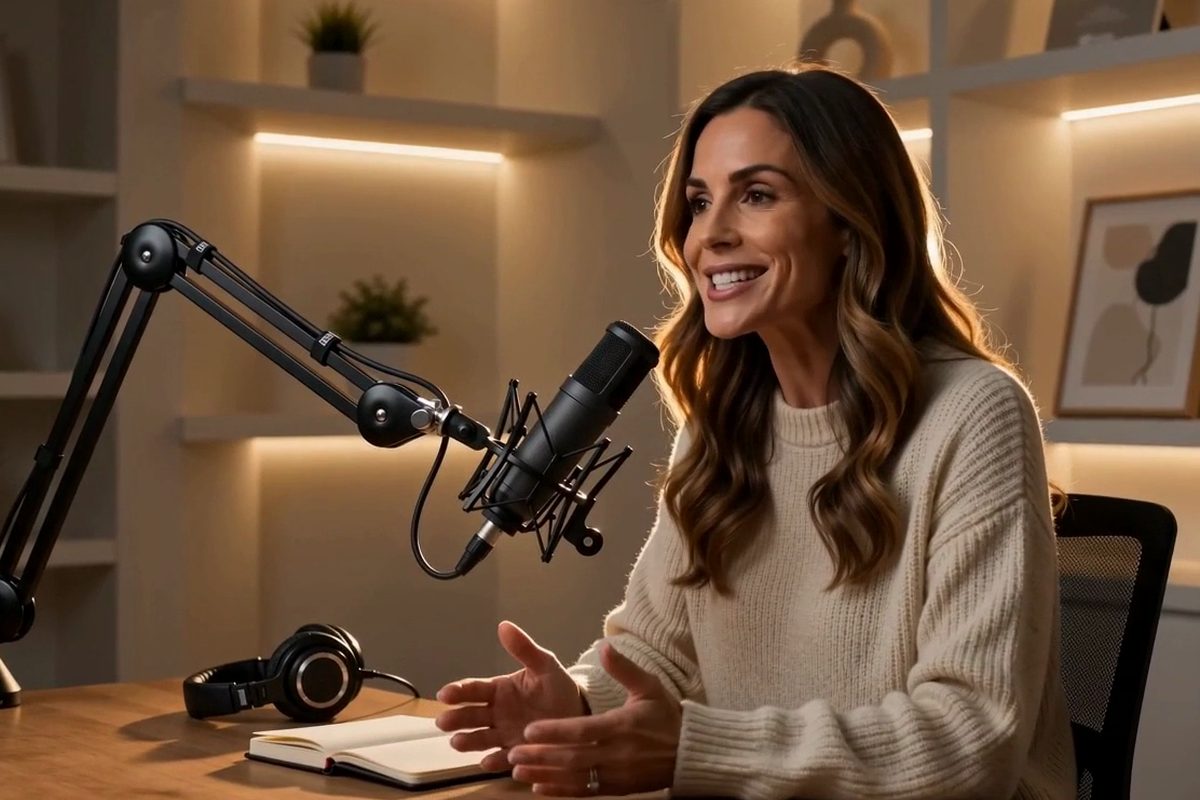
YouTube Videos and Social Voiceovers
Add narration to a new YouTube video, Reel, Short, or TikTok clip in your own voice. If the hook changes after editing, generate the updated line and bring the audio into an AI video editor with the rest of the footage.
00:00
00:00
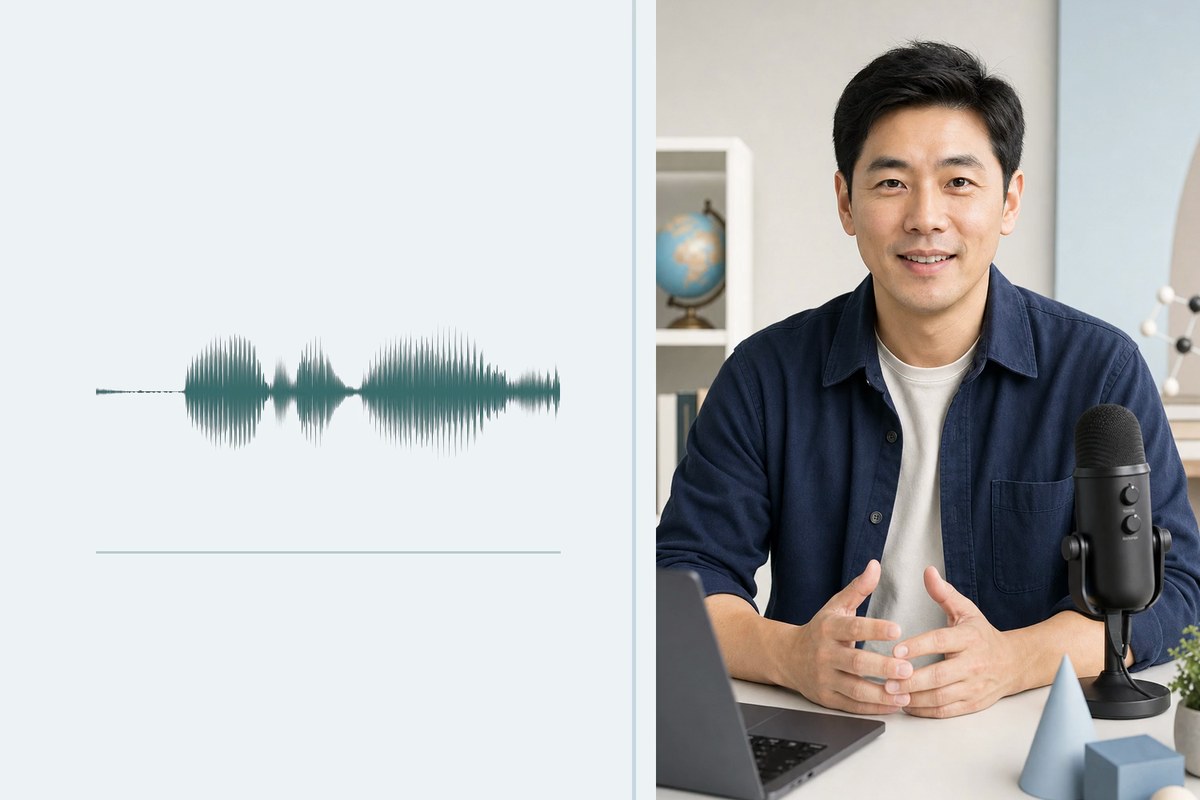
Podcast Intros and Episode Updates
Create a podcast intro, recurring segment, sponsor line, or quick correction in the same voice as the rest of the episode. You can fix one sentence after recording without redoing the entire session.
00:00
00:00
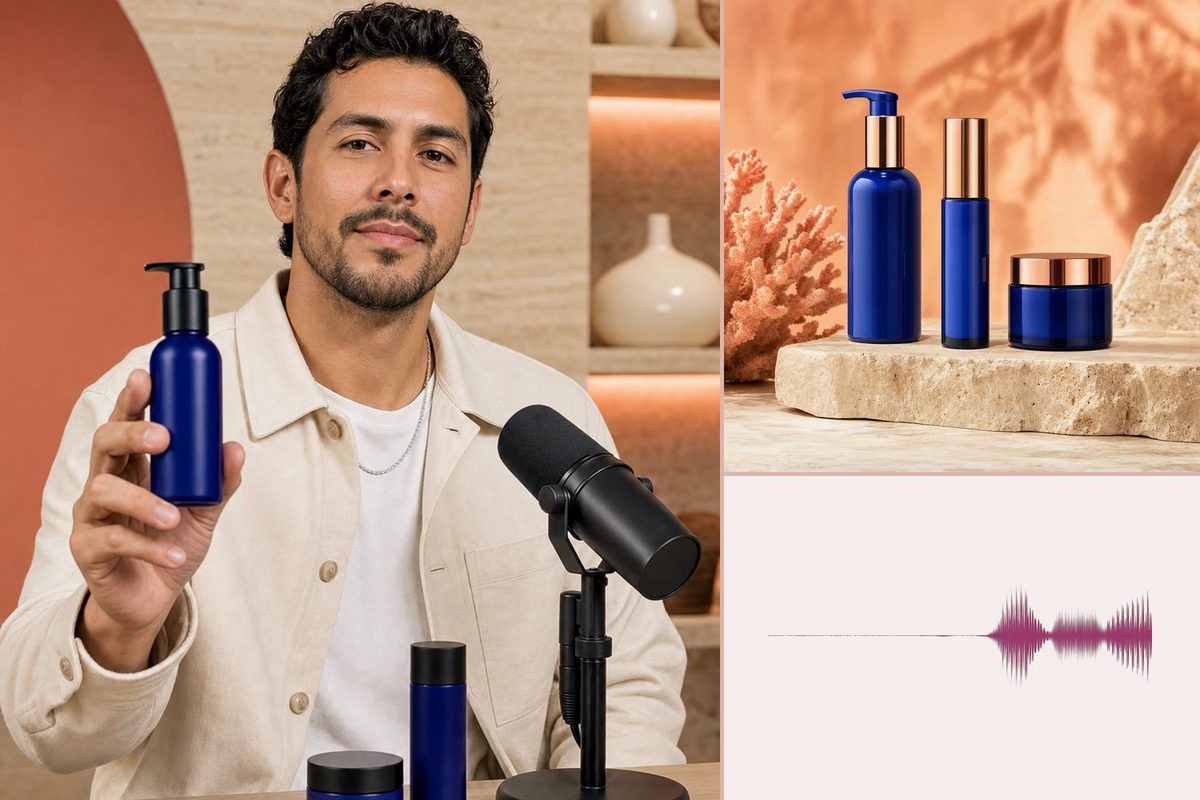
E-Learning and Course Narration
Update a lesson when the screens, policies, or examples change. Generate only the new instruction or paragraph, while keeping the familiar narration style across the course.
00:00
00:00
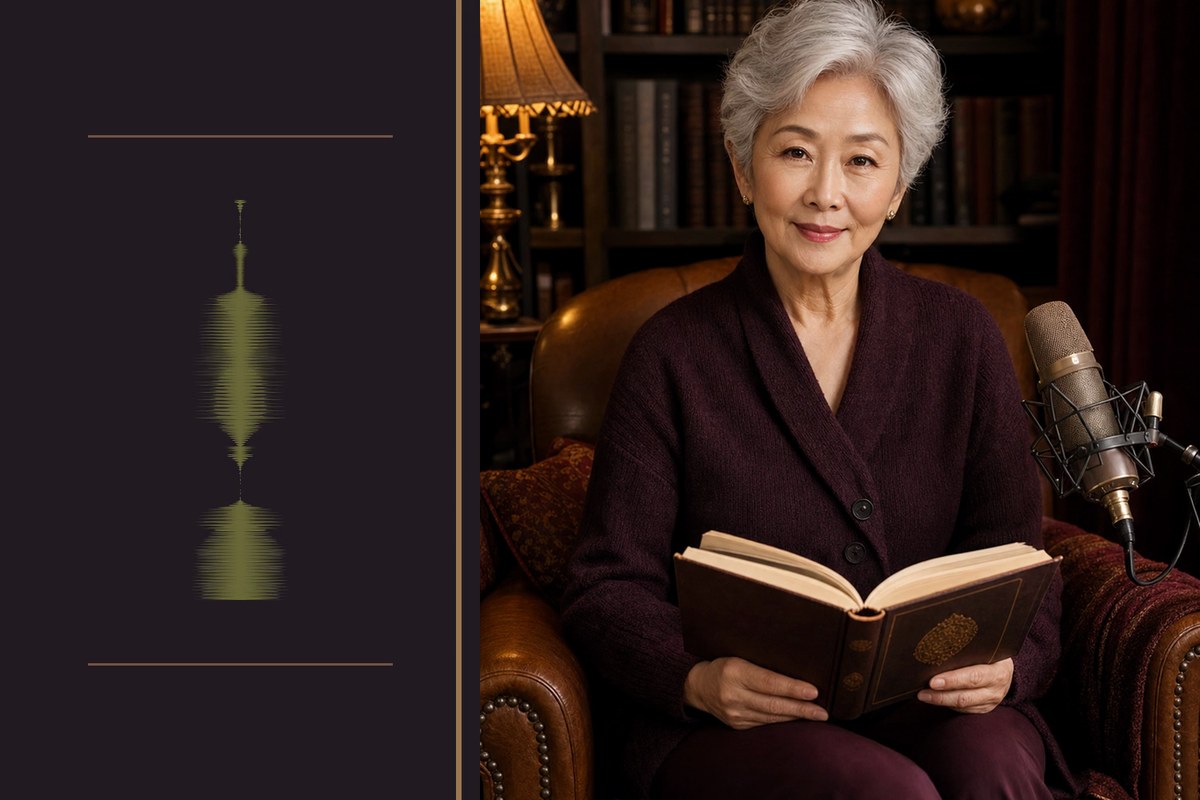
Product Demos and Marketing Ads
Test a new product benefit, offer, or call to action in the voice used across your campaign. Create several script variations without arranging a new recording for every edit.
00:00
00:00
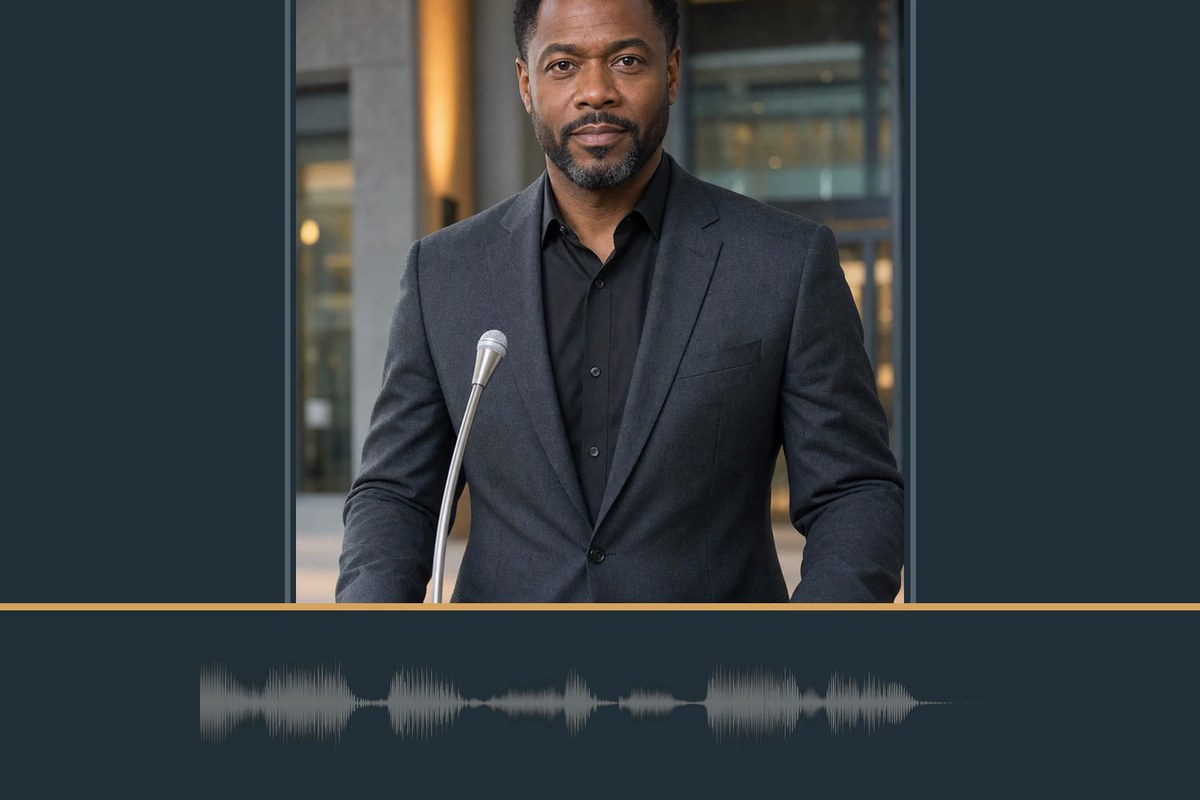
Audiobooks and Storytelling
Hear a short story, article, or chapter draft in a voice that feels familiar to your audience. When the story also needs visuals, pair the narration with an AI story video generator.
00:00
00:00
Voice Messages and Announcements
Create a welcome message, event reminder, customer update, or internal announcement in your own voice. Change names, dates, and details in the script instead of recording a fresh message each time the information changes.
How to Clone Your Voice with AI
Step 1: Choose Clone and Upload a Voice Recording
Click Clone, then upload a voice recording in MP3 or MP4 format. Use your own voice or a recording you have clear permission to clone.
Step 2: Enter the Script You Want to Hear
Type or paste the script you want the cloned voice to read. Check names, numbers, abbreviations, and punctuation before generating.
Step 3: Send the Script to Generate
When your voice and script are ready, click the arrow button in the lower-right corner. The tool will start generating an audio track in your cloned voice.
Step 4: Preview and Download Your Voiceover
Listen to the generated audio from beginning to end. If the wording needs work, edit the script and generate another version. Download the voiceover when it is ready for your project.
Why Use insMind for AI Voice Cloning?

Your Voice, New Words
Turn a reference recording into new spoken lines in the same voice, even when the words are completely new.

Edit the Script, Not the Setup
Change a name, date, or call to action and generate the line again without rebuilding your recording setup.

Permission Comes First
Use your own voice or a voice recording you have permission to clone. Voice cloning should not be used to impersonate or mislead people.

Ready for Audio and Video Projects
Download the voiceover and add it to a video, podcast, course, ad, or other creative project.

Preview Before Download
Listen to the full generated track, check the script, and make changes before downloading the version you want to keep.

Keep One Voice Across Projects
Use one cloned voice across videos, lessons, episodes, and campaigns so related content stays recognizable.
Frequently Asked Questions
What is AI voice cloning?


AI voice cloning creates new spoken audio in the voice of a reference recording. You enter new words, and the cloned voice reads them without asking the speaker to record every sentence again.
How do I clone my voice in insMind?
Open the audio tool and click Clone. Upload a voice recording, enter your script, and click the arrow button to generate. Preview the result, revise the wording if needed, and download the voiceover when it is ready.
What kind of recording works best for AI voice cloning?
Use a clear recording with steady volume and as little background music or noise as possible. Avoid clips where several people speak over one another. A cleaner reference helps AI voice cloning create clearer new audio in that voice.
Can I use my own voice?
Yes. Click Clone and upload a recording of your own voice, then enter a script for the AI voice to read. You can also use another person's voice only when you have clear permission to use it.
Can insMind read a new script in my voice?
Yes. Enter words that were not in the original recording, and insMind will generate new audio from the script in the same voice. You can edit the text and generate another version when a name, date, instruction, or call to action changes.
Can I create voiceovers for videos and podcasts?
Yes. Download the generated voiceover and add it to videos, podcasts, lessons, ads, or other projects. Make sure you have the rights to use the cloned voice and the audio in the final content.
Can I use generated voiceovers for commercial content?
Commercial use depends on the applicable insMind plan, current terms, and your rights to the source recording. Before using cloned audio in an advertisement, paid video, course, podcast, or client project, confirm that the speaker has authorized that use and that the intended distribution follows the relevant terms.
Is there a free AI voice cloning tool?
insMind offers free access or credits for trying core creative features. Generating, downloading, or using longer inputs may require an account or additional credits depending on the current product rules. Check the tool interface before starting a larger project rather than assuming that every generation is unlimited or account-free.
Can I preview and download the generated voiceover?
Yes. Listen to the generated audio before downloading it. Check the full script for names, numbers, pronunciation, and any wording that needs revision. If something does not sound right, edit the text and generate another version, then download the result you want to keep.
Can I clone someone else's voice?
Only clone another person's voice when you have clear permission and the right to use the resulting audio. Do not use voice cloning to impersonate someone, mislead listeners, bypass consent, or create statements the speaker did not authorize.
More Tools for Voice-Driven Audio and Video

AI Voice Generator
Turn text into spoken audio with 189 male and female voices across 16 languages.

00:00
00:00
News Reporter Voice Generator
Create clear, broadcast-style news voiceovers from any script.
00:00
00:00
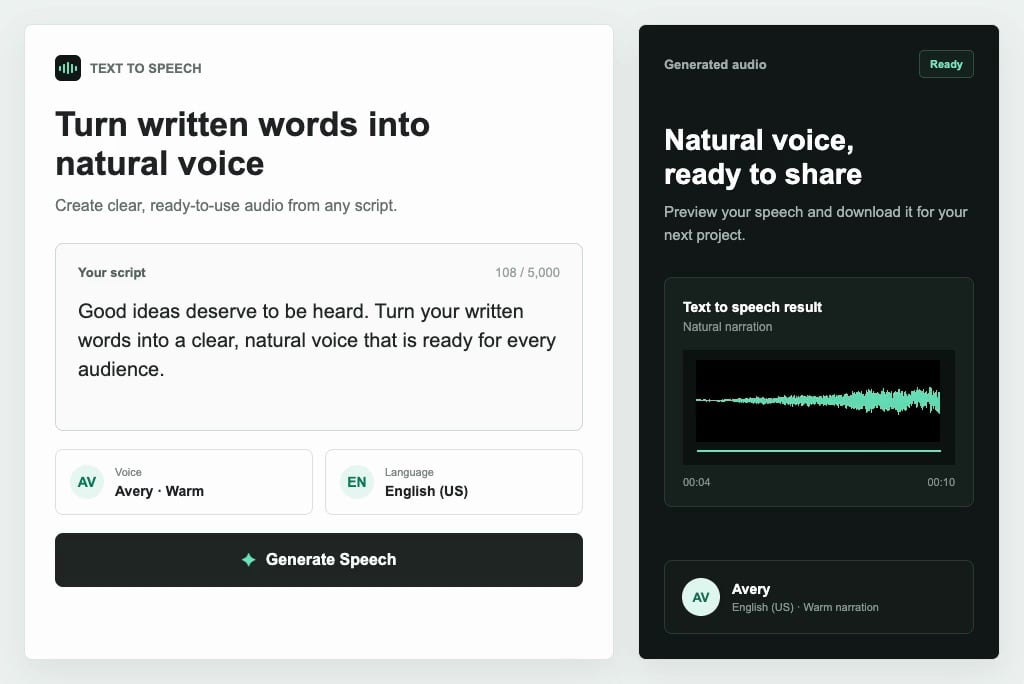
Text to Speech
Turn written text into natural-sounding speech with selectable voices and languages.

00:00
00:00
Sports Announcer Voice Generator
Generate energetic sports commentary for highlights, recaps, and match videos.

Script to Video AI
Turn written scripts into videos with AI instantly.

00:00
00:00
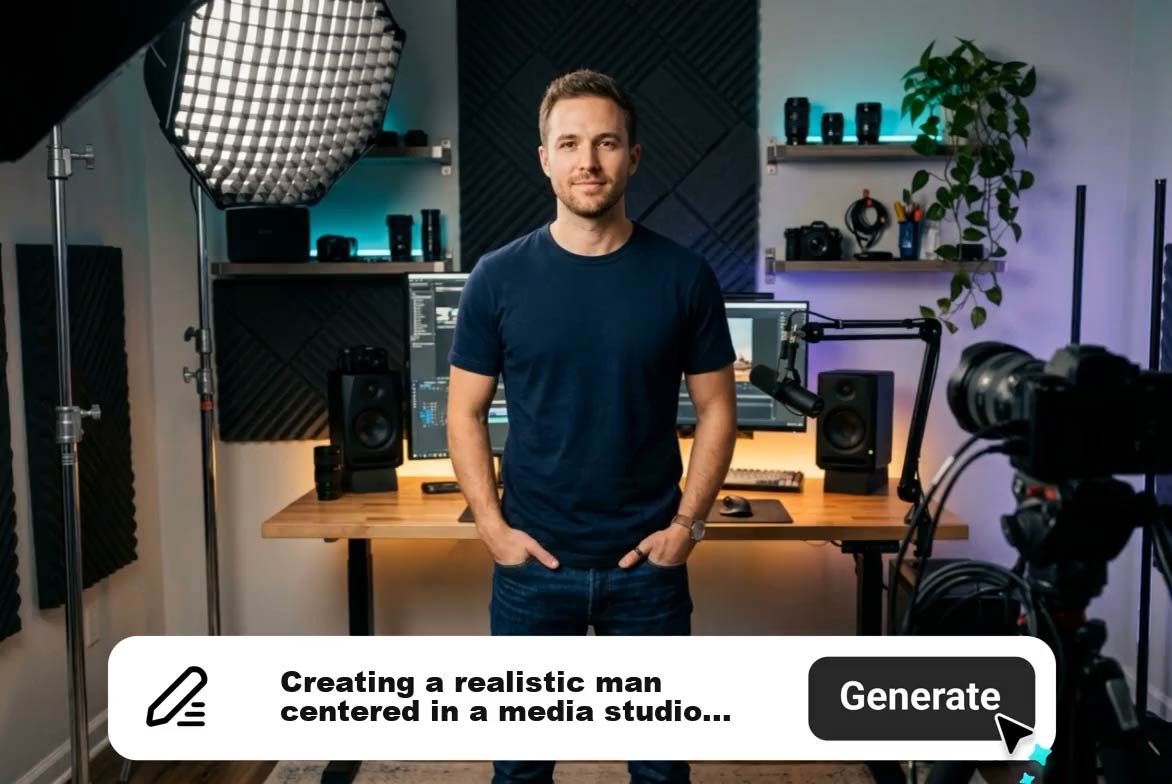
AI Spokesperson Video Generator
Create spokesperson videos with realistic avatars, natural voice sync, and ready-to-use scenes.
00:00
00:00
AI Explainer Video Generator
Create product, app, and training explainer videos from text or scripts.
00:00
00:00
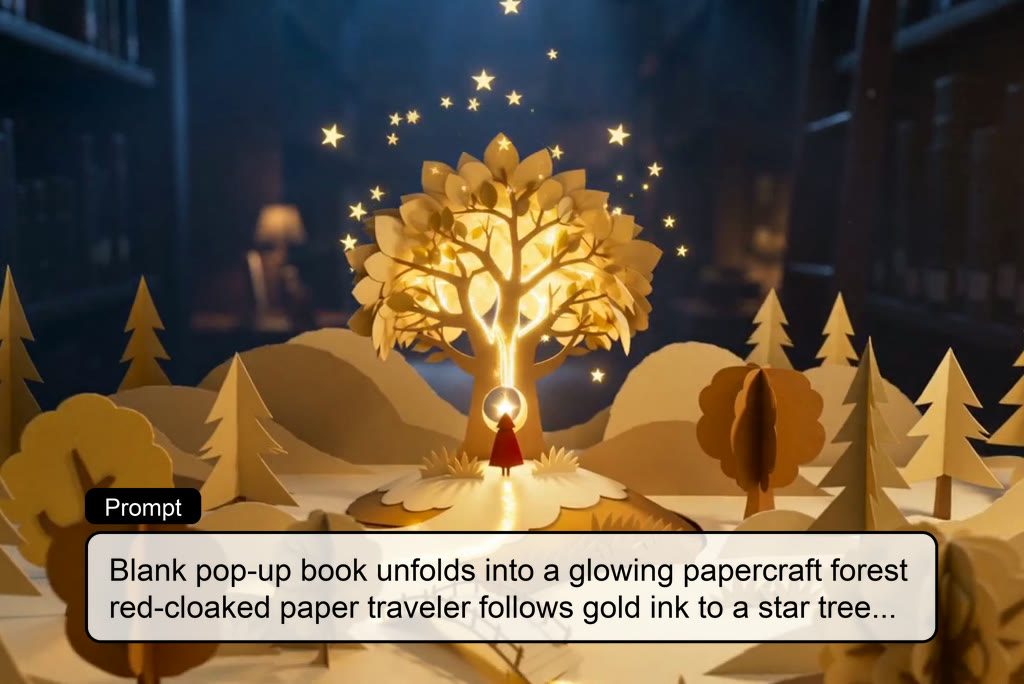
AI Story Video Generator
Turn scripts and story ideas into animated videos automatically.

00:00
00:00
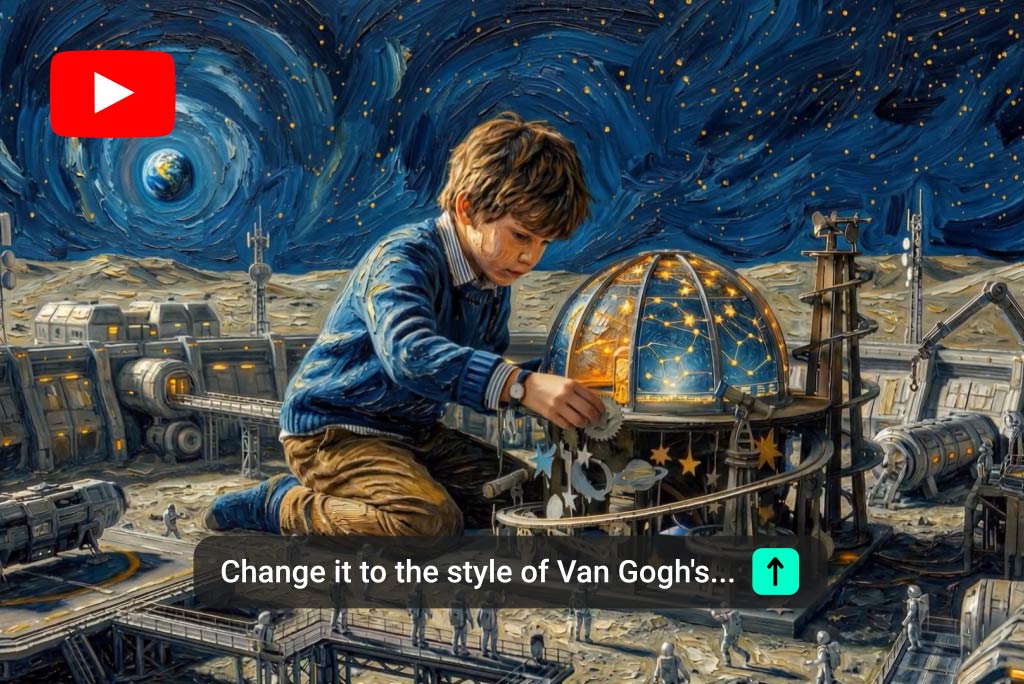
AI Video Editor
Edit videos naturally using AI without a timeline or manual tools.
00:00
00:00
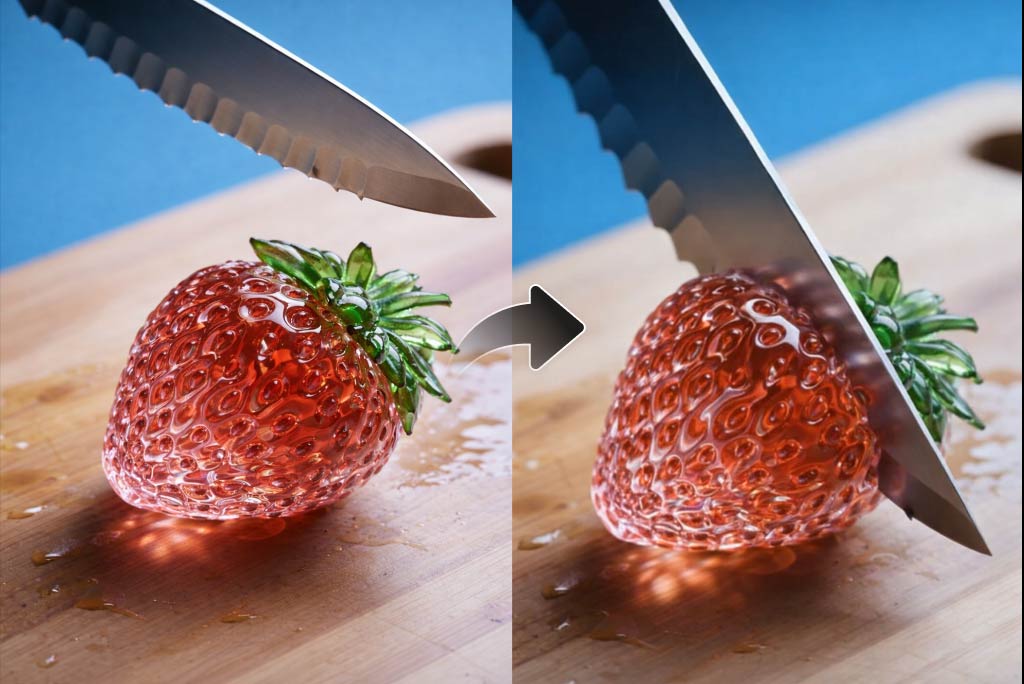
YouTube Video Editor
Edit YouTube videos with AI prompts, templates, and practical video tools.
00:00
00:00
AI ASMR Generator
Create calming AI ASMR videos with generated visuals and synchronized sound.