AI Voice Generator: Create Realistic Voices from Script

Create realistic AI voices in seconds with 189 male and female voices across 16 languages, voice cloning, and commercial use.

00:00
00:00

What Is an AI Voice Generator?
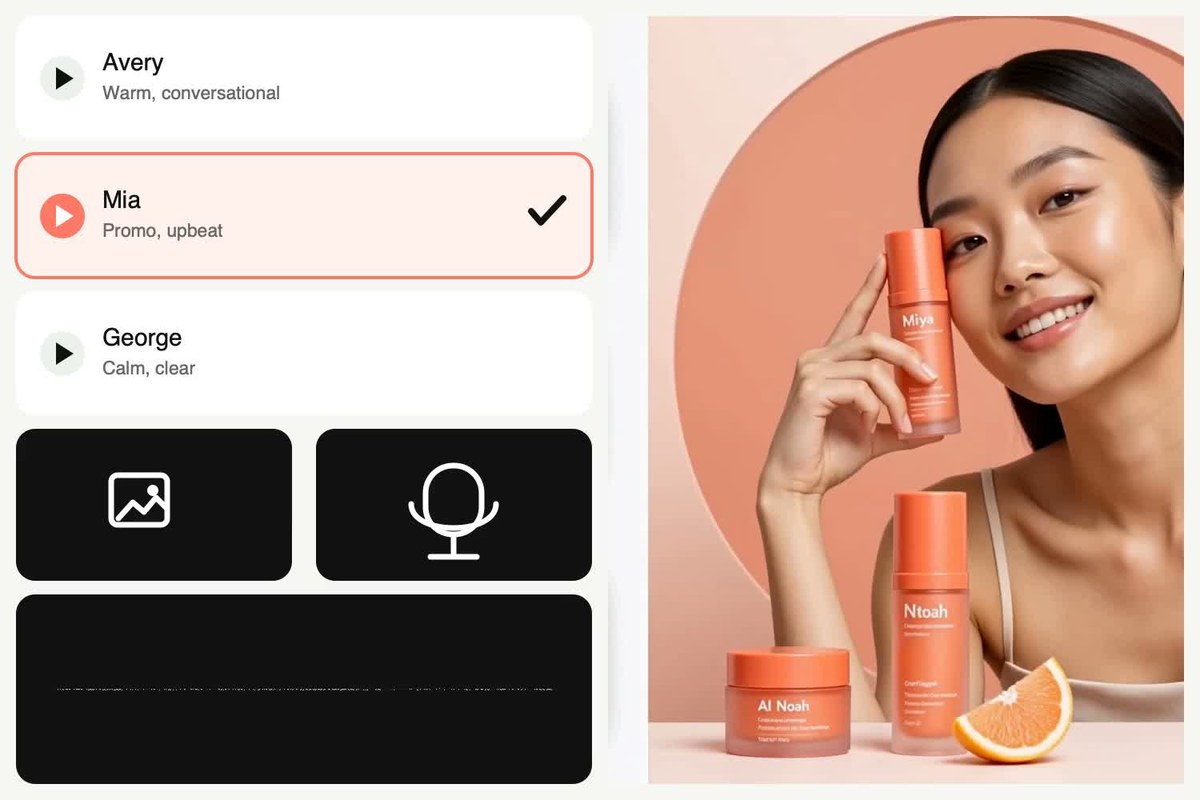
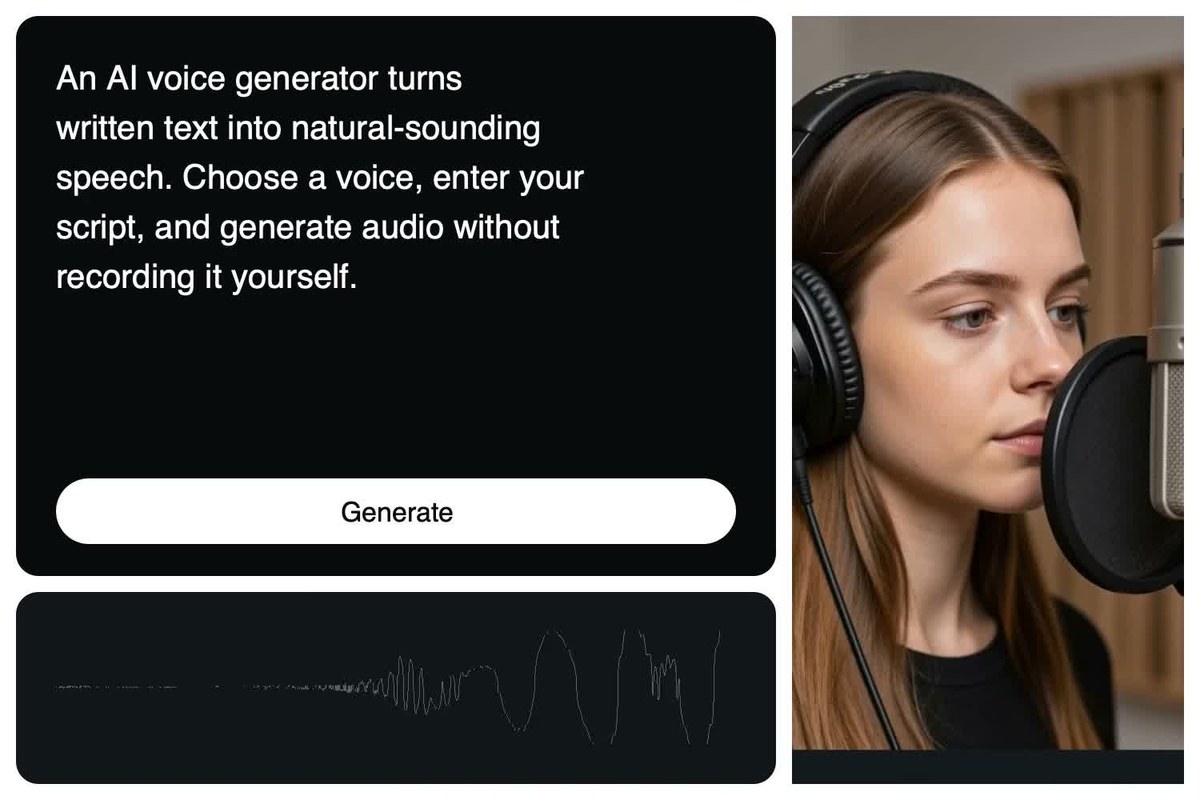
An AI voice generator is a tool that converts written text into natural-sounding spoken audio. With insMind, you can type or paste a script, choose a voice, generate the track, and listen without setting up a microphone or recording the lines yourself. It works for anything from a short message to longer narration.
00:00
00:00

Turn Any Script into Audio in One Click
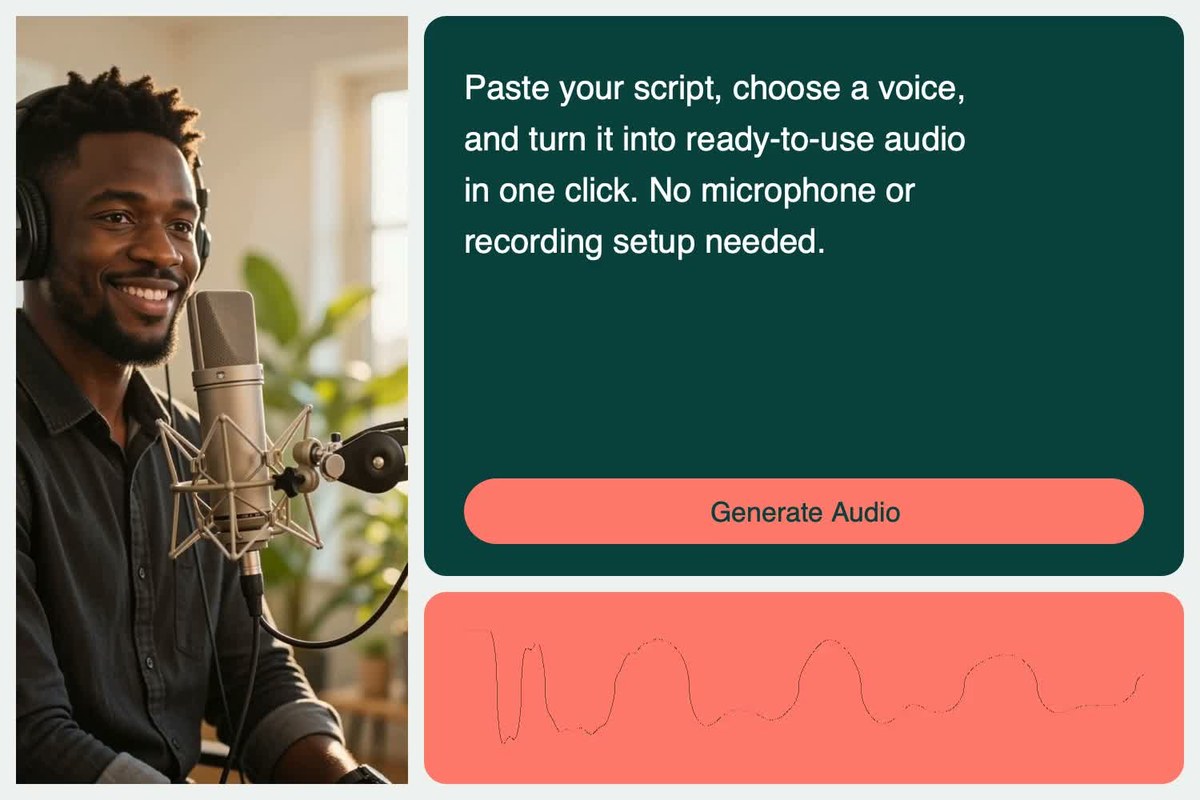
Paste a product line, lesson, story, or announcement into the AI audio generator and turn it into a playable voice track. Short messages stay quick to produce, while longer scripts can be handled without recording every section separately. Need visuals too? Continue with Script to Video AI.
00:00
00:00

Tired of Recording the Same Lines Over and Over?
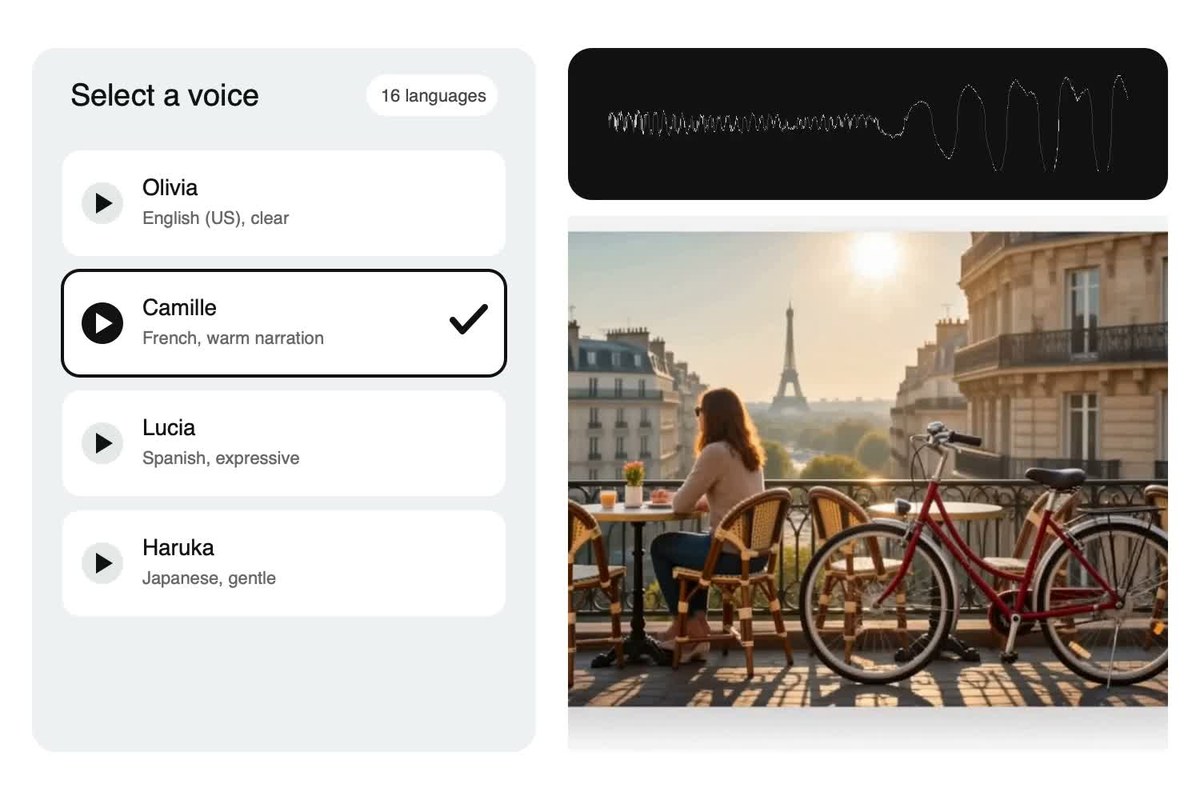
Traditional voice recording takes time, equipment, and repeated takes. With an AI voice generator, you can create high-quality voiceovers faster and more easily, without a microphone or recording the same lines again and again. Update your text, choose another voice if needed, and generate a fresh version in a few clicks.
00:00
00:00

Choose from 189 AI Voices in 16 Languages

Choose from 189 AI voices across 16 languages, with both male and female voices available for different audiences and content styles. Select English, Chinese, Russian, French, and other supported languages, preview the options, and match the voice to a lesson, social clip, story, or business message.

Top Uses for an AI Voice Generator

Create voiceovers for lessons, social videos, stories, podcasts, ads, and everyday messages.

00:00
00:00

E-Learning and Course Narration

Turn lesson notes and training scripts into clear narration that follows the material on screen. Instructors can update a sentence without recording the entire lesson again, making it easier to keep software walkthroughs, onboarding courses, and educational content current.
00:00
00:00

YouTube and Social Media Voiceovers

Give a YouTube video, Reel, TikTok, or Short a voice without stopping to record every hook. Choose a delivery that fits the pace of the edit, preview the full line, then bring the finished track into an AI video editor.
00:00
00:00

Audiobooks and Storytelling

Hear how a chapter, article, or short story reads before publishing the full piece. A fitting voice and measured pacing can carry dialogue, scene changes, and quieter passages. For visual storytelling, pair the narration with an AI story video generator.
00:00
00:00

Podcasts and Audio Content

Prepare a podcast intro, recurring segment, sponsor read, or short audio update from an approved script. Save the voice you prefer, return to it for the next episode, and revise individual lines without bringing the recording setup back out.
00:00
00:00

Product Demos and Marketing Ads

Add a clear voiceover to a product demo, launch clip, or paid ad without booking a recording session for every variation. Try a confident delivery for the main benefit, revise the call to action, and keep the final script aligned with the visuals.
00:00
00:00

Voice Messages and Announcements

Turn an event reminder, welcome message, customer update, or internal announcement into a clear AI voice message. Edit the wording when details change, choose a suitable male or female voice, and generate the new version without recording it again.

How to Generate an AI Voice from Text

Step 1: Enter Your Script

Type or paste the words you want the voice to say. Read the script once for names, numbers, abbreviations, and punctuation that could affect pronunciation or pacing.

Step 2: Click Voice and Choose a Voice

Click the Voice option and browse the available voices. Filter by language and gender, preview the options, and choose a male or female voice that fits your script. You can also use Clone when you have permission from the person whose voice is being referenced.

Step 4: Preview and Download

Preview the generated audio. If you want to make a change, choose another voice or edit the script and send it again. Save a useful voice to Favorites, then download the approved audio for your project.

Step 3: Send Your Script to Generate

After choosing a voice, enter your script and click the Send button. The AI will begin generating the voice audio.

What Makes Our AI Audio Generator Different?

Multi-Voice Preview

Multi-Voice Preview

Try the same script with different voices, languages, or accents and hear which delivery suits the content before choosing the final track.
Long-Text Support

Long-Text Support

Work with longer narration without breaking the script into a new recording session for every paragraph or correction.
Commercial Use

Commercial Use

Use generated audio in approved business content, advertisements, videos, and podcasts according to the applicable insMind plan and usage terms.
Favorite Voices

Favorite Voices

Save voices that work for recurring content, then return to them without searching through all 189 options on every project.
Quick Revisions

Quick Revisions

Edit the wording or choose another voice, then send the script again without returning to a microphone or repeating the recording session.
Voice Cloning

Voice Cloning

Build a consistent custom voice from an authorized reference, while keeping consent and the speaker's usage rights central to the process.

Frequently Asked Questions

What is an AI voice generator?

insmind expand icon
An AI voice generator converts written text into spoken audio. Instead of recording a person reading every line, you enter a script, choose a generated voice, and create a track you can preview and refine. Different voice, language, and gender options help the result fit different kinds of content.

How do I turn a script into AI-generated audio?

insmind expand icon
Paste or type the script into insMind, click Voice, and choose a voice by language and gender. Click Send to generate the track and listen all the way through. If a line does not sound right, edit the script or choose another voice, then send it again before downloading.

Can I use the AI voice generator free without signing up?

insmind expand icon
insMind offers free access or credits for trying core creative features, so you can test the free AI voice generator before committing to a longer project. If you need a free AI audio generator with no sign-up, check the current interface first: browsing may be open, while generating, saving, or using advanced functions can require an account. Credit use can also vary for longer scripts.

How many AI voices does insMind offer?

insmind expand icon
The AI voice maker includes 189 voice options. Use the available filters and previews to narrow the list by language, accent, or voice characteristics, then test a short line before generating a longer track. The right choice depends on the audience and the way the script should sound.

Which languages and voices are available?

insmind expand icon
insMind offers 189 AI voices across 16 languages, including English, Chinese, Russian, and French. You can also choose between available male and female voices, then preview the current list in the selector before generating your audio.

Can I choose male and female AI voices?

insmind expand icon
Yes. The voice maker lets you filter the available options by gender and choose from male and female AI voices. You can preview voices before generating the full script, making it easier to find one that suits the audience and type of content.

Can I use generated AI voices commercially?

insmind expand icon
Commercial use is supported for eligible generated audio. The exact rights can depend on your plan, the source of a cloned voice, and the intended project. Confirm the current insMind terms and make sure you have permission for any referenced or cloned voice before publishing paid or branded content.

Can I save and reuse my favorite voices?

insmind expand icon
Yes. Save useful voices to Favorites so they are easier to find for future episodes, lessons, campaign variations, or related content. A saved voice speeds up selection, but you should still preview it with each new script because wording and pacing can change the delivery.

Can the AI audio generator handle long scripts?

insmind expand icon
The AI audio generator supports longer text for narration and other extended content. Break the script into logical sections when you want closer control over pacing or corrections. Reviewing sections also makes it easier to catch pronunciation issues before combining the audio into a finished project.

Can I clone a voice with insMind?

insmind expand icon
Yes, insMind includes a Voice Clone option. Only clone your own voice or a voice you have clear permission to use. Do not use cloning to impersonate another person, mislead an audience, or bypass a speaker's consent and usage rights.

More Tools for Voice-Driven Videos and Content