


You know that feeling when you take what should've been the perfect photo… and then notice the hat. Maybe it's a baseball cap covering half your face. Maybe a beanie flattened your hair. Maybe you wore a helmet or graduation hat and now the picture just doesn't look right. Retaking the shot isn't always possible, and opening Photoshop just to erase one small object feels like way too much work.
Good news — you don't need complicated editing skills anymore. Today, you can remove hat from photo online in just a few clicks using simple AI tools that do the hard work for you automatically. No downloads. No design knowledge. Just fast results. Here's exactly how it works and the easiest way to do it.
Table of Contents
Part 1: When Do You Actually Need to Remove a Hat from a Photo?
You'd be surprised how often hats ruin otherwise great photos.
One of the most common situations is official photos. Passport, visa, and ID pictures usually require your head to be fully visible. Even a small cap can cause rejection. Instead of retaking everything, removing the hat digitally saves time.
Professional photos are another big one. LinkedIn headshots, resumes, or portfolio pictures simply look cleaner without shadows or headwear. A hat can hide your hairline or cast awkward lighting on your face.
Then there are everyday moments. Travel photos, group shots, selfies, or events where you accidentally kept your hat on. Maybe it matched the weather at the time, but now it just looks out of place.
That's why so many people search for things like "hats photo remover" or "remove hat from photo online". Sometimes you don't want a new photo — you just want a quick fix.
Part 2: Why AI Tools Are Better Than Manual Editing?
Not long ago, removing objects from photos meant using professional software like Photoshop.
You'd have to zoom in, clone areas manually, match colors, and carefully repaint missing parts. It could take 15–30 minutes for a single edit. And if you weren't experienced, the result often looked fake or smudged.
AI tools completely change the game. Instead of manually editing, you simply tell the tool what to remove. The system automatically understands the surroundings and fills the space naturally. It recreates hair, skin, and backgrounds without you doing anything complicated.
The biggest advantages?
- It's faster.
- It's beginner-friendly.
- It works directly in your browser.
- It takes seconds instead of minutes.
For most people, an online hats photo eraser is simply the smarter option.
Part 3: How to Remove Hat from Photo Online with insMind
If you're looking for a smooth and reliable option, insMind offers an easy-to-use AI photo editing tool that works especially well for this task. The process is surprisingly easy. You don't need any editing experience at all.
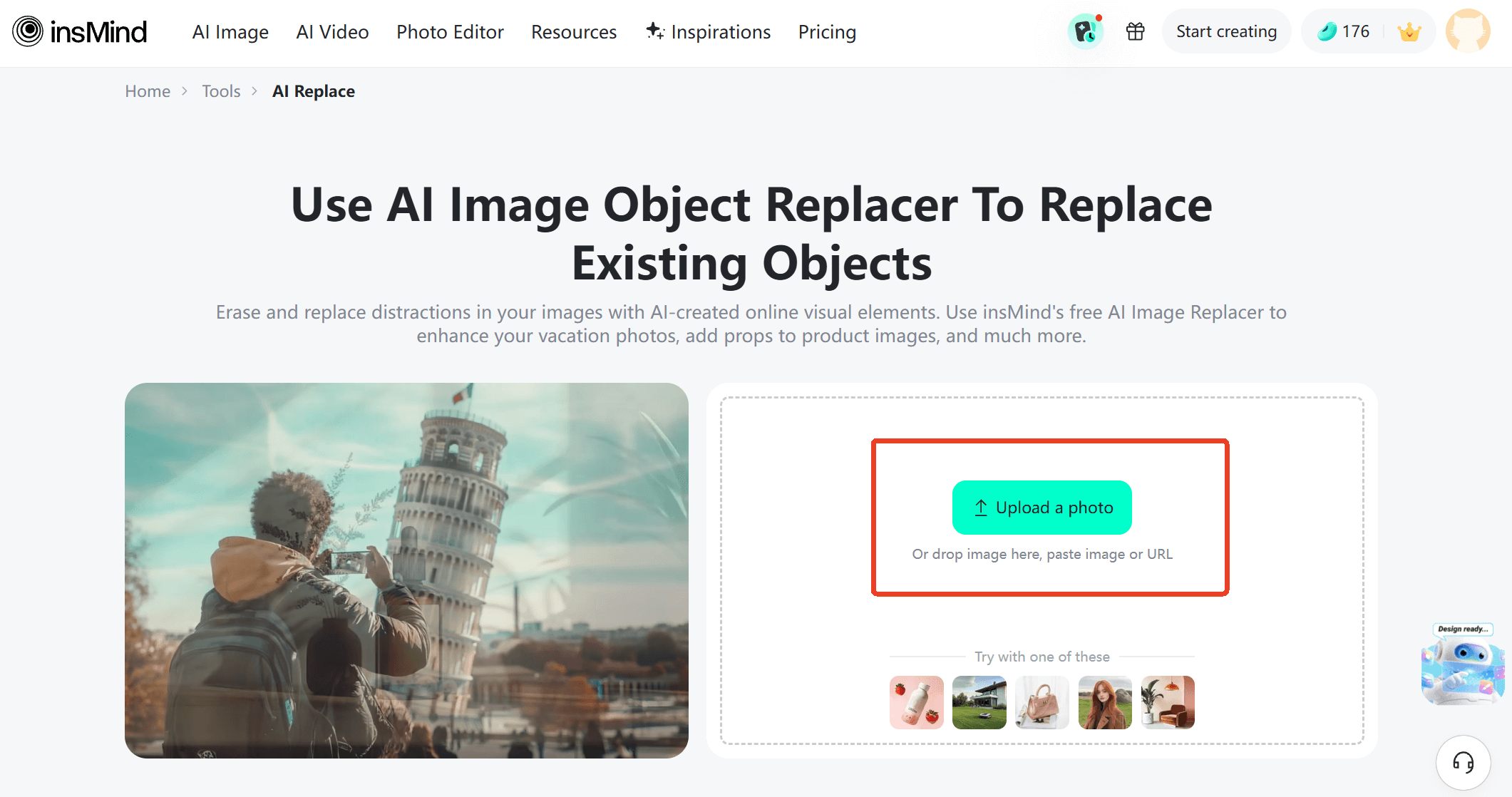
Step 1: Upload Your Image
Upon accessing the insMind's AI tool website, choose the photo you want to edit on your device, then click the "Upload a photo" icon to upload it to the insMind platform.
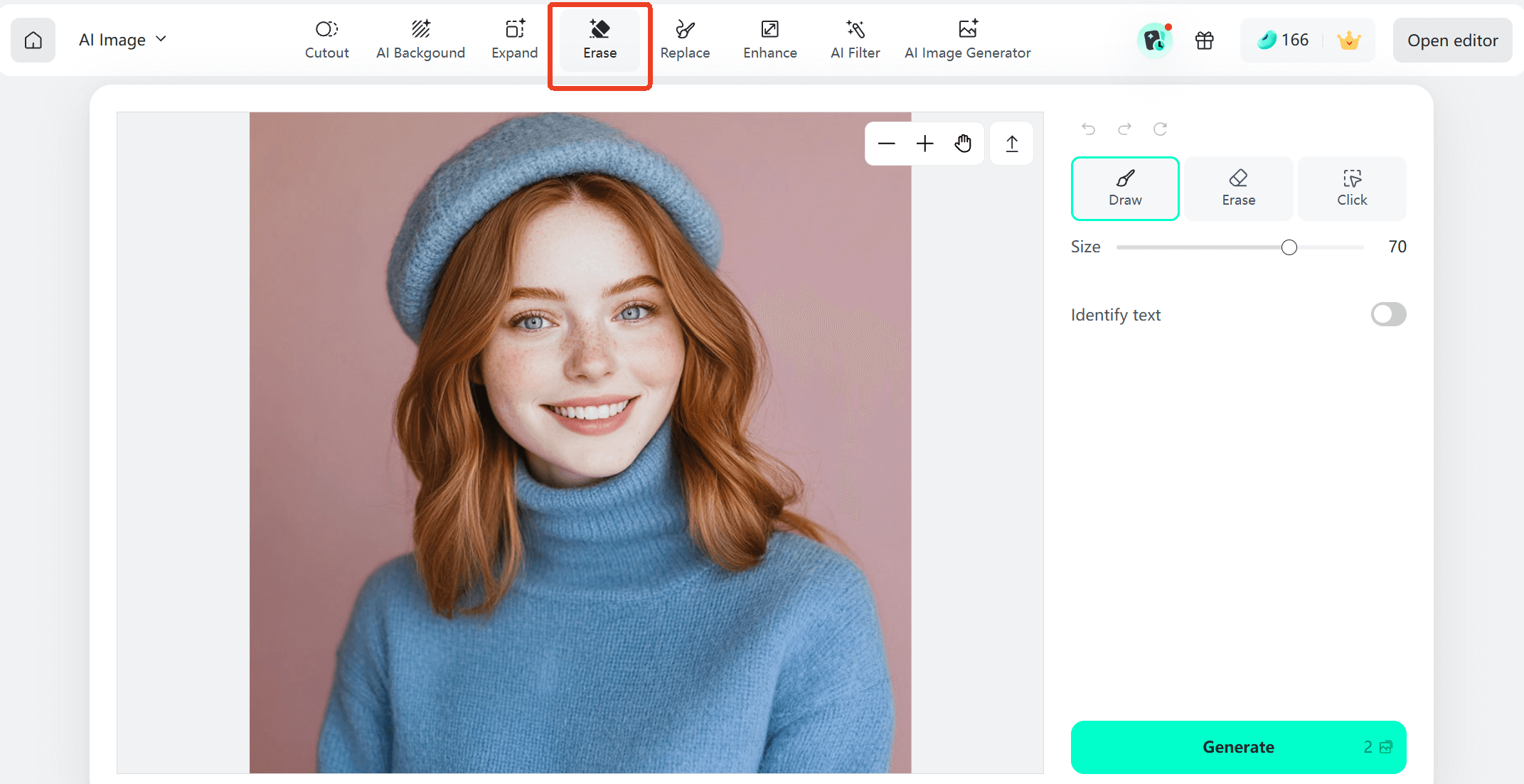
Step 2: Select the Erase Tool
In the top toolbar, click the "Erase" button to choose the erase tool.
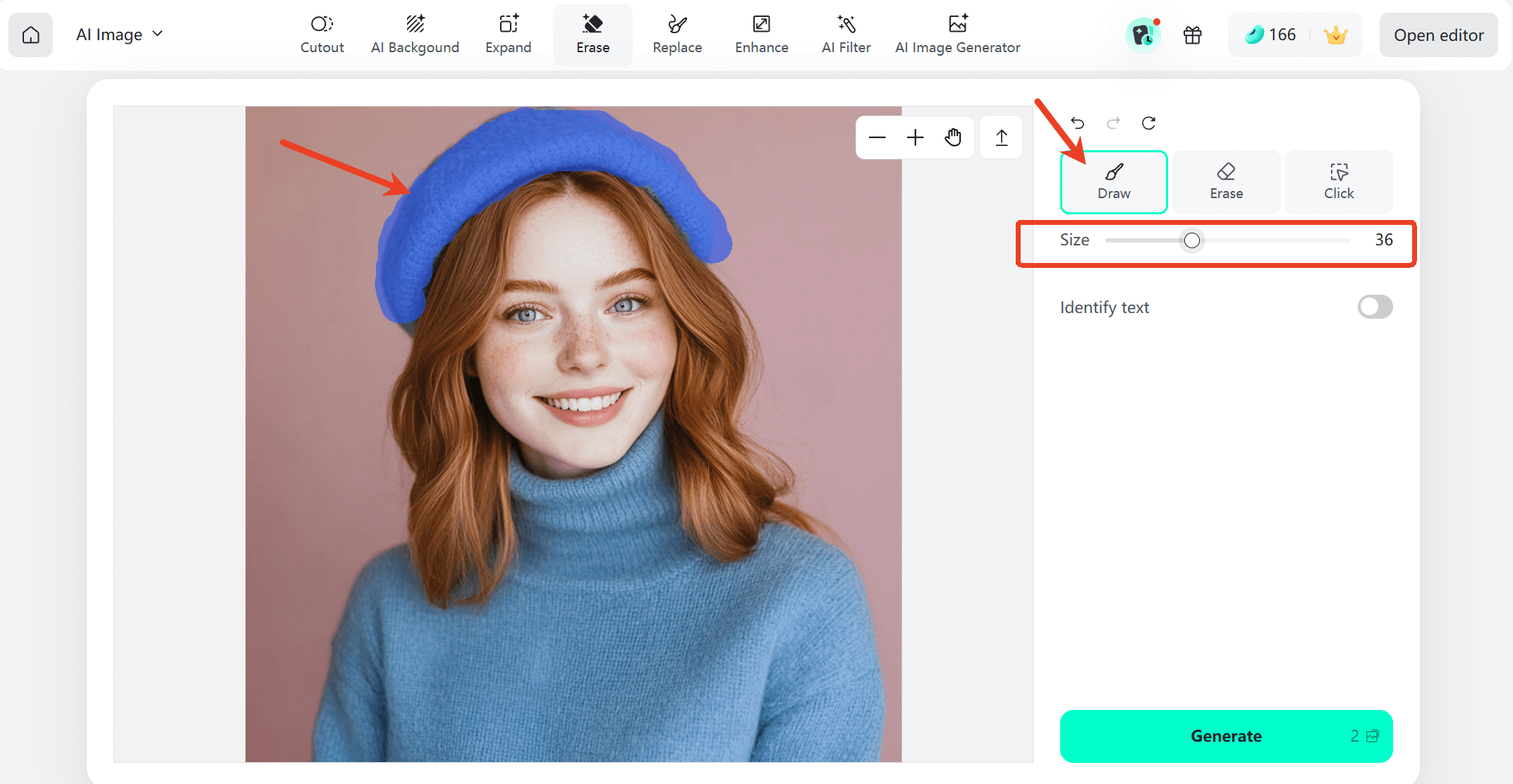
Step 3: Select Object
Utilize the brush tool to carefully outline and select the hat you wish to remove. You can freely adjust the brush size under "Size" to change the thickness of the brush.
If you want to select the hat more quickly and accurately, simply click the "Click" button, the AI tool will automatically scan the image and intelligently detect each object. You only need to click on the hat to select it.
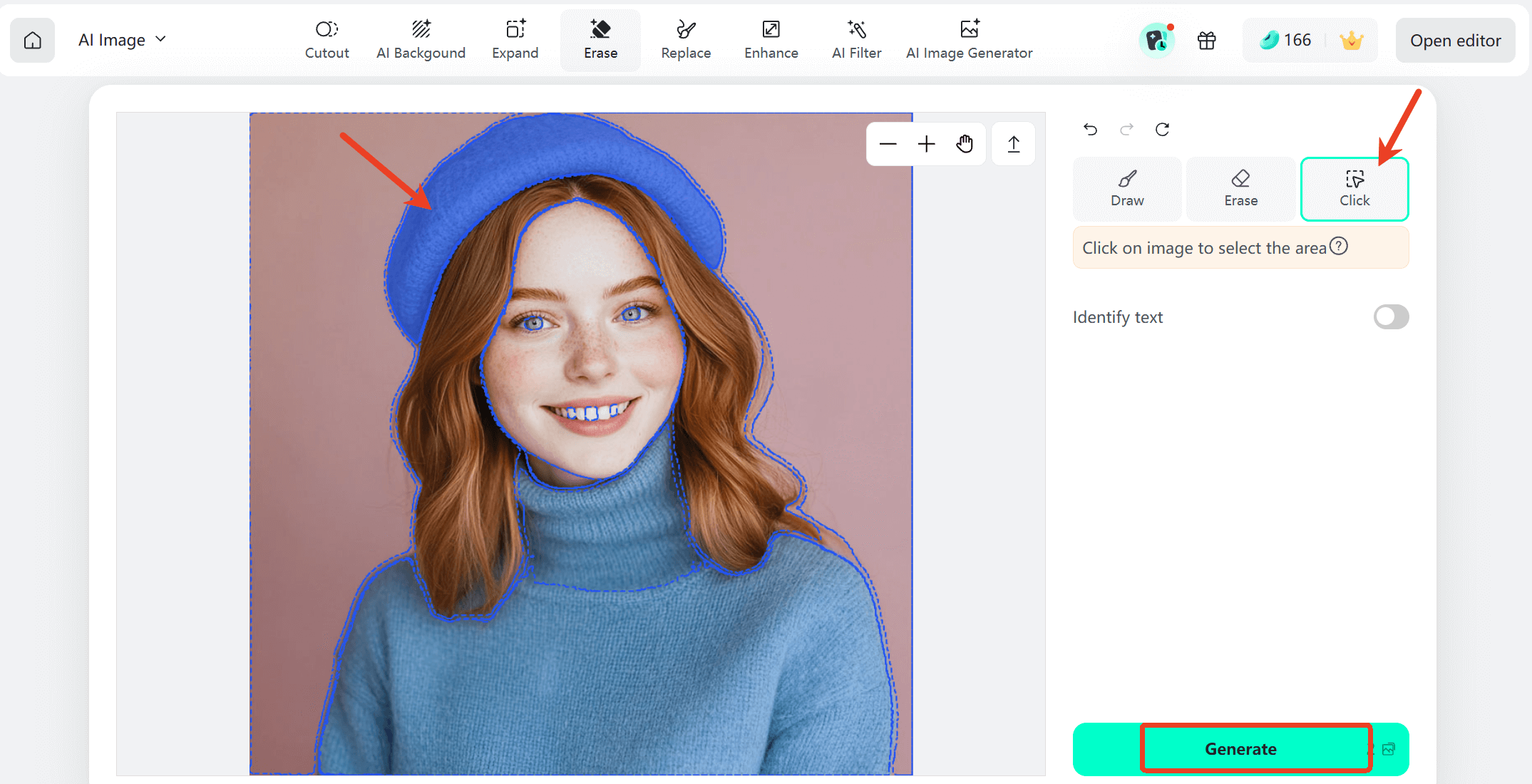
After selecting the hat, click the "Generate" button to let the AI tool start processing.
Step 4: Download Image
Once the image is generated, review it carefully for accuracy and clarity. Then press the "Download" button to save it on your device.
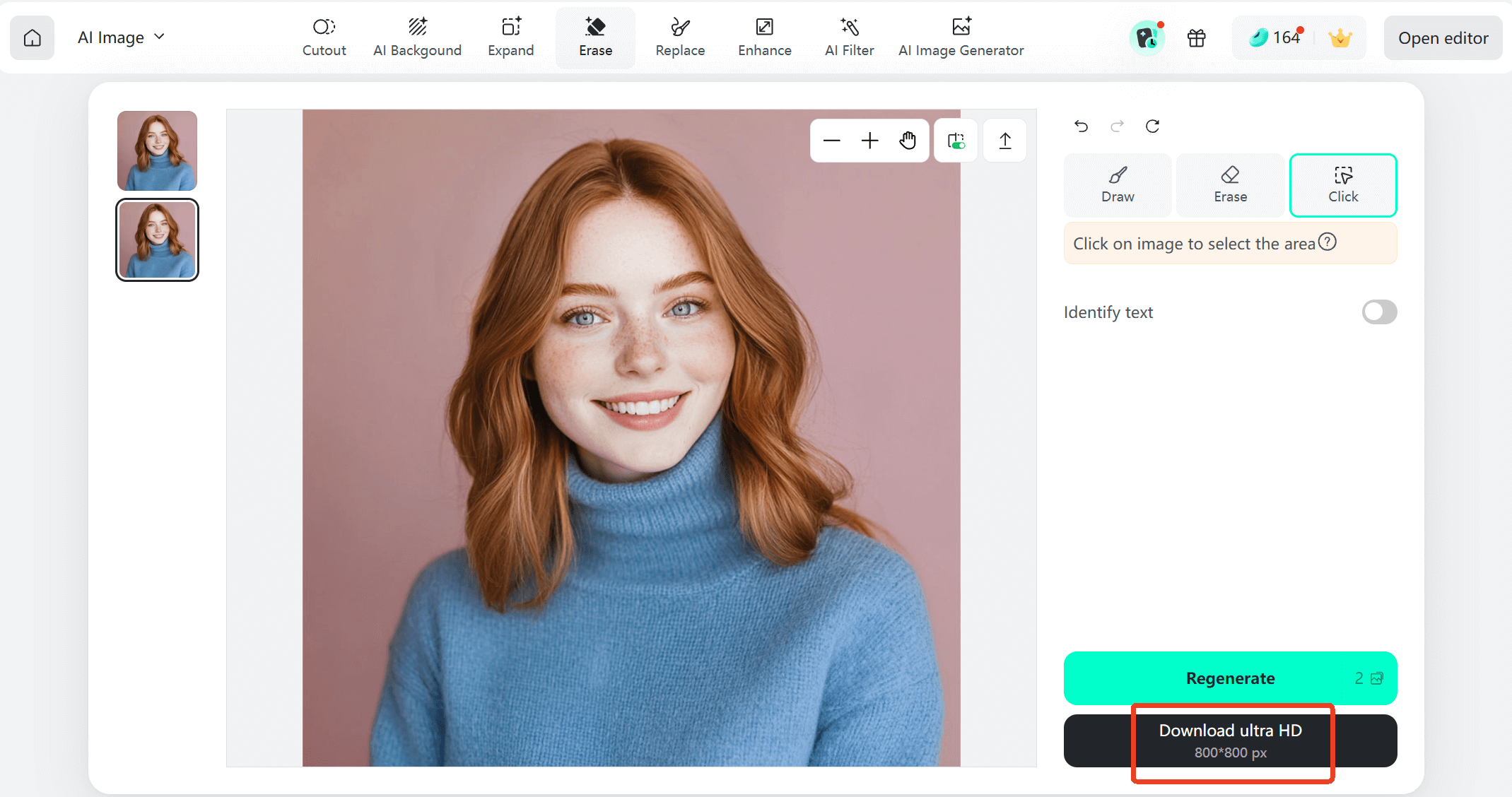
InsMind's AI tool is designed specifically for beginners. You upload, brush, and erase — that's it. The tool intelligently rebuilds hidden parts of the photo, so hairlines and backgrounds blend cleanly instead of looking patched.
Since everything runs online, you can do it on your phone, tablet, or laptop without installing anything. It's probably the fastest way to clean up a photo today.
Part 4: Extra Uses and Pro Tips for Cleaner Results
Once you try removing a hat, you'll probably start noticing other things you want gone too.
- That random person in the background
- Logos or text on clothes
- Glasses or masks
- Wires, clutter, or shadows
- Small distractions ruining the shot
The same AI tool can erase all of these. It's basically a universal photo cleaner, not just a hat remover.
To get the best results, here are a few simple tips.
- Use high-quality photos whenever possible. Clear images give better detail.
- Brush slightly beyond the edges of the hat to help the AI blend naturally.
- If the result looks off, try running the removal again. Small changes often improve the final look.
- Avoid selecting important facial features unless necessary.
These small adjustments can make your edits look completely seamless.
Conclusion
Removing a hat from a photo doesn't need to be complicated anymore. Instead of retaking pictures or learning complex editing software, you can remove hat from photo online in just seconds using insMind's AI tools. Upload the photo, brush over the hat, and let the technology handle the rest.
It's quick, simple, and works for anyone — even if you've never edited a photo before. Next time a hat ruins an otherwise perfect shot, don't delete it. Just fix it.

Jayson Harrington
I am the Chief Editor of insMind. I provide tips and skills to help users design better photos with insMind, whether for e-commerce, social media, or any other use.


