


The need for quick and creative images became necessary for my daily work. Many times, I usually felt stuck when ideas were unclear, or I needed visuals fast. Therefore, the search for an easy tool pushed me to explore different online options. That was when I found OpenArt, which instantly caught my interest.
Its design looked simple, and the results appeared helpful for my projects. So, I started using it to test how well it could support my tasks. In this review, I share my honest experience while trying its major features. I also discuss another tool, which impressed me even more.
Table of Contents
Part 1. What is OpenArt?
OpenArt is an AI creative platform that instantly turns ideas into images and videos. I discovered it as a web-based tool founded by talented ex-Googlers in San Francisco. What amazed me was how it combines many AI models like Stable Diffusion and Flux. I can create visuals from short text prompts, sketches, or even existing photos with ease.
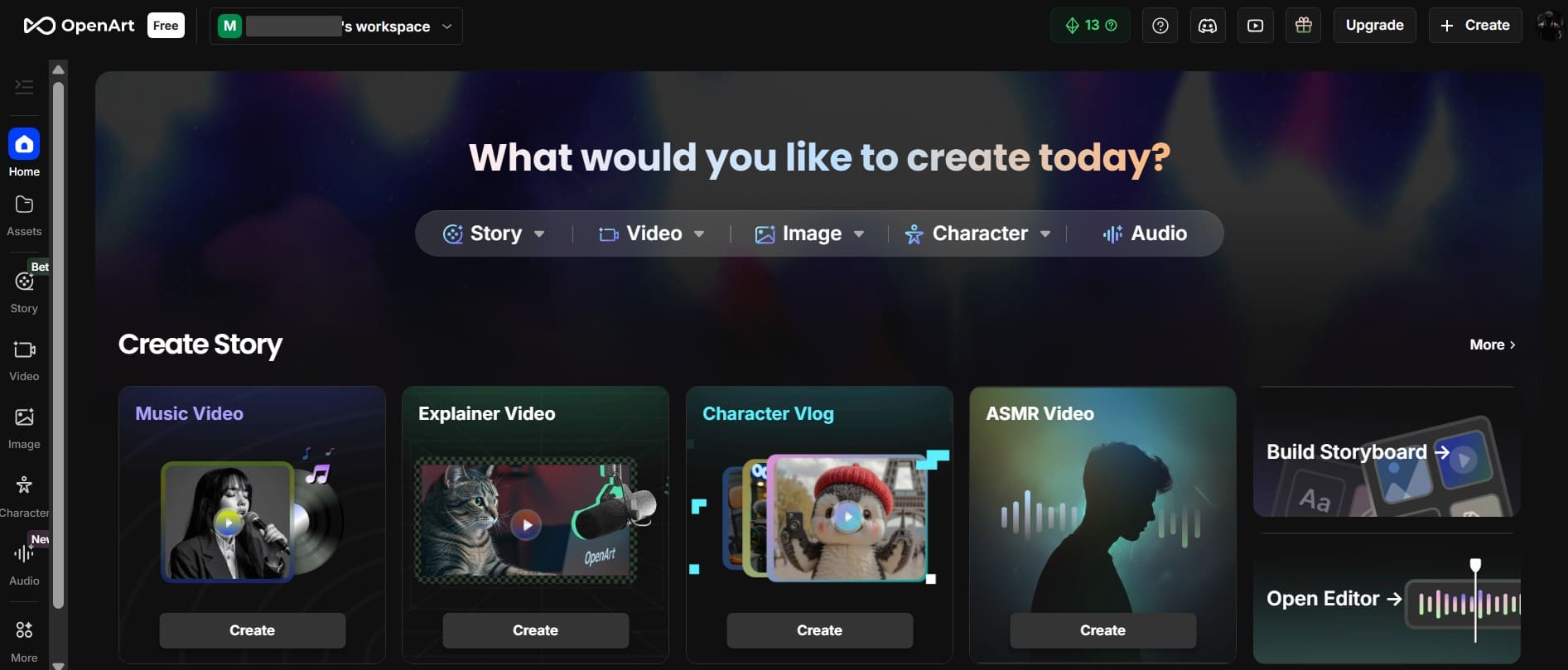
The editing tools help me remove backgrounds, upscale, or fix small details smoothly. I have also tried its video option, which turns images into short clips quickly. So, whether for work or a hobby, OpenArt feels like a complete creative space for everyday creators.
Key Features
- Text Generation: Converts written prompts into visually detailed images that match ideas instantly.
- Sketch Conversion: Transforms rough hand drawings or outlines into polished and refined digital artworks.
- Image Editing: Adjust image elements to improve quality and modify objects within your uploaded pictures.
- Background Removal: Automatically removes unwanted backgrounds while preserving the main subject details.
- Upscaling Quality: Enhances low-resolution images by increasing sharpness and fine details without losing authenticity.
Top Key Users of OpenArt
I have seen many professionals and hobbyists using it daily for different artistic goals. Below are a few key users who should use this dedicated tool:
- Digital artists use OpenArt to create unique artworks with easy tools supporting detailed designs.
- Content creators rely on OpenArt for quick visuals that support social media storytelling.
- Marketers use the platform to design promotional visuals without needing advanced graphic skills.
- Small businesses benefit from simple tools that support branding with consistent and clean visuals.
- Designers use OpenArt to explore concepts quickly before making their final design choices.
Part 2. My Personal Experience with OpenArt AI Image Generator
I spent several weeks testing OpenArt closely to understand how it supports everyday creative needs. During this time, I explored its tools carefully to see how well they improved the visual work that I mentioned below:
1. Exploring OpenArt's Cloud AI Technology
OpenArt's cloud AI technology impressed me because I could work without stressing about device performance. It runs its workflows on cloud servers, allowing me to create visuals smoothly anywhere. I also noticed that every task felt faster since nothing depended heavily on my local storage.
This helped me focus entirely on ideas instead of worrying about slow processing limits. Even large images rendered steadily, which made testing different styles easier during long sessions. I enjoyed having a system that stayed stable without demanding strong hardware from my computer.
2. Testing Text-to-Image Creation with Flux Model
While testing the Flux model for text-to-image creation, I explored its detailed generation features thoroughly. I adjusted the number of output images from 1 to 4 for easier comparisons. The aspect ratio control helped me fit images perfectly for portraits or wallpapers without cropping errors.
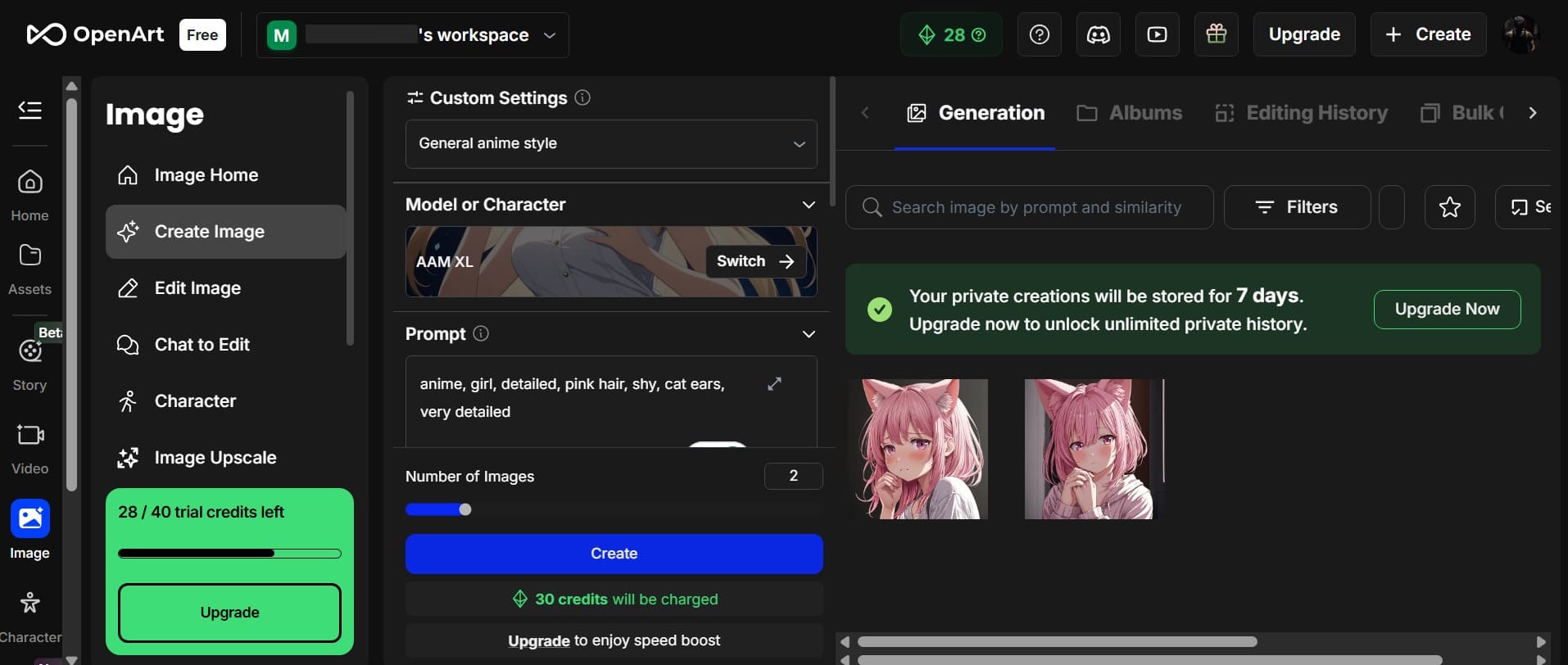
I also liked that I could set custom resolutions, including realistic 4K quality, for sharper visuals. The "View 100+ style presets" option allowed me to experiment with creative moods and artistic themes. Each preset changed colors, tones, and textures, giving every AI-generated artwork a unique visual identity.
3. Comparing Image Outputs and Visual Differences
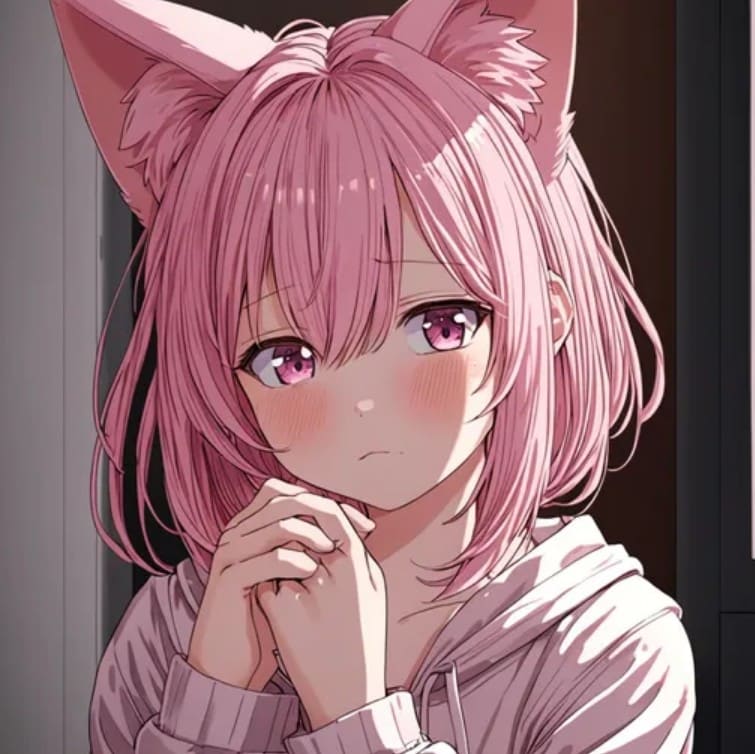
When comparing image outputs, I noticed how OpenArt handled minor visual differences between generated results. The first image showed warmer tones with brighter oranges and stronger pink and purple shades. In contrast, the second image carried cooler colors with softer lighting and a more subdued appearance.
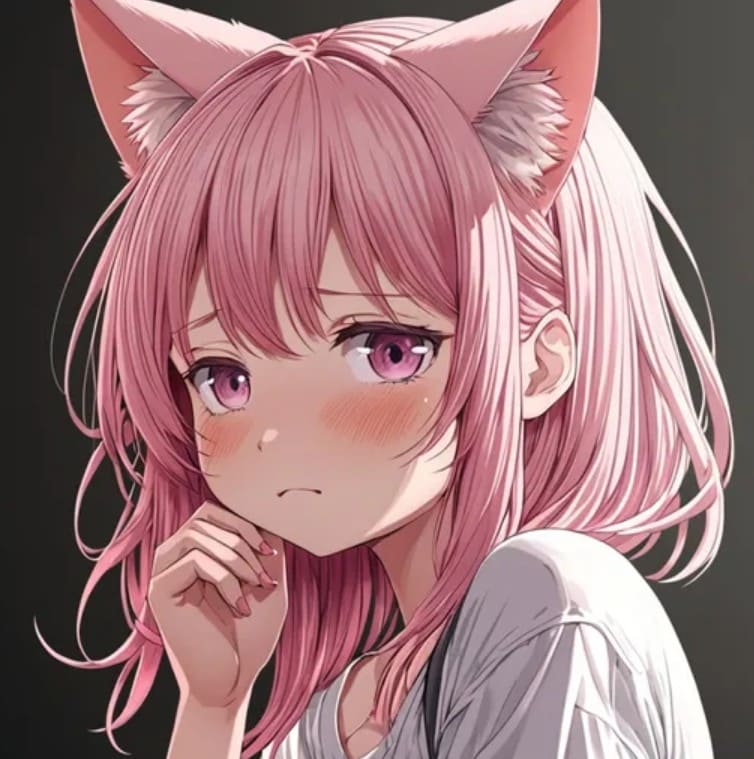
Therefore, I preferred the warmer version, so I opened it on the canvas for refinement work. Also, the tools allowed me to explore inpainting and object removal, though none were needed. After selecting the "Stylized" option, the entire scene changed with new colors and elements.
4. Enhancing Art with Styles and Templates
While enhancing my artwork, I explored OpenArt's built-in style and prompt templates extensively for improvements. The "Stylized" option offered multiple artistic modes that transformed my scene with unique tones and colors. I tested templates for wallpapers and sports logos, each producing distinct visual outcomes efficiently.
After applying various styles, I observed noticeable changes in lighting balance and mood consistency throughout. Moreover, cool tones added calmness, while warmer gradients created a livelier setting within the same image structure. So, these templates simplified creative experimentation, allowing me to achieve detailed design variations.
5. Experimenting with AI Chat and Custom Model Training
I tested the AI chat by uploading my image and selecting the Gemini's Nano Banana model first. I uploaded my generated artwork and prompted it to recreate visuals in an anime-inspired style. Within seconds, it responded with detailed feedback and automatically built a new scenic composition beautifully.
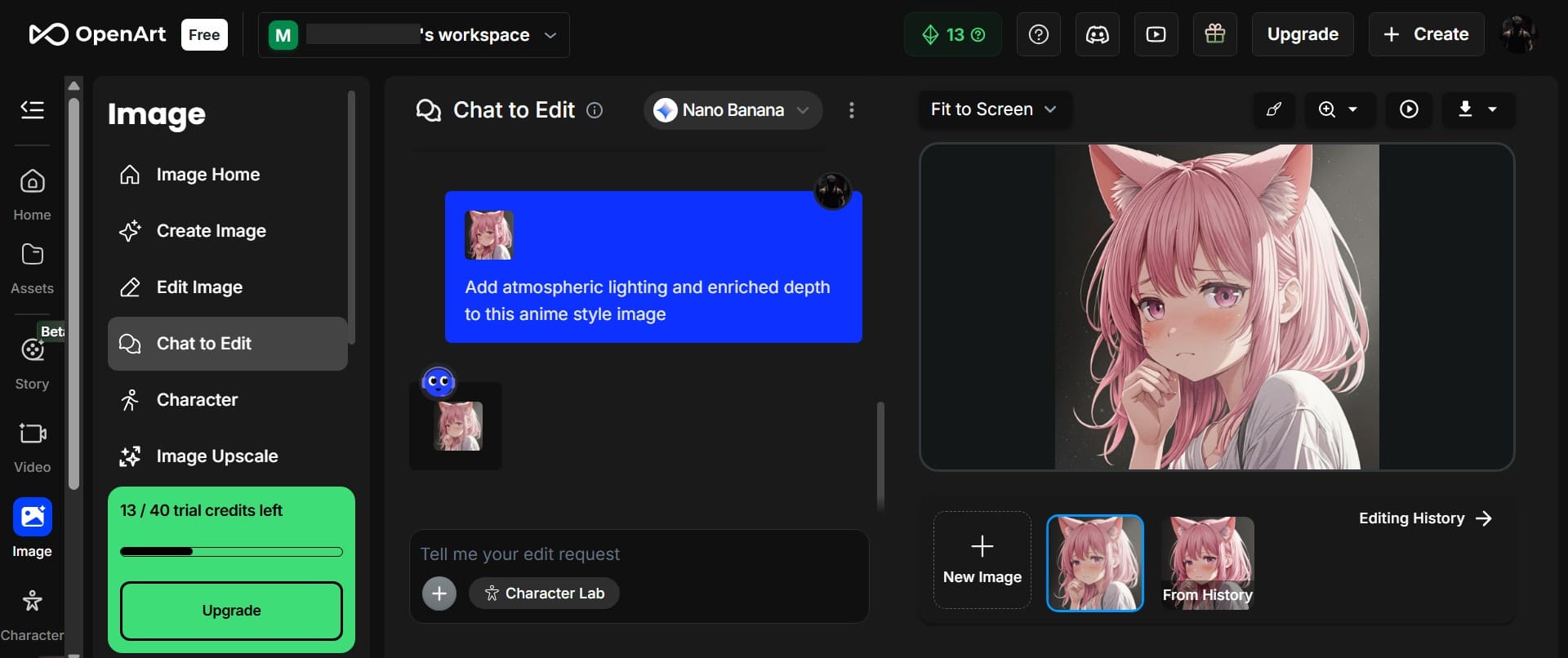
The AI added atmospheric lighting and enriched depth and emotional sense across the scene. Later, I explored custom model training to improve generation accuracy for my brand-related visual projects specifically. This process helped me generate brand-focused artwork without long prompts repeatedly.
Part 3. insMind AI: A Great AI Image Generator like OpenArt
After exploring OpenArt, I decided to try insMind's Nano Banana Pro, which truly exceeded expectations. The system is powered by Gemini 3 Pro and offers free access with powerful AI generation capabilities. I can upload up to 8 images at once, supporting versatile creative workflows effortlessly. Plus, I could type any prompt easily, and the model responded quickly with accurate visual results.

Its localized text generation produced clear typography across multiple languages, such as English and Chinese. This tool even translated text inside images smoothly, making multilingual designs much easier for my creative tasks. Apart from that, Nano Banana Pro enhances images to 1K, 2K, and 4K with advanced upscaling support. Overall, insMind delivers a complete AI art experience where Nano Banana Pro stands as its strongest innovation.
Conclusion
To sum up, OpenArt helped me simplify my daily visual tasks, especially when ideas felt unclear. Its tools supported quick creation and consistent results across many creative needs. However, insMind's Nano Banana Pro offered stronger control, faster outputs, and more polished visuals overall. For anyone seeking quality and artistic precision, I highly recommend trying insMind's Nano Banana Pro today.
Jayson Harrington
I am the Chief Editor of insMind. I provide tips and skills to help users design better photos with insMind, whether for e-commerce, social media, or any other use.


![5 Best AI Kissing Video Generators of 2025 [Tested]](https://images.insmind.com/market-operations/market/side/8b445afb685e4957b11238f3ebad2b2b/1756093193517.jpg?x-oss-process=image/resize,w_690,h_460,type_6/interlace,1,image/format,webp "5 Best AI Kissing Video Generators of 2025 [Tested]")


![Top 5 AI Baby Podcast Generators in 2025 [Reviewed & Tested]](https://images.insmind.com/market-operations/market/side/9ed5a89e85ab457a9e8faace7bb25258/1750317475287.jpg?x-oss-process=image/resize,w_690,h_460,type_6/interlace,1,image/format,webp "Top 5 AI Baby Podcast Generators in 2025 [Reviewed & Tested]")


![Exploring the 10 Best AI Photo Editors for Your Needs [2025]](https://images.insmind.com/market-operations/market/side/05ccfa0da4d64b43ba07065f731cf586/1724393978325.jpg?x-oss-process=image/resize,w_690,h_460,type_6/interlace,1,image/format,webp "Exploring the 10 Best AI Photo Editors for Your Needs [2025]")


![Top 10 Face Swap Apps to Enhance Your Photo [Online, iOS, Android, Windows, Mac]](https://images.insmind.com/market-operations/market/side/e604368a99ee4a0fbf045e5dd42dca41/1723095740207.jpg?x-oss-process=image/resize,w_690,h_460,type_6/interlace,1,image/format,webp "Top 10 Face Swap Apps to Enhance Your Photo [Online, iOS, Android, Windows, Mac]")


