


Remember the time you're putting together a digital album and suddenly notice that some of your best shots have the wrong dates. One even jumps back to last December; it's confusing, and suddenly your carefully planned album feels off. However, guidance on how to change the date of a photo helps every sunset or milestone fall into place perfectly.
Beyond keeping things organized, this way you can have peace of mind when sharing or exploring memories later on. For a meaningful collection that you'll love revisiting, the guide offers 2 workable methods for an AI editor.
Table of Contents
- 01 Method 1. Change the Date of a Photo with Magic Eraser
- 02 Method 2. Correct Dates on a Photo with Nano Banana Pro
- 03 Why Use a Photo Date Editor?
- 04 AI Prompts to Change the Date of a Photo
Method 1. How to Change the Date of a Photo Online
insMind, an AI-driven photo date editor, helps users swap text for a completely new wording, keeping the design usable. You can highlight the text or date you want to change and enter a new one for replacement. Not only this, but one can also regenerate results as many times as they want until they are satisfied.
Essentially, the tool allows users to add a detailed prompt of up to 600 characters for actual text changes.
To update timestamps without compromising your image, follow the guided tutorial and change the date effectively:
Step 1. Upload Your Photo
Access the image text editor tool, and press the "Upload a Photo" button to add your picture.

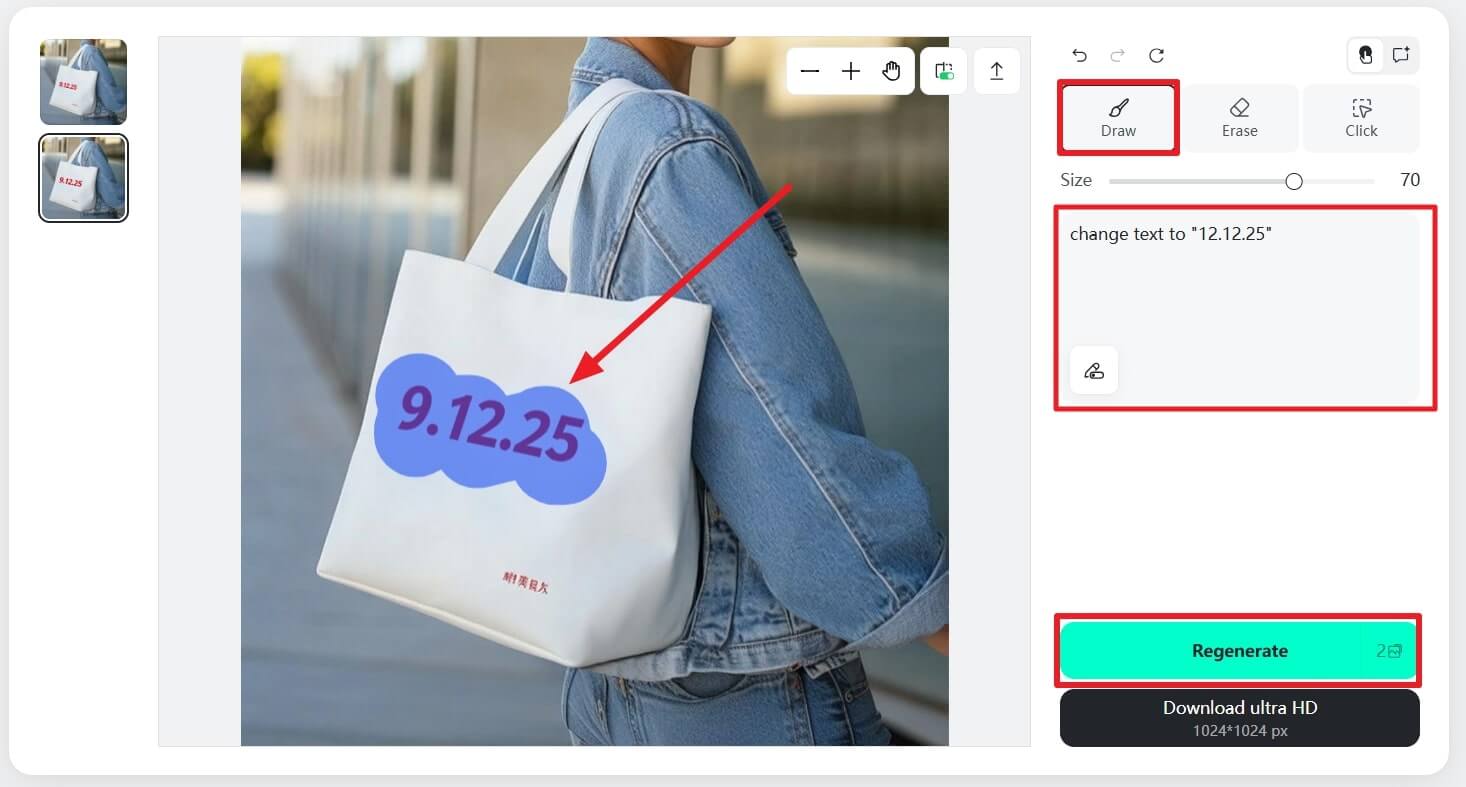
Step 2. Highlight the Date & Type New One to Change
Once done, select the "Draw" tool to highlight the existing date, then enter a prompt for the new one. Next, press the "Regenerate" button if you weren't satisfied with the previously generated results.
Step 3. Download the Final Image with New Data
Finally, click the "Download Ultra HD" button and save your image with the altered data for the track.
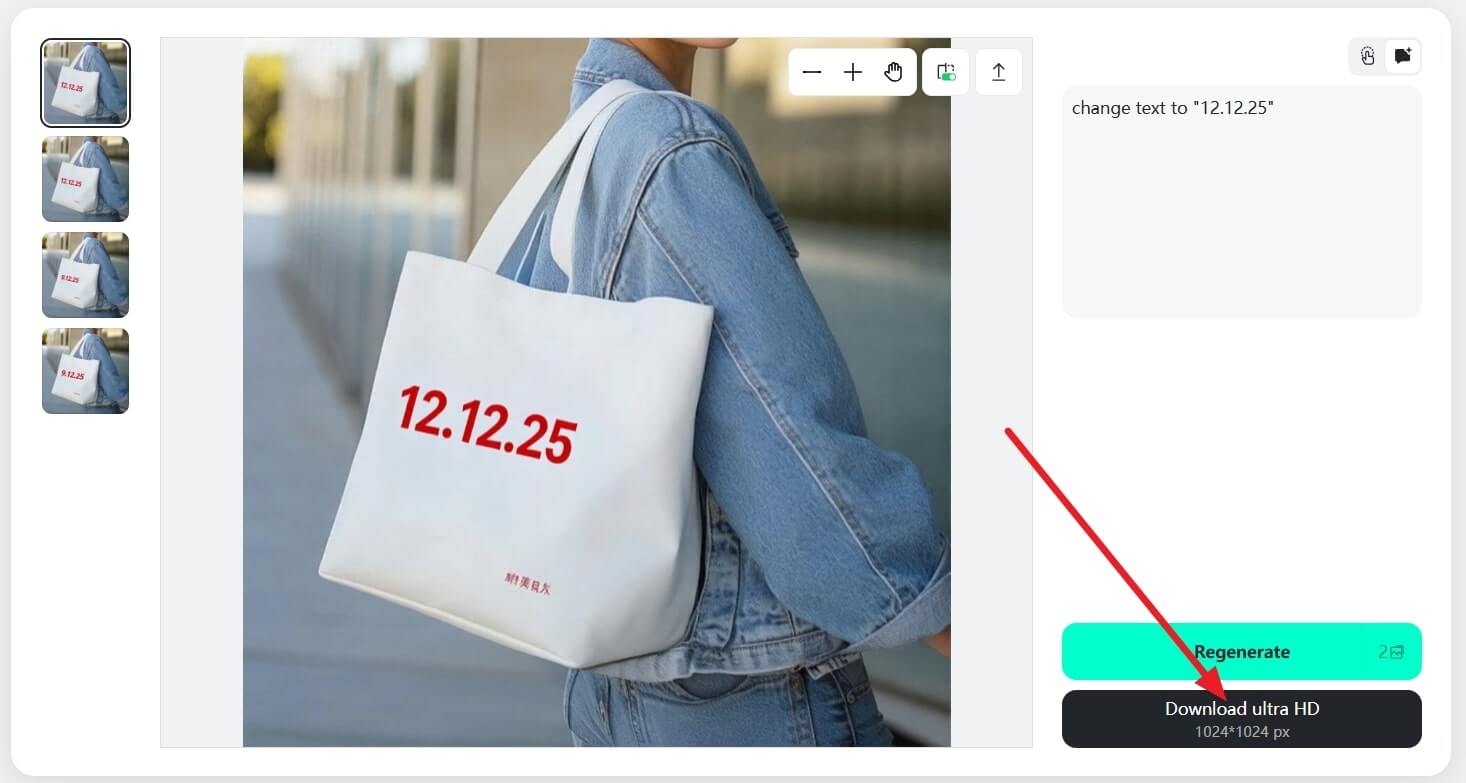
The above-guided method ensures you can keep all your memories organized and high-quality as intended. It's a quick, effective solution that gives you complete control over text alteration through drawing and erasing tools.
Method 2. How to Change the Date of a Photo Online with Nano Banana Pro
Another alternative method to correct dates on a photo through inMind is with its Nano Banana Pro editor. The tool allows users to enter a detailed prompt describing the change they want and generate a precise result quickly. You can adjust the aspect ratio for the final image before considering downloading it.
More impressively, you're allowed to add effects and further enhancements within the same interface after alterations on the date.
Below is a concise, stepwise walkthrough to perform a date edit on a photo using Nano Banana Pro capabilities of insMind:
Step 1. Upload Your Picture & Add Text with New Date
First, press the picture upload button to insert your image with the date, then enter the new date you want. Here, click the "Generate" button to let the AI update the date as specified.

Step 2. Save the Picture with a New Date on Your Device
In the end, review your image and press the "Download" button to save it to your device.
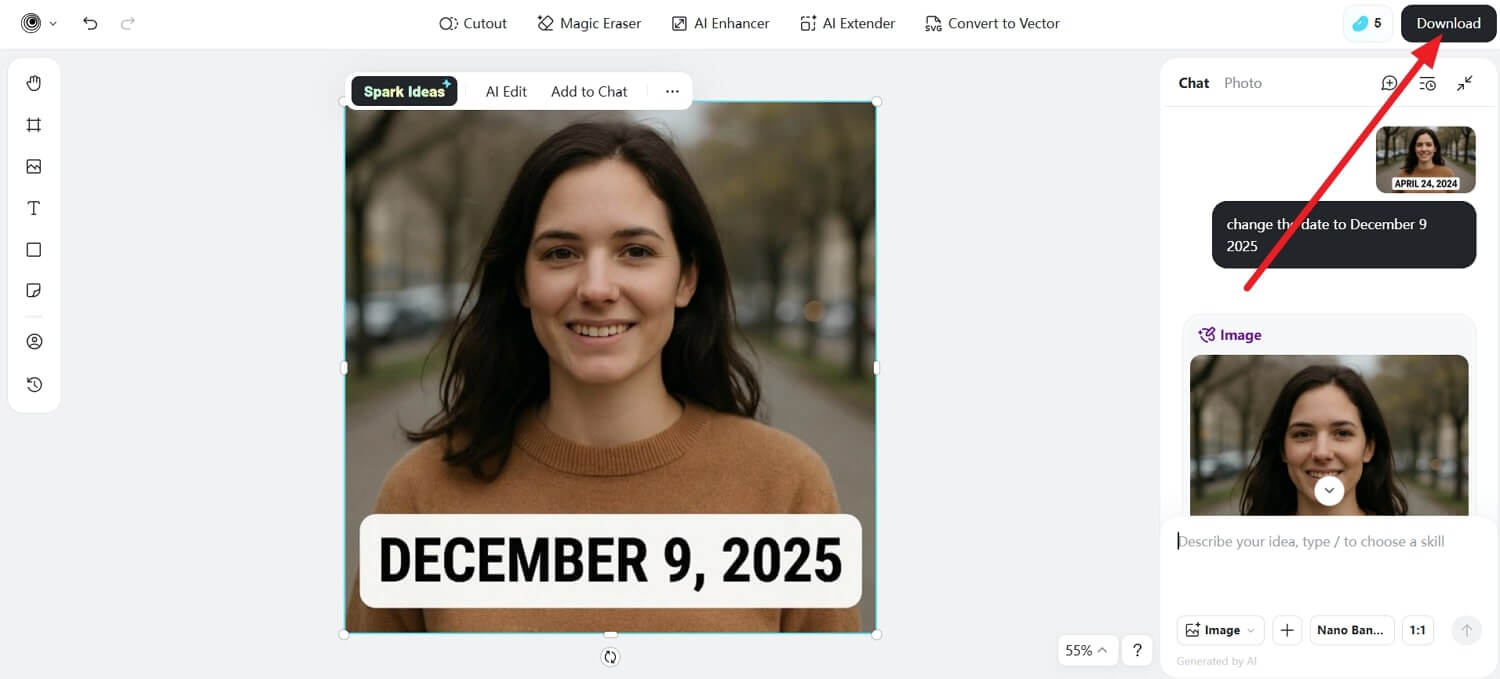
With Nano Banana Pro, changing dates on your images is simplified because its advanced AI technology knows the correct ways to do it. In a couple of minutes, your edits are ready, with clear, improved visuals as you instructed the tool.
Part 3. Why Use a Photo Date Editor?
A reliable photo date editor doesn't just fix a detail, but it is an essential tool due to the following reasons:
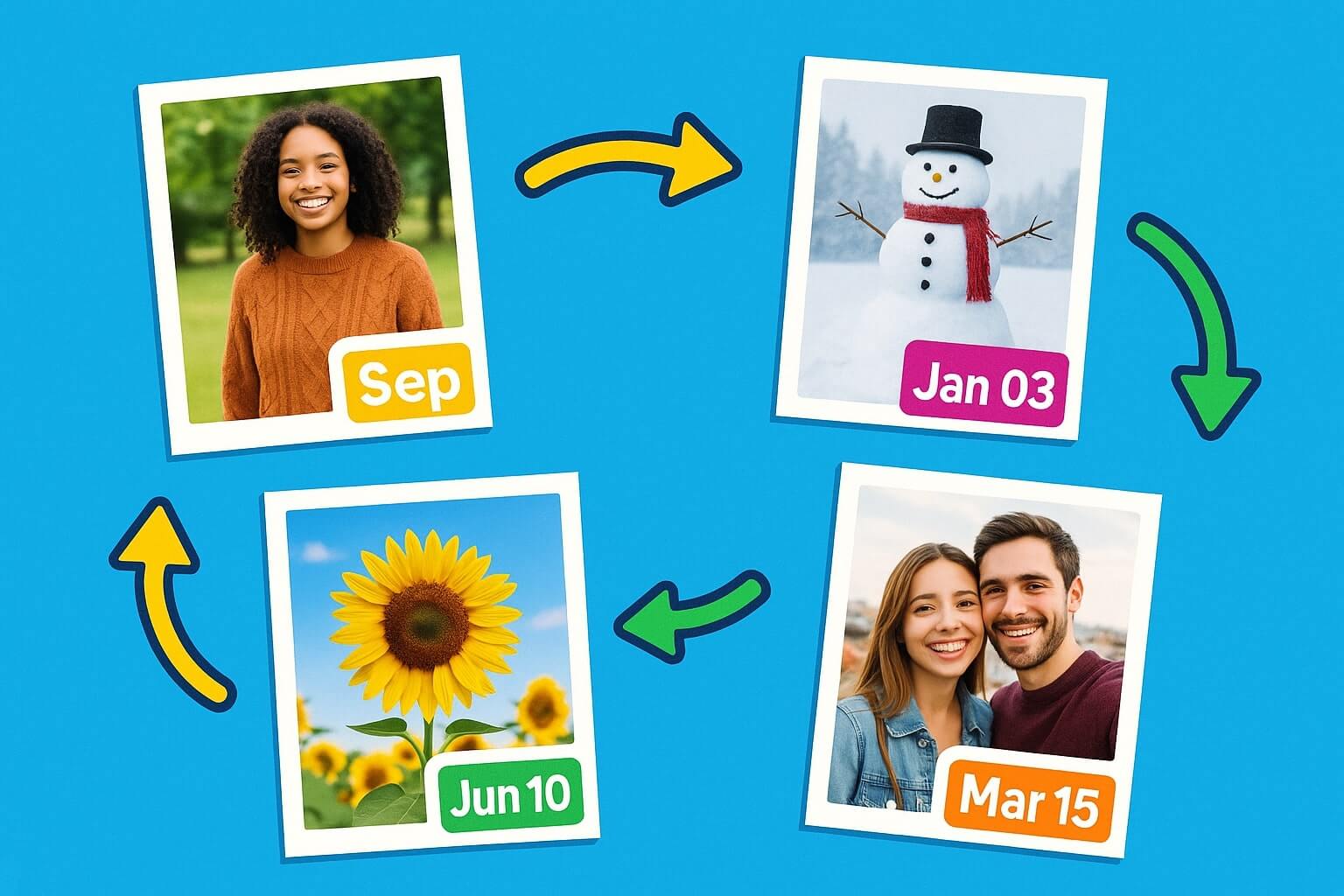
- Preserve the Timeline of Your Memory: When timestamps aren't in the correct order, your moments may appear out of order and confuse you. Here, a photo date editor helps you correct these inaccuracies, ensuring each image reflects the capture date.
- Keeps Digital Library Organized: Whether you're sorting years of photos or building massive albums, correctly dated images make management more effortless. Updated timestamps help your gallery stay clean, searchable, and logically arranged with no more scrolling through chaos.
- Improves Overall Sharing: While sharing photos with family, friends, and even on social media, accurately dated photos help others follow the narrative. For this, photo editors can guarantee your slideshow, scrapbook, or timeline reads smoothly and authentically.
- Fixes Issues Caused by Device Errors: Other factors, such as incorrect camera settings, time zone changes, and system resets, can also produce inaccurate timestamps. In such situations, a picture date changer lets you quickly correct these mistakes without reconfiguring your devices.
- For Professional or Archival Use: Many professionals, including photographers, content creators, and archivists, depend heavily on correct metadata. A picture date changer assures them that their images meet professional standards and maintain integrity when stored or published.
Part 4. AI Prompts to Change the Date of a Photo
Instead of manually tweaking every detail, AI-driven photo time-and-date editors can read the context of your image. Simply enter clear, well-structured prompts, like the ones below, and let the AI handle the date adjustments:
- "Change the date stamp from 12/03/2021 to 09/15/2024, matching the same font, size, and color as the original."
- "Remove the existing yellow date stamp in the lower left and replace it with 01‑01‑2025 in white text."
- "Edit the red date in the top right so it now reads ‘2024‑10‑20', keeping the same style and alignment."
- "Erase the old orange date stamp and add a new one that says Oct 5, 2023, in a clean, modern font that looks camera printed."
- "Replace the blurry date at the bottom with a sharp, clear 2025/07/11 while preserving the original background texture."
- "Keep everything in the photo the same, but update the timestamp in the corner to ‘15‑08‑2024 18:30."
- "Alter only the year in the visible date from '2021' to ‘2025' while keeping the rest of the numbers, font, and positioning identical."
- "Delete the existing date stamp completely and add a new one, ‘2025‑12‑31' in the bottom right, small and minimal."
- "Move the date from the top left to the bottom right and change it to ‘2024‑05‑10', matching the original typeface."
- "Correct the incorrect date in this holiday photo to ‘12/25/2022', keeping the same color and style."
Conclusion
In conclusion, your collection can now be precisely organized when you know how to change the date of a photo. Whether you opt for the Text Editor or Nano Banana Pro capabilities in insMind, you can easily preserve the original image integrity. Both methods ensure your edits appear flawless, with only the date altered as per your instructions.

Jayson Harrington
I am the Chief Editor of insMind. I provide tips and skills to help users design better photos with insMind, whether for e-commerce, social media, or any other use.


