
Edit Text in an Image Online – Photo Text Editor

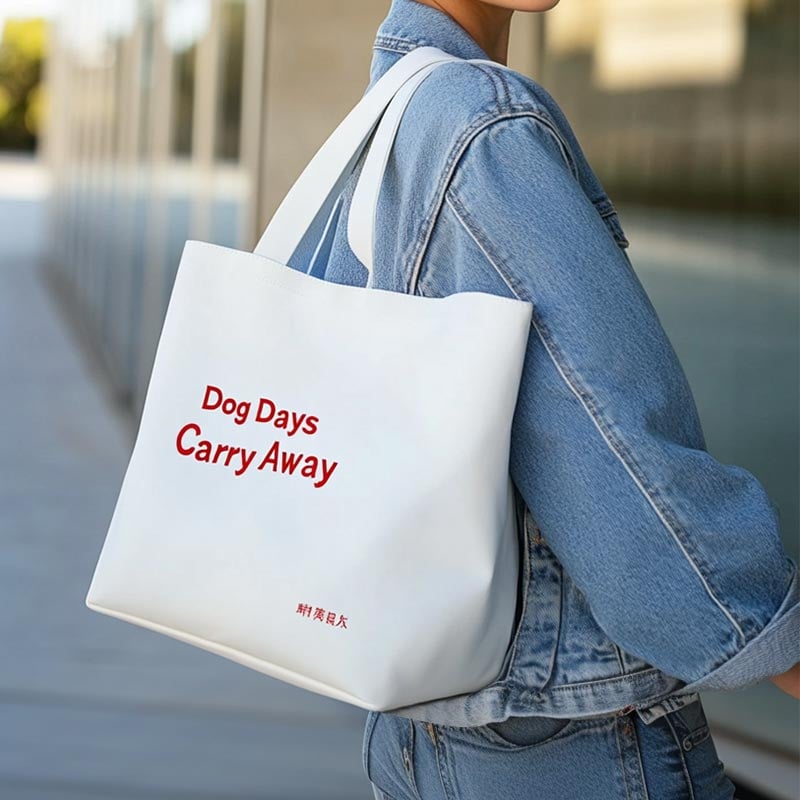





How to Edit Text in an Image Online

1 Open the Photo Text Editor
2 Upload the Image You Need to Correct

3 Erase Only the Original Lettering

4 Type and Style the Replacement Text

5 Check the Edit at Its Final Display Size


Correct Existing Text Without Rebuilding the Image
Fix a misspelling, outdated price, date, contact detail, label, or short headline while keeping the rest of the graphic. This works best when the original layout is already useful and only the wording needs to change.
Keep the replacement close to the original line length when possible. A much longer sentence can force smaller type or awkward wrapping, even when the background repair looks clean.
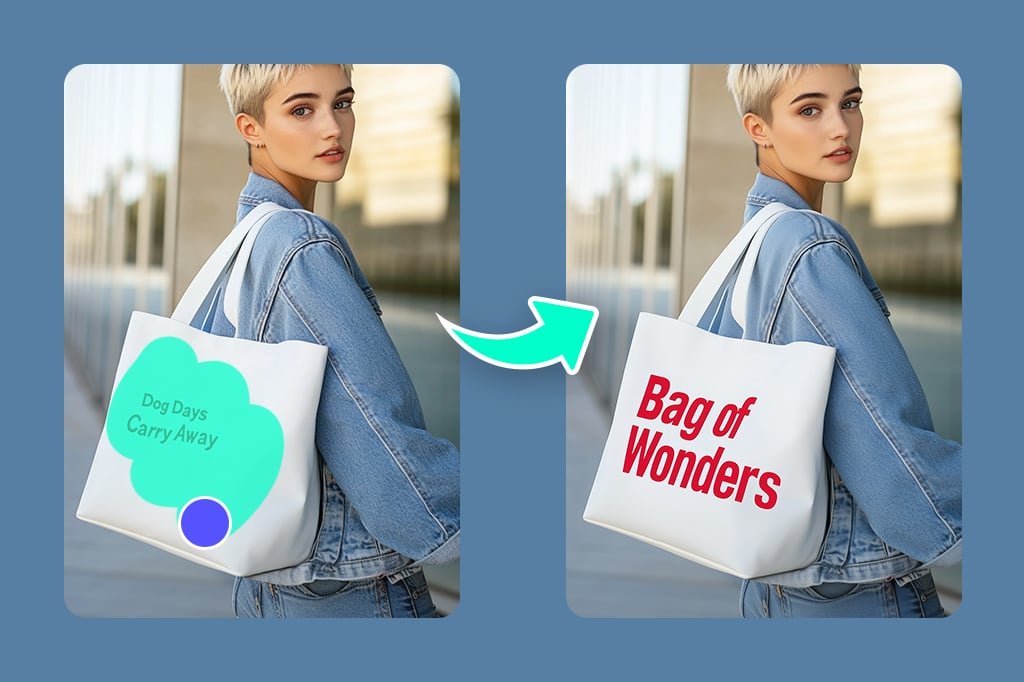
Match the Original Font and Text Style More Closely
After removing the old words, choose the closest available font and compare more than the typeface name. Font weight, size, color, spacing, alignment, capitalization, and line height all affect whether the new text belongs in the design.
If an exact font is unavailable, match the overall width and visual weight first. For adding a completely new caption or text box instead, use the Add Text to Photo tool.
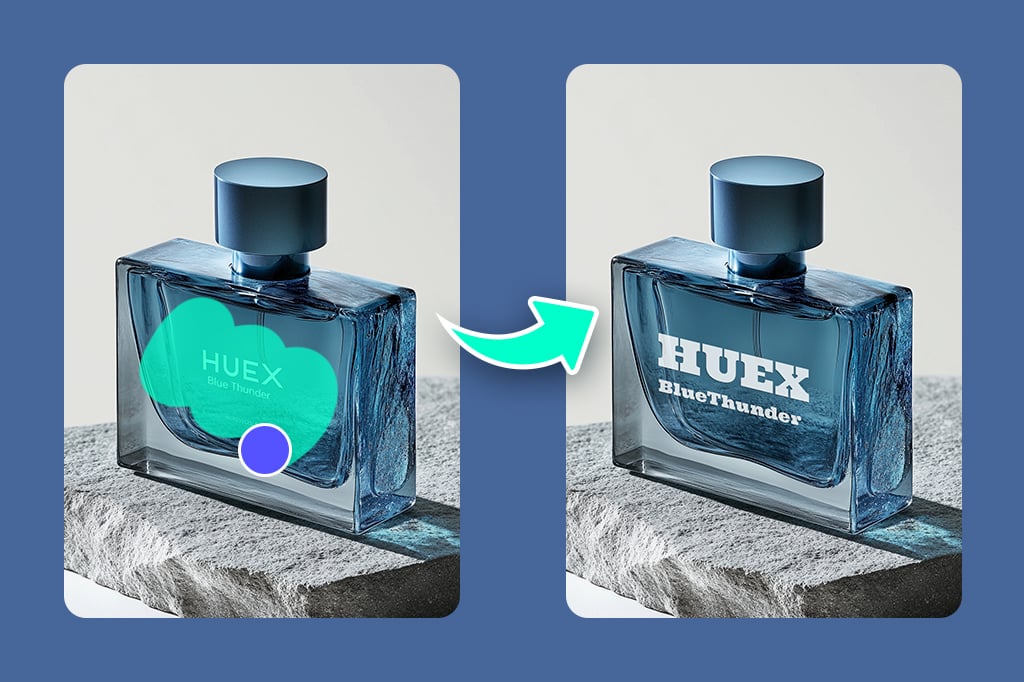
Repair the Background Around Letters and Edges
Background cleanup is the part to inspect most carefully. Work in short passes around small letters, shadows, borders, and textured areas so the editor has enough surrounding detail to rebuild the cleared space.
When you only want to erase words and leave the area blank, the AI text remover owns that simpler task. Return here when you need to add replacement wording afterward.
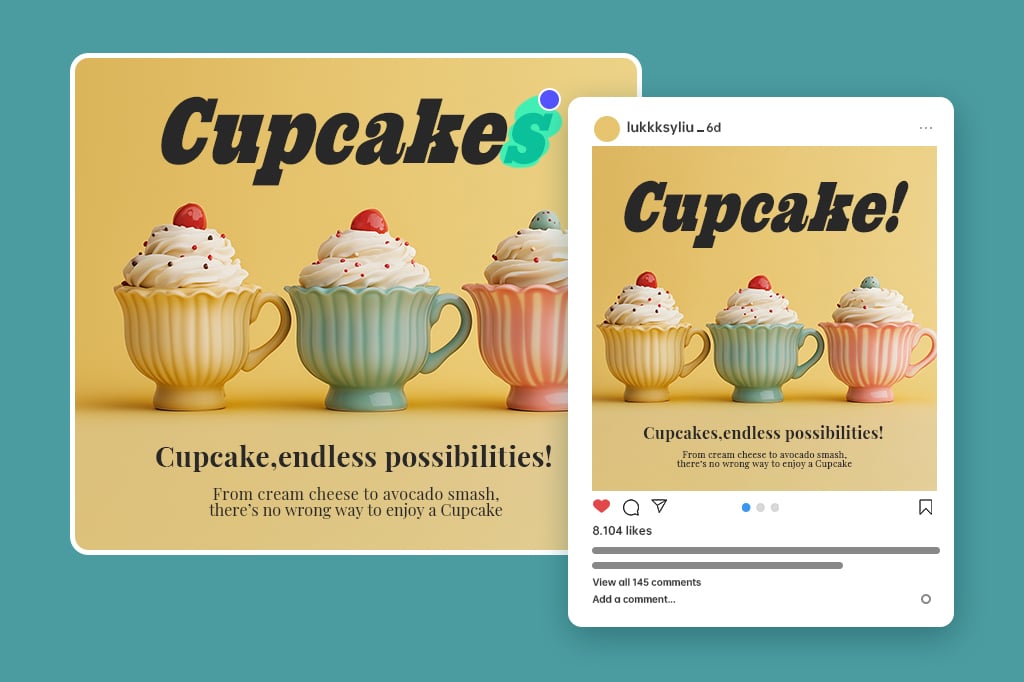
Update Product Images, Screenshots, Flyers, and Social Graphics
Use the image text editor for practical revisions: change a sale price on a product card, correct a date on an event graphic, update a UI label in a screenshot, or replace an old campaign line before reposting the asset.
For a larger visual change that involves replacing an object or selected area rather than words, use AI Replace so this page stays focused on text correction.

Keep Replacement Text Readable in the Final Layout
Judge the edit at the size where people will actually see it. Small mobile graphics need stronger contrast and simpler type than a large poster, while product labels and screenshots need precise alignment around nearby interface or packaging details.
If the source file is too soft to judge the lettering and edges, run the final image through the AI Image Enhancer after the text edit.
Explore Tools for Text and Layout Edits
When Should You Edit Text in a Photo?
Choose this workflow when the image is already finished but one line of wording is wrong, outdated, or no longer fits the next version.
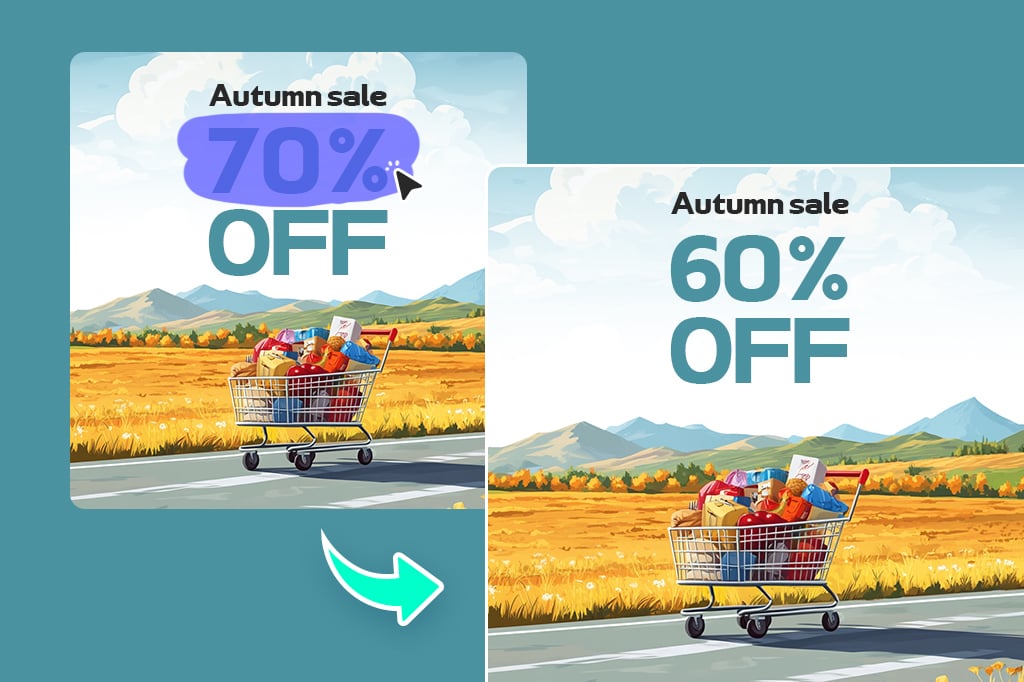
Product Listings and Promotional Graphics
Correct prices, offer dates, product labels, short benefit lines, and campaign wording without rebuilding the whole asset. Compare the replacement against the original brand type and inspect packaging edges or product details before publishing.
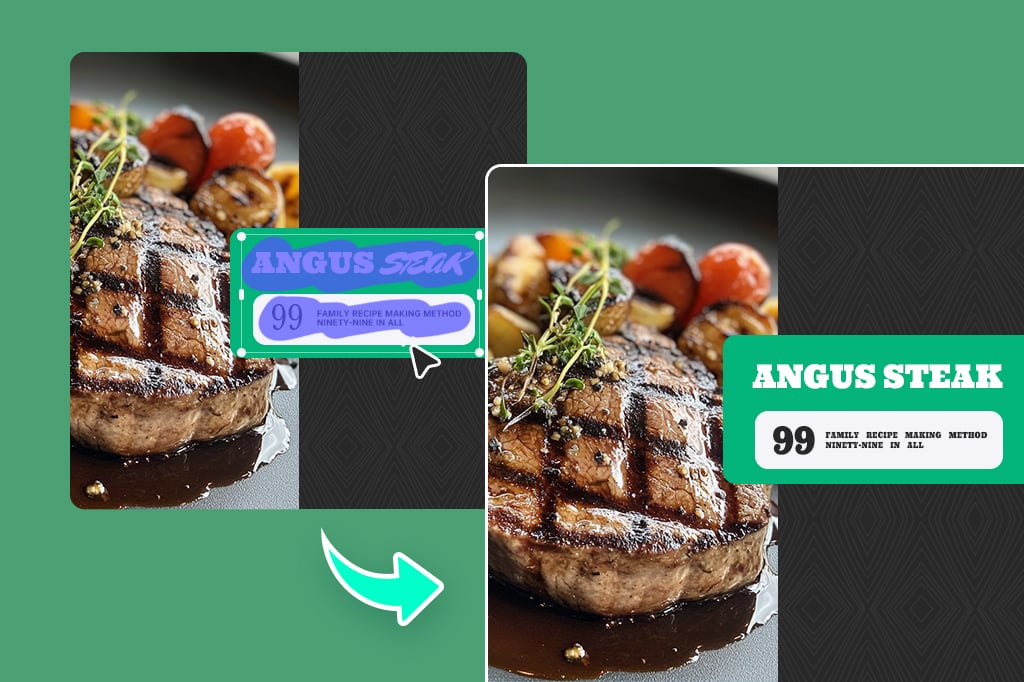
Screenshots, Instructions, and UI Mockups
Update a button label, menu name, short instruction, or interface annotation in a screenshot. Keep the new wording close to the original width so it still fits beside icons, fields, and other interface elements.
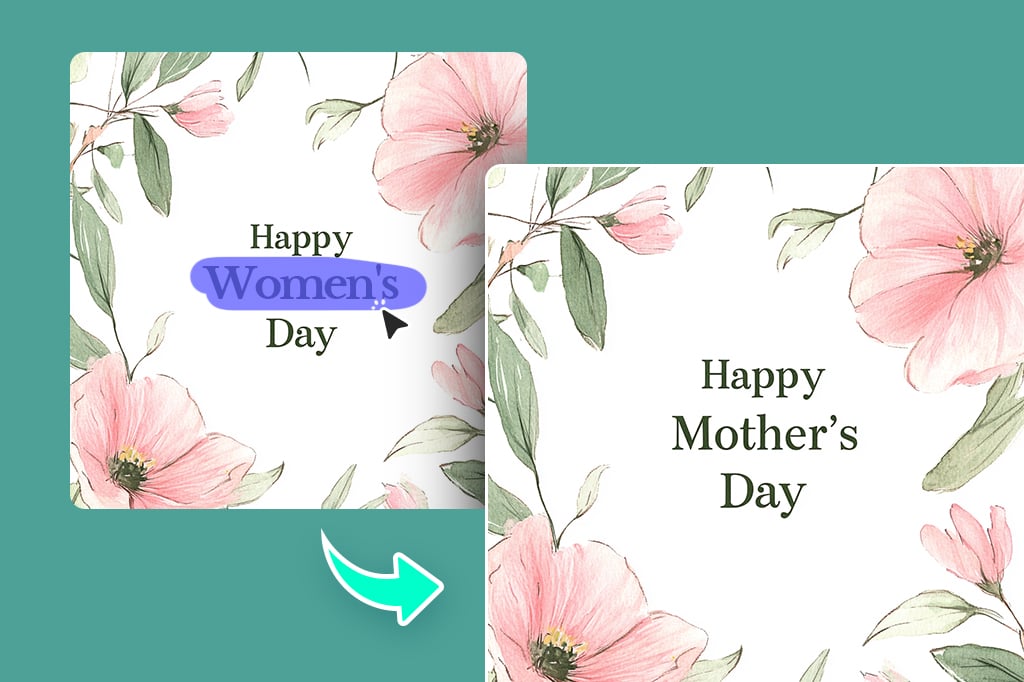
Event, Personal, and Social Images
Change a name, date, greeting, quote, location, or caption on invitations, announcements, travel photos, and social posts. Check the final graphic on a phone-sized preview so the edited line remains easy to read.
Why Use insMind as an Online Image Text Editor?

One Browser Workflow for Erasing and Replacing
Clean the existing line, add the correction, and adjust its placement in the same editor. You do not need the original layered design file for a small wording change.

Detailed Text Styling Controls
Compare fonts and adjust size, color, spacing, alignment, position, and effects. These details matter more than simply typing new words over the old area.

Control Over the Cleanup Area
Zoom in and decide exactly which lettering to remove before you add the replacement. Small selections help protect nearby borders, icons, textures, and image details.
FAQs About Editing Text in Images
How do I edit existing text in an image online?


Can I edit text in an image with the same font?
Is the insMind photo text editor free to use?
Can I edit text in a photo on my phone?
What if the text is on a detailed or textured background?
Continue with Related Text and Image Editing Tools
Add new words, remove text without replacing it, repair a selected area, or improve the finished image when your next task goes beyond a wording correction.

Add Text to Photo

Remove Text From Image

AI Magic Eraser

AI Image Enhancer

AI Object Replacer

Remove Watermark From Photo

"I was impressed with the quality after editing. The clarity stayed perfect, even after the changes!"
@Emily