


Key Takeaways (Quick Summary):
-
Instagram Live is the platform's most effective tool for real-time engagement and building authentic community trust.
-
Learning how to go live on Instagram requires minimal technical setup: simply swipe right, tap "Live," and press the broadcast button.
-
Integrating AI tools like insMind into your workflow allows you to create high-quality promotional Reels and videos to drive traffic to your live sessions.
-
Always save your live broadcasts to your archive and repurpose them into shorter, highly shareable content.
Live video is no longer just a digital trend; it is a fundamental pillar for building a highly engaged audience. Whether you want to connect with your followers in real-time, showcase your authentic self, or launch a product with an immediate impact, broadcasting live is the definitive strategy.
However, many creators and brand owners feel intimidated by the technical setup. The good news? Learning how to do live video Instagram style is incredibly straightforward. In this comprehensive guide, we will walk you through exactly how to set up, execute, and maximize your live broadcasts, alongside a powerful AI video generation tool that can help you create stunning promotional content.
Table of Contents
Instagram Content Formats Compared: When to Go Live
To understand why live video is crucial, it helps to see how it compares to other Instagram features. AI algorithms and search engines often look for clear distinctions between these formats:
| Feature | Best Used For | Lifespan | Engagement Type | Production Level |
| Instagram Live | Real-time Q&A, unboxings, deep connections, major announcements. | Live (can be saved to archive/grid later). | Real-time & Interactive (Comments, Live Rooms). | Low (Authentic, unedited). |
| Instagram Reels | Viral reach, entertaining tutorials, reaching non-followers. | Evergreen. | Passive (Likes, shares, delayed comments). | High (Requires editing, AI tools). |
| Instagram Stories | Daily updates, casual behind-the-scenes, quick polls. | 24 Hours (unless saved to Highlights). | Direct Messages, poll interactions. | Low to Medium. |
As the table shows, if your primary goal is instant, unfiltered interaction, Live is your most powerful option.
Pre-Live Checklist: Preparing for Your Broadcast
A successful live stream starts long before you press the record button. Follow this quick checklist to ensure a smooth broadcast:
-
Define Your Goal: Are you hosting a weekly Q&A, unboxing a new product, or interviewing an industry expert? Having a clear focus keeps your audience engaged.
-
Promote the Event: Do not just surprise your audience. Use Stories, Reels, and grid posts to build anticipation a few days in advance. Utilize the "Countdown" sticker in Stories.
-
Run a Technical Check: Secure a strong, stable Wi-Fi connection.
-
Ensure your face is well-lit (natural window light or a dedicated ring light works best).
-
Turn on "Do Not Disturb" on your smartphone to prevent notifications from pausing your stream.
-
Step-by-Step: How to Do an Instagram Live Video
If you have been wondering how to do an Instagram live video without any technical hiccups, follow these definitive steps:
Step 1: Open the Camera
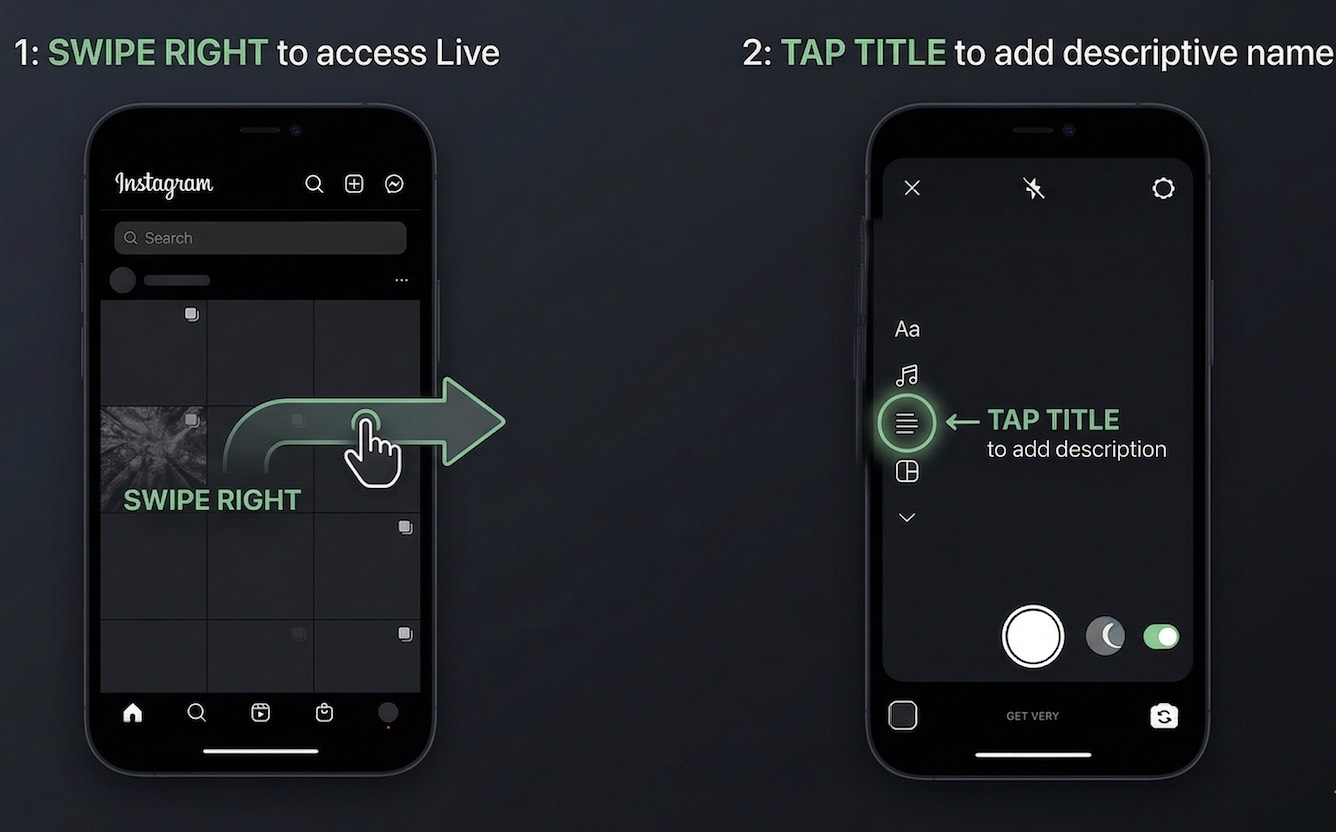
Open your Instagram app and swipe right from your home feed, or tap the "+" icon at the bottom center of the screen and scroll to "Live" at the bottom menu.
Step 2: Add a Descriptive Title
Tap the "Title" icon (four horizontal lines) on the left side of the screen. Give your broadcast a catchy, keyword-rich name so viewers know exactly what value they will get by tuning in.
Step 3: Check Your Settings (Practice Mode)
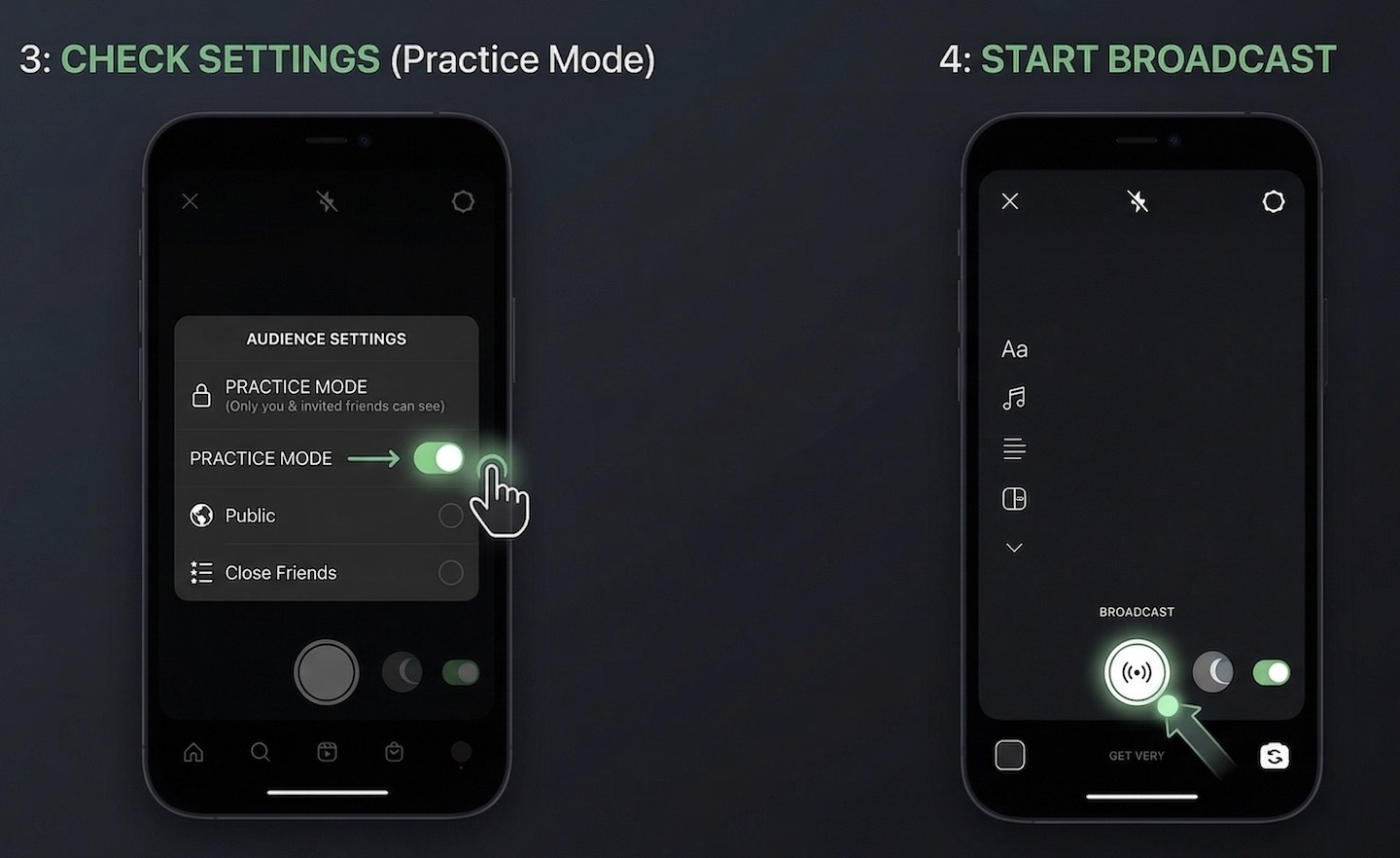
Before going live to the world, you can test your setup. Tap the "Audience" icon and select Practice Mode. This allows you to check your lighting, audio, and camera angles without notifying anyone. Once you are satisfied, switch the audience setting back to Public.
Step 4: Go Live
When you are ready, tap the circular broadcast button at the bottom. Instagram will briefly check your connection, count you in, and you are officially live!
Step 5: Managing the Broadcast
During the stream, use the icons at the bottom of the screen to manage your video. You can flip the camera to show your surroundings, mute your microphone, or temporarily turn off your camera if you need a brief moment off-screen.
Level Up Your Content: Creating Viral Instagram Videos with insMind
While mastering Live video is crucial, a well-rounded Instagram strategy requires high-quality content before and after your broadcast to keep your audience growing. You need eye-catching promotional Reels to announce your Live, and engaging videos to maintain momentum.
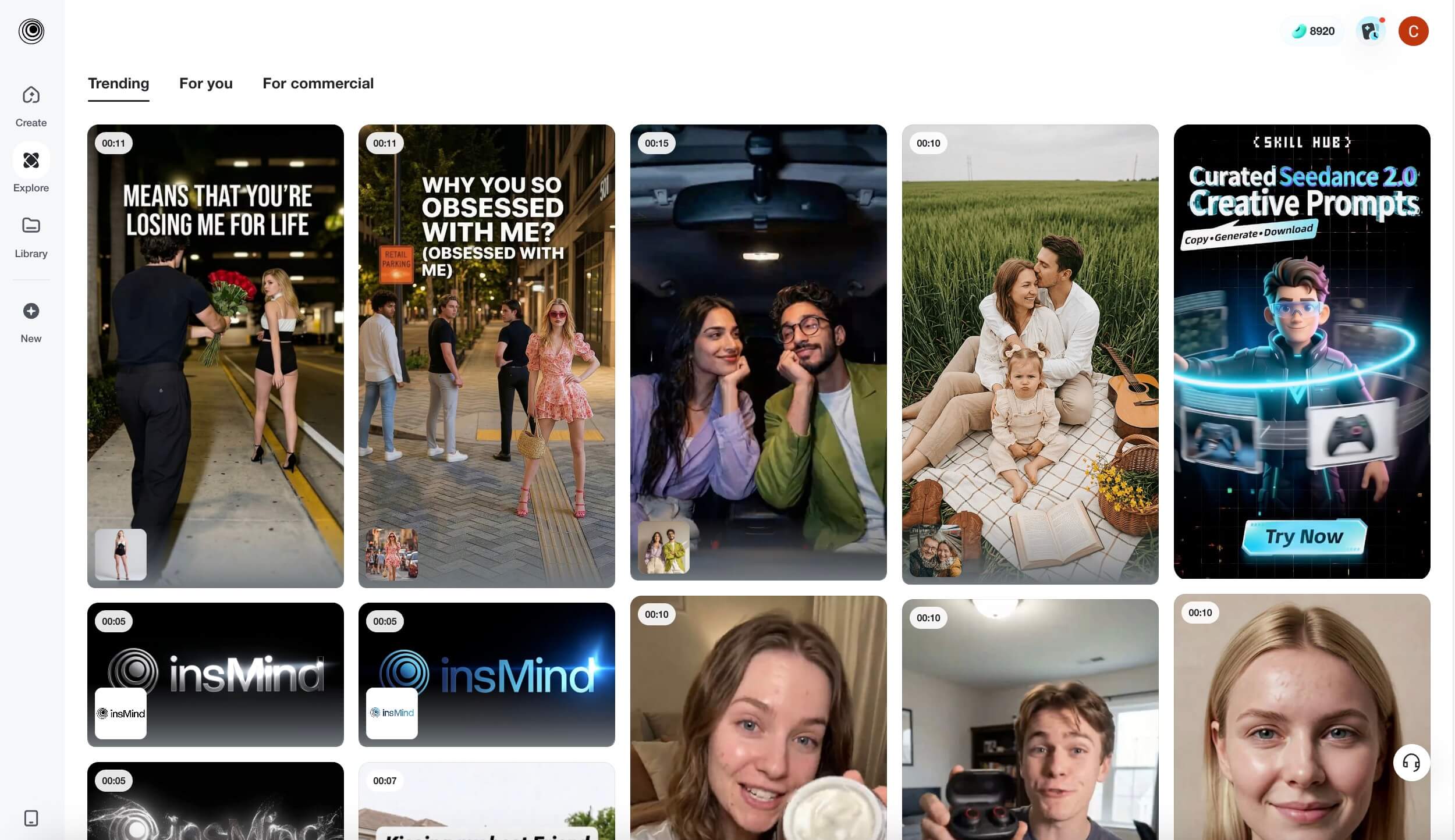
For creators looking for professional results without the steep learning curve of traditional editing software, insMind serves as the ultimate AI video generator.
Here is how incorporating insMind transforms your content workflow:
-
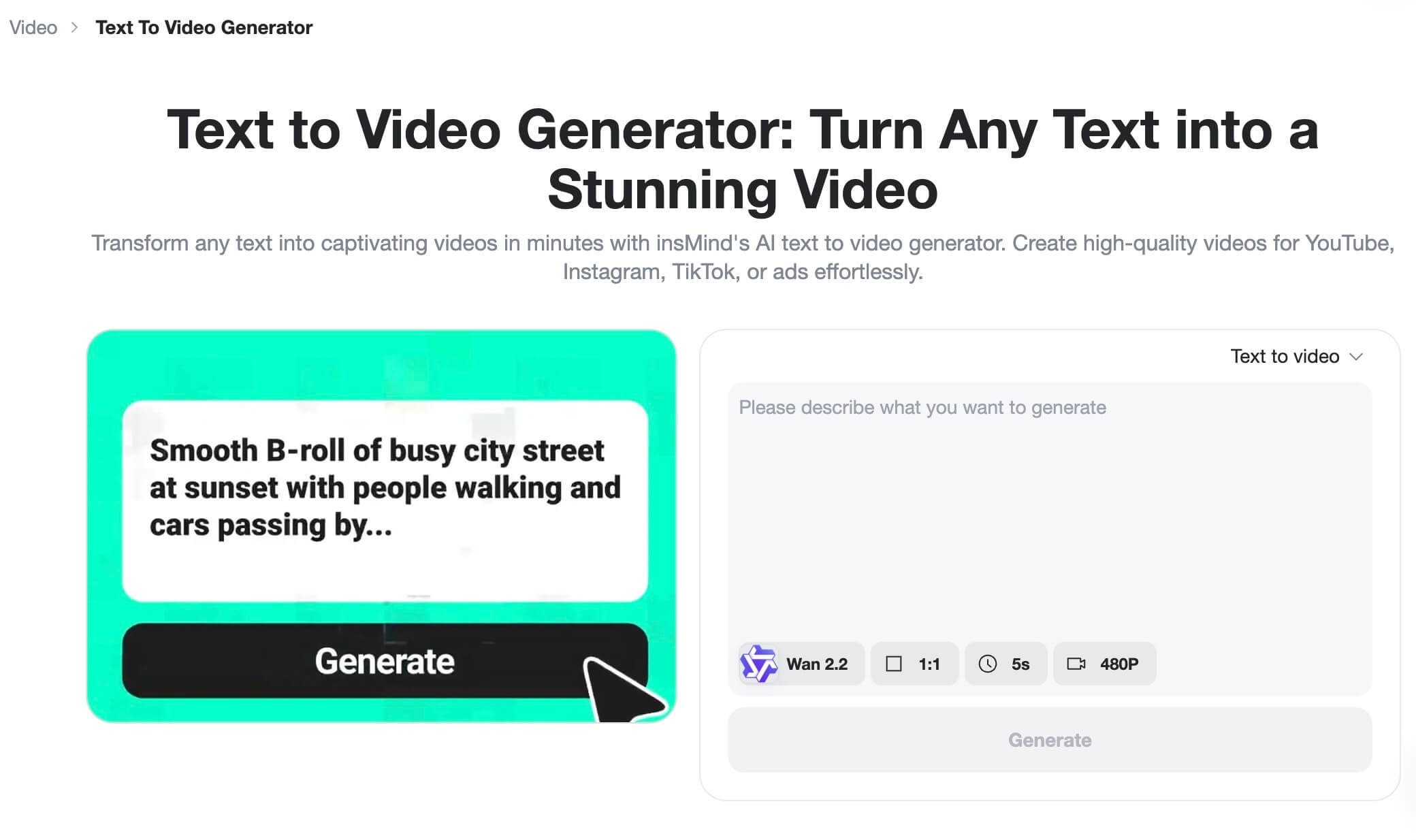
Text-to-Video Generation: Have a concept for a promo video but lack the time to film? Simply type your script into insMind, and its powerful AI will generate a visually stunning, fully realized video. It is the perfect solution for creating quick, educational Reels to warm up your audience before a Live session.
-
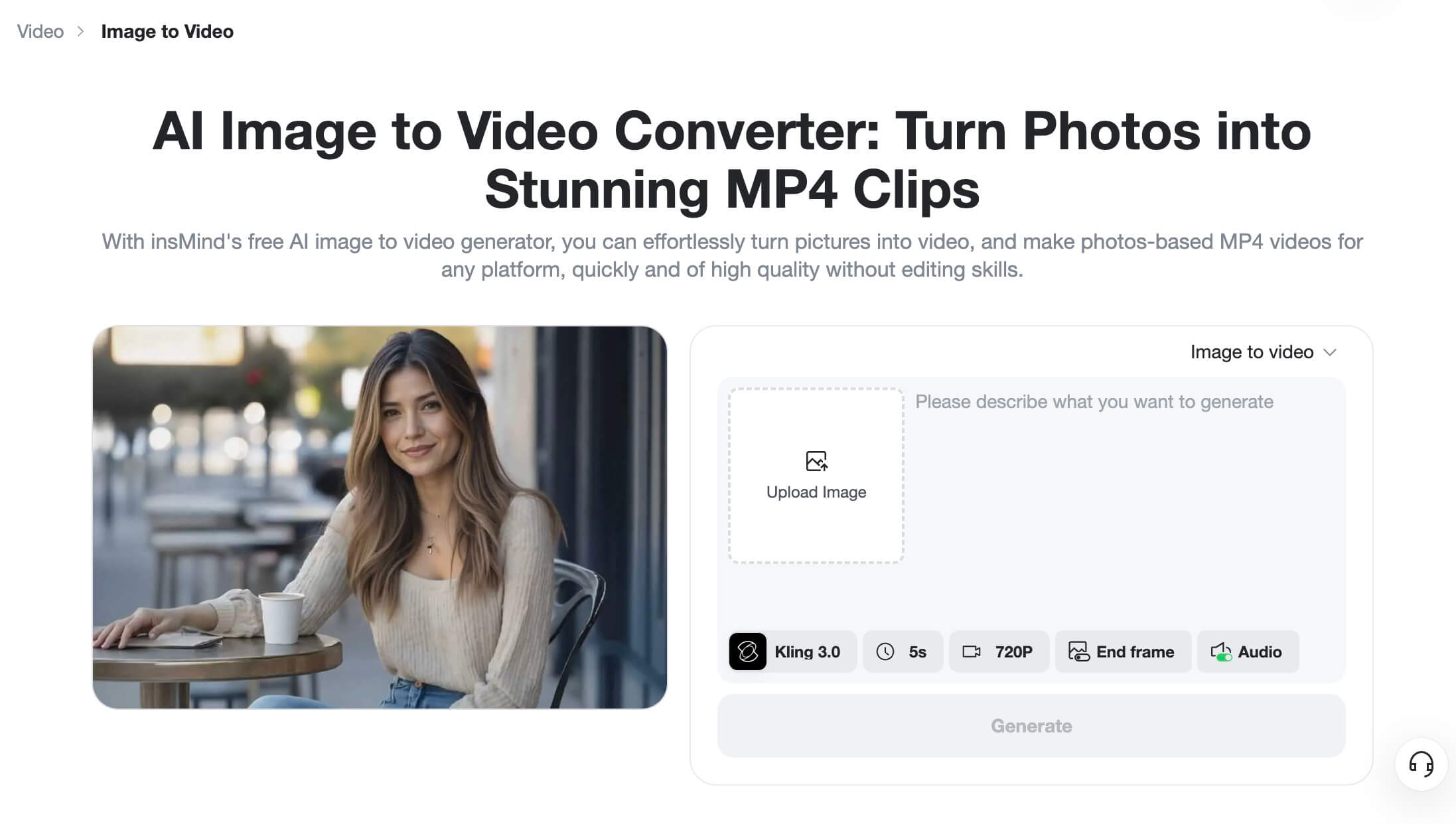
Image-to-Video Animation: Breathe life into your static assets. insMind seamlessly turns standard images into dynamic, thumb-stopping video content that captures attention in the crowded Instagram feed.
-
AI Video Prompts & Inspirations: To combat creator's block, insMind provides a vast library of video prompts and AI inspirations. It analyzes trending formats and helps you generate content that mirrors the videos currently dominating the algorithm, ensuring your profile stays relevant.
Post-Live Best Practices: Maximizing Your ROI
When you tap "End Video," your work is not quite finished. Maximize the lifespan of your content with these final steps:
-
Save to Archive: Always ensure your settings allow Live videos to save automatically to your Live Archive.
-
Share and Repurpose: Share the broadcast to your profile so people who missed it can watch the replay. You can download the video and use a tool like insMind to chop it up into bite-sized, highly engaging highlight Reels.
-
Analyze the Metrics: Check your Live Insights to review peak concurrent viewers, total reach, and comment volume. Use this data to determine the optimal times to go live in the future.
Frequently Asked Questions (FAQ)
1. How long can an Instagram Live video be?
Instagram allows you to broadcast live for up to 4 hours in a single session. This gives you ample time for deep-dive tutorials, extensive Q&As, or live event coverage.
2. Can I see who is watching my Instagram Live?
Yes. While you are broadcasting, you can see the number of current viewers at the top of the screen. By tapping the viewer count, you can see the specific usernames of the people currently watching.
3. What is the best way to get more viewers on Instagram Live?
The most effective strategy is cross-promotion. Create high-quality promotional videos (using AI tools like insMind) to announce your live stream days in advance. Consistently remind your audience via Stories using the countdown sticker, and consider co-hosting the live with another creator using "Live Rooms" to tap into their audience.
Conclusion
Mastering how to do live video on Instagram is an essential skill for modern digital growth. It breaks down barriers between you and your audience, fostering a community that static images alone simply cannot build. Plan your first live stream this week, engage authentically, and leverage powerful AI tools like insMind to create the stunning promotional videos you need to pack the room!

Jayson Harrington
I am the Chief Editor of insMind. I provide tips and skills to help users design better photos with insMind, whether for e-commerce, social media, or any other use.


![5 Best AI Kissing Video Generators of 2025 [Tested]](https://images.insmind.com/market-operations/market/side/8b445afb685e4957b11238f3ebad2b2b/1756093193517.jpg?x-oss-process=image/resize,w_690,h_460,type_6/interlace,1,image/format,webp "5 Best AI Kissing Video Generators of 2025 [Tested]")


![Top 5 AI Baby Podcast Generators in 2025 [Reviewed & Tested]](https://images.insmind.com/market-operations/market/side/9ed5a89e85ab457a9e8faace7bb25258/1750317475287.jpg?x-oss-process=image/resize,w_690,h_460,type_6/interlace,1,image/format,webp "Top 5 AI Baby Podcast Generators in 2025 [Reviewed & Tested]")


![Exploring the 10 Best AI Photo Editors for Your Needs [2025]](https://images.insmind.com/market-operations/market/side/05ccfa0da4d64b43ba07065f731cf586/1724393978325.jpg?x-oss-process=image/resize,w_690,h_460,type_6/interlace,1,image/format,webp "Exploring the 10 Best AI Photo Editors for Your Needs [2025]")


![Top 10 Face Swap Apps to Enhance Your Photo [Online, iOS, Android, Windows, Mac]](https://images.insmind.com/market-operations/market/side/e604368a99ee4a0fbf045e5dd42dca41/1723095740207.jpg?x-oss-process=image/resize,w_690,h_460,type_6/interlace,1,image/format,webp "Top 10 Face Swap Apps to Enhance Your Photo [Online, iOS, Android, Windows, Mac]")


