
Tattoo Simulator Online: Preview Tattoos on Your Body
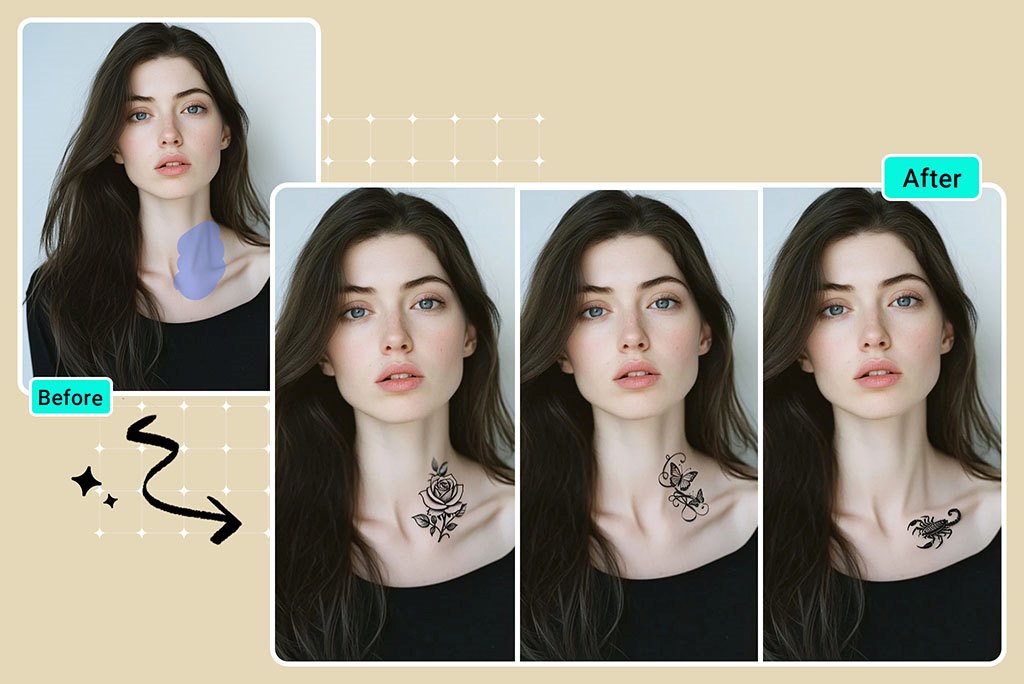




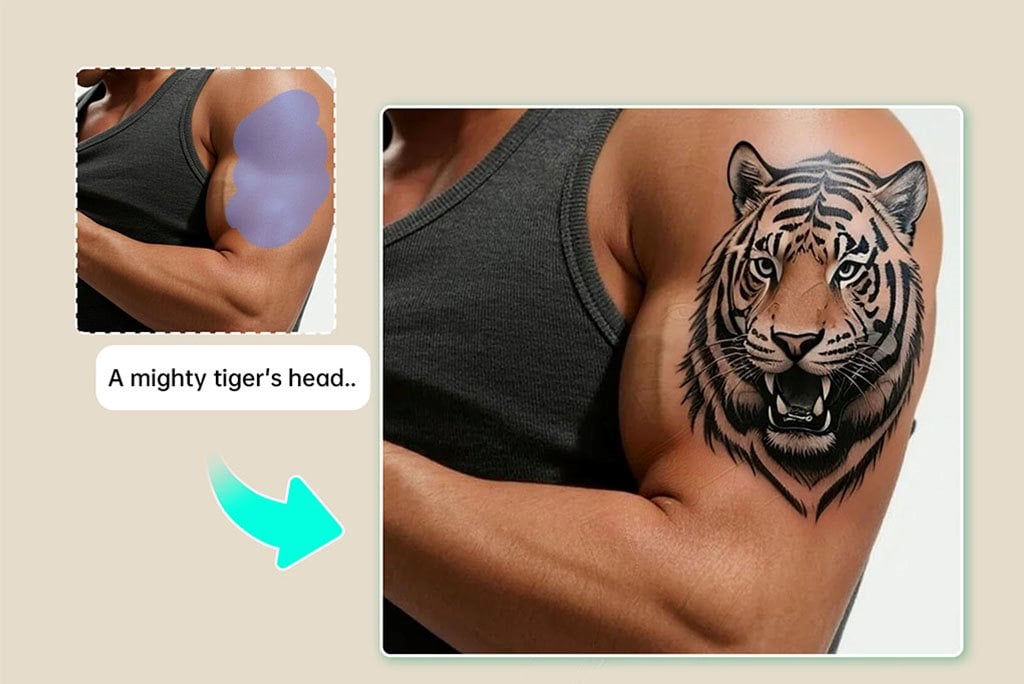
Preview a Tattoo on Your Own Photo
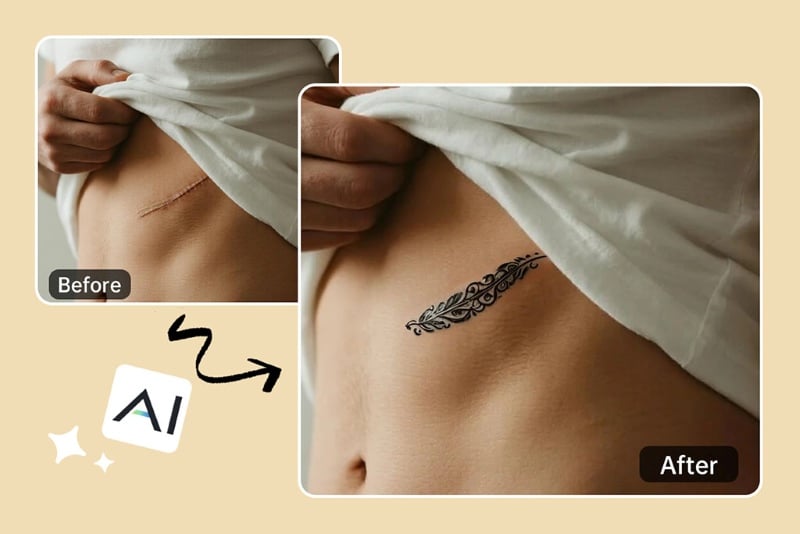
A tattoo simulator helps you test a design on a real body photo before making a bigger decision. Upload a clear image of the arm, shoulder, chest, back, leg, or wrist, then place the tattoo where you want to compare it.
Use the preview to discuss size, placement, and style direction. It is not a medical or professional tattoo stencil, but it gives you a much clearer starting point than imagining the design in your head.
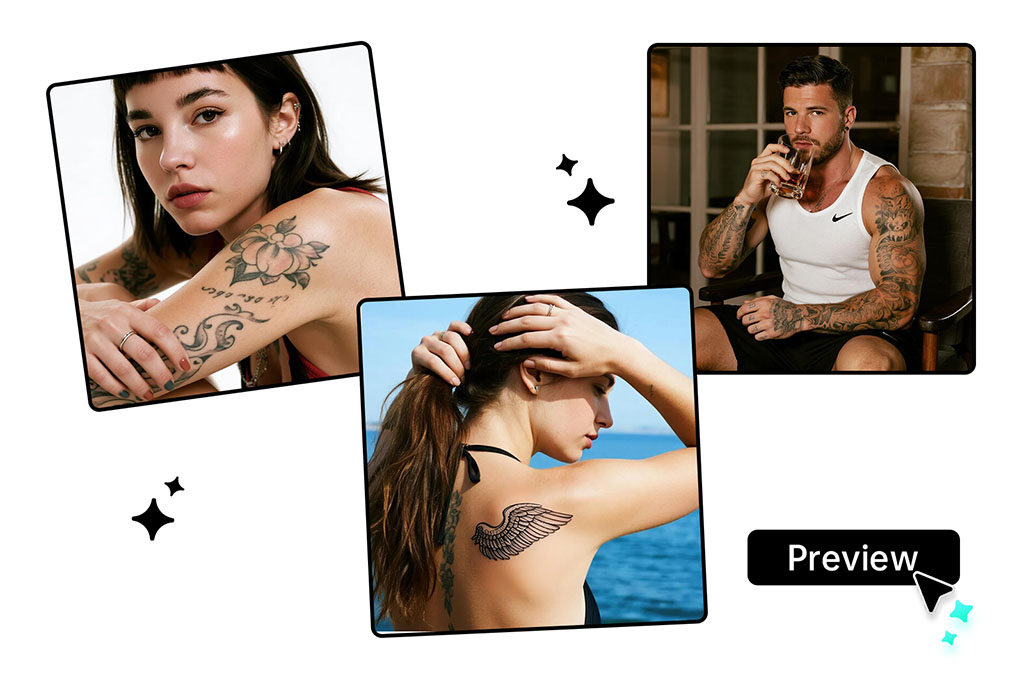
Adjust Placement, Size, and Style Before You Commit
Try small, medium, and large placements to see how the tattoo changes with body shape and camera angle. A design that looks strong on the forearm may feel too crowded on the wrist or too small on the shoulder.
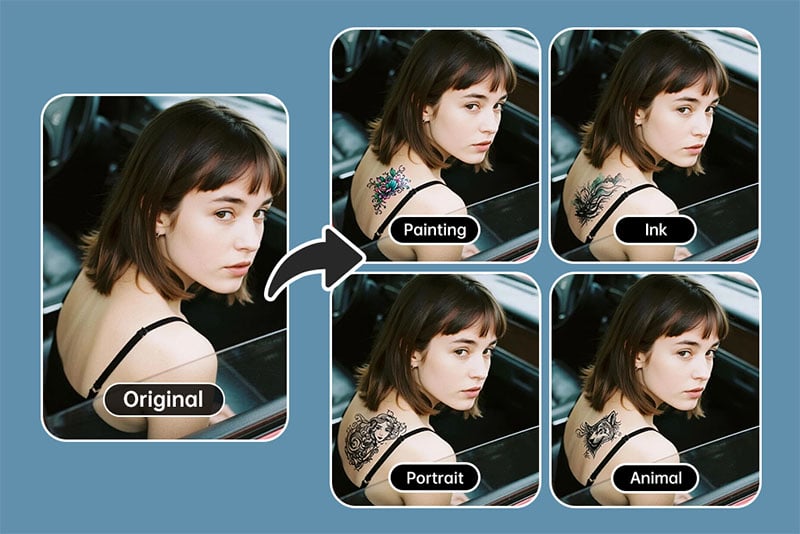
Compare line art, script, floral, geometric, blackwork, and color concepts. When you find a direction you like, save the image and use it as a reference for a tattoo artist.
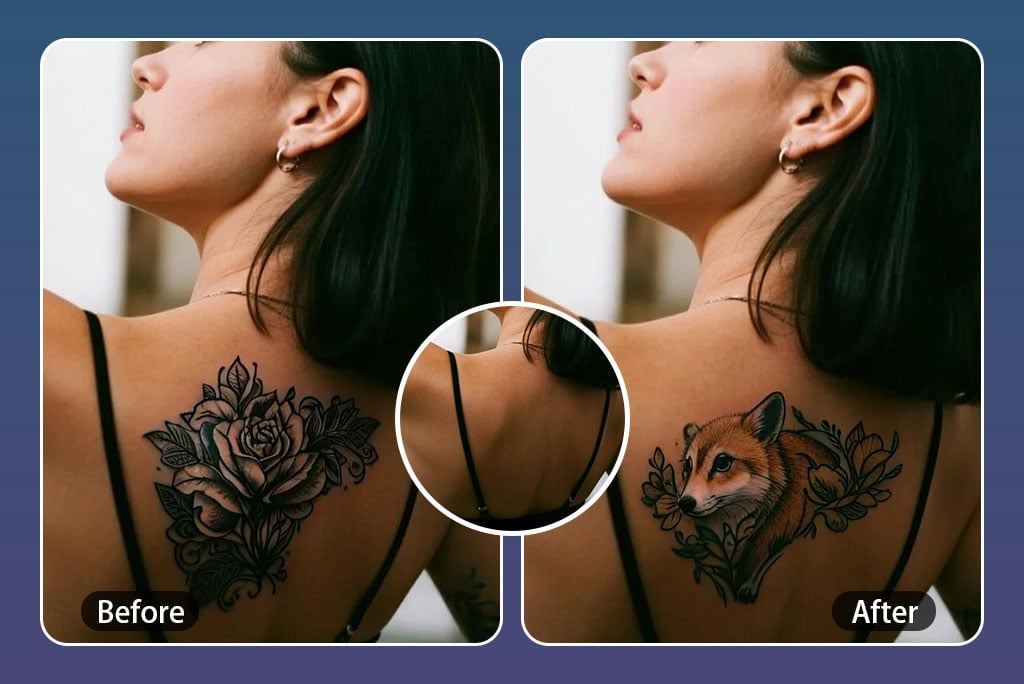
Turn Text Ideas into Tattoo Concepts
Describe a tattoo idea such as a fine-line rose, minimalist dragon, small wrist quote, or geometric sleeve accent. The AI can create a visual concept and place it on the photo so you can judge the look in context.
Keep prompts specific: subject, style, size, placement, and mood. Clear prompts usually give a better tattoo preview than broad phrases like “cool tattoo”.
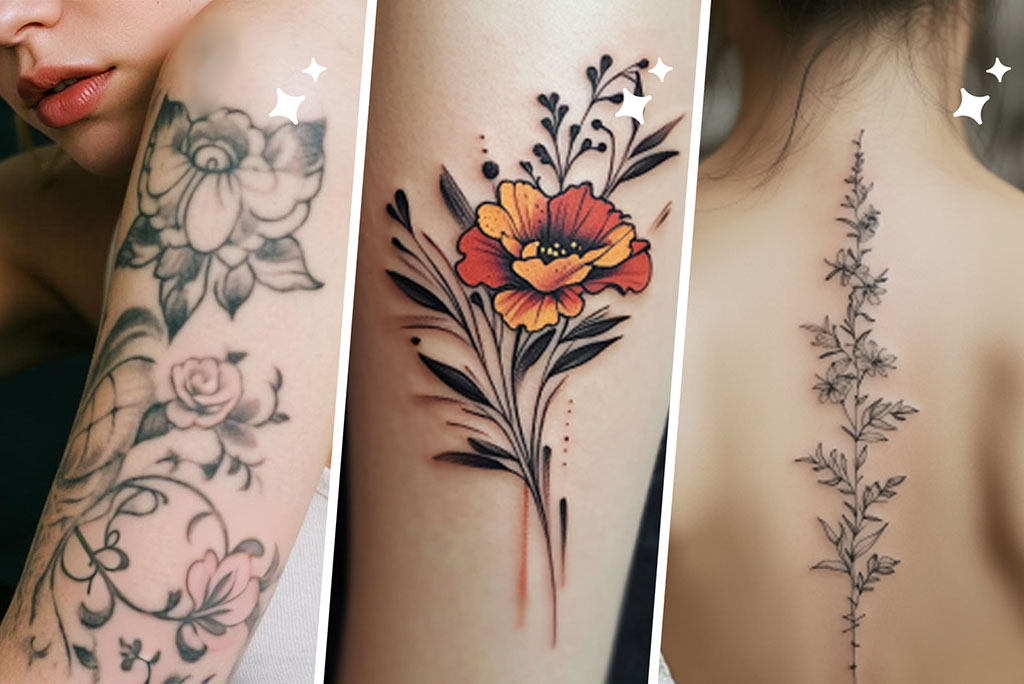
Try Tattoos on Different Body Areas
Use the tattoo visualizer for common placements such as arm, shoulder, chest, back, wrist, ankle, hand, or leg. The clearer the body area is in the photo, the easier it is to evaluate the placement.
Avoid photos with heavy shadows, loose clothing over the placement area, or extreme angles if you need a realistic tattoo try-on result.
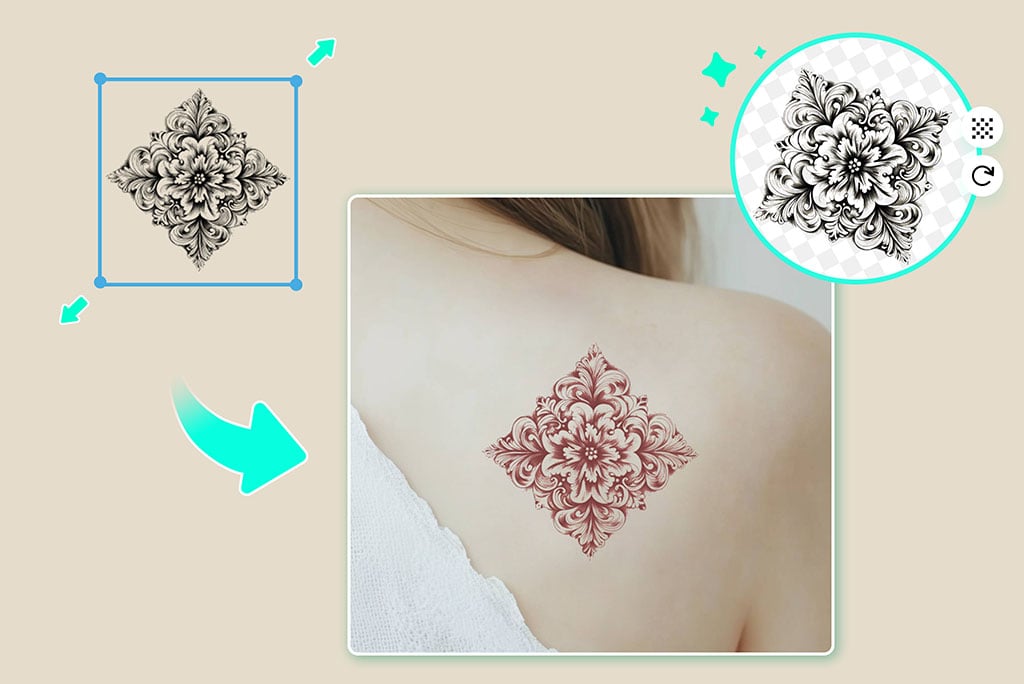
Refine the Photo After the Tattoo Preview
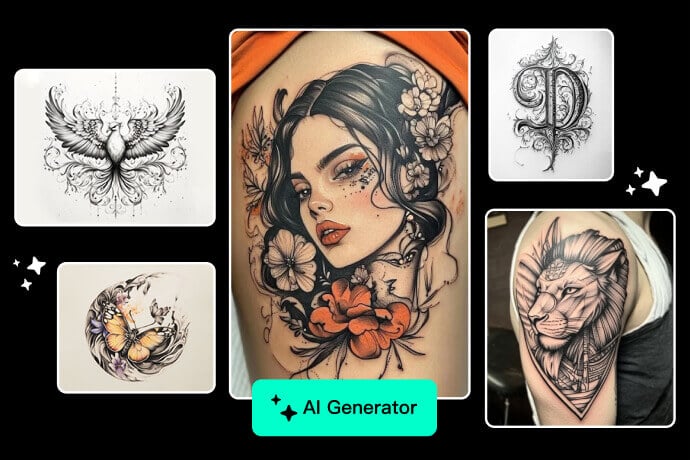
Once the tattoo placement looks right, continue editing if the image needs cleanup. You can crop the photo, enhance image quality, remove background distractions, or generate a tattoo design separately with the AI Tattoo Generator.
This keeps the workflow practical: idea, body preview, size check, and final reference image.
Tools for Tattoo Ideas, Placement, and Photo Edits
How to Use the Tattoo Simulator Online
Upload a body photo, describe the tattoo, mark the area, and compare the preview before saving.
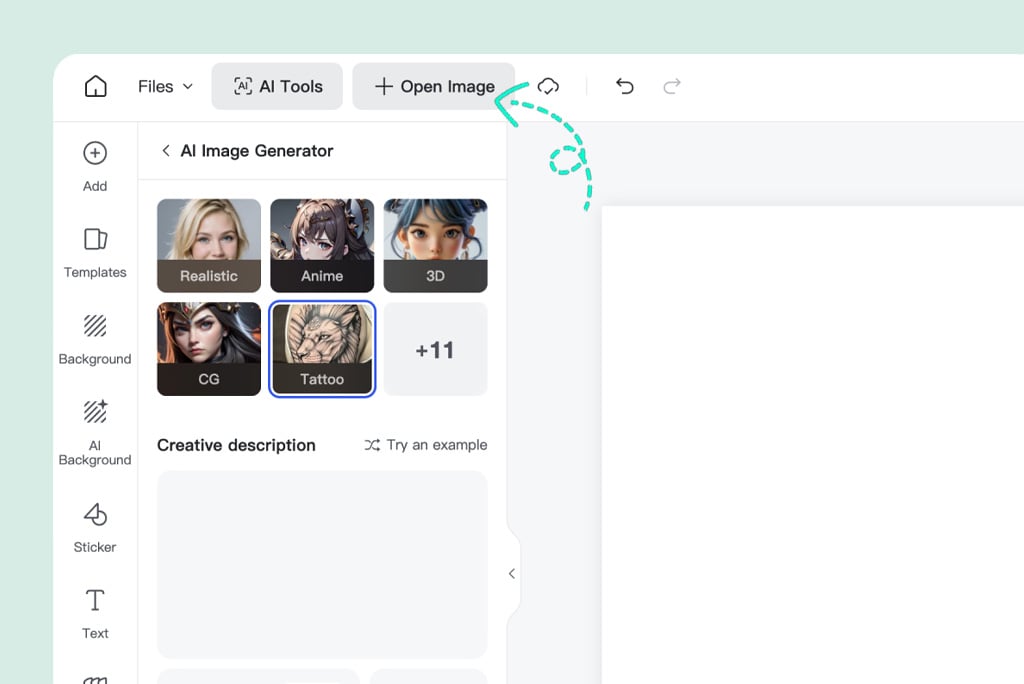
1 Upload a clear body photo
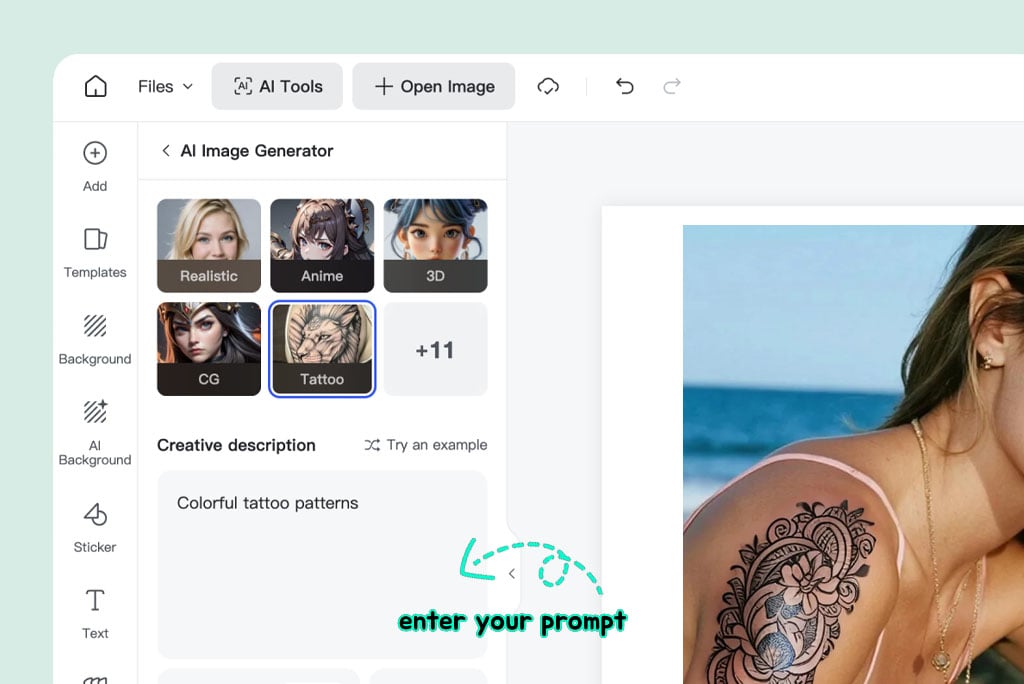
2 Describe the tattoo idea
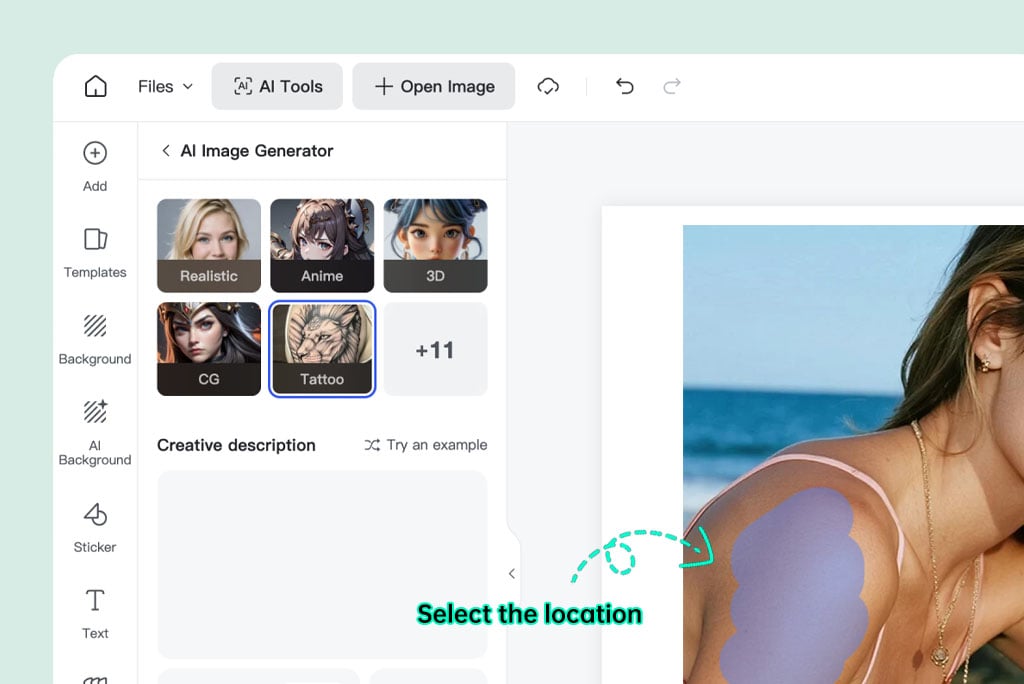
3 Mark the tattoo placement
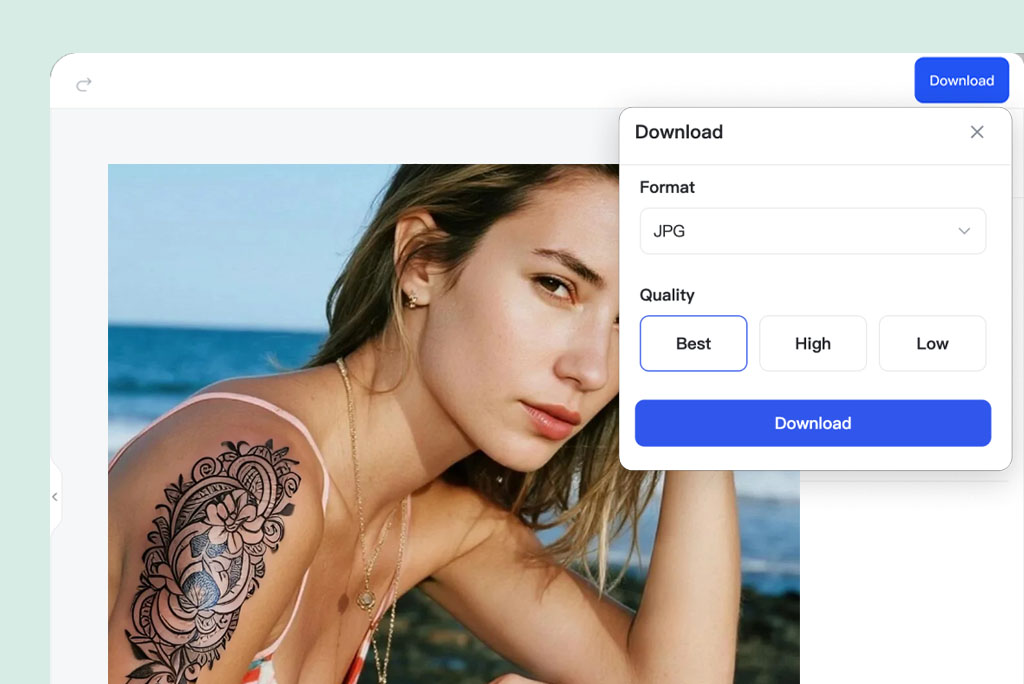
4 Preview, compare, and download
Tattoo Simulator Use Cases
Preview tattoo ideas in context before you sketch, post, or discuss them with an artist.
Explore Personal Tattoo Style
Test whether a fine-line, blackwork, floral, script, geometric, or color tattoo fits your body photo. Compare placements before choosing a direction.
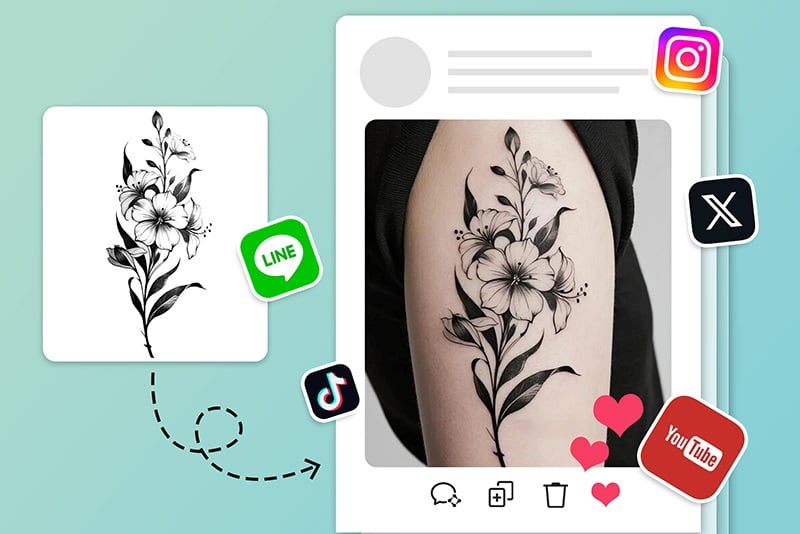
Create Social Media Tattoo Concepts
Make quick tattoo preview images for mood boards, posts, or style discussions. Use clear labels or captions so viewers know it is a visual concept.
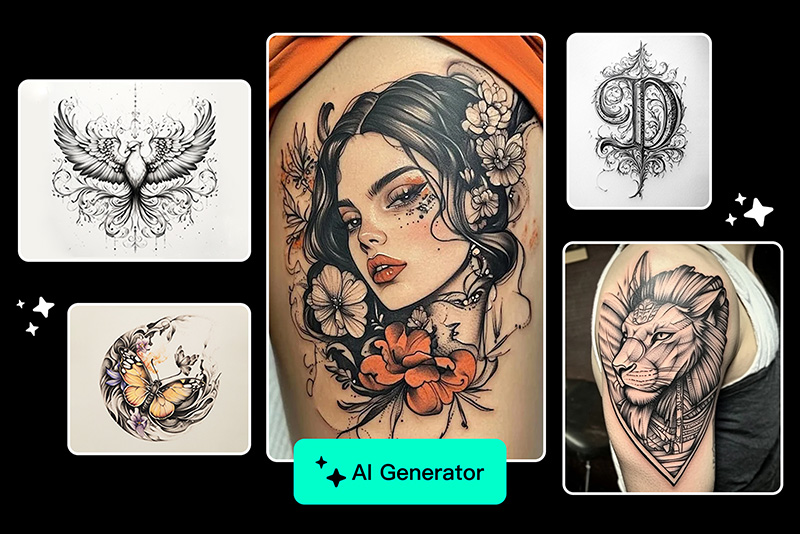
Reference Images for Tattoo Artists
Save a preview that shows placement, scale, and rough style. Bring it to a tattoo artist as a conversation starter, not as a finished stencil.
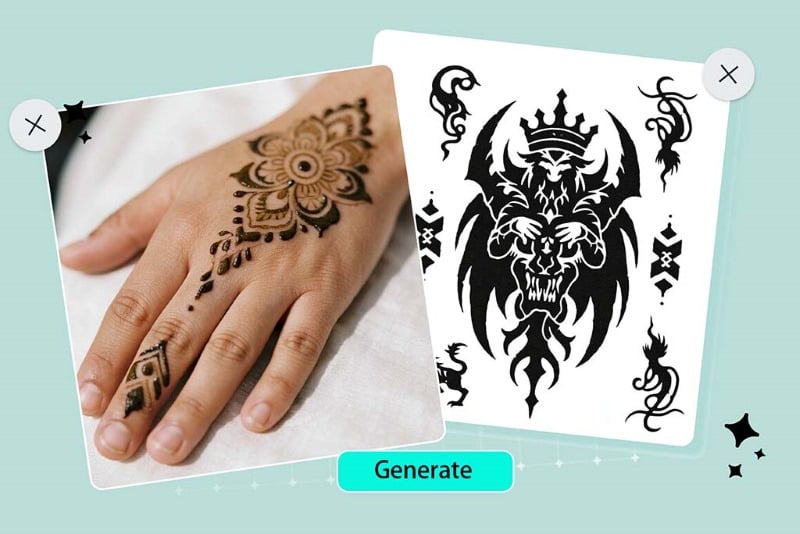
Temporary Tattoo and Sticker Ideas
Try a temporary tattoo concept on a body photo before printing stickers, party designs, event marks, or cosplay details.
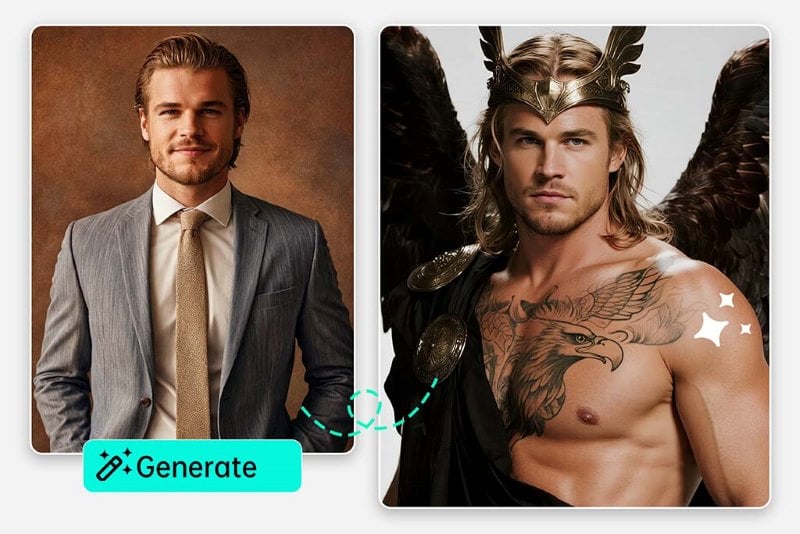
Cosplay and Character Details
Preview a character tattoo, symbol, or mark on the right body area so the costume detail feels intentional in photos.
Cover-Up Direction Checks
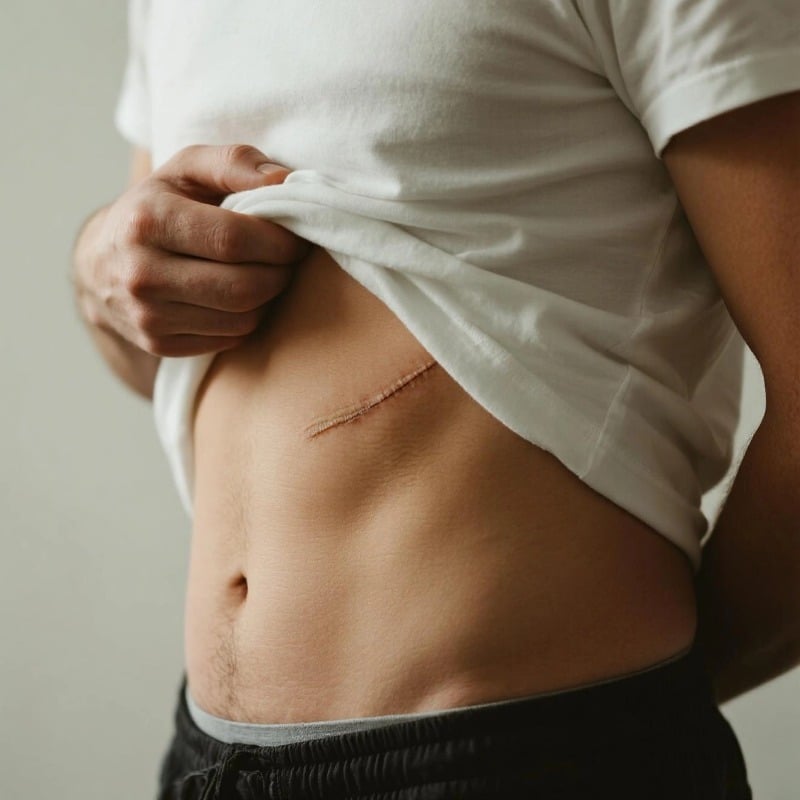
If you are thinking about covering an old tattoo, use the preview to explore broad directions. A professional artist should still judge what is realistic for the final cover-up.
Why Use insMind’s Tattoo Simulator?

Placement First
Preview the tattoo on your body photo, so size and placement are easier to judge than from a standalone design.

Prompt-Based Ideas
Describe the style you want and create quick visual directions for fine-line, floral, geometric, script, or blackwork tattoos.

Easy Comparison
Generate several versions and compare them before you share a reference with friends or a tattoo artist.
Tattoo Simulator FAQs
What is a tattoo simulator?


Can I try a tattoo on my own photo?
Is the tattoo preview exact?
What tattoo placements can I test?
What should I write in the prompt?
Can I use it for cover-up ideas?
Can I download the preview?
Design, Draw, and Refine Tattoo Ideas
Create a tattoo concept, turn sketches into art, or clean up the reference photo before sharing.

Hair Color Changer
AI Clothes Changer
AI Hairstyle Changer
Photo to Line Drawing
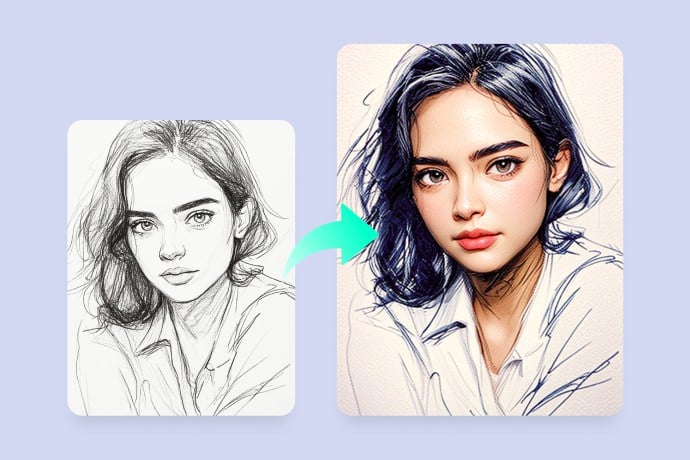
AI Sketch to Image Generator

Photo to Coloring Page
"I was planning for my next convention and insMind made it stress-free. I tried on character tattoos, and the results looked incredibly lifelike. My followers went wild when I shared the sneak peeks!"
@Sofia Patel, Cosplayer