
Turn Pictures into Coloring Pages with AI





Picture to Coloring Page Converter for Your Own Photos
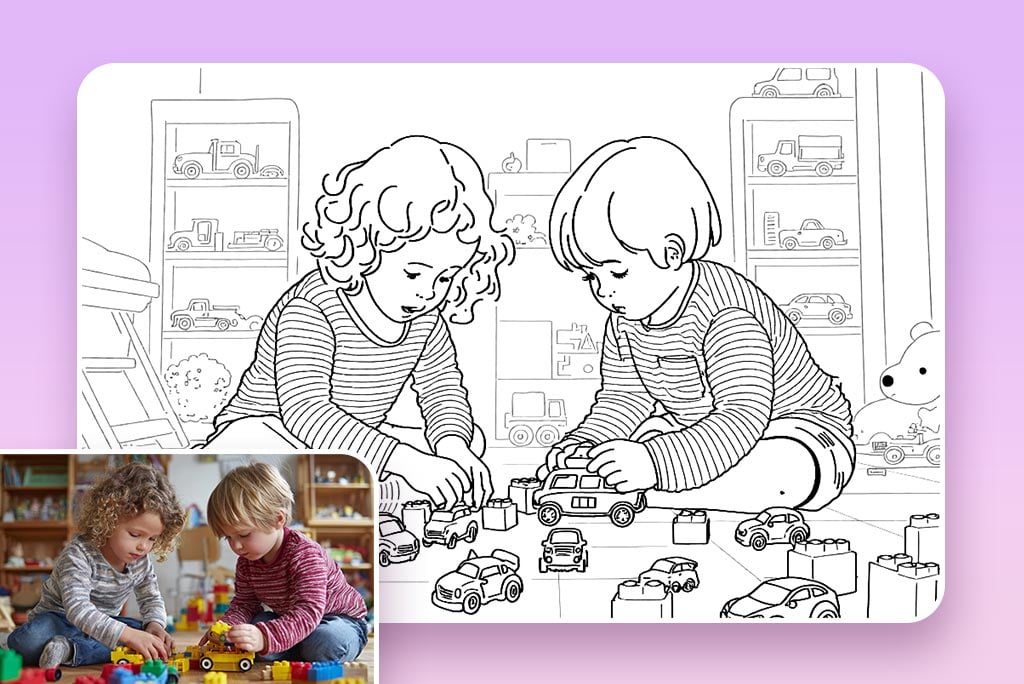
Create a coloring page from your own photo, whether it shows a portrait, pet, vehicle, object, or favorite memory. The converter redraws the picture as black-and-white line art while keeping the subject recognizable.
This coloring page creator works best with a clear image where the subject is easy to distinguish from the background. A simple composition usually produces lines that are easier to follow and color than a dark, blurry, or crowded photo.
Make Personalized Coloring Pages for Kids
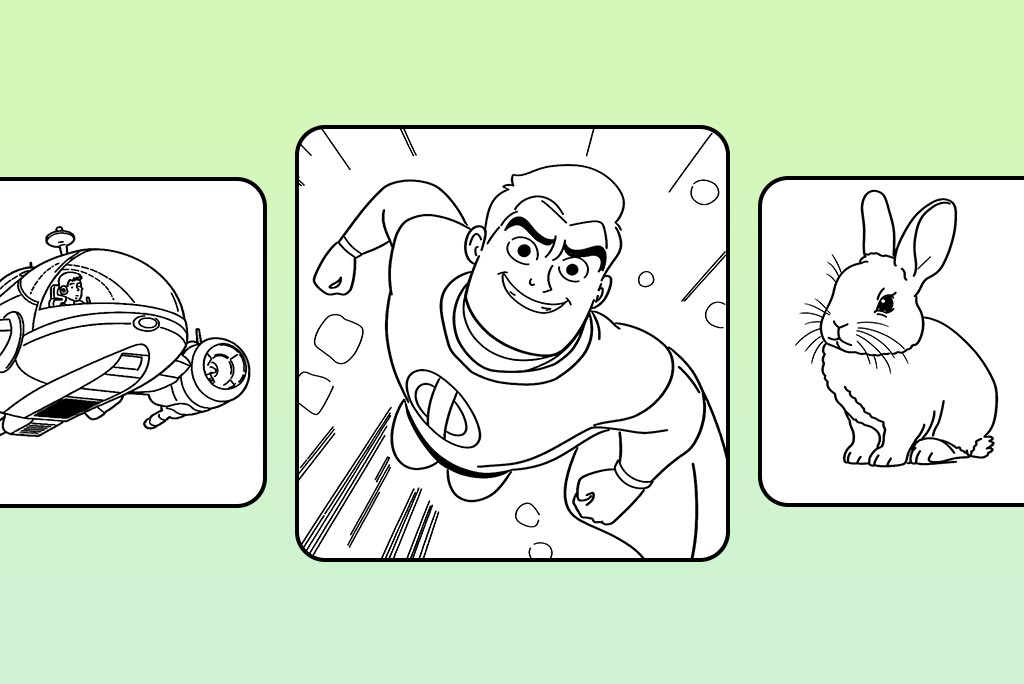
Create coloring pages for kids from familiar photos such as a family pet, a favorite toy, a simple portrait, or a classroom object. Familiar subjects can make an activity feel more personal without relying on a generic coloring-page library.
For younger children, choose a source with one large subject and limited background detail. Older children may enjoy scenes with more objects and smaller spaces. Review the result before printing and choose a version that suits the child's age and coloring ability.
Prepare a Coloring Page That Is Easier to Print
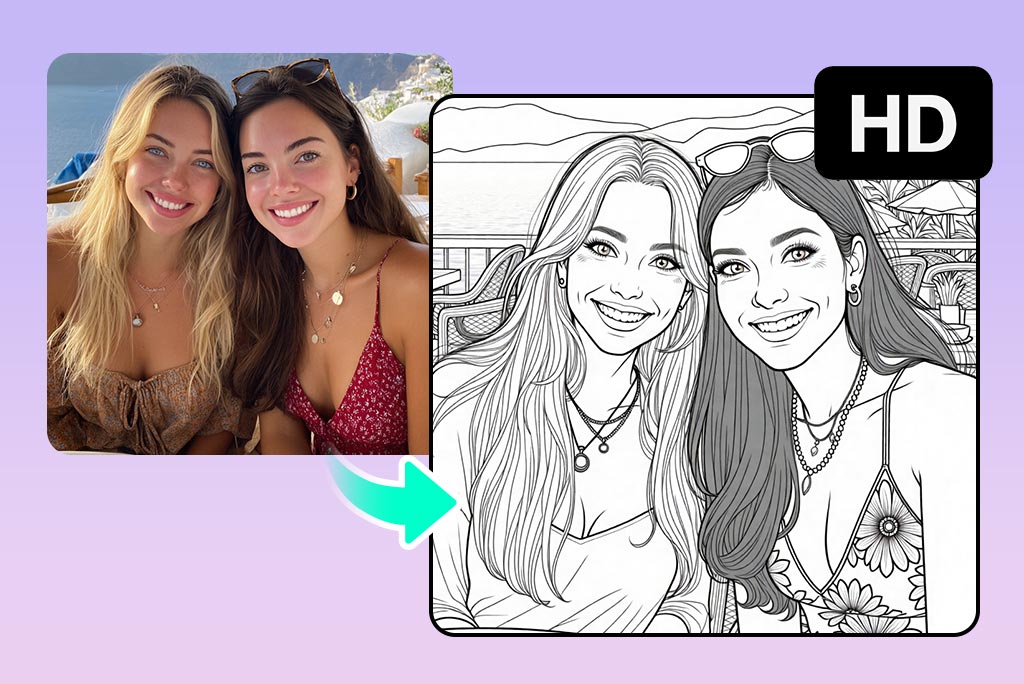
A printable page needs more than a black-and-white preview. Look for a clear subject outline, enough white space to color, and details that will remain visible at the intended paper size.
Preview the downloaded image before printing and run one test page when line weight or fine detail matters. If the source is visually busy, try a tighter crop or remove the background first with the background remover.
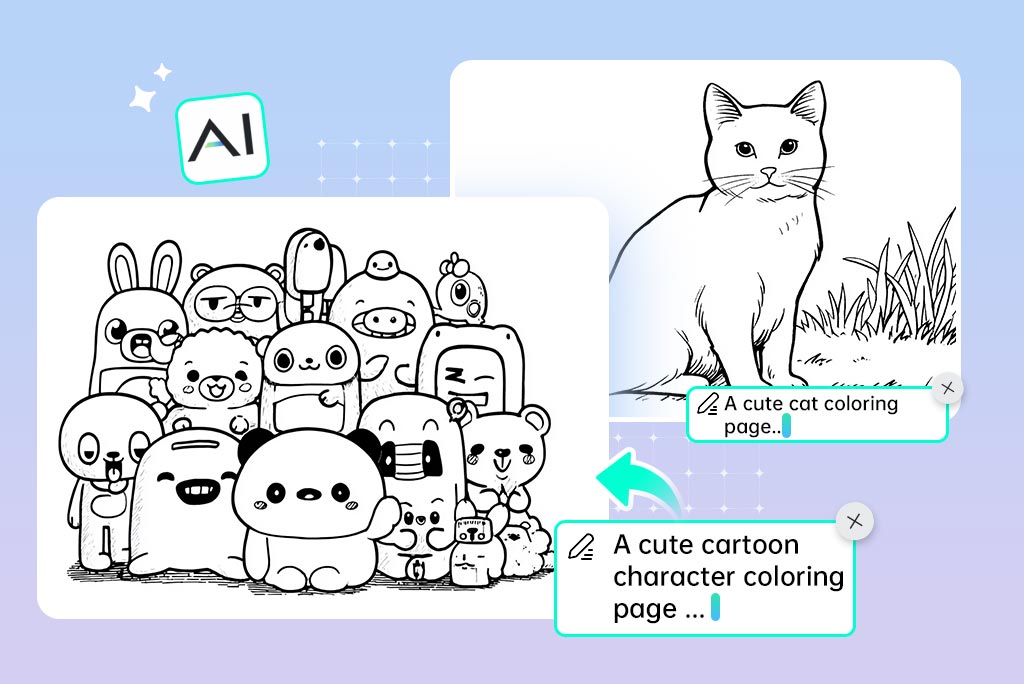
Use an AI Coloring Page Generator for a Text Idea
No suitable photo? Describe the scene you want in the AI image generator, then choose a line-art or coloring-book style when available. A prompt such as “a dinosaur playing guitar, simple outlines, large spaces to color” gives the generator useful subject and line-detail direction.
Text generation is a separate workflow from converting an uploaded photo. Use it for an original scene; use this page when the source picture itself needs to remain recognizable in the coloring page.
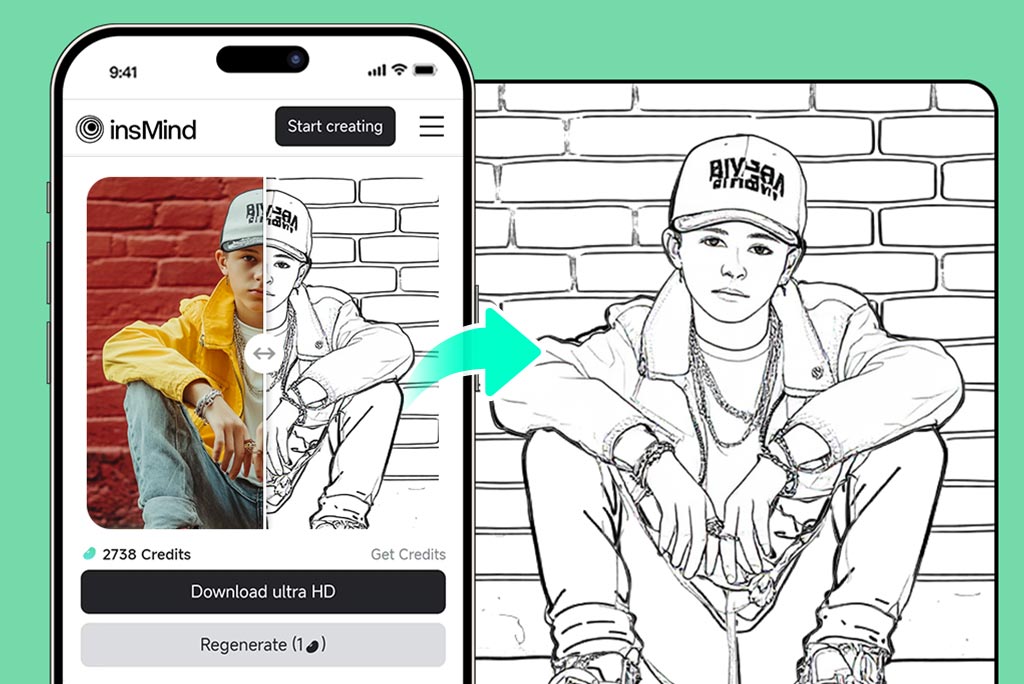
Turn a Picture into a Coloring Page on Mobile
Open the converter in a phone or tablet browser, upload a picture, and use the same Coloring Book workflow without installing a separate app. A vertical photo can be convenient for a portrait page, while a horizontal image may suit a wider scene.
Before downloading, zoom in and check faces, hands, text, and small objects. If the first version is too dense or misses an important feature, try a clearer crop or generate another result.
Choose a Different Line, Outline, or Drawing Effect
How to Turn a Picture into a Coloring Page Online
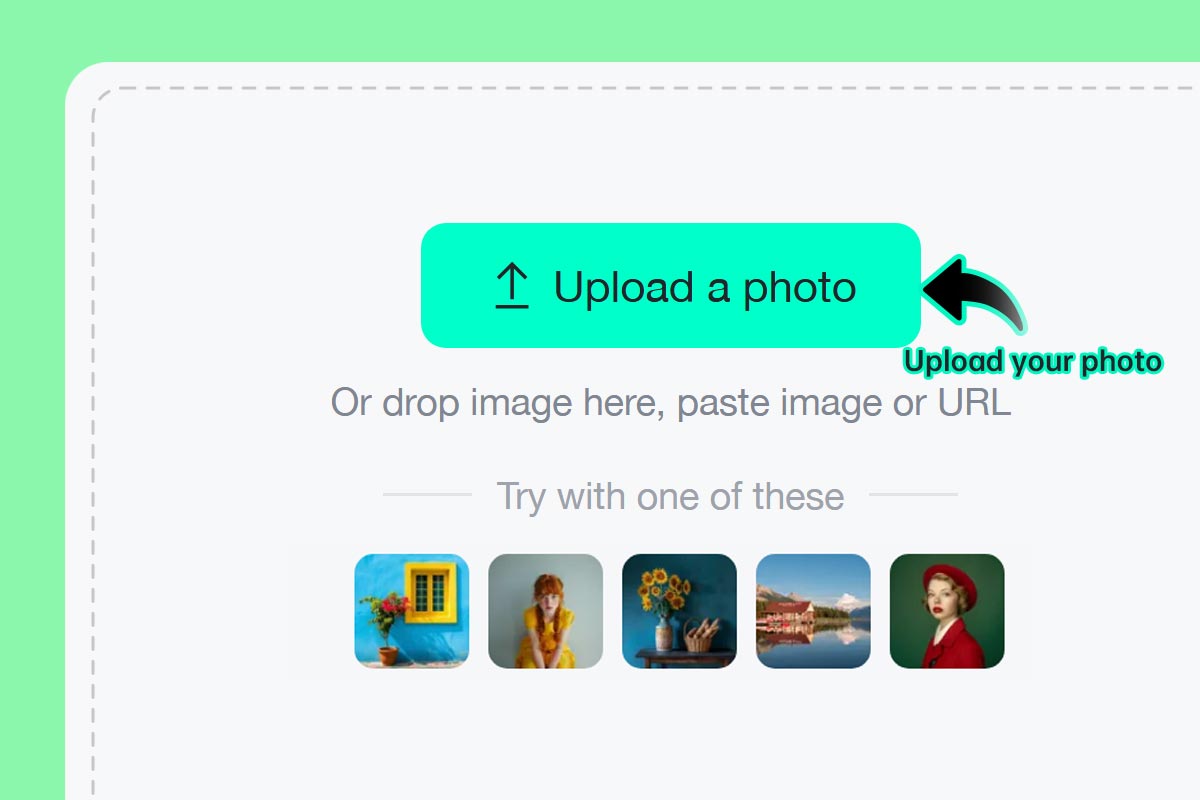
1 Step 1: Upload a Clear Photo
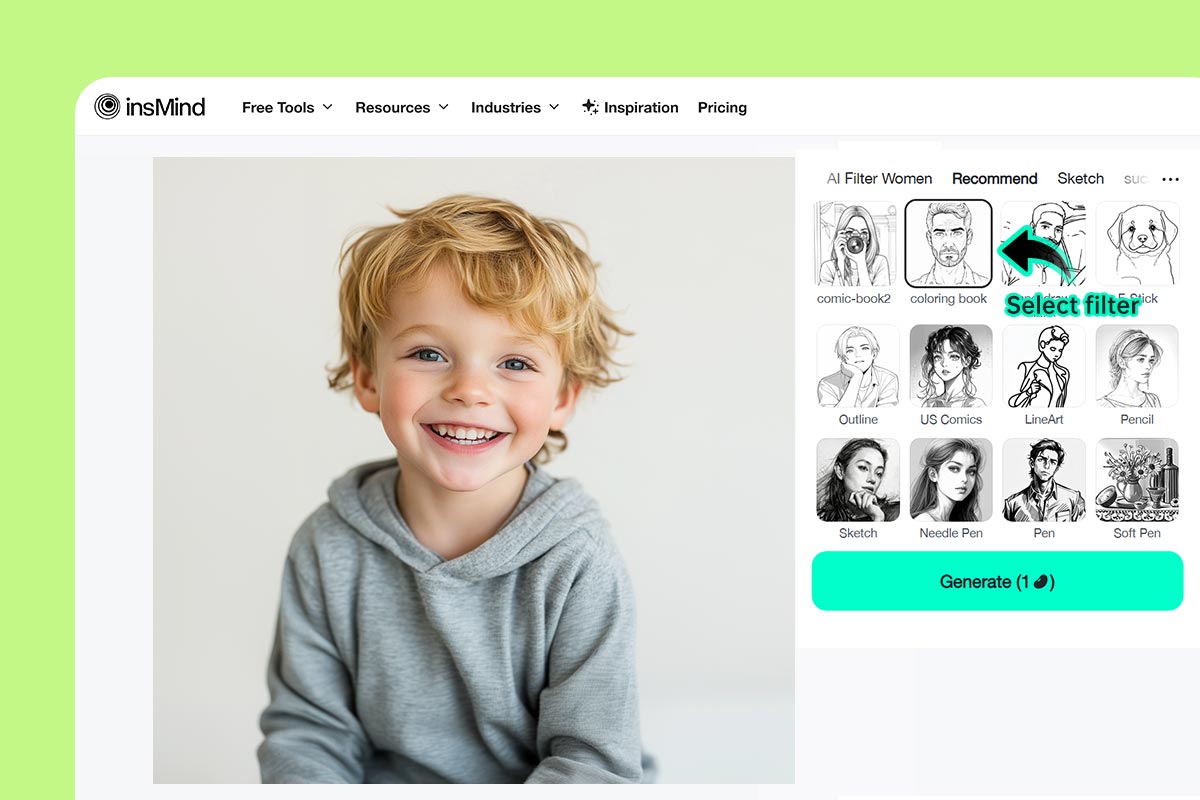
2 Step 2: Choose the Coloring Book Style
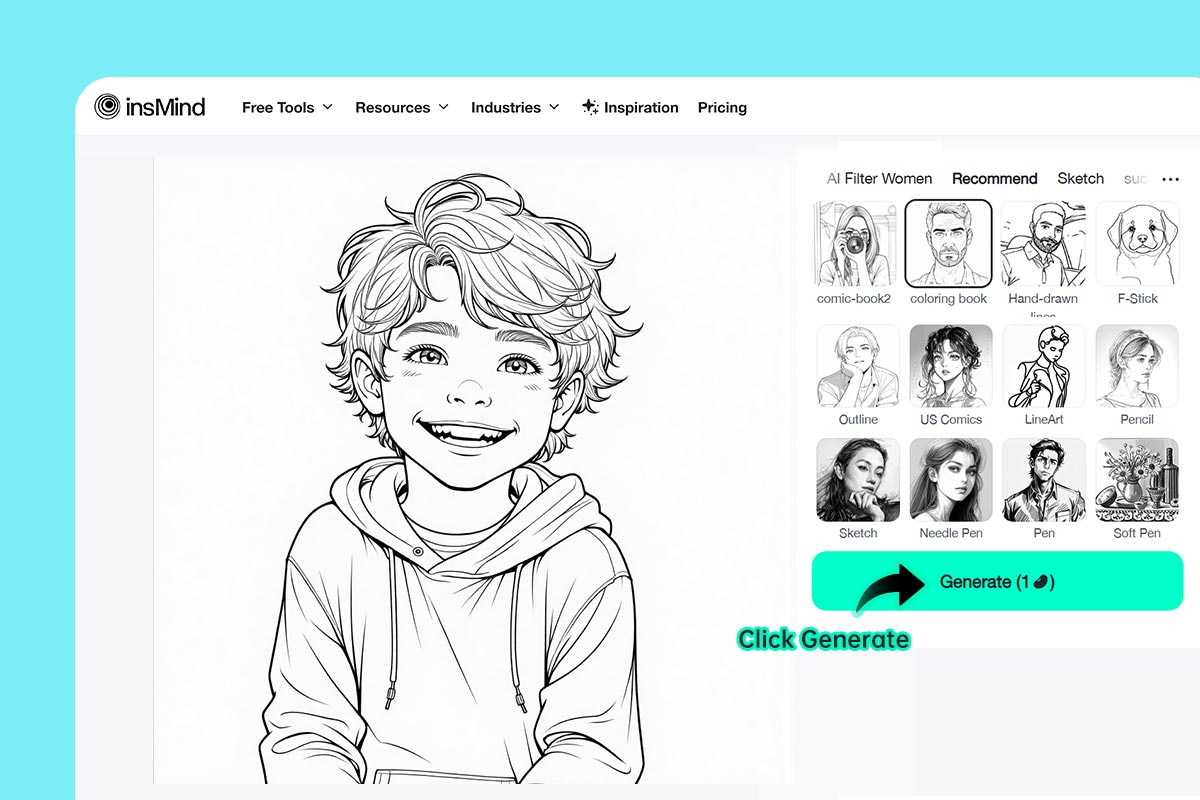
3 Step 3: Generate and Review the Lines
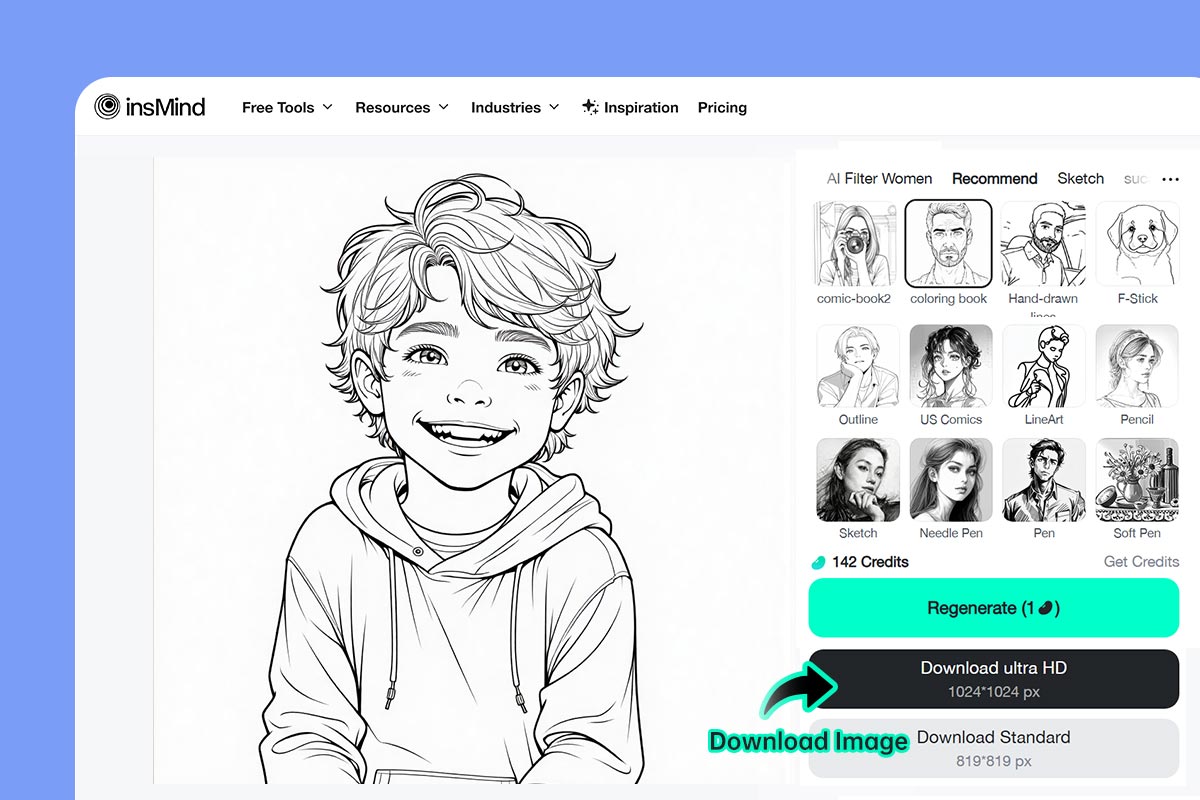
4 Step 4: Download and Test the Page
Turn Different Pictures into Coloring Pages
The best source depends on the page you want to color. Use clear subjects for simple pages, and keep more background detail only when the scene itself is part of the activity.
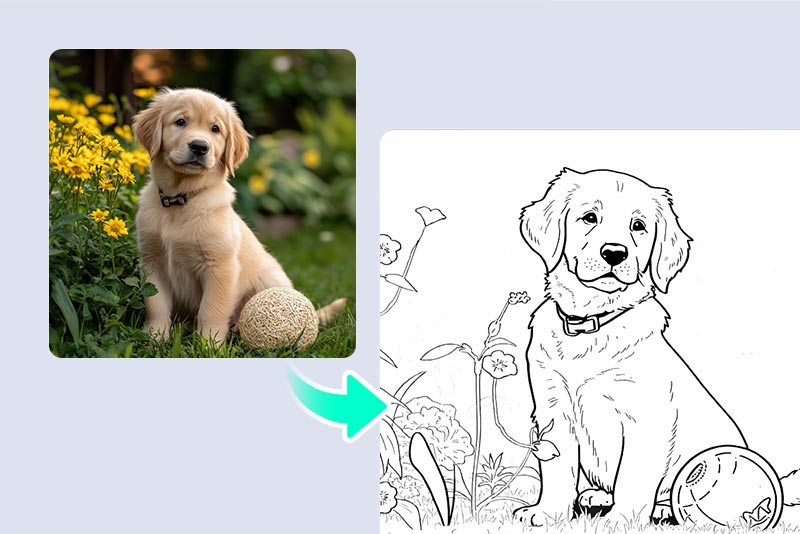
Pet and Animal Coloring Pages
Turn a clear pet or wildlife photo into a familiar page. Check fur, whiskers, ears, and overlapping legs; a quieter background helps the animal remain the focus.
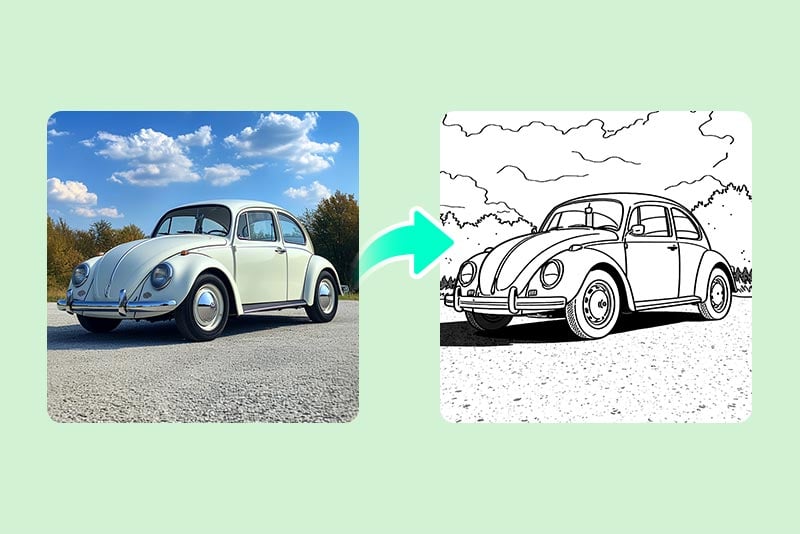
Cars and Vehicle Coloring Pages
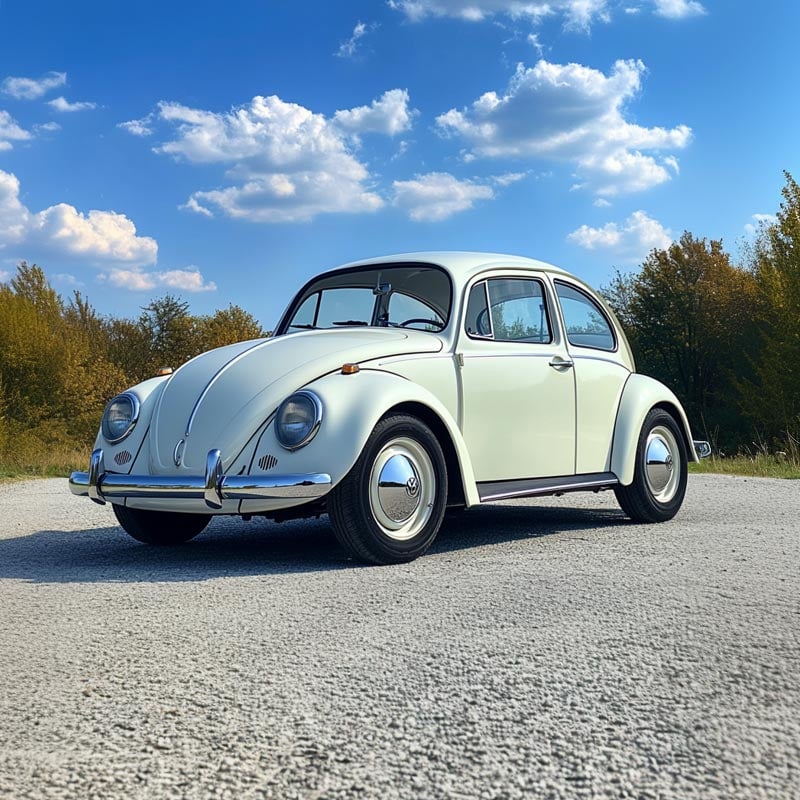
Use a side view or three-quarter vehicle photo with visible wheels and body lines. Reflections, busy streets, and dark shadows can add extra marks, so compare the generated page at print size.
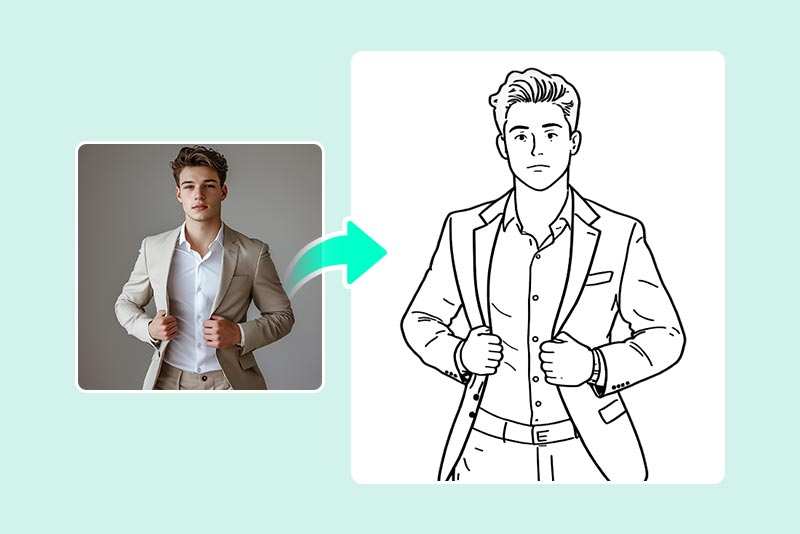
Portrait and Character Coloring Pages
Create a page from a portrait, costume, or original character image. Choose a photo where the face is large enough to recognize, and inspect eyes, hair, hands, and clothing details before download.
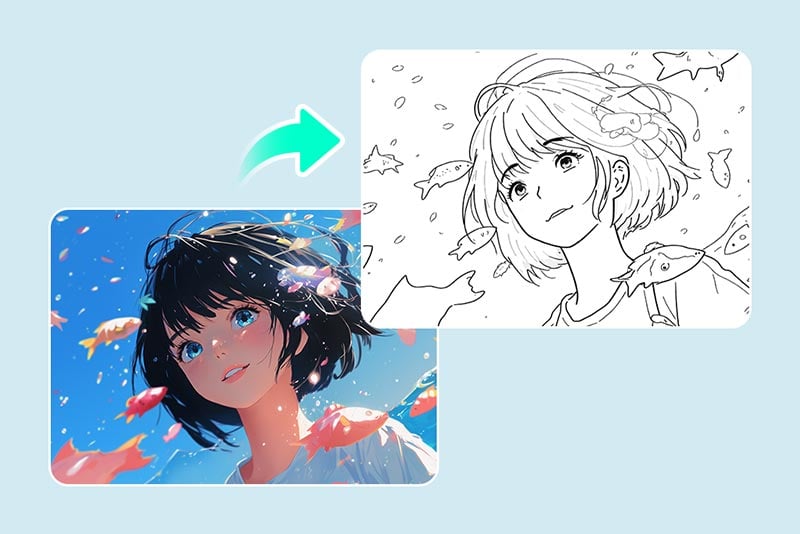
Cartoon and Anime Coloring Pages
Convert your own cartoon or anime-style image into a colorable version. If you need to create the source artwork first, use the cartoon generator or anime generator, then return with the finished image.
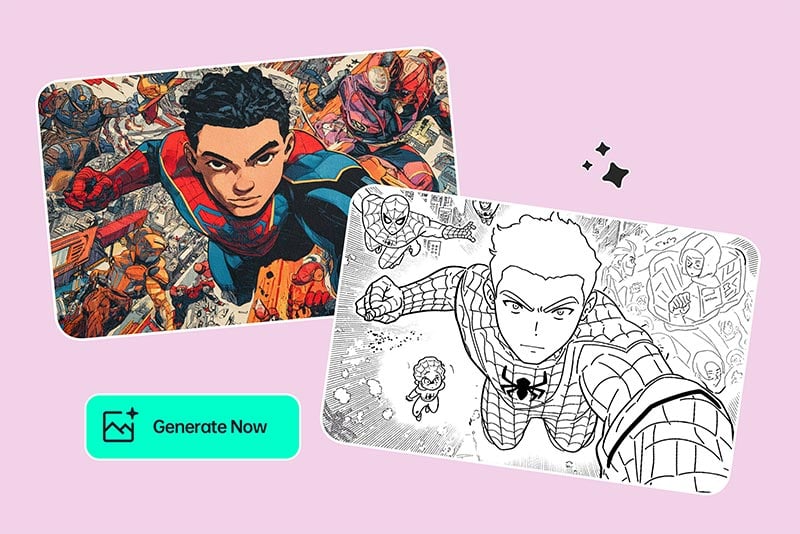
Costume and Hero-Themed Coloring Pages
Turn an original costume photo or hero-style pose into a bold coloring activity. Use images you have permission to edit and share, especially when the source includes a protected character or branded design.
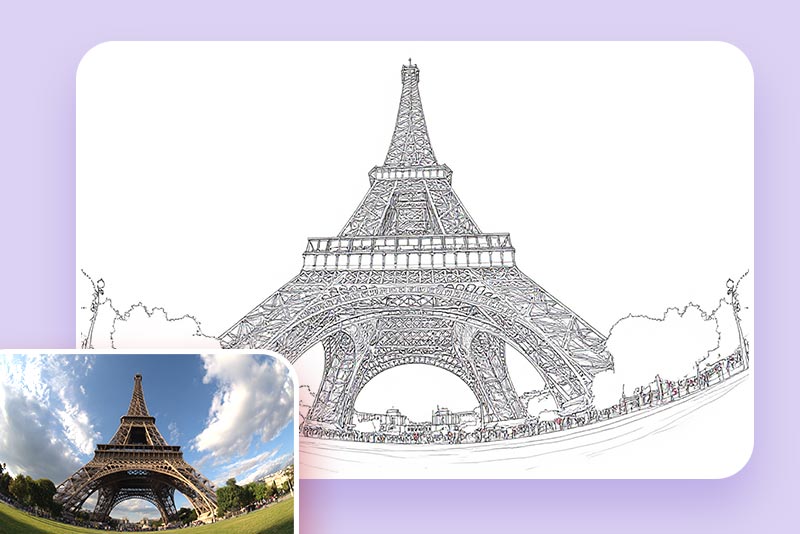
Buildings and Travel-Memory Pages
Convert a landmark, house, or vacation photo into a page that preserves the shapes you remember. Crop out unrelated people and clutter when the building should be the main subject.
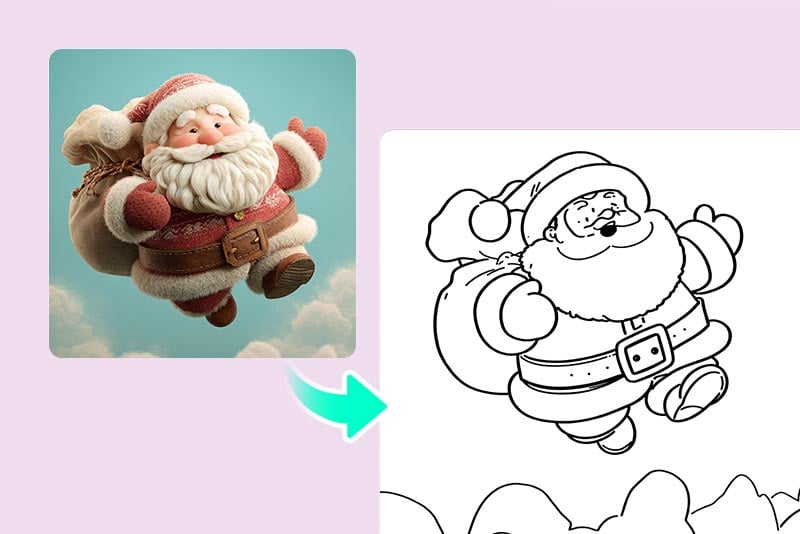
Holiday and Event Coloring Pages
Use a family event, decoration, costume, or seasonal scene to create a personalized activity. Faces and key objects should be well lit; very crowded group photos may produce dense lines.
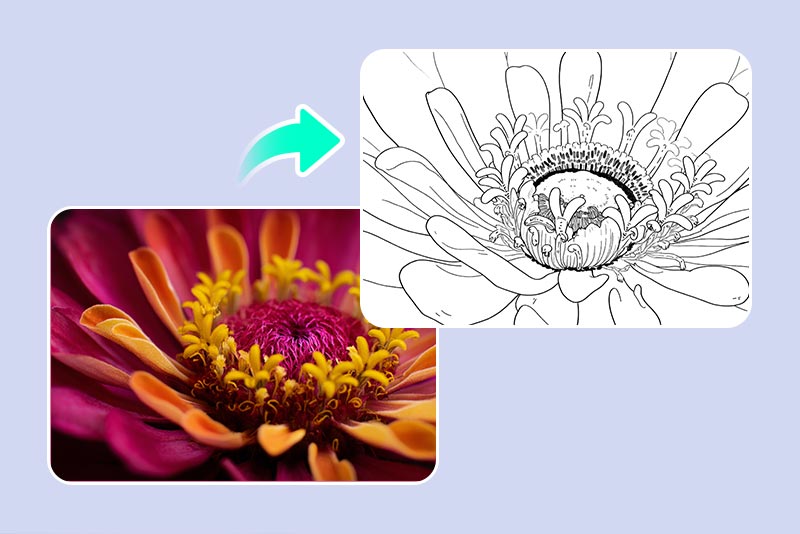
Nature, Flowers, and Pattern Pages
Transform a flower, leaf, landscape, or repeating pattern into a page for slower, detailed coloring. For a simpler craft outline, compare the picture stencil maker.
Ways to Use a Custom Coloring Page
Match the source photo, line detail, and page size to the person who will color it and the setting where it will be used.
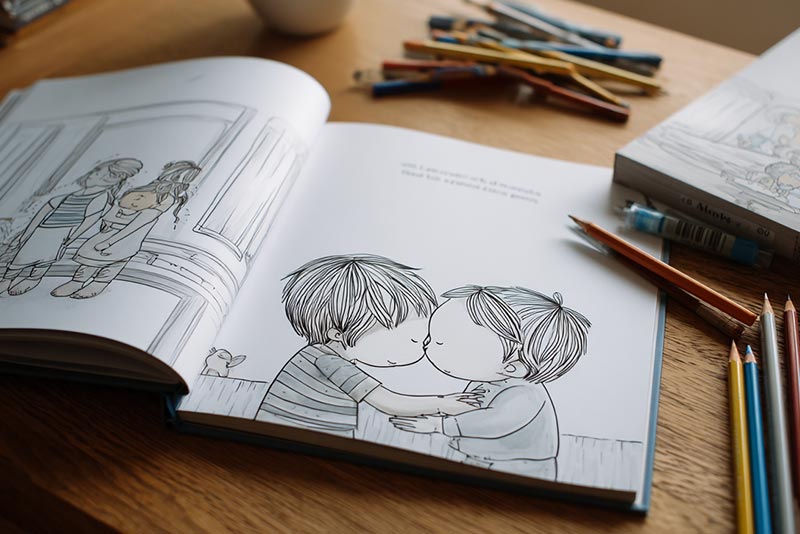
A Personalized Kids' Activity
Turn a child's pet, toy, family moment, or favorite place into a coloring page made specifically for them. Choose fewer details and larger open areas for younger children.
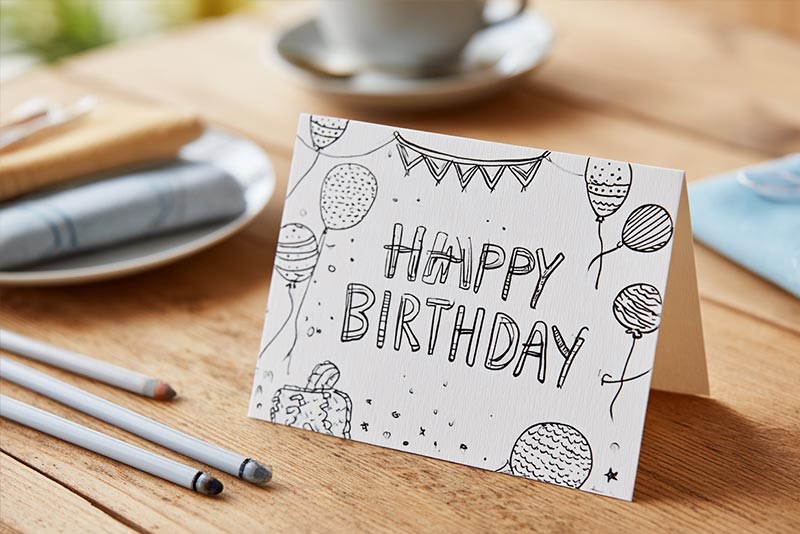
A Photo-Based Gift
Create a page from a shared memory and include it in a card, keepsake, or activity pack. Test the print first so faces and meaningful objects remain recognizable.
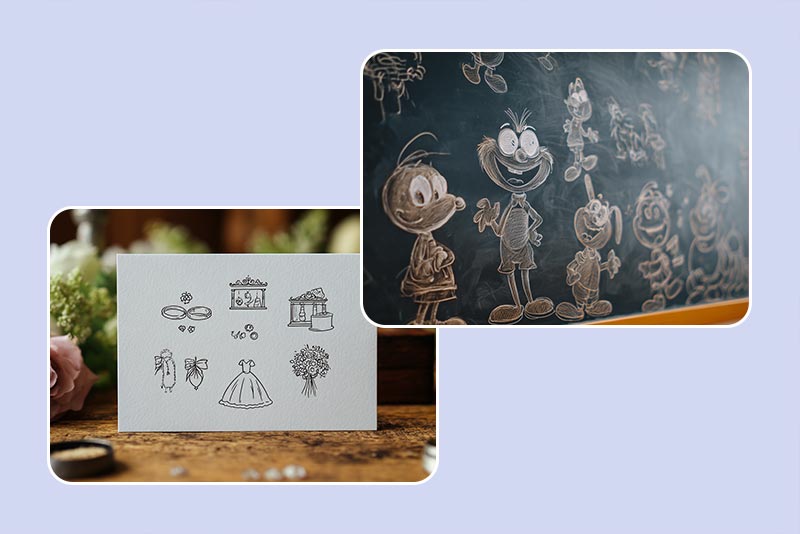
Classroom and Event Activities
Prepare pages around a lesson object, school event, birthday, wedding, or seasonal gathering. For a set, keep the same paper orientation and a similar level of detail from page to page.
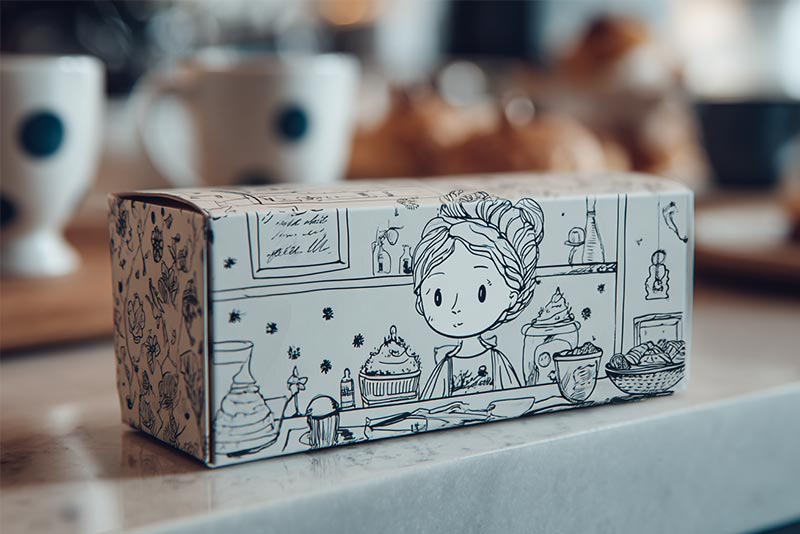
Tracing, Stencils, and DIY Planning
Use the generated page as a visual starting point for tracing or craft planning. When you need only the outer boundary rather than colorable internal detail, compare the photo outline or line drawing tools.
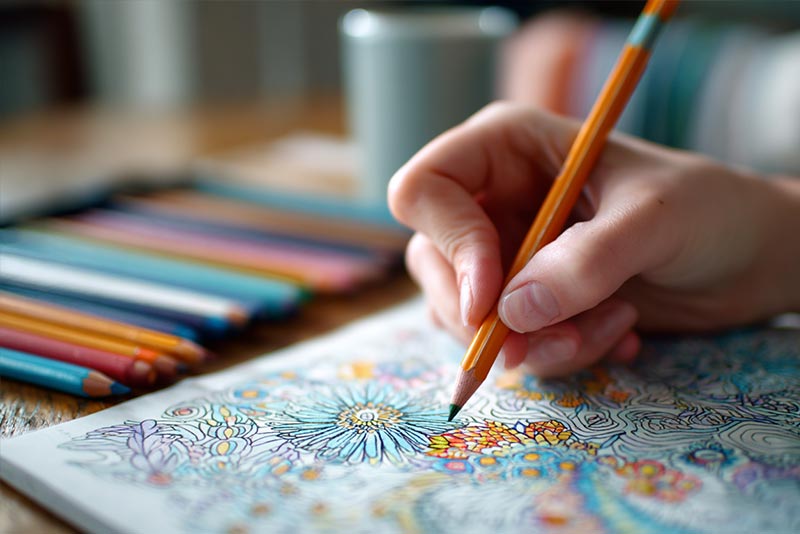
A Detailed Coloring Break for Adults
Choose flowers, architecture, landscapes, or patterned objects when you want smaller spaces and more detail. A cleaner source still matters because background noise can become distracting lines.
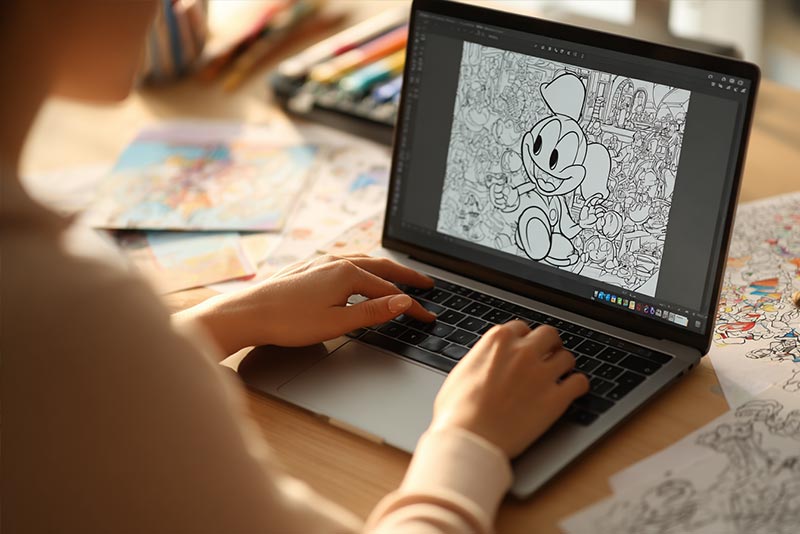
A Personal Coloring-Book Collection
Convert several photos one at a time, then arrange the downloaded pages in a consistent order and size. If you plan to publish, distribute, or sell the collection, confirm that you have the necessary rights to every source image and generated element.
What People Create with the Photo-to-Coloring Page Converter
Why Use insMind to Turn a Photo into a Coloring Page?

A Direct Photo-to-Page Workflow
Upload one picture and open it in the Coloring Book effect without manually tracing the subject. You can review the generated result and try again when the line detail does not fit the page you want.

Several Line-Based Looks to Compare
A coloring page, sketch, outline, and stencil serve different purposes. Compare the available styles and choose open areas for coloring, an outer outline for tracing, or more detail for an adult page.

Works in a Desktop or Mobile Browser
Create the page from a computer, phone, or tablet browser. The most important quality check is the saved result at its final viewing or print size, not only the editor preview.
Photo to Coloring Page FAQs
How do I turn a picture into a coloring page?


Can I turn pictures into coloring pages for free online?
What photos make the best printable coloring pages?
Can I create coloring pages for kids from family photos?
What is the difference between a coloring page, line drawing, outline, and sketch?
Can I create a coloring page from text instead of a photo?
Can I turn a photo into a coloring page on my phone?
Compare Coloring, Line, Outline, and Sketch Effects
Choose the effect that matches the next task: open spaces for coloring, clean boundaries for tracing, or shading for an illustrated finish.
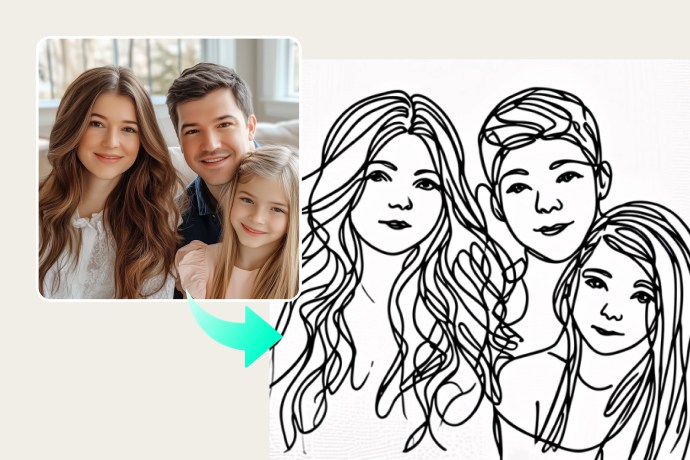
Photo to Line Drawing

Photo to Sketch
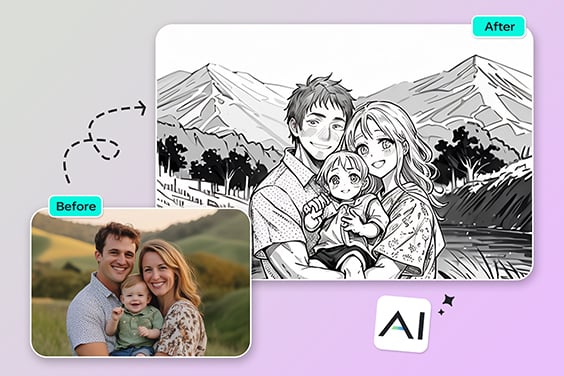
Photo to Outline
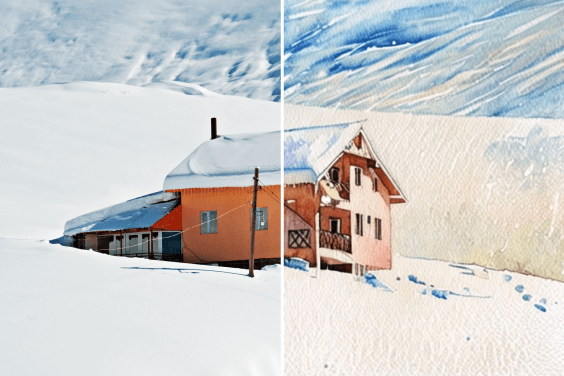
Photo to Watercolor
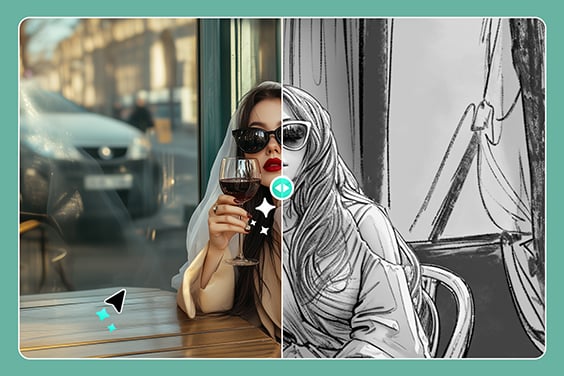
"I have used multiple photo to coloring page converters, but this one is just amazing. I typed a few ideas and got the drawing within seconds. It's a must-try, guys!"
@Katie Lee, Freelance Illustrator