
Seedream 5.5 AI Image Generator
What's New in Seedream 5.5 AI Image Generator?
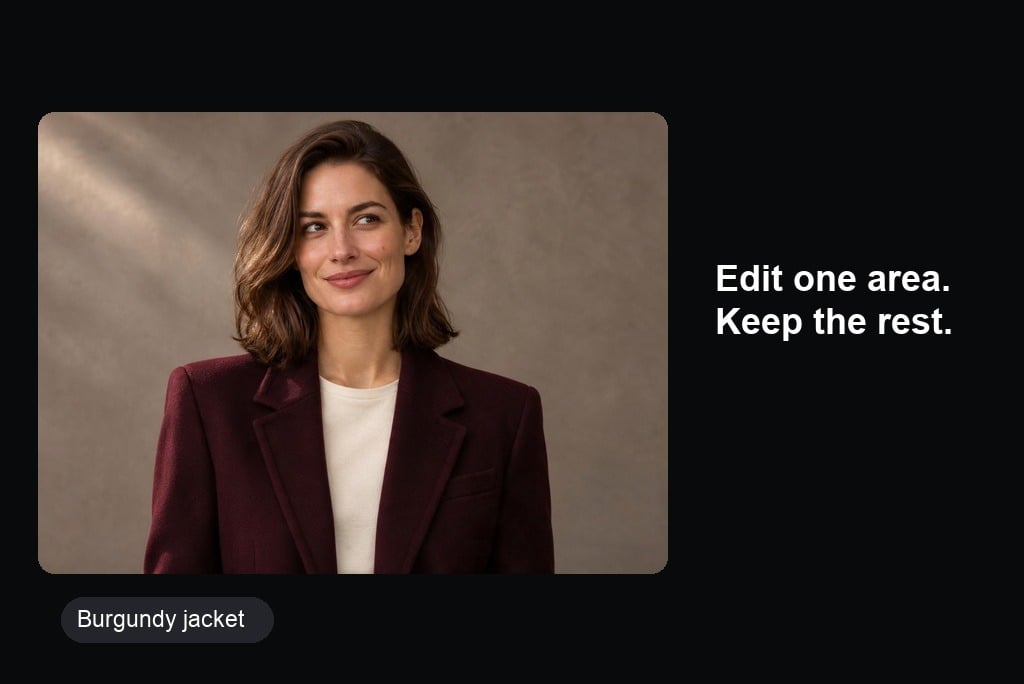
Stable Multi-Turn Editing
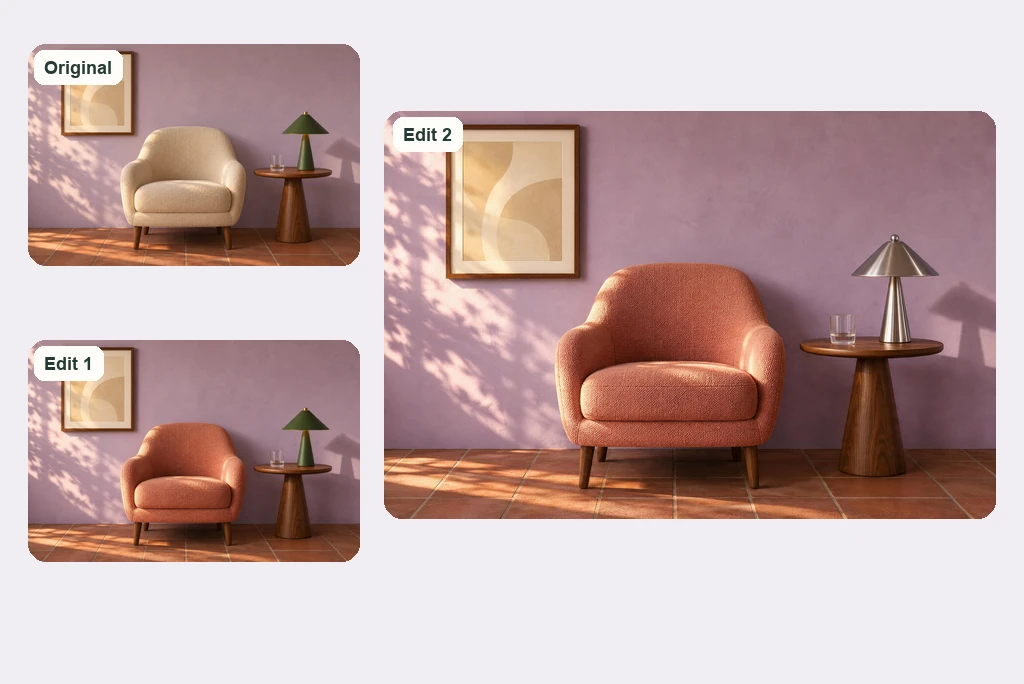
Keep refining an image through successive edits without rebuilding the scene. Change an outfit, add an accessory, or update the background while keeping the subject and composition consistent. Seedream 5.5 improves preservation of unchanged areas and reduces unwanted color shifts and detail loss, making it easier to develop one idea through several creative revisions.
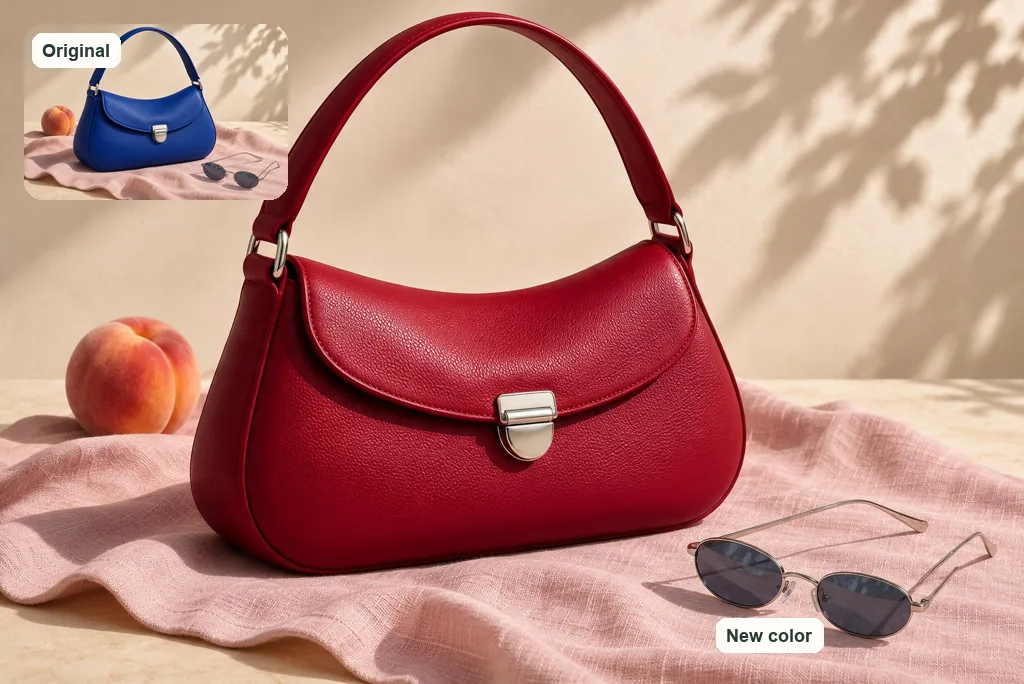
Change One Detail, Keep the Rest
Make a focused change while keeping the surrounding image consistent. Recolor a bag, replace a lampshade, or adjust a single object without redesigning the whole scene. Seedream 5.5 considers lighting, shadows, perspective, and nearby details to make edits fit naturally. Use the image-to-image generator to guide changes with your own reference photo.
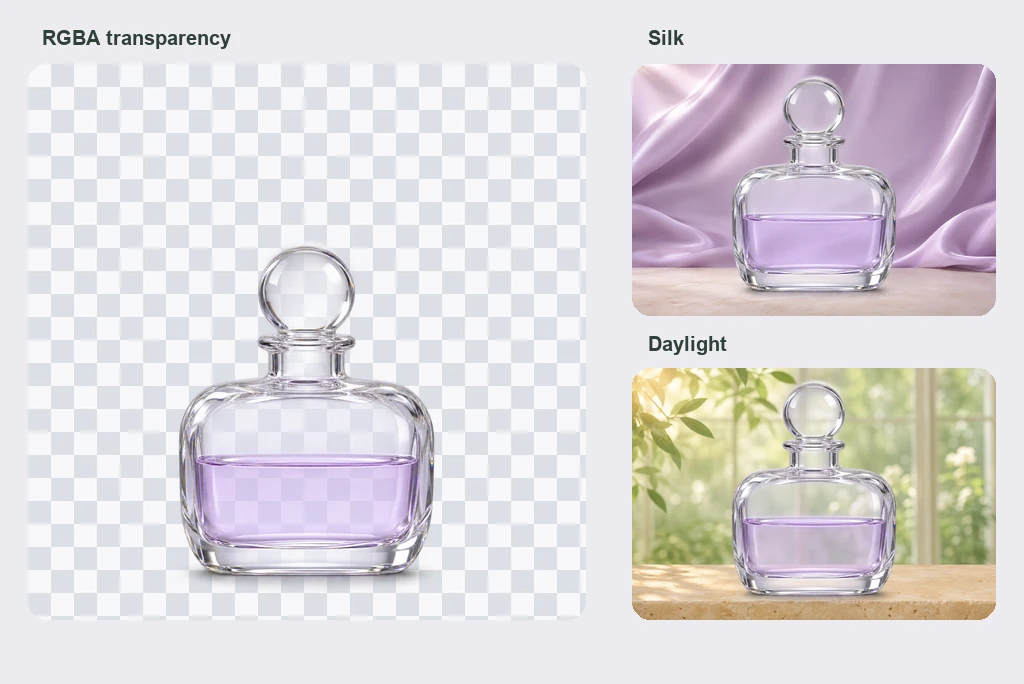
Create Transparent Assets
Create standalone characters, stickers, and product elements with native RGBA transparency. Seedream 5.5 supports both fully transparent backgrounds and partially transparent materials, including glass, tinted liquids, and soft shadows. Keep fine edges and highlights while allowing new backgrounds to show through, so the same asset blends naturally into posters, packaging, presentations, and social graphics.
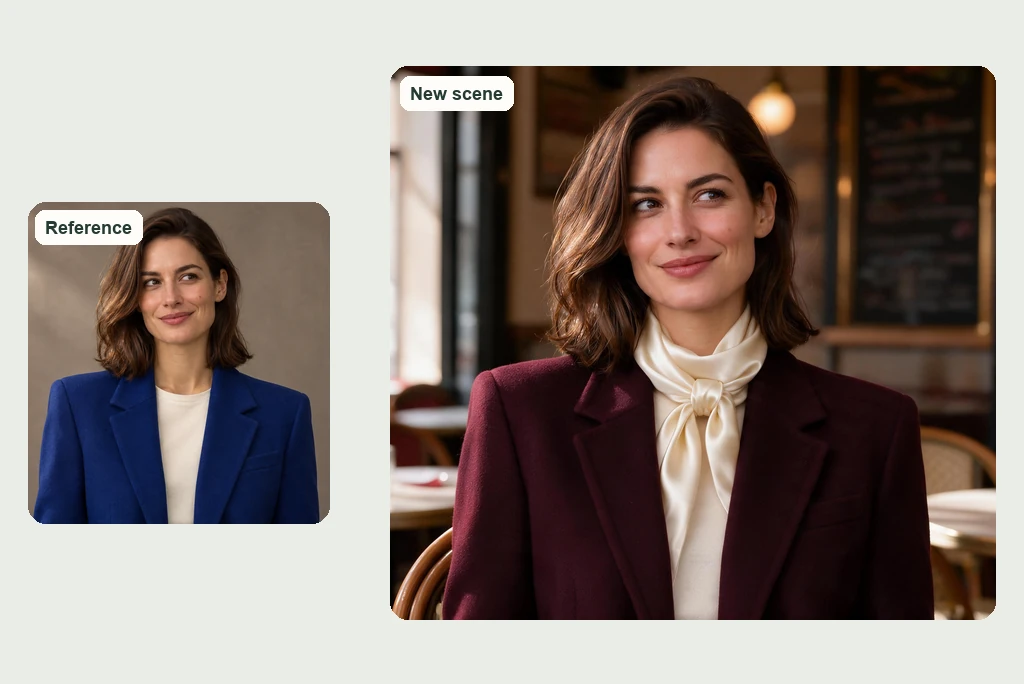
Lifelike People and Materials
Create portraits and product scenes with believable textures and natural light. Seedream 5.5 brings more attention to skin, fabric, glass, reflections, and subtle shadows, reducing the artificial gloss that can make generated images feel unnatural. Start with a reference image to guide the subject, then explore new settings while keeping the visual details coherent.
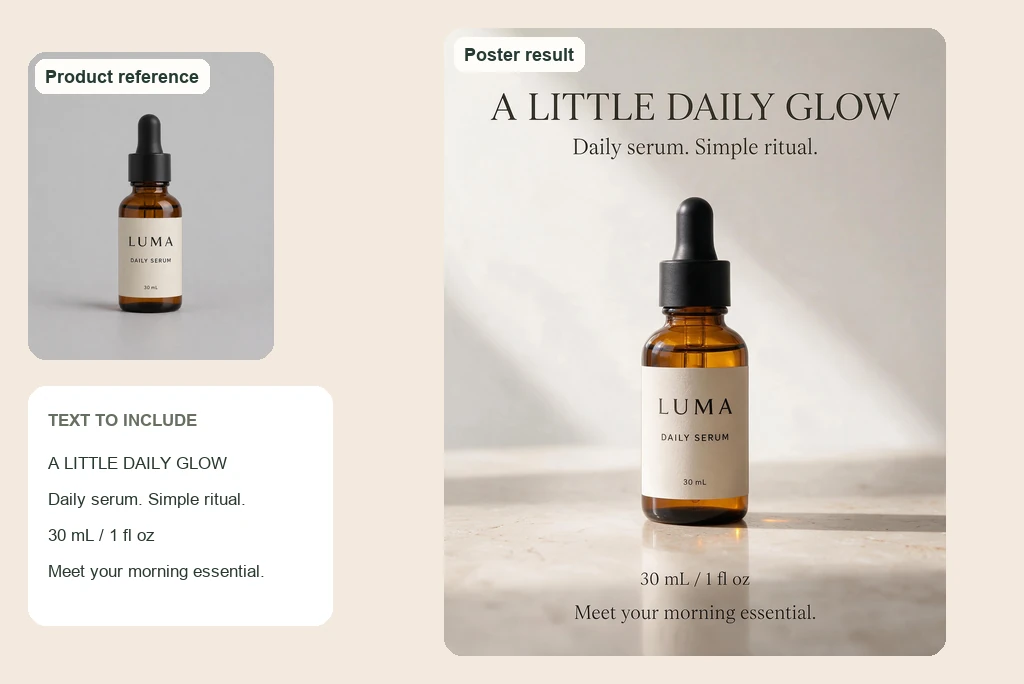
Clear Text for Posters and Ads
Build posters and advertisements that combine polished visuals with readable typography. Seedream 5.5 improves complex character shapes and densely arranged small text, helping headlines, product labels, and supporting copy work together. Specify the exact wording, hierarchy, and placement in your prompt to shape the design, then review the result and refine any details before publishing.
Explore Seedream 5.5 Image Editing and Generation Examples
How to Create AI Images with Seedream on insMind
Step 1: Describe Your Image
Enter a text prompt explaining what you want to create. Include the subject, visual style, composition, lighting, materials, and any text you want to appear in the image.
Step 2: Upload a Reference Image (Optional)
Add a reference photo when you want to guide the appearance of a product, character, environment, or existing composition. Describe what should change and which details should remain.
Step 3: Generate Your Image
Choose your image settings, review the displayed credit cost, and generate your result.
Step 4: Refine and Download
Review the generated image and adjust your instructions if necessary. Refine important details, try alternative compositions, and download your preferred result.
6 Creative Ways to Use Seedream 5.5
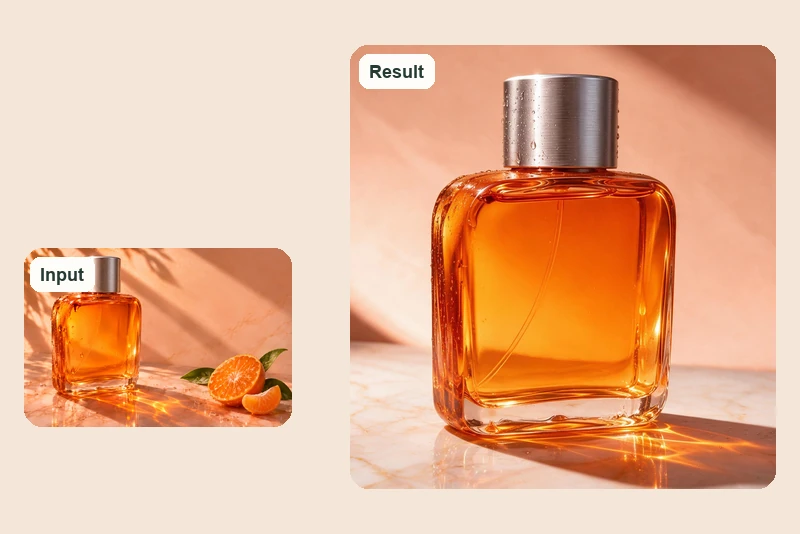
Product Photography and E-commerce
Turn a product reference into a new campaign scene while keeping its shape, materials, and branding recognizable.
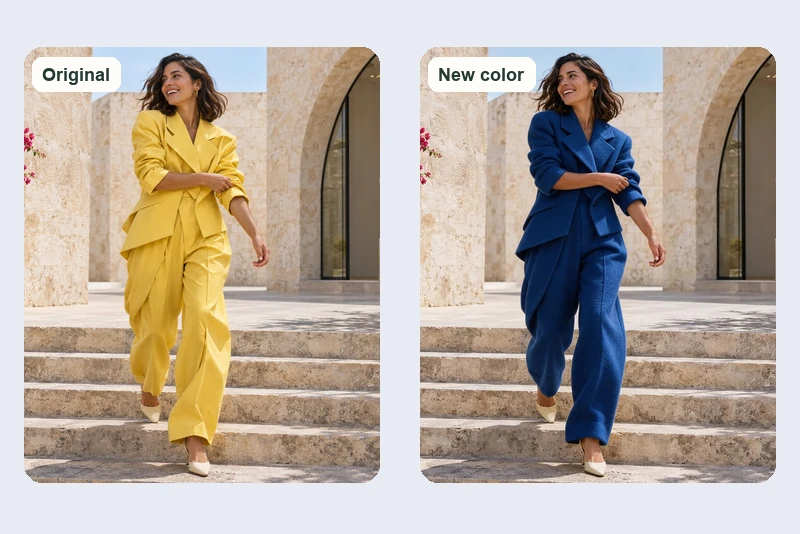
Fashion Photography and Styling
Explore new outfit colors and styling directions while preserving the model, pose, lighting, and location.
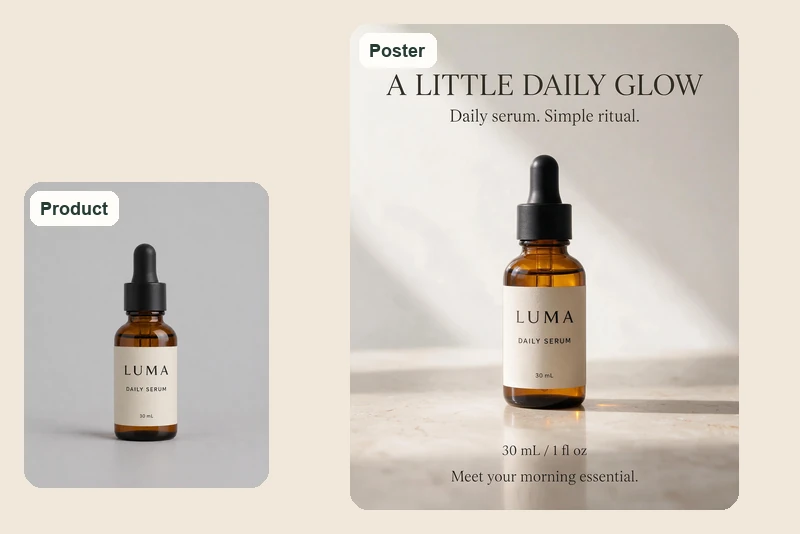
Posters and Text-Rich Ads
Combine product images with headlines and small print to create clear, polished promotional posters.
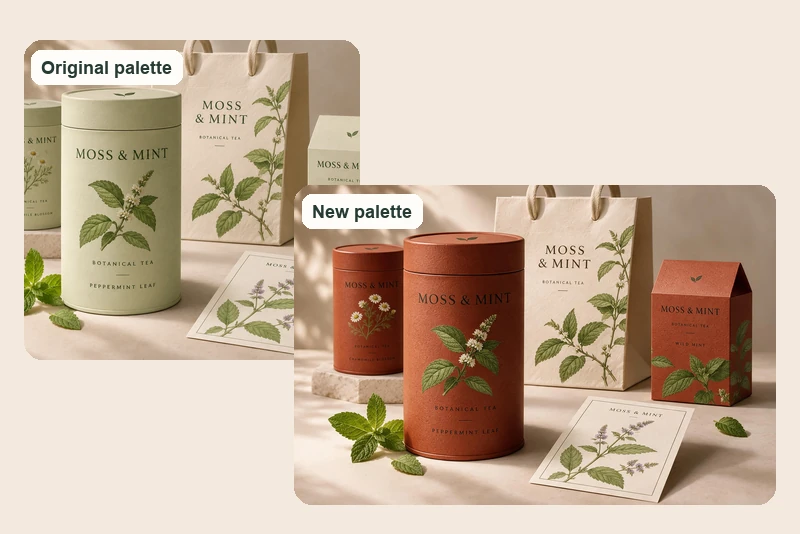
Packaging and Brand Concepts
Test coordinated packaging palettes while preserving package shapes, label placement, and brand details.
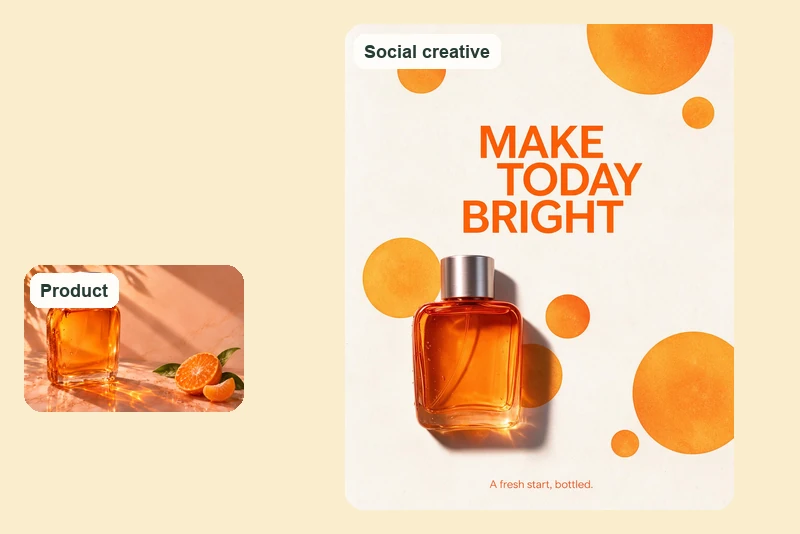
Social Media Campaigns
Turn one product into a social campaign with a fresh layout, colors, and message. Refine copy with image text editing tools.
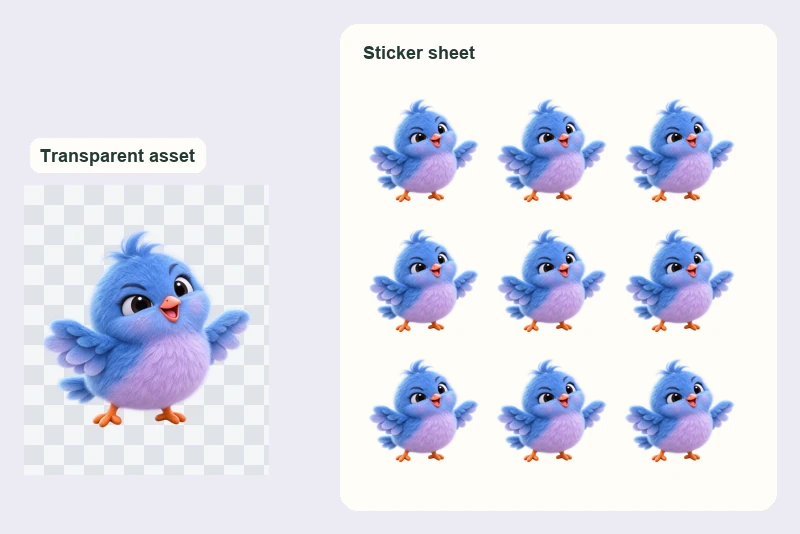
Transparent Stickers and Assets
Place transparent characters and graphics into sticker sheets and new layouts. Create cutouts from existing images with the background remover.
Why Choose insMind for Seedream AI Image Creation?

Create in One Simple Workspace
Turn prompts and reference images into new creative directions, then refine your favorite results with insMind’s connected image tools.

Generate Images from Text or Visual References
Start with a detailed prompt or upload reference images to guide your subject, style, composition, and creative direction. Explore new visuals or develop alternative versions of existing images.

Keep Image Editing Tools in One Workspace
Move between generation, image enhancement, background removal, and other creative tasks using insMind's connected image tools. Refine your visuals without rebuilding your entire workflow.

Explore Multiple AI Image Models
Discover different AI image models and compare their creative possibilities. Find a workflow that fits your visual goals, whether you're designing portraits, marketing graphics, product concepts, or illustrations.

Learn from Copyable Creative Examples
Explore practical image-generation and editing prompts, customize them for your own subject, and refine your ideas with more specific instructions.

Review Settings and Credit Costs Before Generating
Check the active model, available output settings, and displayed credit requirements before starting a generation. Choose the options that match your project.
Frequently Asked Questions About Seedream 5.5
What is Seedream 5.5?


When was Seedream 5.5 released?
Is Seedream 5.5 available on insMind?
What is the difference between Seedream 5.5 and Seedream 5.0 Pro?
Does Seedream 5.5 support 100 rounds of image editing?
Can Seedream 5.5 generate images with transparent backgrounds?
Can Seedream 5.5 generate images with accurate text?
Can I use Seedream 5.5 for both text-to-image and image editing?
How can I try Seedream on insMind right now?
Is Seedream 5.5 free to use on insMind?
What Creators Say About insMind
Discover what creators say about image creation, photo editing, and design with insMind.
Explore More AI Image Models on insMind
Discover other AI image models for realistic photography, creative design, reference-based editing, and visual storytelling.
GPT Image 2.6
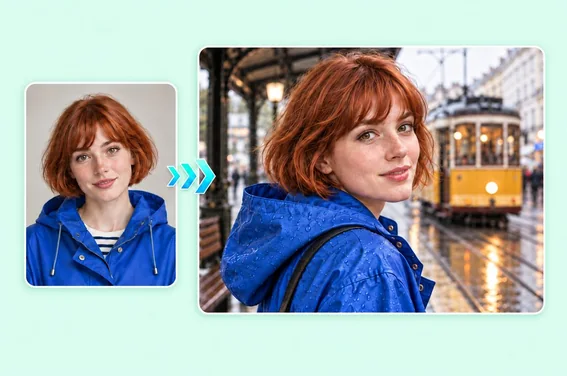
Nano Banana 2.1
Qwen Image 3
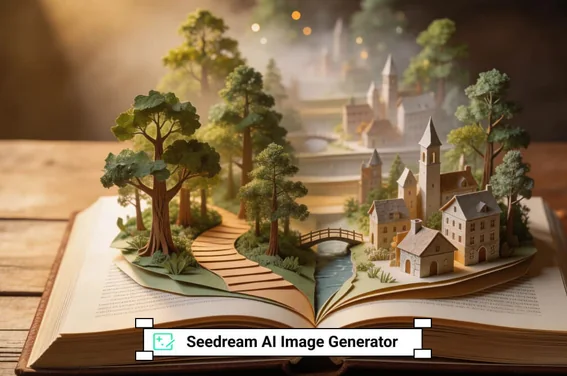
Seedream AI
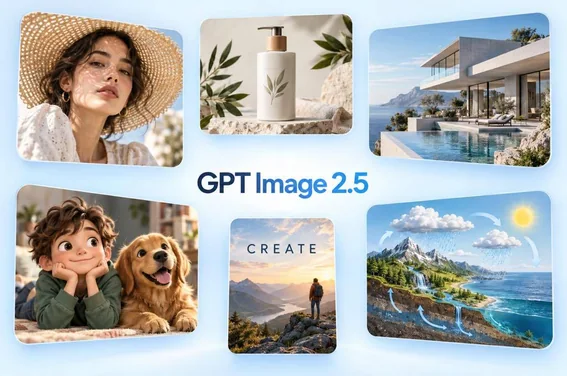
GPT Image 2.5

Nano Banana Pro
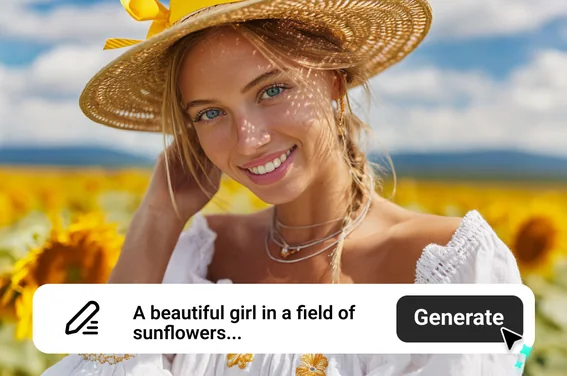
Recraft AI
Review summary: Enjoys the photo effects, smooth editing experience, and background removal features.
Read the review
summertls · App Store