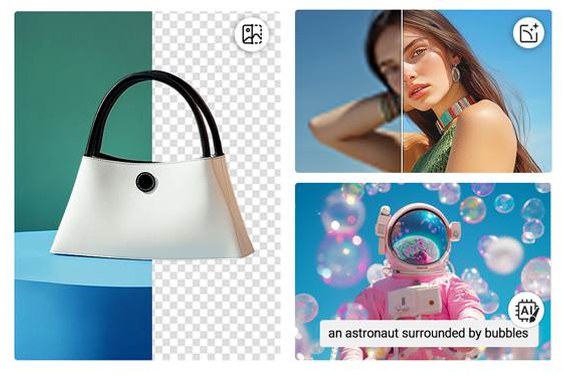
Nano Banana 2.1 AI Image Generator

Create from text or edit images with visual references. Refine characters and product visuals, then choose 1K, 2K, or 4K output.

Key Features of Nano Banana 2.1
Keep Characters and References Consistent

Keep Characters and References Consistent

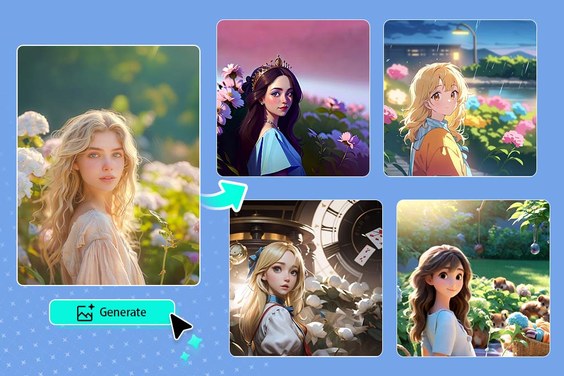
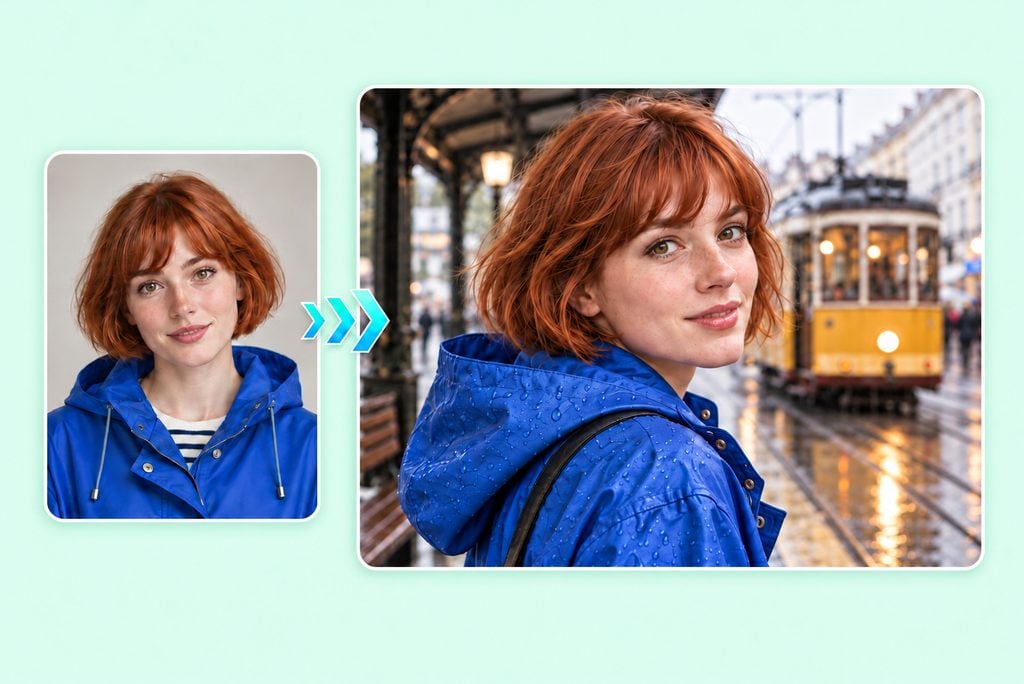
Bring a character or visual reference into a new scene and describe what should change. Nano Banana 2.1 improves multi-turn character consistency, so a face, outfit, or recurring visual can stay recognizable as you explore different compositions. Check important identity and object details before publishing.
Try a Reference Image
Follow Detailed Prompts with Greater Precision

Follow Detailed Prompts with Greater Precision

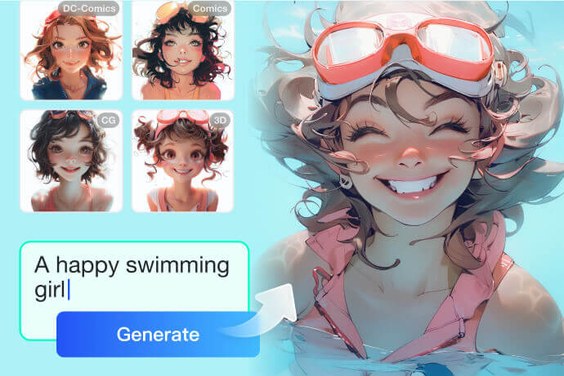
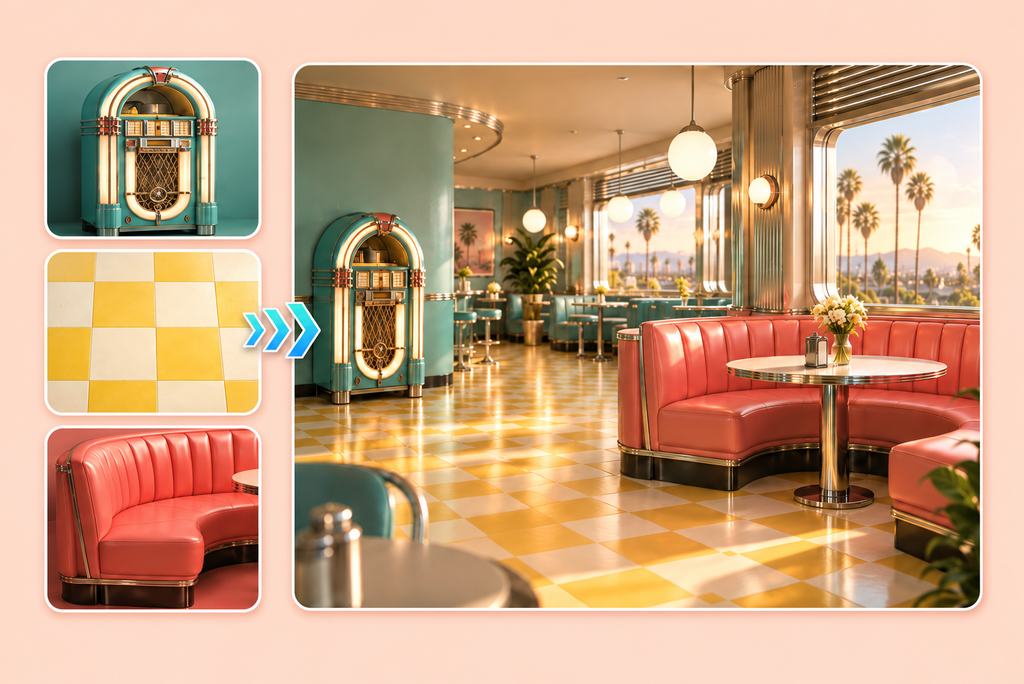
Give Nano Banana 2.1 a clear brief for the subject, scene, lighting, and composition. Its improved prompt adherence helps bring those details together, whether you're creating from text or guiding the result with references. Use insMind's AI image generator to test a direction, then tighten the prompt where the image needs more control.


For another image model to explore, try the GPT Image 2.6 AI image generator on insMind.
Create from a Prompt
Edit Images with Plain Language

Edit Images with Plain Language

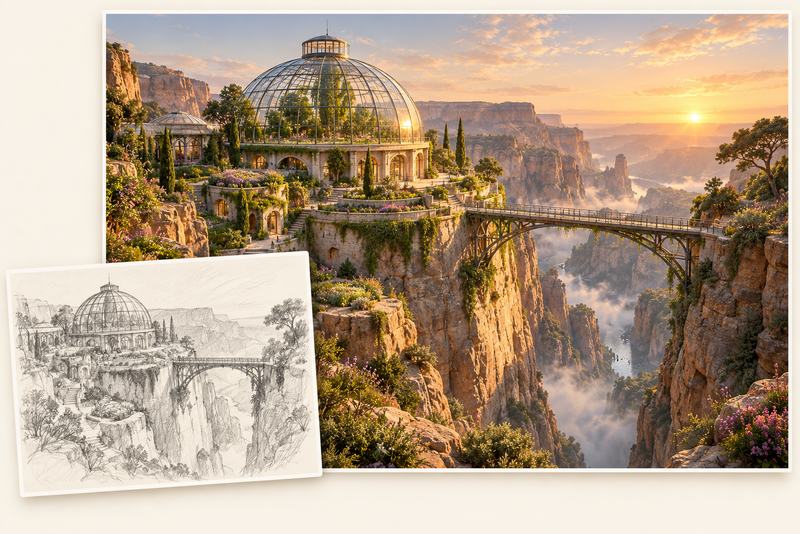
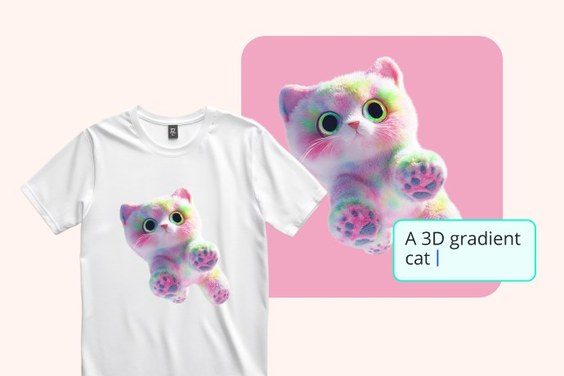
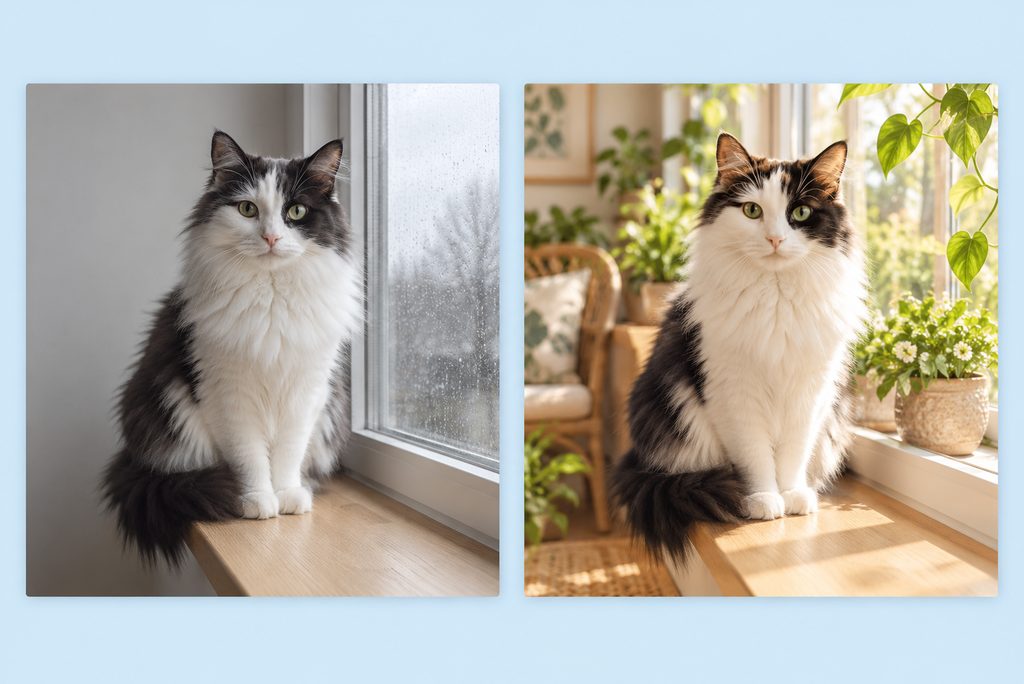
Start with a portrait, sketch, product image, or other visual reference and describe the change in plain language. Nano Banana 2.1 can use image inputs for editing and new variations; tell it what to preserve as well as what to change. Explore more image-to-image ideas, then check the result for unintended edits.
Edit an Image
Make Detailed Images up to 4K

Make Detailed Images up to 4K

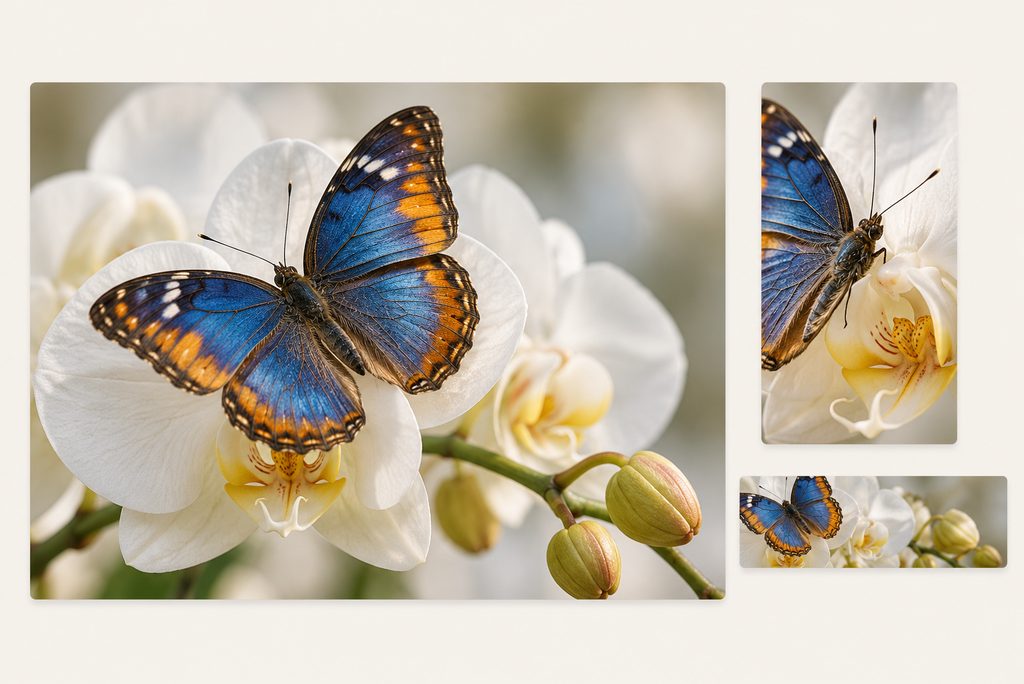
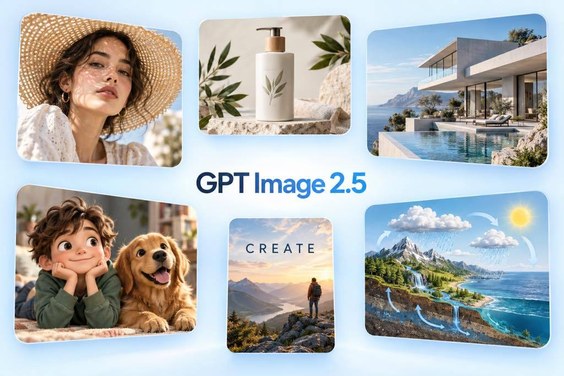
Choose 1K, 2K, or 4K output and a ratio that fits your idea, from a portrait post to a panoramic banner. Nano Banana 2.1 improves realism and text rendering, and Google reports a fix for tiling artifacts in extreme 2K and 4K ratios. Proofread small text before using an image publicly.
Create in 4K

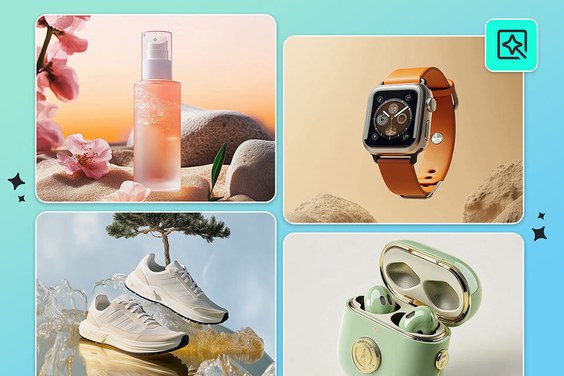
Nano Banana 2.1 Image Examples Worth Trying

How to Use Nano Banana 2.1 on insMind

Step 1: Choose Nano Banana 2.1

Open the insMind Agent in Image mode and make sure Nano Banana 2.1 is selected.

Step 2: Add Your Prompt and References

Describe the subject, style, and changes you want. Add source images when needed, and say which character, object, or layout details should stay recognizable.

Step 4: Refine and Download

Adjust the prompt if needed. Check faces, product details, and small text, then download the image you want to use.

Step 3: Set the Format and Generate

Choose an aspect ratio and 1K, 2K, or 4K output, then generate and review the image.

What Can You Make with Nano Banana 2.1?

Create and edit images for social posts, marketing, portraits, and visual concepts with Nano Banana 2.1.
Roll Out a Visual Across Channels
Roll Out a Visual Across Channels

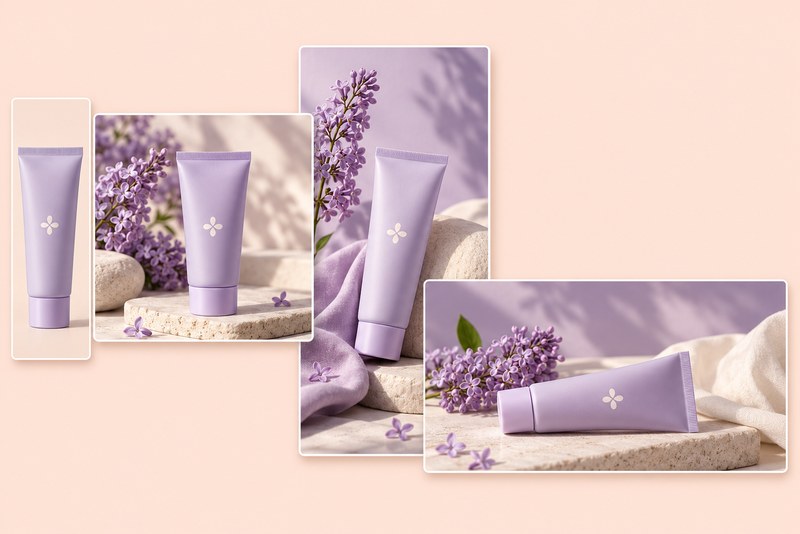
An independent brand has one approved product photo but needs a feed image, story, and wide website banner for a new release. Use the photo as a reference, specify what must stay recognizable, and create separate compositions for each placement. For a dedicated catalog workflow, explore insMind's AI product photography tool. Review every label and crop before launch.
Refresh a Personal Photo

Refresh a Personal Photo

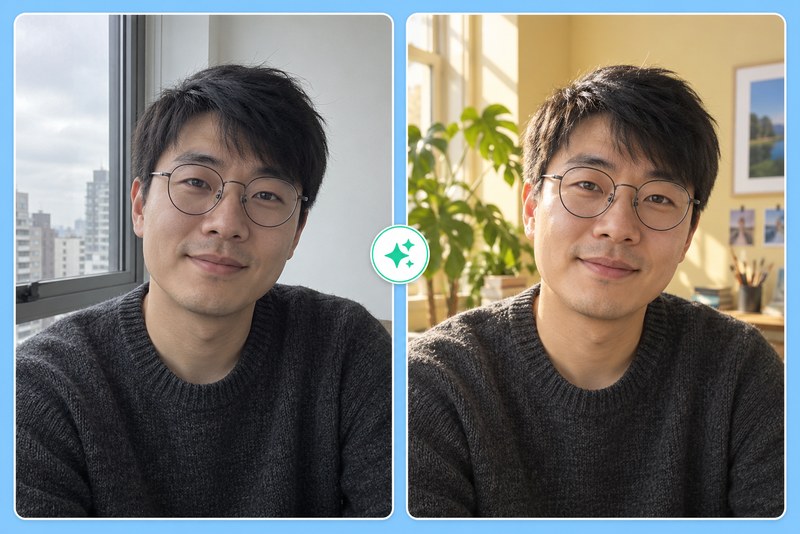
A creator wants a new portrait for a profile or post without a new shoot. Upload an authorized selfie and ask for a different background, lighting, or editorial style while retaining recognizable features. Generate a few options and check the face, hands, and clothing before choosing one.
Turn a Rough Idea into a Visual Concept

Turn a Rough Idea into a Visual Concept

A designer needs to show a fictional world or campaign direction to a team. Start with a sketch or detailed brief, identify the focal subject and layout, and generate a polished concept image. Use follow-up prompts to refine the composition before treating it as a production reference.

FAQs About Nano Banana 2.1

What is Nano Banana 2.1?

insmind expand icon
Nano Banana 2.1 is Google's image generation and conversational editing model in the Nano Banana family. It can create images from text and work with image inputs for edits and variations. The model supports 1K, 2K, and 4K output. On insMind, choose it in Image mode, write a prompt, and adjust the visible format controls.

What's different about Nano Banana 2.1 vs Nano Banana 2?

insmind expand icon
Google describes improvements in realism, prompt adherence, multi-turn character consistency, text rendering, and infographic layout. It also documents a fix for tiling artifacts in extreme wide and tall formats at 2K and 4K. Nano Banana 2 already supports many core features, including 4K output, so the difference is in these updates rather than a completely new workflow.

Can I edit an existing image with Nano Banana 2.1?

insmind expand icon
Yes. For Nano Banana 2.1 image editing, start with source images and describe the change you want. A useful prompt says what to alter and what to preserve: “Change the background to a bright studio; keep the person's face and jacket recognizable.” Inspect the result, especially around hands, faces, text, and object edges.

Does Nano Banana 2.1 generate 4K images?

insmind expand icon
The model supports 1K, 2K, and 4K output options, and the insMind interface shown for this page includes those choices. Pick a resolution and aspect ratio that suit your intended use. “4K” is a size setting, so the actual pixel dimensions vary with the ratio. Availability or credit cost may depend on current insMind settings.

Can Nano Banana 2.1 put text in an image?

insmind expand icon
Yes. Google reports improved text rendering and infographic layout, which can help with posters, signs, and short headlines. Keep important wording short and explicit in the prompt. Before you publish or print an image, check every word, number, label, and small line of copy; generated text can still need correction.

Is Nano Banana 2.1 better than Nano Banana Pro?

insmind expand icon
They serve different needs. Google positions Nano Banana 2.1 as a high-efficiency model for generation and editing, while Nano Banana Pro is its premium choice for complex visual tasks and precise creative control. Nano Banana 2.1 also offers extreme ratios such as 1:8 and 8:1. The best choice depends on your prompt, output format, and how much review the image needs.

Can Nano Banana 2.1 keep a character consistent across images?

insmind expand icon
Yes. Start with a clear reference image and describe the character's defining features in your prompt. Nano Banana 2.1 can help keep the character recognizable across images as you change the scene, pose, or style.

How do I write a good Nano Banana 2.1 prompt?

insmind expand icon
Name the subject, setting, style, lighting, composition, and target aspect ratio. For text-to-image, tell the model what should appear and what to avoid. For photo editing or image-to-image work, say which parts of your uploaded image must stay recognizable. Put exact short text in quotation marks, then inspect the generated image before using it.

More AI Image Tools to Explore After Nano Banana 2.1